'%20d='M0%208a8%208%200%200%201%208-8h24a8%208%200%200%201%208%208v24a8%208%200%200%201-8%208H8a8%208%200%200%201-8-8V8Z'/%3e%3cpath%20fill='%23fff'%20d='M10.41%206v3.779h15.048v19.537h4.132V6H10.41Z'/%3e%3cpath%20fill='%23fff'%20d='M20.967%2034V13.837L10.41%209.78v20.166L20.967%2034Z'/%3e%3cdefs%3e%3clinearGradient%20id='reapit-sales__a'%20x1='20.702'%20x2='20.702'%20y1='.351'%20y2='31.228'%20gradientUnits='userSpaceOnUse'%3e%3cstop%20stop-color='%235573FD'/%3e%3cstop%20offset='.575'%20stop-color='%234E56EA'/%3e%3c/linearGradient%3e%3c/defs%3e%3c/svg%3e)
Apply Marketing Expenses to a Property
This article will cover applying marketing expenses to a property in Reapit Sales.
Apply Marketing Expenses to a Property
This article will cover applying marketing expenses to a property in Reapit Sales.
*Note: Only Suppliers with the status 'active' will appear when applying expenses.
Categories can be created/edited by Master Users via System Configuration Advanced > Other > Expense Categories and Supplier Items can be assigned to these categories via the Suppliers contact card in the Supplier Items tab.
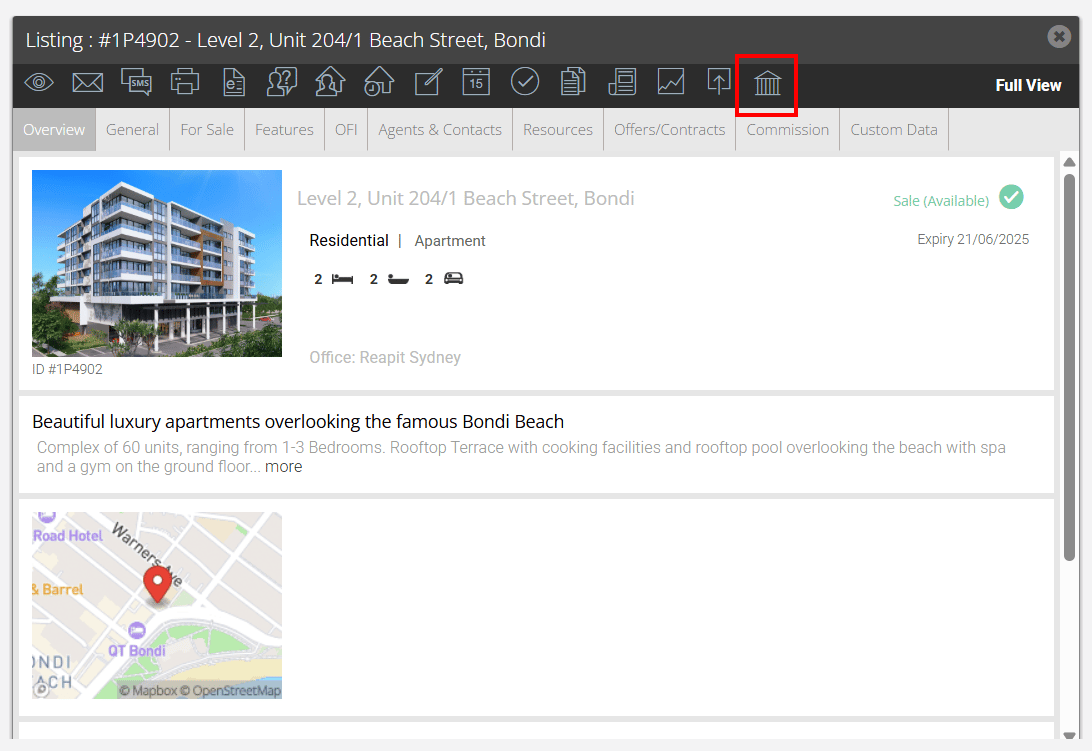
- Search for your Property and open the Listing Card.
- Click the Marketing Funds tab.
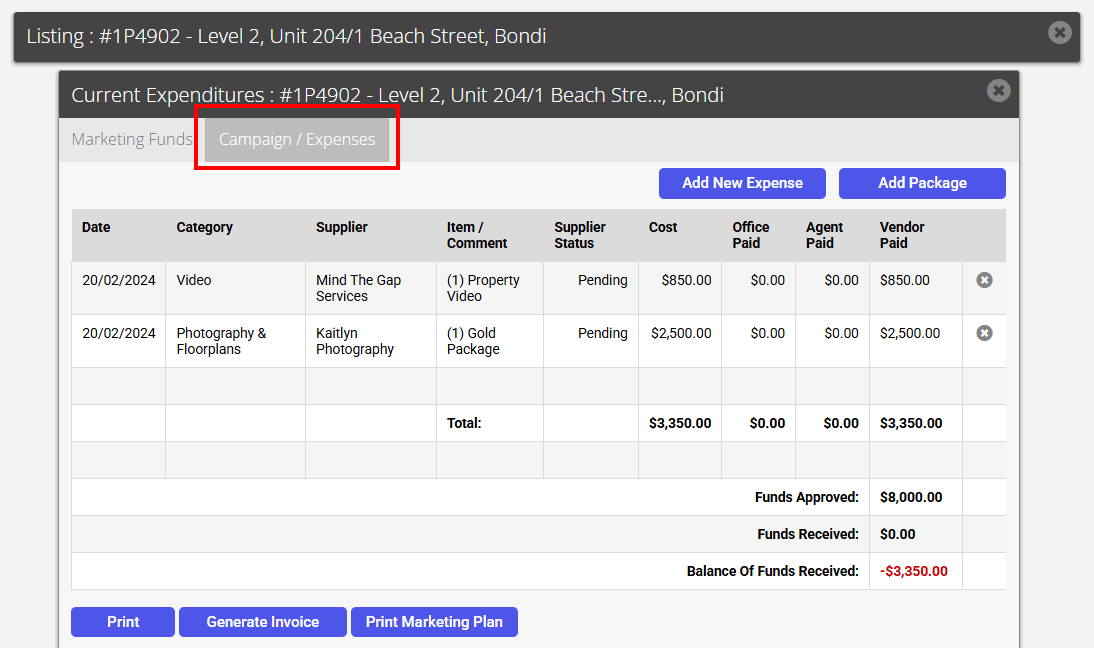
- Click the Current Expenditures Tab.
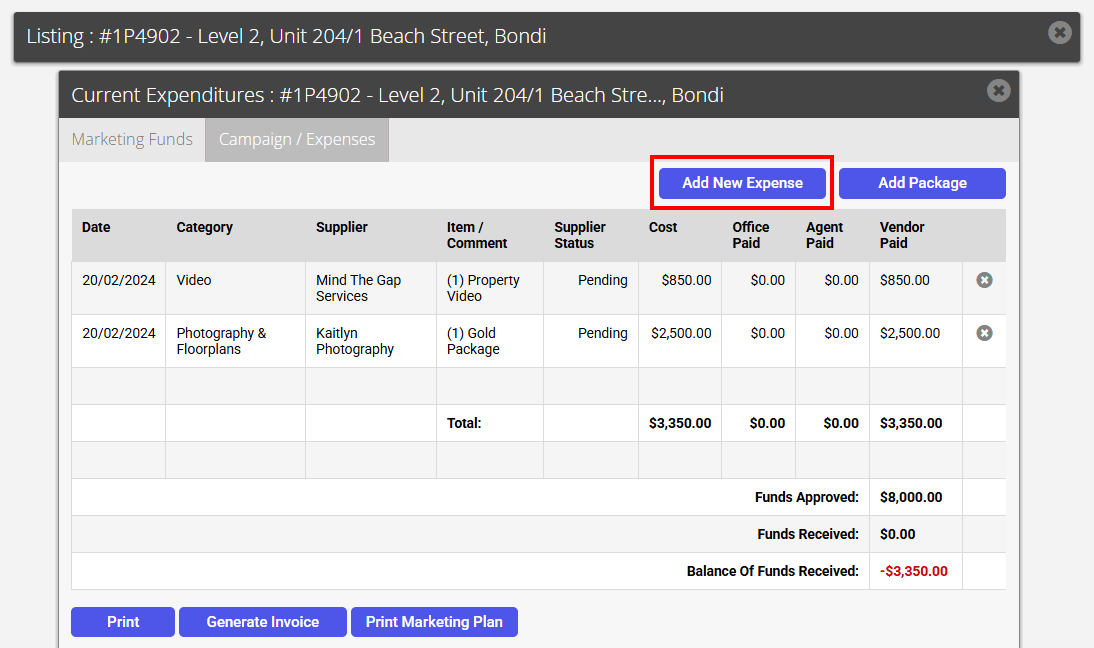
- Click Add New Expense or alternatively Apply a predefined Marketing Package to assign multiple expenses at once.
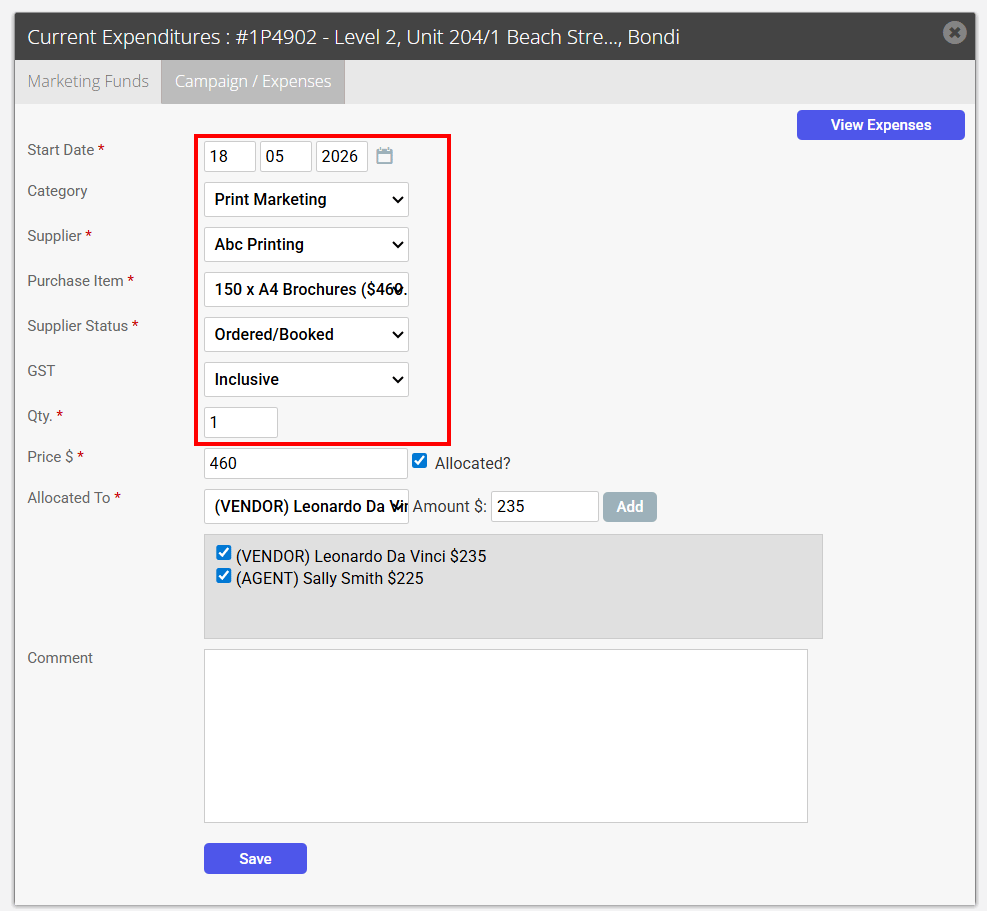
- Complete the new Marketing Expense.
- Enter the Date of expense - e.g. ordered date or appearance date.
- Select the Category (Refer to How to add a supplier. Categories can be created/edited by Master Users via System Configuration Advanced > Other > Expense Categories and supplier Items can be assigned to these categories via the Suppliers contact card in the Supplier Items tab).
- Select the Supplier (Refer to How to add a supplier).
- Select the Purchase Item or create a new one.
**Note: When creating a new item via marketing funds you are not able to assign the item to an expense category. This needs to be done via the Supplier items ***tab of the supplier's contact card.
- Select a Quantity and the Price will automatically calculate however can be overwritten.
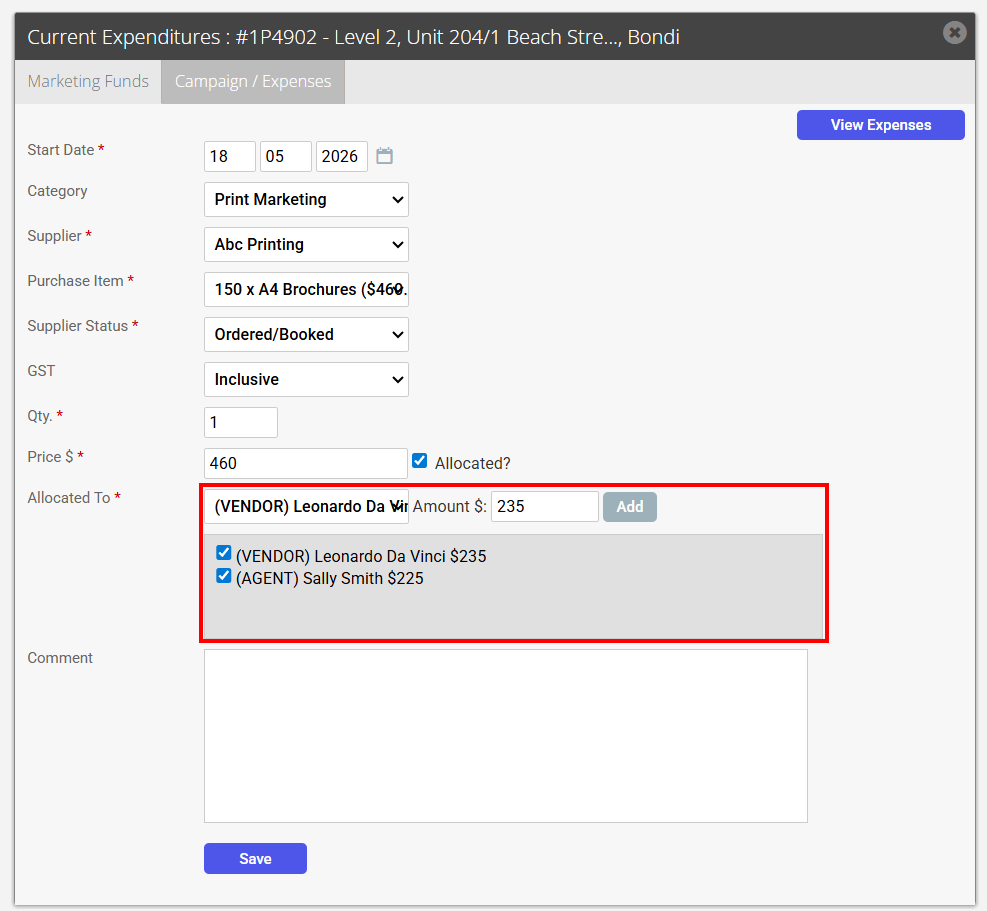
- Enter the expense amount and by ticking the Allocated box you can record who is responsible for this expense, in this case, half will be paid by the office and half by the vendor.
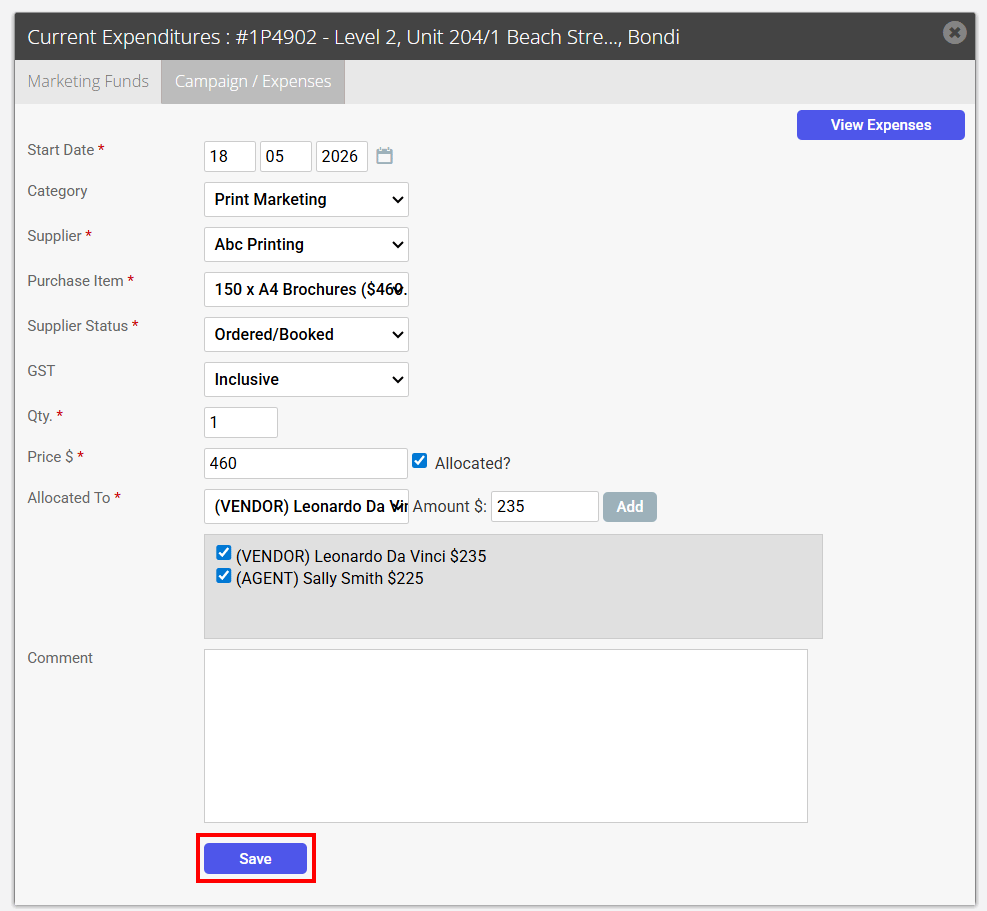
- Enter the comments and click Save.
- Repeat step 4 until all expenses have been logged.
In this example, the total expenditure to be paid by the Vendor totals $1175.00, because they have already made a part paymentagainst the marketing fund of $300.00, the balance outstanding is shown in red. If they had made a full payment, it would show how much they have left to spend from their approved funds.
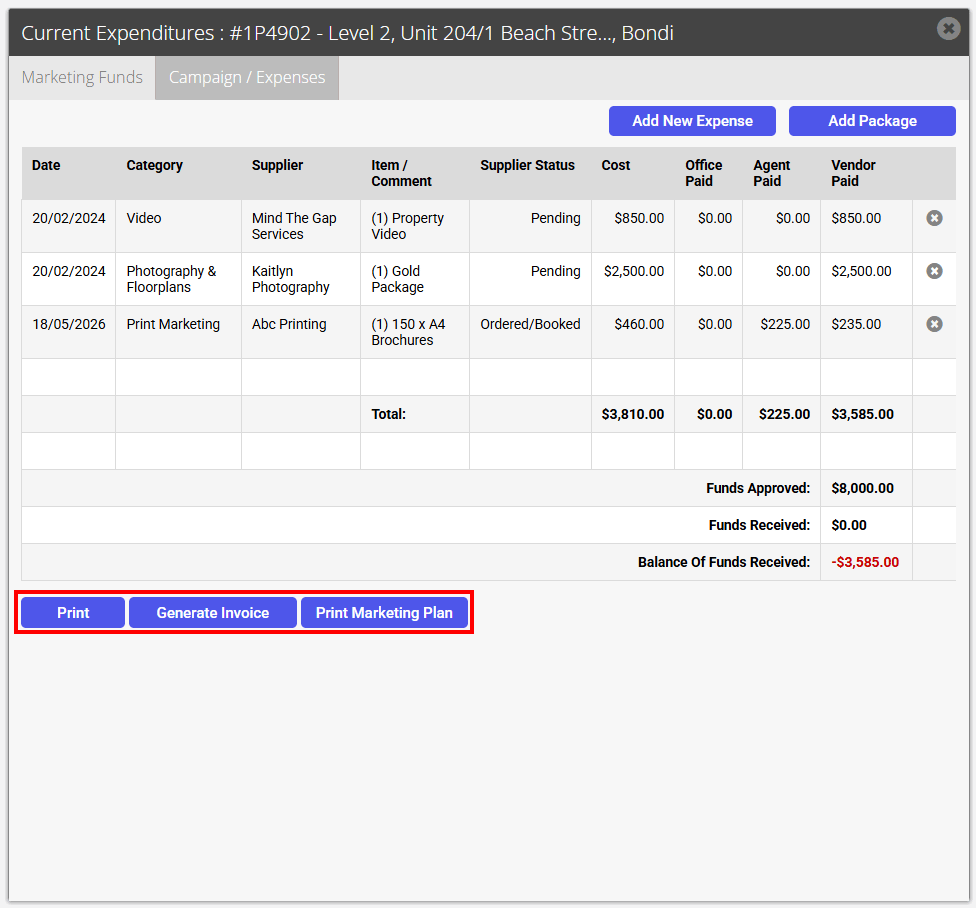
- Once finished, you can create three different reports:
- You can click Print to Generate a Report.
- You can click Generate Invoice for the client to Generate an Invoice.
- You can click Print Marketing Plan to generate a Marketing Plan/Proposal.