'%20d='M0%208a8%208%200%200%201%208-8h24a8%208%200%200%201%208%208v24a8%208%200%200%201-8%208H8a8%208%200%200%201-8-8V8Z'/%3e%3cpath%20fill='%23fff'%20d='M10.41%206v3.779h15.048v19.537h4.132V6H10.41Z'/%3e%3cpath%20fill='%23fff'%20d='M20.967%2034V13.837L10.41%209.78v20.166L20.967%2034Z'/%3e%3cdefs%3e%3clinearGradient%20id='reapit-sales__a'%20x1='20.702'%20x2='20.702'%20y1='.351'%20y2='31.228'%20gradientUnits='userSpaceOnUse'%3e%3cstop%20stop-color='%235573FD'/%3e%3cstop%20offset='.575'%20stop-color='%234E56EA'/%3e%3c/linearGradient%3e%3c/defs%3e%3c/svg%3e)
Log Project Inspection Feedback
This article shows how to log project inspections feedback in Reapit Sales.
Note: This tutorial is to record inspection feedback against the whole Project not the individual listings within the project.
1. Search for your Project and open the Project card.
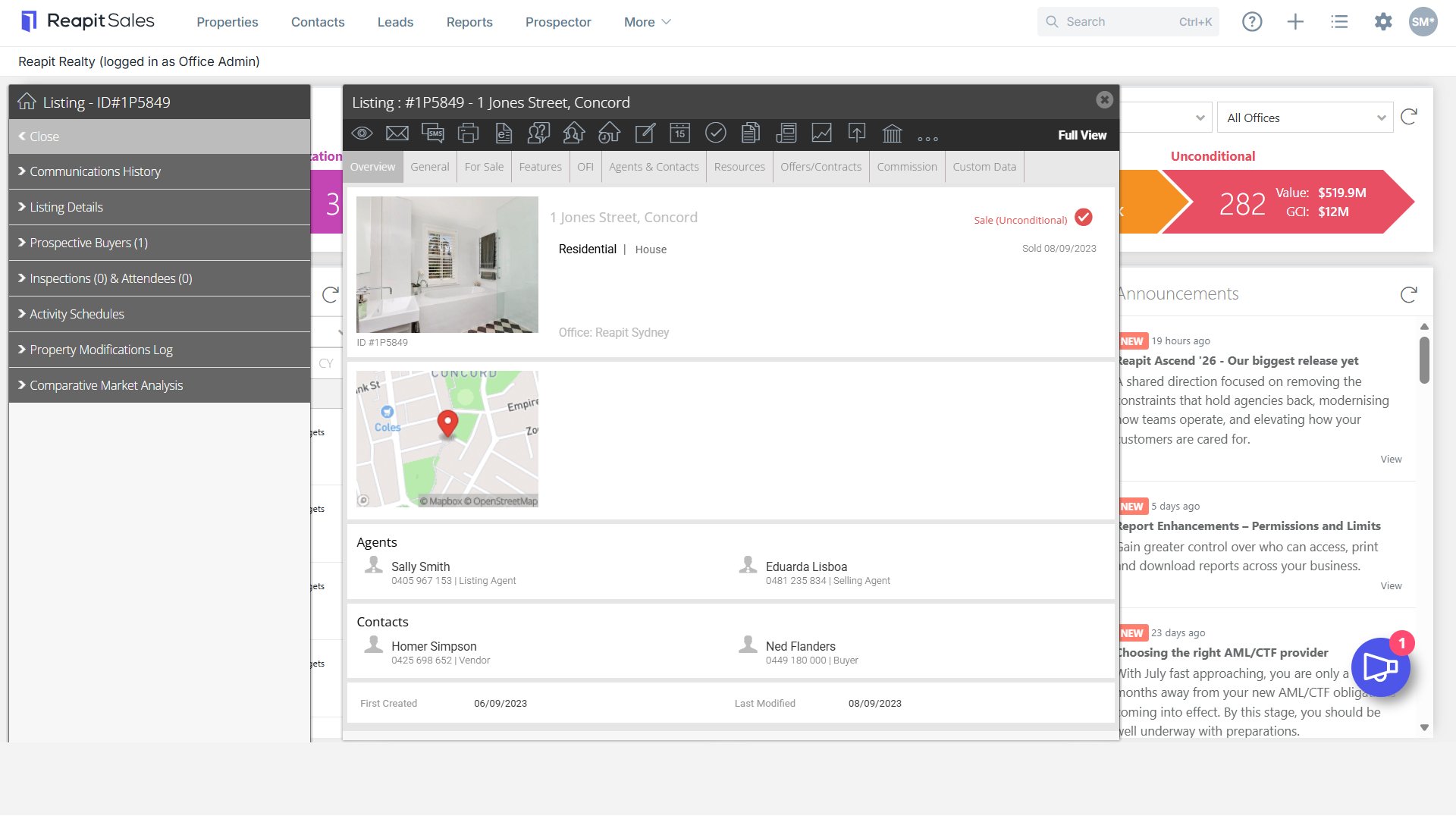
2. Click on Prospective Buyers/Tenants on the left property tab.
Note: If you cannot see this tab, click Full View in the top right-hand corner of the Project Card.
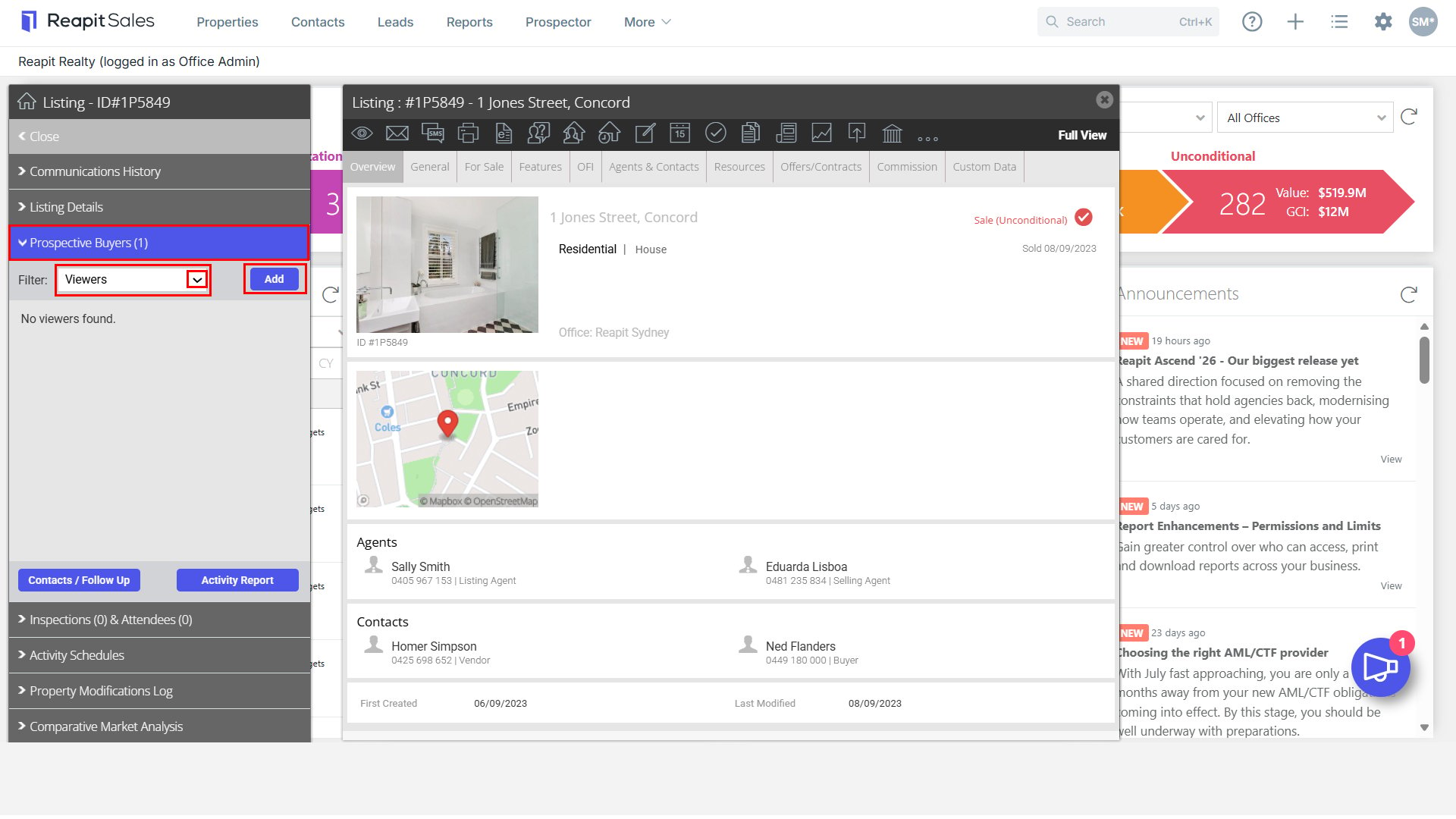
3. Select Viewers from the Filter drop-down.
4. Click Add.
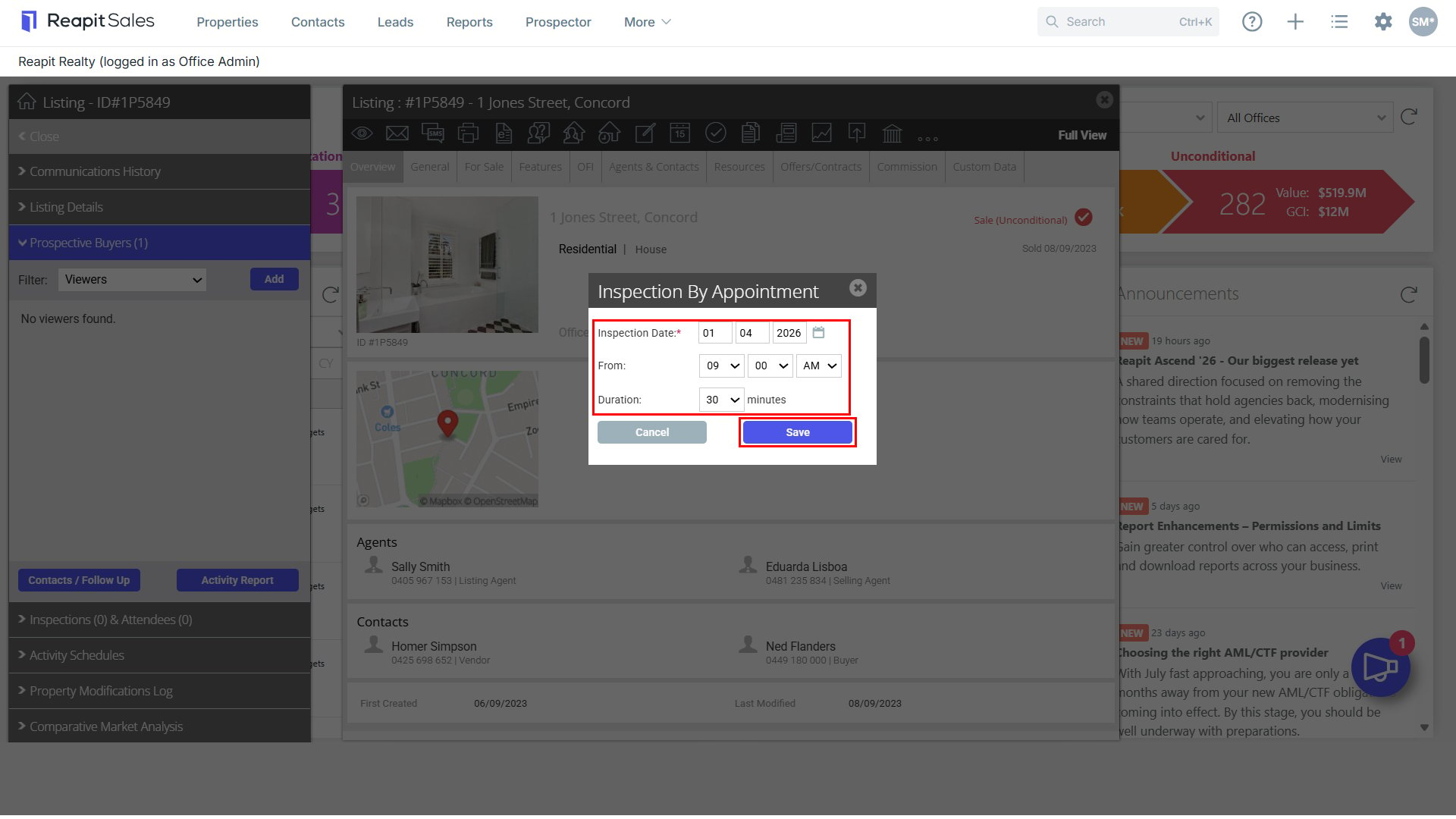
5. Enter the Date and Time of the inspection and click Save
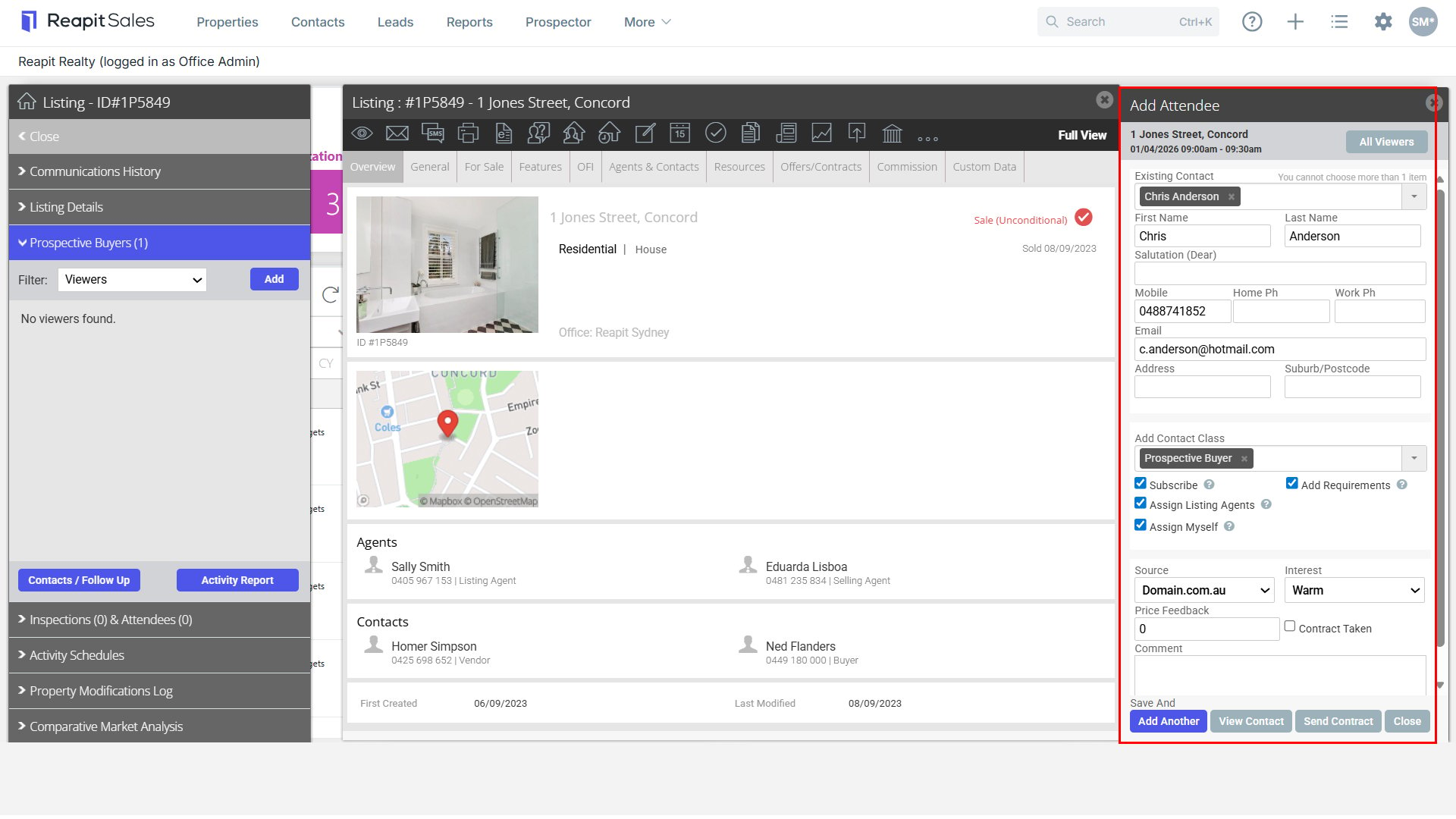
6. The right panel will open
- Search for an existing contact or add a new one
- Add/Edit contact classes to contact if applicable
- Tick to Subscribe contact to Newsletters & Property Updates
- Tick to Add Requirements to contact based on property they have inspected
- Select the inspection source from the drop down
- Select Interest level from the drop down
- Enter their price feedback
- Tick the contract taken tick box if a contract was taken
- Enter their comments
When creating a new contact if you tick the Requirements check-box it will prefill their buyer/tenant requirements on their contact card based on the property they have inspected. If you don't want this to happen or would like to adjust what is added, click on Add Requirements. The checked items will be added to the contact once created and the unchecked will not. If all are unchecked, then no requirements will be added to the contact.

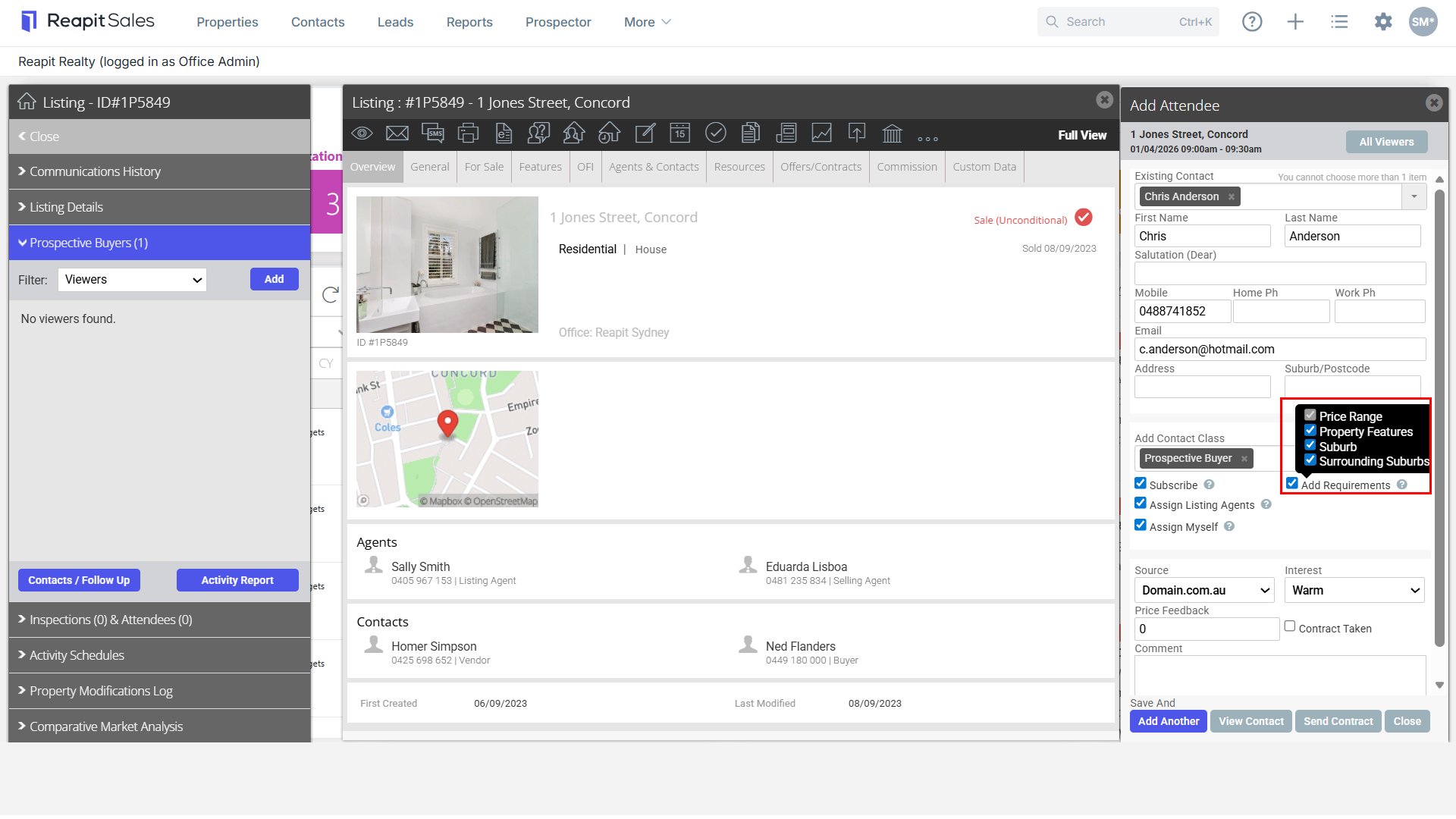
7. Click Save And:
- Add Another to add another attendee on the same date and time
- View Contact to save and open the contact record that has just been created
- Send Contract to save email a copy of the property contract that has been uploaded in the resources tab of the project
- Close to save feedback and close the tab.