'%20d='M0%208a8%208%200%200%201%208-8h24a8%208%200%200%201%208%208v24a8%208%200%200%201-8%208H8a8%208%200%200%201-8-8V8Z'/%3e%3cpath%20fill='%23fff'%20d='M10.41%206v3.779h15.048v19.537h4.132V6H10.41Z'/%3e%3cpath%20fill='%23fff'%20d='M20.967%2034V13.837L10.41%209.78v20.166L20.967%2034Z'/%3e%3cdefs%3e%3clinearGradient%20id='reapit-sales__a'%20x1='20.702'%20x2='20.702'%20y1='.351'%20y2='31.228'%20gradientUnits='userSpaceOnUse'%3e%3cstop%20stop-color='%235573FD'/%3e%3cstop%20offset='.575'%20stop-color='%234E56EA'/%3e%3c/linearGradient%3e%3c/defs%3e%3c/svg%3e)
Prospective Tenant Panel
This article runs through the prospective tenant panel in Reapit Sales.
Prospective Tenant Panel
This article runs through the prospective tenant panel in Reapit Sales.
In the Prospective Tenant panel, you can view any contact that has enquired, inspected, submitted an offer or taken a contract on that particular listing.
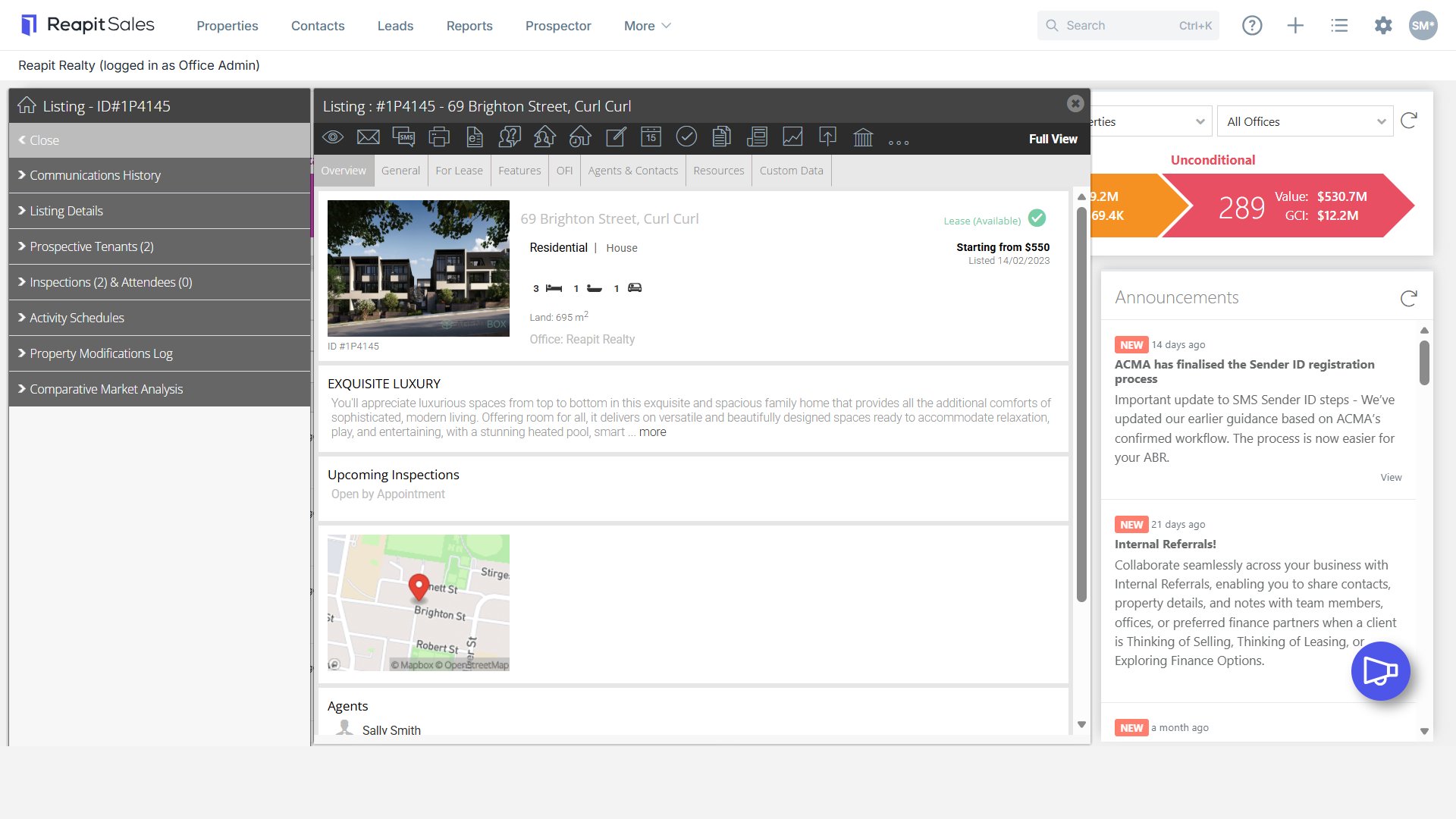
- Search for your Property and open the property card and click Full View.
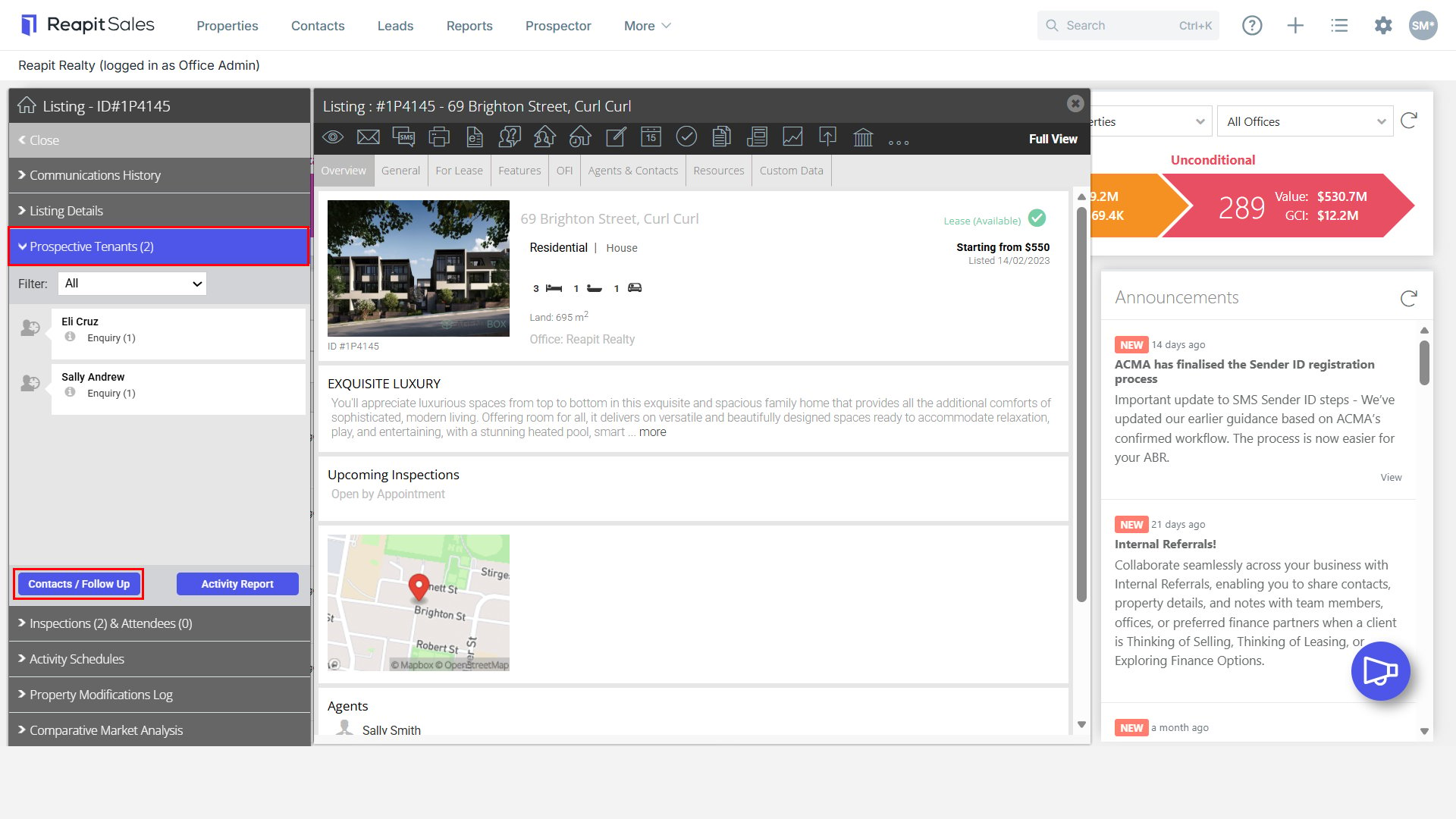
- On the left panel click Prospective Tenants.
- Here you can view all contacts that have:
- Made an enquiry
- Viewed the property by appointment or at an open for inspection
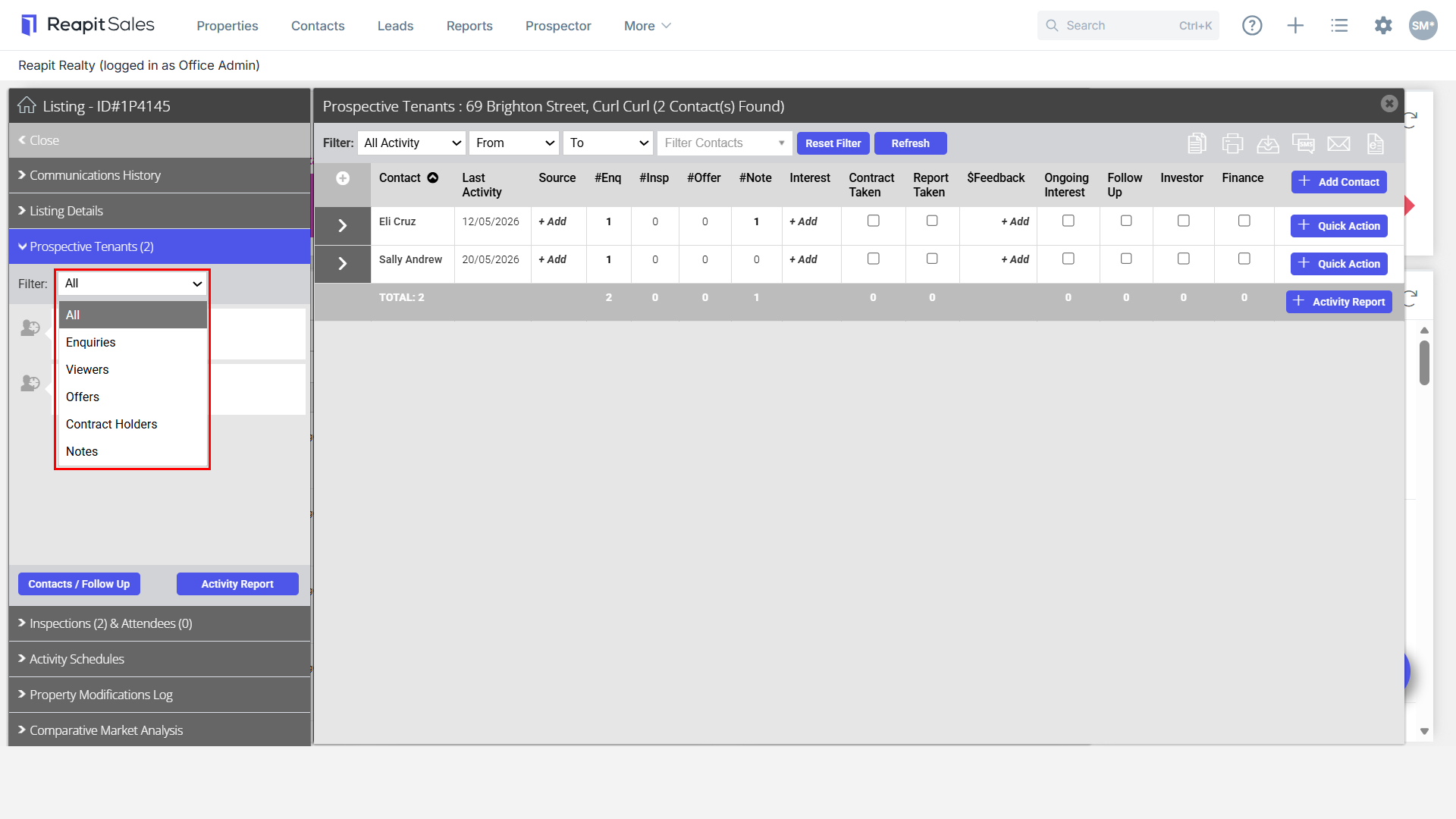
- You can filter for all Prospective Tenants by these categories by selecting from the drop-down.
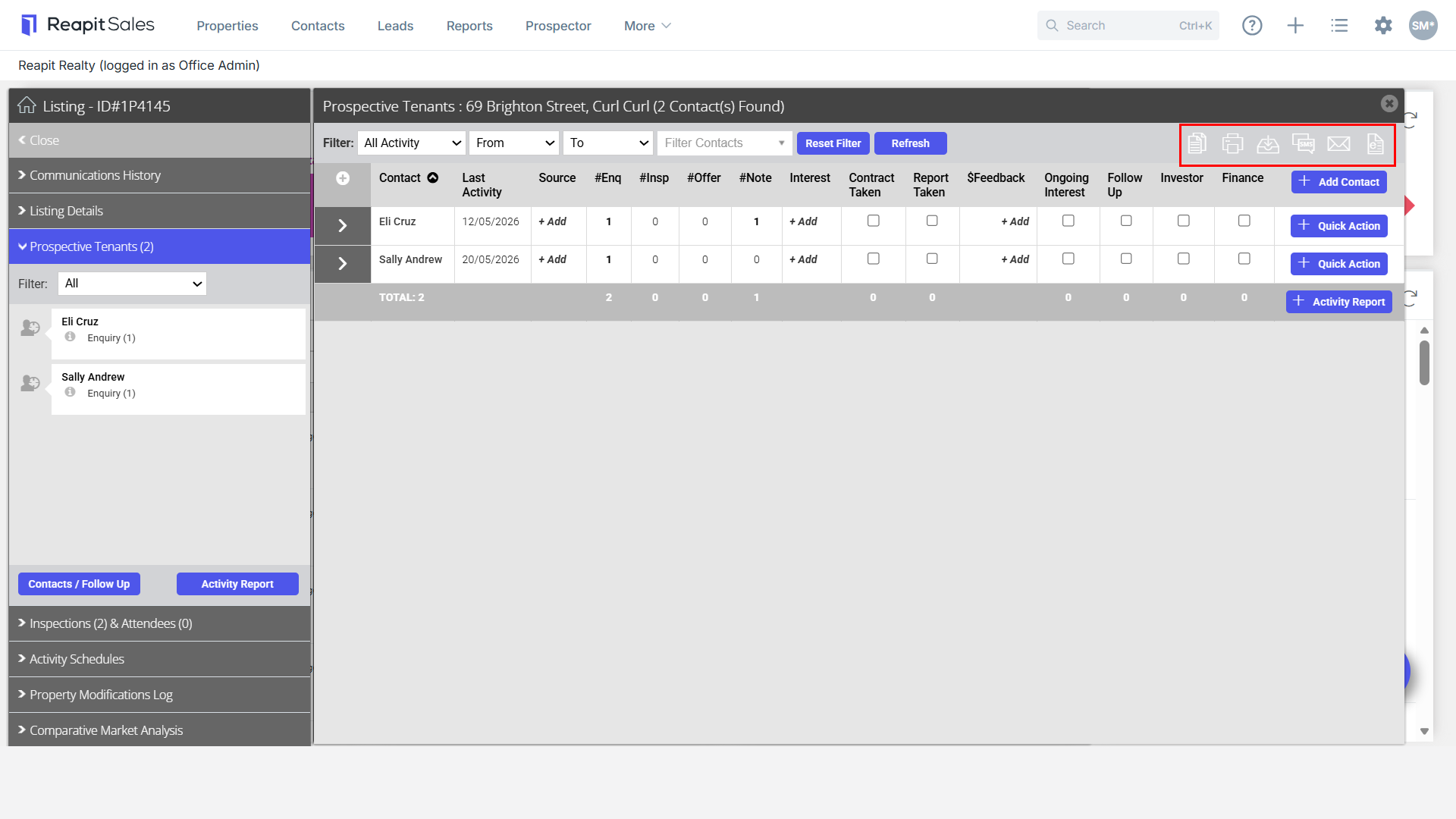
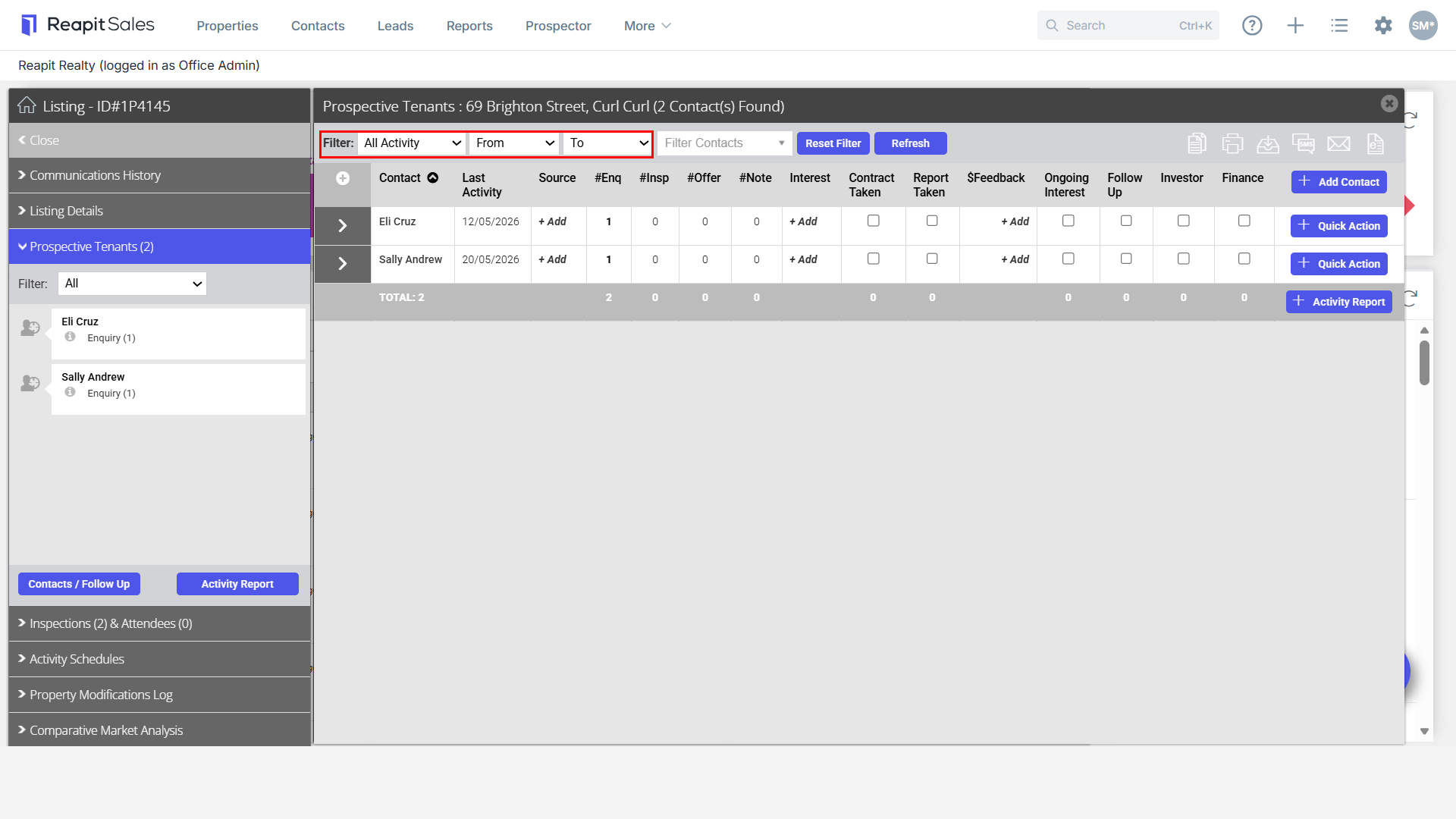
- You will see the summary of prospective tenant activity. You can filter via Activity and/or Date Range.
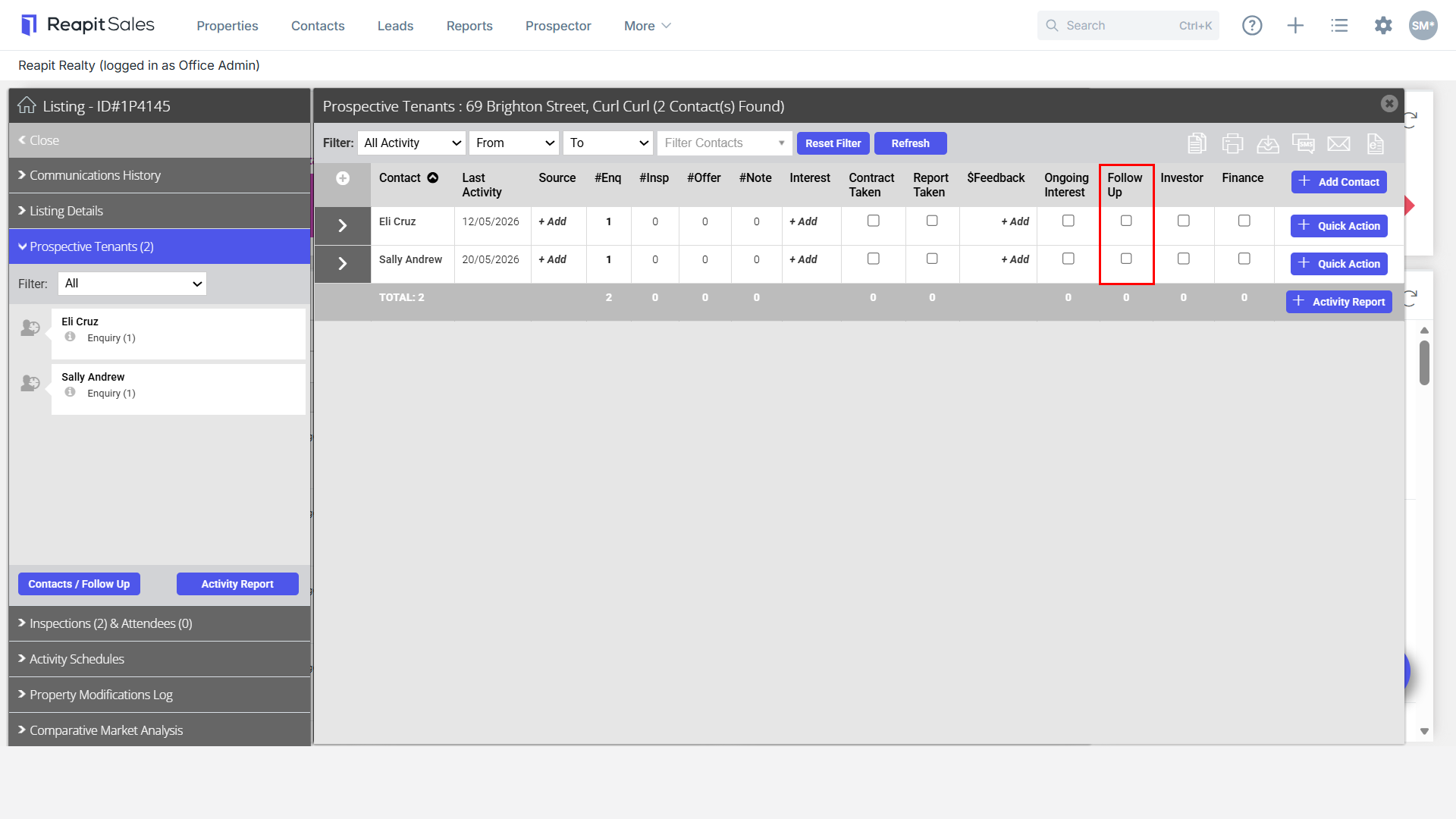
- Each of the column will feed into the Activity Report except the Follow Up column, which is for internal reference only.
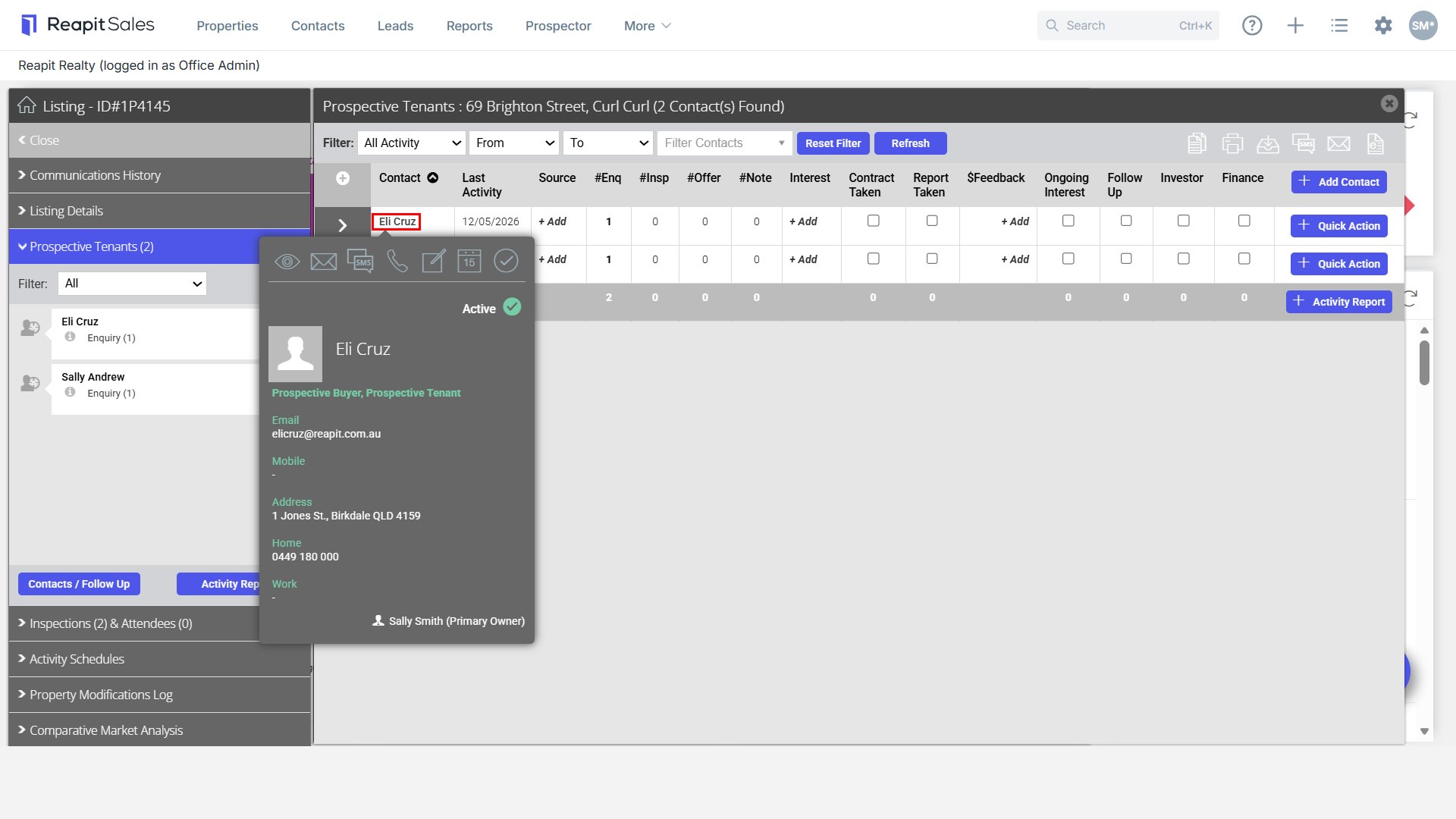
- To conduct client call backs, click on the tenant's name to see their contact details.
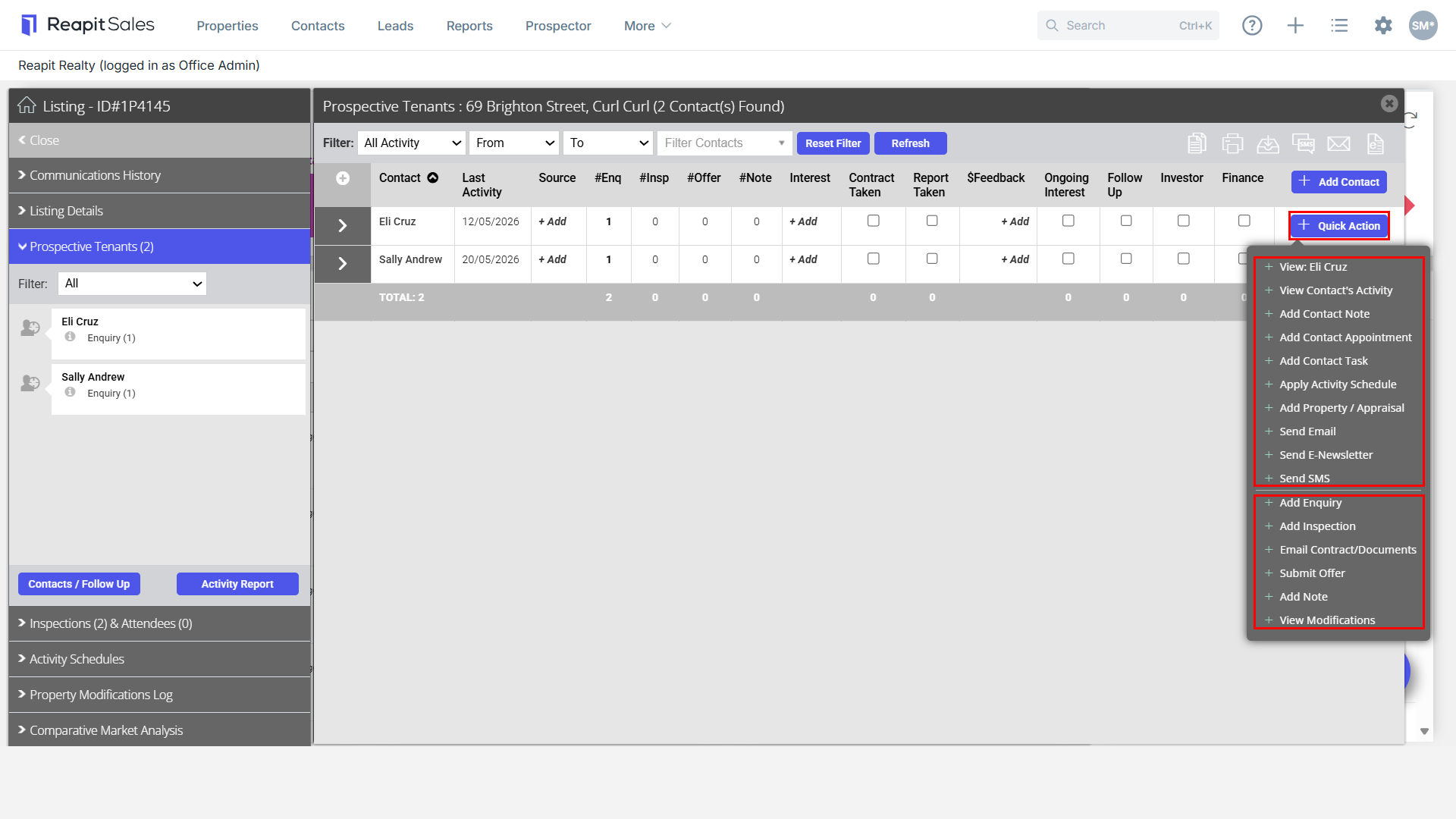
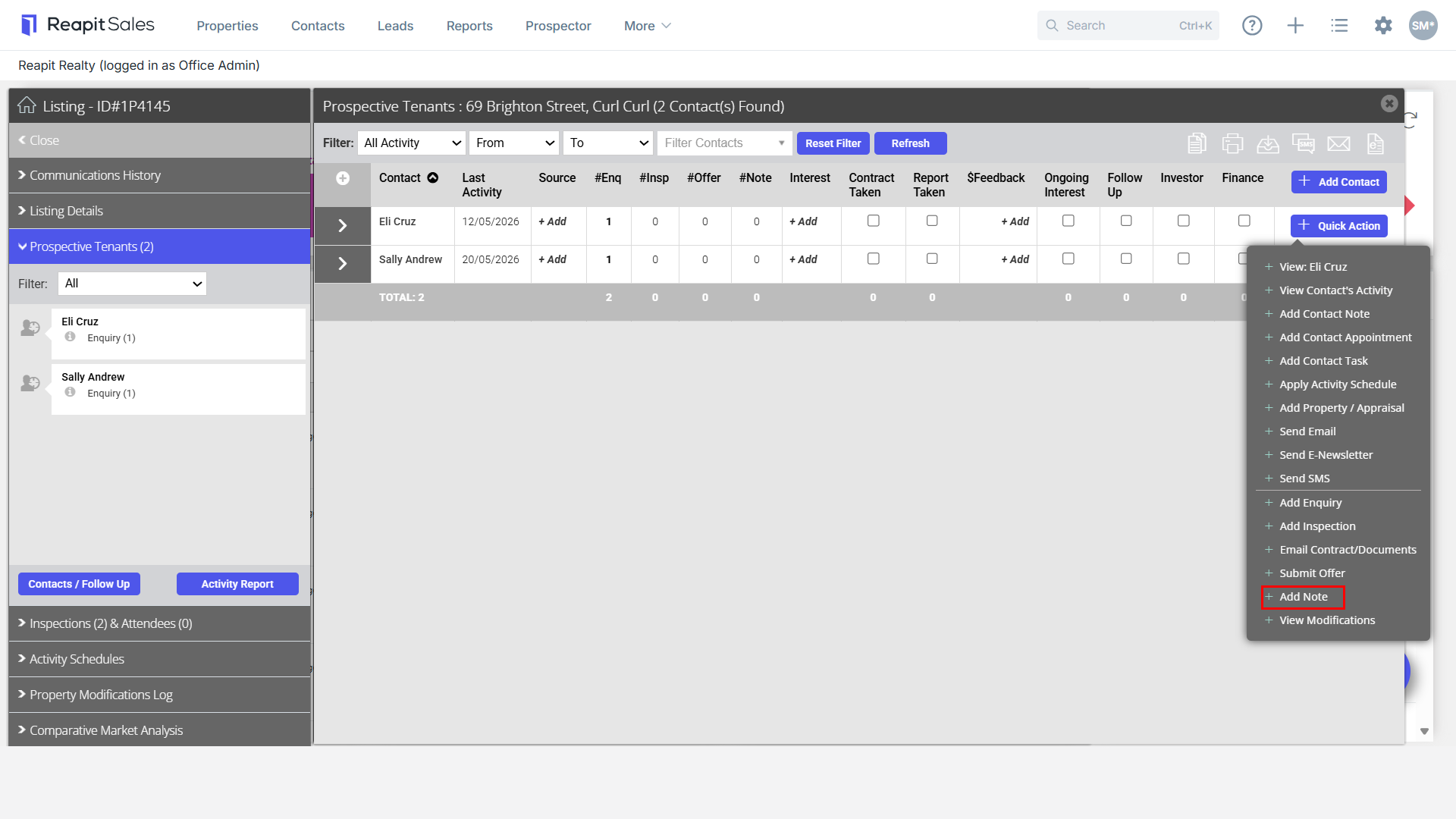
- Then click on the Quick Action button to log the outcome of your call back. Note:
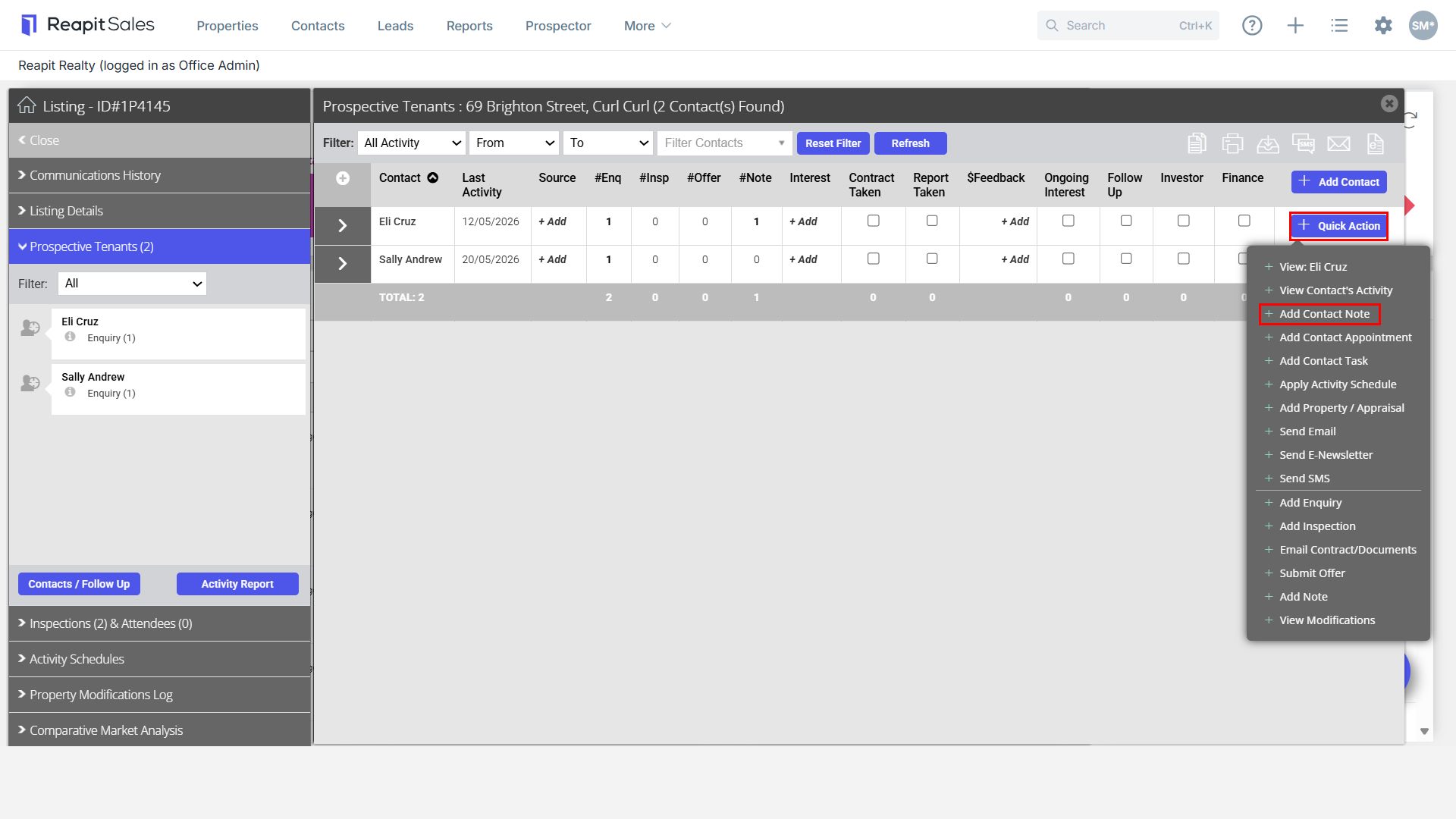
- Any actions selected above the line are logged against the contact card only.
- Any actions, selected below the line will record against the contact card and the listing card.
Example 1:
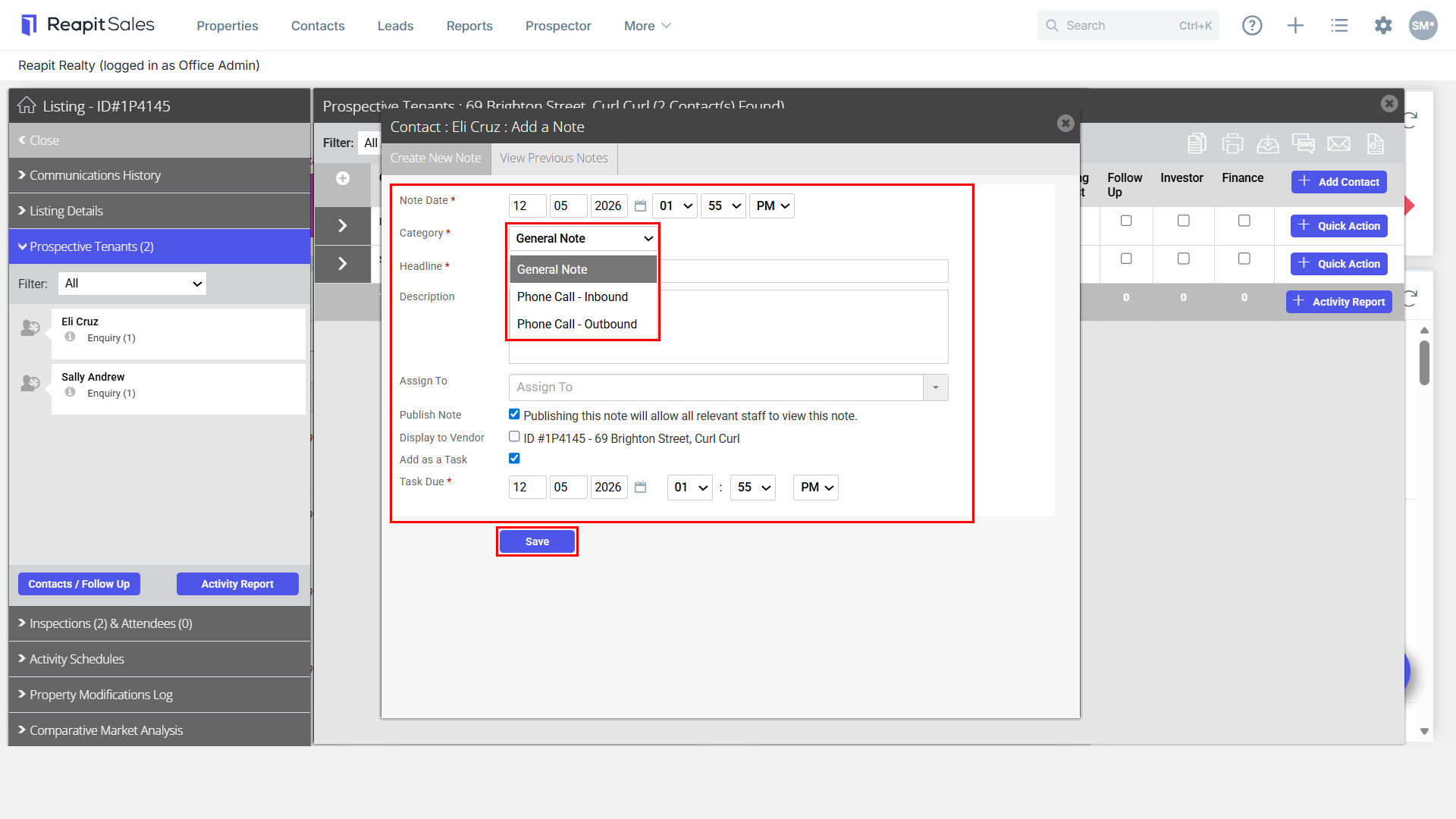
If you connect with the prospective tenant and provided feedback on the listing, then the option to Add Note below the line should be selected.
Document all the necessary details and appropriate category and or outcome. Click on Save.
Example 2:
Alternatively, if the tenant advises that they are no longer in a position to move, you will select above the line Add Contact Note. As this is related only to the contact and not the listing.
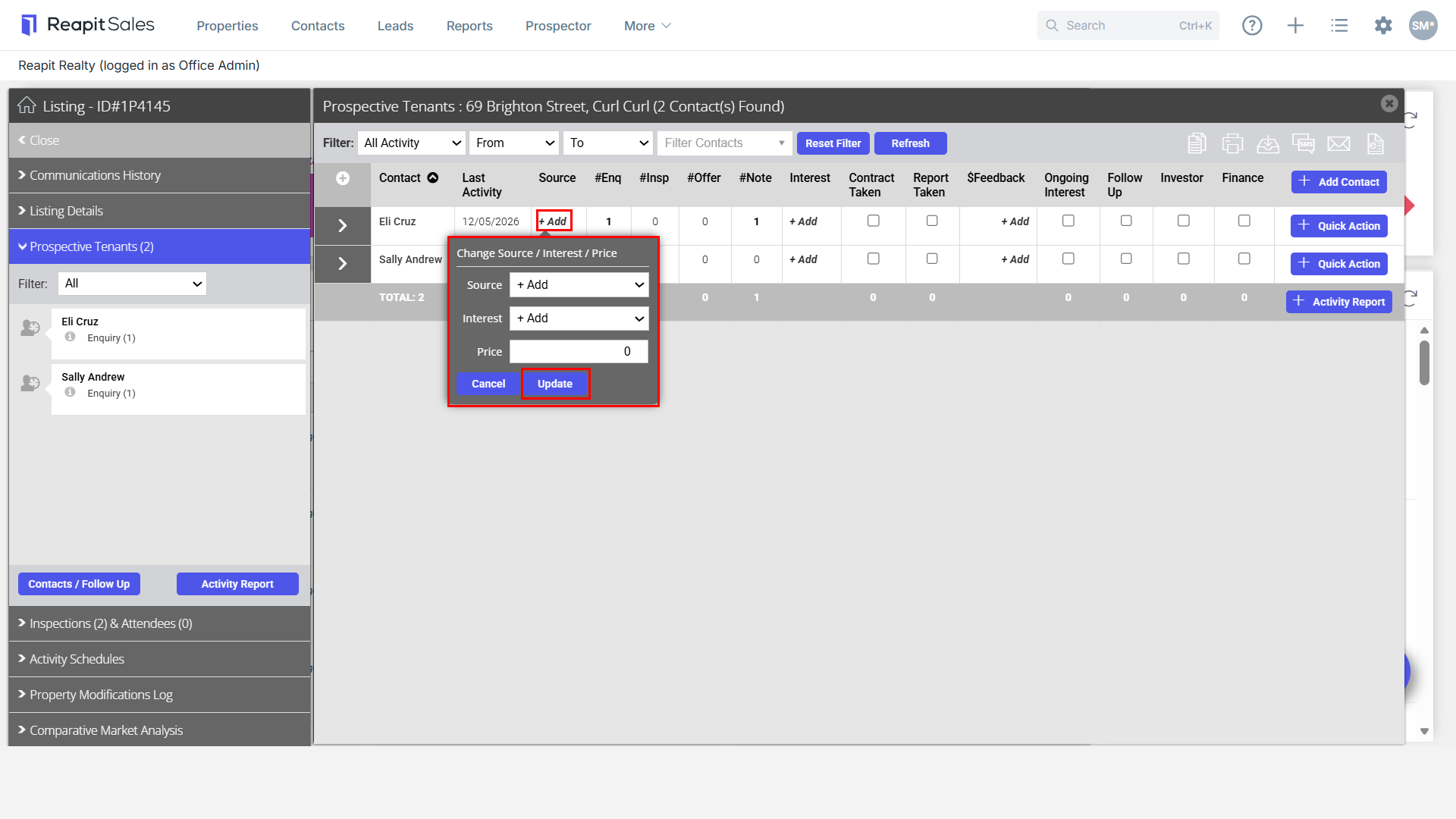
- To ensure you have a complete and informative activity report, ensure that any missing data field are updated.
- To bulk communicate, follow up or send property documents to your Prospective Tenants click the Contacts/Follow Up button for more features.