'%20d='M0%208a8%208%200%200%201%208-8h24a8%208%200%200%201%208%208v24a8%208%200%200%201-8%208H8a8%208%200%200%201-8-8V8Z'/%3e%3cpath%20fill='%23fff'%20d='M10.41%206v3.779h15.048v19.537h4.132V6H10.41Z'/%3e%3cpath%20fill='%23fff'%20d='M20.967%2034V13.837L10.41%209.78v20.166L20.967%2034Z'/%3e%3cdefs%3e%3clinearGradient%20id='reapit-sales__a'%20x1='20.702'%20x2='20.702'%20y1='.351'%20y2='31.228'%20gradientUnits='userSpaceOnUse'%3e%3cstop%20stop-color='%235573FD'/%3e%3cstop%20offset='.575'%20stop-color='%234E56EA'/%3e%3c/linearGradient%3e%3c/defs%3e%3c/svg%3e)
Sales Trust Bank Accounts
Settings This article covers how to enter back account details into the Sales Trust settings in Reapit Sales.
Overview
Sales Trust Bank Accounts
Settings
This article covers how to enter back account details into the Sales Trust settings in Reapit Sales.
Users can have unlimited General Bank Accounts and multiple Trust Accounts set up in Reapit Sales. To increase the number of Trust Accounts you have set up in the Sales Trust module, please reach out to Support or your Account Manager.
*Note: When entering bank accounts (General or Trust) be sure to select the appropriate Office profile if you have a branch model subscription.
- Select Settings from the main menu and the Bank Accounts tab
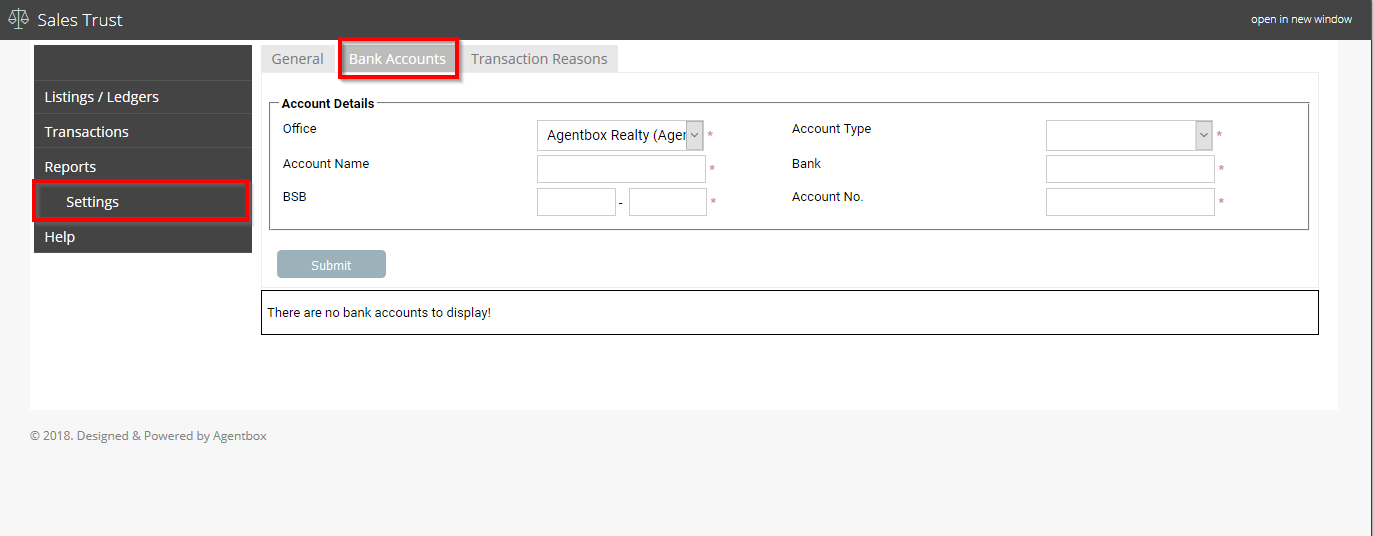
Select Office, select Account Type (Trust or General), enter Account Name, Bank, BSB and Account No. *Note: for clients with multiple trust accounts please ensure you select the correct account type
Select Submit
Follow step 2 to enter all required accounts
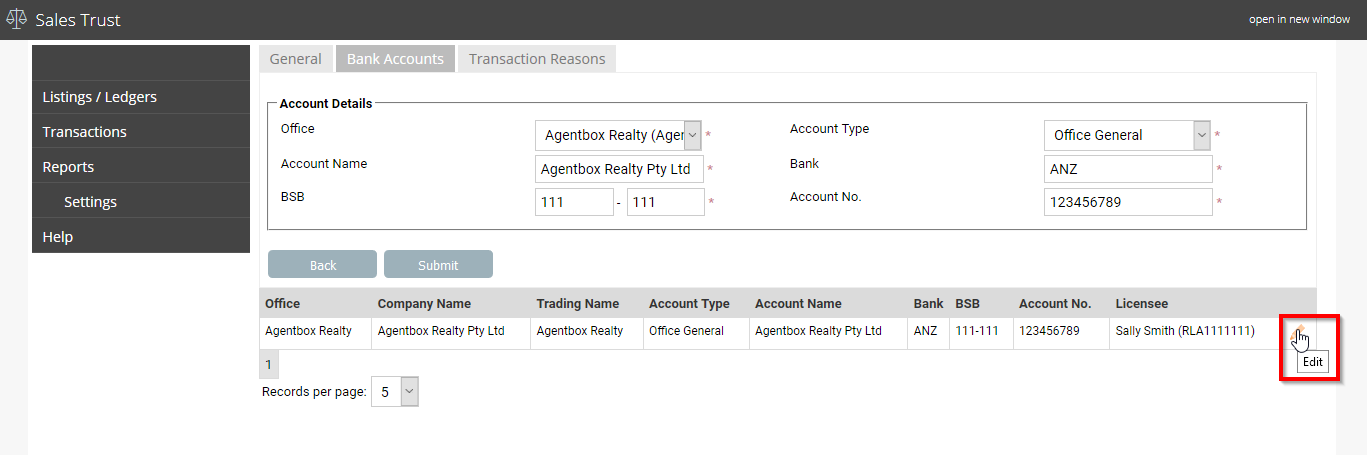
To edit the account details select the pencil to edit
Make required changes and select submit
Office Override Bank Details
Office Override provides the ability to edit account details linked to a specific trust.
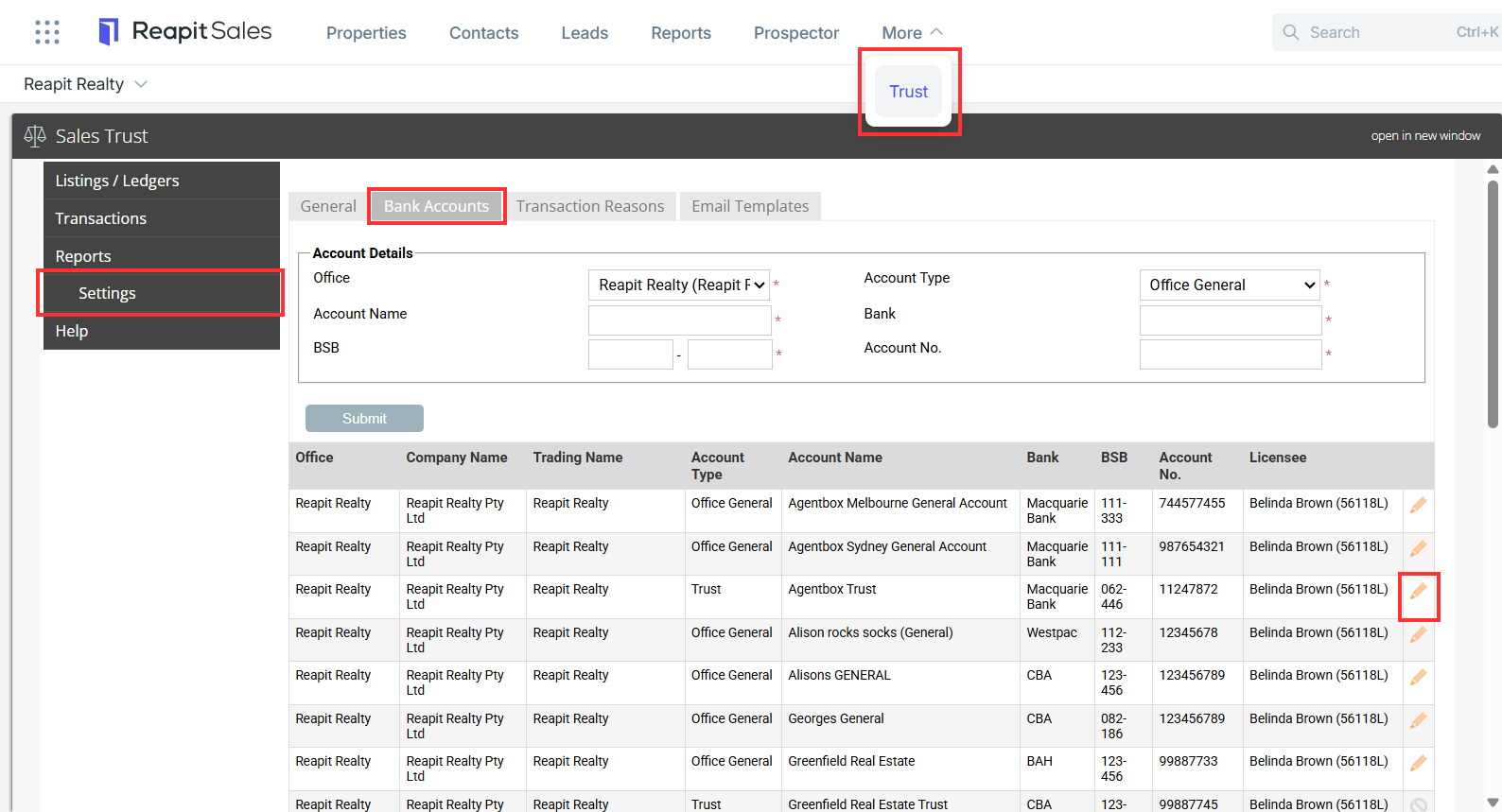
- Navigate to Trust.
- Click Settings.
- Click Bank Accounts.
- Click the pencil on the trust account to edit.
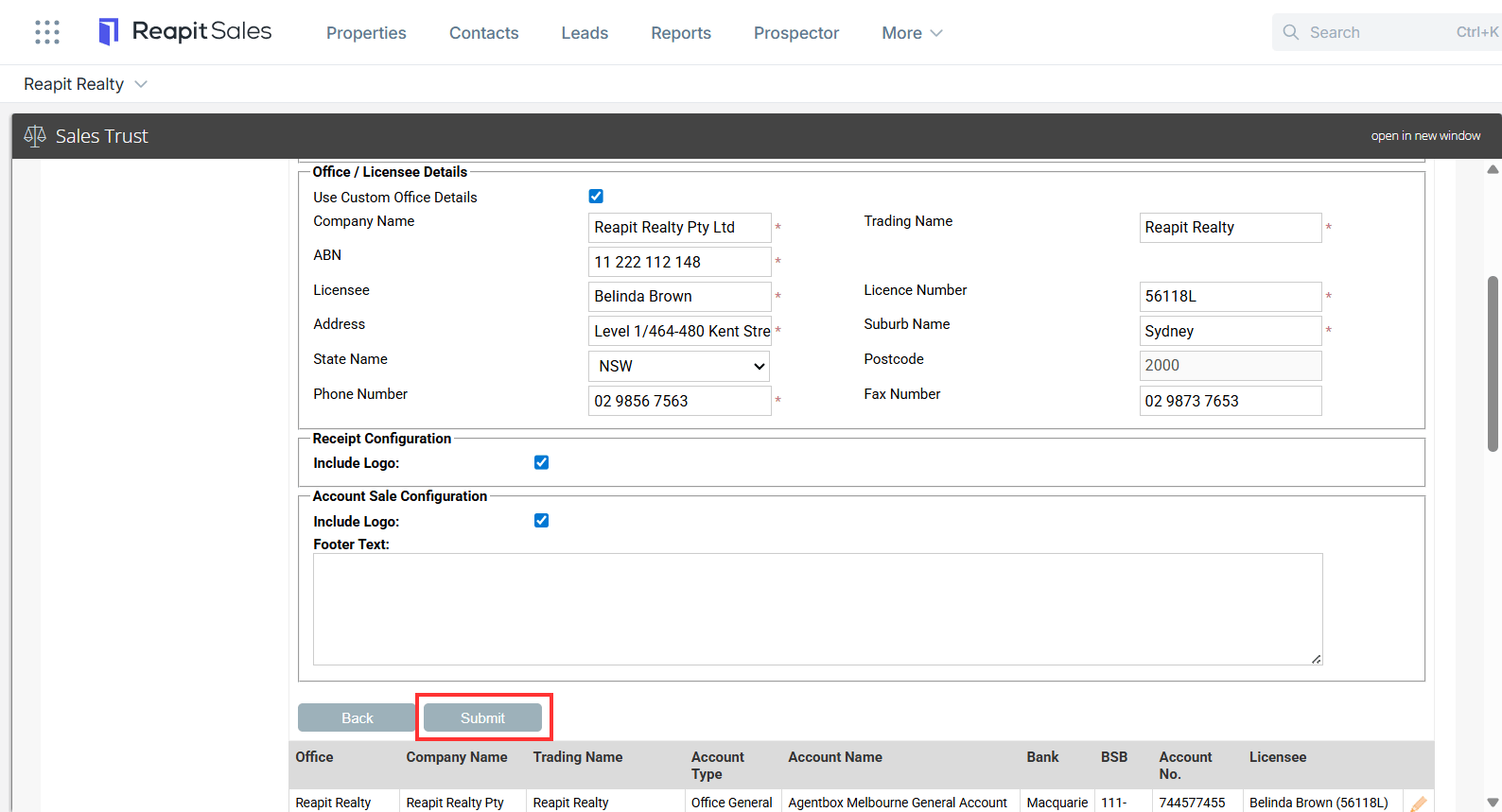
- Click on Use Custom Office Details.
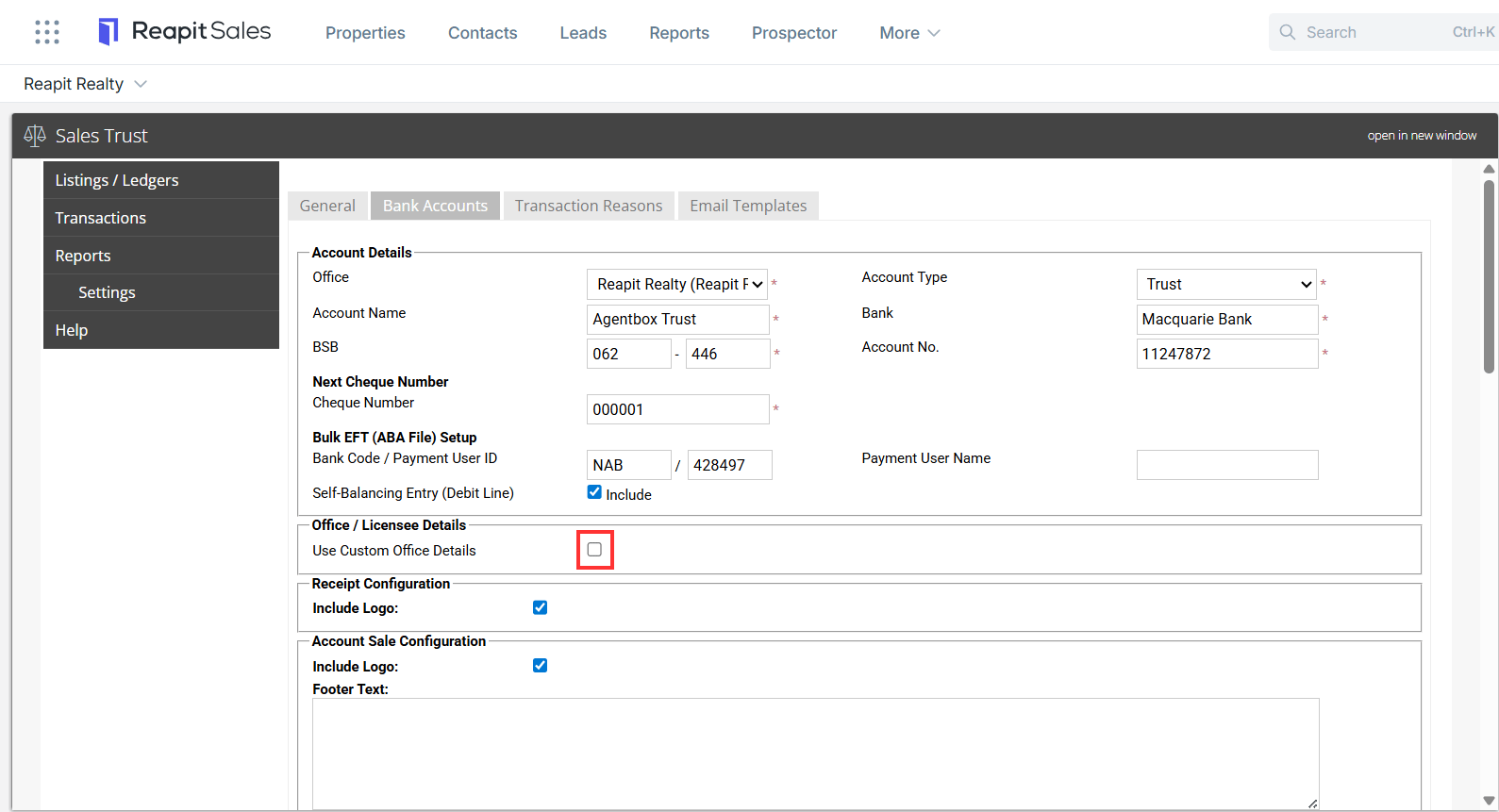
- Make the required changes to the account or office details.
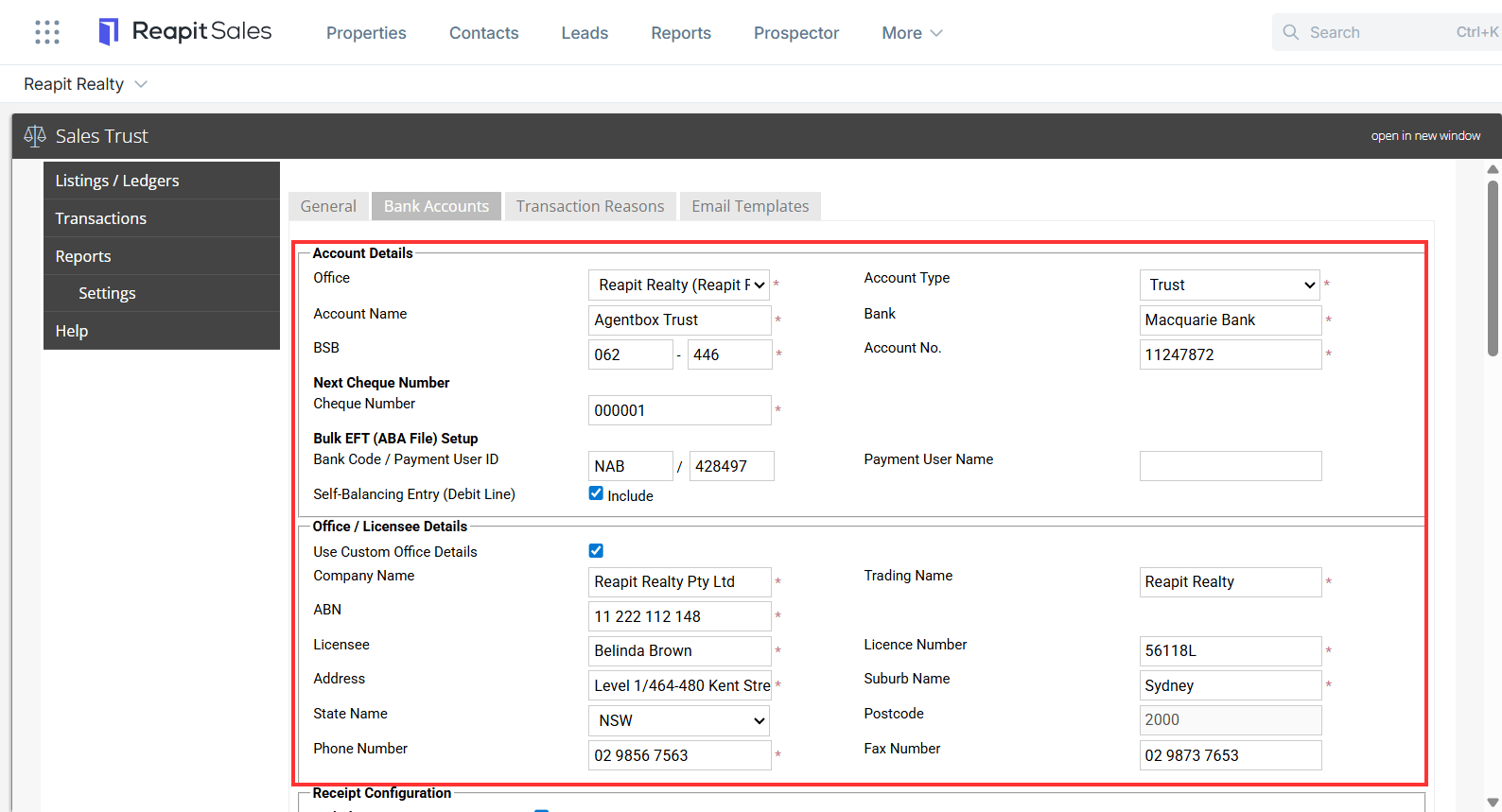
- Click Submit to save changes.