'%20d='M0%208a8%208%200%200%201%208-8h24a8%208%200%200%201%208%208v24a8%208%200%200%201-8%208H8a8%208%200%200%201-8-8V8Z'/%3e%3cpath%20fill='%23fff'%20d='M10.41%206v3.779h15.048v19.537h4.132V6H10.41Z'/%3e%3cpath%20fill='%23fff'%20d='M20.967%2034V13.837L10.41%209.78v20.166L20.967%2034Z'/%3e%3cdefs%3e%3clinearGradient%20id='reapit-sales__a'%20x1='20.702'%20x2='20.702'%20y1='.351'%20y2='31.228'%20gradientUnits='userSpaceOnUse'%3e%3cstop%20stop-color='%235573FD'/%3e%3cstop%20offset='.575'%20stop-color='%234E56EA'/%3e%3c/linearGradient%3e%3c/defs%3e%3c/svg%3e)
Add a Note on a Property
This article demonstrates how to add a note to a property within Reapit Sales.
Overview
Add a Note on a Property
This article demonstrates how to add a note to a property within Reapit Sales.
- Search for your Property and open the Property Card.
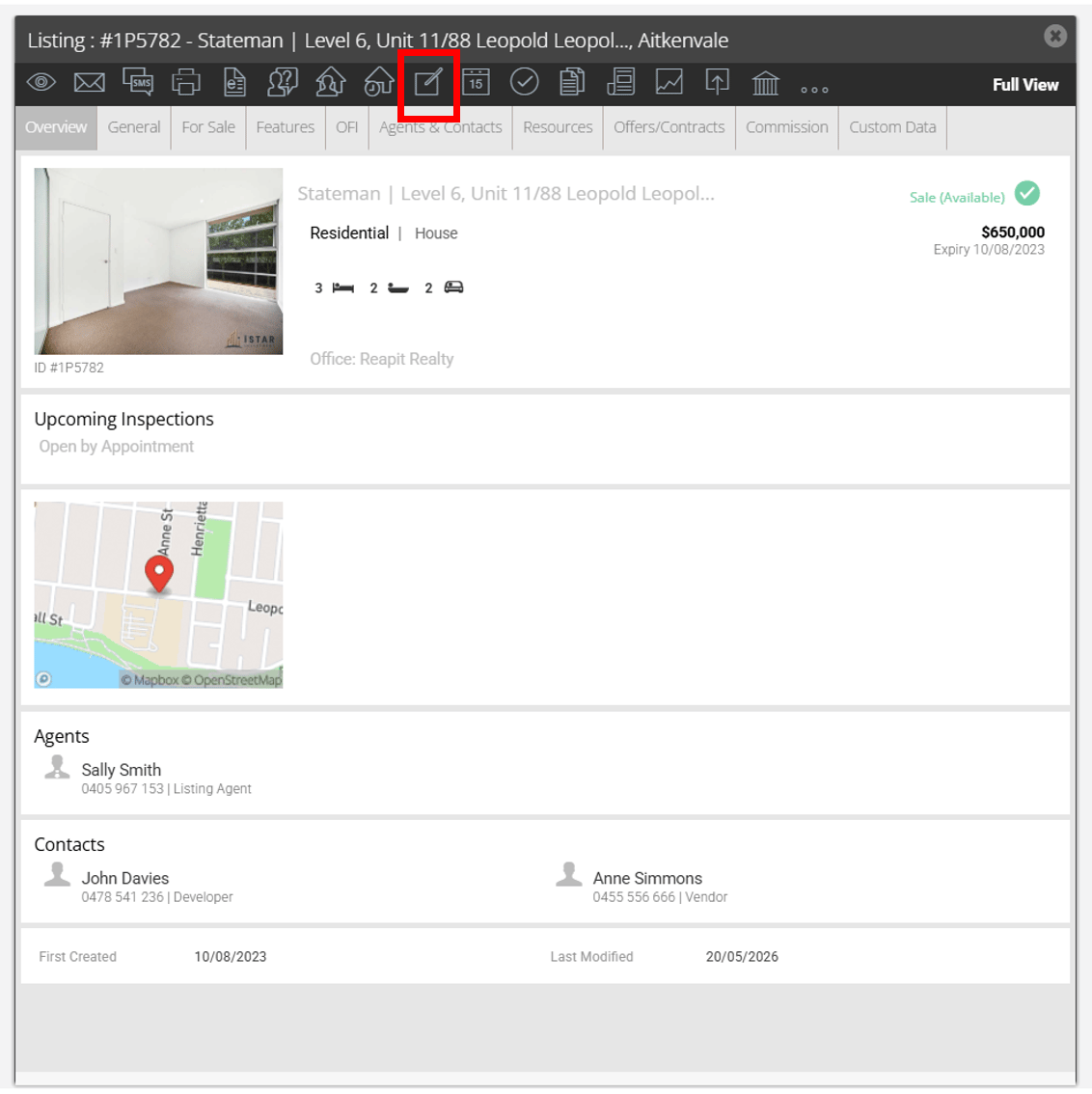
- Click Add a Note action icon.
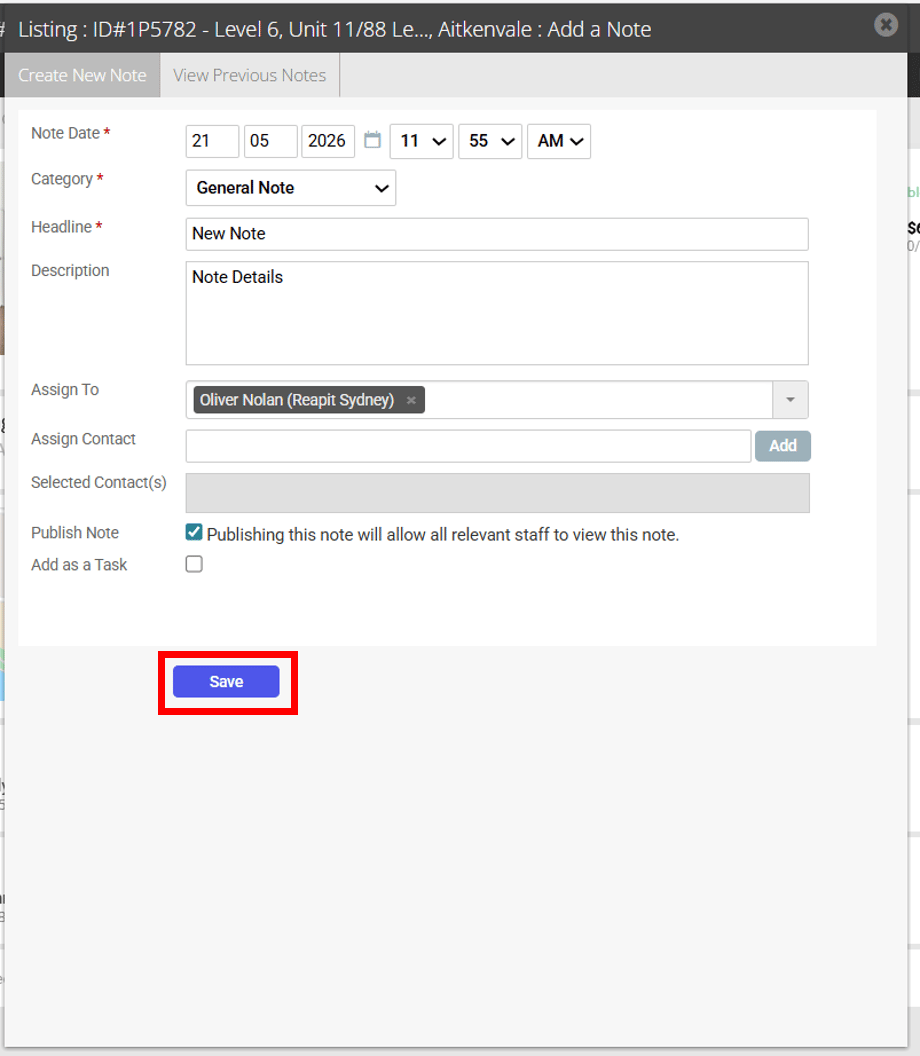
- Enter the notes Headline & Description
- Assign yourself or another staff member who is directly associated with this note. Assign a Contact if applicable.
- If applicable tick Publish Note if you would like all users to view the note
- If applicable tick Add a Task to enter a follow up date. This will then create a task for you and appear in your task list on the allocated due date
- Click Save
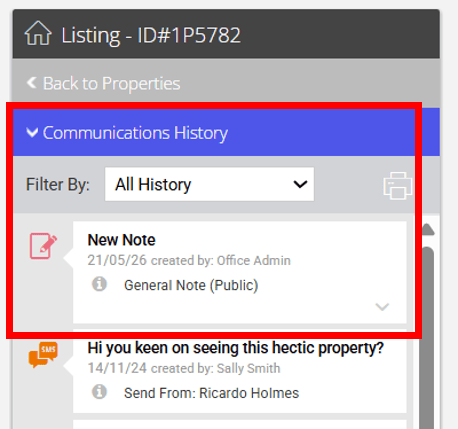
Your Notes will then appear in the left Contacts panel for quick reference when accessing your Contact.

Via Quick Action Icon
- Click the Quick Action icon
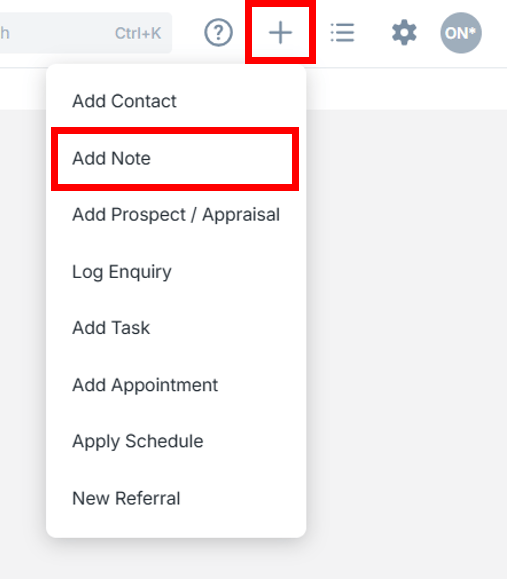
 from the header and select Add Note from the drop-down