'%20d='M0%208a8%208%200%200%201%208-8h24a8%208%200%200%201%208%208v24a8%208%200%200%201-8%208H8a8%208%200%200%201-8-8V8Z'/%3e%3cpath%20fill='%23fff'%20d='M10.41%206v3.779h15.048v19.537h4.132V6H10.41Z'/%3e%3cpath%20fill='%23fff'%20d='M20.967%2034V13.837L10.41%209.78v20.166L20.967%2034Z'/%3e%3cdefs%3e%3clinearGradient%20id='reapit-sales__a'%20x1='20.702'%20x2='20.702'%20y1='.351'%20y2='31.228'%20gradientUnits='userSpaceOnUse'%3e%3cstop%20stop-color='%235573FD'/%3e%3cstop%20offset='.575'%20stop-color='%234E56EA'/%3e%3c/linearGradient%3e%3c/defs%3e%3c/svg%3e)
Related Contacts
This article runs through how to manage related contacts in Reapit Sales. The processes in this article include: How to add a Related Contact How to remove a Related Contact How to update the relationship for a Related Contact
Related Contacts
This article runs through how to manage related contacts in Reapit Sales.
The processes in this article include:
How to add a Related Contact
How to remove a Related Contact
How to update the relationship for a Related Contact
If both contacts share communication/contact info e.g. you can reach either of them from a single email, mobile, phone or address then add them both in the same contact card using the primary contacts first and last name then using the salutation field to enter both contacts names.
For Example: Salutation: Jeff & Carol Legal Name: Mr Jeff Richard Jones & Mrs Carol Lisa Jones Address To: Mr & Mrs Jones First Name: Jeff Last Name: Smith In the case of two contacts in the one contact record who do not share a surname: Salutation: Jeff Smith & Carol White Legal Name: Mr Jeff Richard Smith & Mrs Carol Lisa White Address To: Mr Jeff Smith & Mrs Carol White First Name: Jeff Last Name: Smith
- If both contacts have their own unique contact info e.g. 2 mobile numbers, you will also need to create a related contact using the following steps. This is to help keep a clean database where your contacts are contactable separately e.g. in the case of a couple that has separated since your dealings with them.
How to add a Related Contact
- Search for your Contact open their Contact Card.
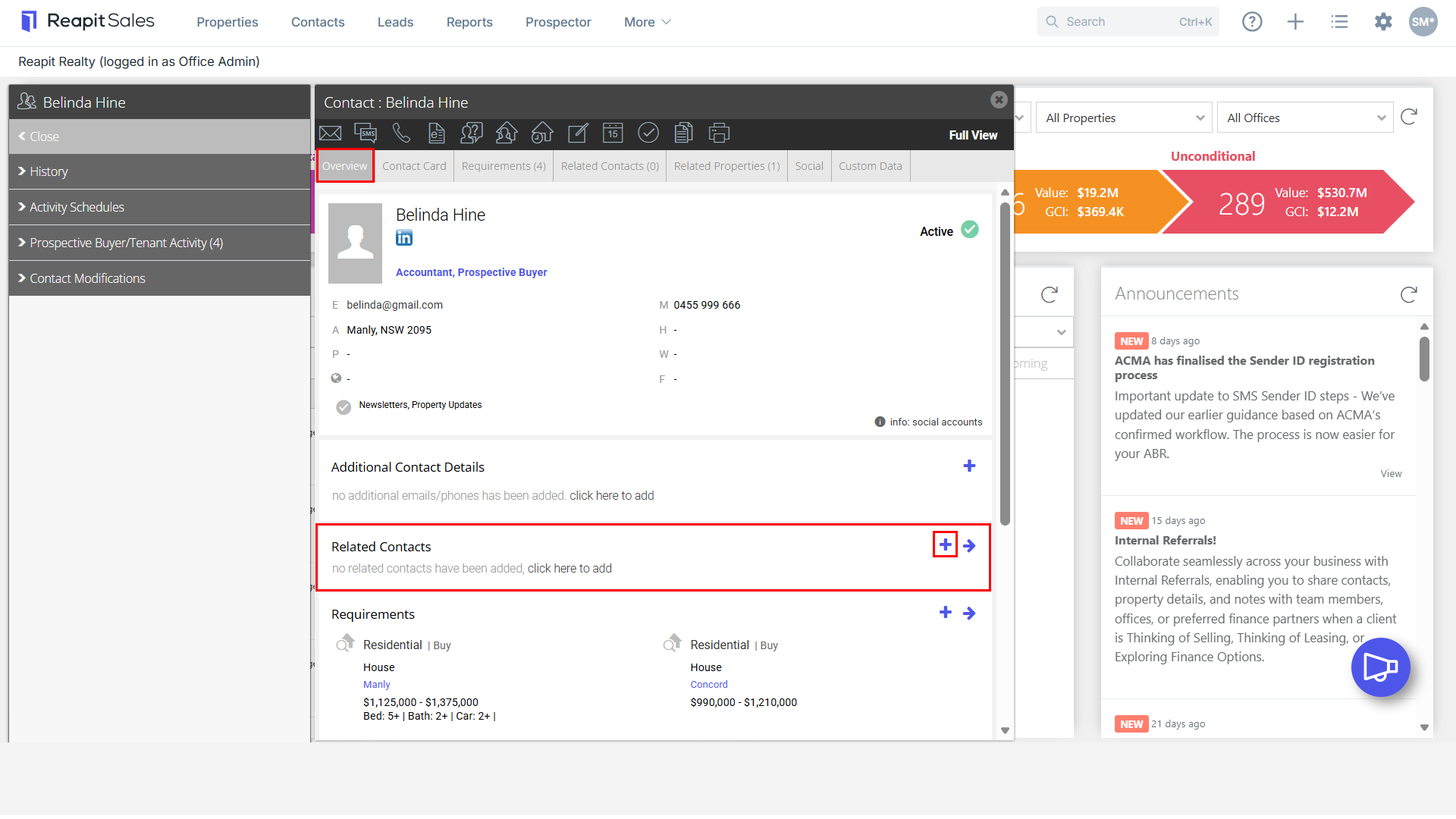
- Click the Quick Add icon
 on the Overview tab or open the related contacts tab and select Add Related Contact.
 - Select:
Is this an existing contact or
Is this a new contact
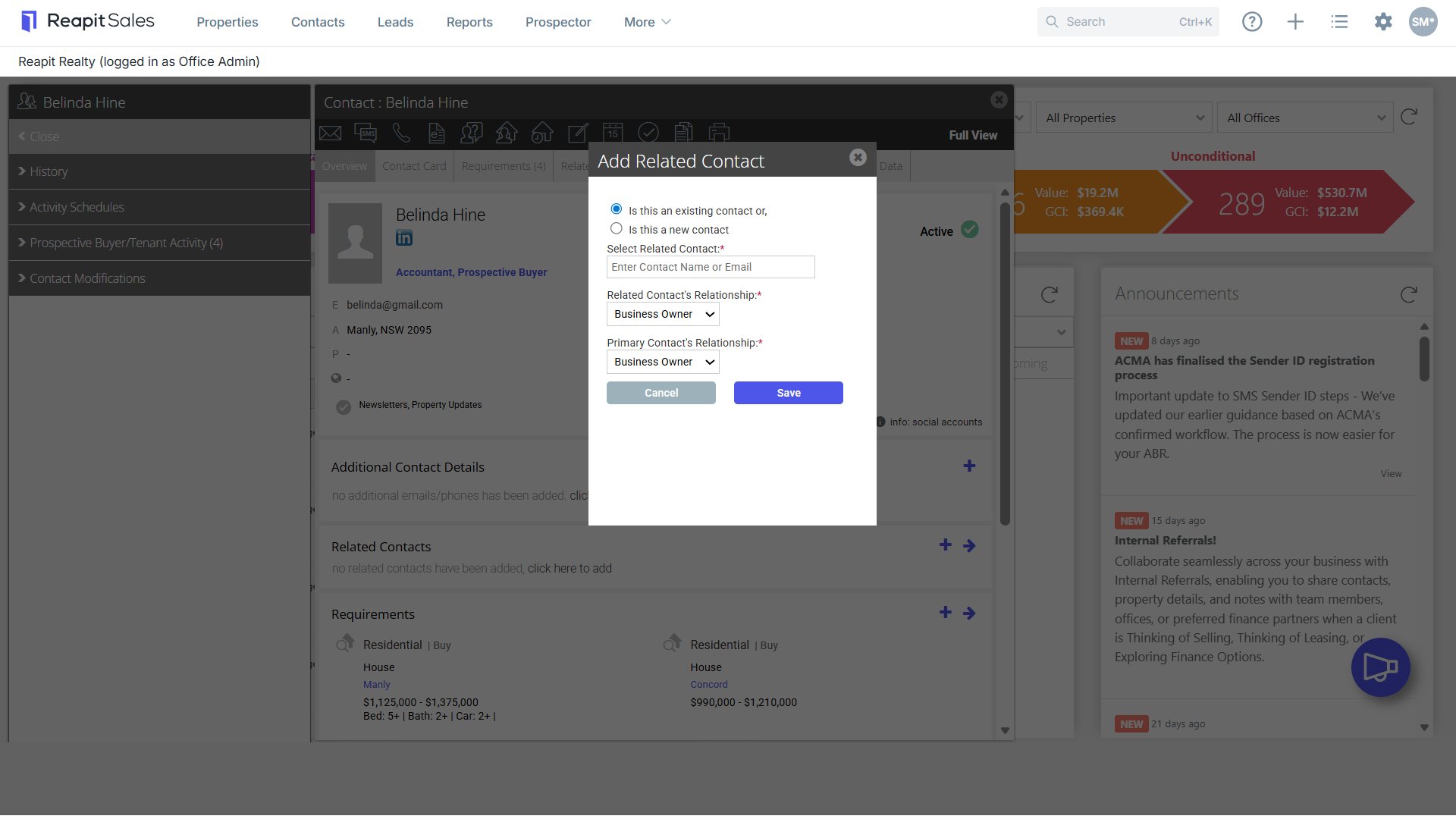
- If an existing contact, then enter contacts name in Select Related Contact: as seen above and select the corresponding contact from the results drop down or if it is a new contact, enter the following information: Note: at least one contact method e.g. mobile, email or landline is required.
- First Name
- Last Name:
- Company:
- Email:
- Mobile:
- Home Ph:
- Work Ph:
If the related contact shares the same residential address as the primary contact, tick the Copy residential address from primary contact check box.

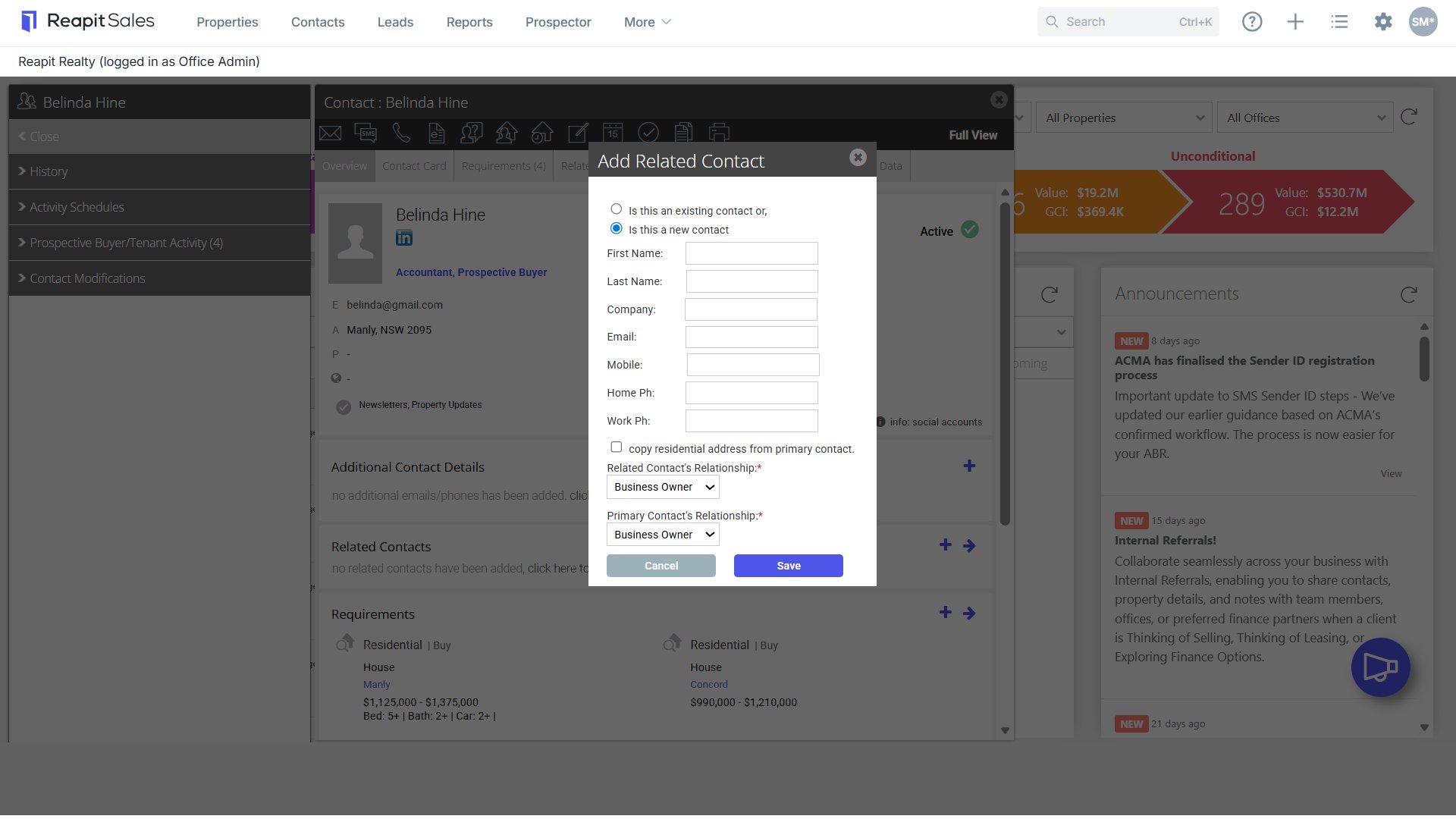
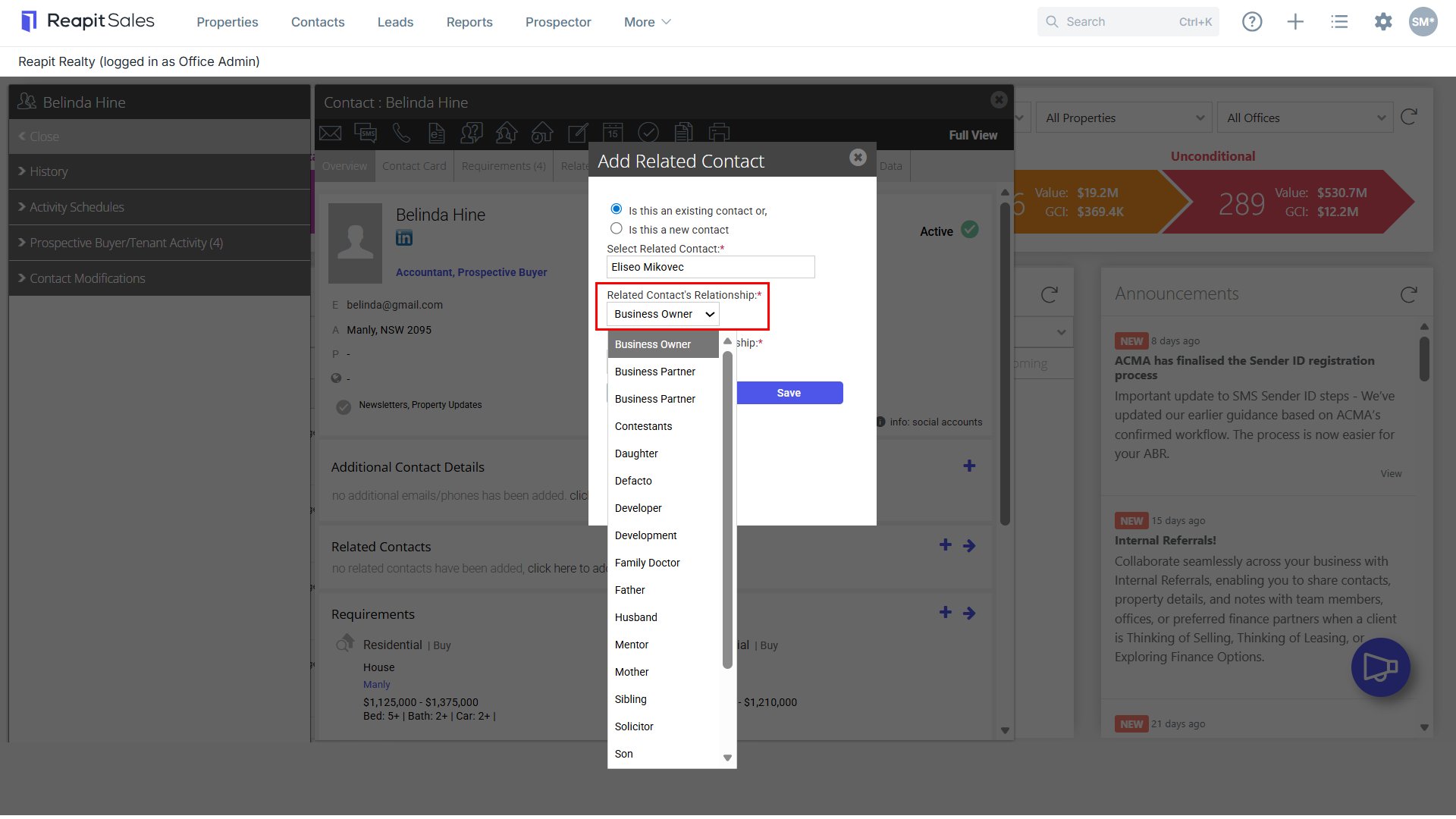
- Select the contacts relationship to each other. Select other to enter a custom relationship
- Related Contact's Relationship:*
- Primary Contact's Relationship:*

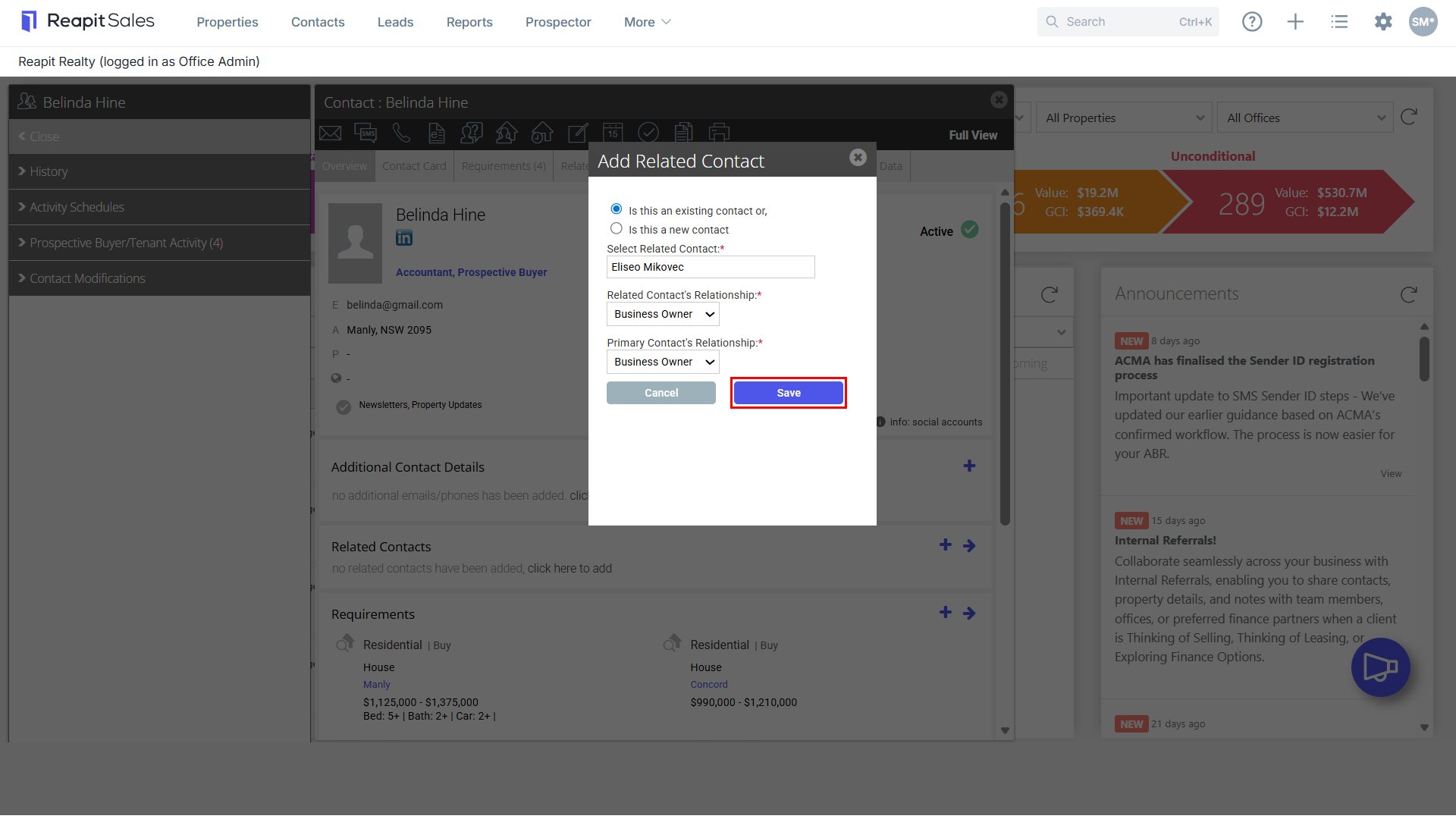
- Click Save.
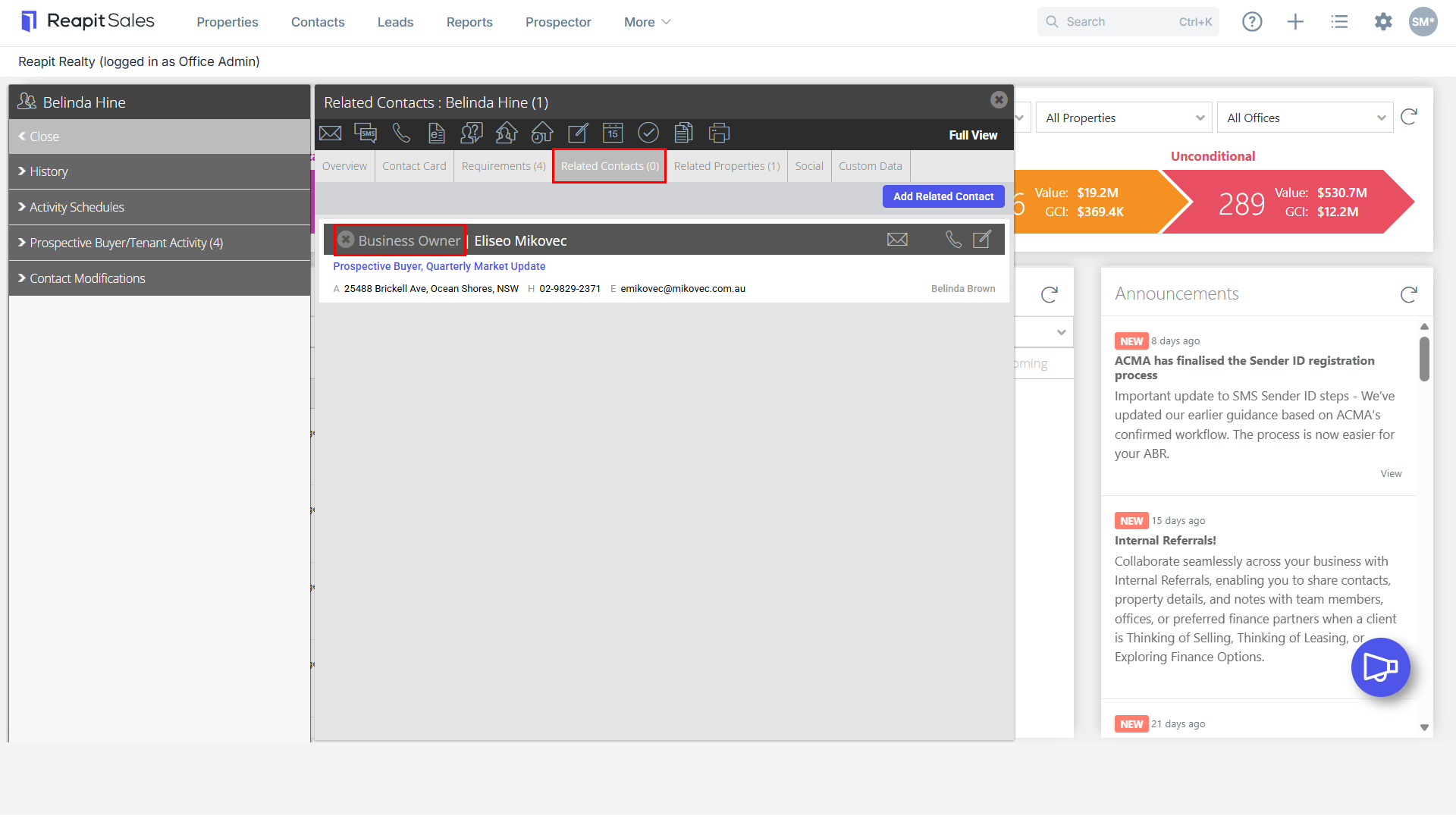
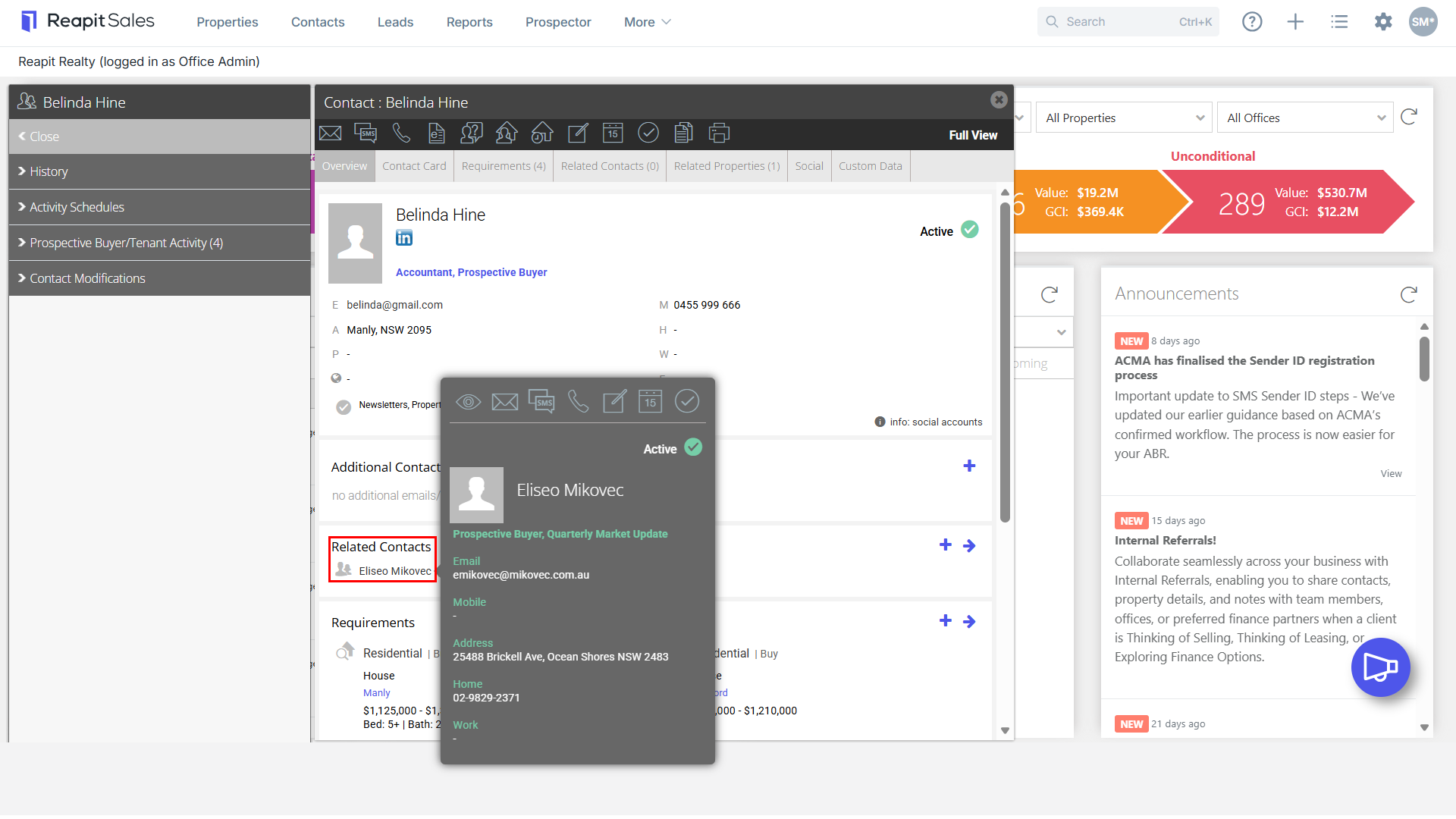
- You can now view the Related Contact on the contact Overview or Related Contacts Tab. Click their Name to open their contact summary.

How to remove a Related Contact
- Search for your Contact open their Contact Card
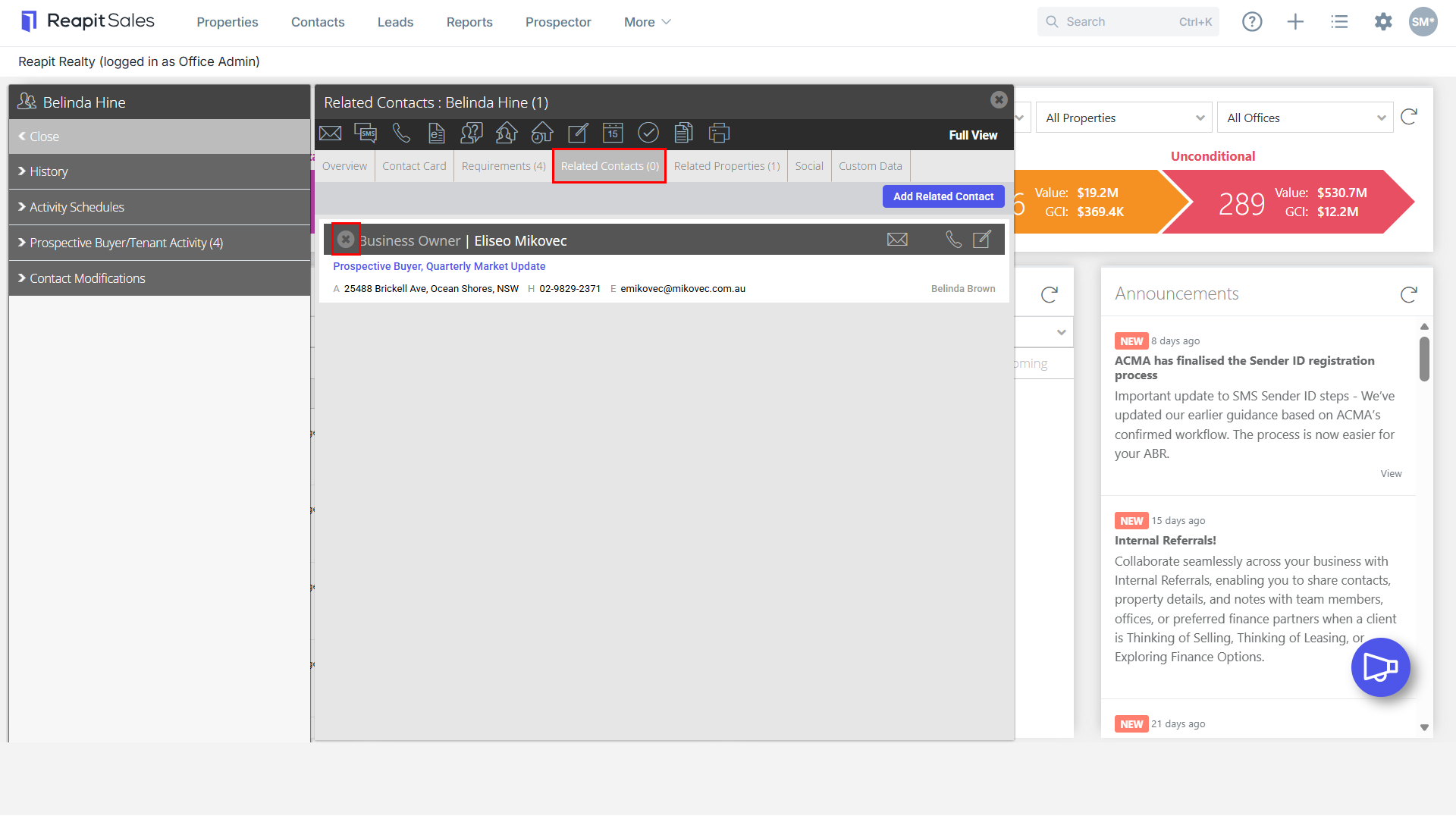
- Go to the Related Contacts tab
- Click the X next to the Related Contacts name
How to update the relationship for a Related Contact
- Search for your Contact open their Contact Card
- Go to the Related Contacts tab
- Click the X to remove the related Contact
- Re add the Related Contact with the correct relationship.