'%20d='M0%208a8%208%200%200%201%208-8h24a8%208%200%200%201%208%208v24a8%208%200%200%201-8%208H8a8%208%200%200%201-8-8V8Z'/%3e%3cpath%20fill='%23fff'%20d='M10.41%206v3.779h15.048v19.537h4.132V6H10.41Z'/%3e%3cpath%20fill='%23fff'%20d='M20.967%2034V13.837L10.41%209.78v20.166L20.967%2034Z'/%3e%3cdefs%3e%3clinearGradient%20id='reapit-sales__a'%20x1='20.702'%20x2='20.702'%20y1='.351'%20y2='31.228'%20gradientUnits='userSpaceOnUse'%3e%3cstop%20stop-color='%235573FD'/%3e%3cstop%20offset='.575'%20stop-color='%234E56EA'/%3e%3c/linearGradient%3e%3c/defs%3e%3c/svg%3e)
Display/Hide Report Columns
This article shows how you can customise the columns displayed in reports run from Reapit Sales.
Overview
Display/Hide Report Columns
This article shows how you can customise the columns displayed in reports run from Reapit Sales.
- Click Reports from the Main Menu.
- Click a Report Category on the left panel e.g. For Sale Reports.
- Click the Report you would like to create e.g. Detailed Sales Analysis.
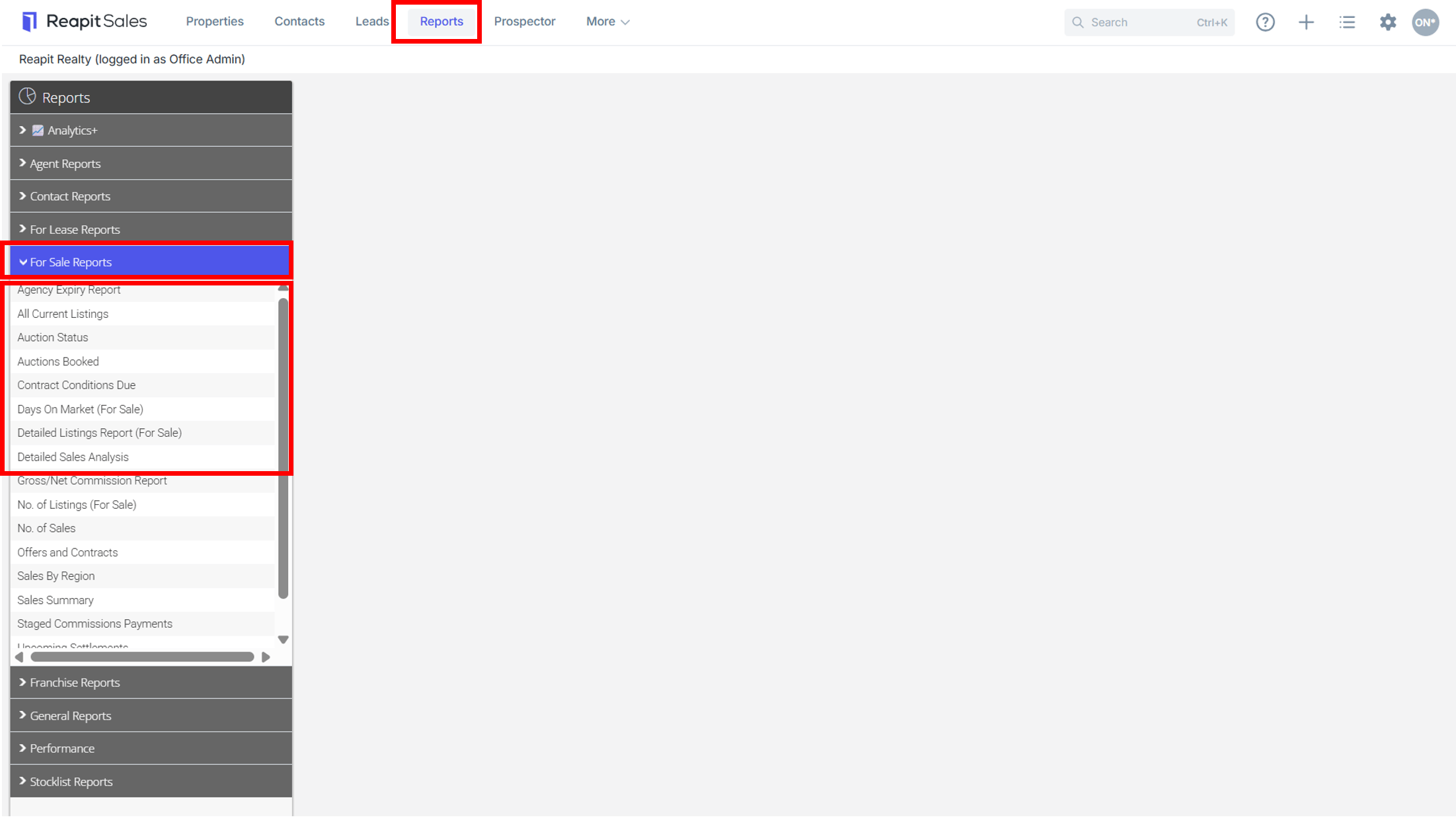
.
- Select a date range, related staff member/s or teams and search criteria. Save Report if applicable by entering a save as name in Save Report (Saved reports will be available via the Saved Reports drop-down in the top right hand corner).
- Use the Include Column checkboxes to select which existing report columns you would like to include or hide from the generated report. The ‘Select/De-Select All’ checkbox allows reports to be built quickly and only including the data that is most important with minimal clicks.
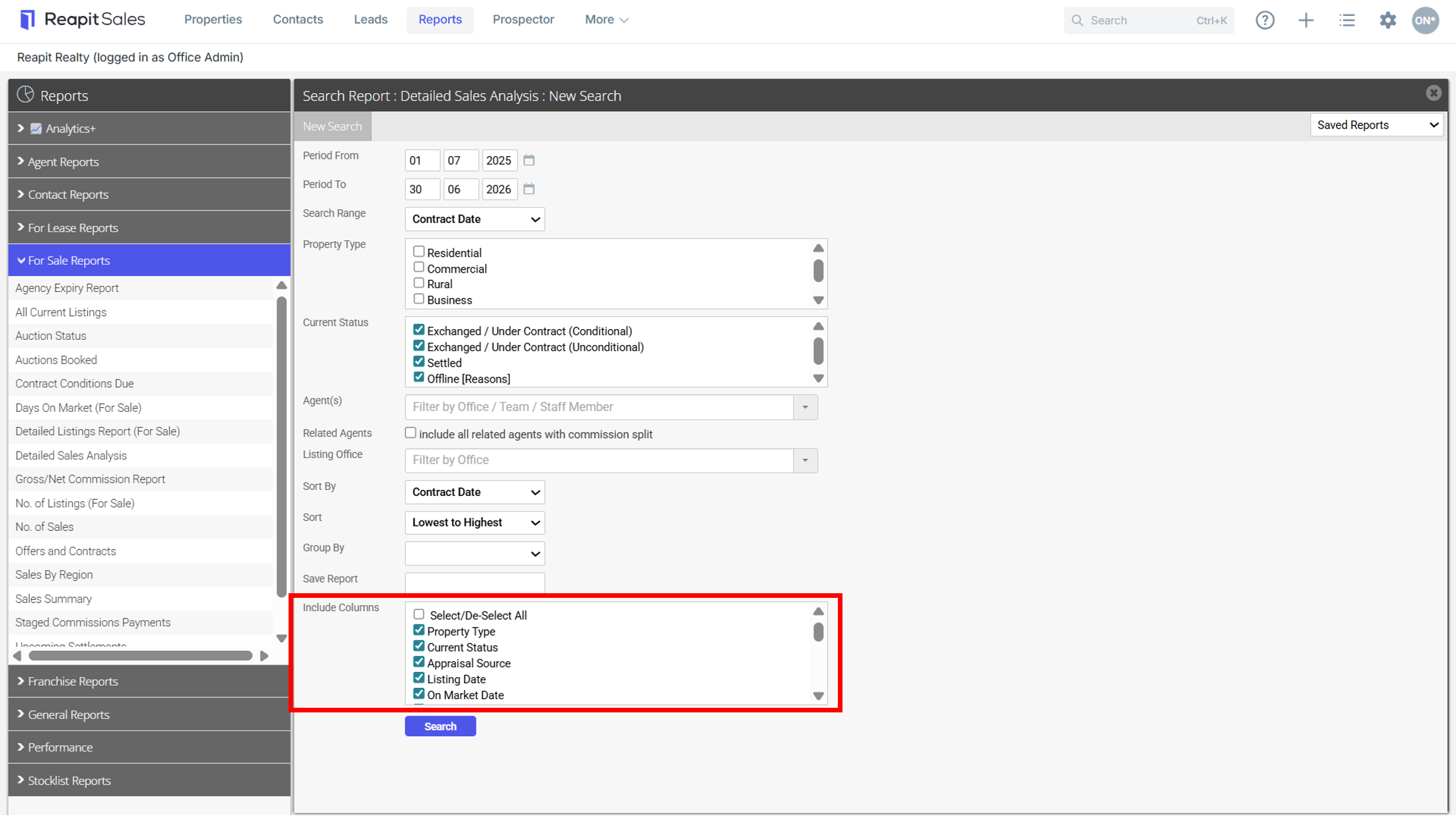
- Click Search
- The report will appear with included columns only
*Note: You can re-size the results window by dragging the corners of the panel.
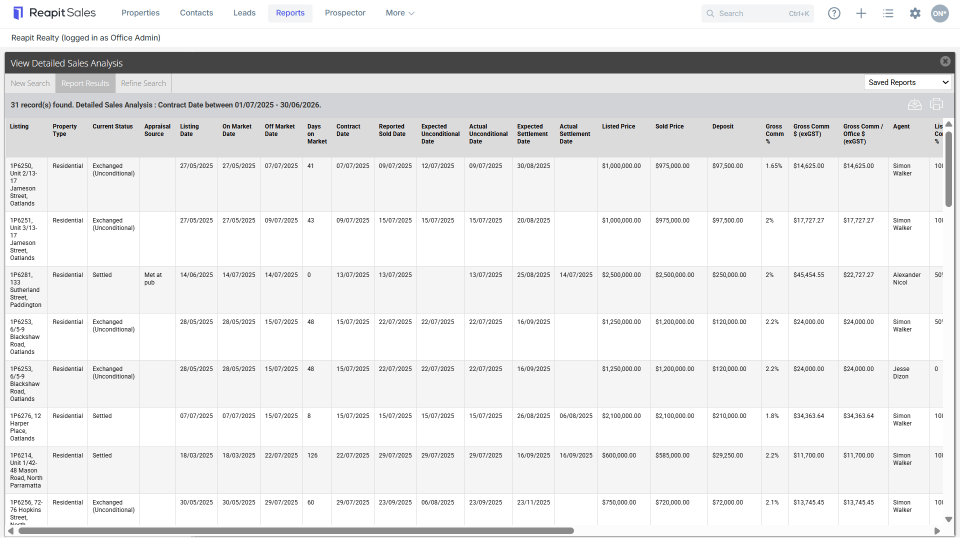
- You can now use the action icons to Export your report to a CSV, print to a PDF or view the data as a graph (graph view is not available for all reports).