'%20d='M0%208a8%208%200%200%201%208-8h24a8%208%200%200%201%208%208v24a8%208%200%200%201-8%208H8a8%208%200%200%201-8-8V8Z'/%3e%3cpath%20fill='%23fff'%20d='M10.41%206v3.779h15.048v19.537h4.132V6H10.41Z'/%3e%3cpath%20fill='%23fff'%20d='M20.967%2034V13.837L10.41%209.78v20.166L20.967%2034Z'/%3e%3cdefs%3e%3clinearGradient%20id='reapit-sales__a'%20x1='20.702'%20x2='20.702'%20y1='.351'%20y2='31.228'%20gradientUnits='userSpaceOnUse'%3e%3cstop%20stop-color='%235573FD'/%3e%3cstop%20offset='.575'%20stop-color='%234E56EA'/%3e%3c/linearGradient%3e%3c/defs%3e%3c/svg%3e)
How do I Assign a Vendor and Their Solicitor to a Listing
This article will cover assigning a vendor and solicitor to a listing in Reapit Sales.
How do I Assign a Vendor and Their Solicitor to a Listing
This article will cover assigning a vendor and solicitor to a listing in Reapit Sales.
1.Search for your Listing and open the Listing Card.
- Select the Agents & Contacts Tab.
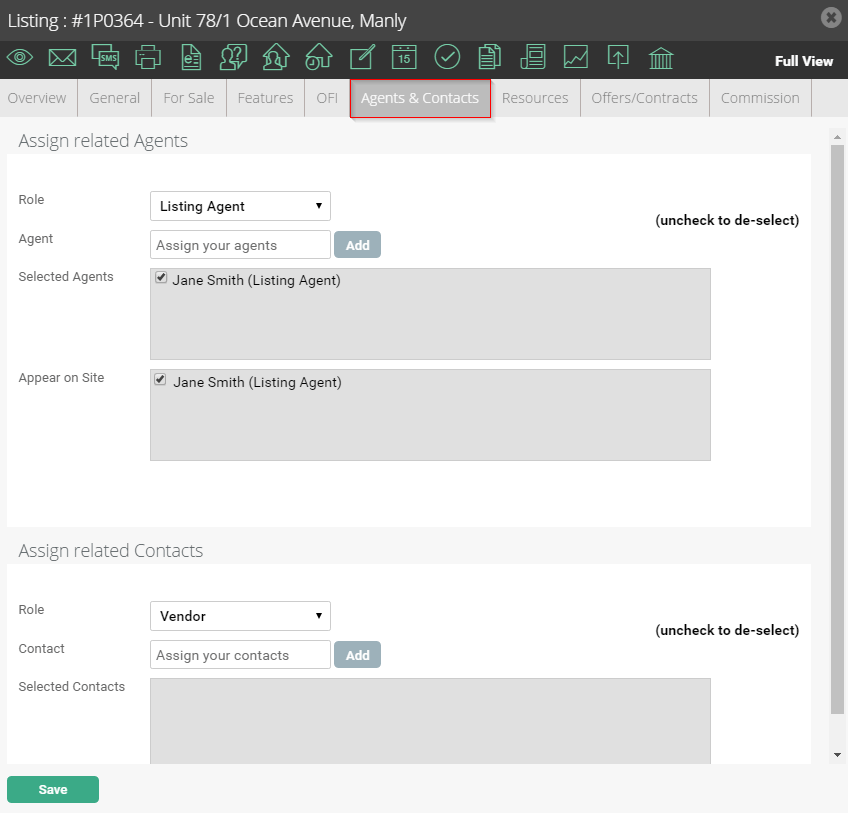
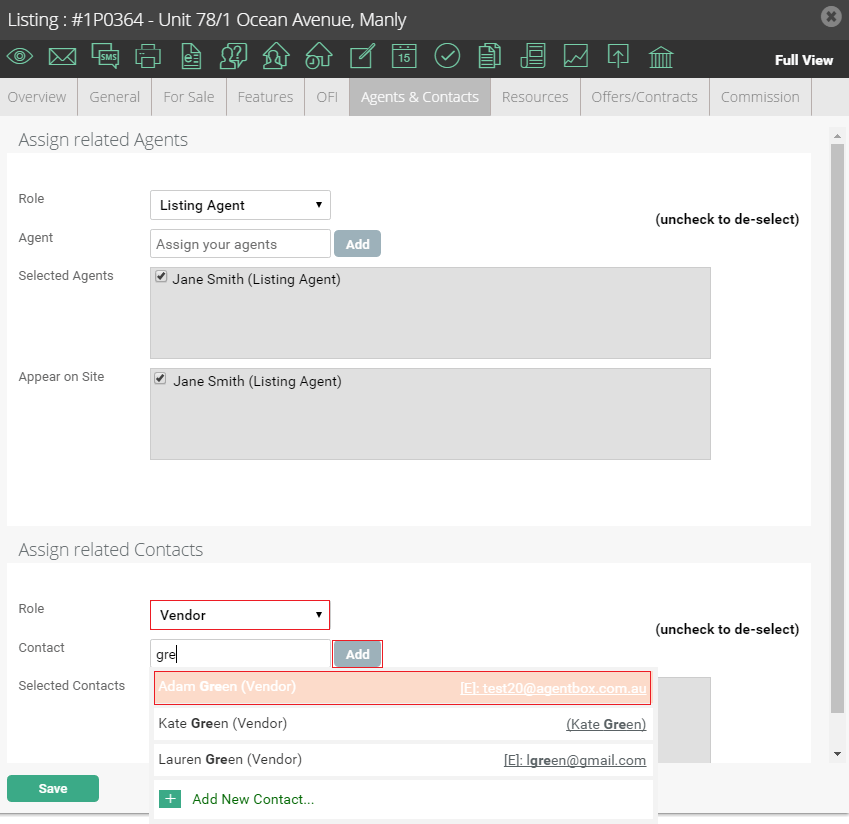
- To assign a Vendor select Vendor from the Role drop-down and type their details into the contact field. If the contact is already in your database select their name from the drop-down and select add. If the contact is not in the database select Add New Contact and complete the Contact Card form.
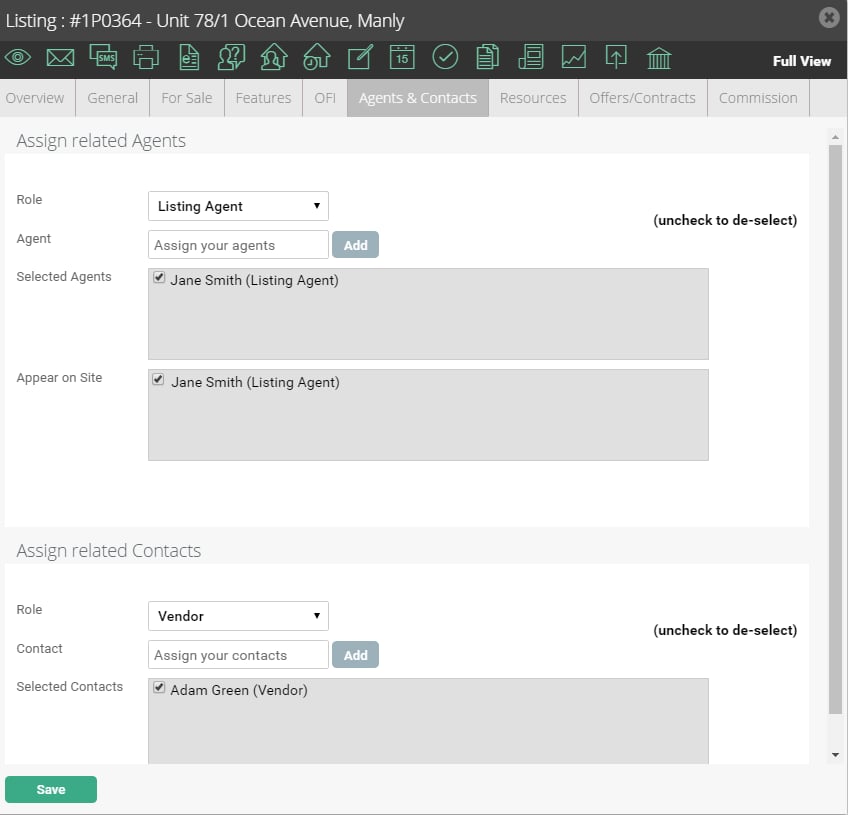
- Click Save. If applied correctly they will appear in the selected contacts box. To Delete simply uncheck the tickbox next to their name and click Save.

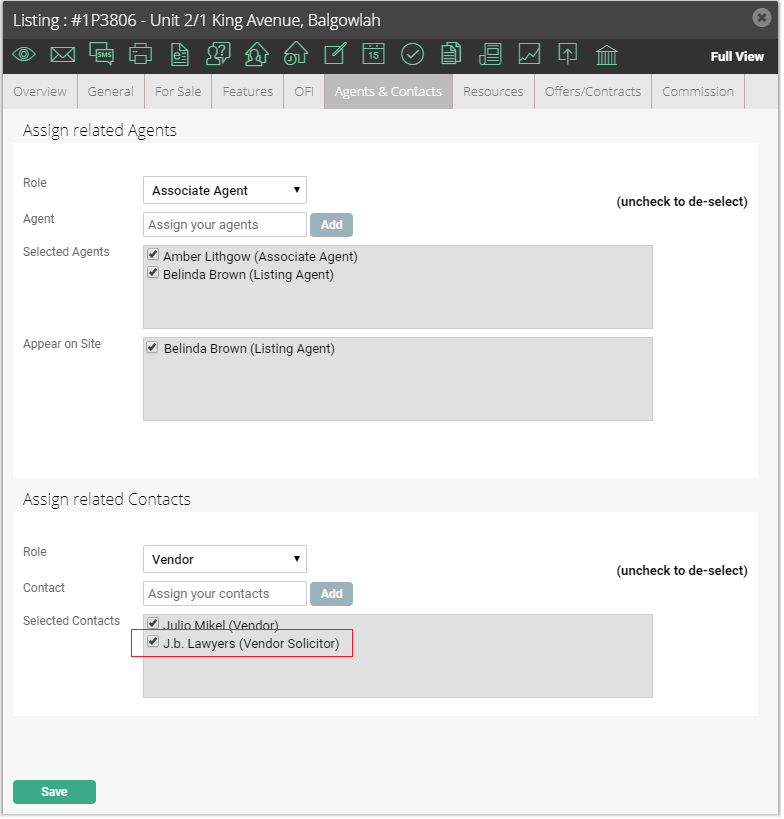
- To assign their solicitor select Vendor Solicitor from the Role drop-down and type their details into the contact field. If the contact is already in your database select their name from the drop-down and select add. If the contact is not in the database select Add New Contact and complete the Contact Card form.
*Note: Ensure you use Vendor Solicitor not Solicitor for merging into the Sales Advice Letter template.
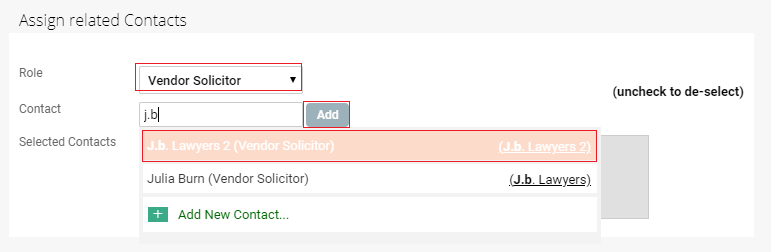
- Click Save. If applied correctly, they will appear in the selected contacts box. To Delete simply uncheck the tickbox next to their name and click Save.