'%20d='M0%208a8%208%200%200%201%208-8h24a8%208%200%200%201%208%208v24a8%208%200%200%201-8%208H8a8%208%200%200%201-8-8V8Z'/%3e%3cpath%20fill='%23fff'%20d='M10.41%206v3.779h15.048v19.537h4.132V6H10.41Z'/%3e%3cpath%20fill='%23fff'%20d='M20.967%2034V13.837L10.41%209.78v20.166L20.967%2034Z'/%3e%3cdefs%3e%3clinearGradient%20id='reapit-sales__a'%20x1='20.702'%20x2='20.702'%20y1='.351'%20y2='31.228'%20gradientUnits='userSpaceOnUse'%3e%3cstop%20stop-color='%235573FD'/%3e%3cstop%20offset='.575'%20stop-color='%234E56EA'/%3e%3c/linearGradient%3e%3c/defs%3e%3c/svg%3e)
Commercial Lease Offers/Contracts
This article will cover commercial lease offers and contracts in Reapit Sales.
Commercial Lease Offers/Contracts
This article will cover commercial lease offers and contracts in Reapit Sales.
The Commercial Lease Offers and Contracts tab provides the ability to record Offers/Contracts against Commercial Lease listings and progress these through 'Conditional' Contract > 'Unconditional' > 'Settled'; capturing Key Dates, Agreed Deposit & Agreed Gross Leasing Commission (similar to sales listings).
- Search for your Property and open the property card
- Open the Offers/Contracts Tab
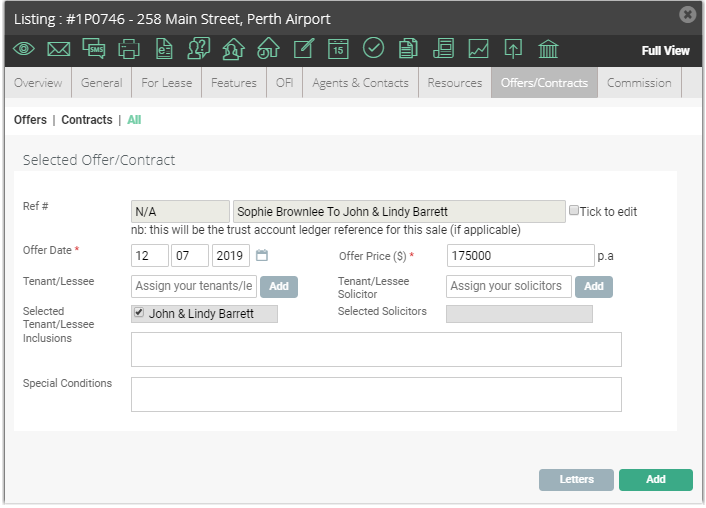
- Enter the Offer Details - Offer Date, Offer Price, Select the Tenant/Lessee & Tenant/Lessee Solicitor (ensuring you select add).
- Complete Inclusions and Special Conditions if applicable
Refer to How to add offer special conditions and Contract Conditions - System Config for further information.
- Click Add.
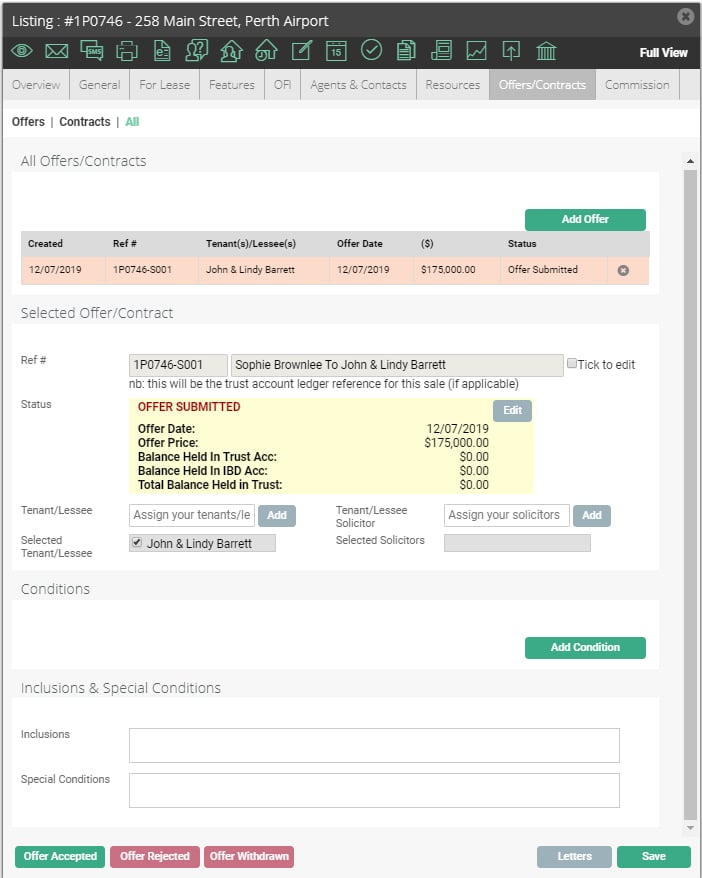
- To accept one of the offers made via the offers/contracts tab, click on the Offer Accepted button in the bottom left corner.
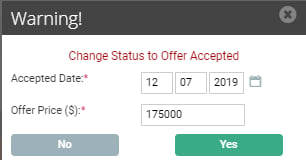
- You will be prompted to enter the accepted date and confirm the accepted offer price.
- Only one offer can be accepted at once.
*Note: You may add multiple offers against a Listing Card but can only accept one offer to proceed with.
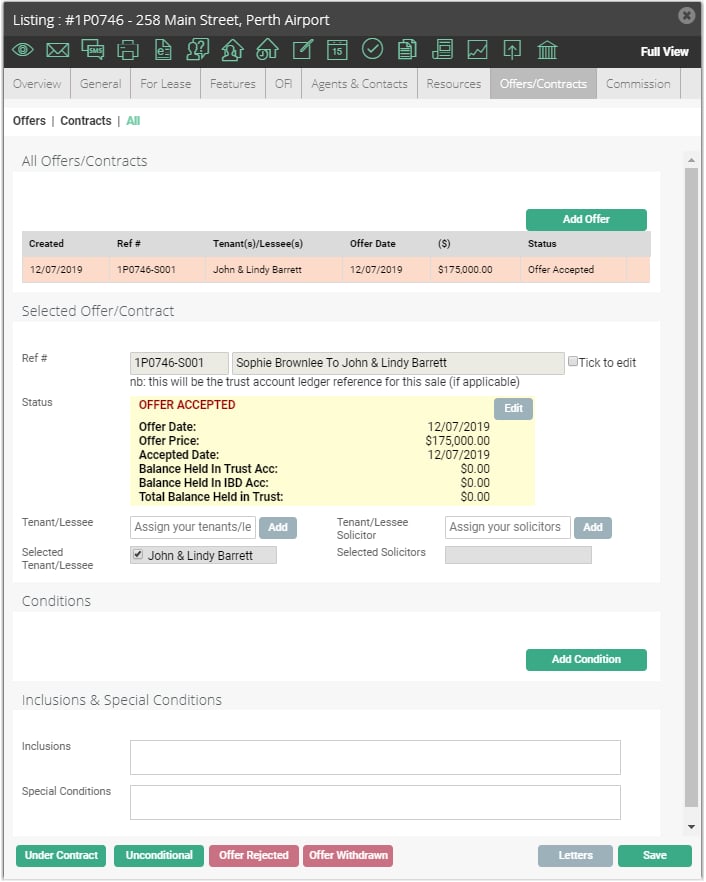
- Convert the offer to a contract by clicking Under Contract and fill out the mandatory information
- Once an offer has been converted to a contract it cannot be deleted. You will need to mark the contract has fallen over in order to re-list or sell the property to another party.
*Note: This step may be skipped if the property had no cooling-off period or no conditions existed upon signing - simply click Unconditional instead of under contract.
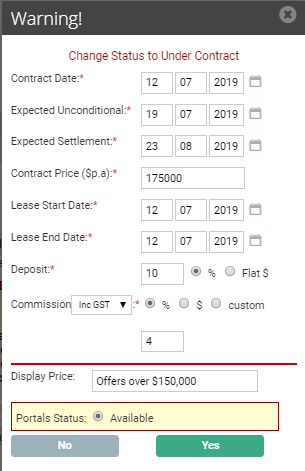
Under Contract
 Unconditional
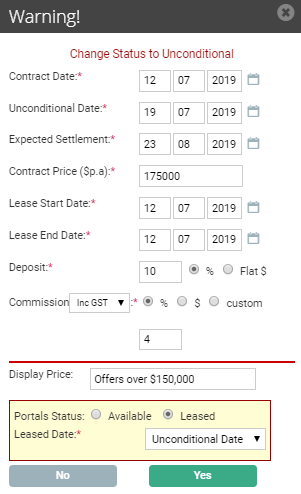
*Note: Everything above the red line if for internal reporting, anything below the red line is for the portals.
- Confirm the Contract Date, Unconditional Date & Expected Settlements Date, Price, Lease Start and End Dates.
- The deposit can be entered as a % or flat fee
- Commission can be entered inc or excl GST, as a %, flat fee or custom % amount
- Portals Status: Select if you want the property status to be Available or Leased.
- When the Lease commences, return to the Offer/Contract tab and update its status to Settled.
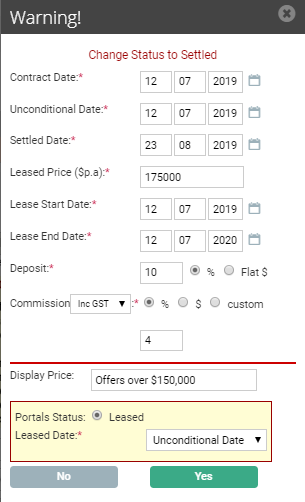
Key Dates
Offer Date: Date the Commercial Leasing/Management Agreement was submitted.
Contract Date: Date the Commercial Leasing/Management Agreement is signed by all parties and becomes a legally bound contract.
Expected Unconditional Date (only if conditional): Date any special conditions to be met prior to lease are due to be finalised. E.g. Council, Finance or License Approval.
Expected Settlement Date: Expected Lease/Agreement Commencement Date.
Settlement Date: Lease/Agreement Commencement Date.