'%20d='M0%208a8%208%200%200%201%208-8h24a8%208%200%200%201%208%208v24a8%208%200%200%201-8%208H8a8%208%200%200%201-8-8V8Z'/%3e%3cpath%20fill='%23fff'%20d='M10.41%206v3.779h15.048v19.537h4.132V6H10.41Z'/%3e%3cpath%20fill='%23fff'%20d='M20.967%2034V13.837L10.41%209.78v20.166L20.967%2034Z'/%3e%3cdefs%3e%3clinearGradient%20id='reapit-sales__a'%20x1='20.702'%20x2='20.702'%20y1='.351'%20y2='31.228'%20gradientUnits='userSpaceOnUse'%3e%3cstop%20stop-color='%235573FD'/%3e%3cstop%20offset='.575'%20stop-color='%234E56EA'/%3e%3c/linearGradient%3e%3c/defs%3e%3c/svg%3e)
Teams in Reapit Sales
This article covers Teams related processes within Reapit Sales. The processes in article include: What is a Team? Create a Team Add Staff to a Team Staff Permissions - Teams Delete a Team Edit a Team Name Team’s Open Homes & Events View All Team Members
Teams in Reapit Sales
This article covers Teams related processes within Reapit Sales.
The processes in article include:
- What is a Team?
- Create a Team
- Add Staff to a Team
- Staff Permissions - Teams
- Delete a Team
- Edit a Team Name
- Team’s Open Homes & Events
- View All Team Members
Jump to process:
What is a Team?| Create a Team | Add Staff to a Team | Staff Permissions – Teams | Delete a Team | Edit a Team Name | View All Team Members
What is a Team?
Setting up a team in Reapit Sales will allow you to group staff to access data and perform tasks on behalf of others within their allocated team.
An example of a Team may be 'Team Brown' consisting of:
- Lead Agent - John Brown
- Personal / Executive Assistant - Beth Mitchell
- Associate Agent - Simon Walker
Creating a Team provides staff within that Team additional contact and property sharing permissions such as:
- View team member's Notes, Tasks, Appointments and Communication History.
- Assign Tasks to team Members.
- Edit team member's Tasks (If ‘Edit Team Tasks’ permission assigned).
- View team member's Contacts.
- Edit team member's Contacts (if ‘Edit Team Contacts’ permission assigned).
- View team member's Properties.
- Edit team member's Properties (if 'Edit a Property' permission assigned).
- Create Letters on behalf of team members.
- View team member's Custom Contacts Classes.
- View team member's Letter Templates.
- View team member's Activity Schedule Templates.
Create a Team
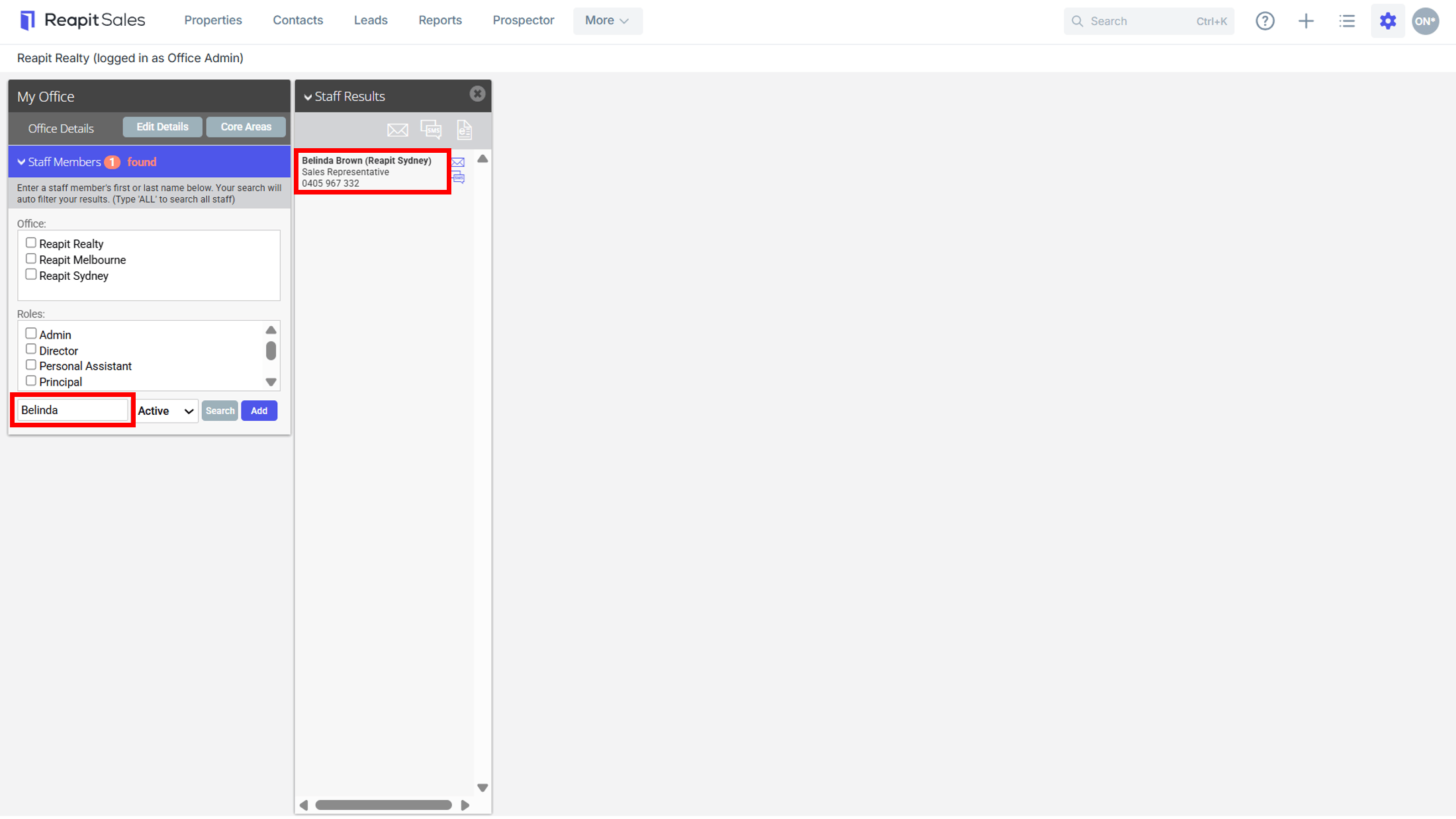
- Click on My Office from the main menu.

- Search for the Staff Member in the left-hand panel, then click on the staff member's name to open their staff card.
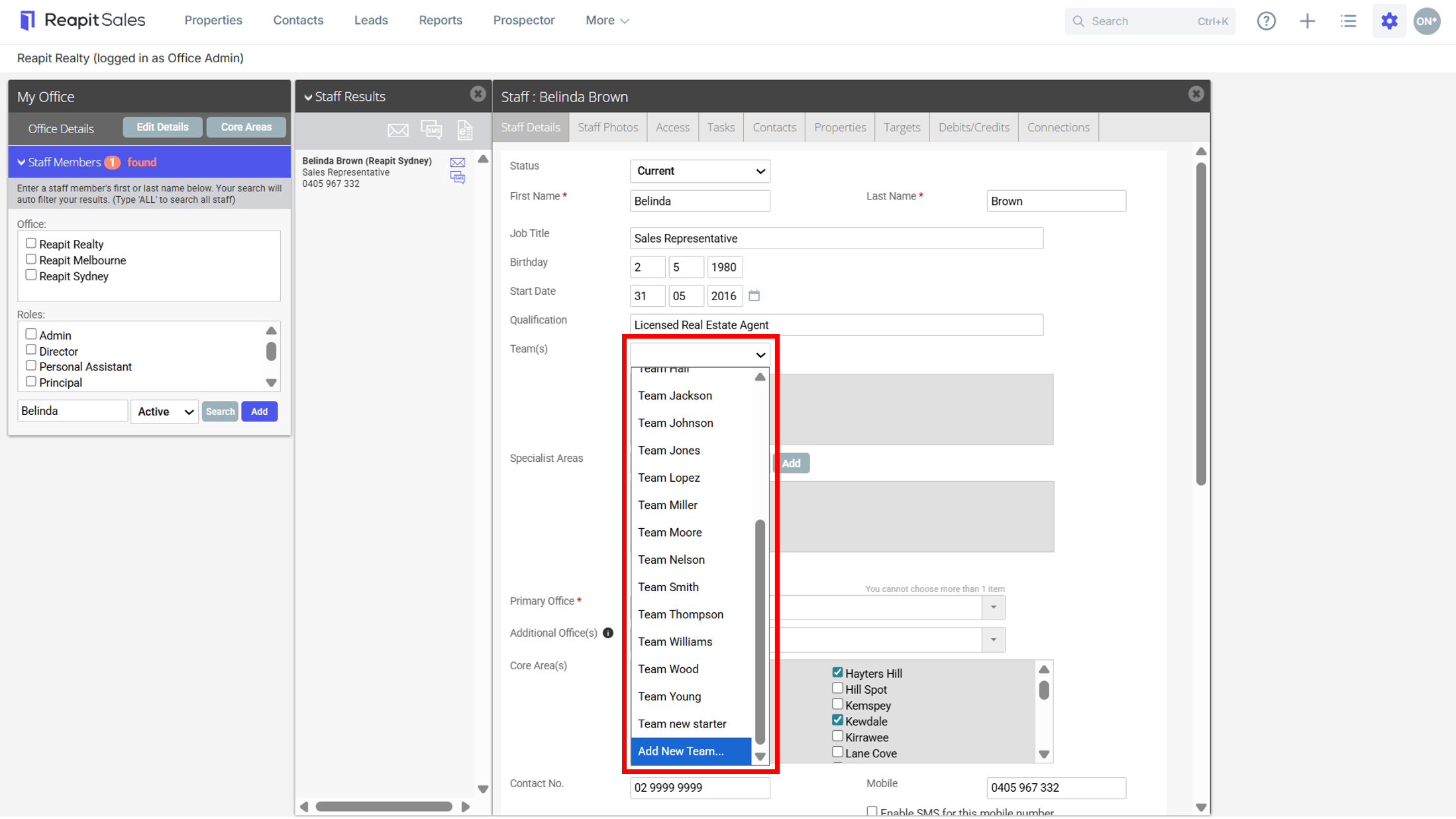
- In the Team's drop-down select Add New Team.
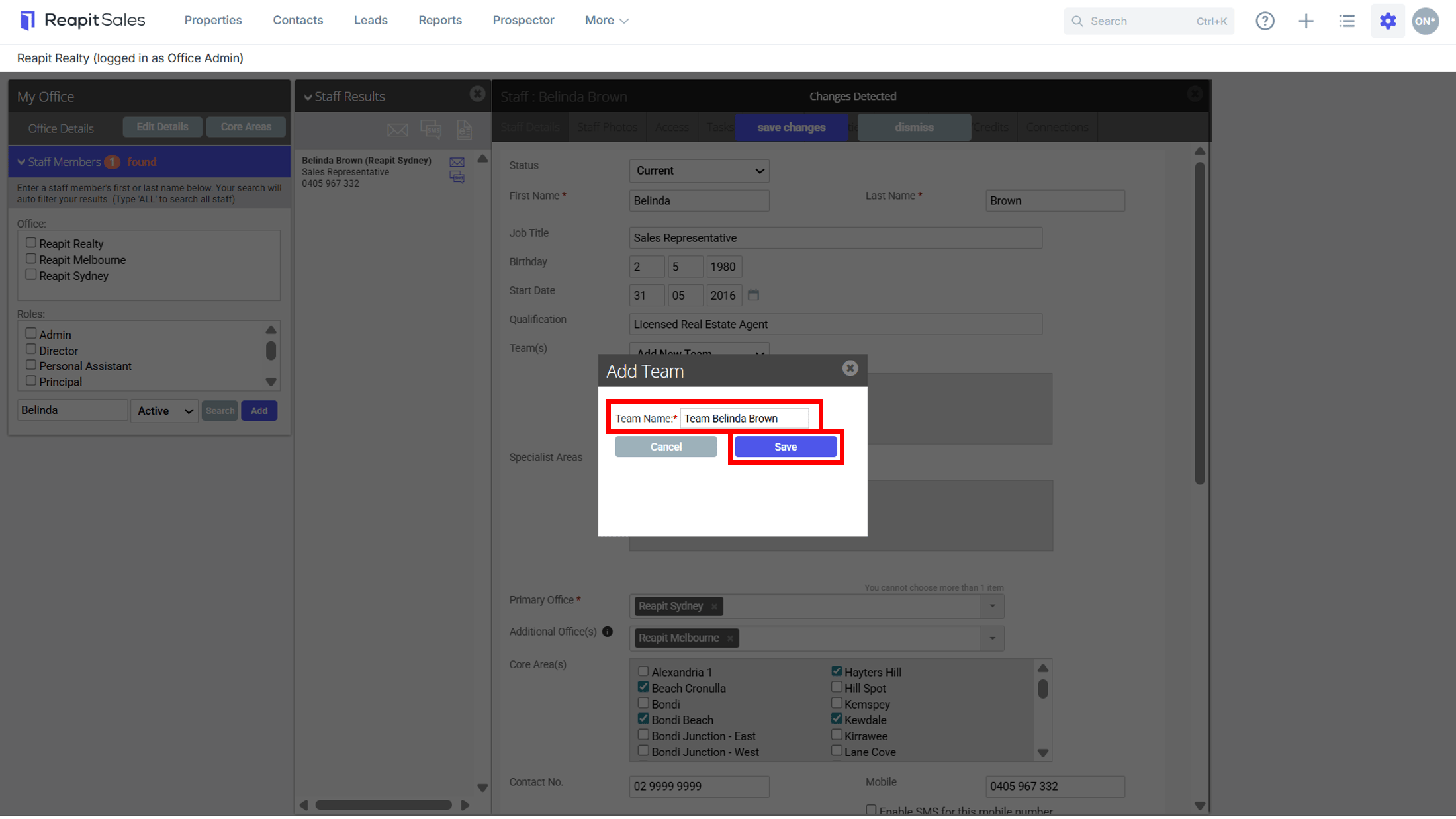
- Enter the Team Name and click Save.
Add Staff to a Team
Note: Permissions may apply
- Click on My Office from the main menu.

- Search for the Staff Member in the left-hand panel, then click on the staff member's name to open their staff card.
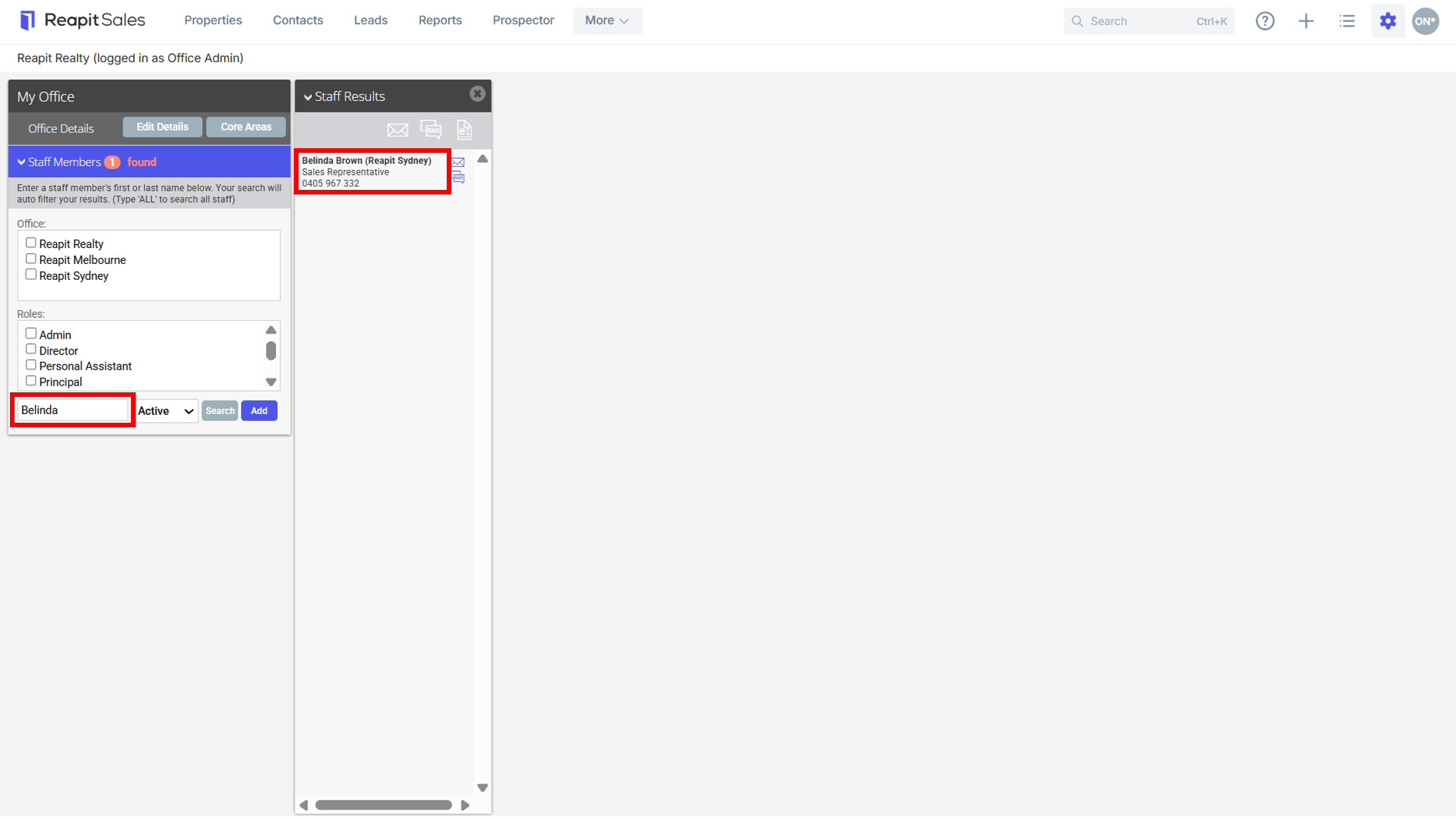
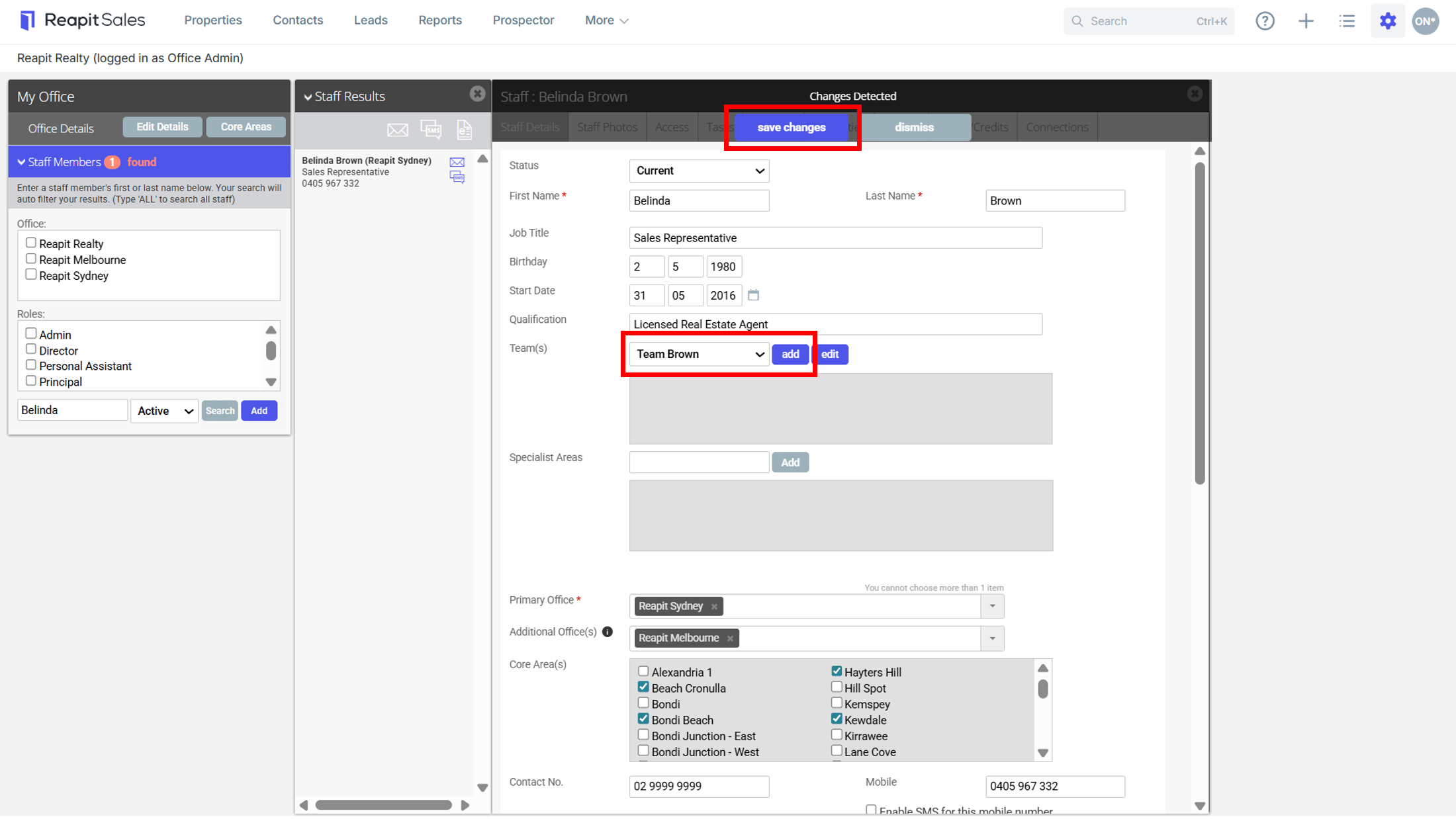
- Select the Team Name from the drop-down ****and click Add.
Click save changes.
Staff Permissions - Teams
Note: Only Master users (and staff with relevant access) can update Permissions on a Staff card.
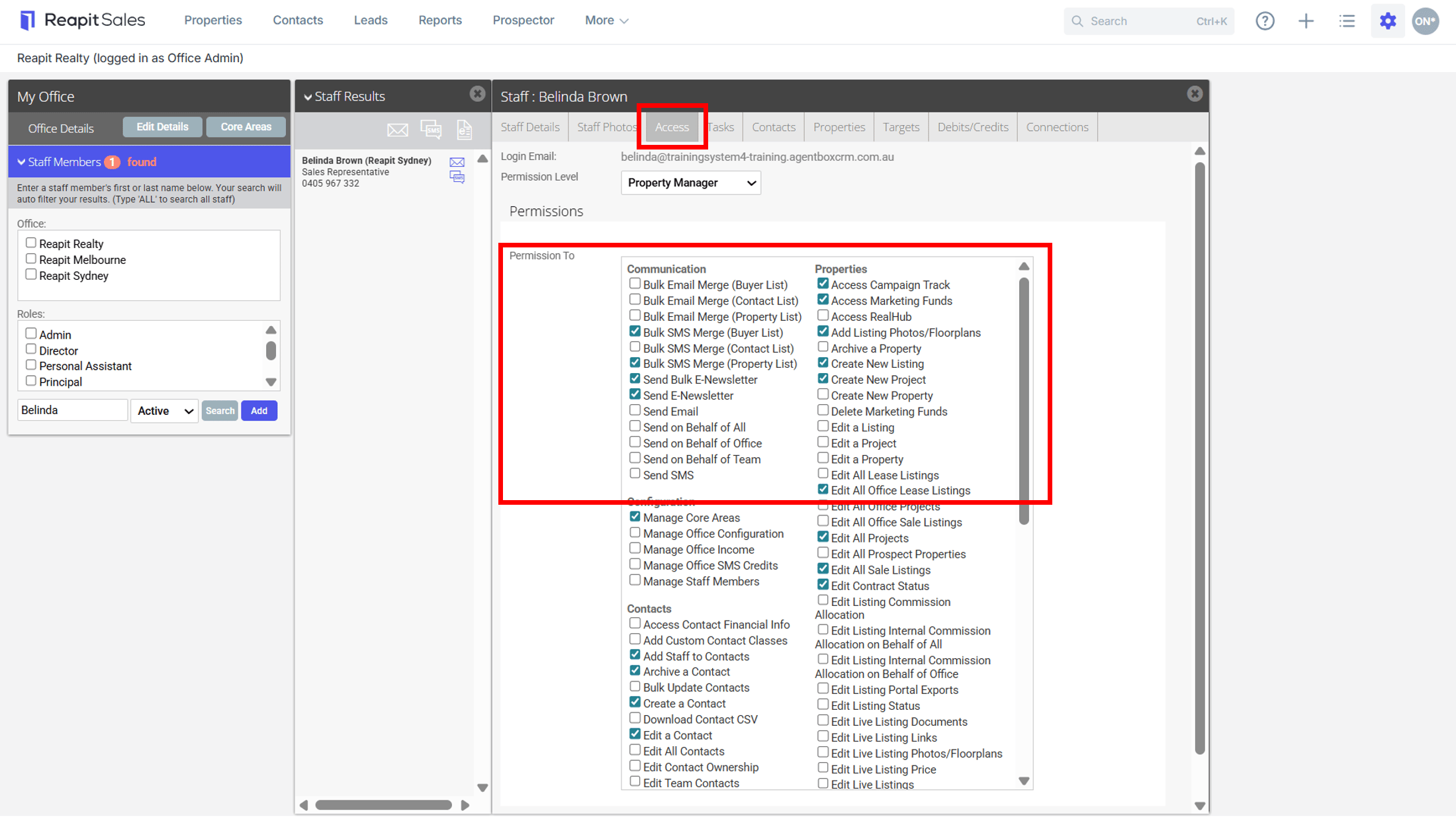
- To adjust Permissions relating to a Team:
- Click on the Access Tab within the respective staff member’s Staff card.
- Select the ‘Team’ related Permissions - as applicable:
Key Permissions:
| Send on Behalf of Team | Allows team members to communicate on behalf of Team Members. Applies to all forms of communication which this User has permissions to use. (e.g. Emails, E-Newsletters, SMS & Mail Merges). |
| Edit Team Contacts | Allows User to edit the "Contact Card" of a contact assigned to a Team Member. |
| Edit Team Task | Allows User to edit, complete, delete or re-assign Tasks created by or assigned to Team Members. |
| Report on Behalf of Team | This permission allows the User to run Reports on behalf of all Staff Members within their Team(s). |
- Click on Save to apply the changes.
Delete a Team
To delete a team, send a request to support.
In the Support request, be specific in the ‘Team/s’ that need to be deleted.
For example: “Hi Support,
Can you please delete the Team named ‘Team Ricardo’. This Team is no longer required.”
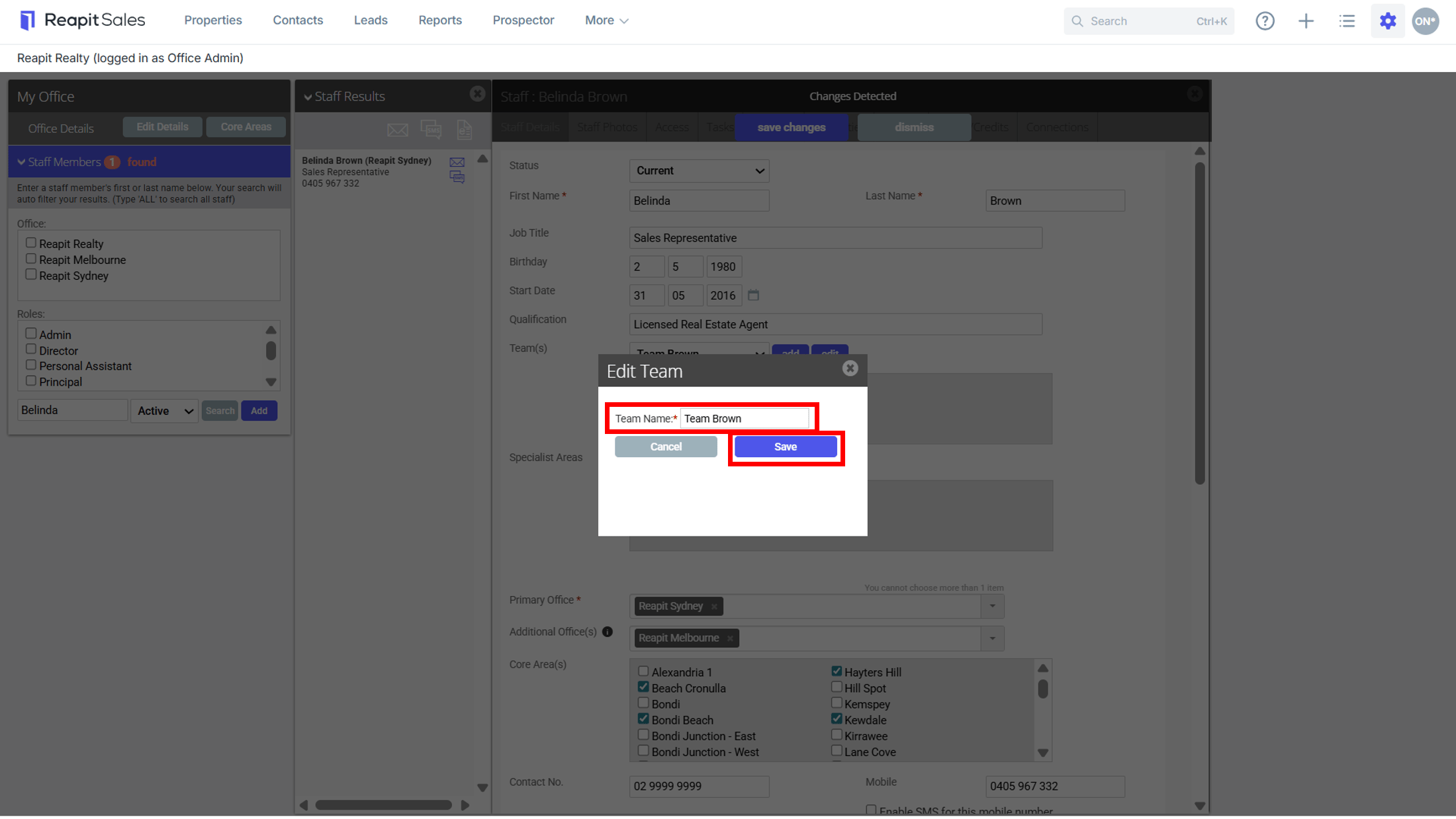
Edit a Team Name
- Navigate to your profile or search for a staff card to edit a team name.
- Select the Team Name from the drop-down ****and click Edit.
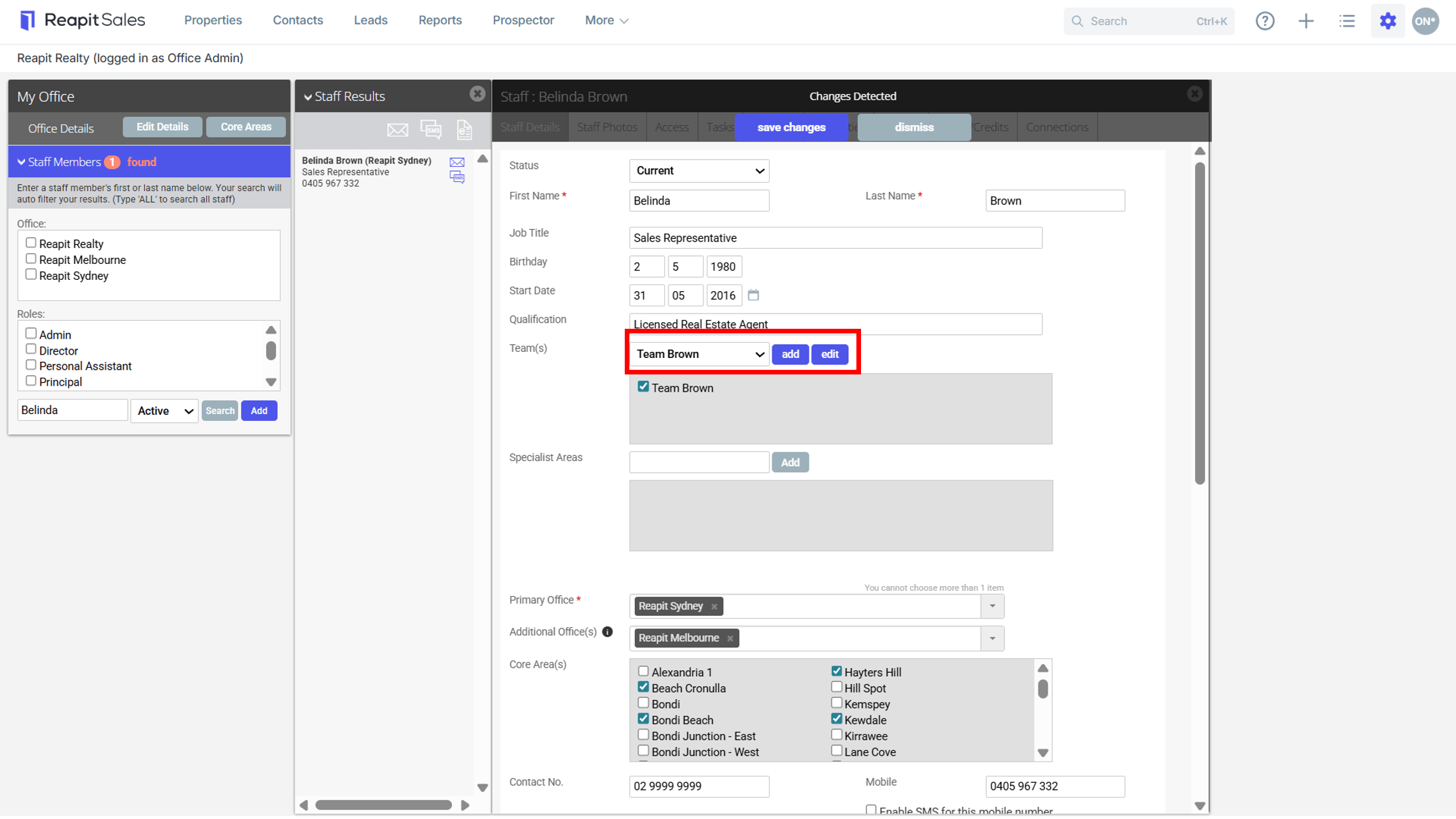
- Edit accordingly and click Save.
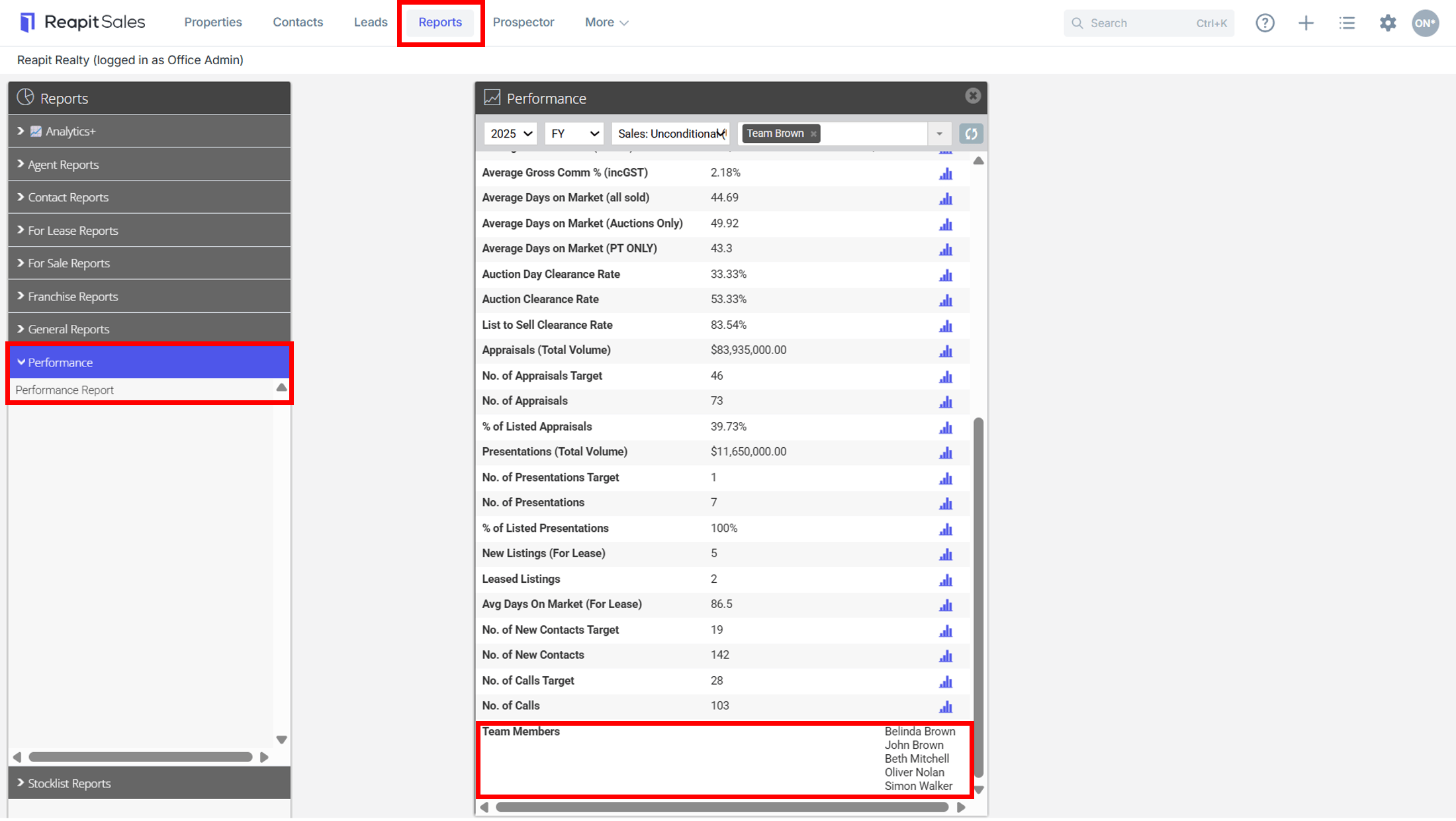
View All Team Members
- Click on Reports.
- Navigate to and select Performance > Performance Report.
- Adjust the Filter from All to the respective Team, eg: ‘Team Brown’, Click on Apply Filters.
- Scroll to the bottom of the Performance results to view all Team members.