'%20d='M0%208a8%208%200%200%201%208-8h24a8%208%200%200%201%208%208v24a8%208%200%200%201-8%208H8a8%208%200%200%201-8-8V8Z'/%3e%3cpath%20fill='%23fff'%20d='M10.41%206v3.779h15.048v19.537h4.132V6H10.41Z'/%3e%3cpath%20fill='%23fff'%20d='M20.967%2034V13.837L10.41%209.78v20.166L20.967%2034Z'/%3e%3cdefs%3e%3clinearGradient%20id='reapit-sales__a'%20x1='20.702'%20x2='20.702'%20y1='.351'%20y2='31.228'%20gradientUnits='userSpaceOnUse'%3e%3cstop%20stop-color='%235573FD'/%3e%3cstop%20offset='.575'%20stop-color='%234E56EA'/%3e%3c/linearGradient%3e%3c/defs%3e%3c/svg%3e)
Schedule or Cancel an OFI Times in Mobile App
This article demonstrates how to schedule or cancel an OFI times in Reapit Sales App on mobile devices. The process in this article include: Schedule an OFI Times in Mobile App Cancel an OFI Times in Mobile App
Schedule or Cancel an OFI Times in Mobile App
This article demonstrates how to schedule or cancel an OFI times in Reapit Sales App on mobile devices.
The process in this article include:
- Schedule an OFI Times in Mobile App
- Cancel an OFI Times in Mobile App
Users with the appropriate permission can add/edit and delete OFI times within the Listing OFI tab.
Schedule an OFI Times in Mobile App
Note: Listing Information must be added using the full Reapit Sales CRM.
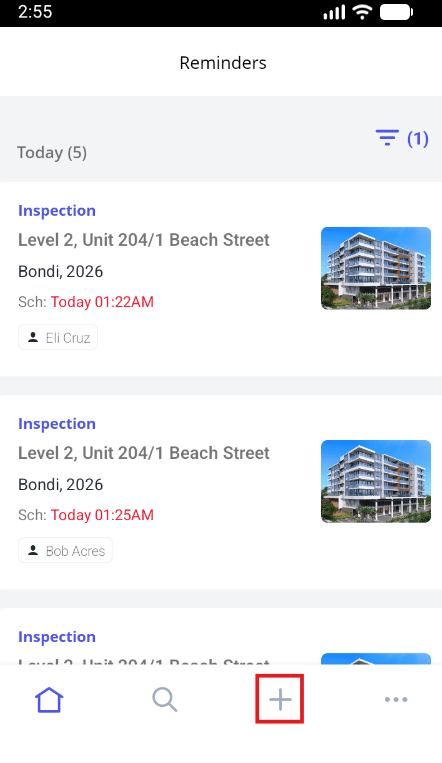
- Click on the + icon.
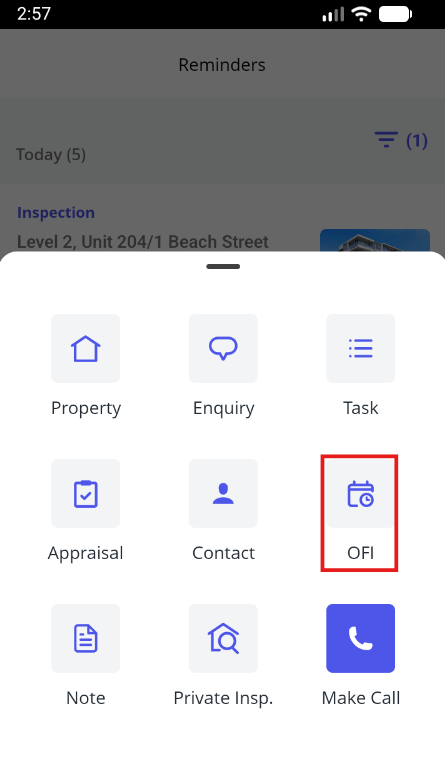
- Click OFI.
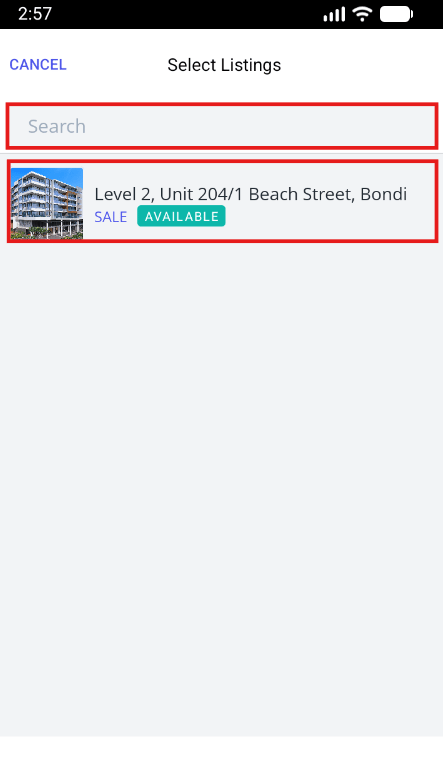
- Search or select the relevant listing.
- Enter the date and time and click Save.
Note: For users utilising Inspection Reminder notifications, you will receive a reminder 30 minutes prior to the scheduled inspection time.
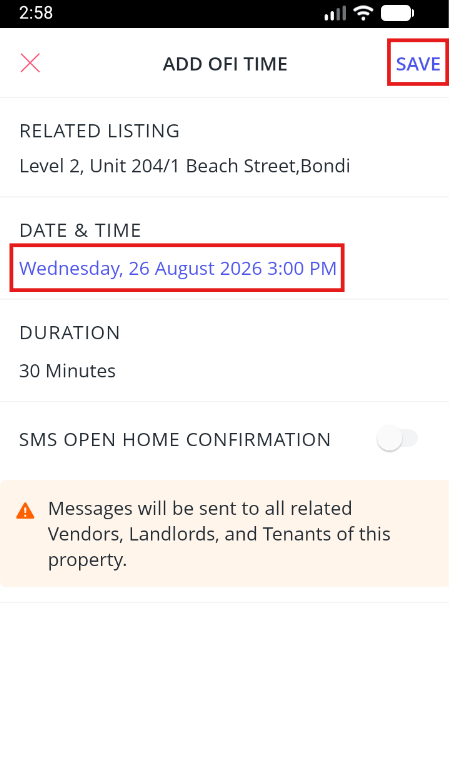
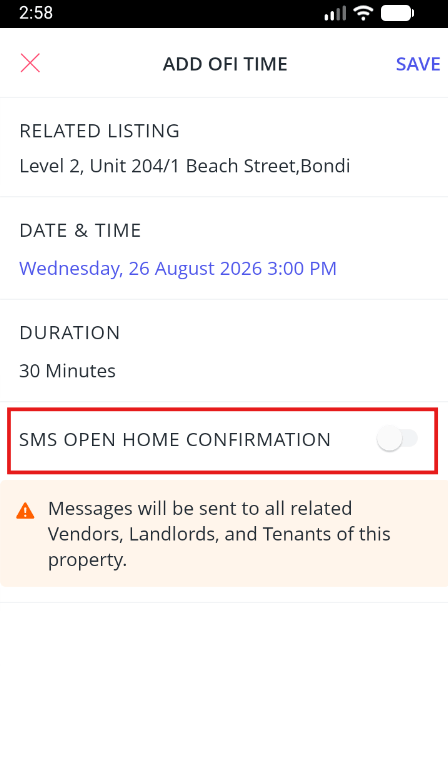
- Once the OFI time has been scheduled through the Mobile App, you will have the option to send an SMS to the related listing contacts advising them that the OFI has been scheduled.
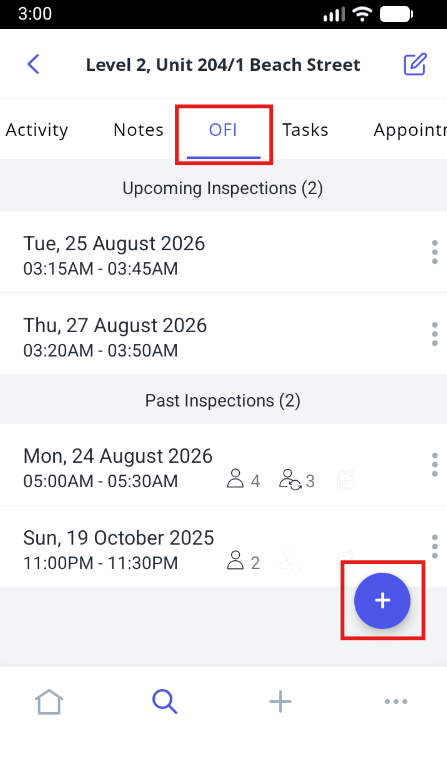
- Alternatively, you can select the + via the OFI tab on the relevant listing.
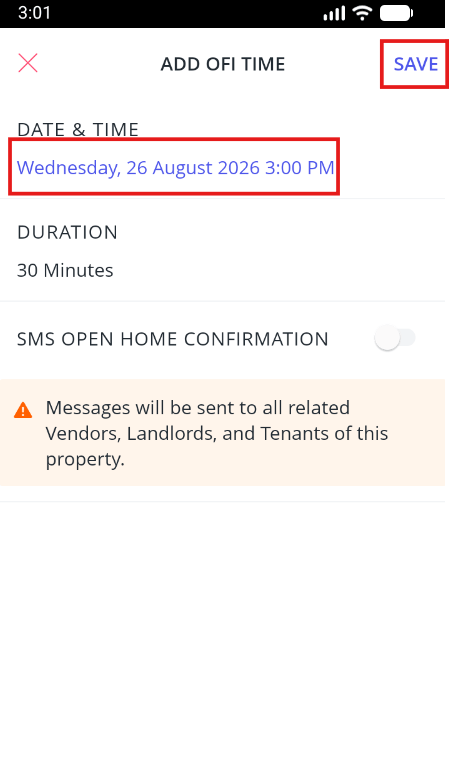
- Enter a date and time and click Save.
Cancel an OFI Times in Mobile App
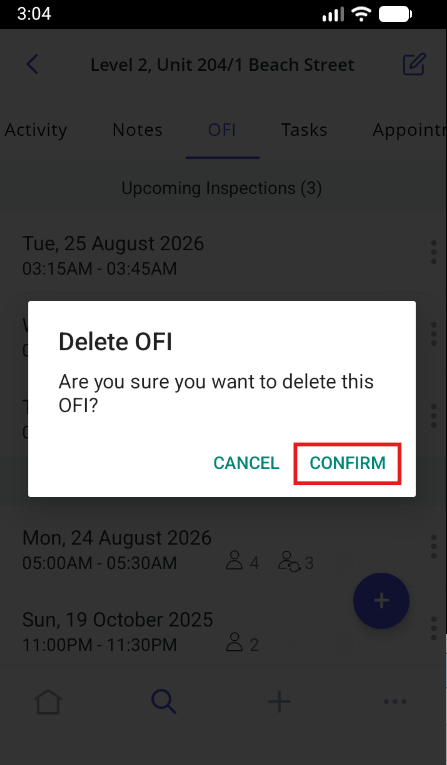
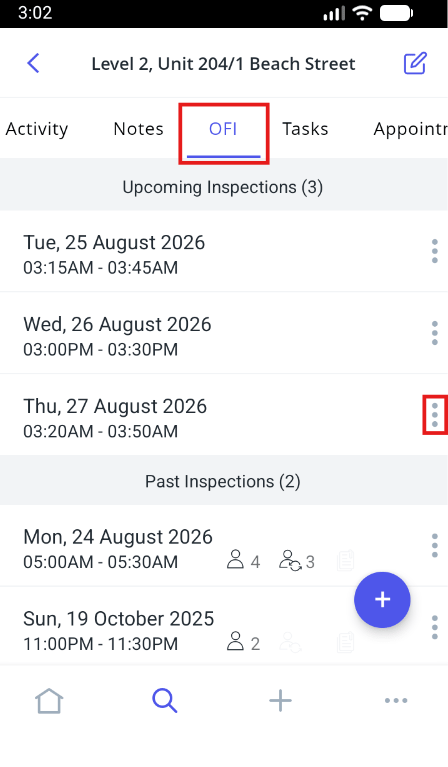
- To cancel an upcoming OFI, visit the relevant listing via the OFI tab. Select the 3 dots.
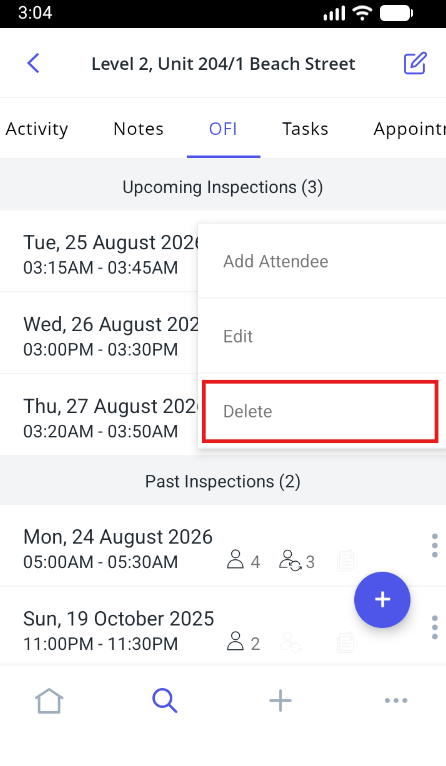
- Click Delete.
- Select Confirm.