'%20d='M0%208a8%208%200%200%201%208-8h24a8%208%200%200%201%208%208v24a8%208%200%200%201-8%208H8a8%208%200%200%201-8-8V8Z'/%3e%3cpath%20fill='%23fff'%20d='M10.41%206v3.779h15.048v19.537h4.132V6H10.41Z'/%3e%3cpath%20fill='%23fff'%20d='M20.967%2034V13.837L10.41%209.78v20.166L20.967%2034Z'/%3e%3cdefs%3e%3clinearGradient%20id='reapit-sales__a'%20x1='20.702'%20x2='20.702'%20y1='.351'%20y2='31.228'%20gradientUnits='userSpaceOnUse'%3e%3cstop%20stop-color='%235573FD'/%3e%3cstop%20offset='.575'%20stop-color='%234E56EA'/%3e%3c/linearGradient%3e%3c/defs%3e%3c/svg%3e)
Saving and Managing Advanced Contact Searches
This article runs through saving and managing advanced contact searches in Reapit Sales. The processes in this article include: Creating Saved Search How to find Saved Search How to edit Saved Search How to remove Saved Search Note: The saved search will save the search criteria, not the actual results therefore any new contacts will appear each time you run the search.
Saving and Managing Advanced Contact Searches
This article runs through saving and managing advanced contact searches in Reapit Sales.
The processes in this article include:
- Creating Saved Search
- How to find Saved Search
- How to edit Saved Search
- How to remove Saved Search
Note: The saved search will save the search criteria, not the actual results therefore any new contacts will appear each time you run the search.
Creating Saved Search
- Open the Advanced Contact Search panel.
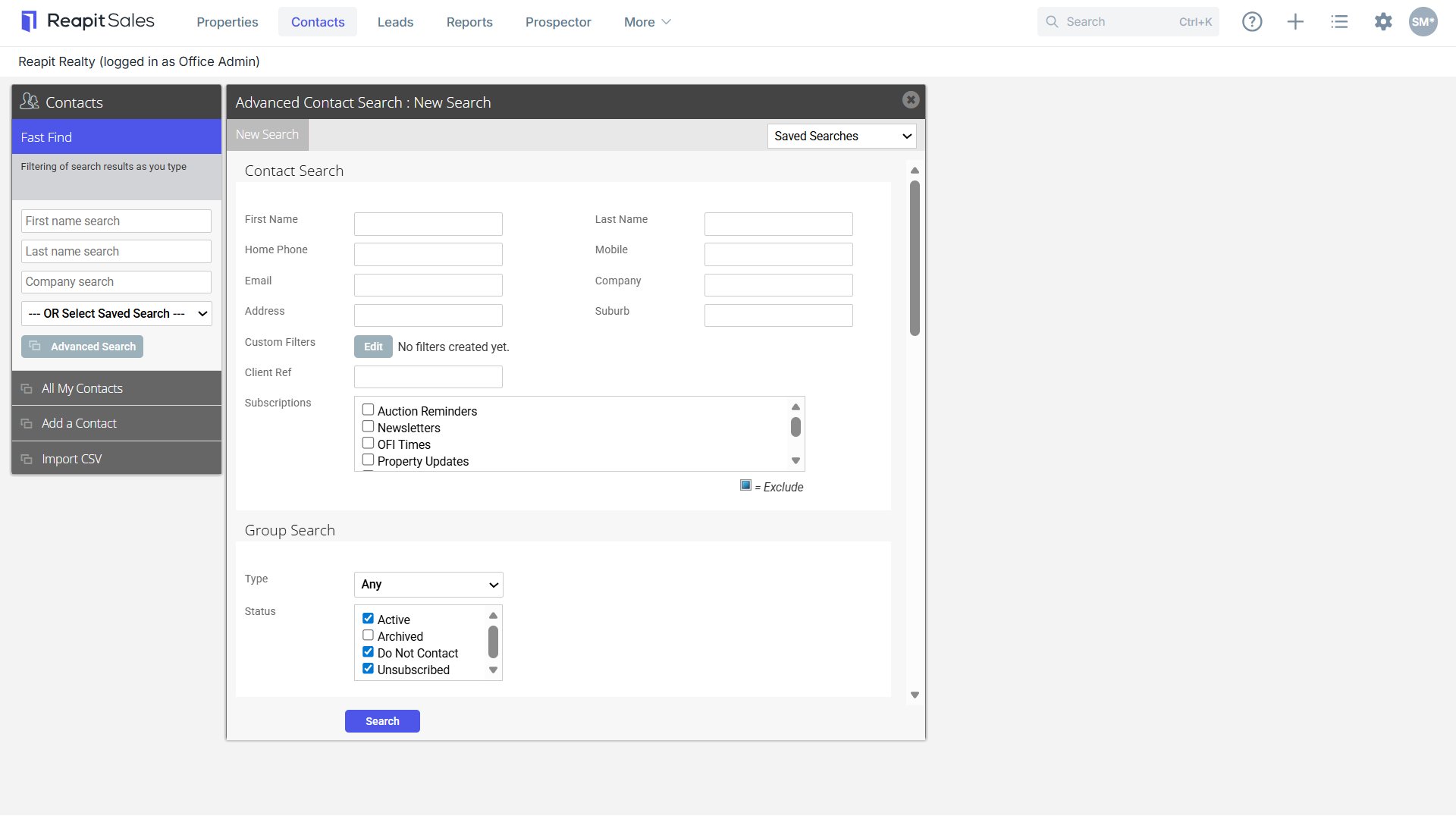
- Enter your Search Criteria into the appropriate fields.
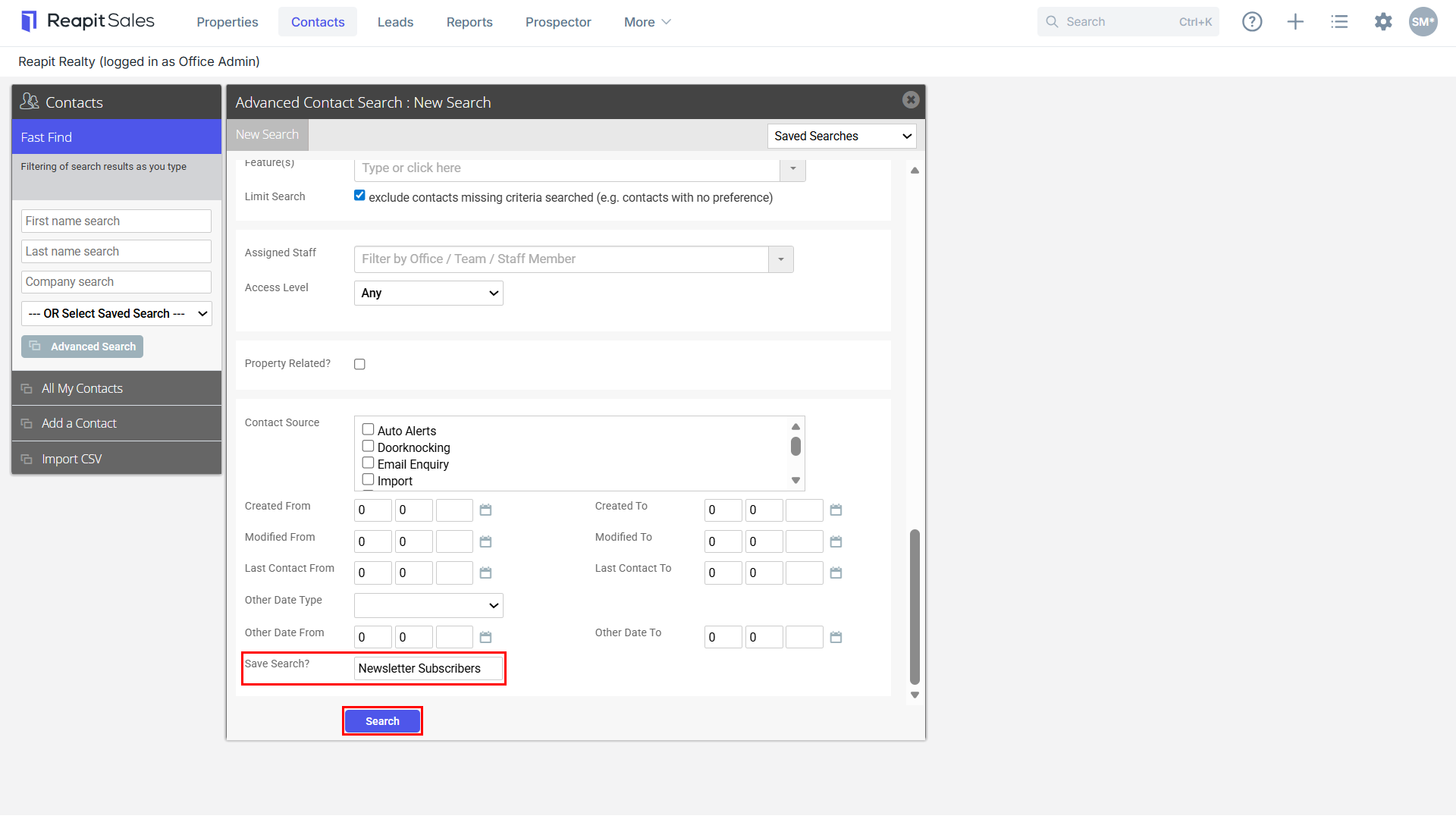
- In the Save Search field enter the name you would like to save this search by.
- Click Search.
How to find Saved Search
- Click the Contact icon from the main menu.
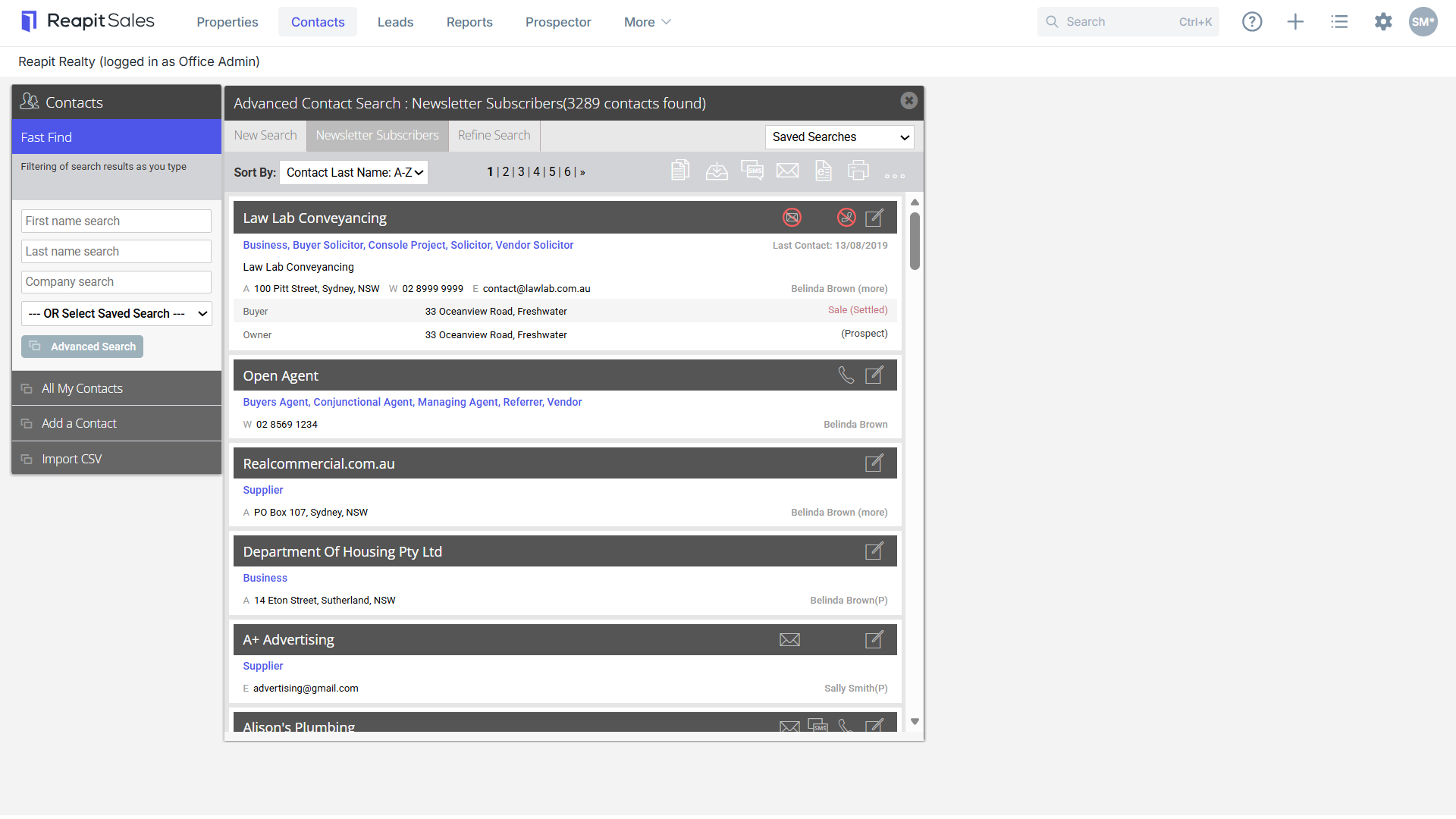
- Click the Advanced Search drop-down and select your Saved Search from the left panel.
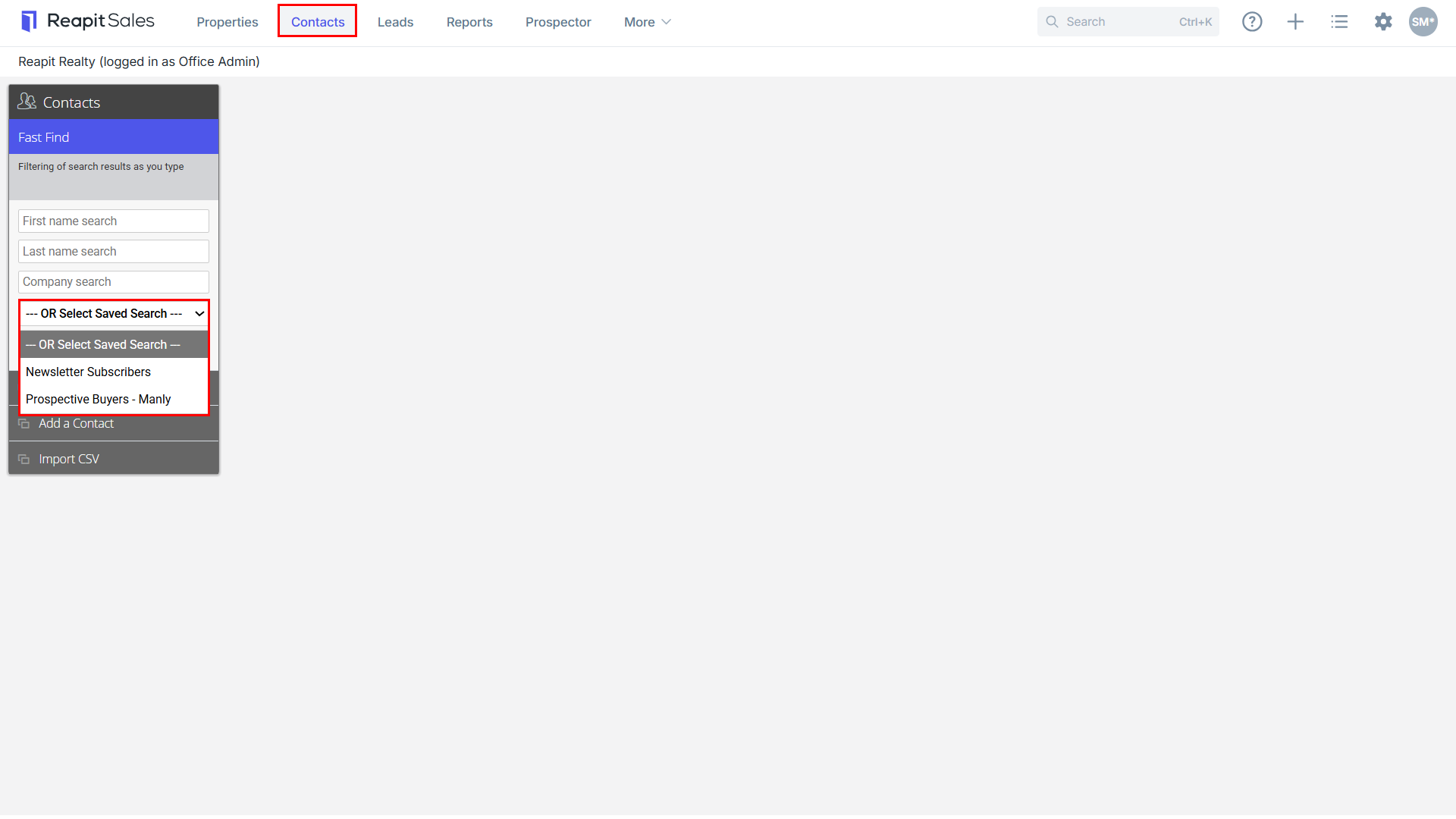
- Your Target List will appear on the screen.
How to edit Saved Search
- Open one of your saved searches.
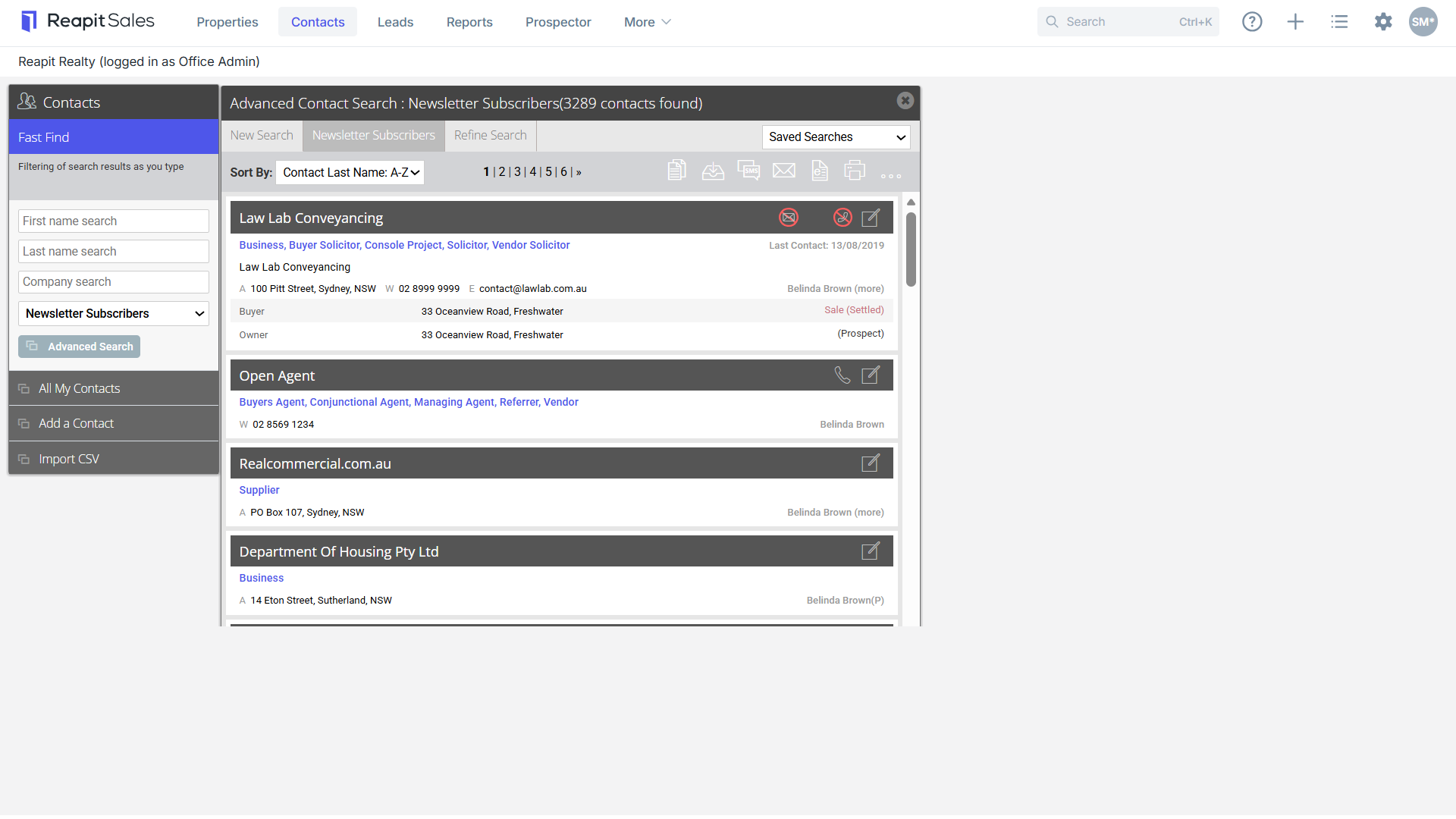
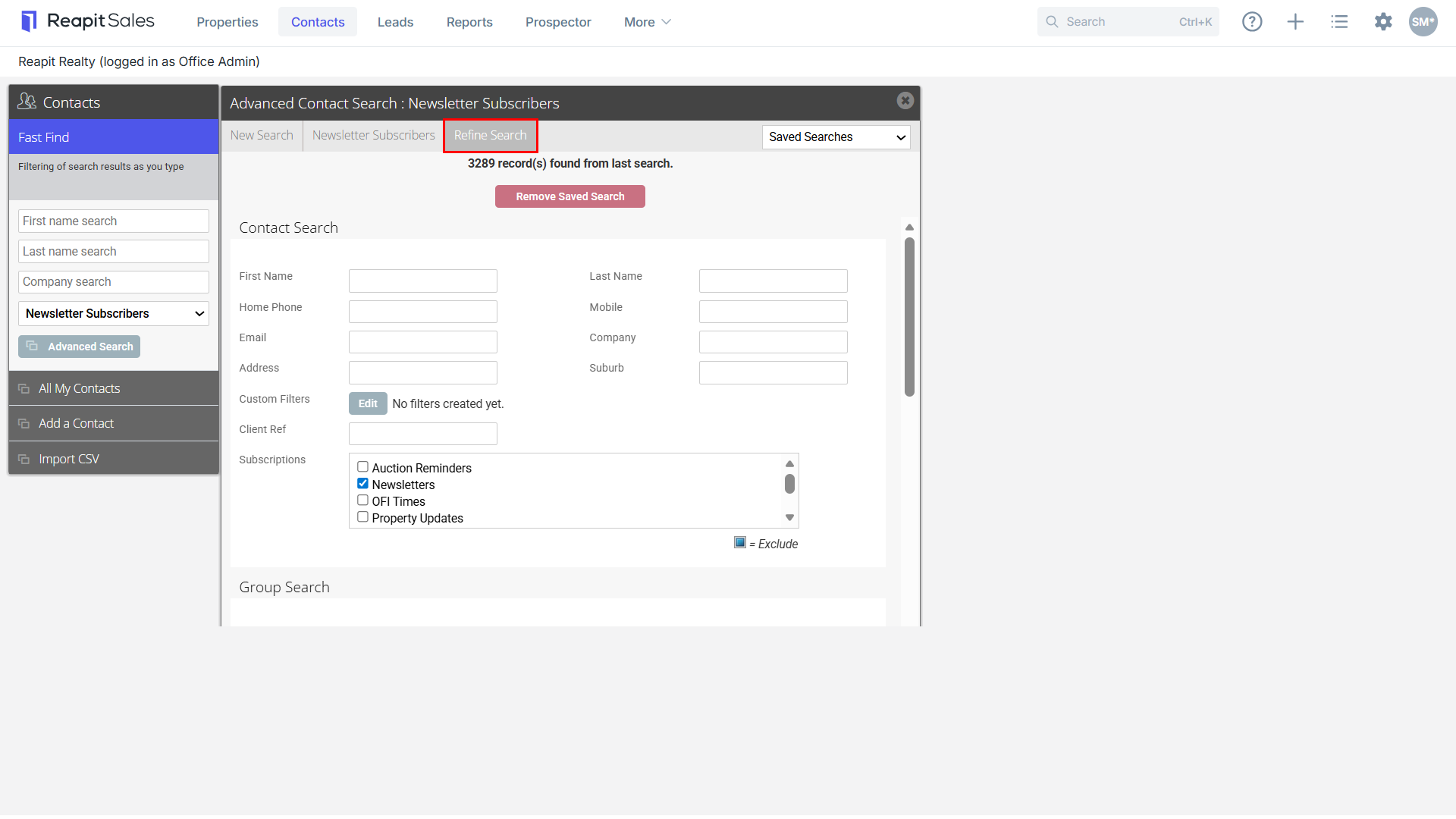
- Click the Refine Search tab.
- Alter search requirements as you wish.
- Click Search to save changes.
How to remove Saved Search
- Open one of your saved searches.

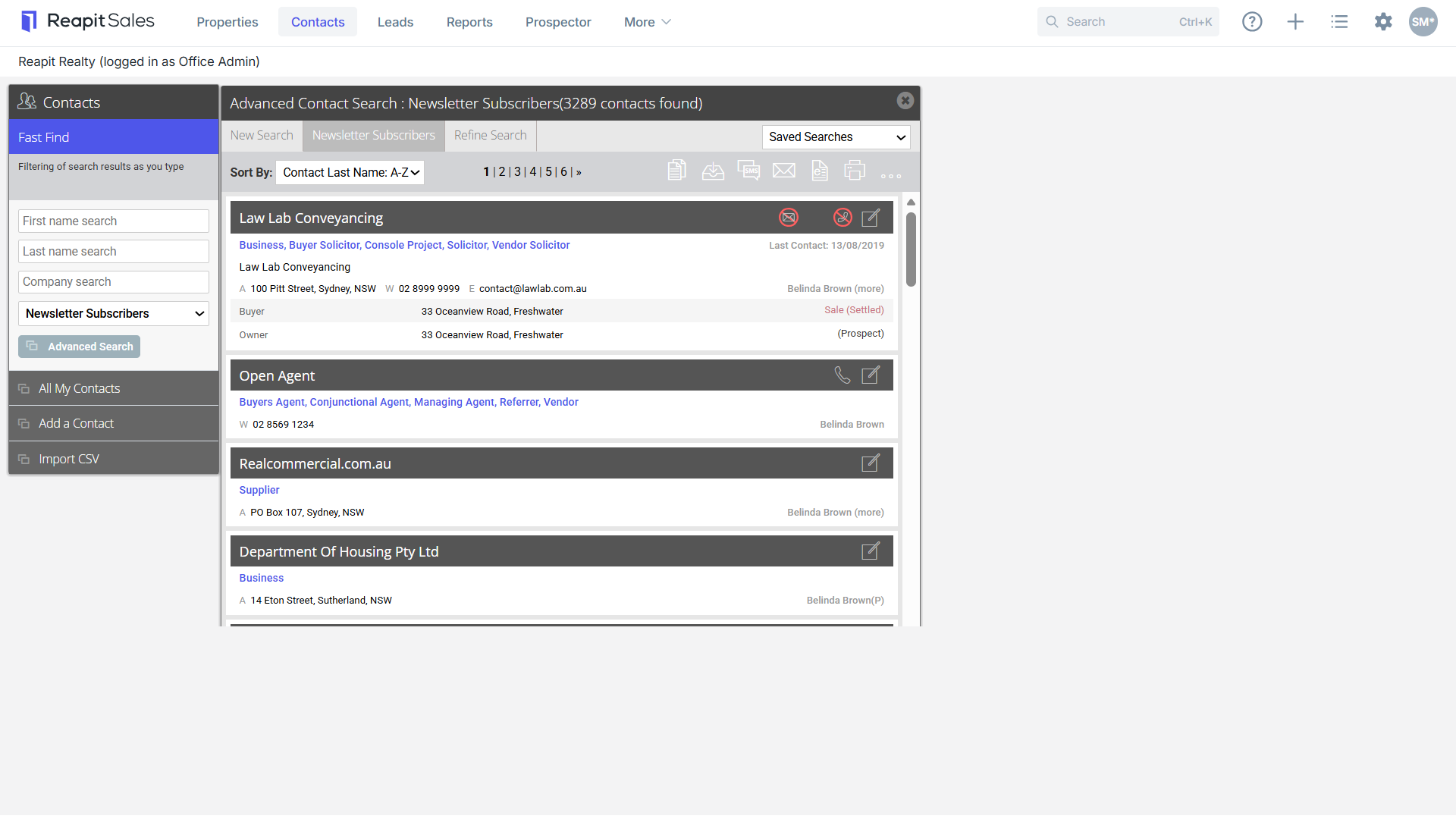
- Click the Refine Search tab.
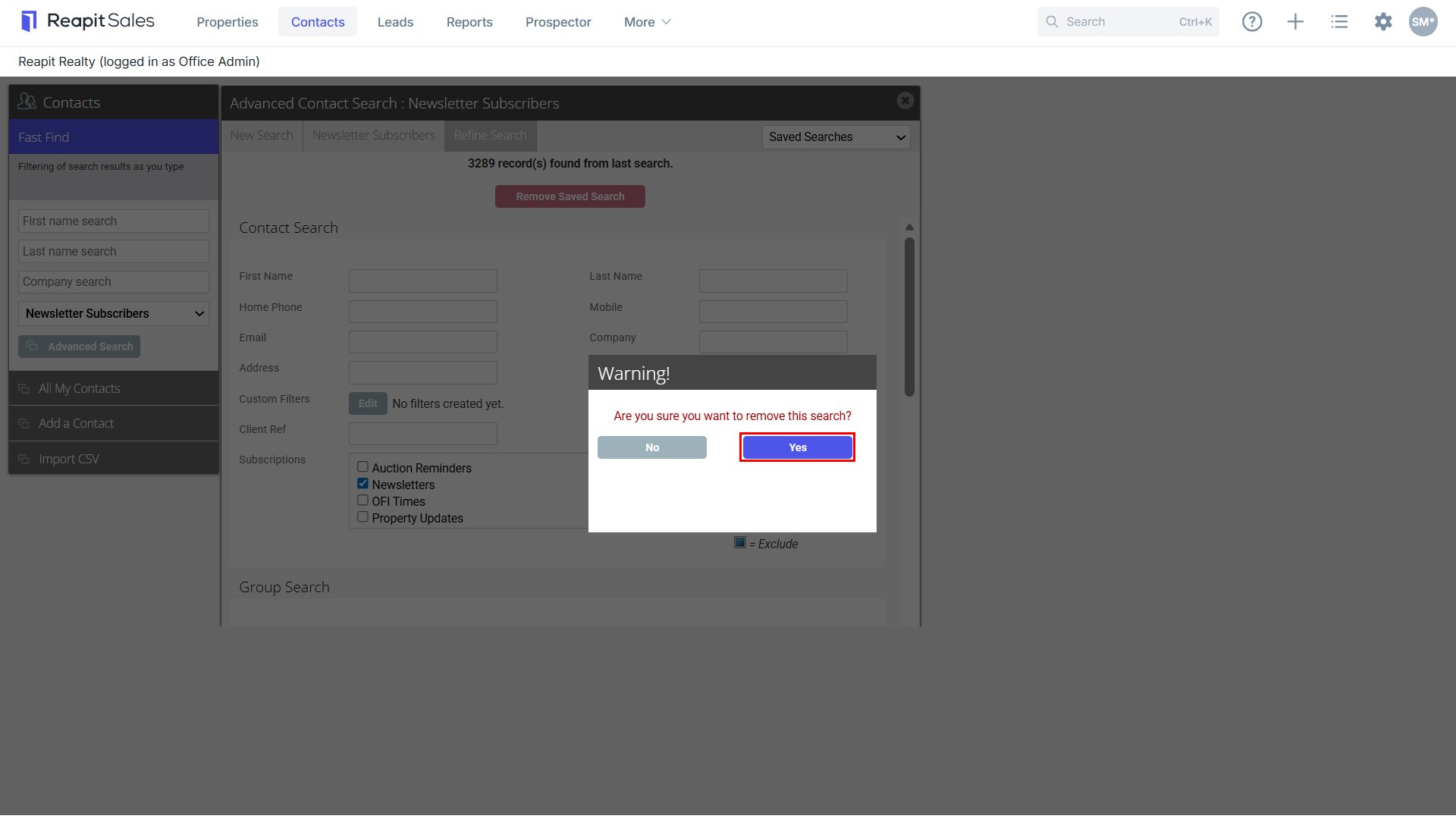
- Click the Remove Saved Search button.
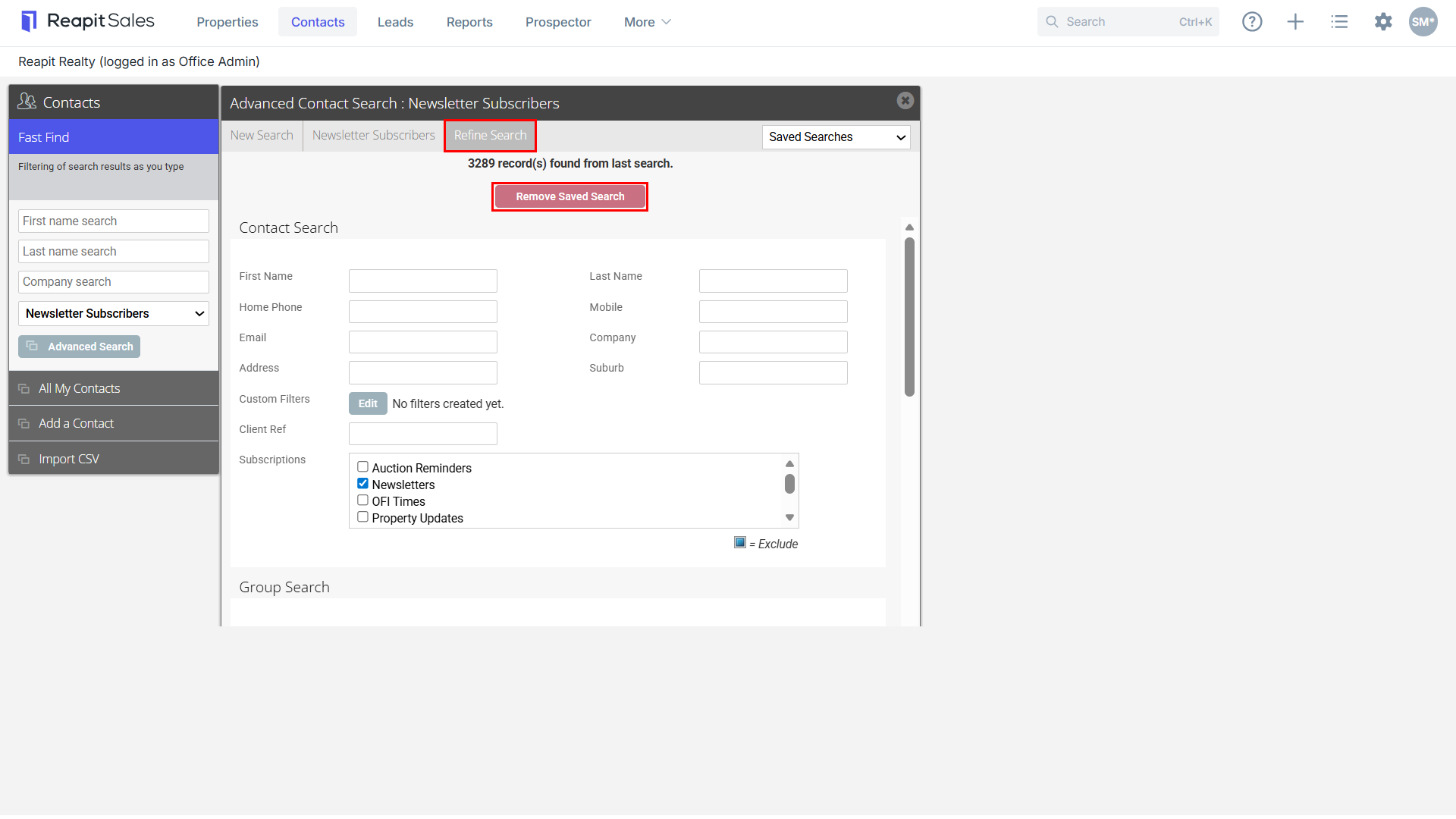
- Click Yes.