'%20d='M0%208a8%208%200%200%201%208-8h24a8%208%200%200%201%208%208v24a8%208%200%200%201-8%208H8a8%208%200%200%201-8-8V8Z'/%3e%3cpath%20fill='%23fff'%20d='M10.41%206v3.779h15.048v19.537h4.132V6H10.41Z'/%3e%3cpath%20fill='%23fff'%20d='M20.967%2034V13.837L10.41%209.78v20.166L20.967%2034Z'/%3e%3cdefs%3e%3clinearGradient%20id='reapit-sales__a'%20x1='20.702'%20x2='20.702'%20y1='.351'%20y2='31.228'%20gradientUnits='userSpaceOnUse'%3e%3cstop%20stop-color='%235573FD'/%3e%3cstop%20offset='.575'%20stop-color='%234E56EA'/%3e%3c/linearGradient%3e%3c/defs%3e%3c/svg%3e)
Insert Links to E-Newsletters
This article shows how to insert links to e-Newsletter. The processes in this article include: Inserting Link to a Text Inserting Link to an Image
Insert Links to E-Newsletters
This article shows how to insert links to e-Newsletter.
The processes in this article include:
- Inserting Link to a Text
- Inserting Link to an Image
Links can be used to direct contacts to view a variety of things, in particular other websites or to documents and images. The following examples will cover inserting a link to a website.
Inserting Link to a Text
- Open an E-Newsletter Template.
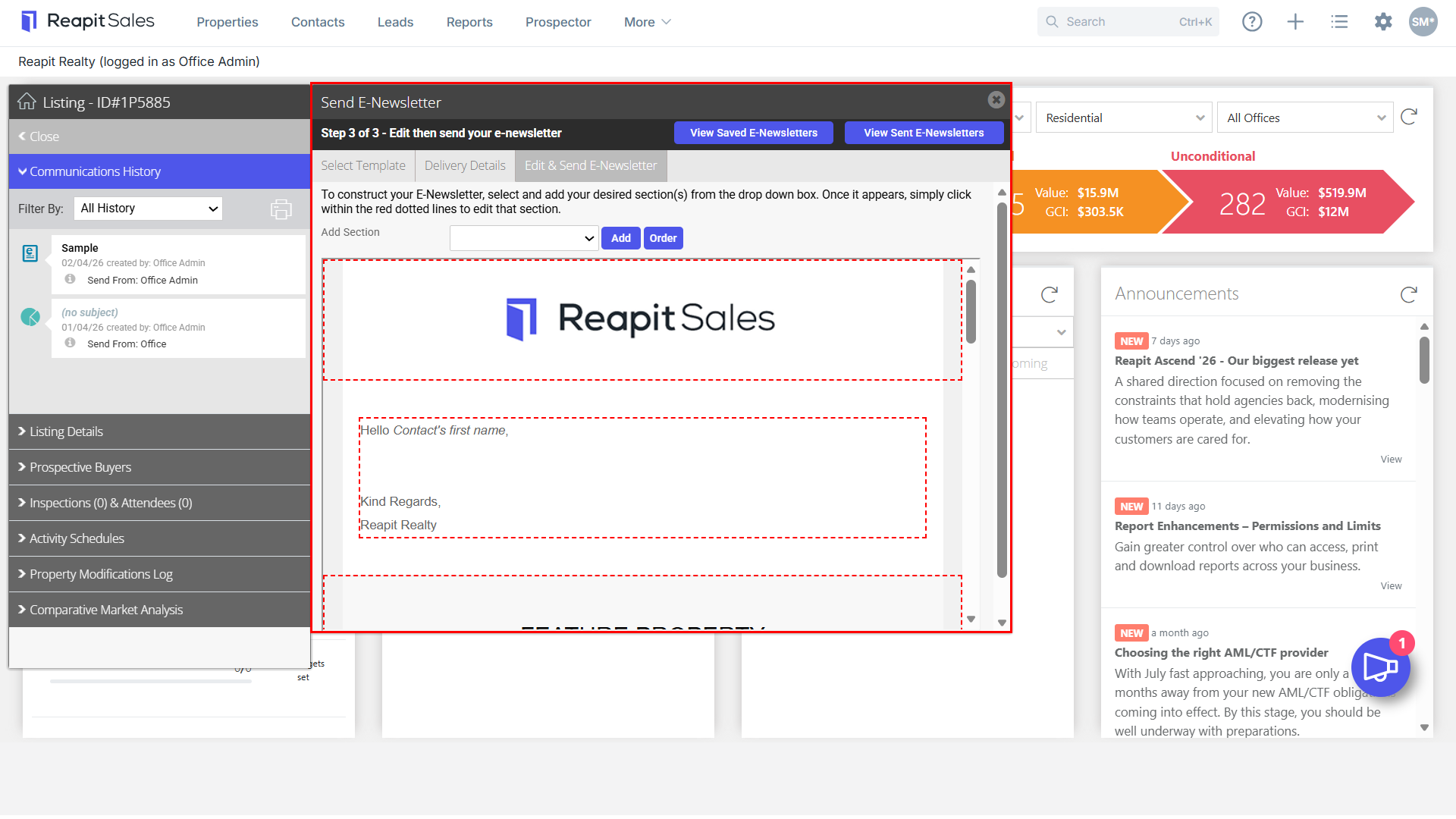
- Click within the red dashed box to Edit an Existing section or Add a New E-Newsletter section from the Add Section drop-down.
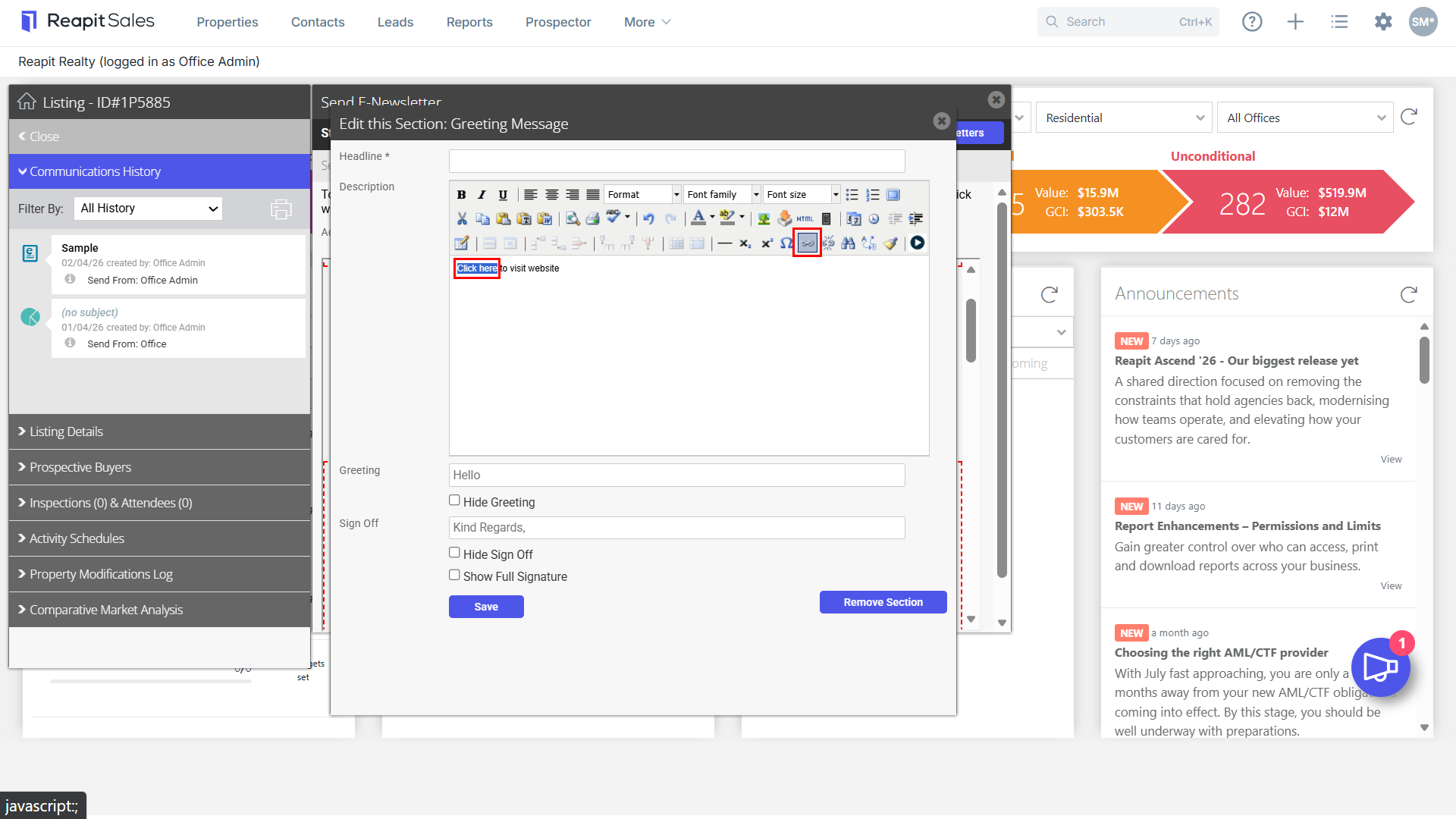
- Type the text you would like to link, then highlight to select the text.
- Click the Insert Link icon.


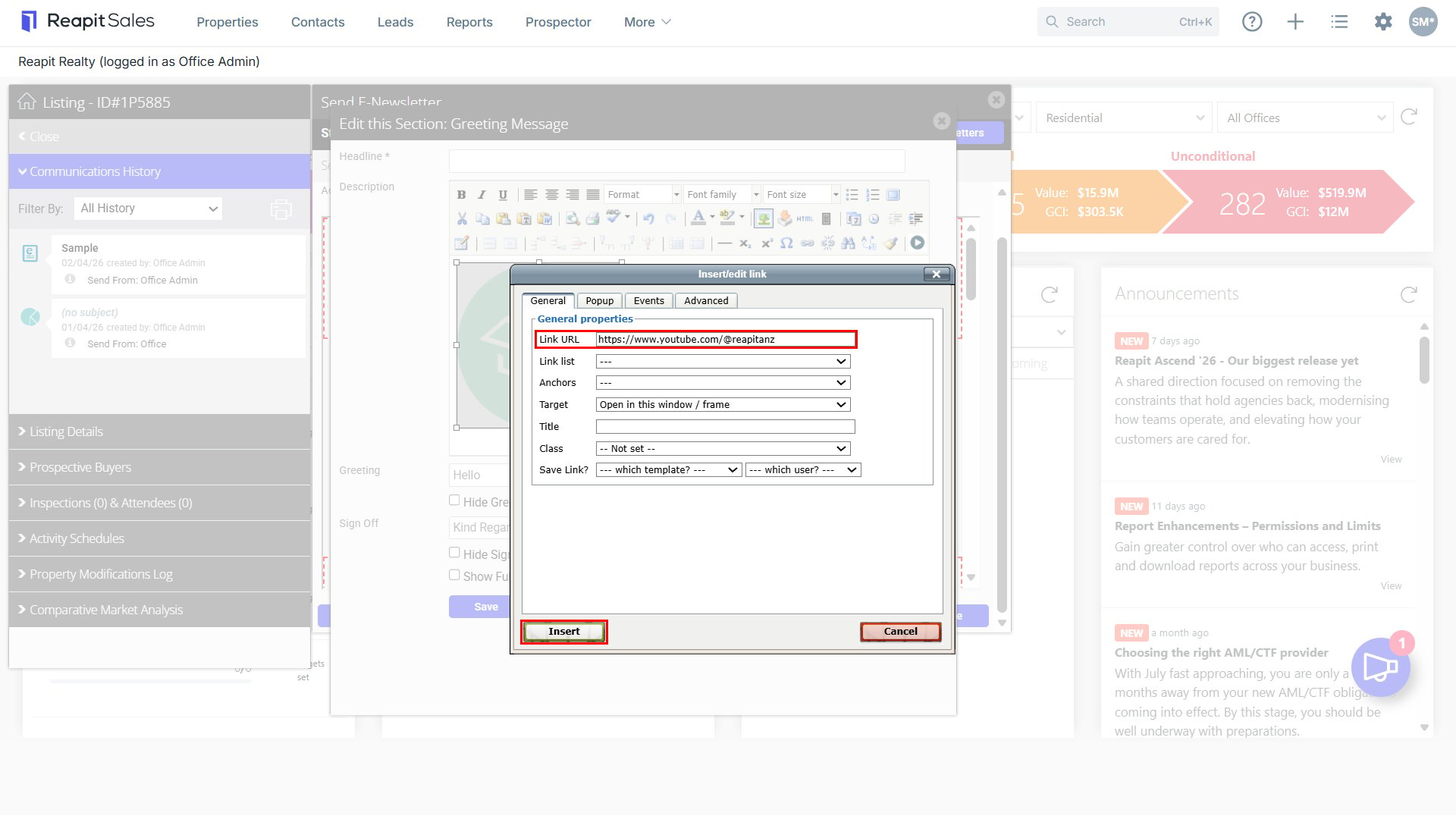
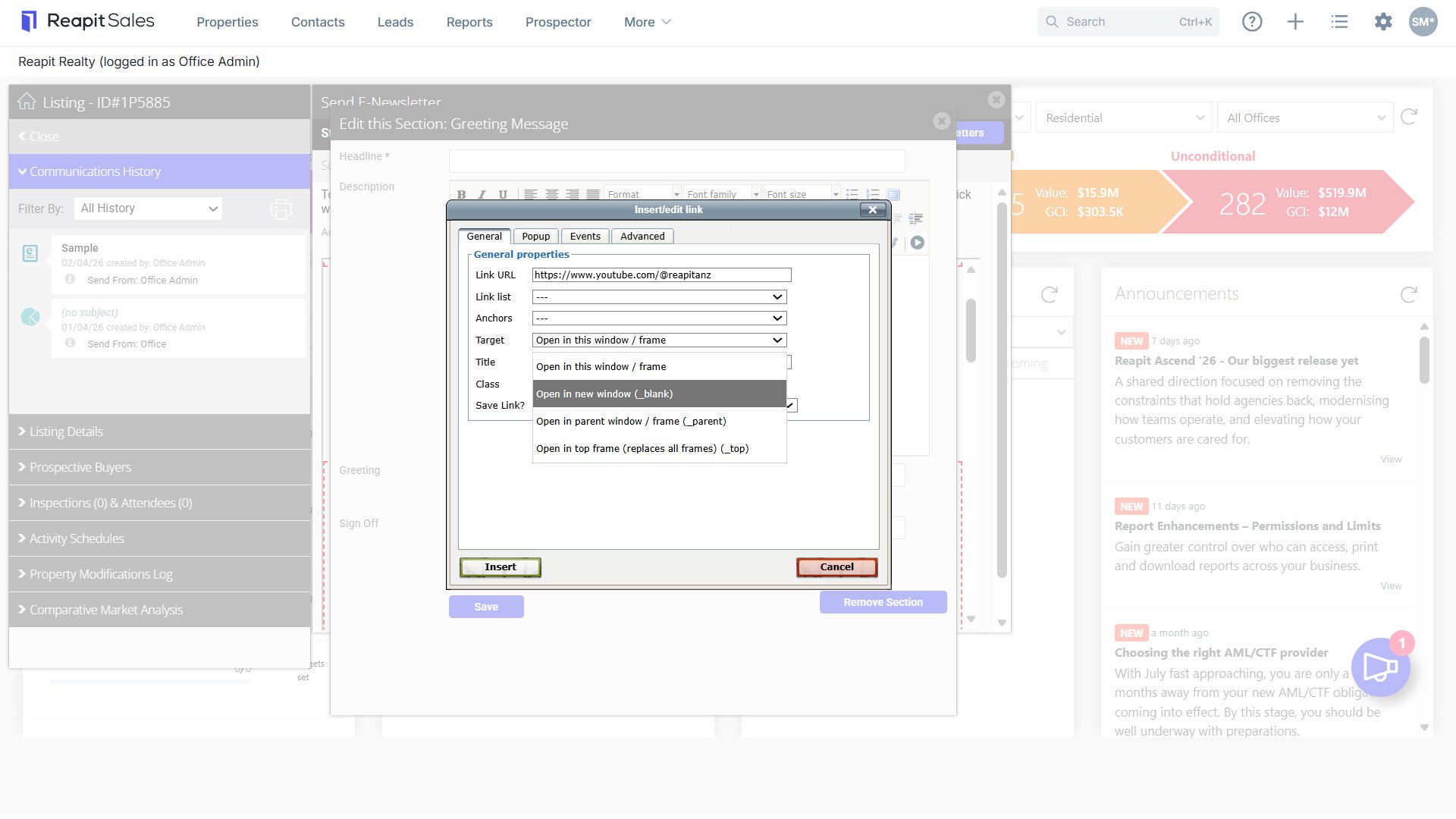
- Enter the link in the Link URL box, and select the target we recommend Open in New Window.

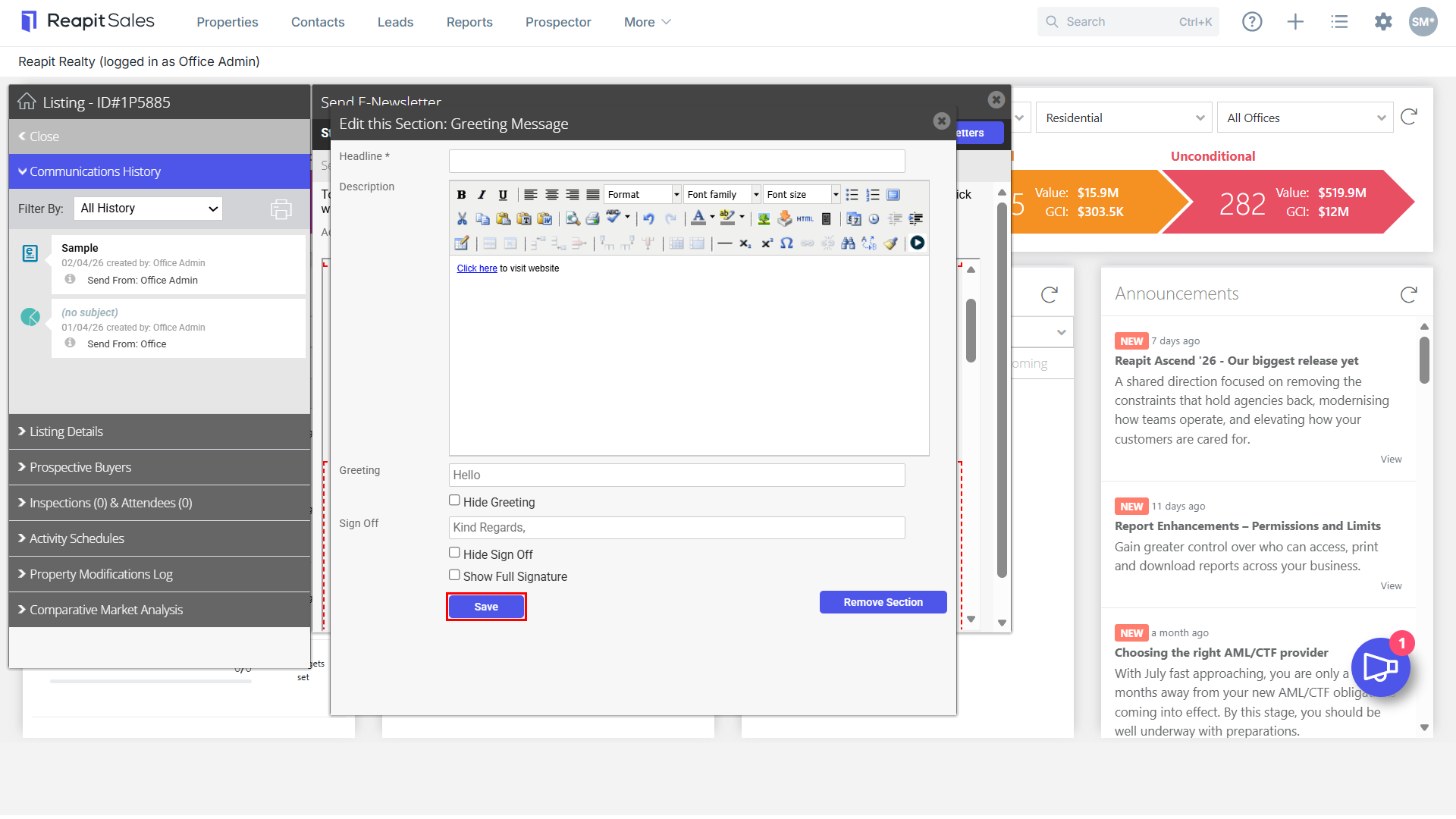
- The text will now be linked. Click Save.

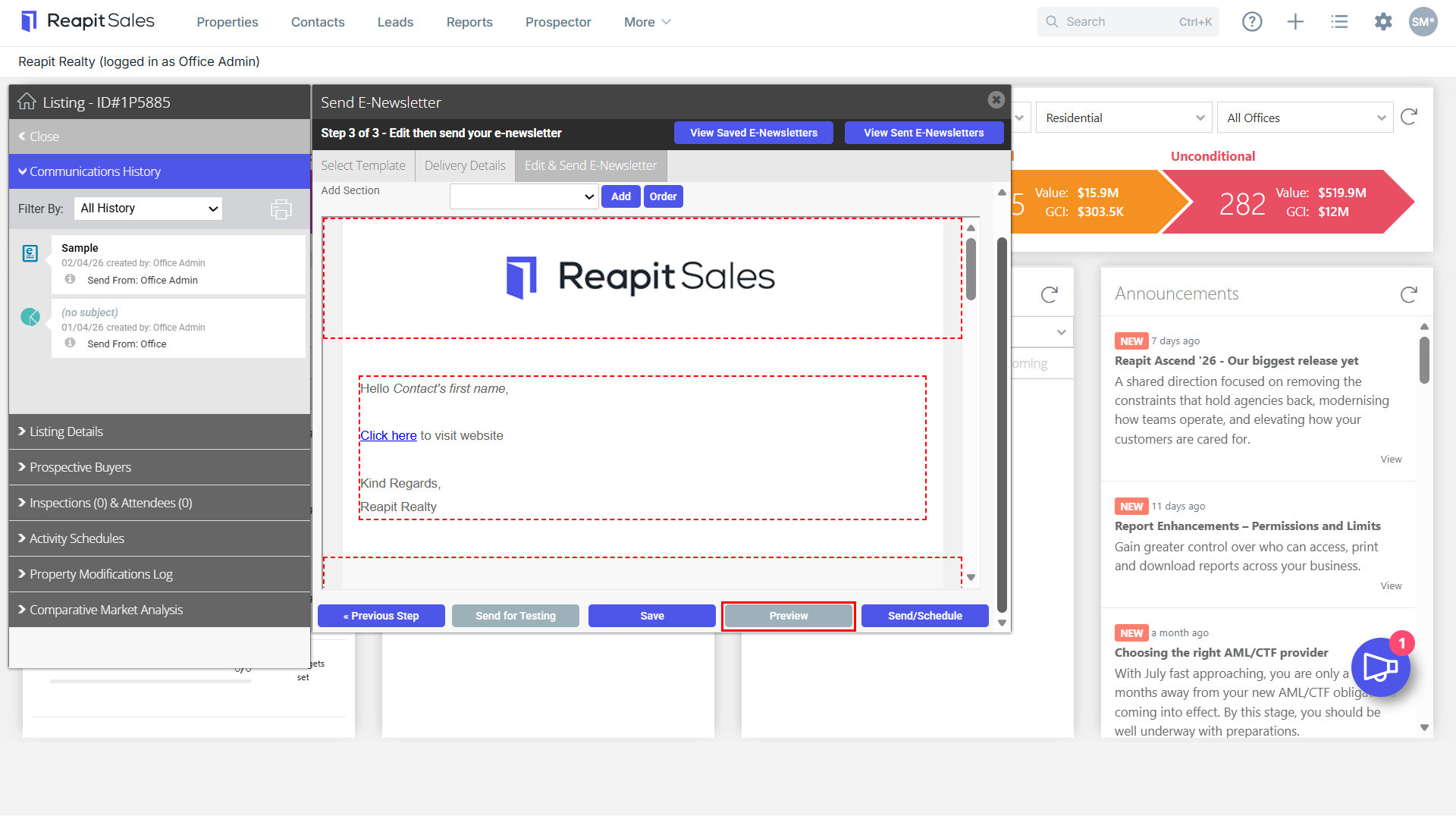
- You can test this link by clicking the Preview button
 before sending.
Note: Please only preview if you have selected 'Open in New Window' as the target in step 5.
- You can now send the E-Newsletter by selecting Send Now.
Inserting Link to an Image
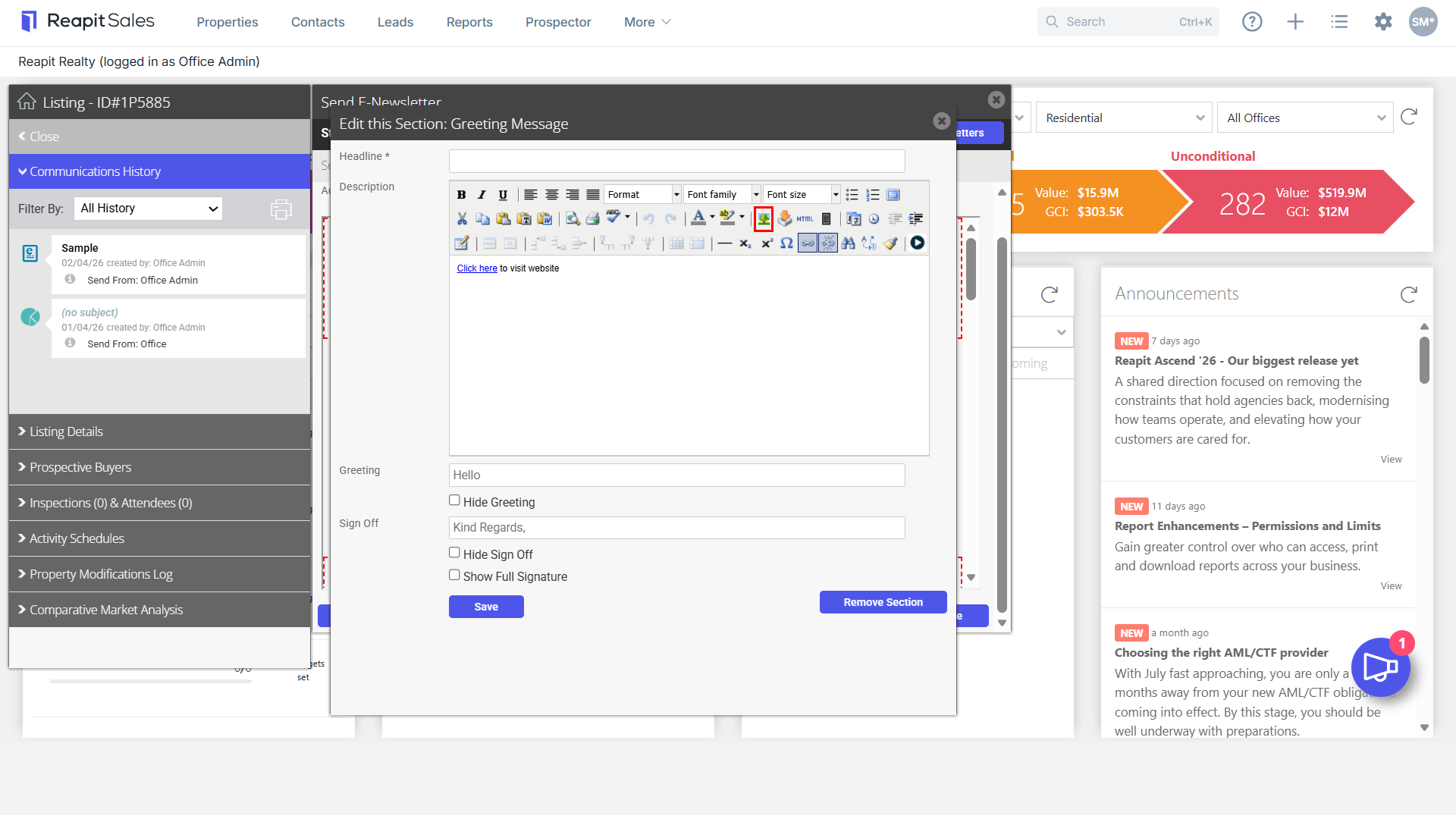
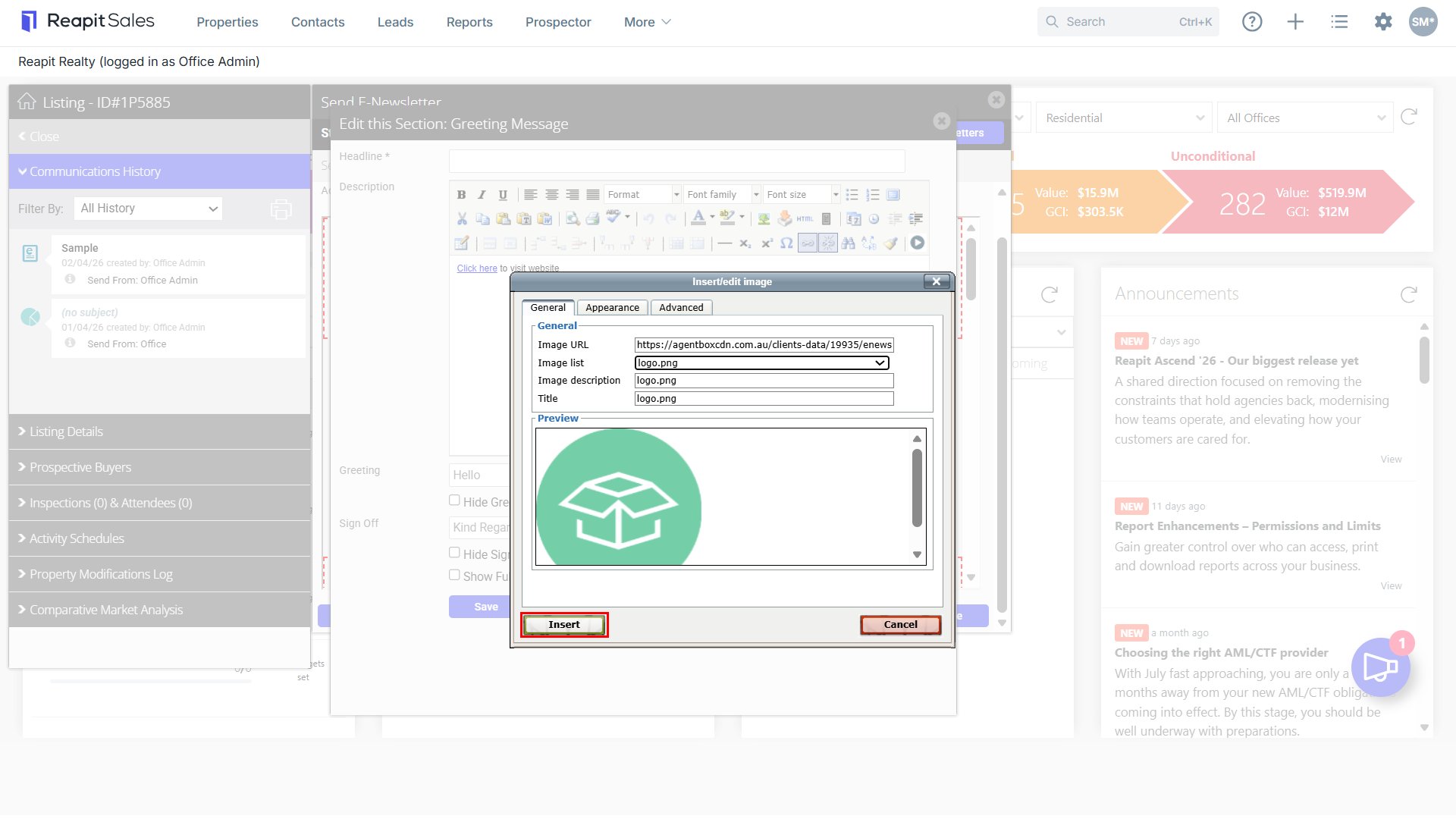
- Click on the Tree icon.
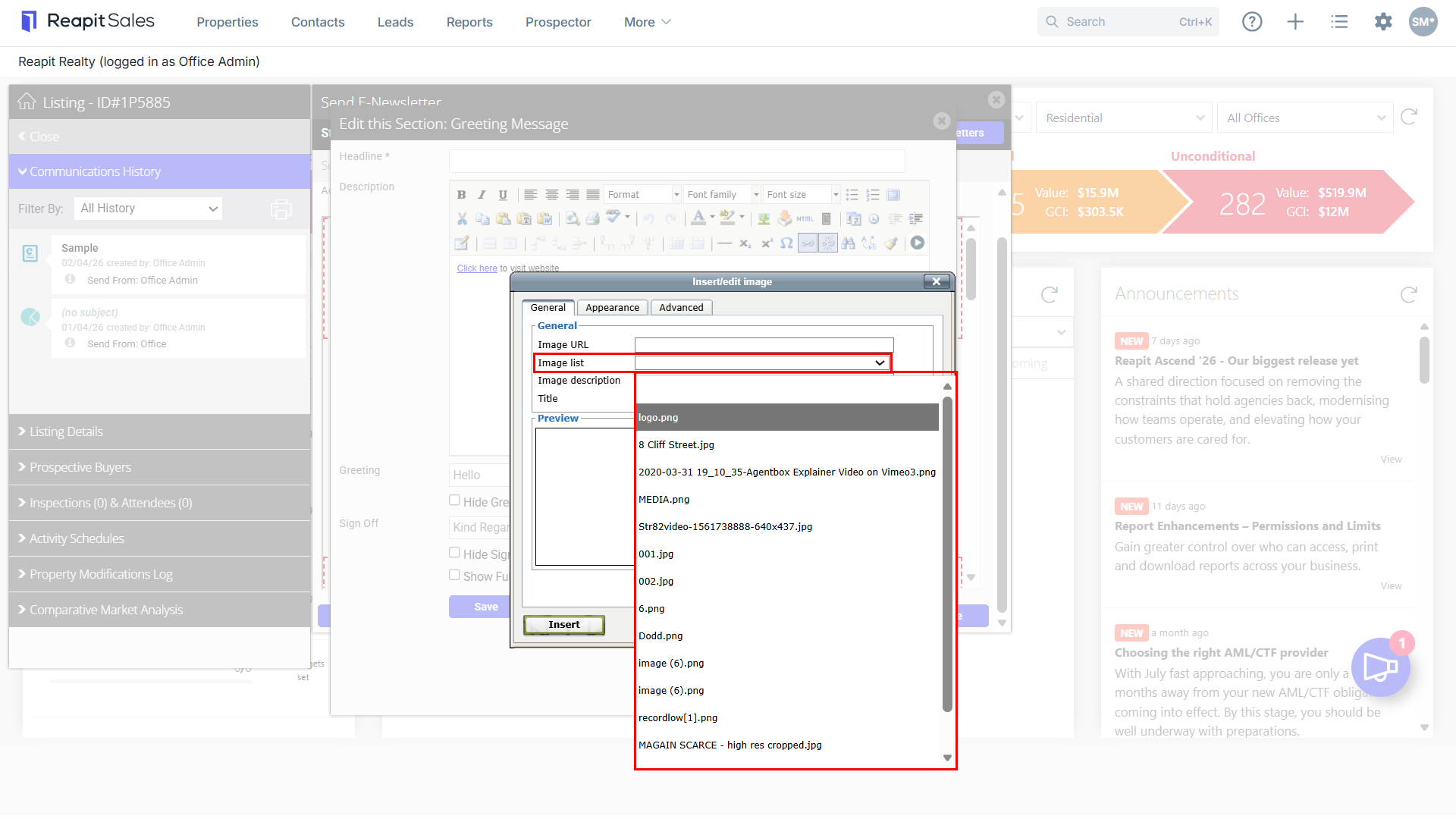
- Select the Image List drop down and select your image.
- Click Insert.
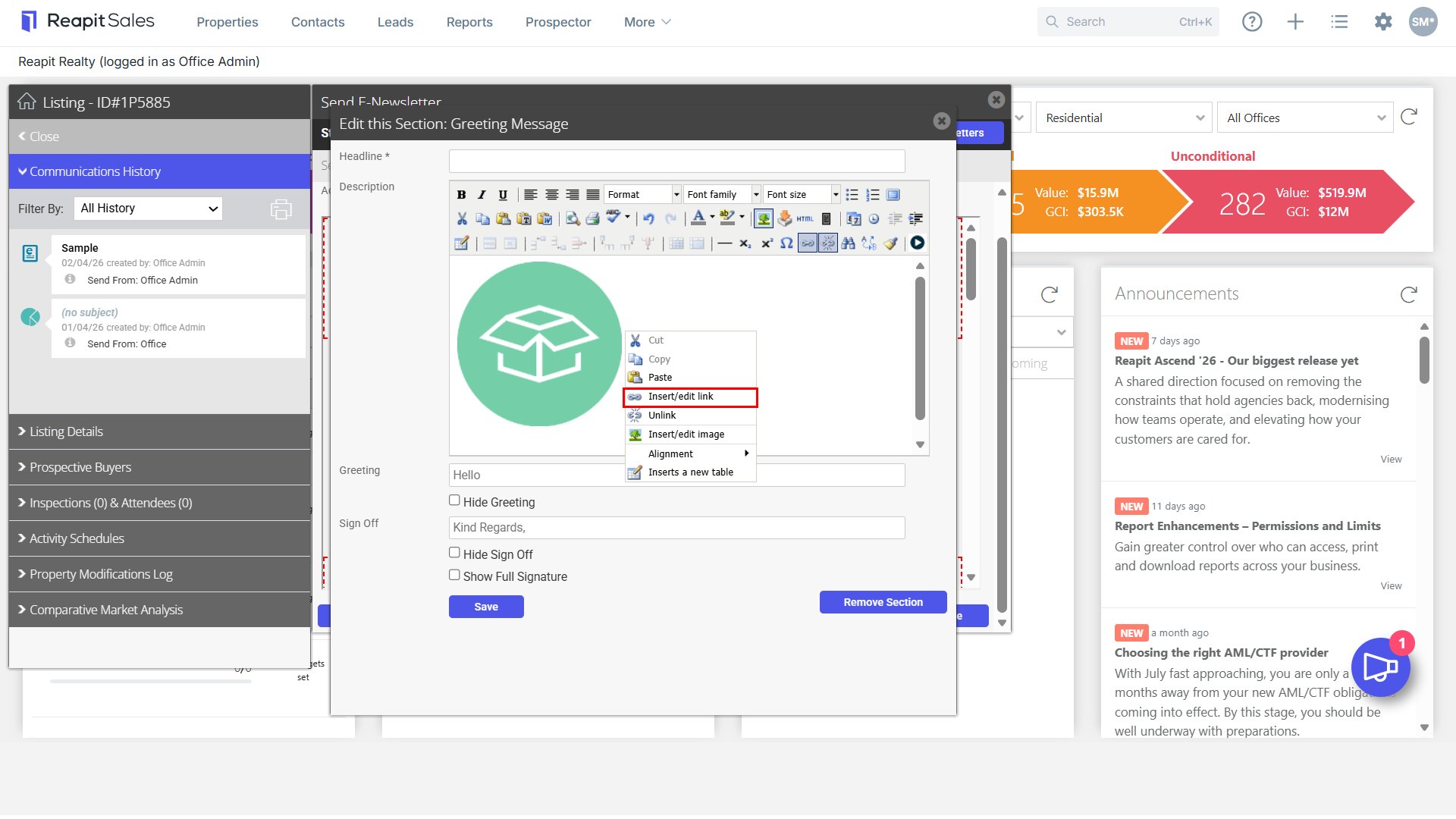
- Right click on the image within the e-Newsletter. Select Insert/ Edit Link.
- Paste the link URL and click Insert.