'%20d='M0%208a8%208%200%200%201%208-8h24a8%208%200%200%201%208%208v24a8%208%200%200%201-8%208H8a8%208%200%200%201-8-8V8Z'/%3e%3cpath%20fill='%23fff'%20d='M10.41%206v3.779h15.048v19.537h4.132V6H10.41Z'/%3e%3cpath%20fill='%23fff'%20d='M20.967%2034V13.837L10.41%209.78v20.166L20.967%2034Z'/%3e%3cdefs%3e%3clinearGradient%20id='reapit-sales__a'%20x1='20.702'%20x2='20.702'%20y1='.351'%20y2='31.228'%20gradientUnits='userSpaceOnUse'%3e%3cstop%20stop-color='%235573FD'/%3e%3cstop%20offset='.575'%20stop-color='%234E56EA'/%3e%3c/linearGradient%3e%3c/defs%3e%3c/svg%3e)
Existing/Duplicate Contact Manager within the Reapit Sales Desktop
This article will detail how to search and add a contact to an Open for Inspection within the Reapit Sales desktop using a unique identifier.
Existing/Duplicate Contact Manager within the Reapit Sales Desktop
This article will detail how to search and add a contact to an Open for Inspection within the Reapit Sales desktop using a unique identifier. ****
The way access is given to existing contacts is through generating an action against a contact when flagged as already in the database, such as adding them to an inspection. This is a security measure, so agents only get access to a contact when meaningful engagement justifies assignment.
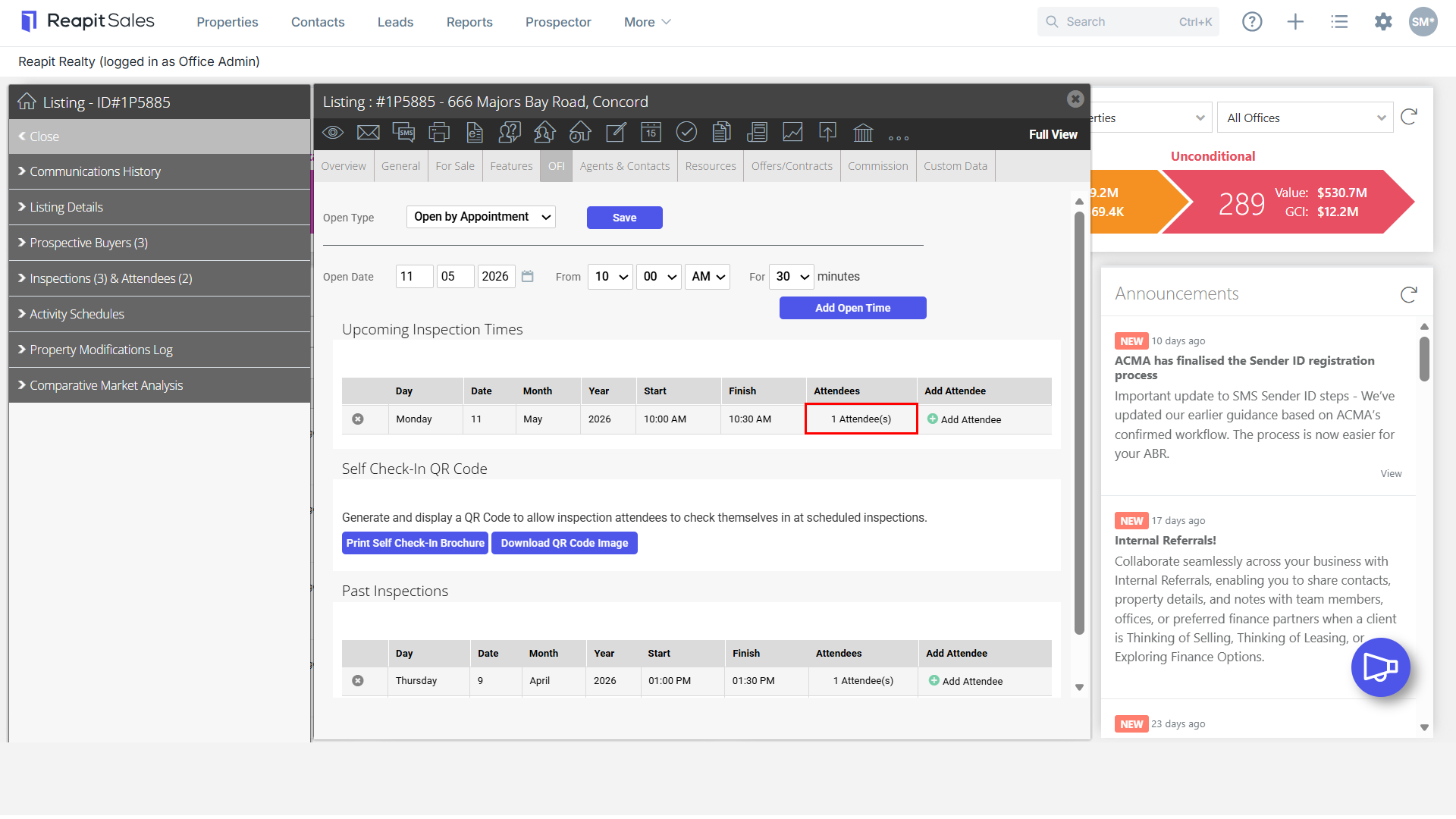
- Within Reapit Sales, navigate to the listing and click on the OFI Tab.
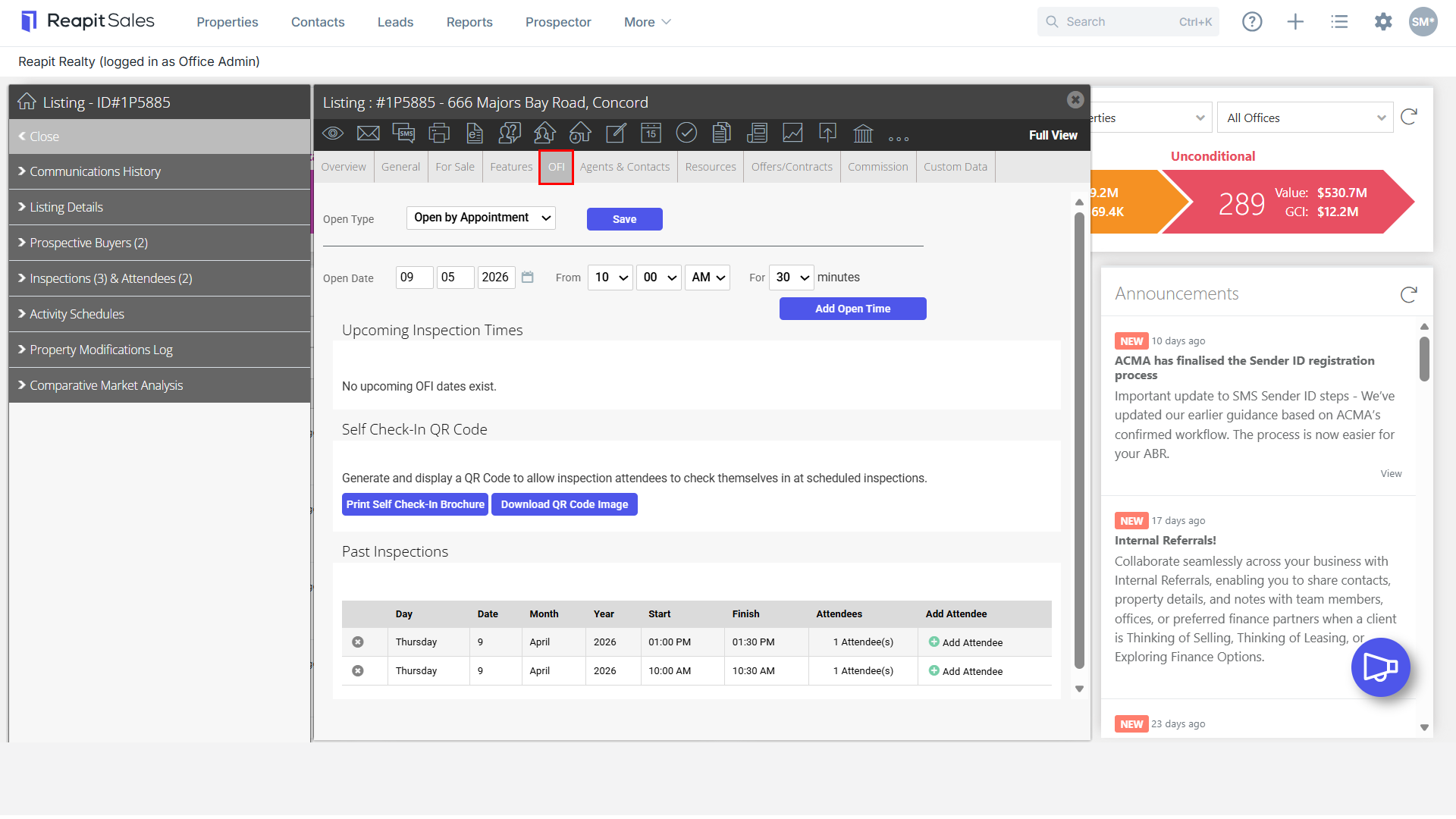
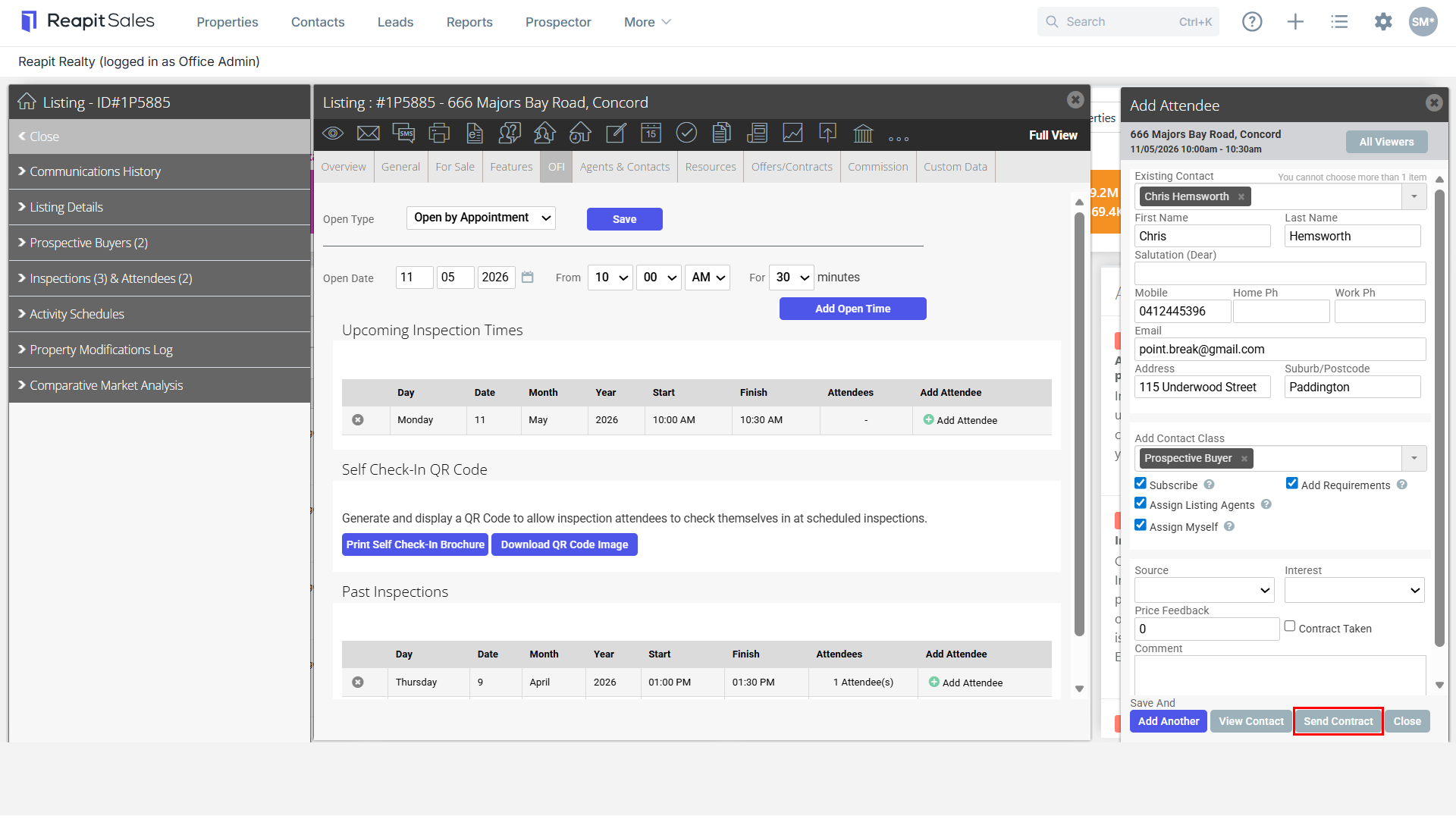
- Click on the Add Attendee button.
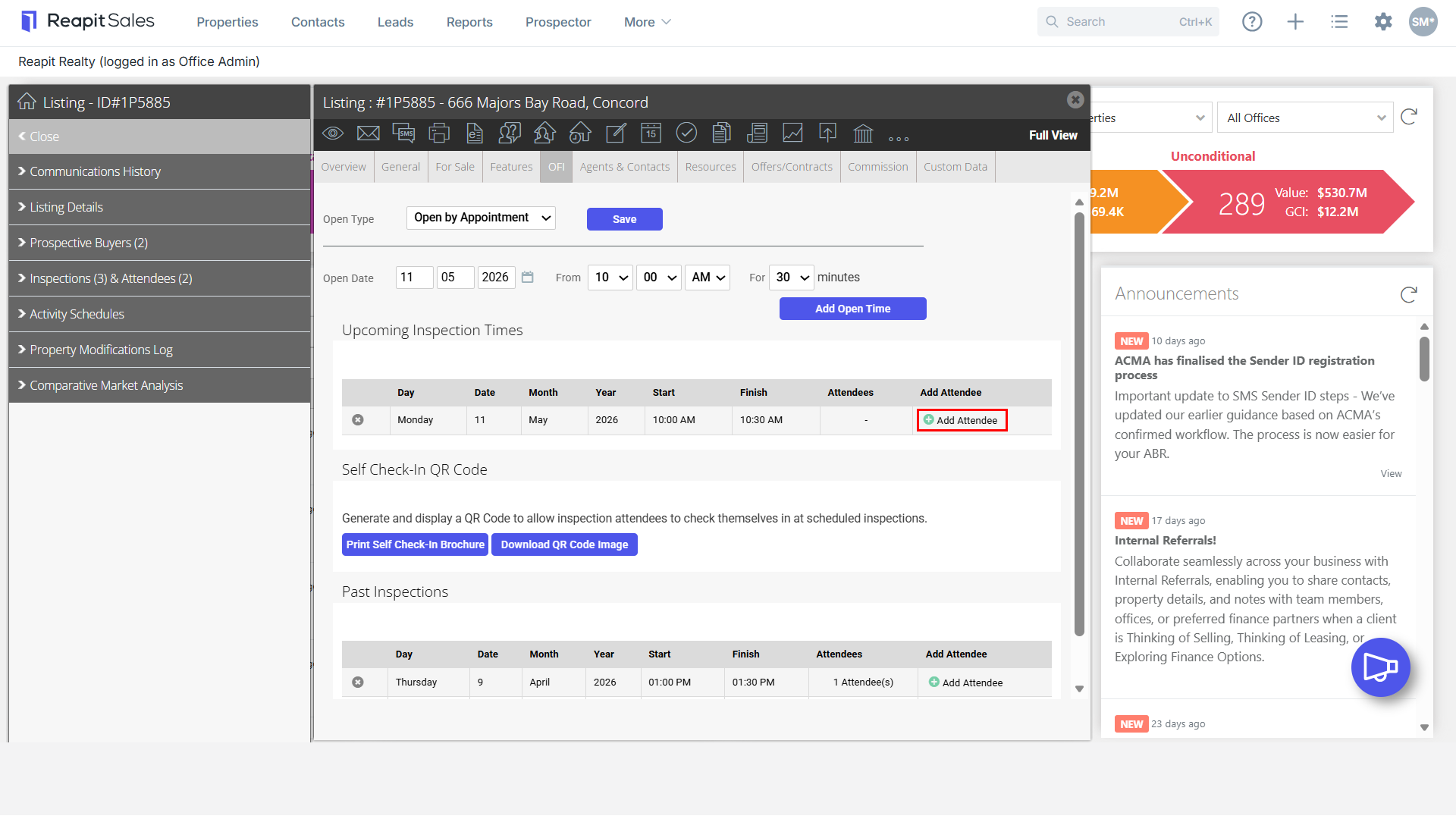
- Enter the inspection attendee.
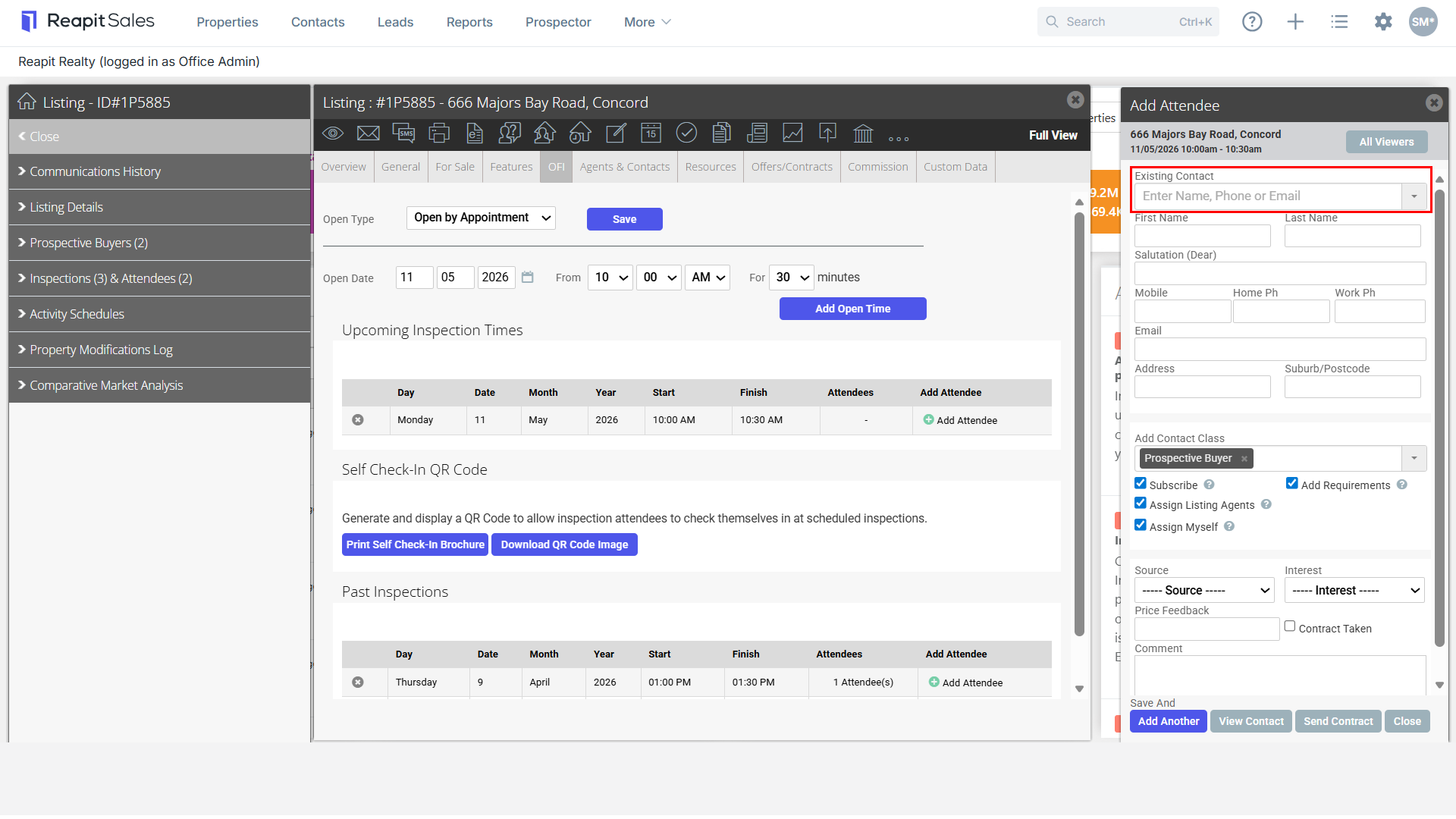
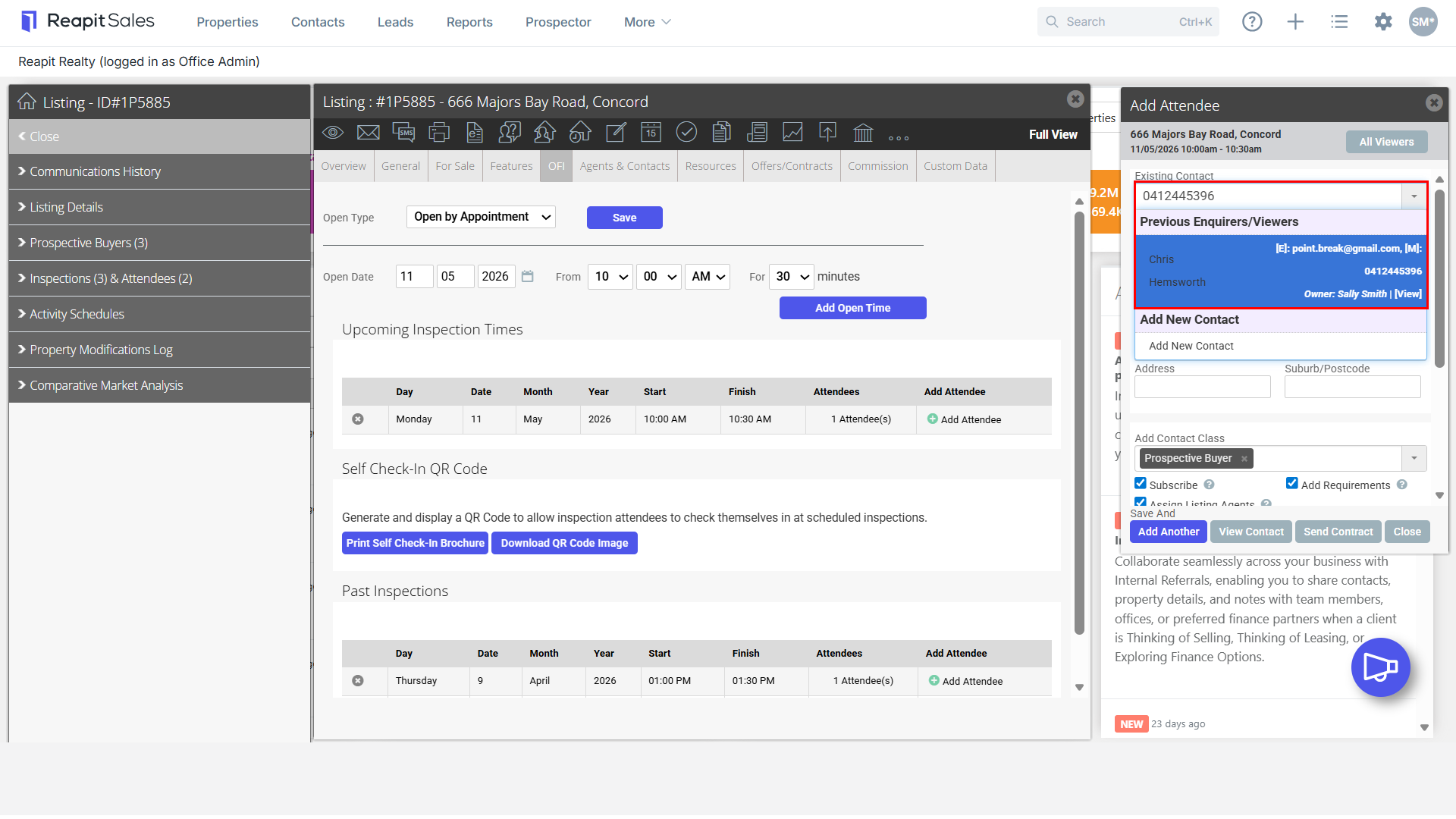
- Search for an existing contact.
Option 1: Search for a mobile, email or name.
Note: If some contact details are missing from the contact card, for example, email address or mobile number, ask the attendee to provide the missing information.
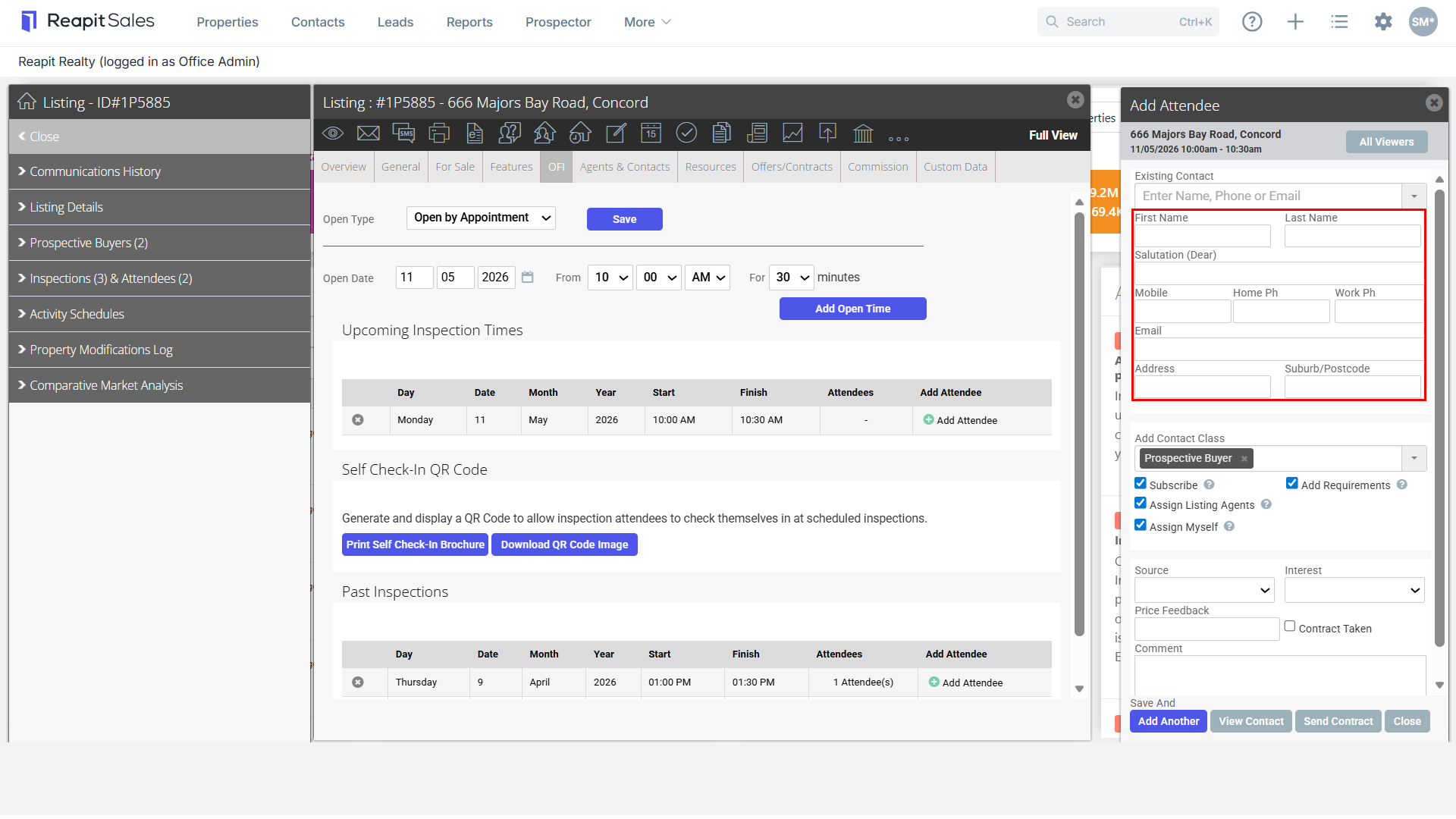
Option 2: If the contact is not in the system, enter first name, last name, mobile number and email address.
Tip: Duplicate Contact Records
Existing contact records may already appear for inspection attendees. We recommend, when entering inspection attendees, reviewing existing contact records first.
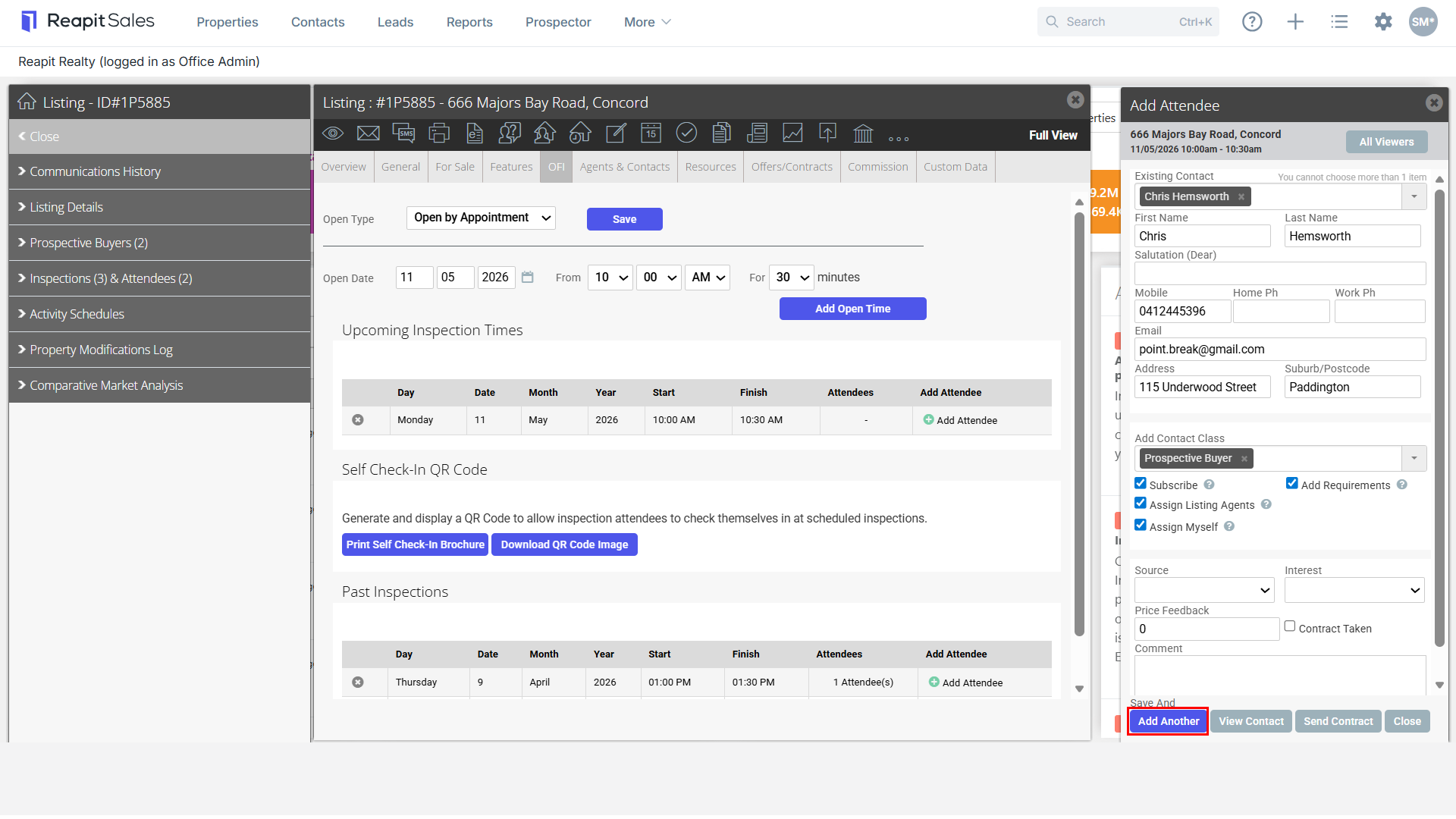
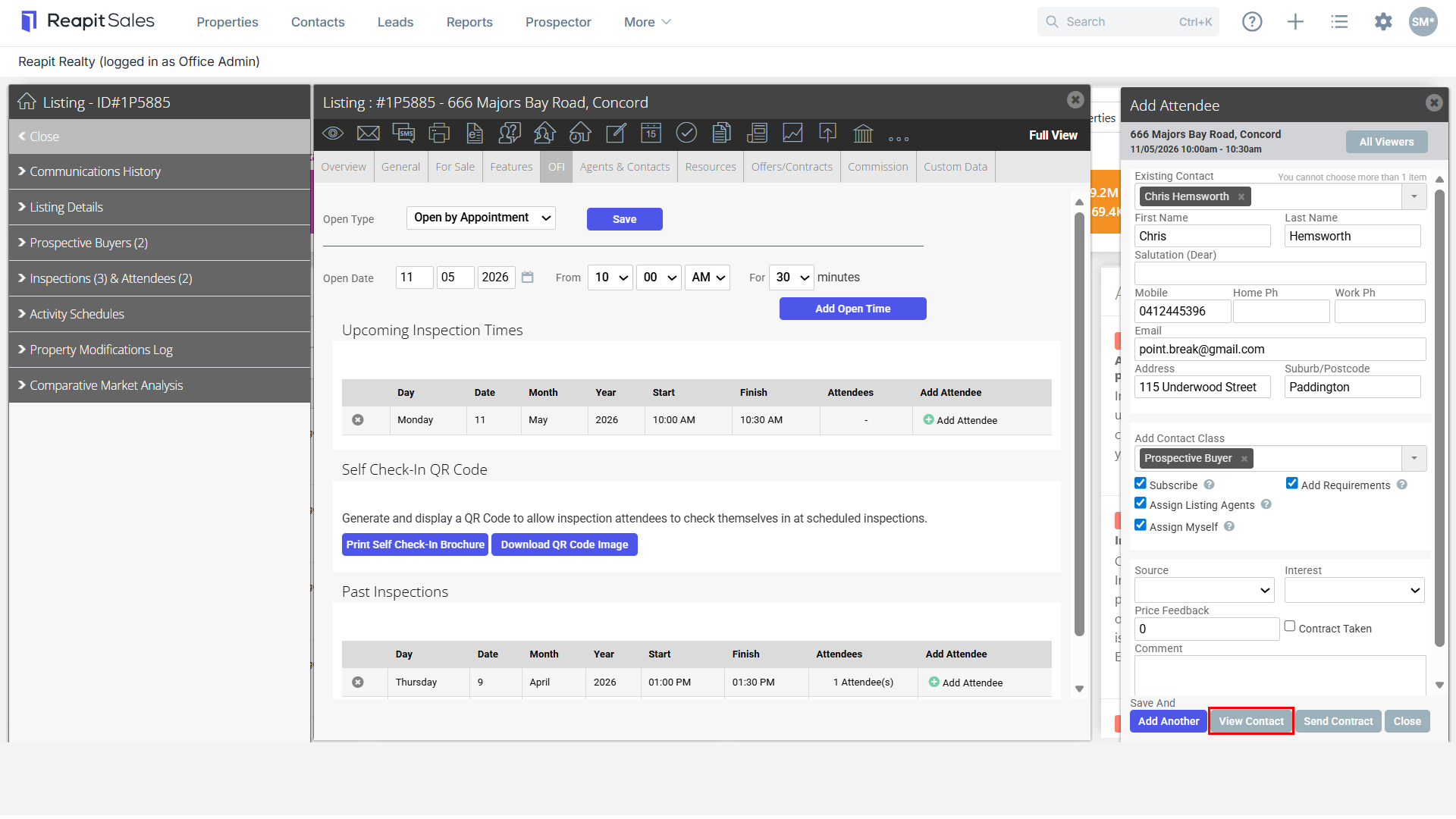
- Action Inspection attendees.
Option 1: Save and Add next inspection attendee.
Option 2: Save and View Contact.
Option 3: Save and Send a copy of the listings contract.
Option 4: Save and Close.
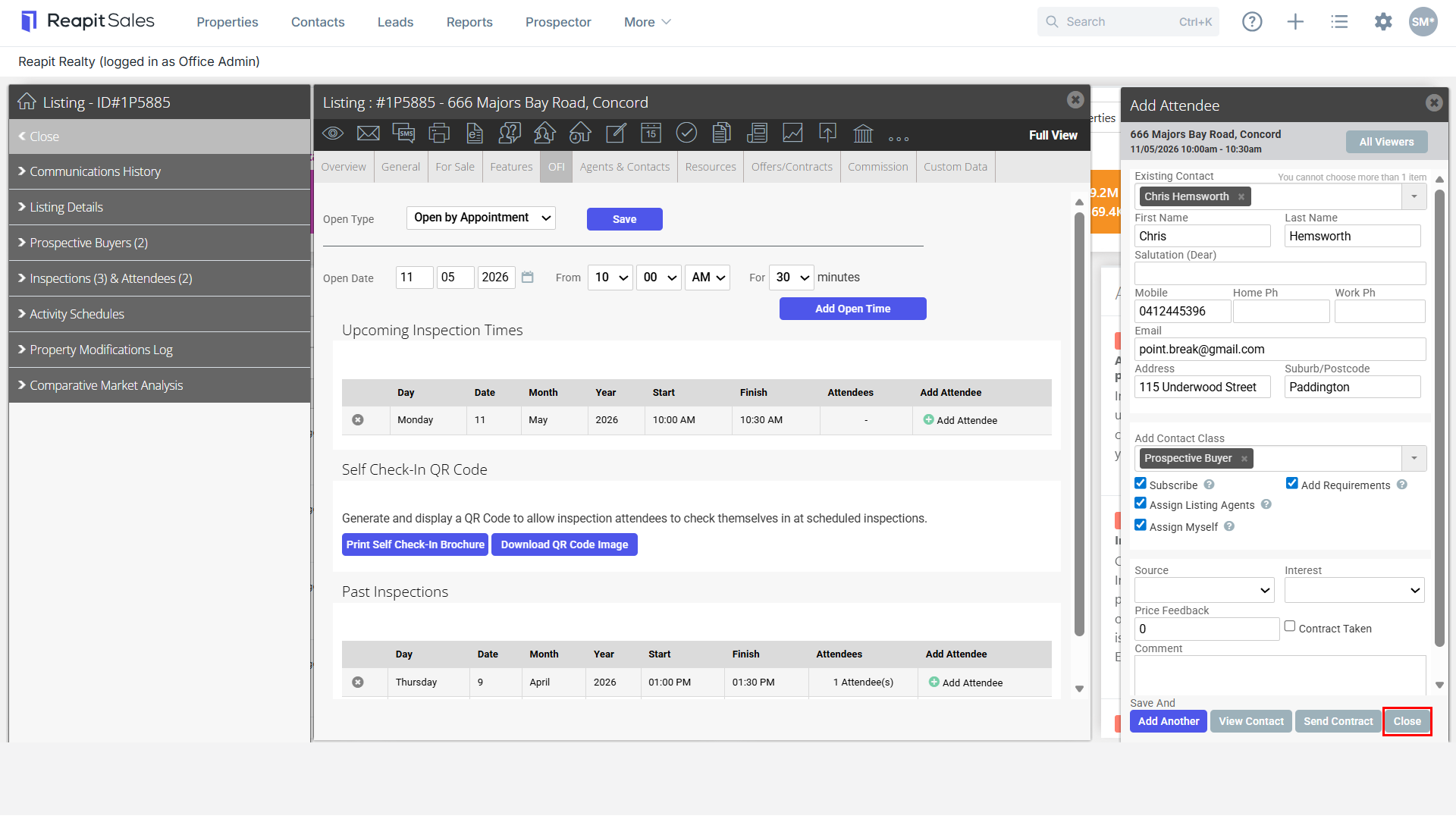
- The number of attendees will be shown.