'%20d='M0%208a8%208%200%200%201%208-8h24a8%208%200%200%201%208%208v24a8%208%200%200%201-8%208H8a8%208%200%200%201-8-8V8Z'/%3e%3cpath%20fill='%23fff'%20d='M10.41%206v3.779h15.048v19.537h4.132V6H10.41Z'/%3e%3cpath%20fill='%23fff'%20d='M20.967%2034V13.837L10.41%209.78v20.166L20.967%2034Z'/%3e%3cdefs%3e%3clinearGradient%20id='reapit-sales__a'%20x1='20.702'%20x2='20.702'%20y1='.351'%20y2='31.228'%20gradientUnits='userSpaceOnUse'%3e%3cstop%20stop-color='%235573FD'/%3e%3cstop%20offset='.575'%20stop-color='%234E56EA'/%3e%3c/linearGradient%3e%3c/defs%3e%3c/svg%3e)
Property Links
This article shows how to add External Links to the property from the Property Card in Reapit Sales.
Property Links
This article shows how to add External Links to the property from the Property Card in Reapit Sales.
*Note: when copying any web address to paste as a link do not include the http://. Only copy the web address starting from www.
Here you can add any external links to your listing for advertising purposes e.g. Video, virtual tour, interactive floorplan. If you have an external website you can also add the link to the listing on your website for e-marketing purposes.
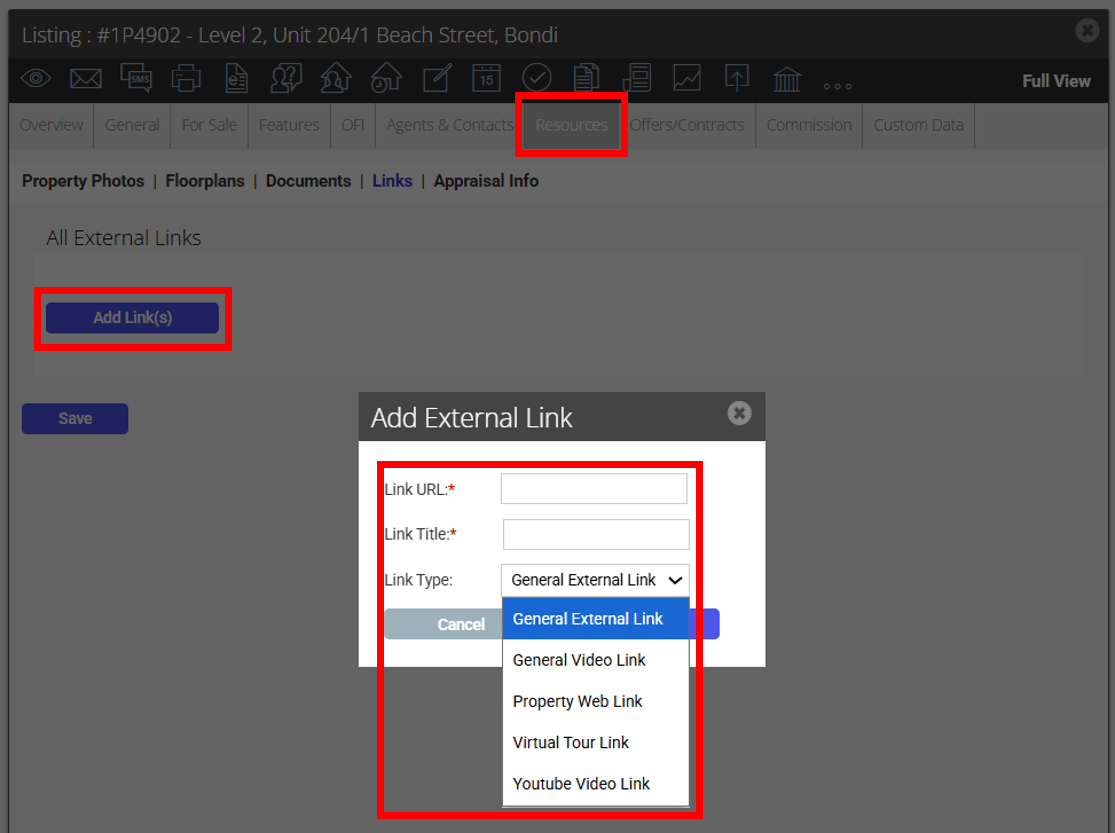
- Search for your Property and open the Resources Tab.
- Click Links on the sub-resources tab.
- Click Add Link(s).
- Enter a Link URL, title and select the type of link from the drop-down.
This will allow clients to be redirected to the selected url or the property web link, on the agency's website.
- Click Save.
To export to realestate.com.au and domain.com.au please follow this guide.
You can upload unlimited links to Reapit Sales however if portal feeding, only the following will be sent across:
- For realestate.com.au, Reapit Sales can export 2 x External Links (Tour) and 1 x Video Link.
- For domain.com.au, Reapit Sales can export 1 x Virtual Tour and 1 x Video URL.
- For REIWA, Reapit Sales can only export Virtual Tour link types as this is what REIWA supports
| Link Type | Domain | Realestate | |
| Virtual Tour | Virtual Tour | External Link (Tour) | |
| General External Link | Virtual Tour | External Link (Tour) | |
| General Video Link | Video URL | Video Link | |
| YouTube Video | Video URL | Video Link |
To attach a property walkthrough video to your listings using YouTube, the Link Type must be set to YouTube Video Link.
*Note: In situations where more links have been provided than can be exported (e.g. 3 x External Link [Tour] or 2 x Video Link), the links that were attached first will be prioritised. Links will appear in under the Resources tab in the order that they are attached