'%20d='M0%208a8%208%200%200%201%208-8h24a8%208%200%200%201%208%208v24a8%208%200%200%201-8%208H8a8%208%200%200%201-8-8V8Z'/%3e%3cpath%20fill='%23fff'%20d='M10.41%206v3.779h15.048v19.537h4.132V6H10.41Z'/%3e%3cpath%20fill='%23fff'%20d='M20.967%2034V13.837L10.41%209.78v20.166L20.967%2034Z'/%3e%3cdefs%3e%3clinearGradient%20id='reapit-sales__a'%20x1='20.702'%20x2='20.702'%20y1='.351'%20y2='31.228'%20gradientUnits='userSpaceOnUse'%3e%3cstop%20stop-color='%235573FD'/%3e%3cstop%20offset='.575'%20stop-color='%234E56EA'/%3e%3c/linearGradient%3e%3c/defs%3e%3c/svg%3e)
How do I preview Property Alerts?
This article will cover previewing property alerts with Reapit Sales.
How do I Preview Property Alerts?
This article will cover previewing property alerts with Reapit Sales.
Users can view what properties a contact has matched with and also preview an alert if it is due to go out that day via the contact card.
*Note the preview will only appear if an alert is scheduled to go out that evening e.g. there is a new listing on market or a price change on an existing suitable listing made that day.
- Search for your Contact and open their Contact Card
- Select the Match Properties icon

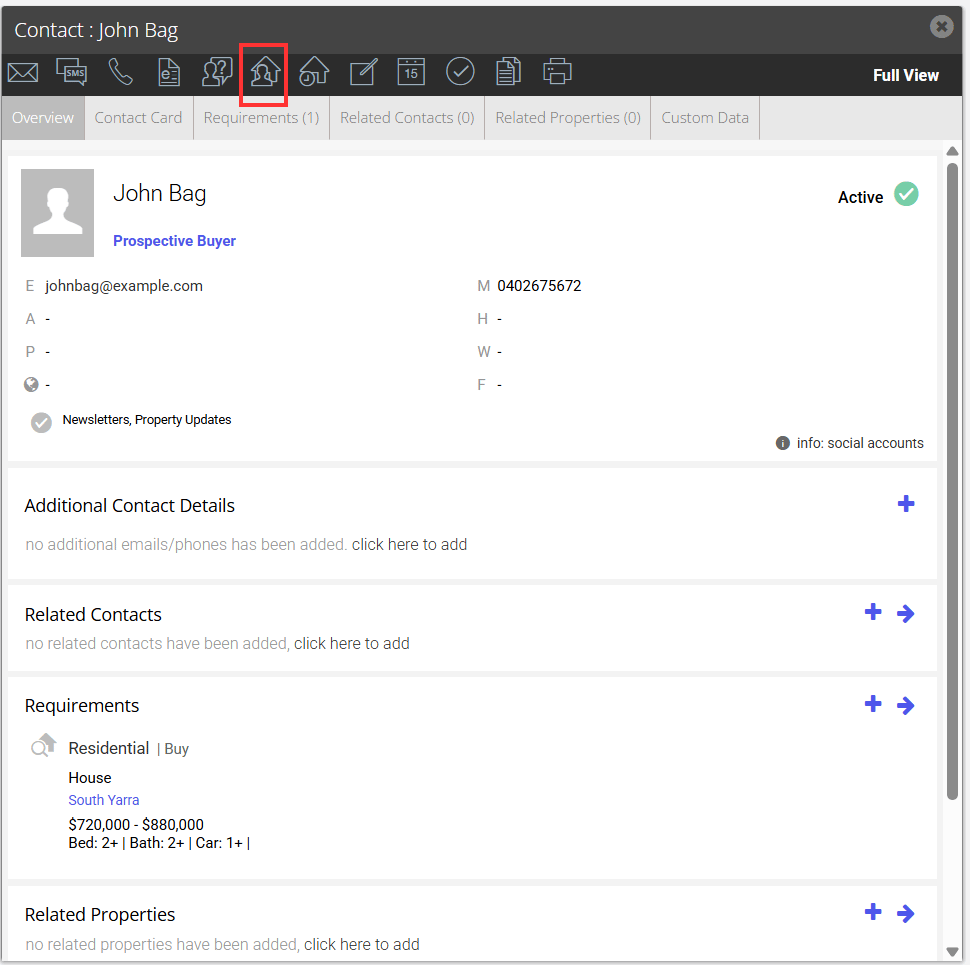
- A box will appear on the right-hand side with the Matched Properties for that contact
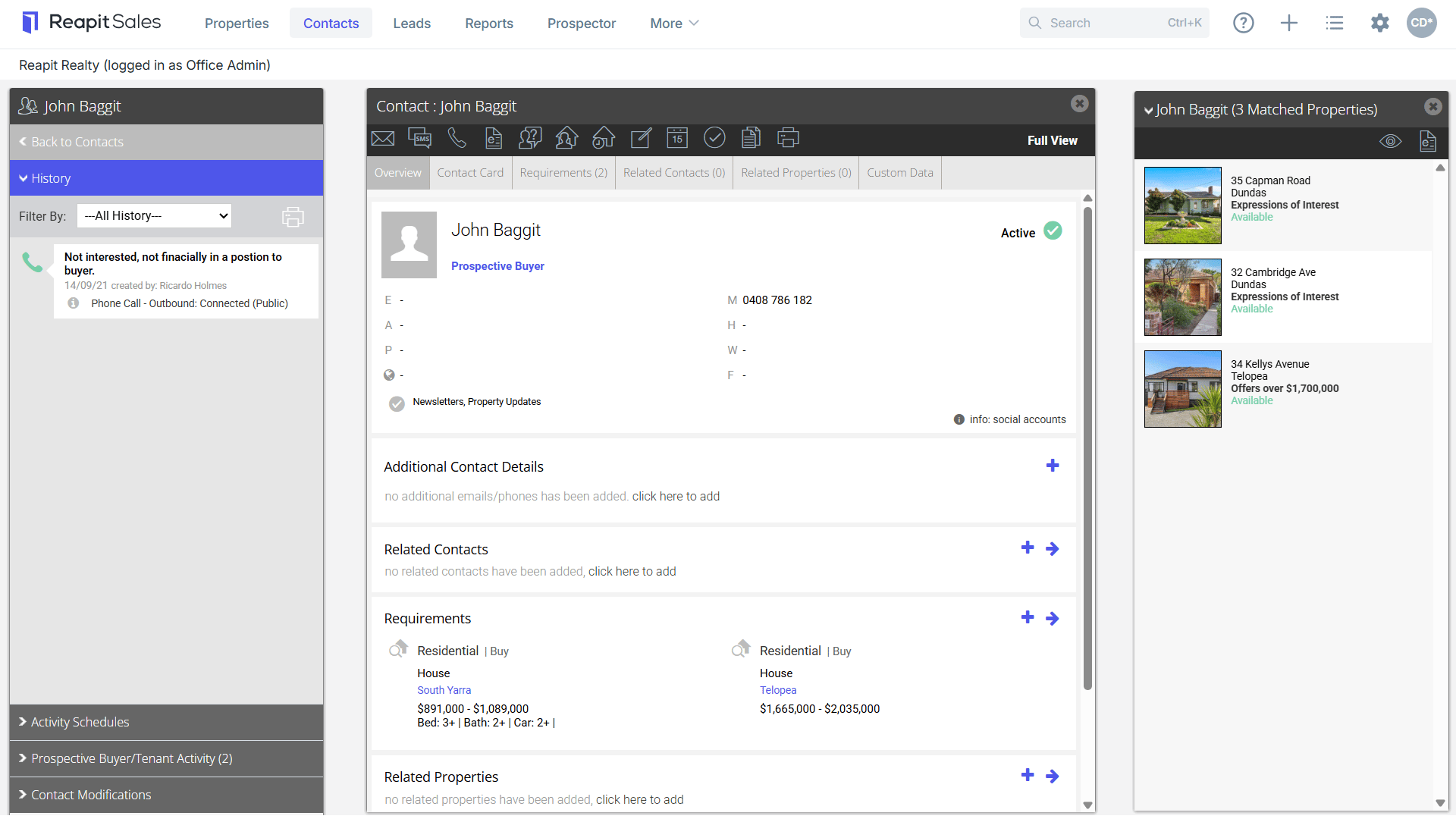
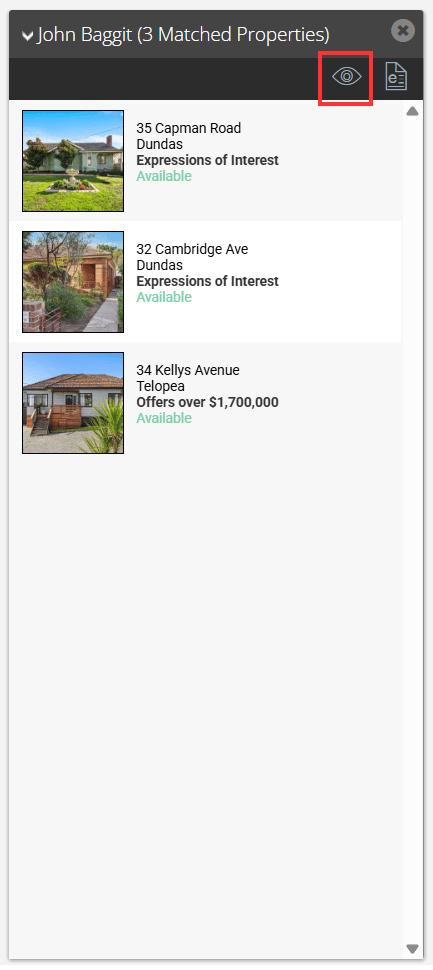
- From the Matched Properties panel, click the Preview icon.
- A separate window will open with a preview of the Alert scheduled to go out that day
*Note: The preview will only appear if an alert is scheduled to go out that evening e.g. there is a new listing on market or a price change on an existing suitable listing made that day.
.png?Policy=eyJTdGF0ZW1lbnQiOlt7IlJlc291cmNlIjoiaHR0cHM6Ly9kemY4dnF2MjRlcWhnLmNsb3VkZnJvbnQubmV0L3VzZXJmaWxlcy8xMTEyOC8xNDIwNS9ja2ZpbmRlci9pbWFnZXMvMSg1MikucG5nIiwiQ29uZGl0aW9uIjp7IkRhdGVMZXNzVGhhbiI6eyJBV1M6RXBvY2hUaW1lIjoxNzc1NjAzNDU3fX19XX0_&Signature=Cae0ESnTe9SlnTLlbxHTHKdfawv0TXFf-VB4gz~qylNRY9l-BTrEA~OFxg0ftkrlyToVkhcfnkDq~7QBcYlWjN79boGzvi1P8Nqsd07iM9cTne~PZQyEBiUjich67RCR-Px8P5dl7u41KqppbMW70ypQq-C83g29HUMJXNzg51PHd0LIAO5XIiqoEIig9IWVm57av9KdNb5X9A~RnuTCVl1iDonbgOHoIBSOiudu8WDv2itF4XGMRVKrf1BEGJXuefO~Vv8176ZLV8N6f-B3bSY38d3ac33vmDOMBf8XYgKKDRcJ-17V2ij2-rbNUCgf9~2w~xScicMQDcZf8KPlEg__&Key-Pair-Id=K2TK3EG287XSFC)
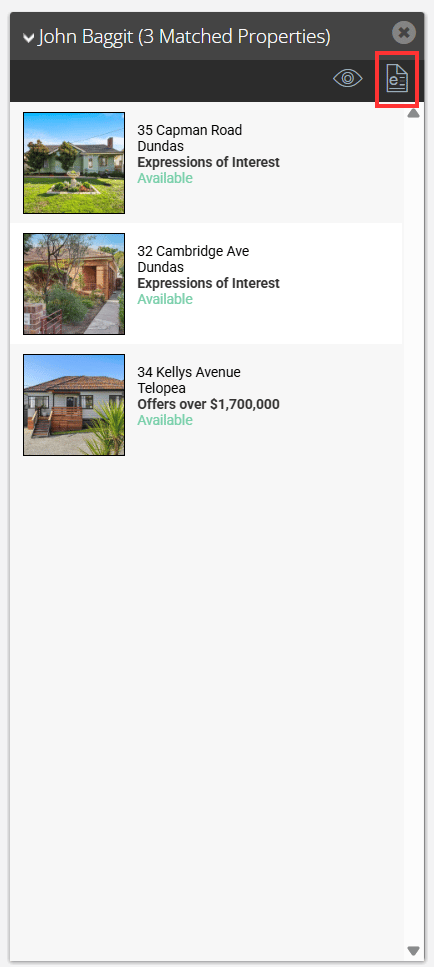
- You can also manually send out all matched listings by clicking the E-Newsletter icon at the top of the matched properties panel.
*Note: We recommend this for new buyers so they receive ALL matched properties. The automatic alerts will only send out newly listed or those with a search price change.
Please refer to How to add buyer requirementsif the buyer hasn't been matched to any properties.