'%20d='M0%208a8%208%200%200%201%208-8h24a8%208%200%200%201%208%208v24a8%208%200%200%201-8%208H8a8%208%200%200%201-8-8V8Z'/%3e%3cpath%20fill='%23fff'%20d='M10.41%206v3.779h15.048v19.537h4.132V6H10.41Z'/%3e%3cpath%20fill='%23fff'%20d='M20.967%2034V13.837L10.41%209.78v20.166L20.967%2034Z'/%3e%3cdefs%3e%3clinearGradient%20id='reapit-sales__a'%20x1='20.702'%20x2='20.702'%20y1='.351'%20y2='31.228'%20gradientUnits='userSpaceOnUse'%3e%3cstop%20stop-color='%235573FD'/%3e%3cstop%20offset='.575'%20stop-color='%234E56EA'/%3e%3c/linearGradient%3e%3c/defs%3e%3c/svg%3e)
Add/Edit Buyer/Tenant Requirements
This article runs through how to add or edit a buyer/tenant requirement in Reapit Sales.
Add/Edit Buyer/Tenant Requirements
This article runs through how to add or edit a buyer/tenant requirement in Reapit Sales.
Adding Buyer/Tenant Requirements will allow you to match the Prospective Buyer or Tenant to suitable listings or subscribe and send them automatic Property Alerts.
- Search for your Contact to open their Contact Card then, click on the Requirements tab.
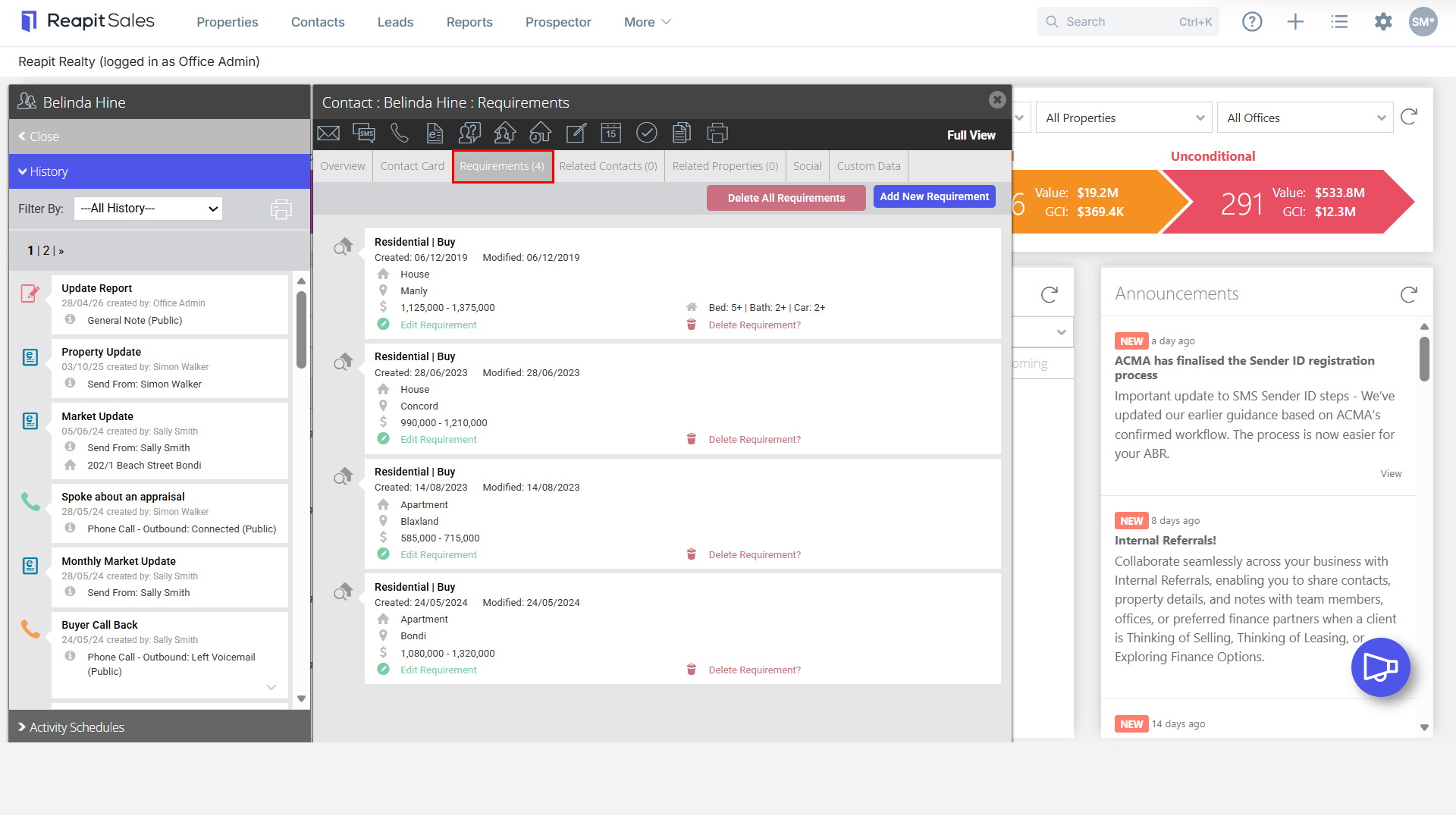
The Requirements tab will show you any property preferences linked to the contact.
These requirements will be added automatically when a contact attends an inspection or makes an enquiry and can also be added manually.
- To Add, click Add New Requirement
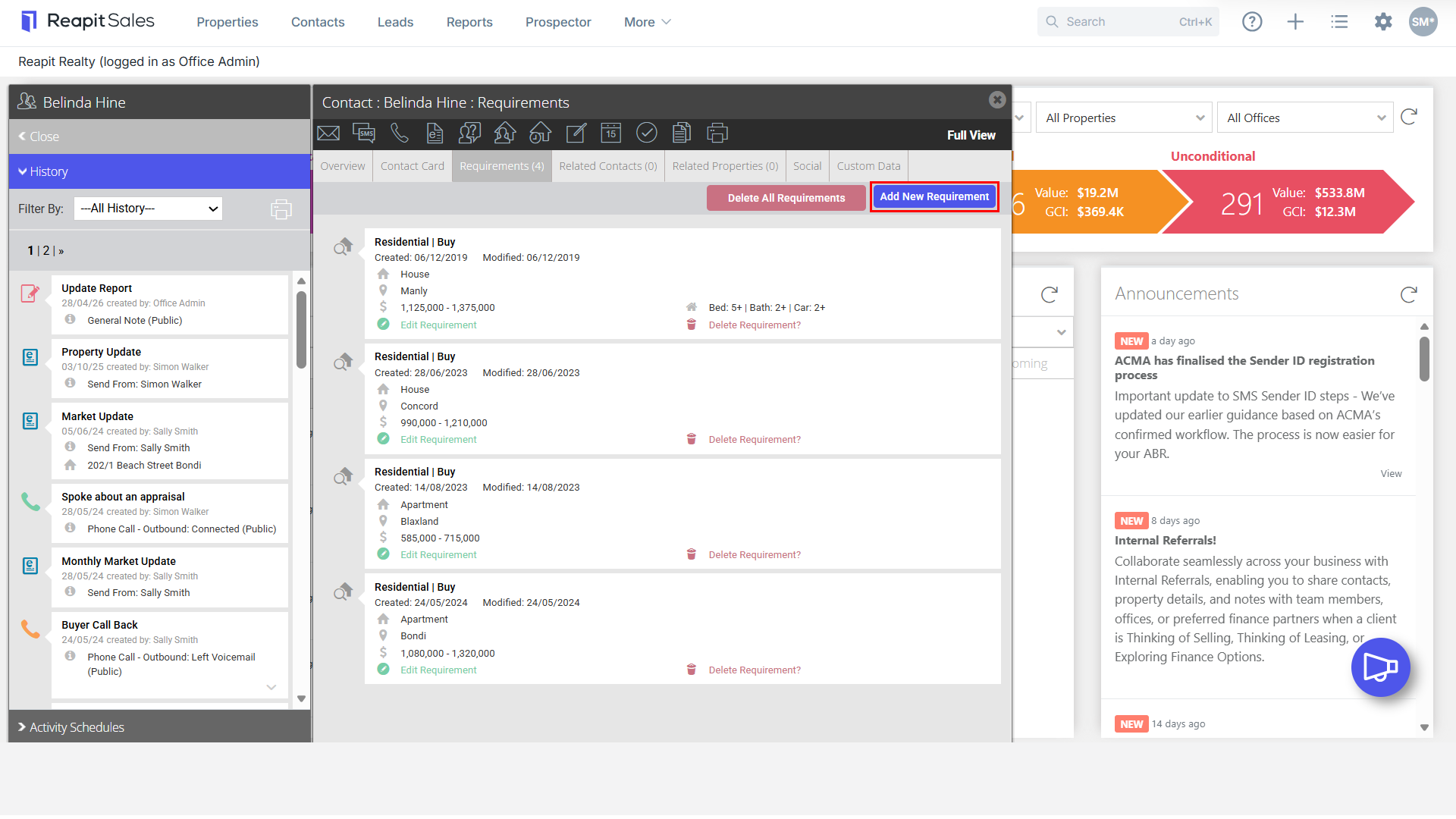
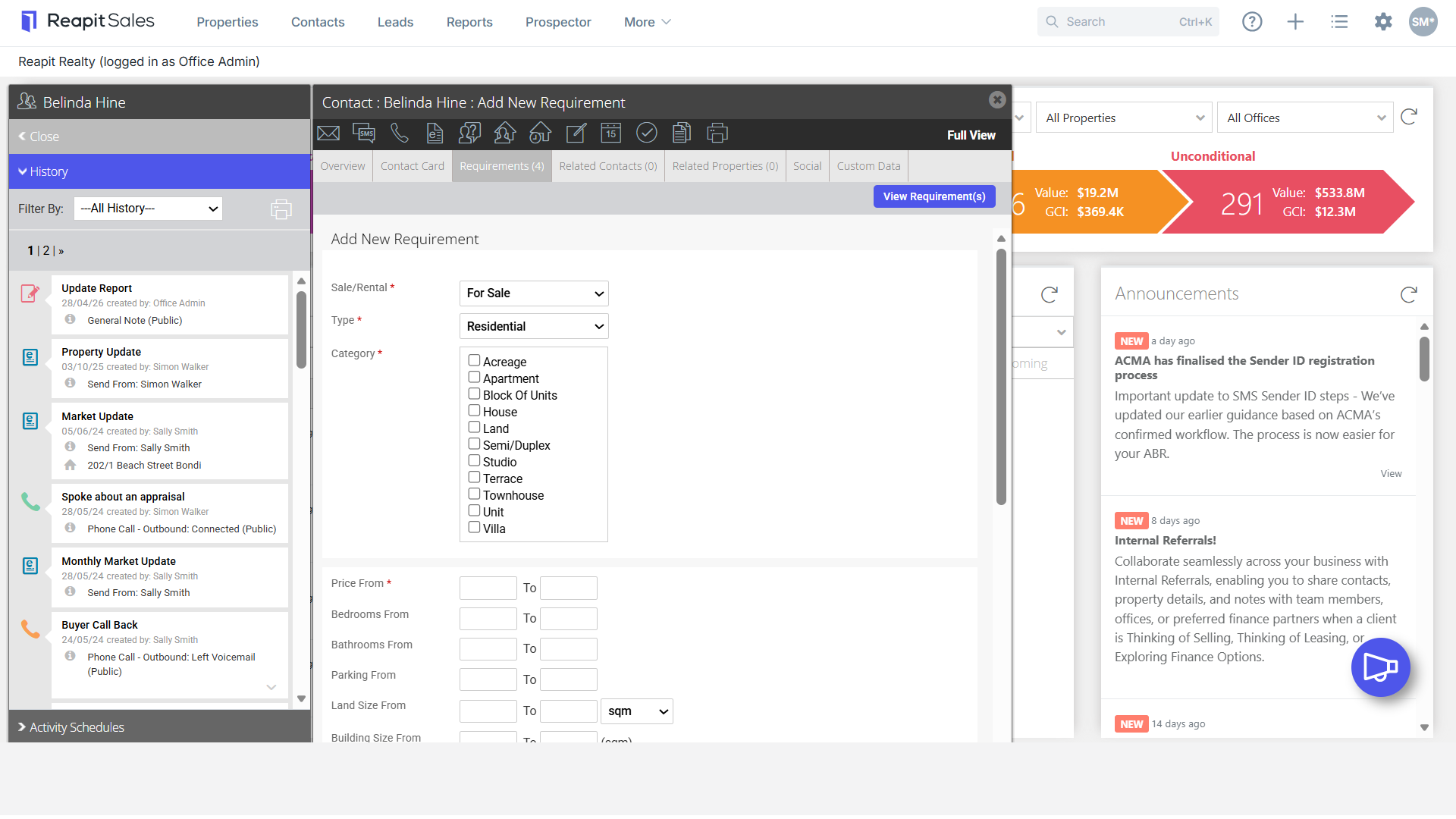
- You will be able to add in the below categories -
Note: All categories with a red asterisk* are mandatory
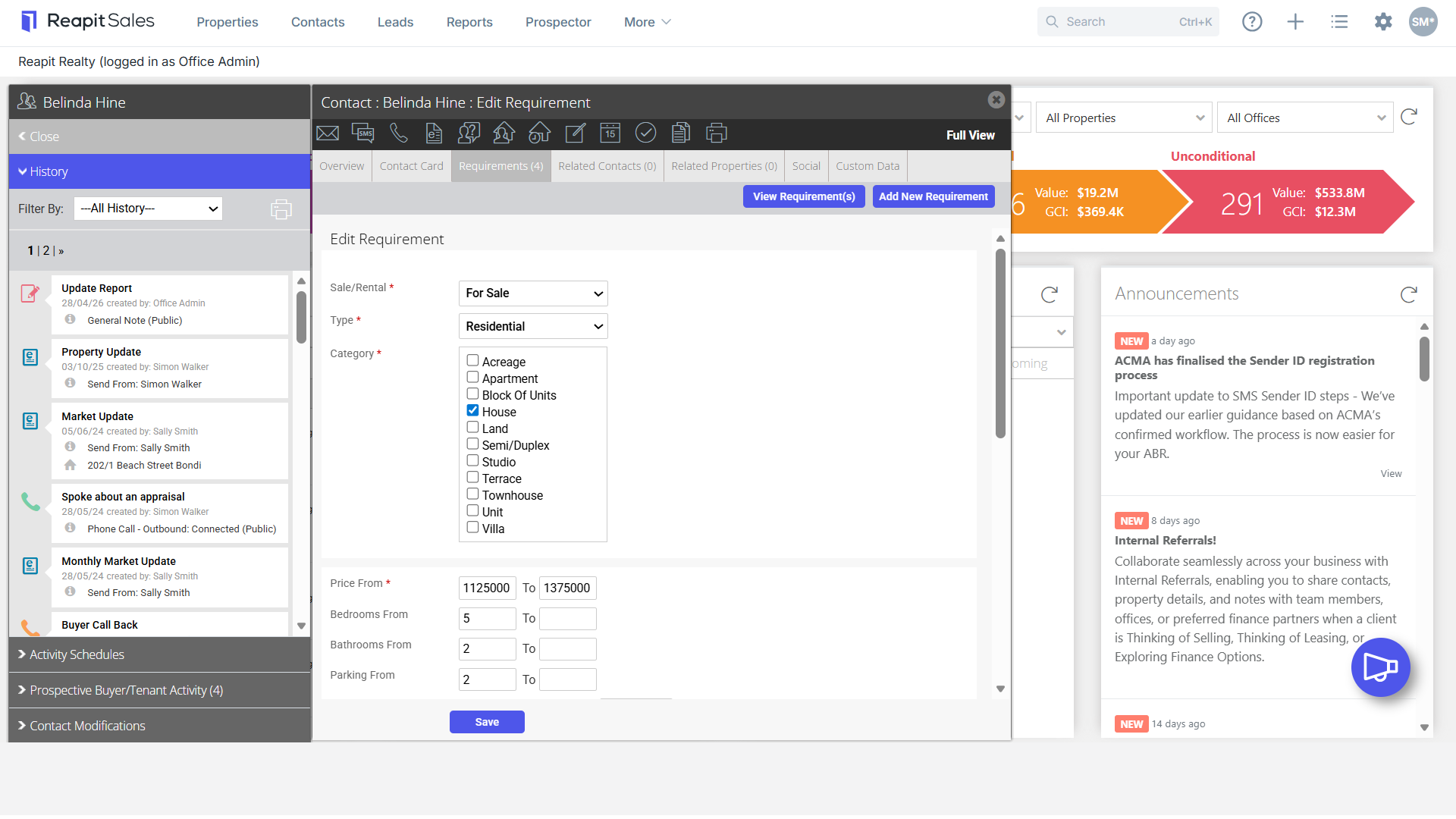
Sale/Rental
Type - Residental/Commercial etc
Category - House/Unit/Townhouse etc
Price From
Scroll down and complete the following information if applicable -
Bedrooms
Bathrooms
Parking
Land & Building size
Completion by/Investment Criteria (Used for new developments)
State
Selected Suburbs
Option to Include surrounding suburbs
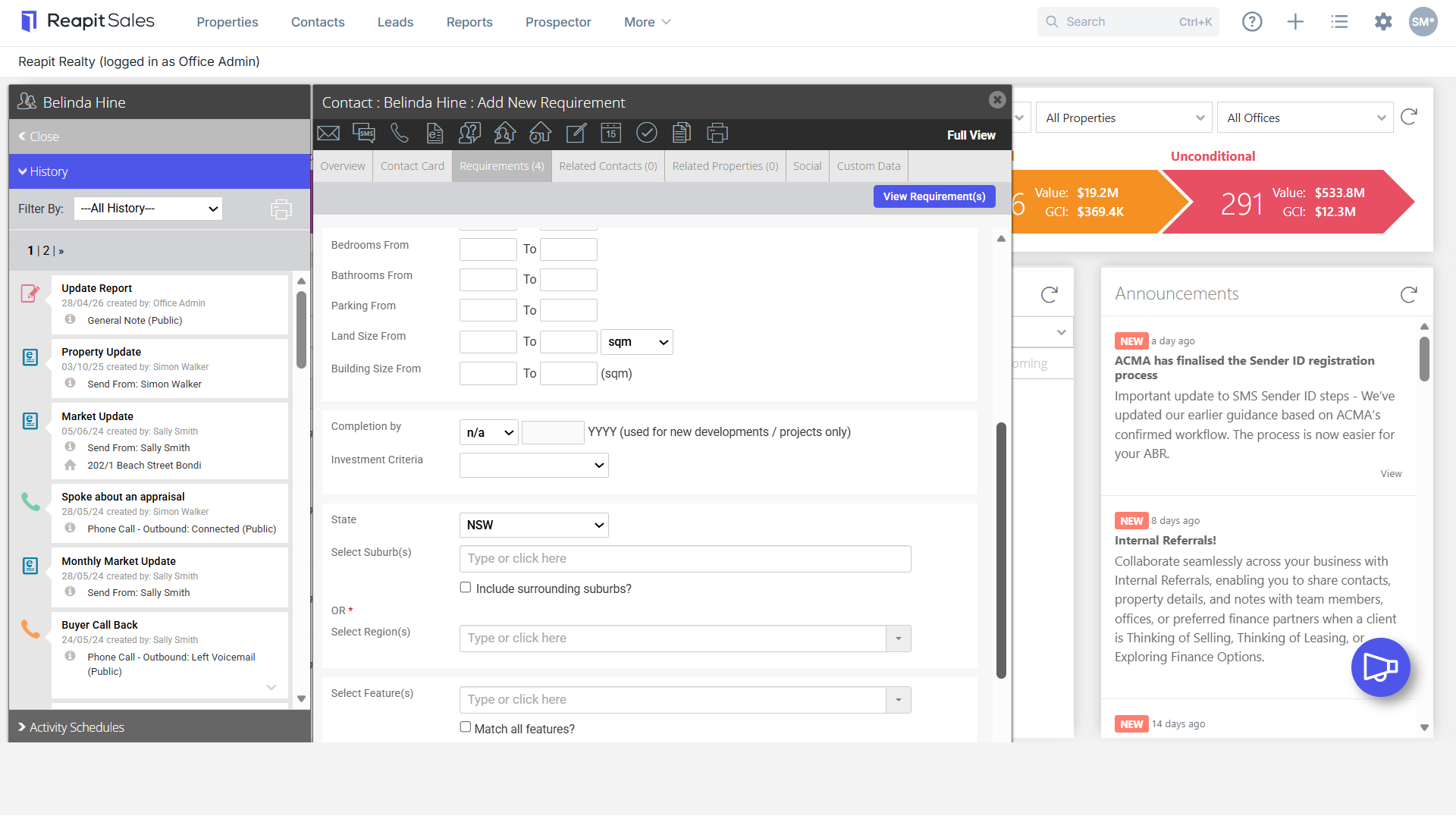
You have the option to either select specific suburbs as above OR you are able to select a region.
Features can also be added eg. Air conditioning/ Built-in wardrobes etc.
Notes: Any additional notes you would like to add
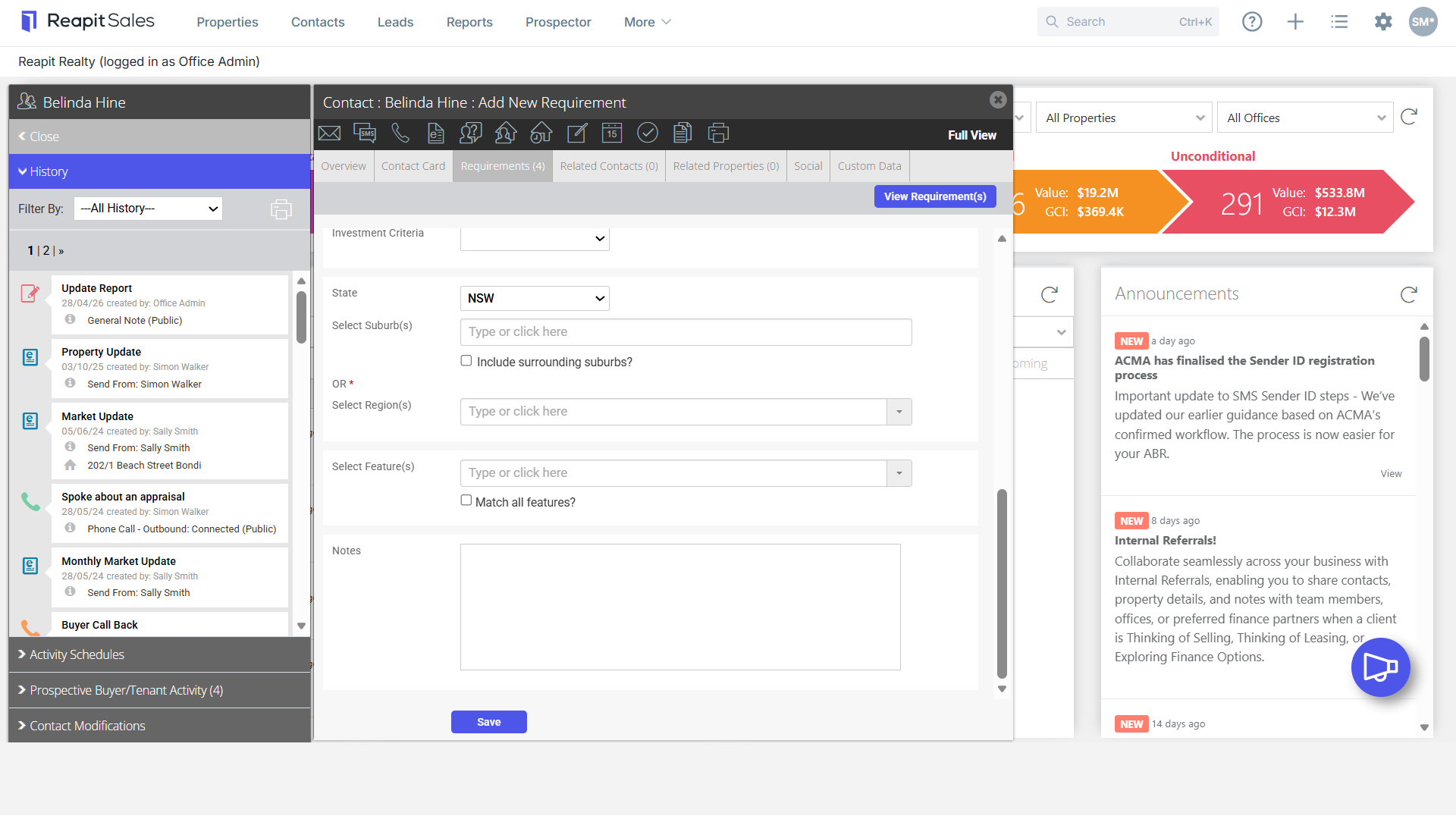
- Click Save
Requirements will now appear under the Requirements tab of the contact card.
Note: A user can manually add up to 5 requirements per contact, however, more than 5 sets can still be applied via automatic requirements (based on your Inspection, Enquiry & Leads (if appliable) configurations).
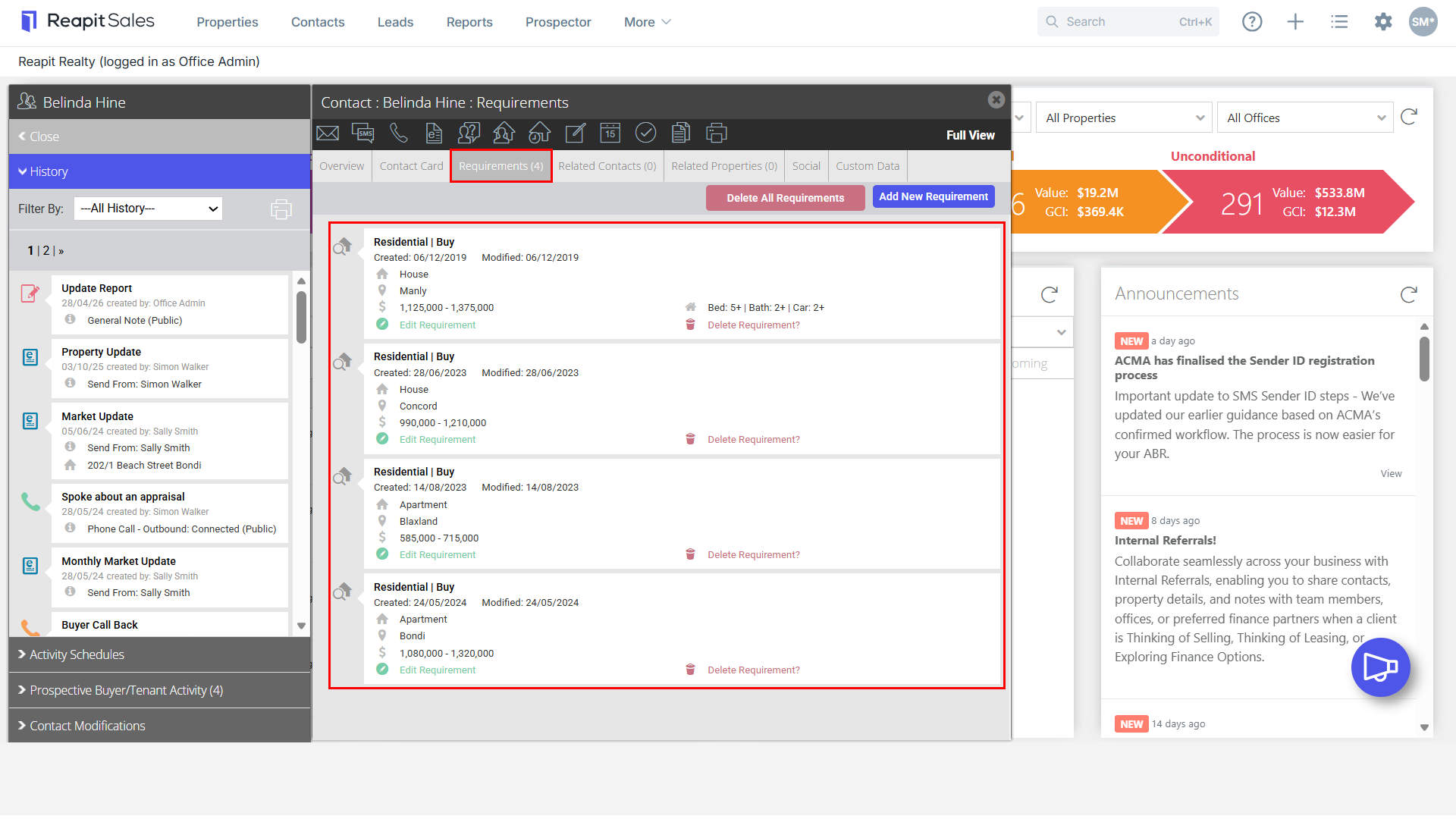
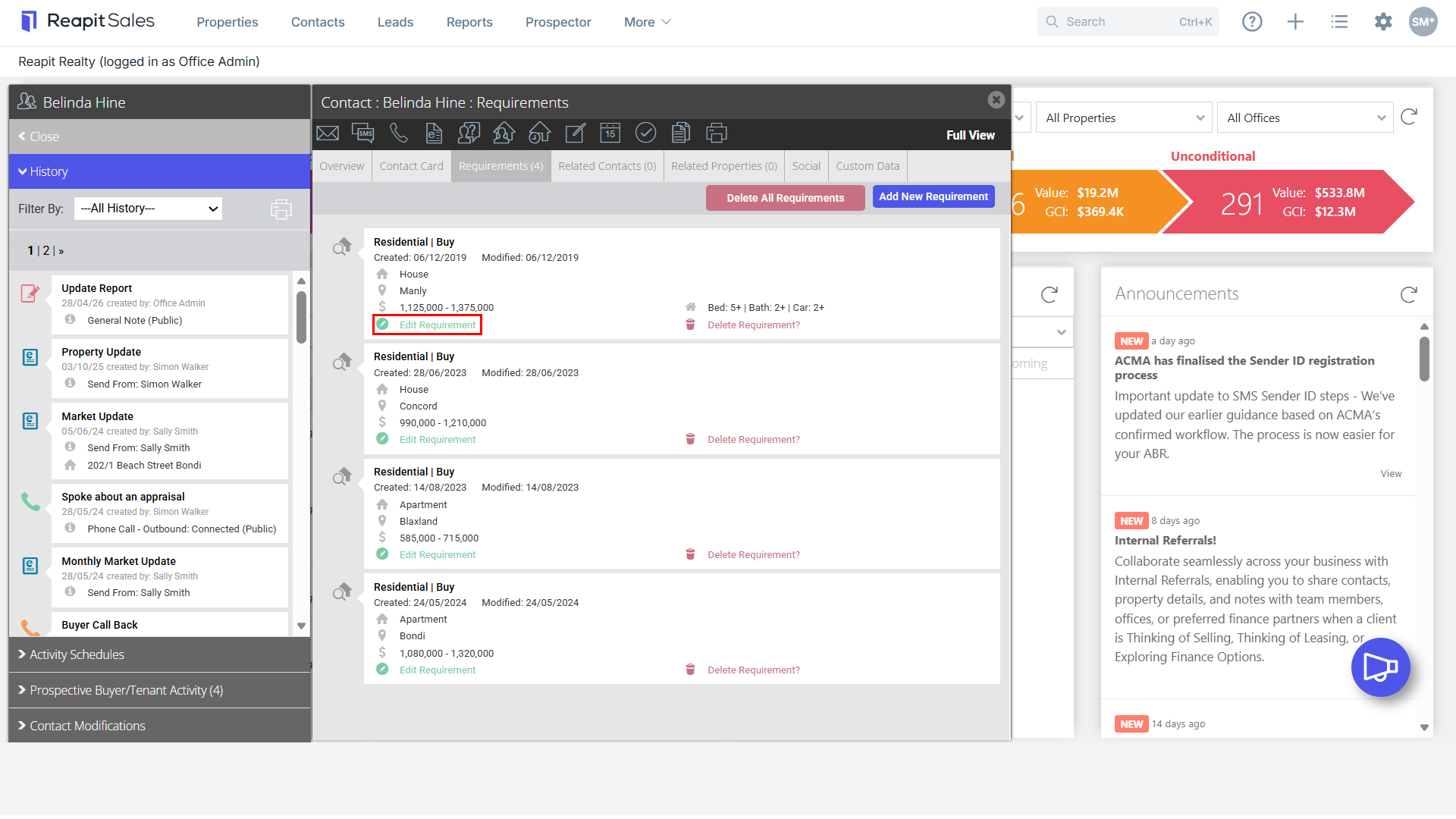
- To Edit requirements, click on Edit Requirement.
- Make changes as required, then Click Save.
Requirements will now be updated.
- To Delete all requirements related to the contact, click Delete All Requirements and a warning box will appear.
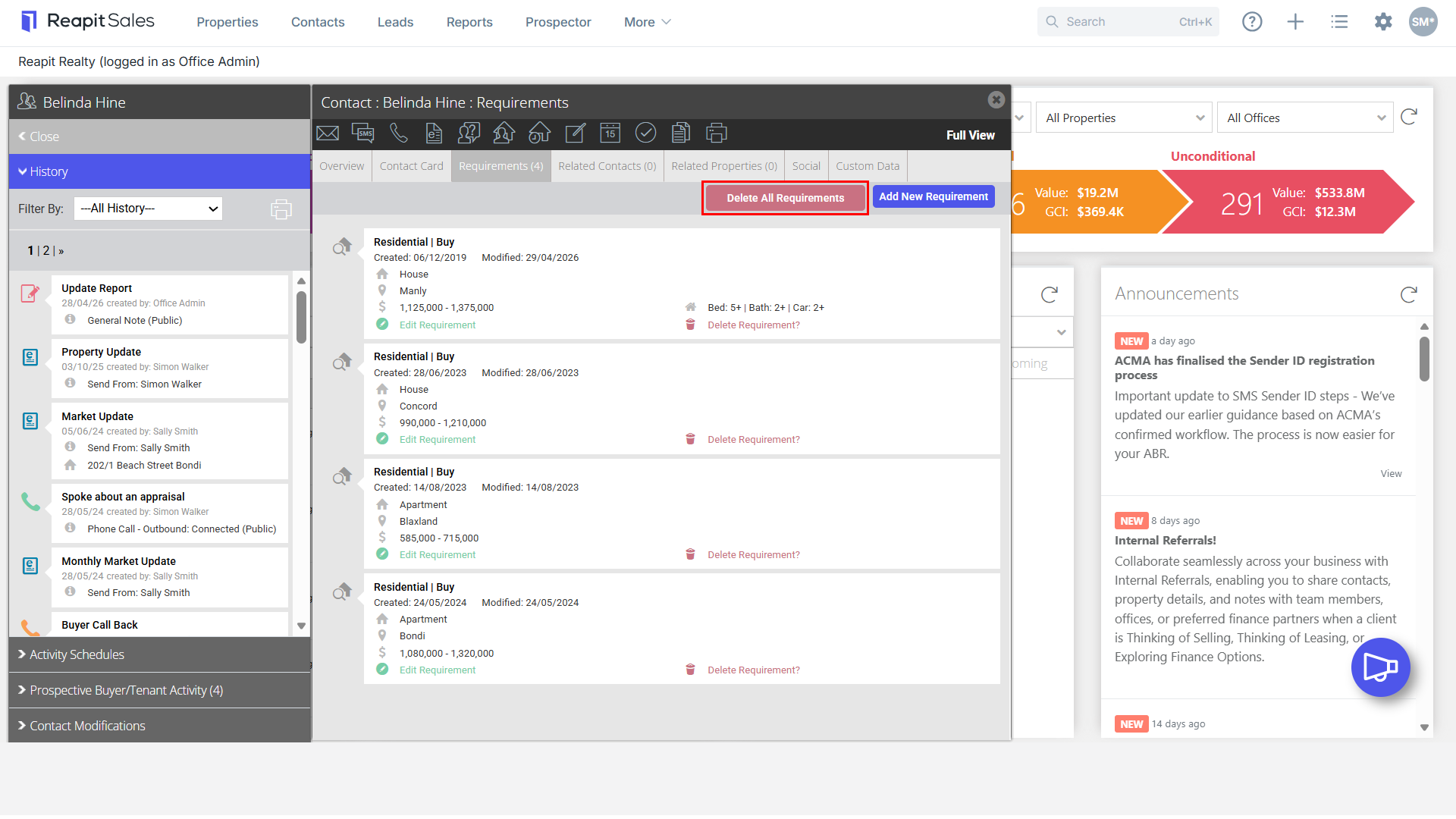
- To confirm, click Yes.