'%20d='M0%208a8%208%200%200%201%208-8h24a8%208%200%200%201%208%208v24a8%208%200%200%201-8%208H8a8%208%200%200%201-8-8V8Z'/%3e%3cpath%20fill='%23fff'%20d='M10.41%206v3.779h15.048v19.537h4.132V6H10.41Z'/%3e%3cpath%20fill='%23fff'%20d='M20.967%2034V13.837L10.41%209.78v20.166L20.967%2034Z'/%3e%3cdefs%3e%3clinearGradient%20id='reapit-sales__a'%20x1='20.702'%20x2='20.702'%20y1='.351'%20y2='31.228'%20gradientUnits='userSpaceOnUse'%3e%3cstop%20stop-color='%235573FD'/%3e%3cstop%20offset='.575'%20stop-color='%234E56EA'/%3e%3c/linearGradient%3e%3c/defs%3e%3c/svg%3e)
Existing/Duplicate Contact Manager within the Reapit Sales(mobile)
This article will detail how to search and add a contact to an Open for Inspection within the Reapit Sales(mobile) using a unique identifier.
Existing/Duplicate Contact Manager within the Reapit Sales(mobile)
This article will detail how to search and add a contact to an Open for Inspection within the Reapit Sales(mobile) using a unique identifier.
Click Here to view the user manual article for the Reapit Sales Desktop
The way access is given to existing contacts is through generating an action against a contact when flagged as already in the database. This is a security measure, so agents only get access to a contact when meaningful engagement justifies assignment.
- Navigate to the magnifying glass icon at the bottom of the screen.
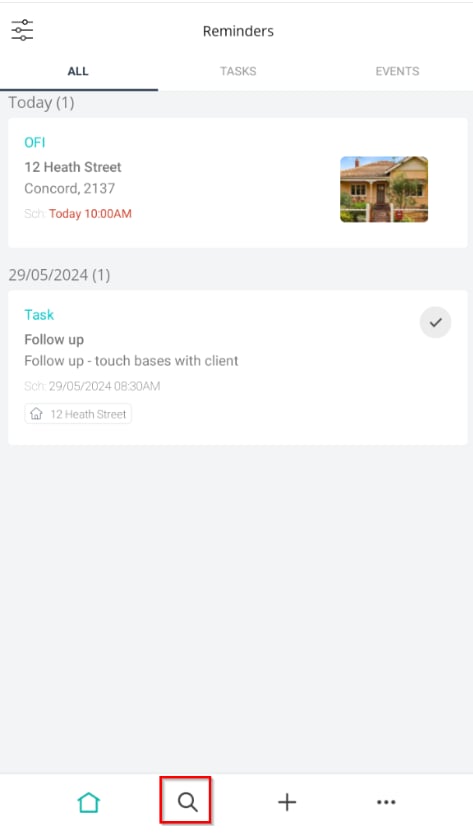
- Search and select your listing.
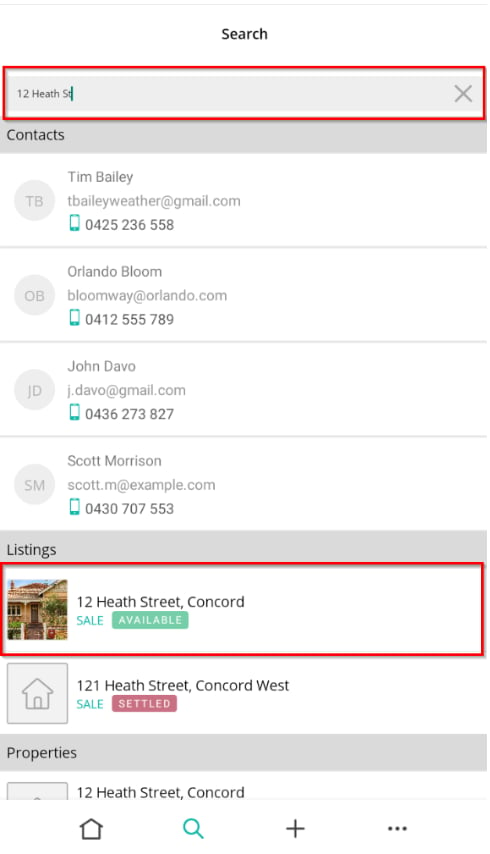
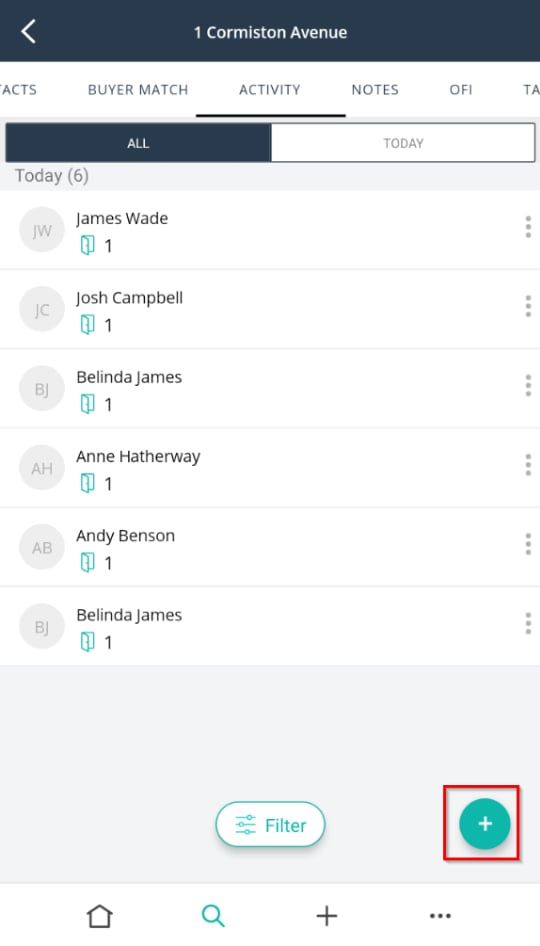
- Click on the Activity Tab.
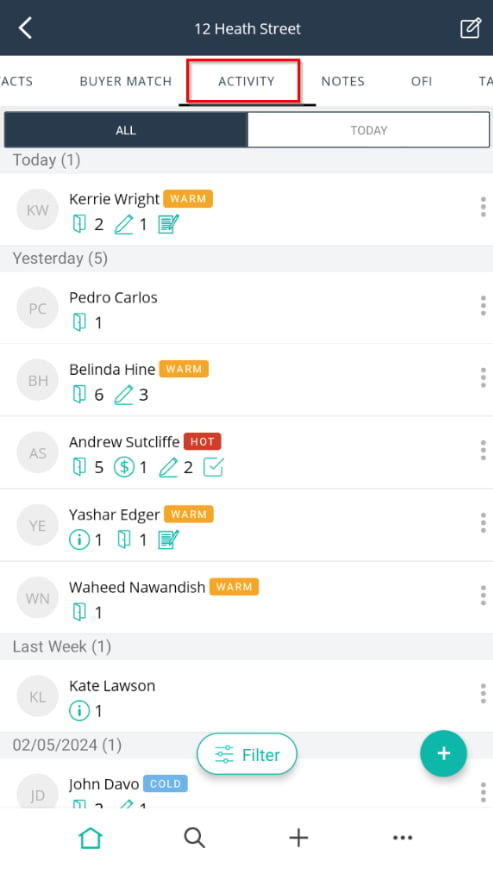
- Click on the + button.
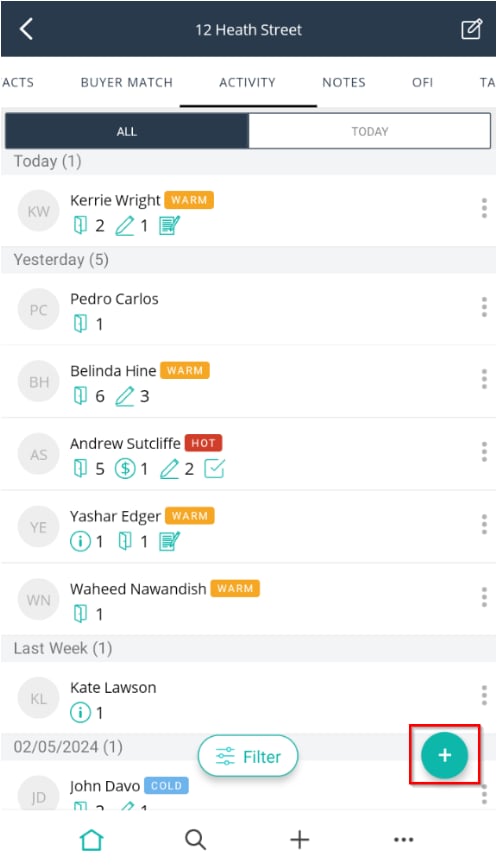
- Enter the inspection attendees' mobile number. If they are already in your system, their name will appear. Click on the + icon.
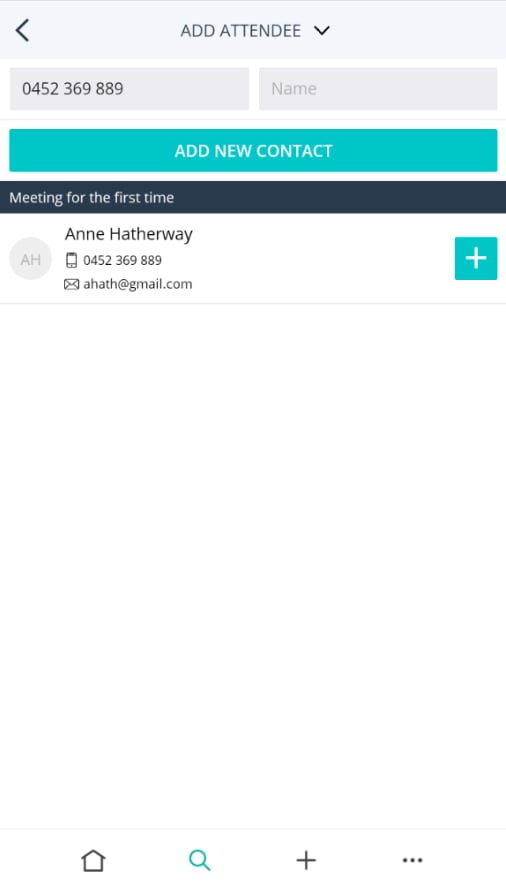
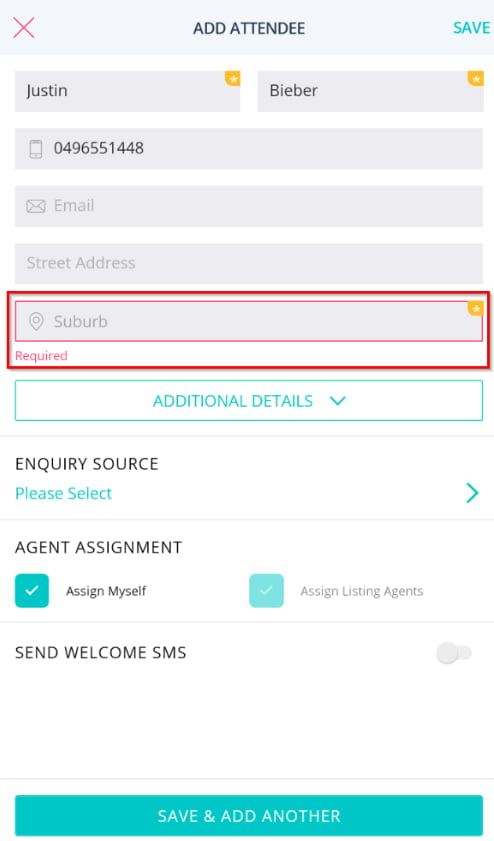
- If there are remaining mandatory data entries as per your system configuration, the app will prompt you so you can get this from the inspection attendee.
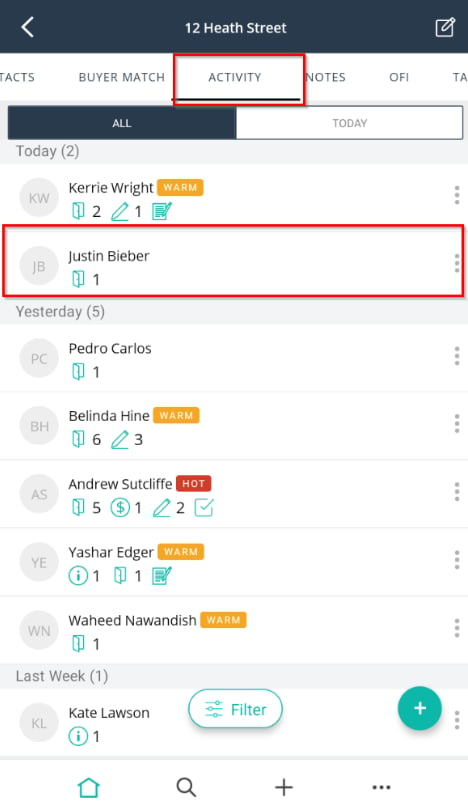
- Once you click save, it will take you back to the Activity tab. Here, you can click into the contact you added and edit it further as required.
Scenarios:
Scenario 1: Email Address already against another contact -
- Within the Activity tab, I want to send a contract to a Prospective Vendor.
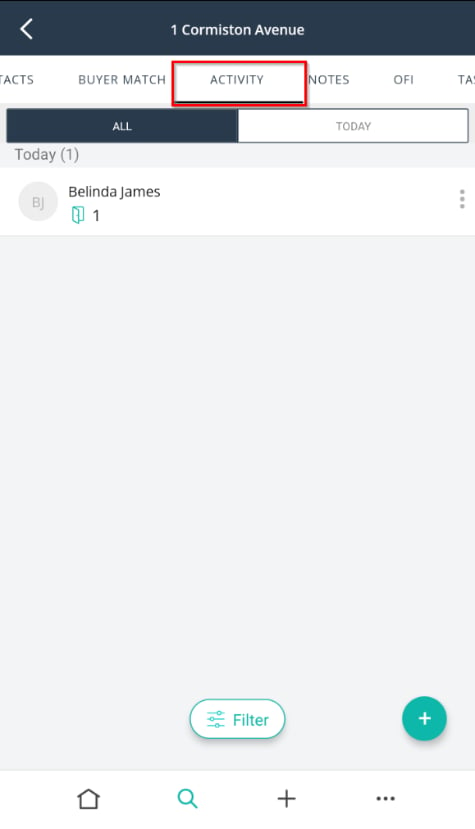
- I clicked on the + icon.
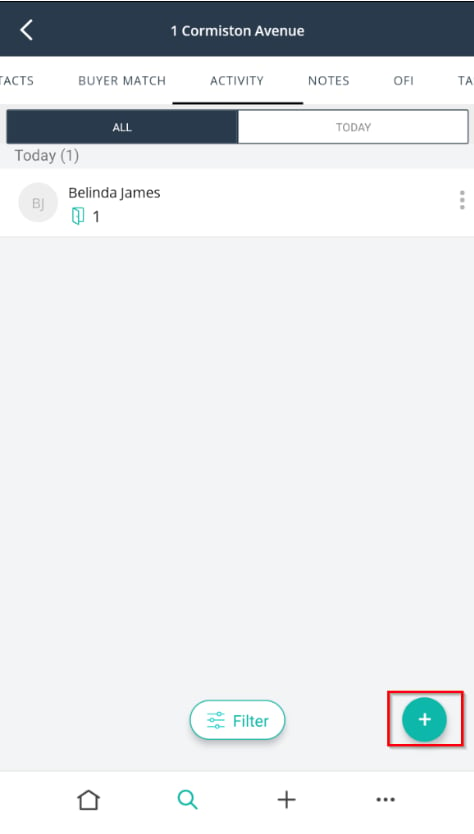
- Enter the Mobile Number and click Add New Contact.
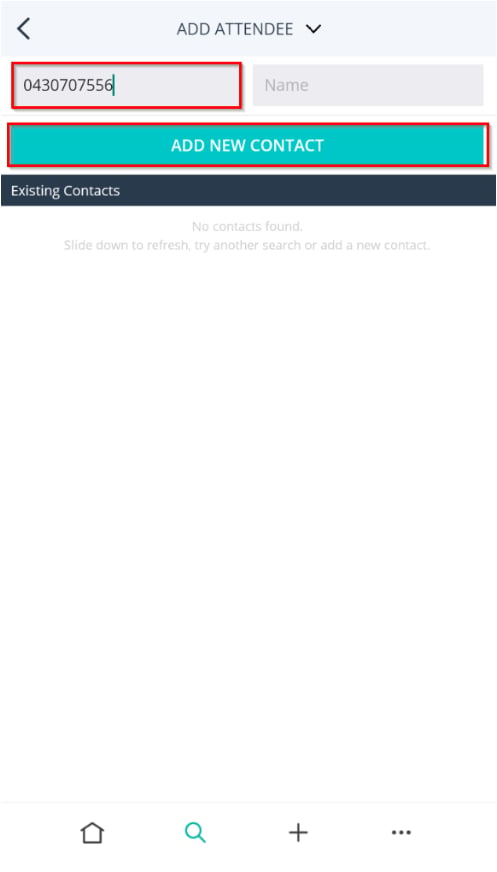
- I filled out the First name, Last name and mobile number and clicked Save.
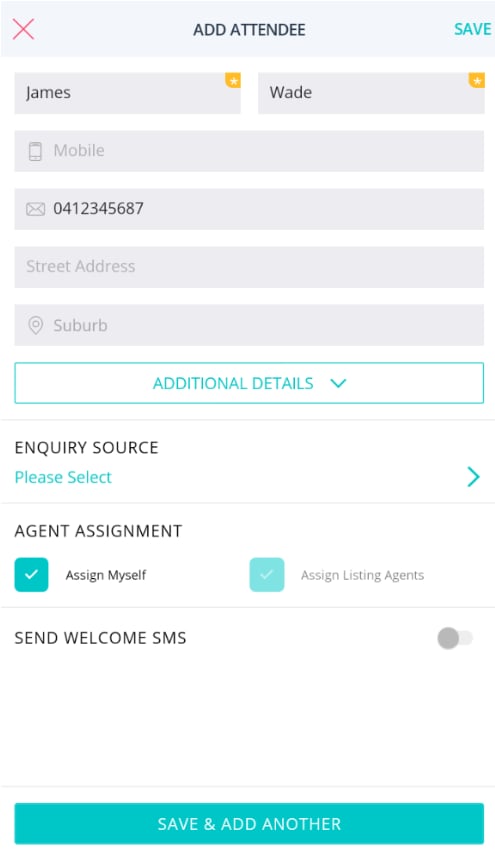
- Then in the Activity Tab, I click the 3 dots next to his name and select Email Contract/ Docs.
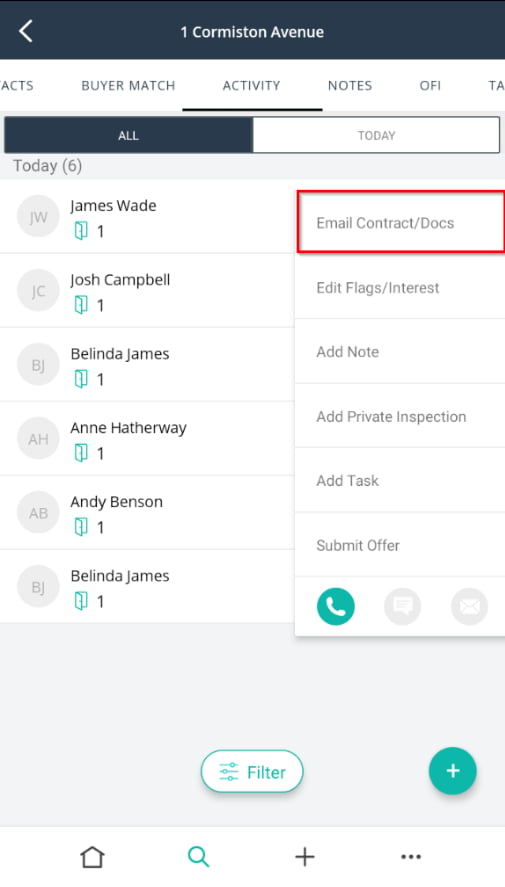
- I entered his email address and select the docs you want to send, click Next.
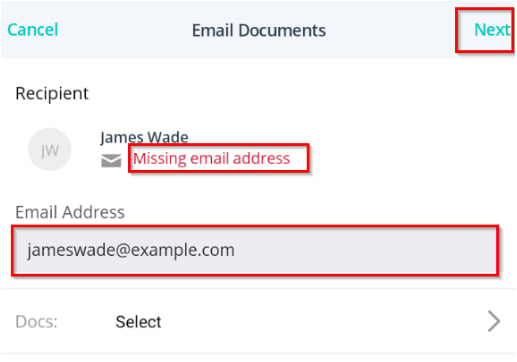
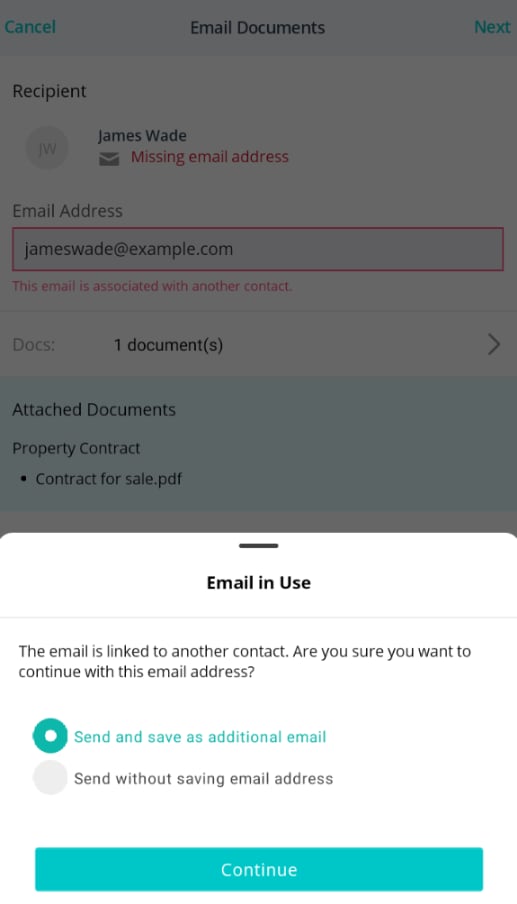
- I already have this contact in my system with this email address. Select Send without Saving Email Address.
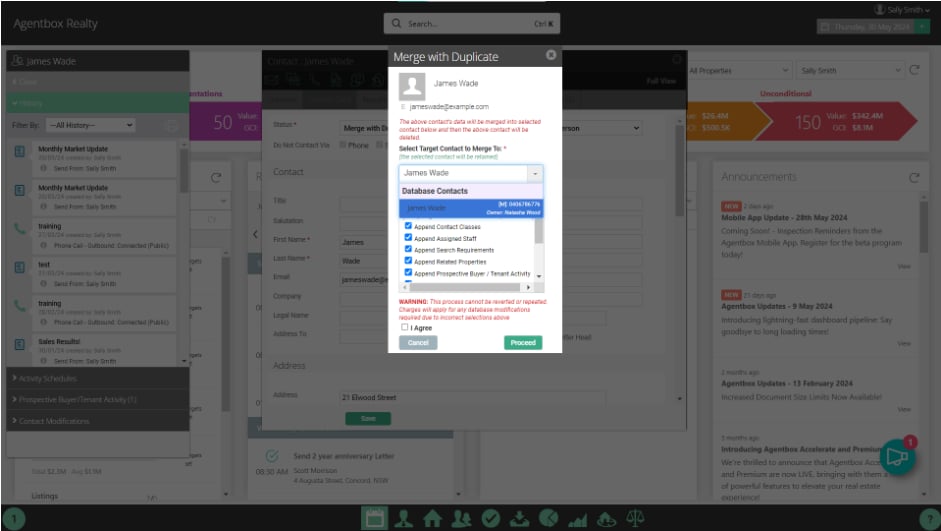
- When I get back to the office, I need to ask my administrator for the permission to merge contacts. Once I have received that permission, within the CRM, I can merge these contacts together.
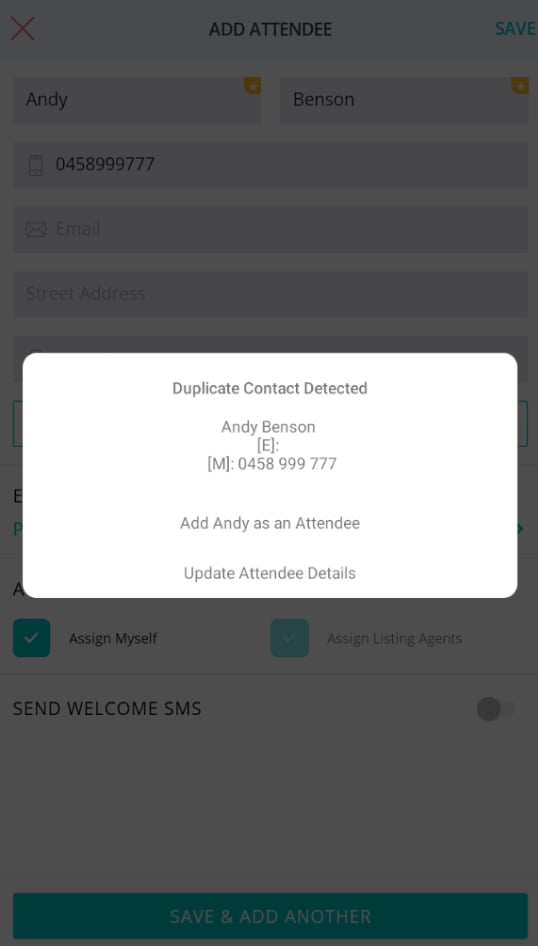
Scenario 2: Duplicate Contact Detected -
- Within the Activity tab, I clicked on the + icon.
- I typed in Andy and clicked Add New Contact.
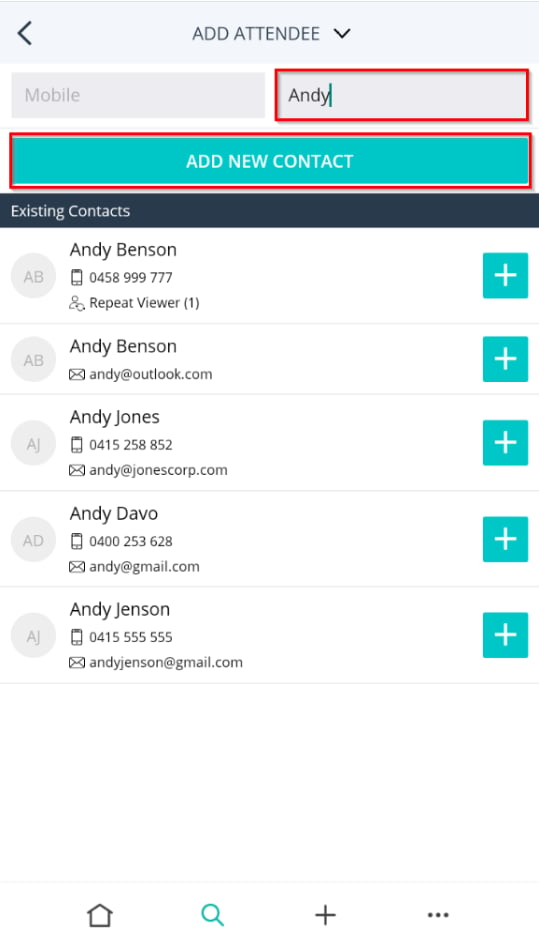
- I entered his mobile number and clicked Save. I was then presented with this screen below. Click Add Andy as an Attendee and continue filling out relevant details.
Tip: We do not recommend searching for a name, always search for a unique identifier first.