'%20d='M0%208a8%208%200%200%201%208-8h24a8%208%200%200%201%208%208v24a8%208%200%200%201-8%208H8a8%208%200%200%201-8-8V8Z'/%3e%3cpath%20fill='%23fff'%20d='M10.41%206v3.779h15.048v19.537h4.132V6H10.41Z'/%3e%3cpath%20fill='%23fff'%20d='M20.967%2034V13.837L10.41%209.78v20.166L20.967%2034Z'/%3e%3cdefs%3e%3clinearGradient%20id='reapit-sales__a'%20x1='20.702'%20x2='20.702'%20y1='.351'%20y2='31.228'%20gradientUnits='userSpaceOnUse'%3e%3cstop%20stop-color='%235573FD'/%3e%3cstop%20offset='.575'%20stop-color='%234E56EA'/%3e%3c/linearGradient%3e%3c/defs%3e%3c/svg%3e)
SMS Appointment Confirmation
This article outlines how to send Appointment Confirmation messages via SMS on the Sales Mobile App.
Overview
SMS Appointment Confirmation
This article outlines how to send Appointment Confirmation messages via SMS on the Sales Mobile App.
There are three SMS Appointment Confirmation templates that are accessible through Reminders.
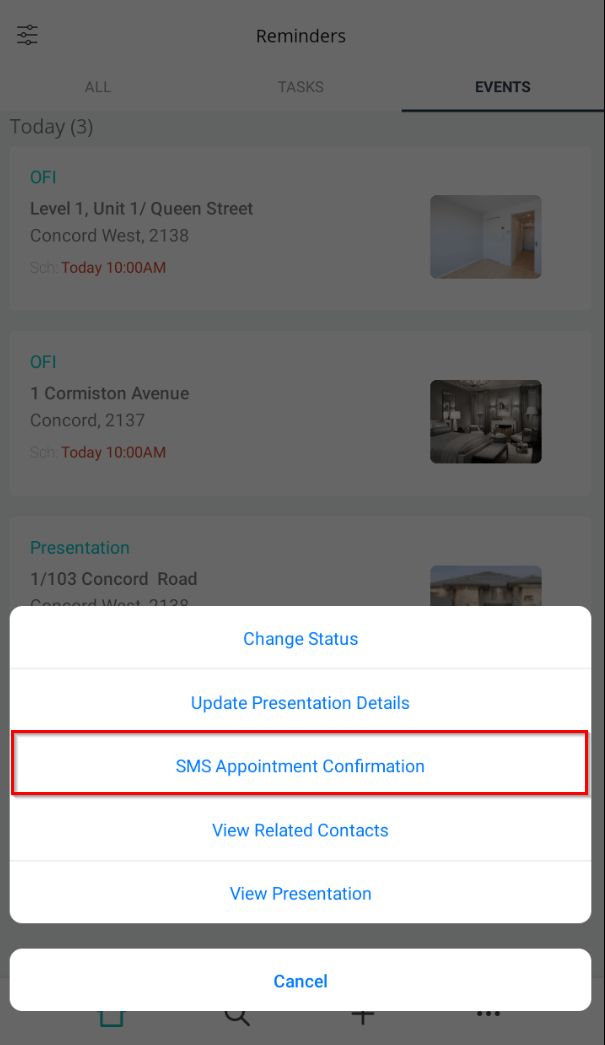
To use them, simply tap the event associated with Appraisals, Presentations, or Private Inspections. This action will allow you to send an SMS to the respective contacts, confirming their upcoming appointments.
Sending Private Inspection SMS Appointment Confirmations
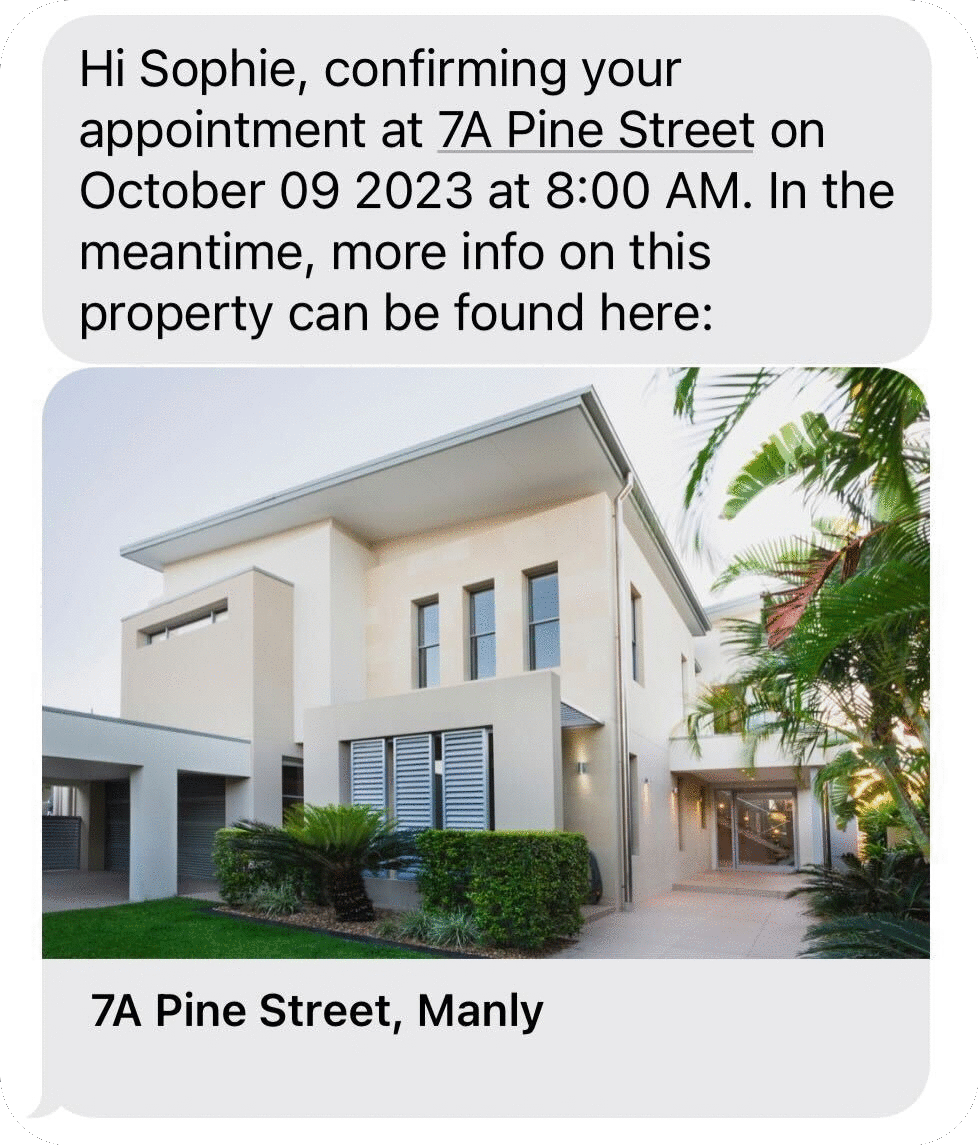
Through the Reminders screen, users can easily access the 'SMS Appointment Confirmation' feature by tapping on the event. Once selected, a default message will appear on the SMS creation screen as follows:
"Hi {$contact_dear}, confirming your appointment at {$prop_address_line1} on event date at event time. In the meantime, more info on this property can be found here: {$inspection_ebrochure_link}"
You will still have the flexibility to choose multiple Prospective Buyers (if related to the appointment, 'send from' another staff member (Pending Permission), and make further modifications to the template as needed.
Sending Appraisal SMS Appointment Confirmations
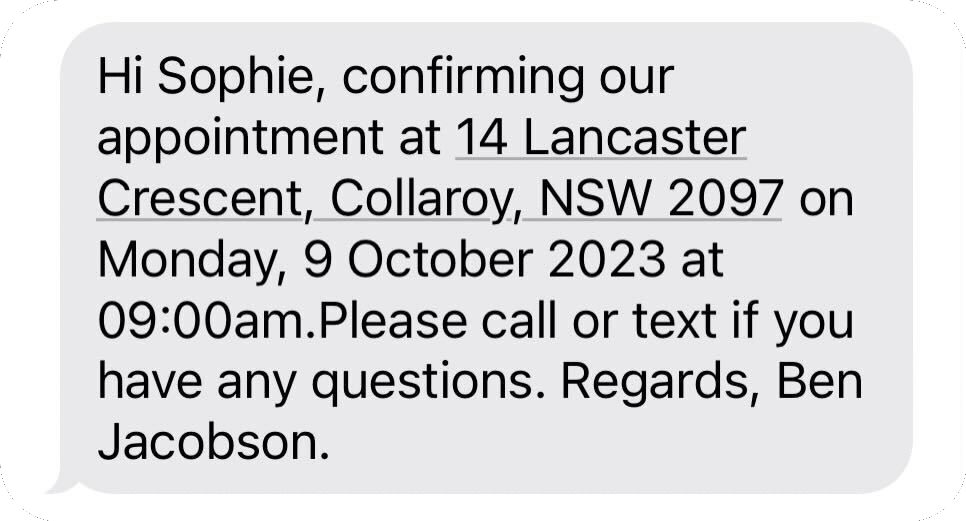
Through the Reminders screen, you can easily access the 'SMS Appointment Confirmation' feature by tapping on the event. Once selected, a default message will appear on the SMS creation screen as follows:
Hi {$contact_dear}, confirming our appointment at {$prop_address_line1} on {$prop_appdate} at {$prop_apptime}. Please call or text if you have any questions. Regards, {$mname}.
You will still have the flexibility to choose multiple Prospective Vendors (if related to the appointment, 'send from' another staff member (Pending Permissions), and make further modifications to the template as needed.
Sending Presentation SMS Appointment Confirmations
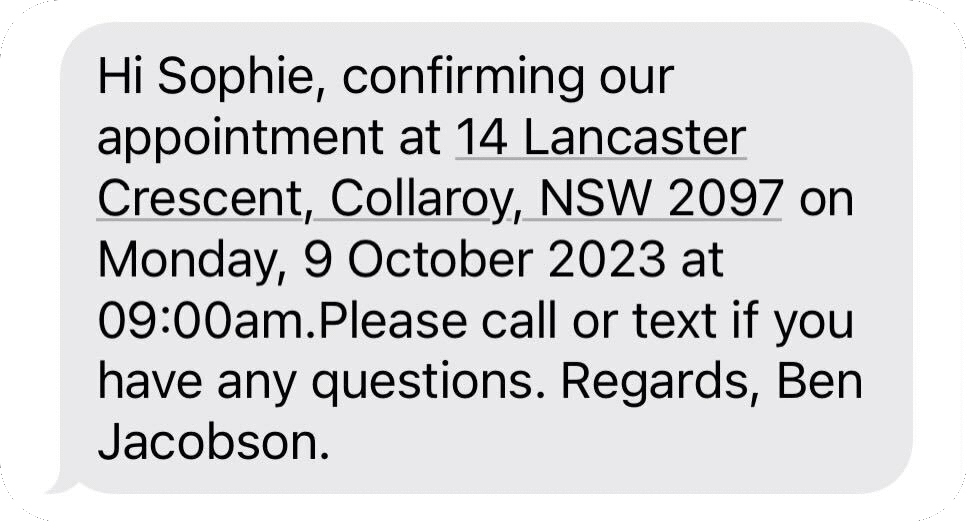
Through the Reminders screen, you can easily access the 'SMS Appointment Confirmation' feature by tapping on the event. Once selected, a default message will appear on the SMS creation screen as follows:
Hi {$contact_dear}, confirming our appointment at {$prop_loc} on {$prop_listing_pres_date} at {$prop_listing_pres_time}.Please call or text if you have any questions. Regards, {$mname}.
You will still have the flexibility to choose multiple Prospective Vendors (if related to the appointment, 'send from' another staff member (Pending Permissions), and make further modifications to the template as needed.
Permissions
Permission required to send an SMS are:
Send SMS
Register mobile number
SMS credits
Send on behalf of all, office, team (if required).