'%20d='M0%208a8%208%200%200%201%208-8h24a8%208%200%200%201%208%208v24a8%208%200%200%201-8%208H8a8%208%200%200%201-8-8V8Z'/%3e%3cpath%20fill='%23fff'%20d='M10.41%206v3.779h15.048v19.537h4.132V6H10.41Z'/%3e%3cpath%20fill='%23fff'%20d='M20.967%2034V13.837L10.41%209.78v20.166L20.967%2034Z'/%3e%3cdefs%3e%3clinearGradient%20id='reapit-sales__a'%20x1='20.702'%20x2='20.702'%20y1='.351'%20y2='31.228'%20gradientUnits='userSpaceOnUse'%3e%3cstop%20stop-color='%235573FD'/%3e%3cstop%20offset='.575'%20stop-color='%234E56EA'/%3e%3c/linearGradient%3e%3c/defs%3e%3c/svg%3e)
View Tasks
This article will cover how to view tasks in Reapit Sales.
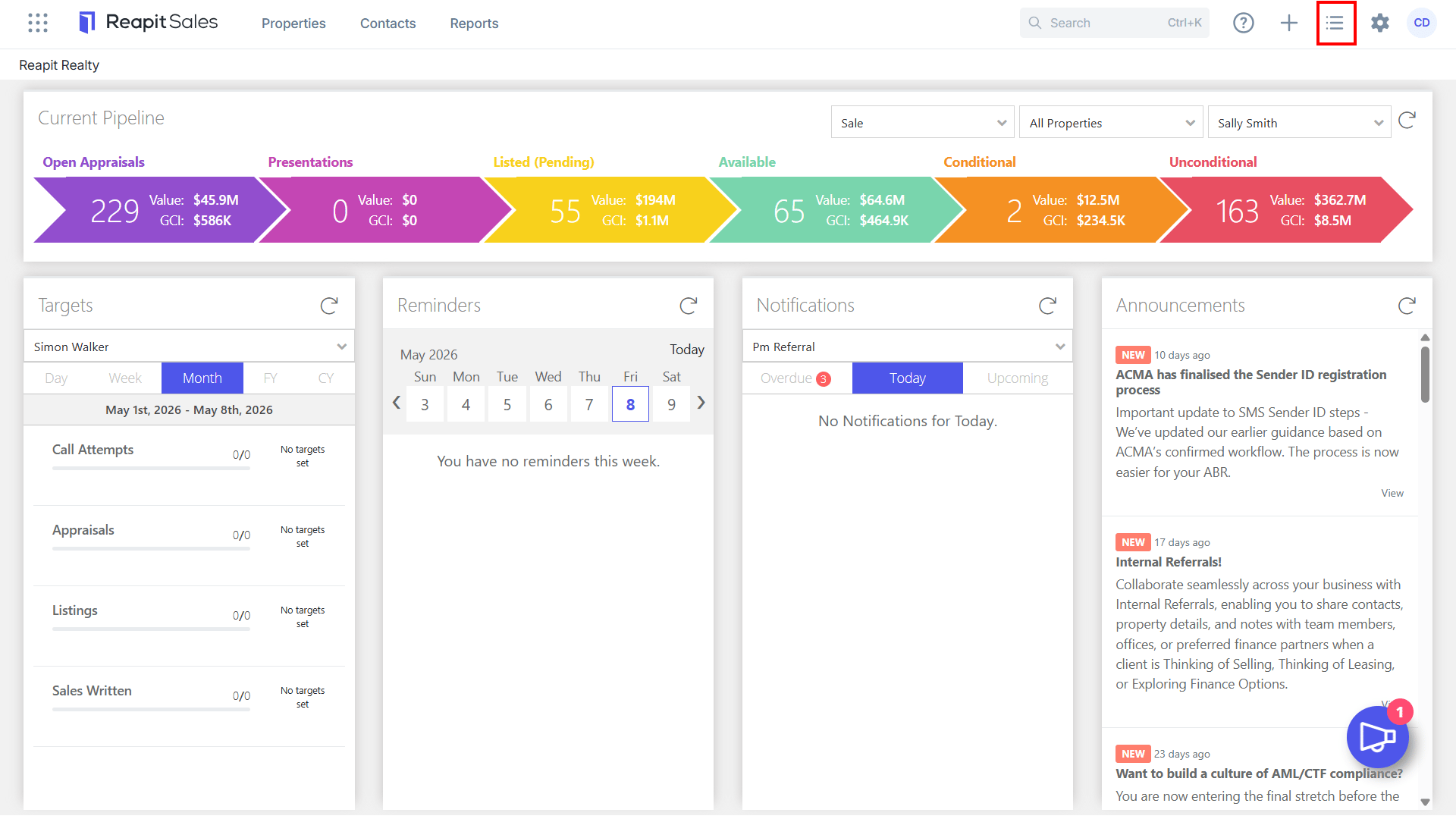
1. Click Tasks on the Main Menu.
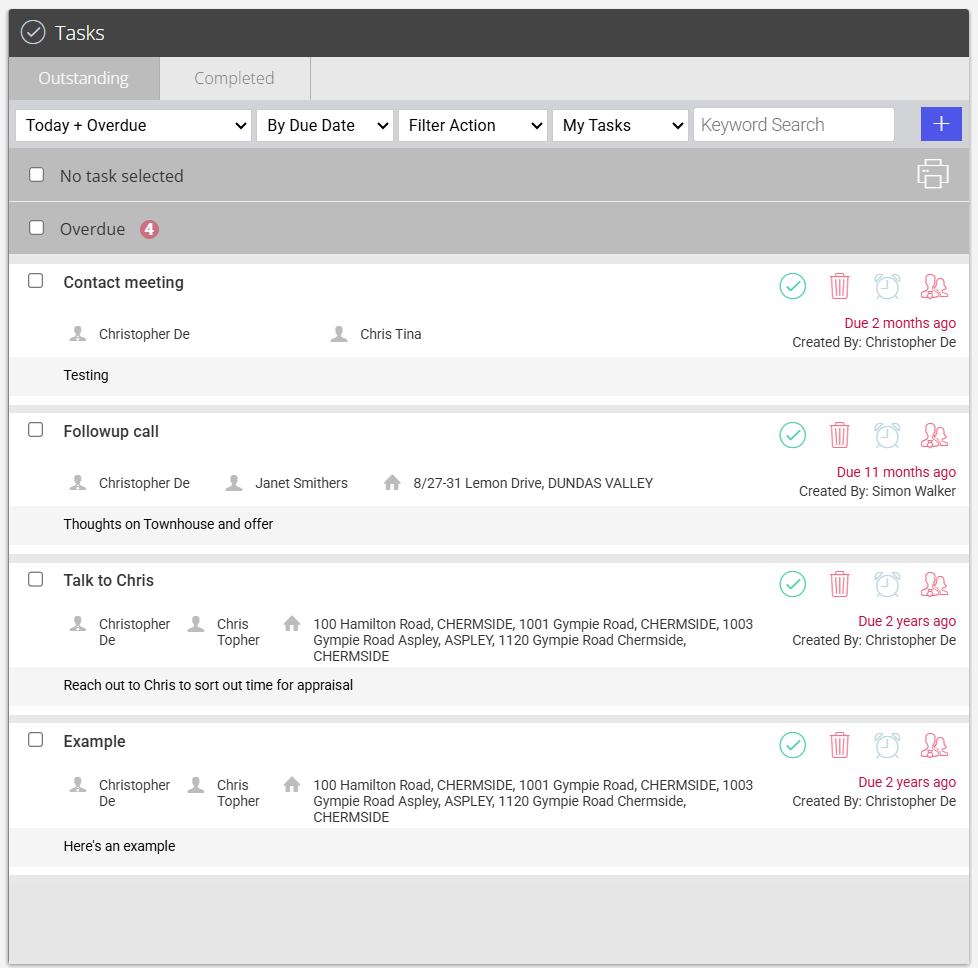
2. The task panel will open.
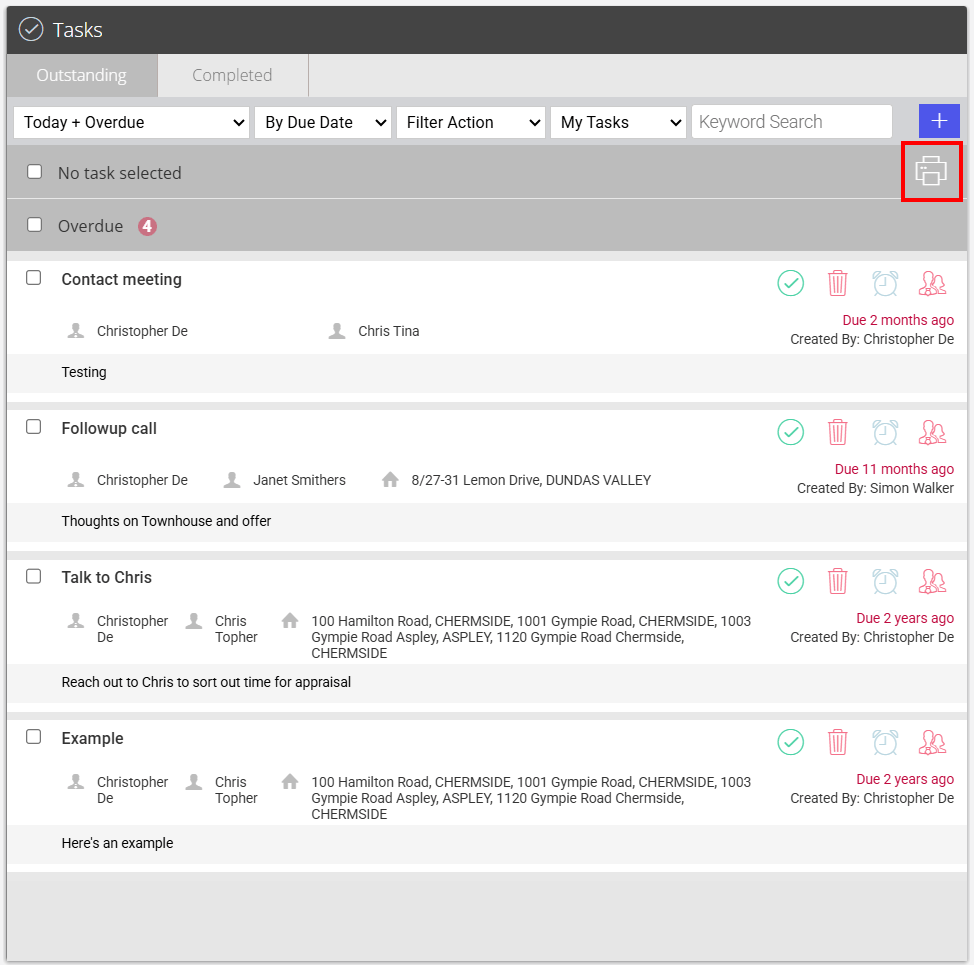
- Click the Print icon to print the specified task list
- Group & Filter as required (Users can view all team member's tasks; Master users can view all staff member's tasks).
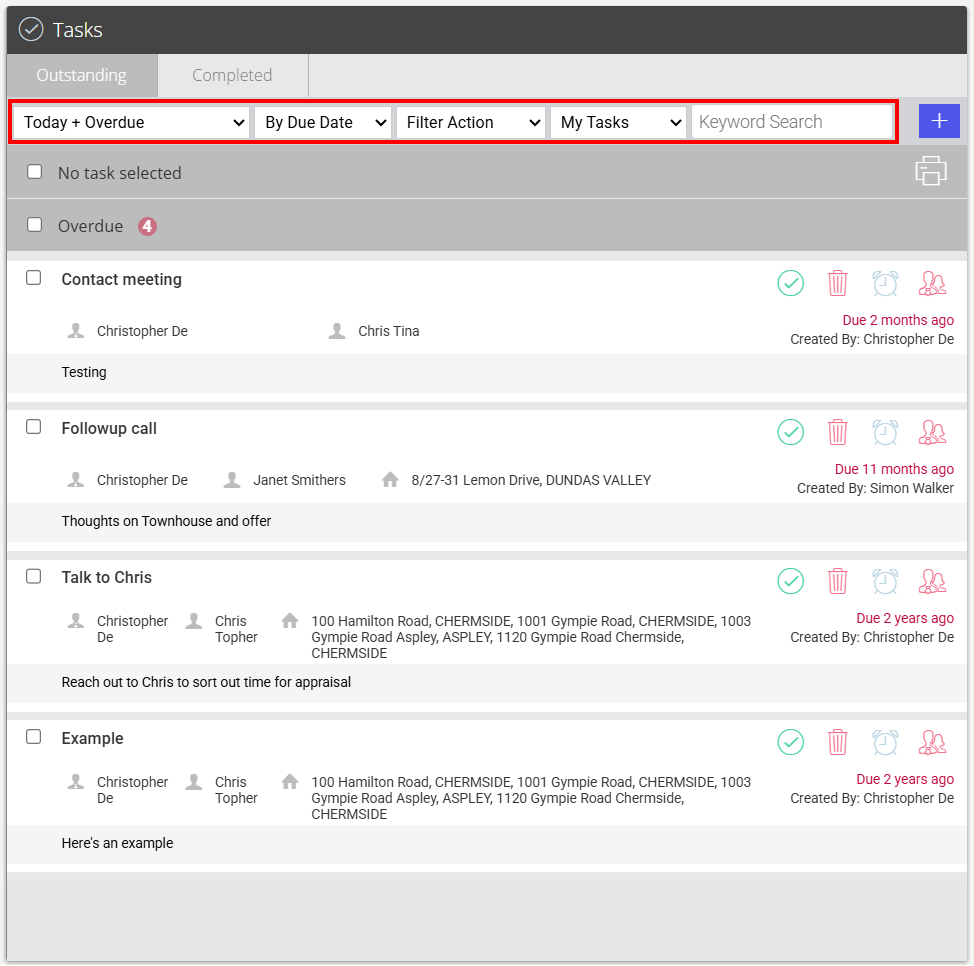
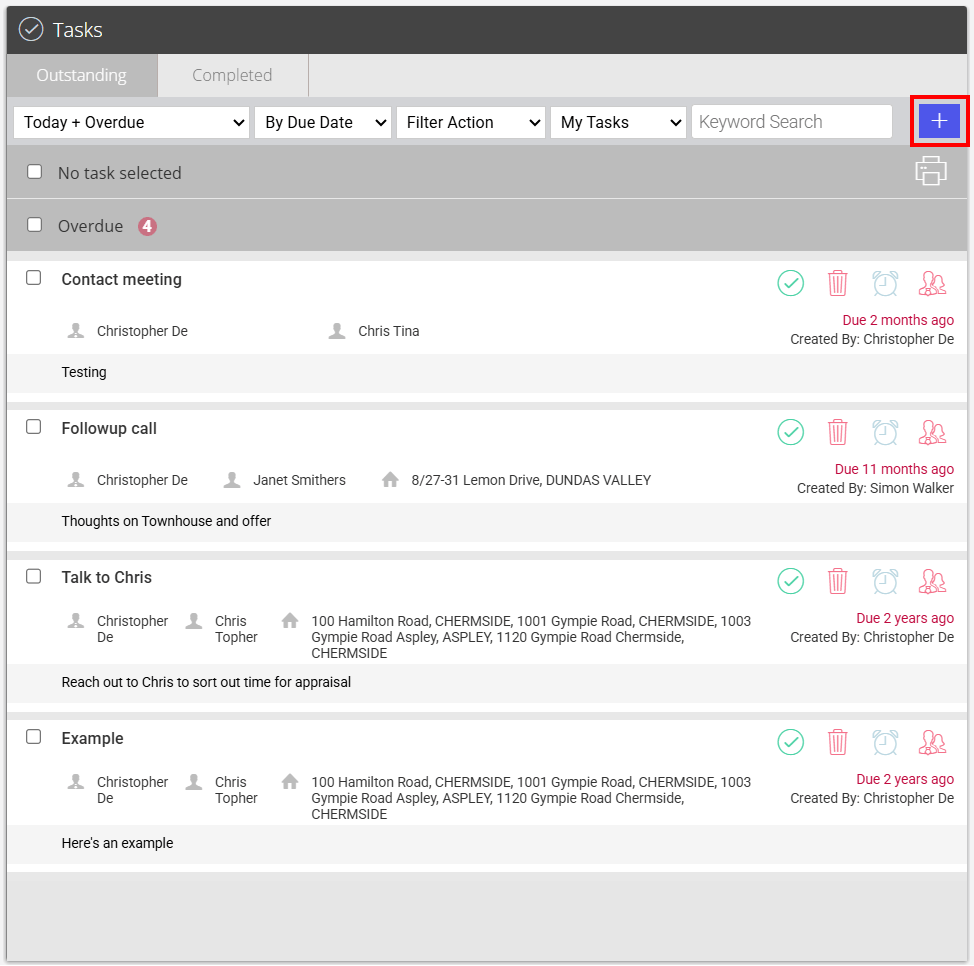
- Click the Quick Add button
 to Add a Task, View/Edit Activity Schedules or Apply an Activity Schedule
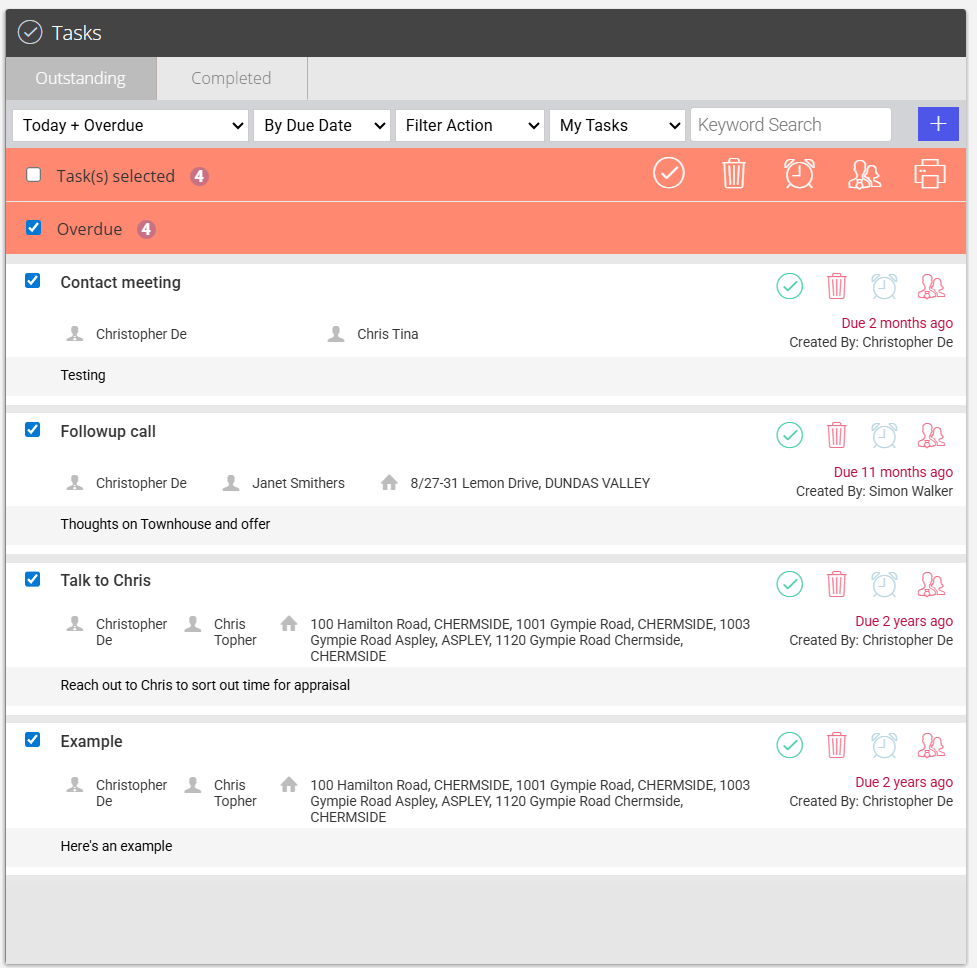
- The action icons allow you to quickly
 Complete
  Delete or
  Snooze a task.
 - The action button will complete the specified task e.g. Create a Letter

- By clicking on the Task title it will open the task for editing
- By clicking on the related Staff member it will open their staff card
- By clicking on the related Contact it will open the contacts information
- By Clicking on the related Property it will open the property card.
- Select multiple tasks to bulk
 Complete
  Delete
  Snooze or
  Print
Print