'%20d='M0%208a8%208%200%200%201%208-8h24a8%208%200%200%201%208%208v24a8%208%200%200%201-8%208H8a8%208%200%200%201-8-8V8Z'/%3e%3cpath%20fill='%23fff'%20d='M10.41%206v3.779h15.048v19.537h4.132V6H10.41Z'/%3e%3cpath%20fill='%23fff'%20d='M20.967%2034V13.837L10.41%209.78v20.166L20.967%2034Z'/%3e%3cdefs%3e%3clinearGradient%20id='reapit-sales__a'%20x1='20.702'%20x2='20.702'%20y1='.351'%20y2='31.228'%20gradientUnits='userSpaceOnUse'%3e%3cstop%20stop-color='%235573FD'/%3e%3cstop%20offset='.575'%20stop-color='%234E56EA'/%3e%3c/linearGradient%3e%3c/defs%3e%3c/svg%3e)
How to Add a Video to E-Newsletter
This article shows how to add a video to e-Newsletter in Reapit Sales.
How to Add a Video to E-Newsletter
This article shows how to add a video to e-Newsletter in Reapit Sales.
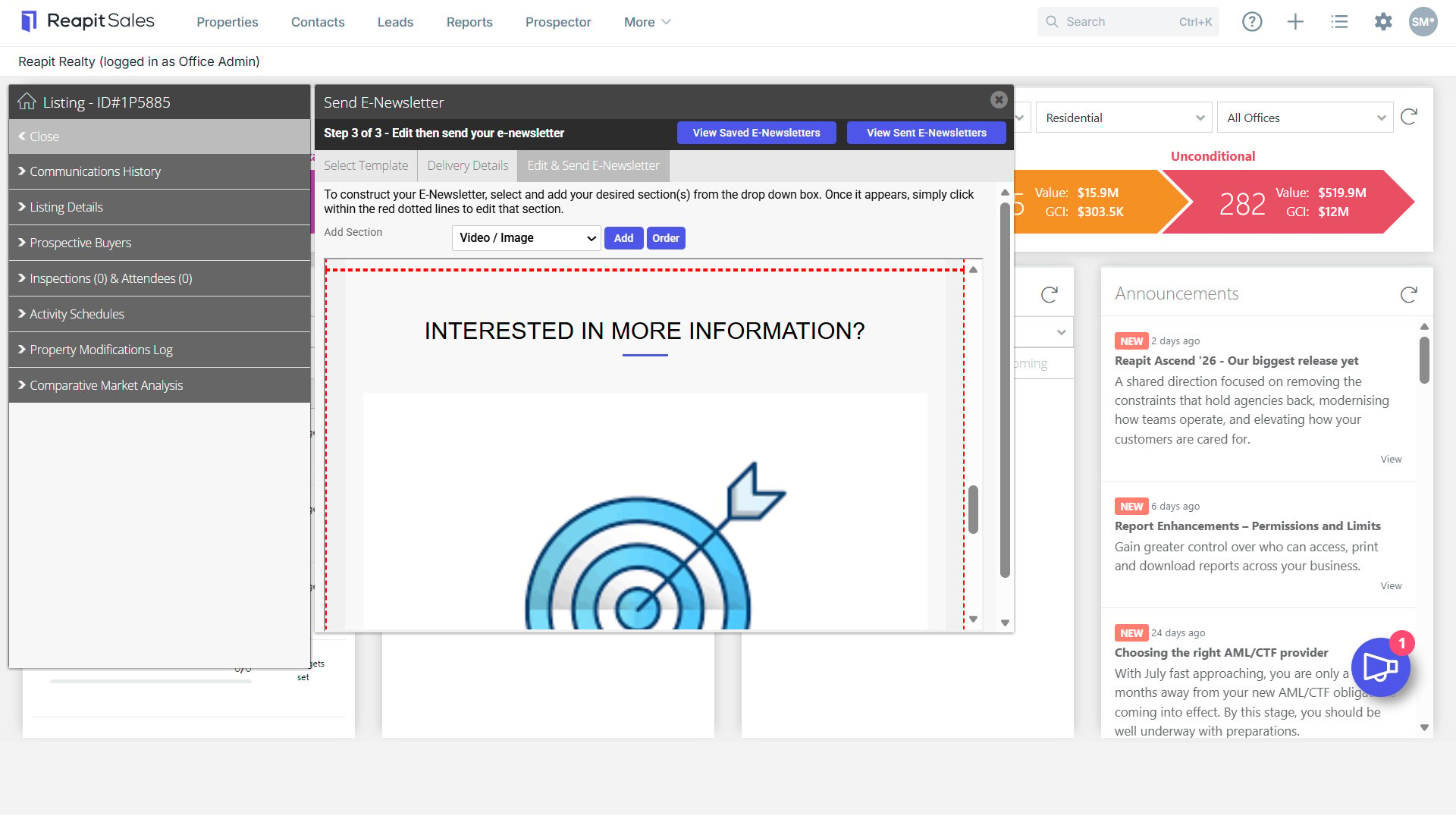
To add a video to an e-newsletter you are required to take a screenshot of the video thumbnail or a still from the video itself. 1. Open a General ENews template, then click Save & Proceed.
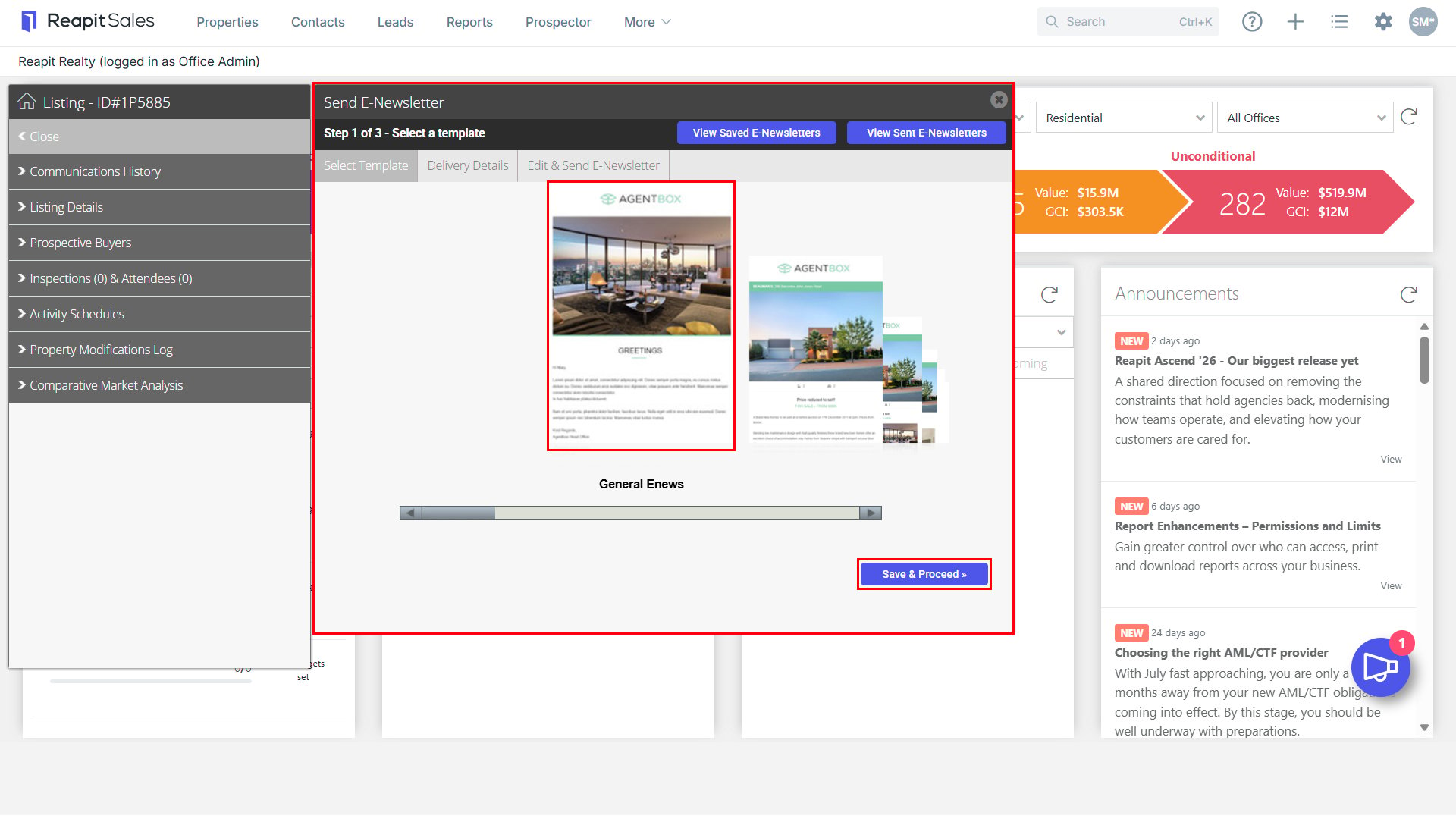
- Tick all relevant email addresses that you would like to send the e-newsletter to. Enter the subject, then click Save & Proceed.
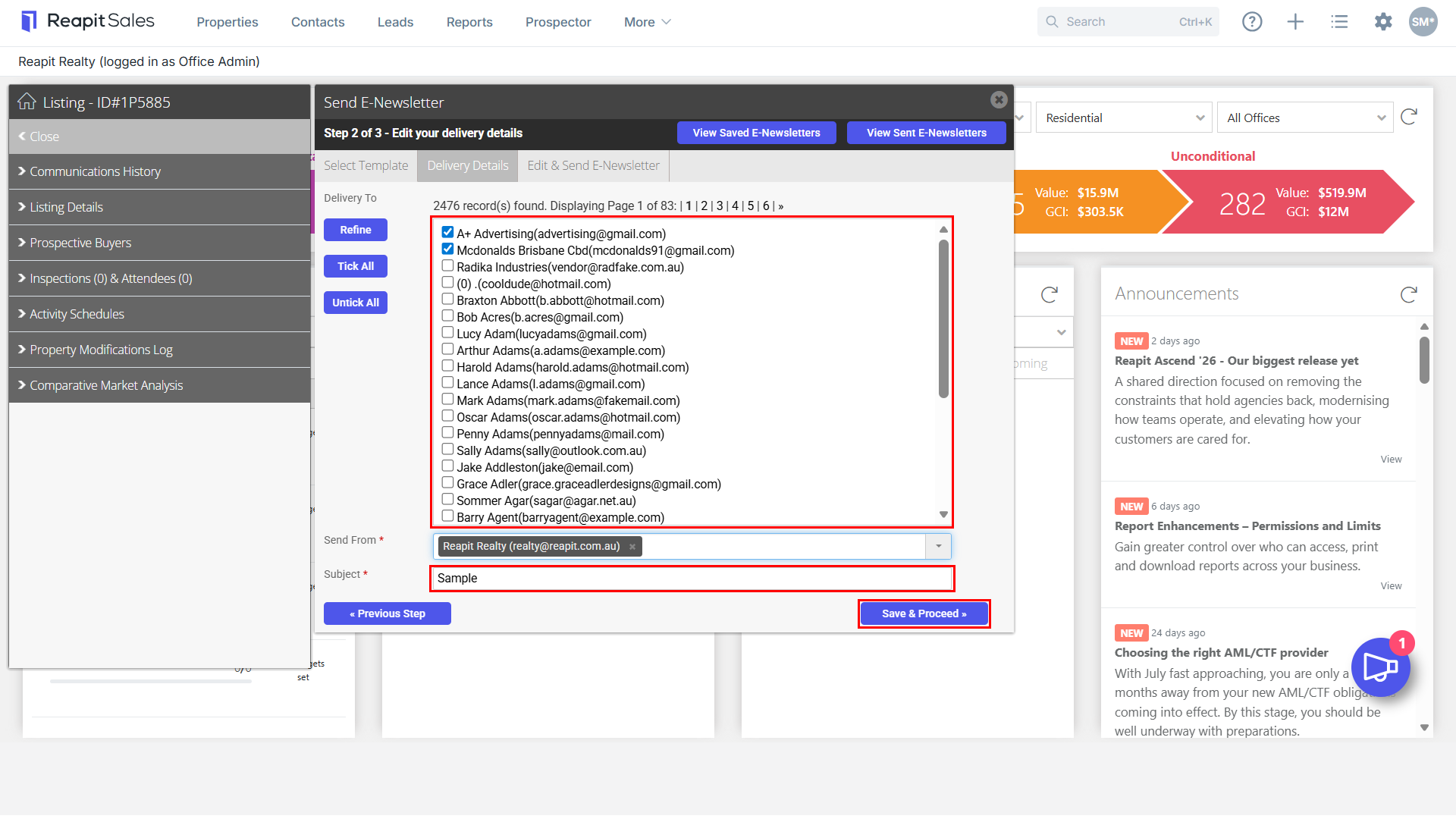
- From the add section dropdown, select Video/Image then click Add.
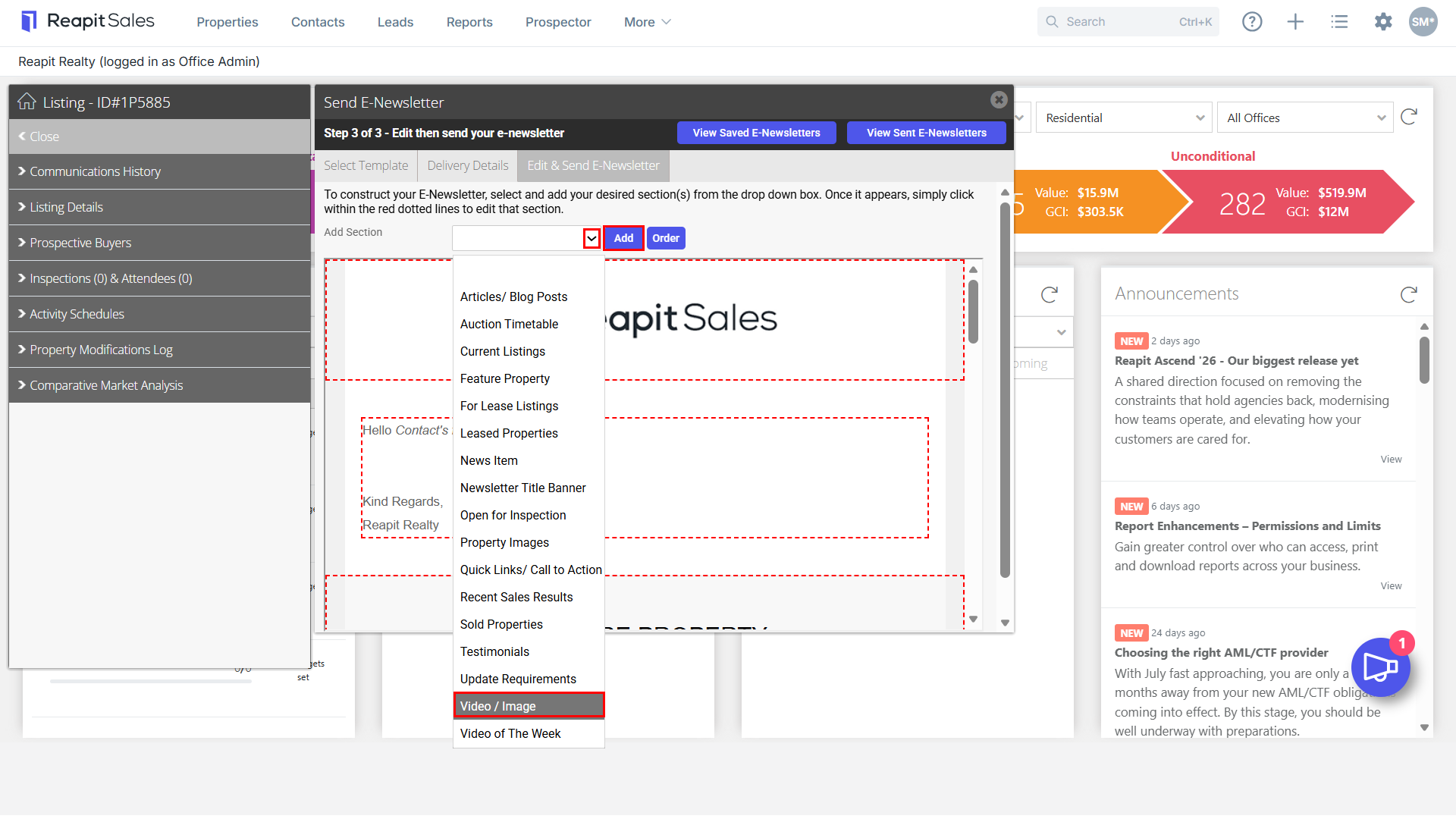
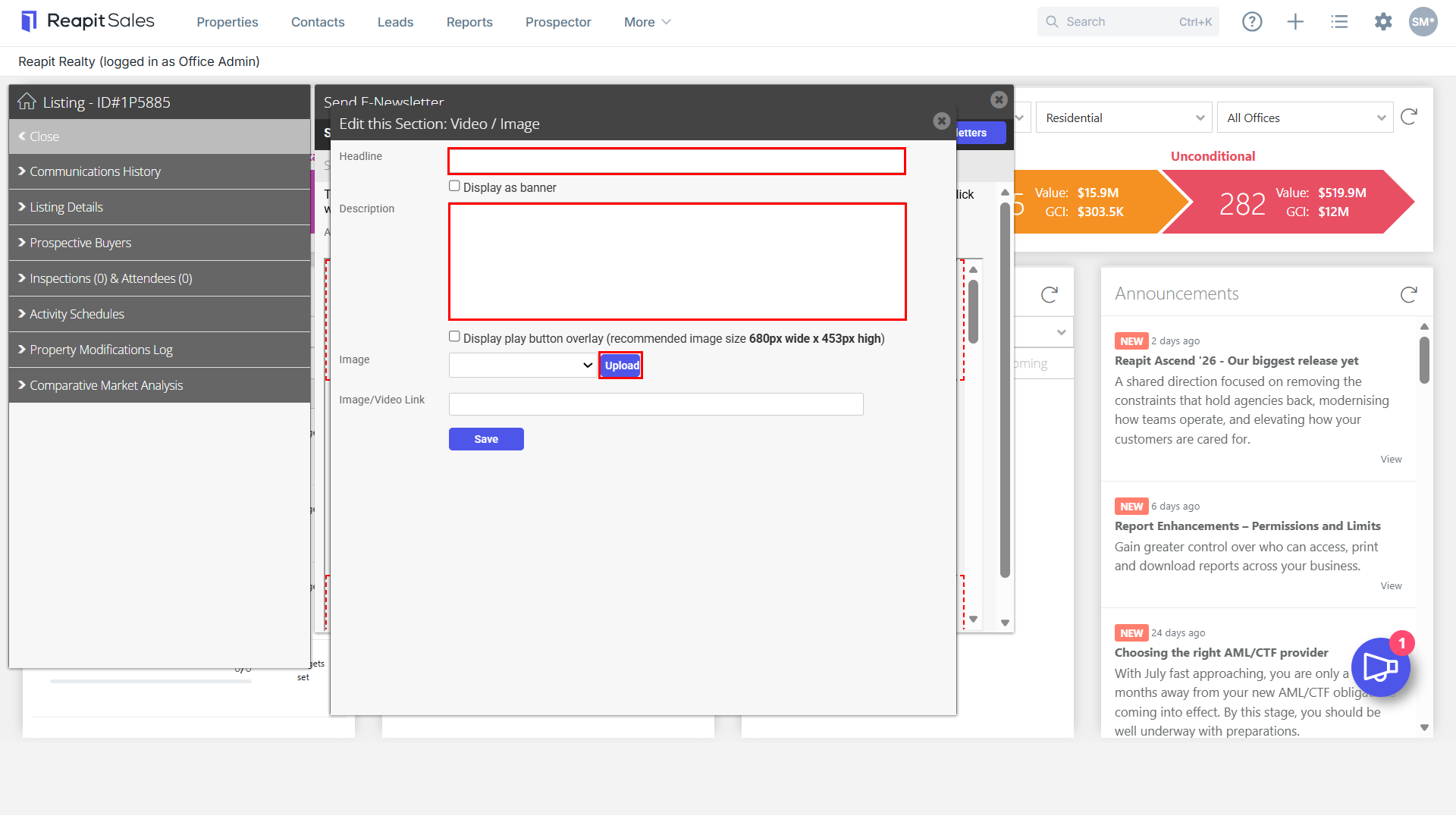
- Enter your Headline and Description, then click Upload to add an image for the video.
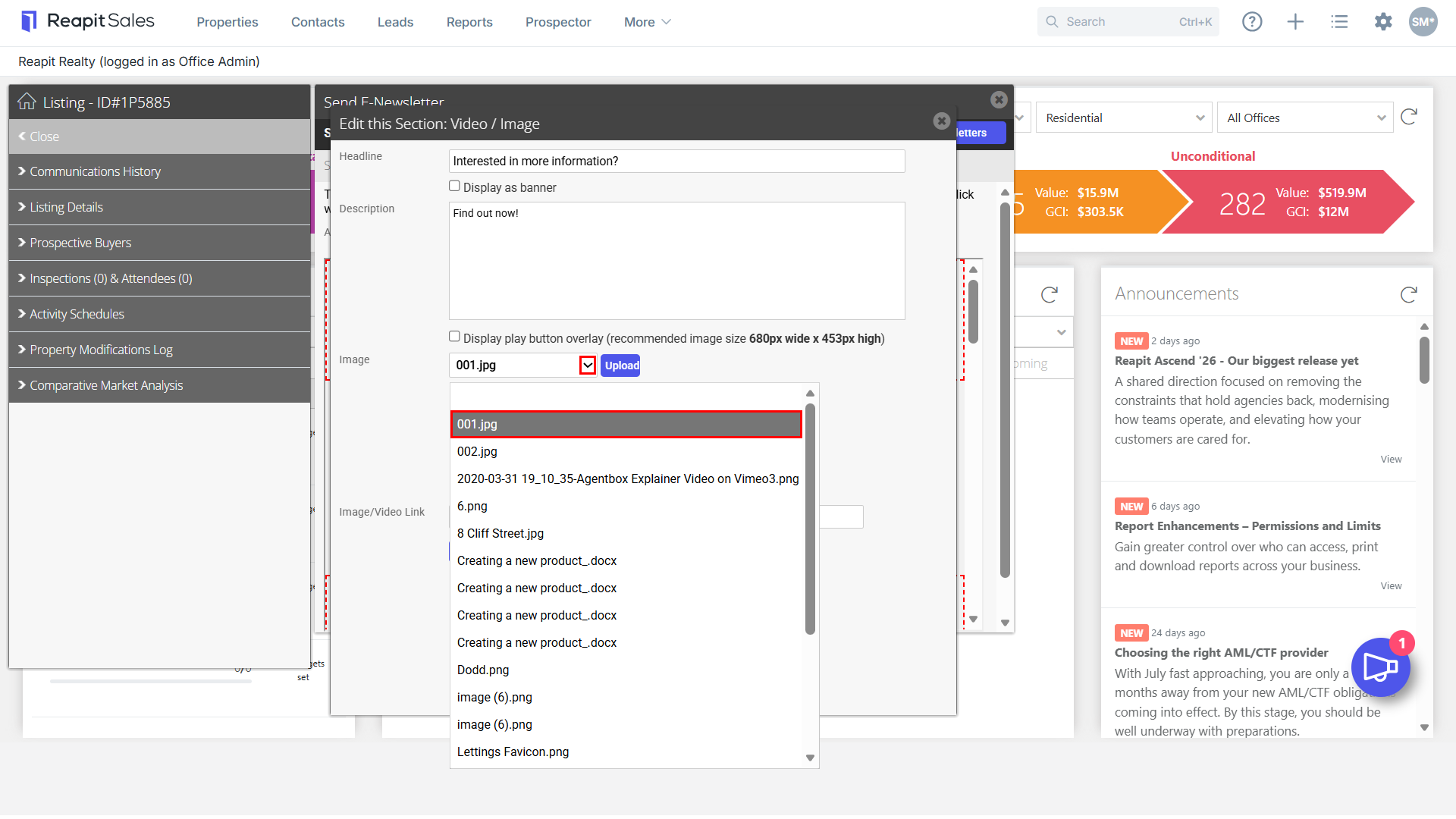
- Once the file has been uploaded, it will appear in the dropdown options for you to select. Select the desired image.
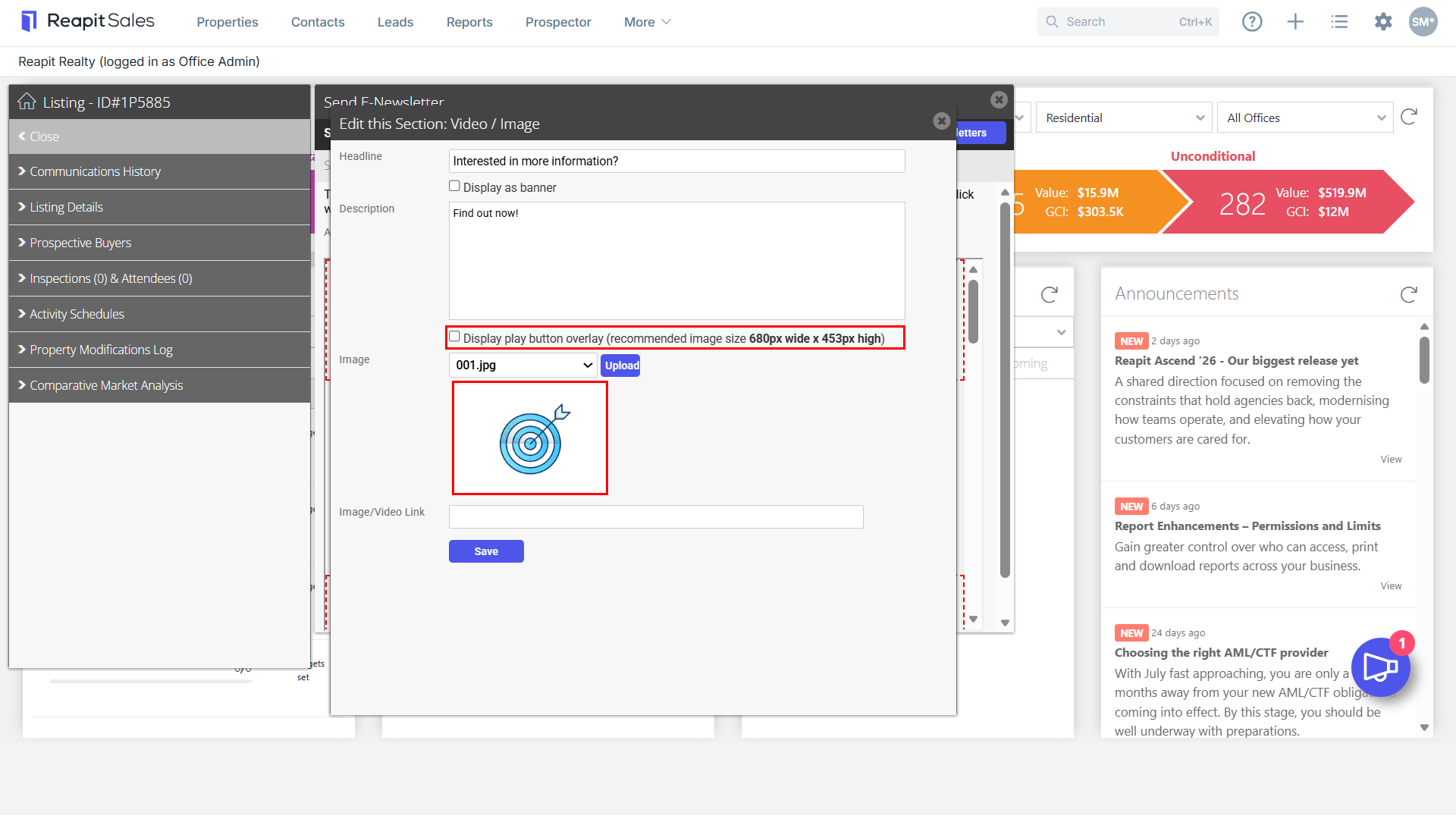
- Your image will pull across, and you will have the ability to select to display play button overlay.
Note: This functionality is used to give clients a visual indication to click on the video.
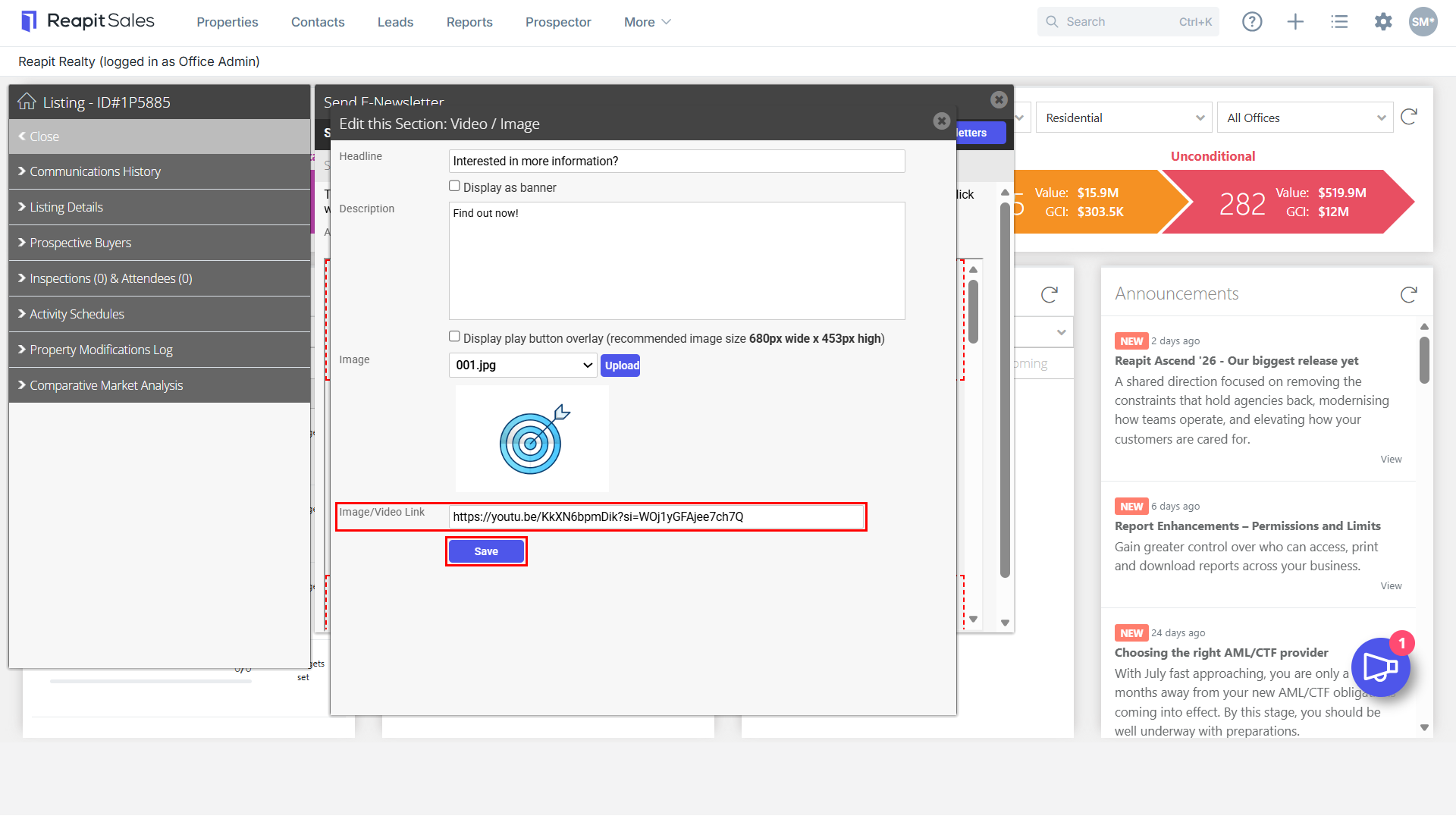
- Enter the video link and click S****ave.
- The changes will be reflected in the e-newsletter. You can then click within the red dashed box to edit the existing section.