'%20d='M0%208a8%208%200%200%201%208-8h24a8%208%200%200%201%208%208v24a8%208%200%200%201-8%208H8a8%208%200%200%201-8-8V8Z'/%3e%3cpath%20fill='%23fff'%20d='M10.41%206v3.779h15.048v19.537h4.132V6H10.41Z'/%3e%3cpath%20fill='%23fff'%20d='M20.967%2034V13.837L10.41%209.78v20.166L20.967%2034Z'/%3e%3cdefs%3e%3clinearGradient%20id='reapit-sales__a'%20x1='20.702'%20x2='20.702'%20y1='.351'%20y2='31.228'%20gradientUnits='userSpaceOnUse'%3e%3cstop%20stop-color='%235573FD'/%3e%3cstop%20offset='.575'%20stop-color='%234E56EA'/%3e%3c/linearGradient%3e%3c/defs%3e%3c/svg%3e)
Add/Edit/Delete Offers in the Reapit Sales App
This article outlines how to add or modify an offer using the Reapit Sales App.
Add/Edit/Delete Offers in the Reapit Sales App
This article outlines how to add or modify an offer using the Reapit Sales App.
- Tap the Magnifying glass icon from the main menu and click 'Listings'.
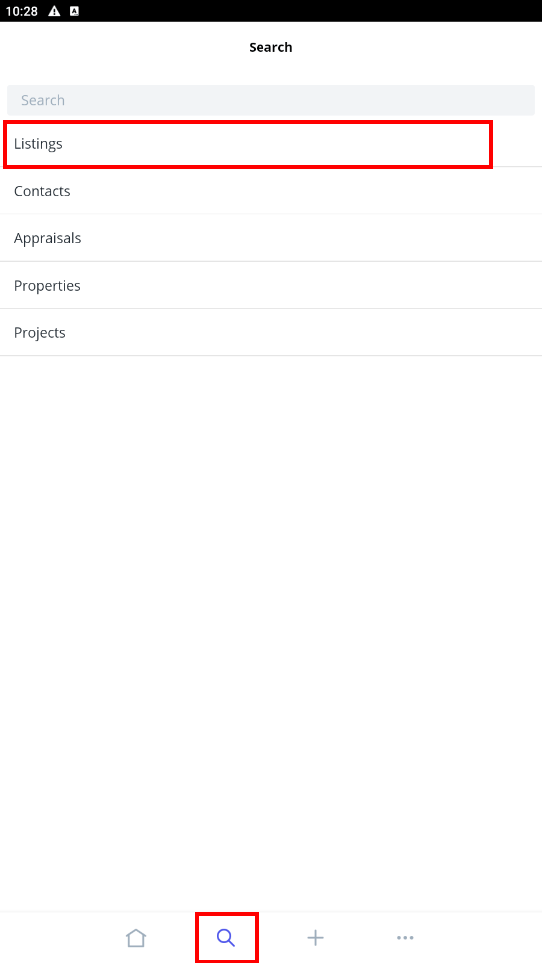
- Locate the listing using one of the following methods;
Search bar Quickly search for a listing using the listing ID or Property Address.
Opens tab Within the Opens tab, you can view any listings with upcoming Open for Inspections that you have been assigned to. To view the details of the listing or to add inspection feedback simply click on the address to open the listing card.
My Listings tab Click the My Listings tab to view all listings that you are assigned to.
All Listings tab Click the All Listings tab to view all listings that you have access to. Please note, these listings will depend on the permissions that are assigned to you in your Staff Card.
- Once you have found the listing, tap to open
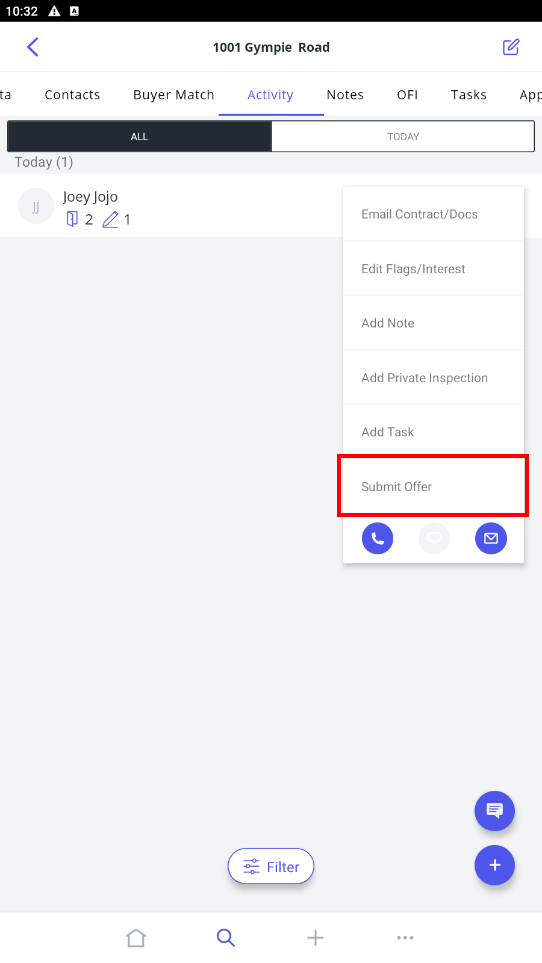
- Tap the Activity tab to open. Here you can view all previous inspection attendees.
- To Add an Offer tap the ... Quick Edit icon next to the viewer and select Submit offer
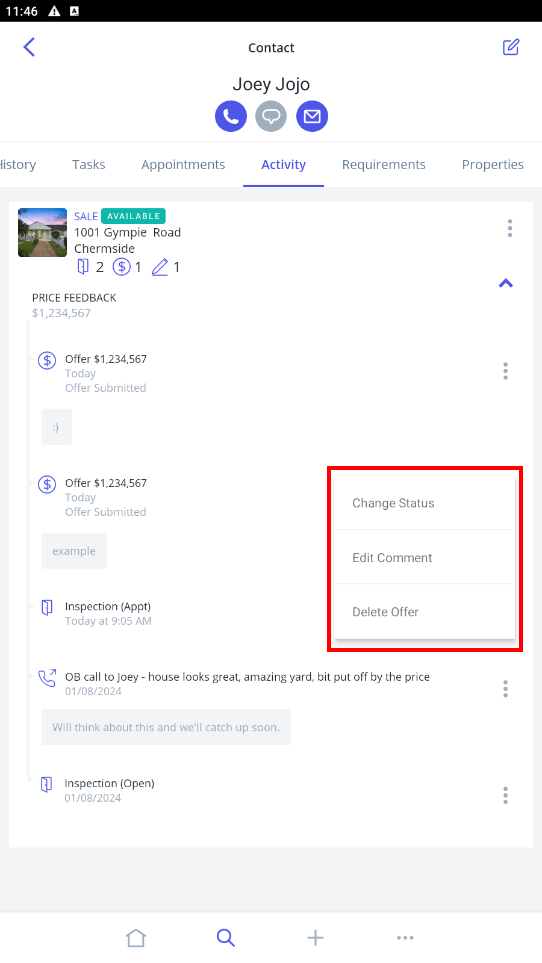
- To Edit Comment or Delete an Offer tap the ****Contact to open the contact card (alternatively search for the Contact and open their Activity tab)
- Tap the arrow to expand the inspection box next to the corresponding listing
- Tap the ... Quick Edit icon next to the offer and Select Edit Comment or Delete.