'%20d='M0%208a8%208%200%200%201%208-8h24a8%208%200%200%201%208%208v24a8%208%200%200%201-8%208H8a8%208%200%200%201-8-8V8Z'/%3e%3cpath%20fill='%23fff'%20d='M10.41%206v3.779h15.048v19.537h4.132V6H10.41Z'/%3e%3cpath%20fill='%23fff'%20d='M20.967%2034V13.837L10.41%209.78v20.166L20.967%2034Z'/%3e%3cdefs%3e%3clinearGradient%20id='reapit-sales__a'%20x1='20.702'%20x2='20.702'%20y1='.351'%20y2='31.228'%20gradientUnits='userSpaceOnUse'%3e%3cstop%20stop-color='%235573FD'/%3e%3cstop%20offset='.575'%20stop-color='%234E56EA'/%3e%3c/linearGradient%3e%3c/defs%3e%3c/svg%3e)
Call Tracking & Follow Up Tasks In Mobile App
This article runs through call tracking & follow up task in Reapit Sales App.
Call Tracking & Follow Up Tasks in Mobile App
This article runs through call tracking & follow up task in Reapit Sales App.
When you call a contact directly from the App, you are able to record if the call was Connected, Left Voicemail or No Answer. This contributes to your targets in Reapit Sales. You can also quickly record a note and assign a follow-up task.
In this example, we will search and open a contact to make the call; you can also click on the quick action icons next to a contact to make a call.
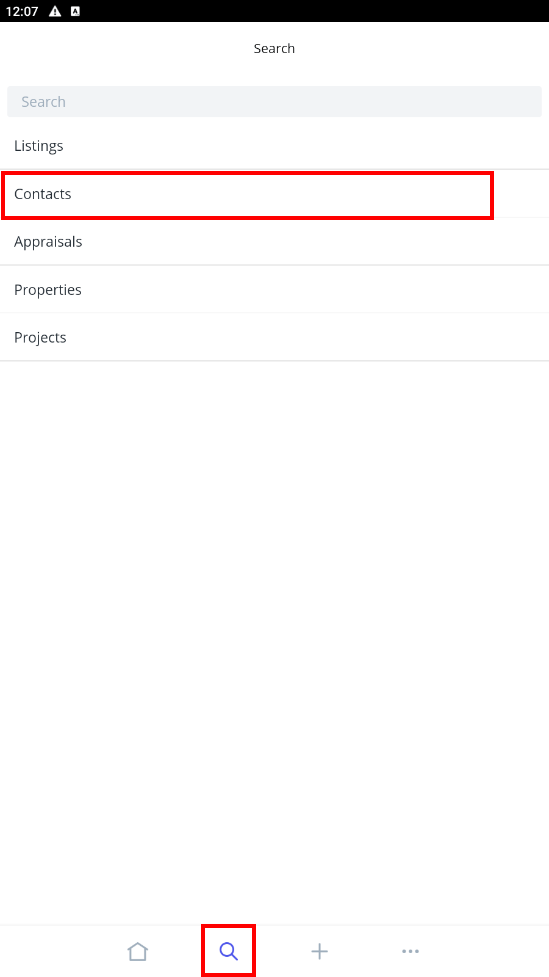
- To access contacts, tap on the magnifying glass icon from the main menu and select 'Contacts'.
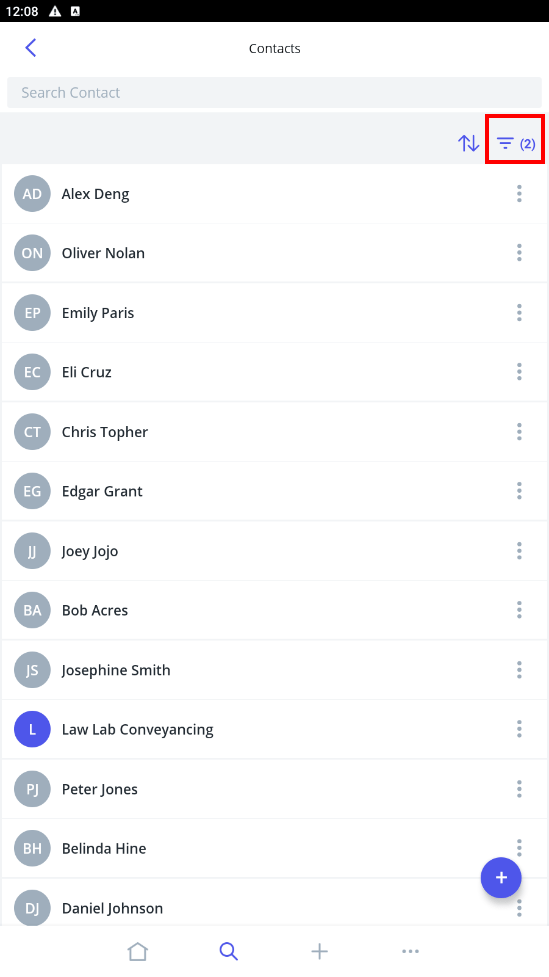
- Here you can filter by contacts you are the primary owner of, shared or All (subject to access permissions) or search for contacts.
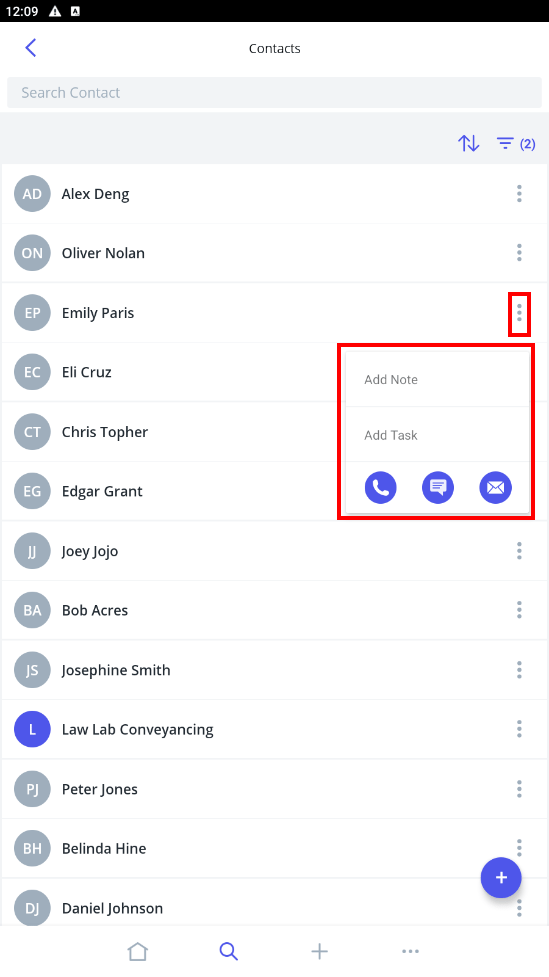
- Tap the Contact in the search results to open the contact or click the quick action icon ... next to the contact to log a call.
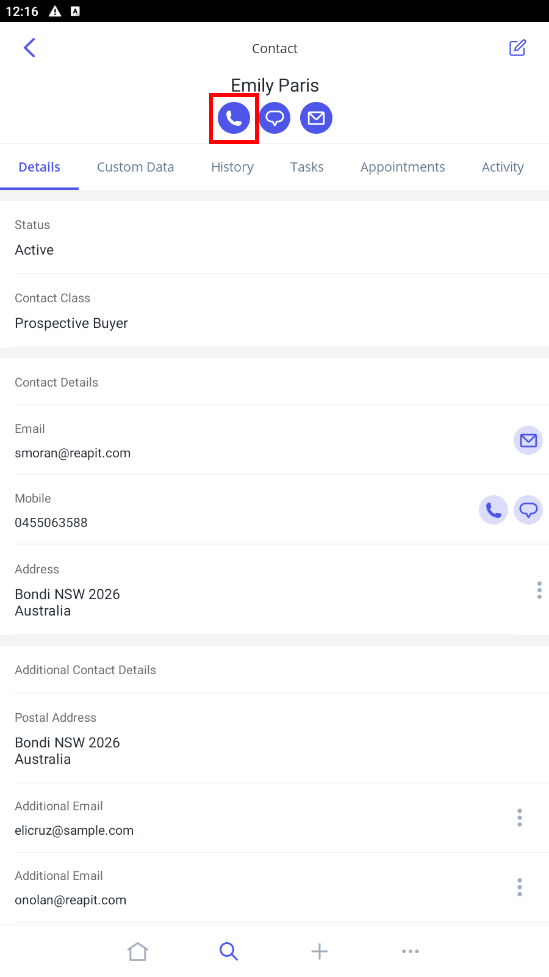
- Tap the Phone Icon under the contacts name to log a call.
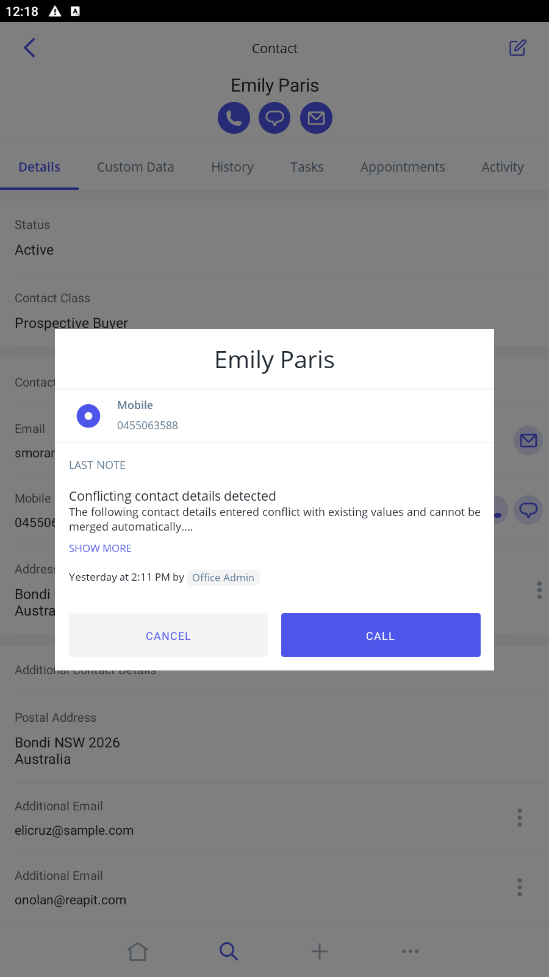
- Tap Call. ****You will be directed to the call screen on your device to make the call, this will also show you the date of the last note created against the contact card.
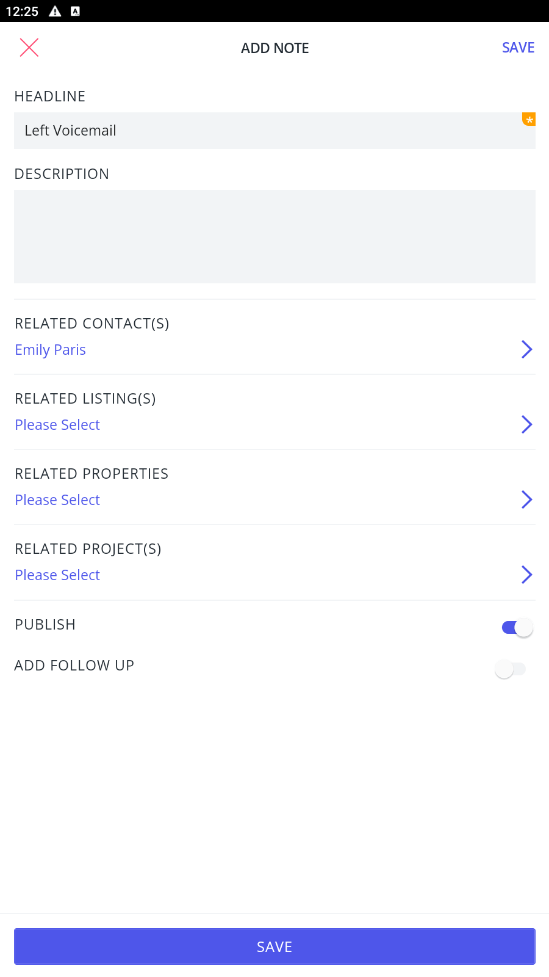
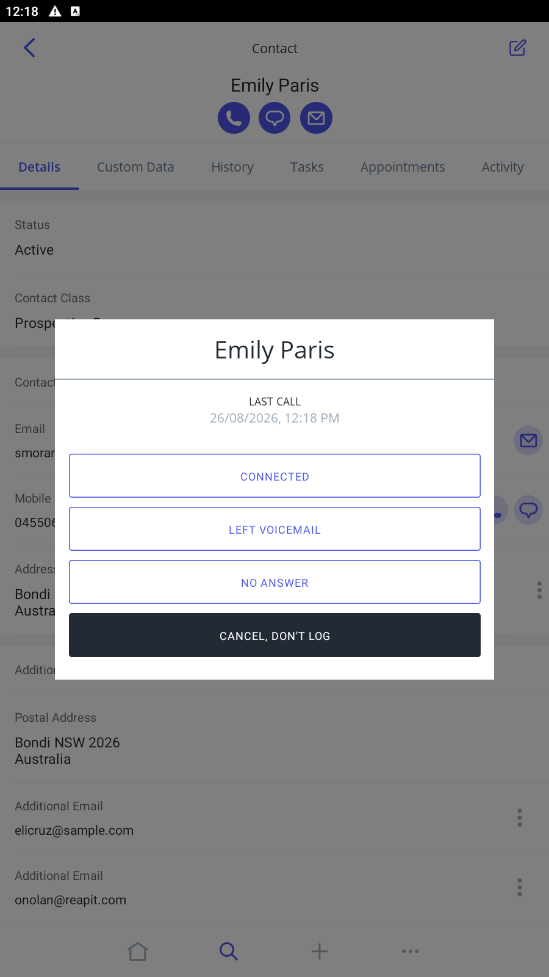
- After the call return to the App to record the call result. Select from Connected, Left Voicemail, No Answer or Cancel, Don't Log.
- Enter a Note if applicable and tick Follow Up if you would like to set a date and time for a follow-up call. Tap Cancel or Save to finish.
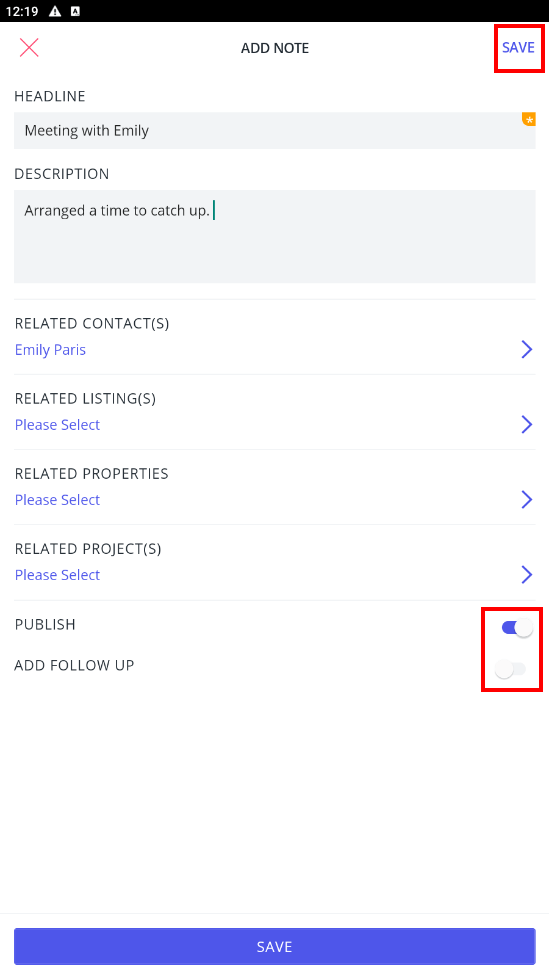
Note: If you mark the call as Left Voicemail or No Answer, ****it will automatically prefill the Heading field when logging your notes.