'%20d='M0%208a8%208%200%200%201%208-8h24a8%208%200%200%201%208%208v24a8%208%200%200%201-8%208H8a8%208%200%200%201-8-8V8Z'/%3e%3cpath%20fill='%23fff'%20d='M10.41%206v3.779h15.048v19.537h4.132V6H10.41Z'/%3e%3cpath%20fill='%23fff'%20d='M20.967%2034V13.837L10.41%209.78v20.166L20.967%2034Z'/%3e%3cdefs%3e%3clinearGradient%20id='reapit-sales__a'%20x1='20.702'%20x2='20.702'%20y1='.351'%20y2='31.228'%20gradientUnits='userSpaceOnUse'%3e%3cstop%20stop-color='%235573FD'/%3e%3cstop%20offset='.575'%20stop-color='%234E56EA'/%3e%3c/linearGradient%3e%3c/defs%3e%3c/svg%3e)
Dashboard Overview
The article explains the user's current pipeline, Targets, Reminders and Announcements in Reapit Sales.
The article explains the user's current pipeline, Targets, Reminders, Announcements, and Notifications in Reapit Sales.
The processes in this article include:
- Dashboard Overview
- Targets Dashboard
- Reminders Dashboard
- Announcements Dashboard
- Notifications Dashboard
Dashboard Overview
Click on Dashboard from the main menu
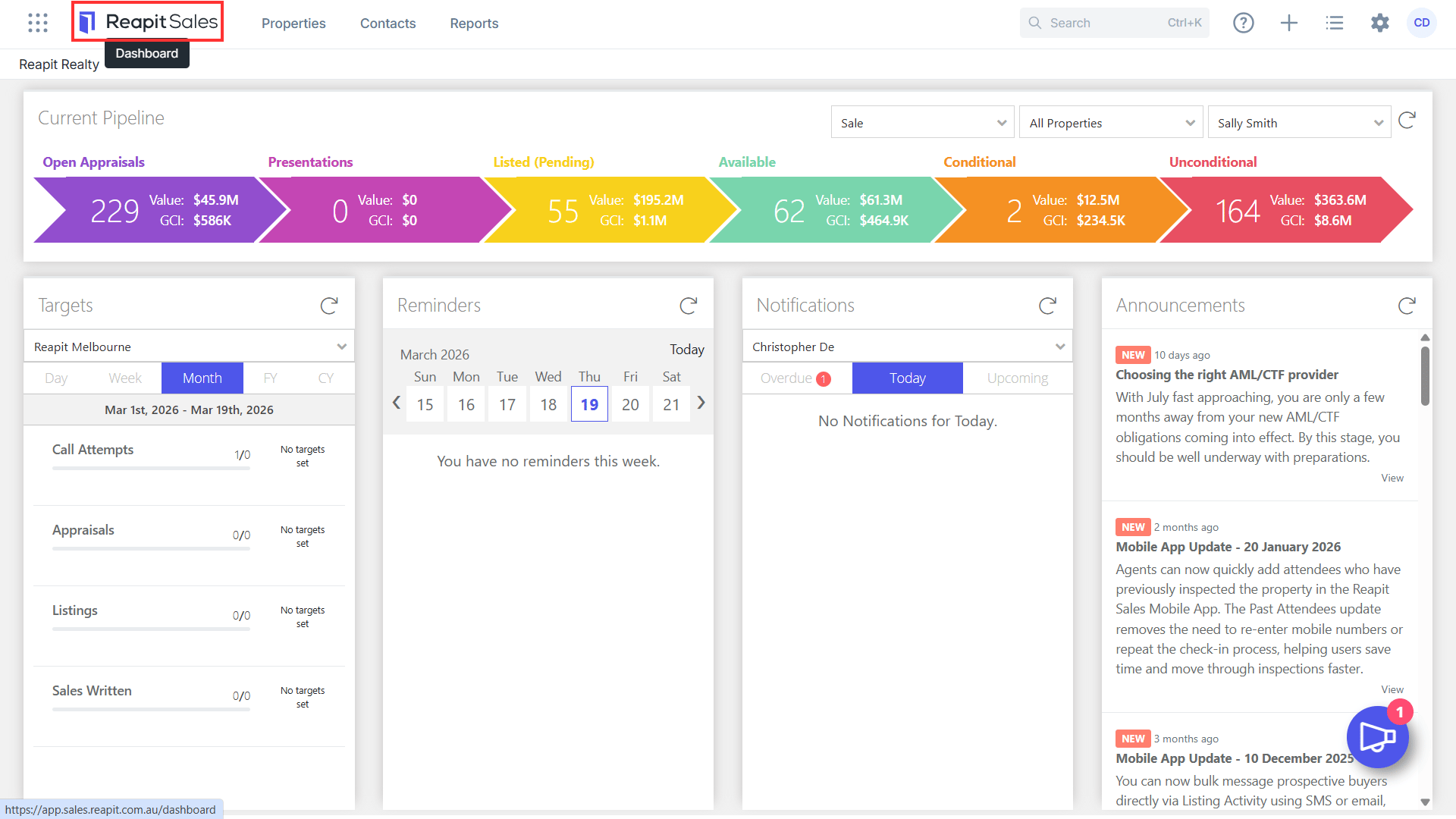
From this panel, users can view the following:
Current pipeline - a visual display of the total number of appraisals, presentations, listed (pending) available listings, conditional and unconditional sales which you can refine the pipeline by For Sale or For Rental. Click here for further information
Targets - A visual display of your targets and progress. Filter by day, month, financial year and calendar year.
Reminders - A visual display of your tasks, reminders and appointments.
Notifications - Consolidated overview and quick access to a range of upcoming and overdue events e.g. contract conditions due & upcoming settlements.
Announcements - Keep up to date on all of Reapit Sales latest features, releases and enhancements.
Targets Dashboard
*Note: Sales listings only.
The Targets Dashboard provides you with quick access to a visual representation of your core KPIs to measure performance against targets in real time.
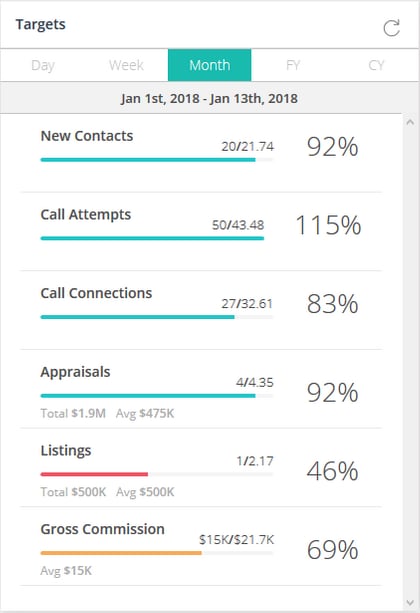
Target progress can be viewed calendar year-to-date, financial-year-to-date, month-to-date, week-to-date or for the current day.
The targets displayed are derived from Agent's monthly targets (configured via Staff Card > Targets) and are proportionate to the number of total days in the month (excluding weekends).
- Day | Today only.
- Week | Current Week-to-Date.
- Month | Current Month-to-Date.
- FY | Current Financial Year-to-Date.
- CY | Current Calendar Year-to-Date.
The ability to filter targets by office, teams, or any staff member is available for Master Users and Admin users.
All users within a team can view their team’s aggregate figures - but not do not have the ability to filter and view their team members’ individual pipeline/targets.
Master Users can configure which of the available KPIs should be displayed or hidden within theSystem Configuration Generalsettings.
- New Contacts | The number of contacts created within the specified period where the selected user is the ‘Primary Owner’ 'Full Access' or 'Full View" (configurable via the ‘Sales Figures’ setting within the System Configuration General settings).
- Call Attempts | The number of Outbound Phone Calls logged (by note date) within the specified period where the Outcome is: ‘Connected’, ‘Left Voicemail’ or ‘No Answer’.
- Call Connections | The number of Outbound Phone Calls logged (by note date) within the specified period where the Outcome is ‘Connected’.
- Appraisals | The number of Appraisals with an ‘Appraisal Date’ within the specified period where the selected user is the ‘Appraisal Agent’.
- Presentations | The number of Listing Presentations with a ‘Presentation Date’ within the specified period where the selected user is the ‘Appraisal Agent’.
- Listings | The number of Listings with a ‘Listing Date’ within the specified period where the selected user is the ‘Listing Agent’.
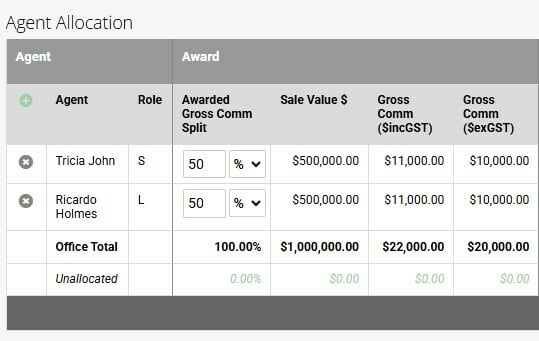
- Sales Written | The total split number of Unconditional Listings with a Contract Date/Unconditional Date (configurable via the ‘Sales Figures’ setting within the System Configuration General settings) within the specified period.
- Sales Written - Gross Commission | The total split GCI value of Unconditional Listings with a Contract Date/Unconditional Date (configurable via the ‘Sales Figures’ setting within the System Configuration Generalsettings) within the specified period.
Note: The Targets/results for Sales Written and Sales Written - Gross Commission will only populate if you are entering the Awarded gross commission splits.
You may also be interested in...
- Key Data for Accurate Reporting
Reminders Dashboard
The Reminders Dashboard displays the following:
- Tasks
- Open Homes
- Private Appointments
- Meetings
1. Click on Dashboard from the main menu.
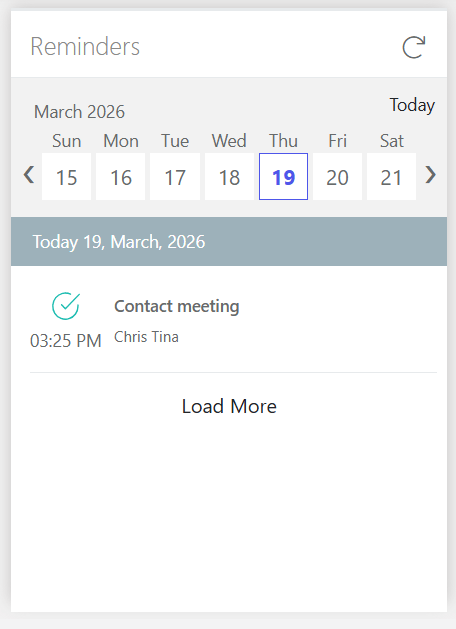
2. Select a day to see what reminders are due.
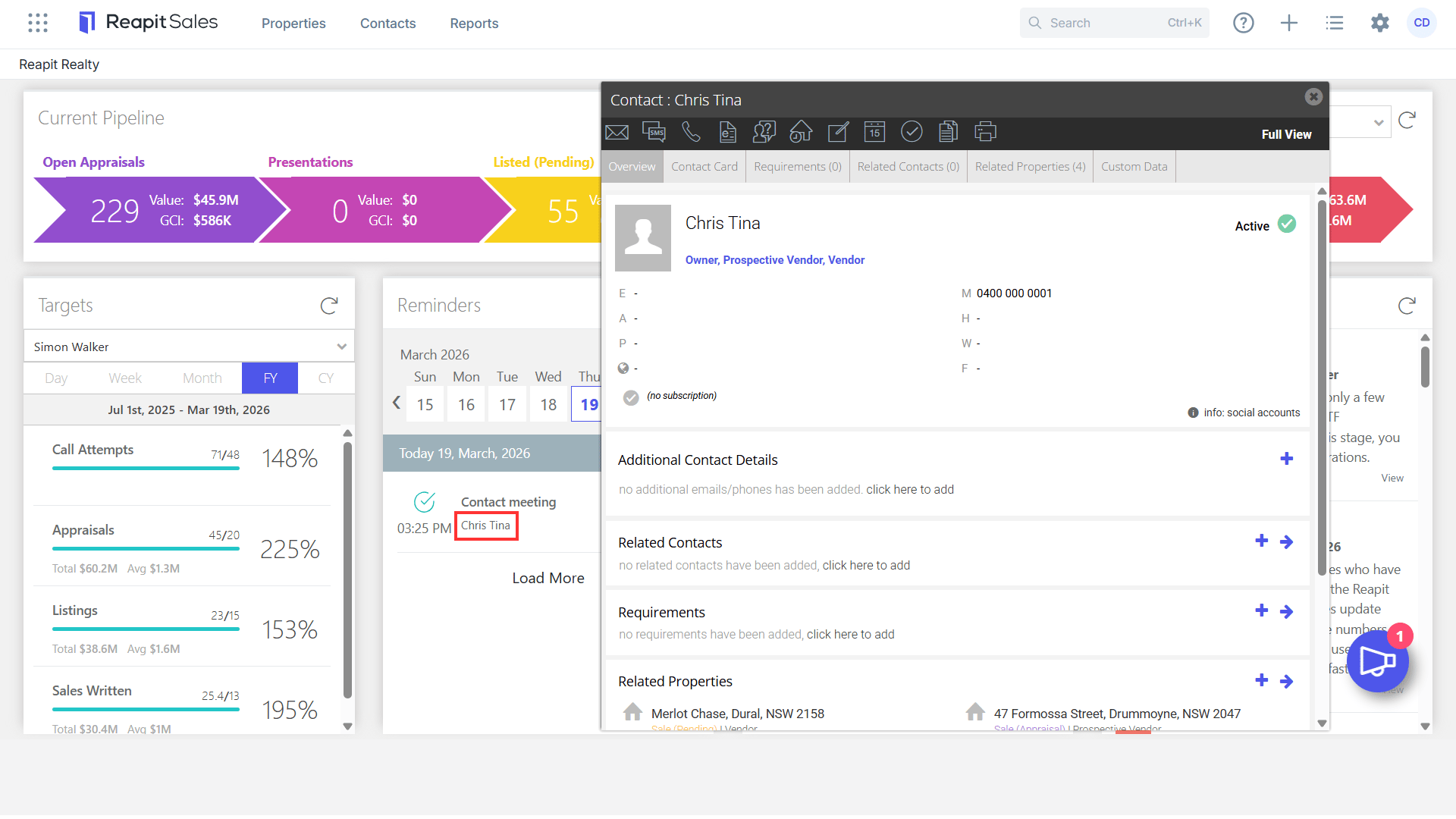
3. Click on the contacts name to open their contact card or the property name to open listing/property card.
*Note: Notifications are only viewable via the today schedule.Click here for further information.
You may also be interested in...
Clickhereto view how to have your reminders synced across to your Outlook/Gmail Sync
Announcements Dashboard
The Annoucements Dashboard displays the following:
- Agentbox CRM feature releases and enhancements
- Agentbox App feature releases and enhancements
- Upcoming Agentbox Training Events
- Agentbox News
- Amended trading hours
It's important to keep up to date with Agentbox annoucements. We continue to strive to bring new features and product enhancements for our clients on a regular basic so please ensure you read the annoucement's that will detail what has been released and important notes on how to use to the feature.
1. Click on Dashboard from the main menu
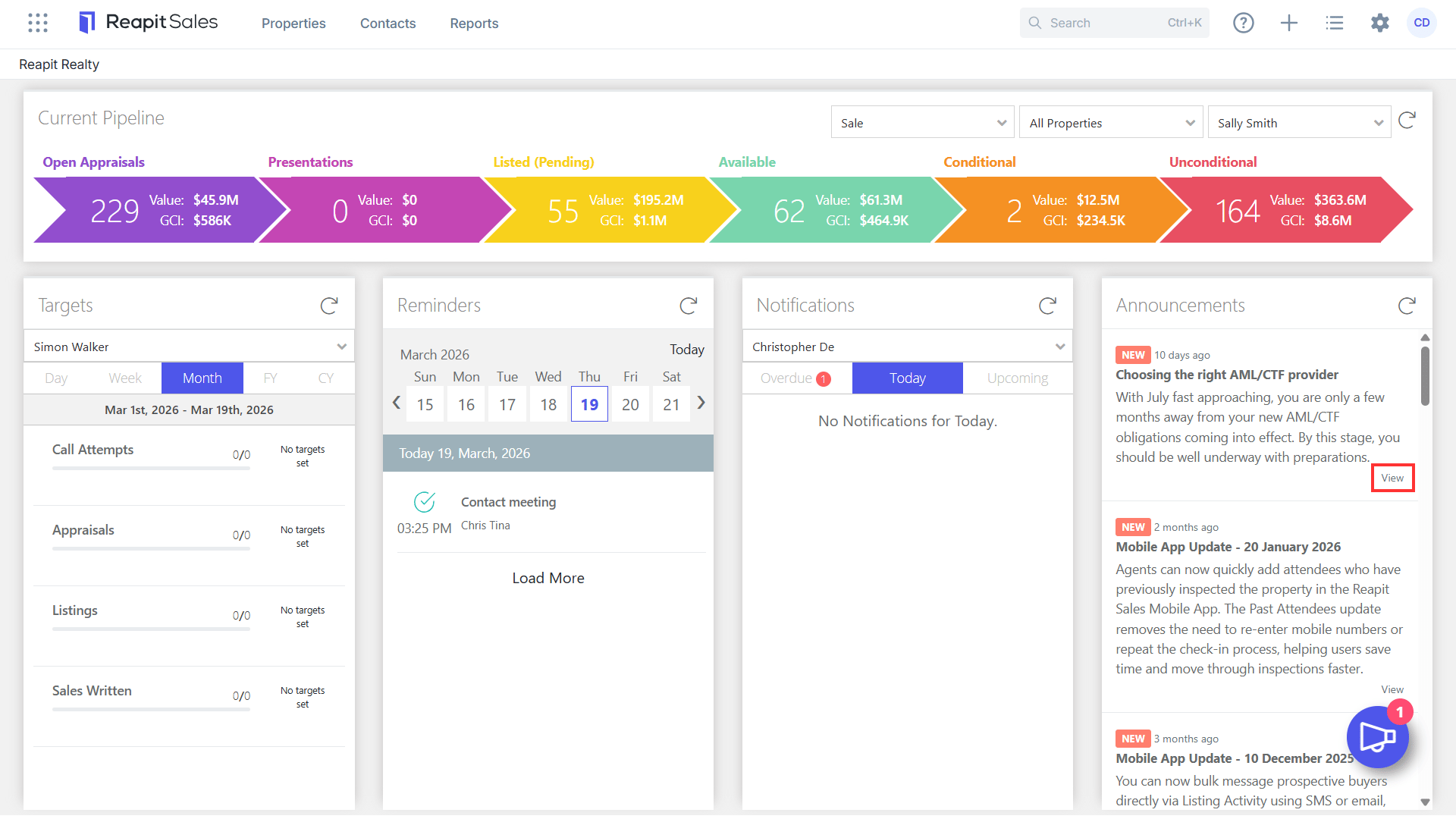
2. Clic View to open the annoucement.
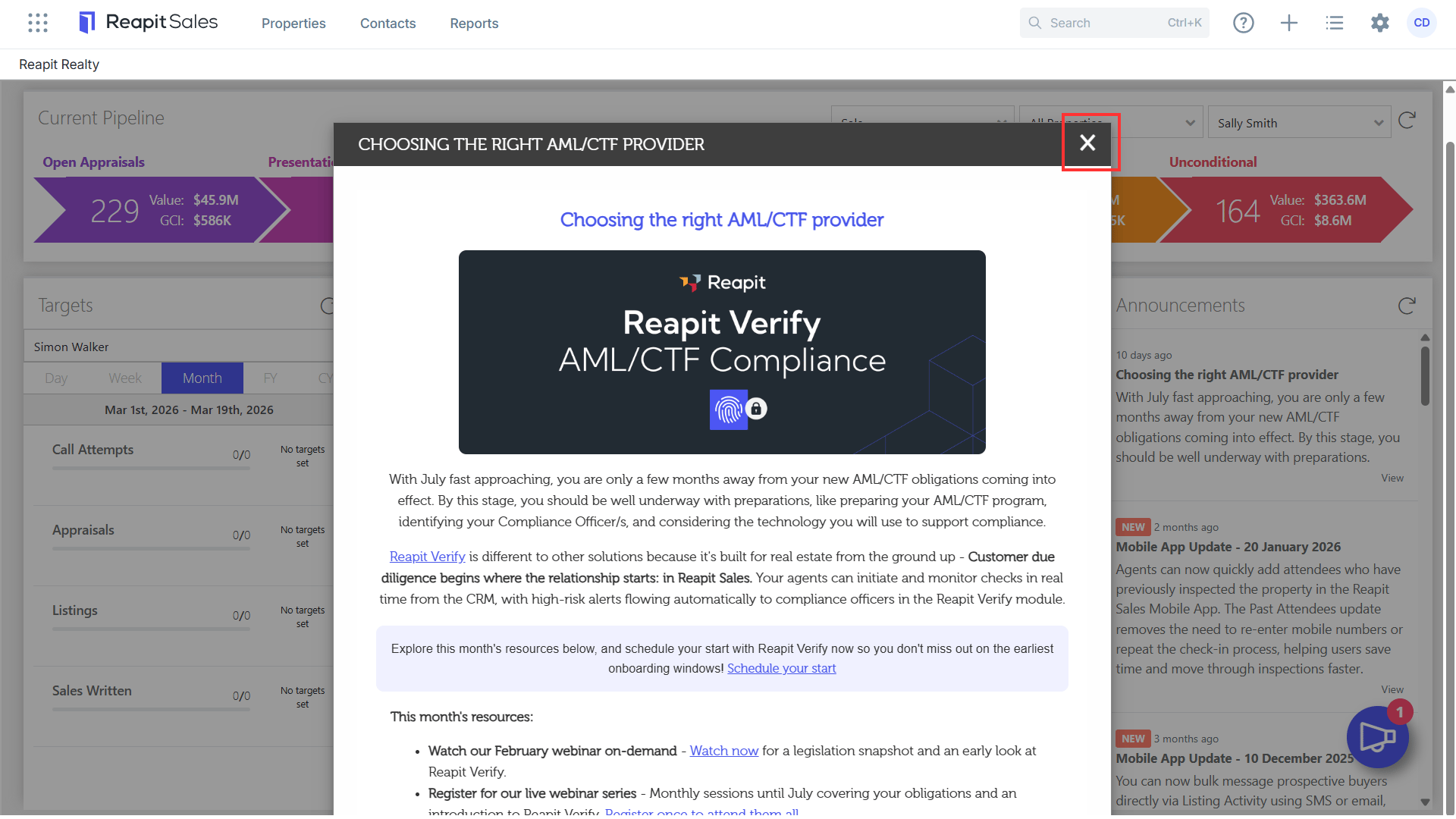
3. A pop-up will appear with the announcement. Once you have finished click the X in the top right hand corner to close.
Notifications Dashboard
*Note: The ability to view notifications by Office, Team or other Staff is available for Users with the appropriate permission(s).
The Notifications Dashboard provides a consolidated overview and quick access to a range of upcoming and overdue events such as:
- Auctions
- Expected Unconditional
- Expected Settlements
- Staged Payments
- Agency Agreement Expiries
- Expected on Market
- Contract Conditions Due
1. Click on Dashboard from the main menu.
2. Toggle between All 'Overdue', 'Today' and 'Upcoming' (next 7 days).
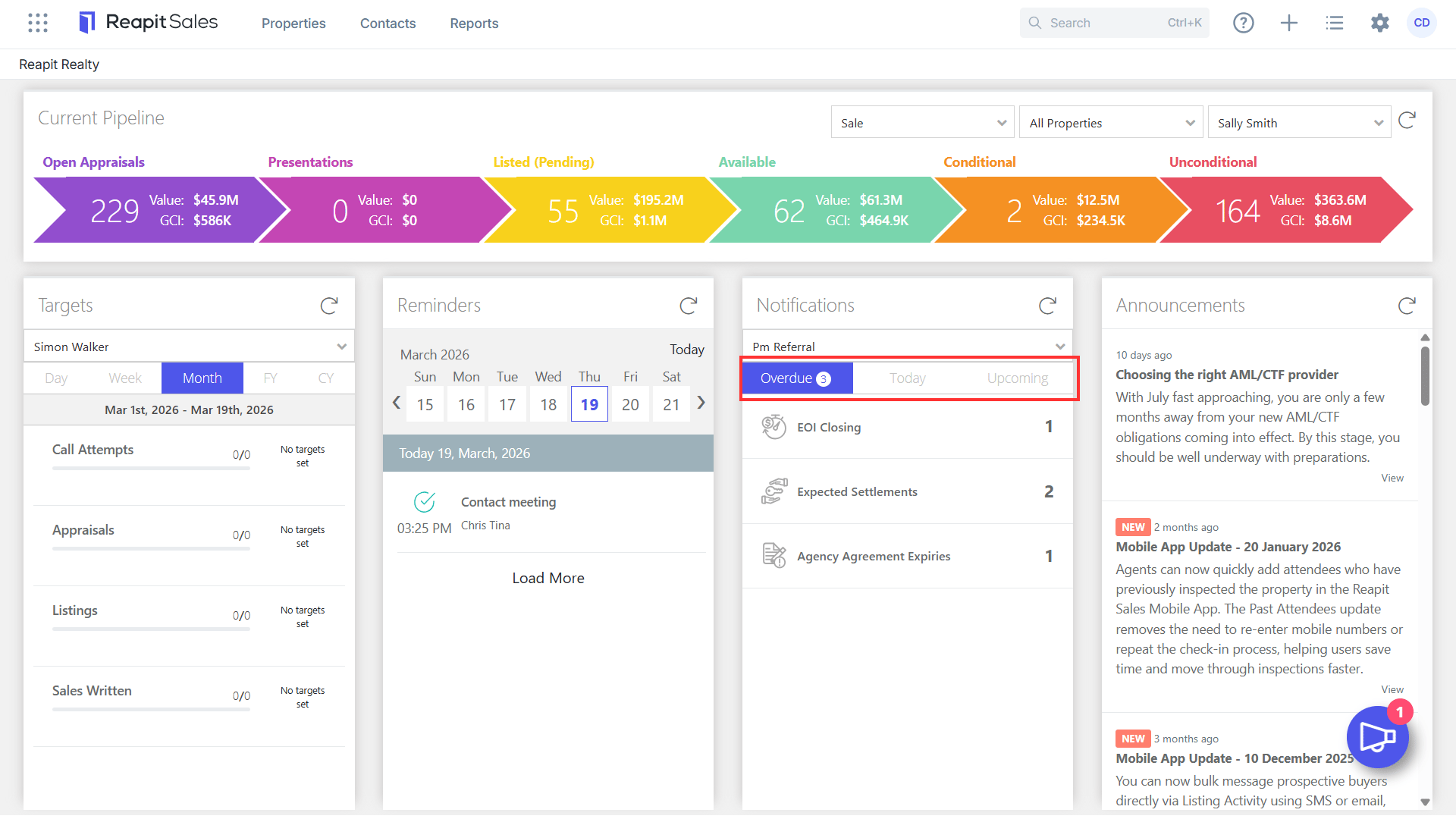
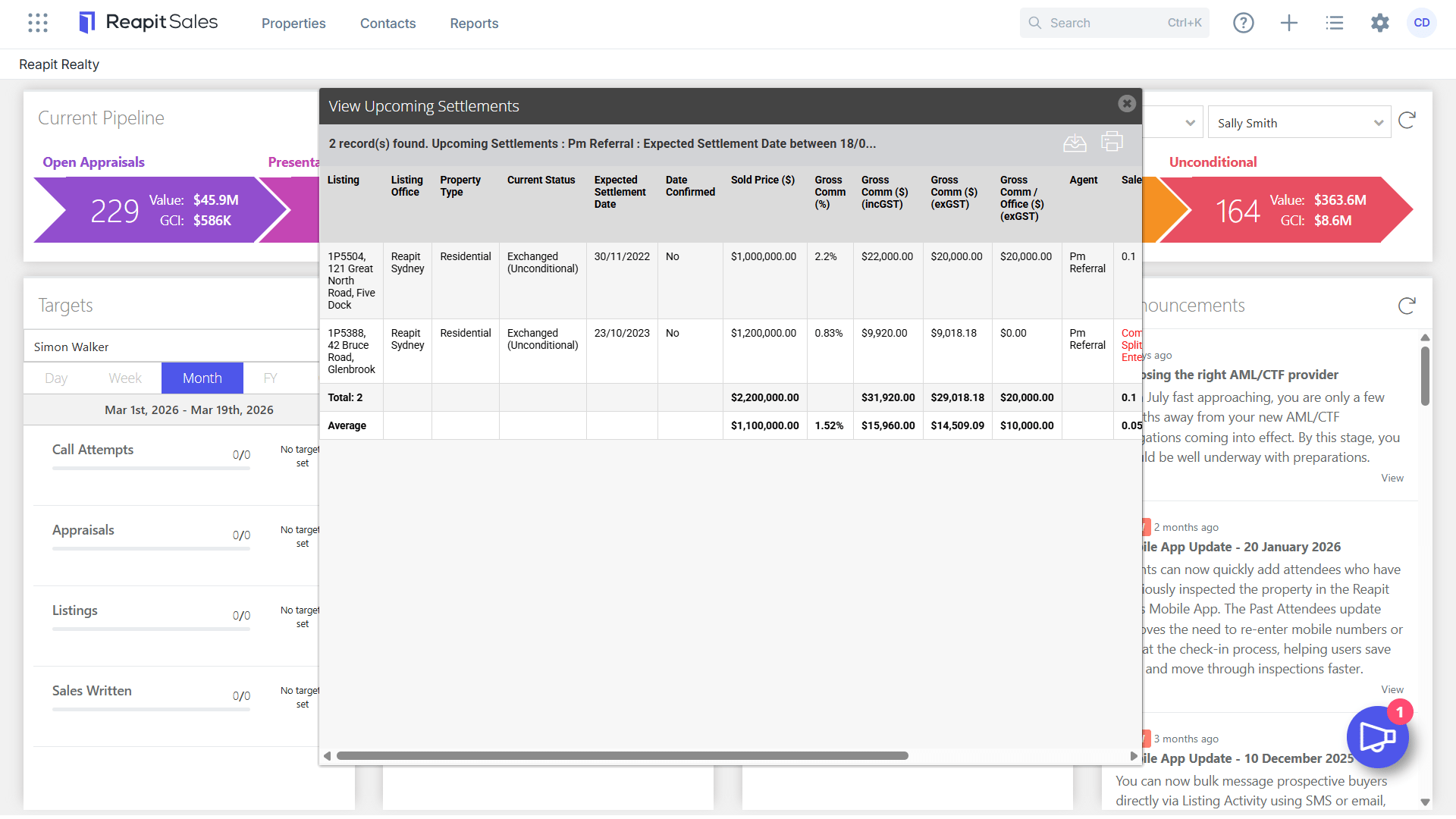
3. Click each category to bring up a report of all relevant records.
Entering Dates:
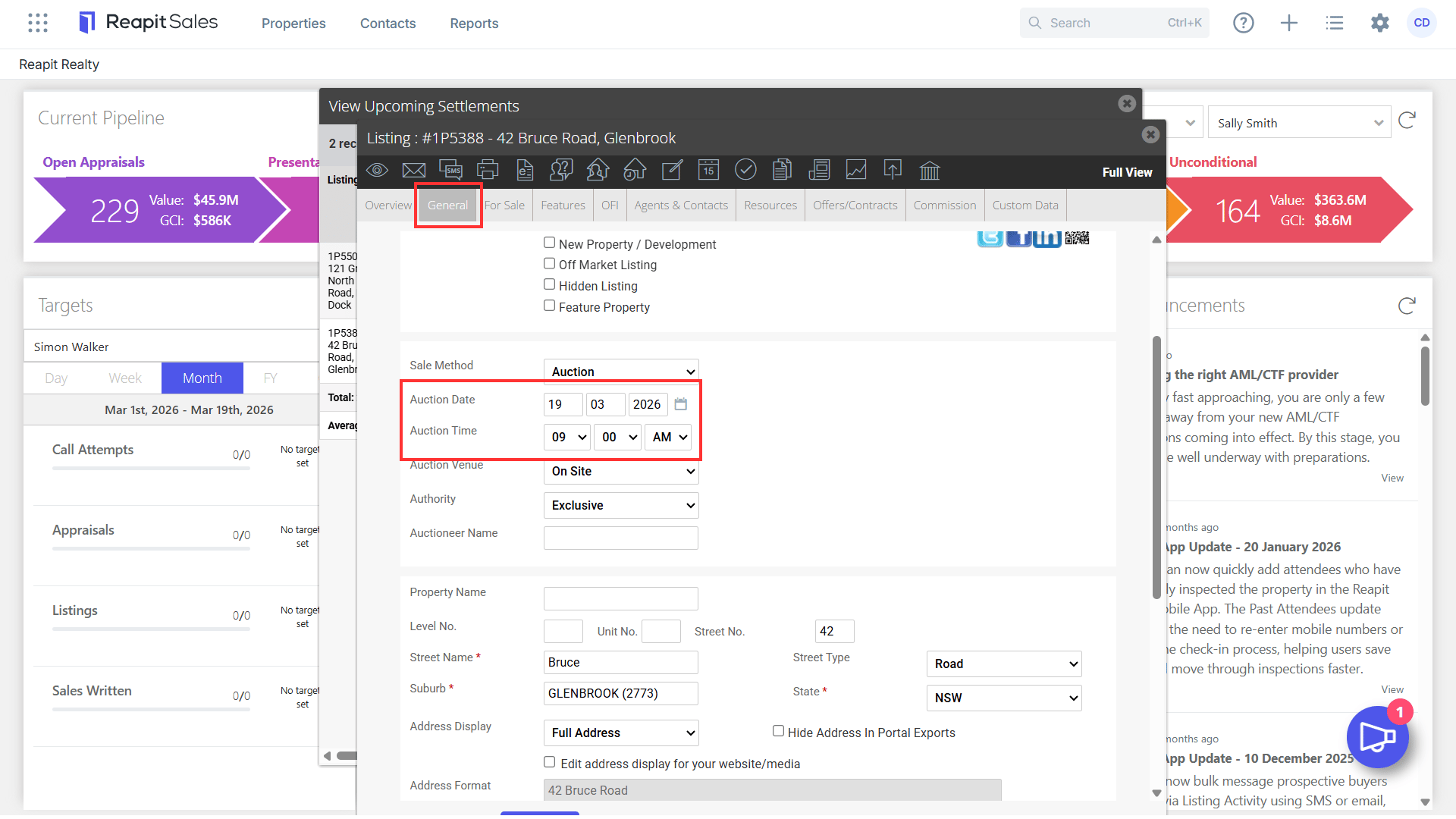
- Auction: This notification date and time will come from a listing card within the general tab.
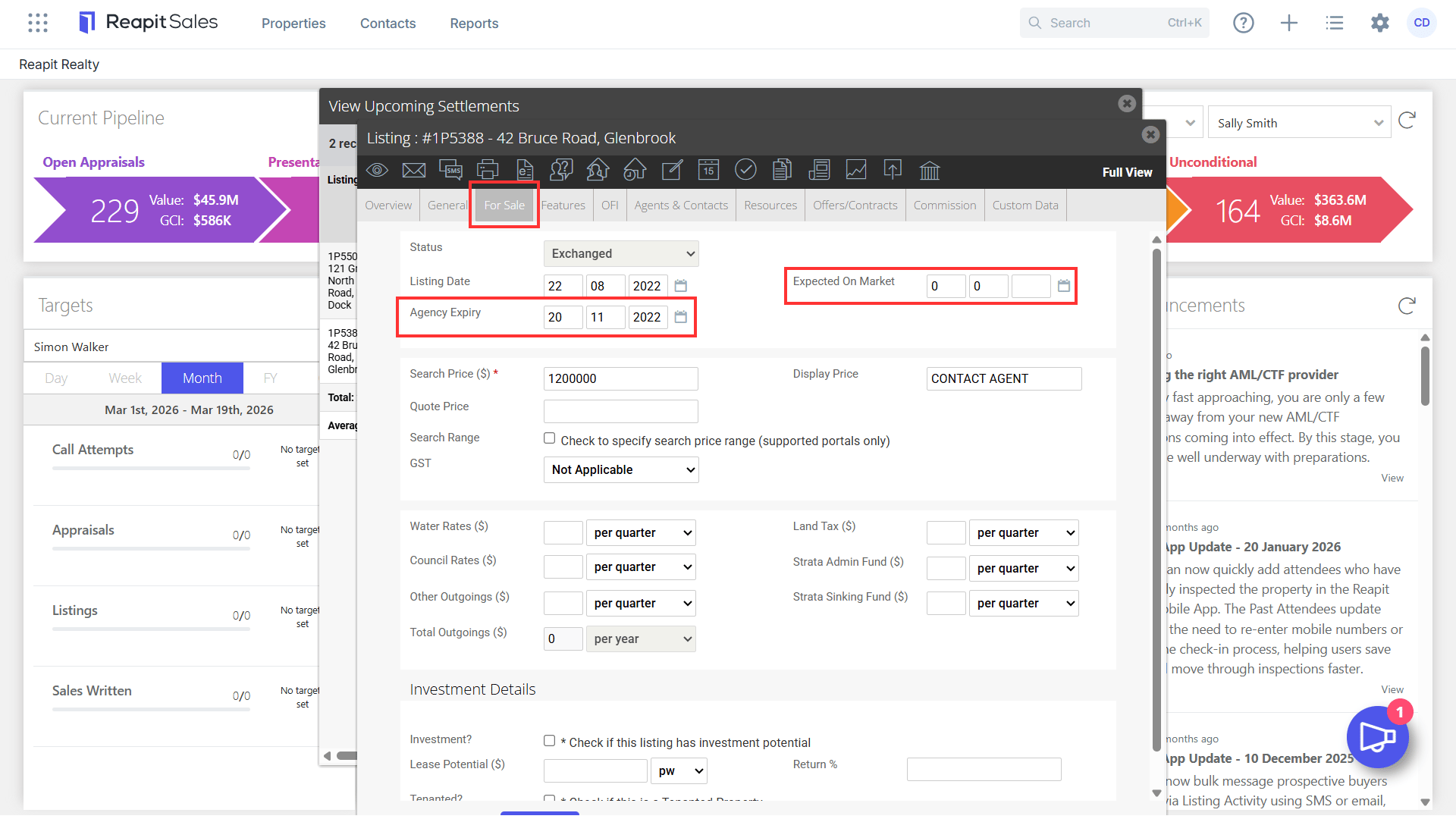
- Agency Agreement Expiries & Expected on Market: These notification dates will come from a listing card, within the For Sale tab.
- Contract Conditions: This notification will come from the offers/ contracts tab within a listing.
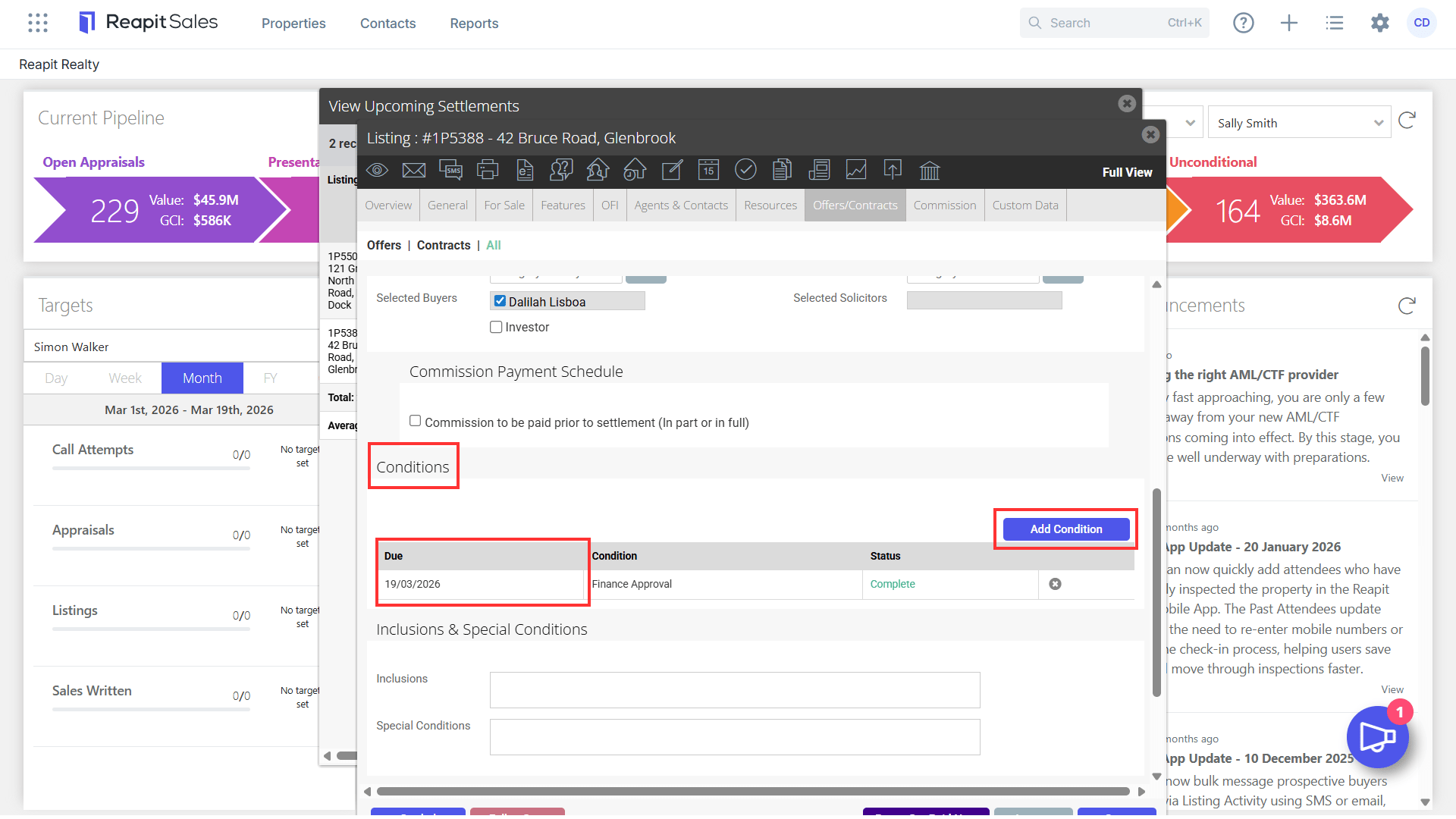
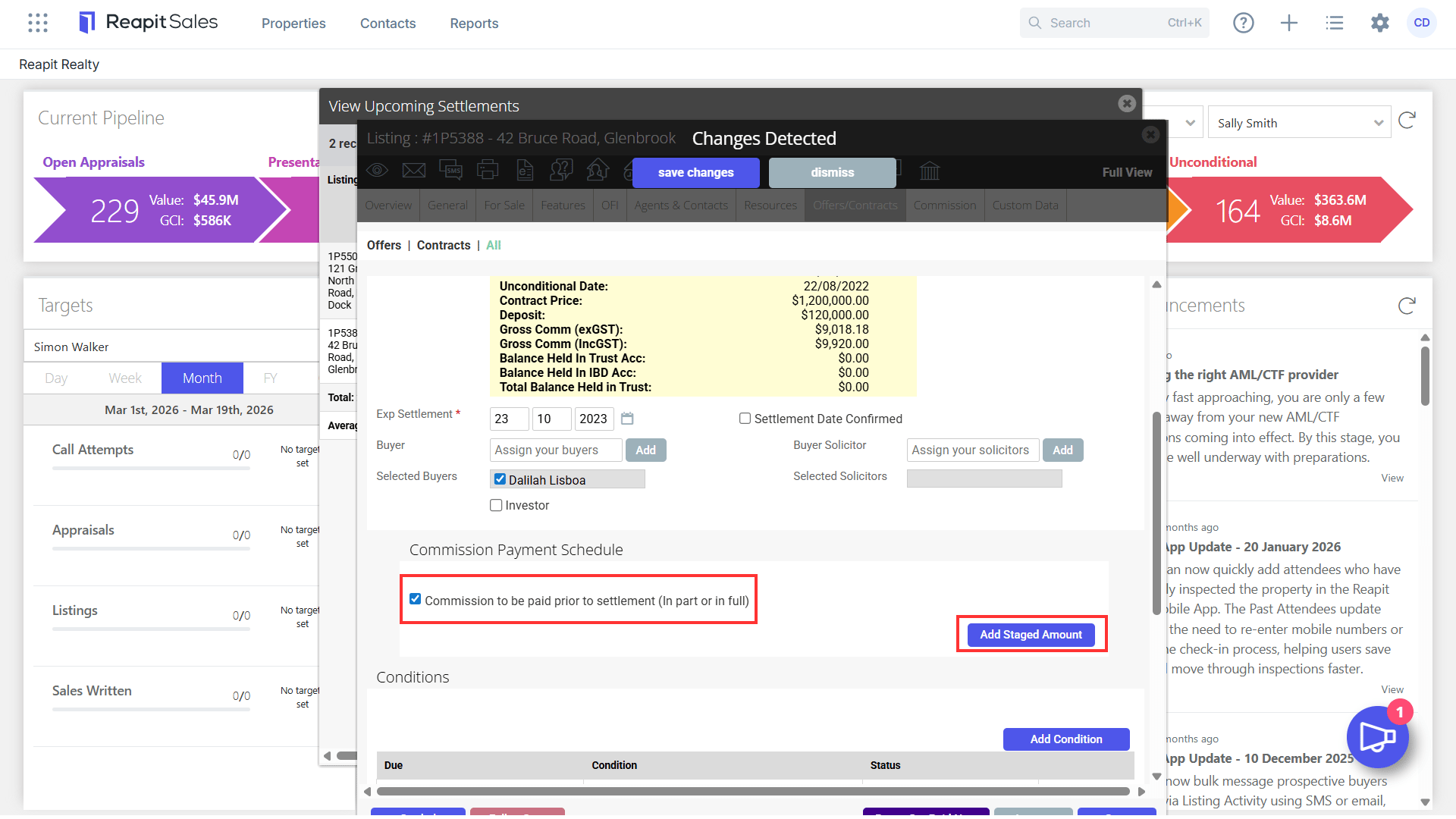
- Staged Payments: The Staged Payment's notification can be added in through the offers and contracts tab within an unconditional listing.
- Expected Settlement & Expected Unconditional: When moving the listing through the Pipeline, it will ask for these dates. Once, emntered, they will reflect on the notification panel on the dashboard.