'%20d='M0%208a8%208%200%200%201%208-8h24a8%208%200%200%201%208%208v24a8%208%200%200%201-8%208H8a8%208%200%200%201-8-8V8Z'/%3e%3cpath%20fill='%23fff'%20d='M10.41%206v3.779h15.048v19.537h4.132V6H10.41Z'/%3e%3cpath%20fill='%23fff'%20d='M20.967%2034V13.837L10.41%209.78v20.166L20.967%2034Z'/%3e%3cdefs%3e%3clinearGradient%20id='reapit-sales__a'%20x1='20.702'%20x2='20.702'%20y1='.351'%20y2='31.228'%20gradientUnits='userSpaceOnUse'%3e%3cstop%20stop-color='%235573FD'/%3e%3cstop%20offset='.575'%20stop-color='%234E56EA'/%3e%3c/linearGradient%3e%3c/defs%3e%3c/svg%3e)
Inspection e-Brochure
This article covers the Inspection e-Brochure features and functionality in Reapit Sales and the Reapit Sales App.
The Processes in this article include:
Overview of Inspection e-Brochure
What clients can do and what actions trigger
Enabling the Inspection e-Brochure
Sending the Inspection e-Brochure
Frequently Asked Questions
Overview of Inspection e-Brochure
Inspection e‑Brochure is a mobile App feature designed to give buyers and tenants instant access to key property information while supporting agents with automated follow‑up workflows. It is delivered via SMS either when a client checks in to an Open for Inspection (OFI) or as part of the SMS Appointment Confirmation for private inspections.
Clients can access contracts, property documents, inspection times, auction details, and additional resources. They can also request private inspections, submit enquiries, or explore appraisal options if they need to sell before buying.
Behind the scenes, every interaction is logged against the listing, triggering email alerts and creating follow‑up tasks for agents.
What Clients can do and what Actions Trigger
The e‑Brochure provides buyers and tenants with quick access to:
Request a private inspection
Request an application
Request property documents
View documents
Request an appraisal
Send an enquiry
Add inspection times to their personal calendar
Forms are pre‑filled with their contact details, making it fast and easy to submit requests.
Every client action triggers:
An email notification to the relevant listing agent(s)
A task created and assigned to the listing agent(s)
A note added to the contact and listing record
Activity logged under Prospective Buyer/Tenant Activity
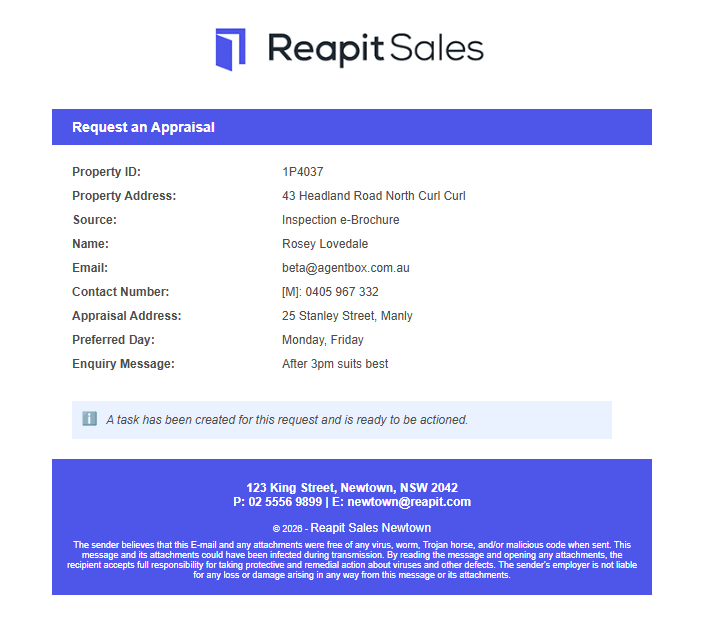
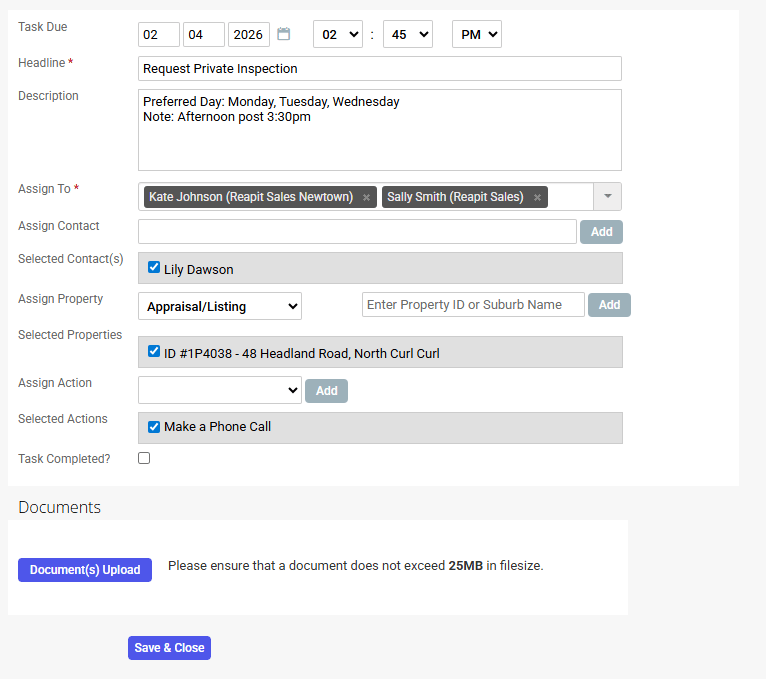
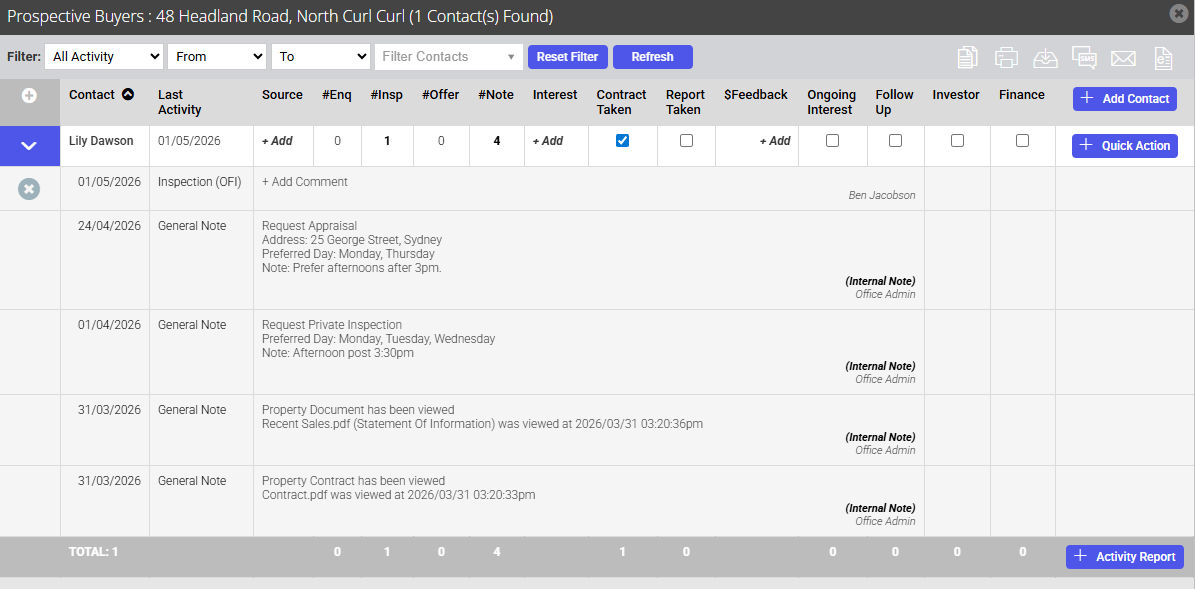
This gives agents full visibility of engagement and ensures timely follow‑up.
Enabling the Inspection e-Brochure
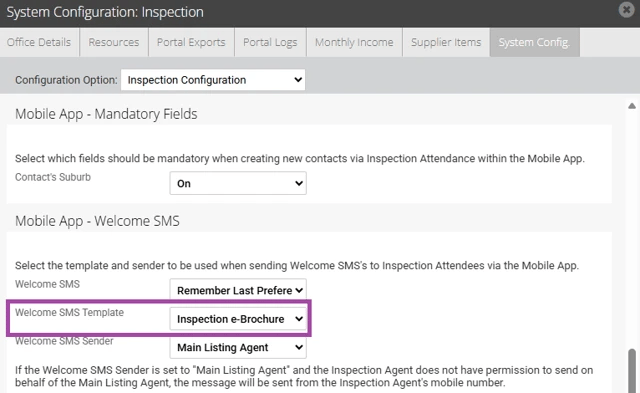
The Welcome SMS template is sent based on the template configured in the inspection configuration section of System Config.
Note: additional information can be added to the template; however, you will need to include the variable {$inspection_ebrochure_link} for the Inspection e-Brochure to be sent.
To set the template used from the Welcome SMS template to the Inspection e-Brochure:
1. Navigate to My Office.
2. Click Edit Details.
3. Click System Config.
4. Under Configuration Option, select Inspection Configuration.
5. Under the Mobile App – Welcome SMS section, click on the welcome SMS template drop down and select Inspection e-Brochure.
6. Click Save changes.
Sending the Inspection e-Brochure
You can send the inspection e-brochure through several workflows within the Reapit Sales App. Each option below includes a link to the detailed guide for that workflow:
Welcome SMS - https://help.reapit.com.au/s/article/Configuration-Options-Welcome-SMS
Reminders > SMS Attendees - https://help.reapit.com.au/s/article/Bulk-SMS-Inspection-Attendees-in-Mobile-App
Reminders > Private Inspection > SMS - https://help.reapit.com.au/s/article/Schedule-a-Private-Inspection
Appointment Confirmation - https://help.reapit.com.au/s/article/SMS-Appointment-Confirmation
Listing Activity > Bulk SMS - https://help.reapit.com.au/s/article/Bulk-Communication-via-Listing-Activity
You can also create custom SMS templates that use the Inspection e‑brochure variable to match your agency’s preferred messaging style. For more information on creating SMS templates, please see - https://help.reapit.com.au/s/article/Create-SMS-Template
Frequently Asked Questions
Does the Inspection e-Brochure also work for rentals?
Yes, the inspection e-brochure will display information based on the listing type: for sale or for lease.
Are all documents visible?
Only documents flagged as ‘show on web’ will display on the inspection e-brochure. It is recommended to utilise the private documents by default configuration to ensure all documents unless flagged to show on web.
Can the Inspection e-Brochure be sent via Email?
No, the Inspection e-Brochure can only be sent via the mobile app as part of an inspection related workflow.
What is the variable used for the Inspection e-Brochure?
{$inspection_ebrochure_link} is the variable used.
For multi-office accounts, what office details will be displayed on the footer?
The footer will display office information based on the listings assigned office.
Can the Inspection e-Brochure be viewed on desktop as well as mobile?
Yes, the Inspection e-Brochure is responsive and can be viewable on both.