'%20d='M0%208a8%208%200%200%201%208-8h24a8%208%200%200%201%208%208v24a8%208%200%200%201-8%208H8a8%208%200%200%201-8-8V8Z'/%3e%3cpath%20fill='%23fff'%20d='M10.41%206v3.779h15.048v19.537h4.132V6H10.41Z'/%3e%3cpath%20fill='%23fff'%20d='M20.967%2034V13.837L10.41%209.78v20.166L20.967%2034Z'/%3e%3cdefs%3e%3clinearGradient%20id='reapit-sales__a'%20x1='20.702'%20x2='20.702'%20y1='.351'%20y2='31.228'%20gradientUnits='userSpaceOnUse'%3e%3cstop%20stop-color='%235573FD'/%3e%3cstop%20offset='.575'%20stop-color='%234E56EA'/%3e%3c/linearGradient%3e%3c/defs%3e%3c/svg%3e)
Mobile App: Icons
This article runs through about Reapit Sales App icons on mobile devices.
This article runs through the Reapit Sales App icons on mobile devices.
The processes in this article include:
- Home Screen
- Global Search
- Quick Add Tool
- More Tab
Home Screen
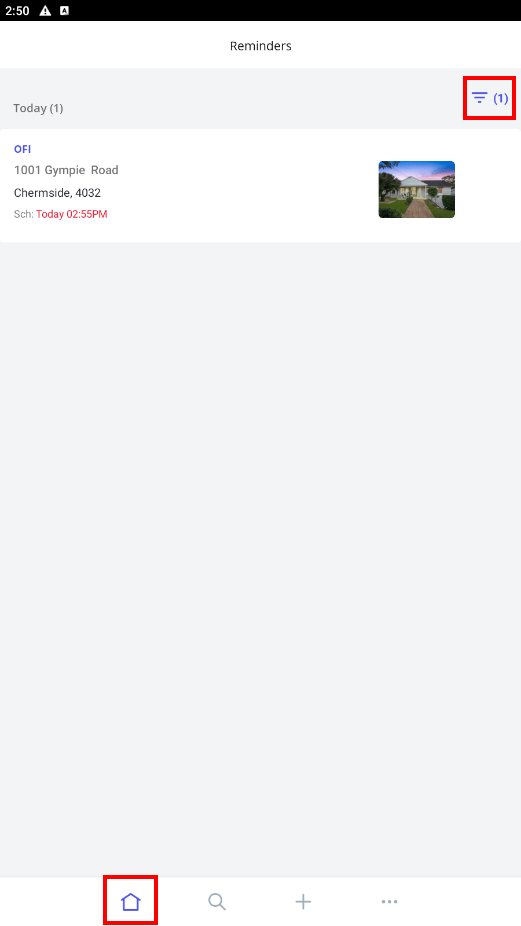
The Home screen shows reminders; here you can manage tasks and your to-do list. Tapping the filter icon will provide additional filtering rules, such as :
- Date ranges (last 30 days up to next 30 days or a custom date range).
- Filter types - Tasks, inspections, OFI, Appraisal, Appointments or Presentation
Global Search
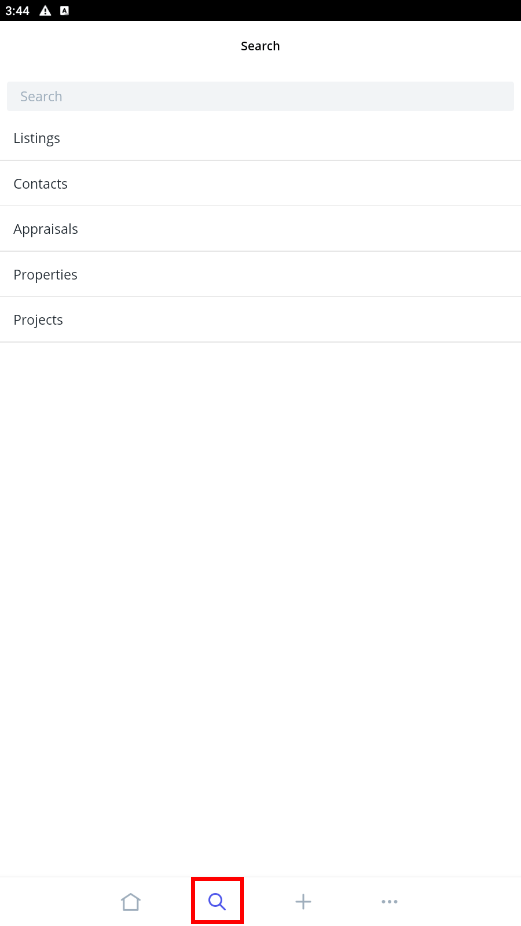
The Global Search tool is beneficial when the agent knows what they are looking for; alternatively, agents can search across key areas of the app by clicking into the relevant category, for example:
Listings
Contacts
Appraisals
Properties
Projects
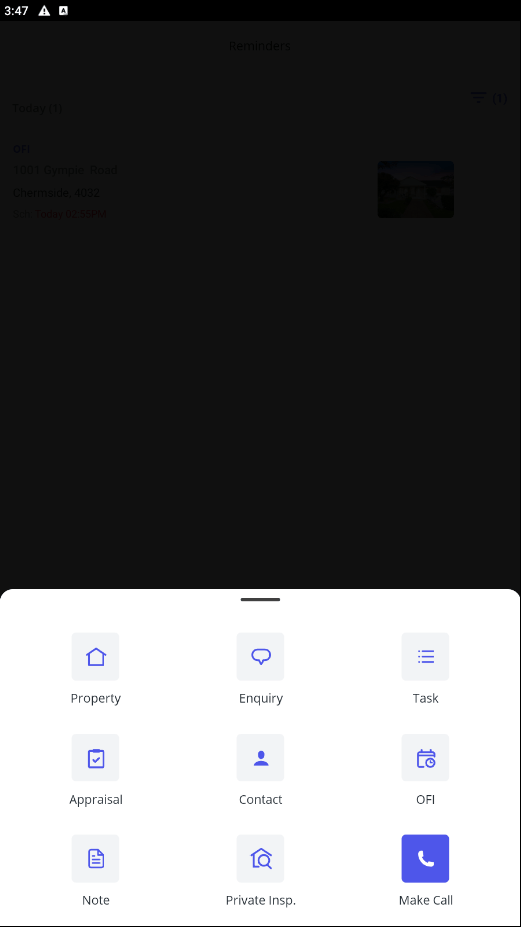
Quick Add Tool
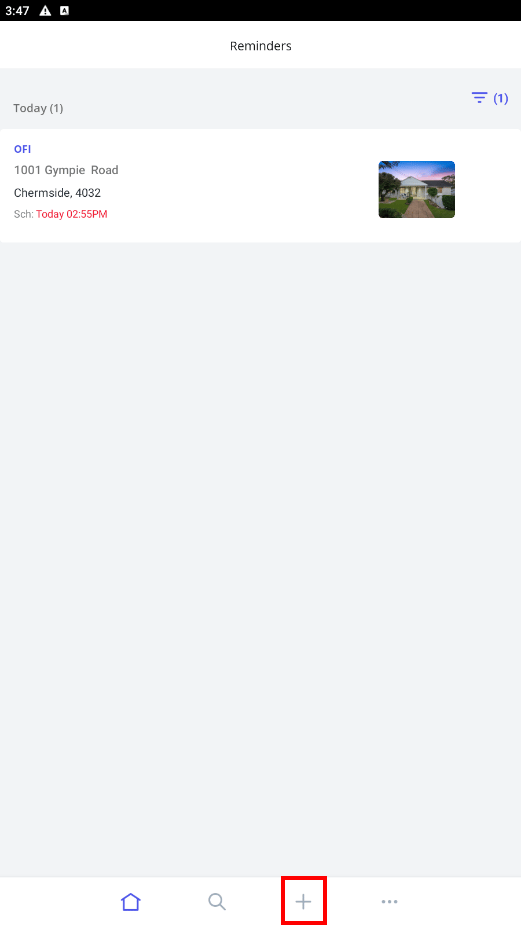
From the + icon, also known as the Quick Add button, users can:
Add a property
Log an enquiry
Add a task
Add an appraisal
Add a contact
Add a new OFI
Add a note
Create a private inspection
Make and log a phone call
More Tab
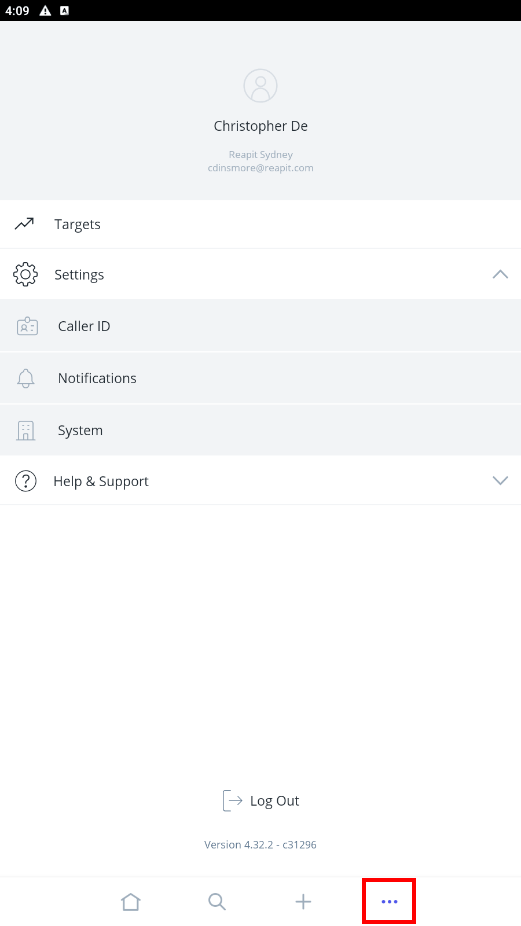
The more tab provides agents with the ability to manage:
Targets
Settings ( Caller ID, Notifications, System).
Help and Support (Report a Problem and Share Feedback)