'%20d='M0%208a8%208%200%200%201%208-8h24a8%208%200%200%201%208%208v24a8%208%200%200%201-8%208H8a8%208%200%200%201-8-8V8Z'/%3e%3cpath%20fill='%23fff'%20d='M10.41%206v3.779h15.048v19.537h4.132V6H10.41Z'/%3e%3cpath%20fill='%23fff'%20d='M20.967%2034V13.837L10.41%209.78v20.166L20.967%2034Z'/%3e%3cdefs%3e%3clinearGradient%20id='reapit-sales__a'%20x1='20.702'%20x2='20.702'%20y1='.351'%20y2='31.228'%20gradientUnits='userSpaceOnUse'%3e%3cstop%20stop-color='%235573FD'/%3e%3cstop%20offset='.575'%20stop-color='%234E56EA'/%3e%3c/linearGradient%3e%3c/defs%3e%3c/svg%3e)
Main Contact Panel & Tabs
This article runs through about main contact panel and tabs in Reapit Sales.
Main Contact Panel & Tabs
This article runs through about main contact panel and tabs in Reapit Sales.
Note: The Supplier Items tab will only be available if they are ticked as a supplier in the Contact Class section in the Contact Card tab. The Social Media Icons and Tab will only appear for contacts which have a valid email address with an accessible association to social media accounts.
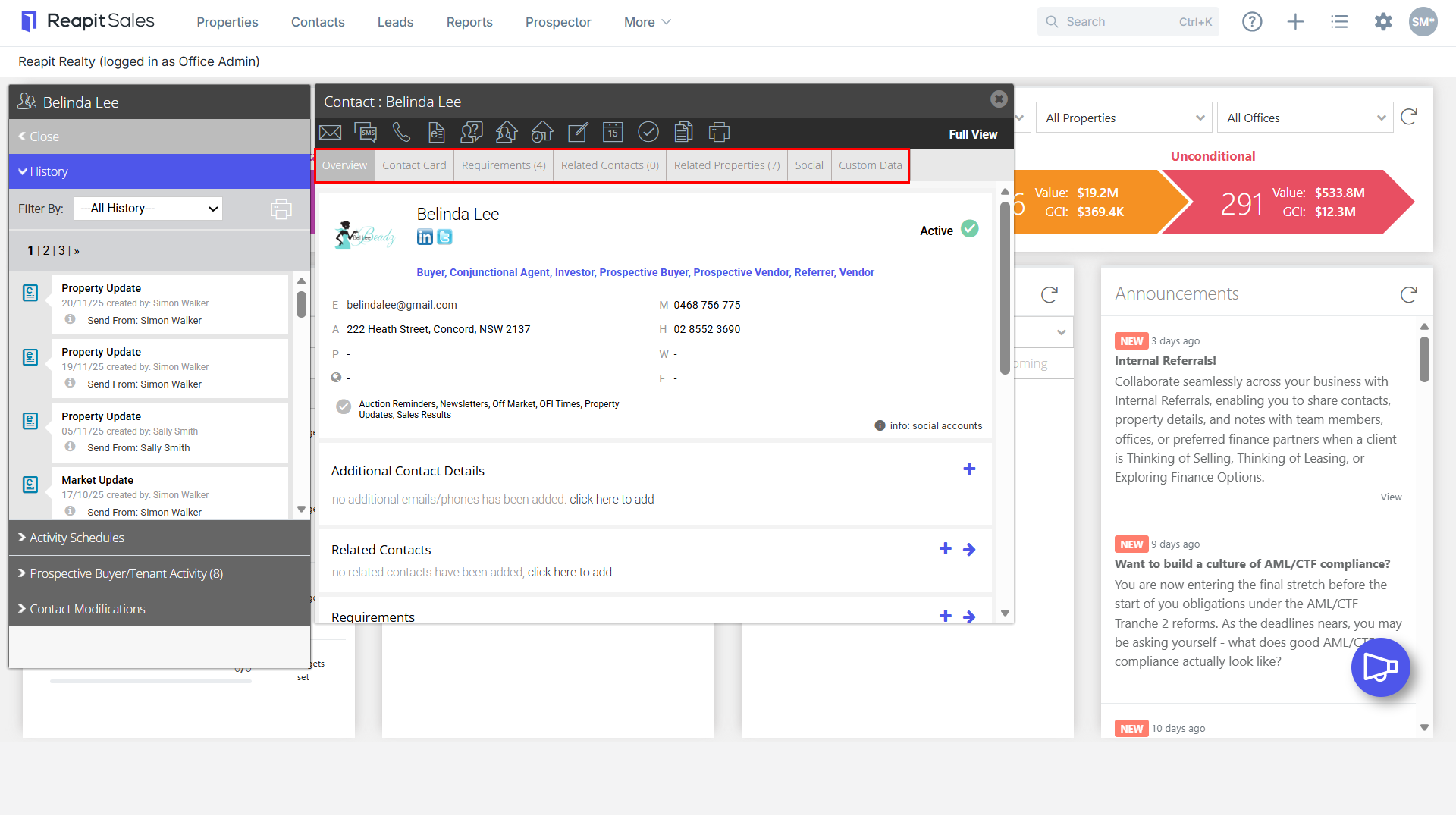
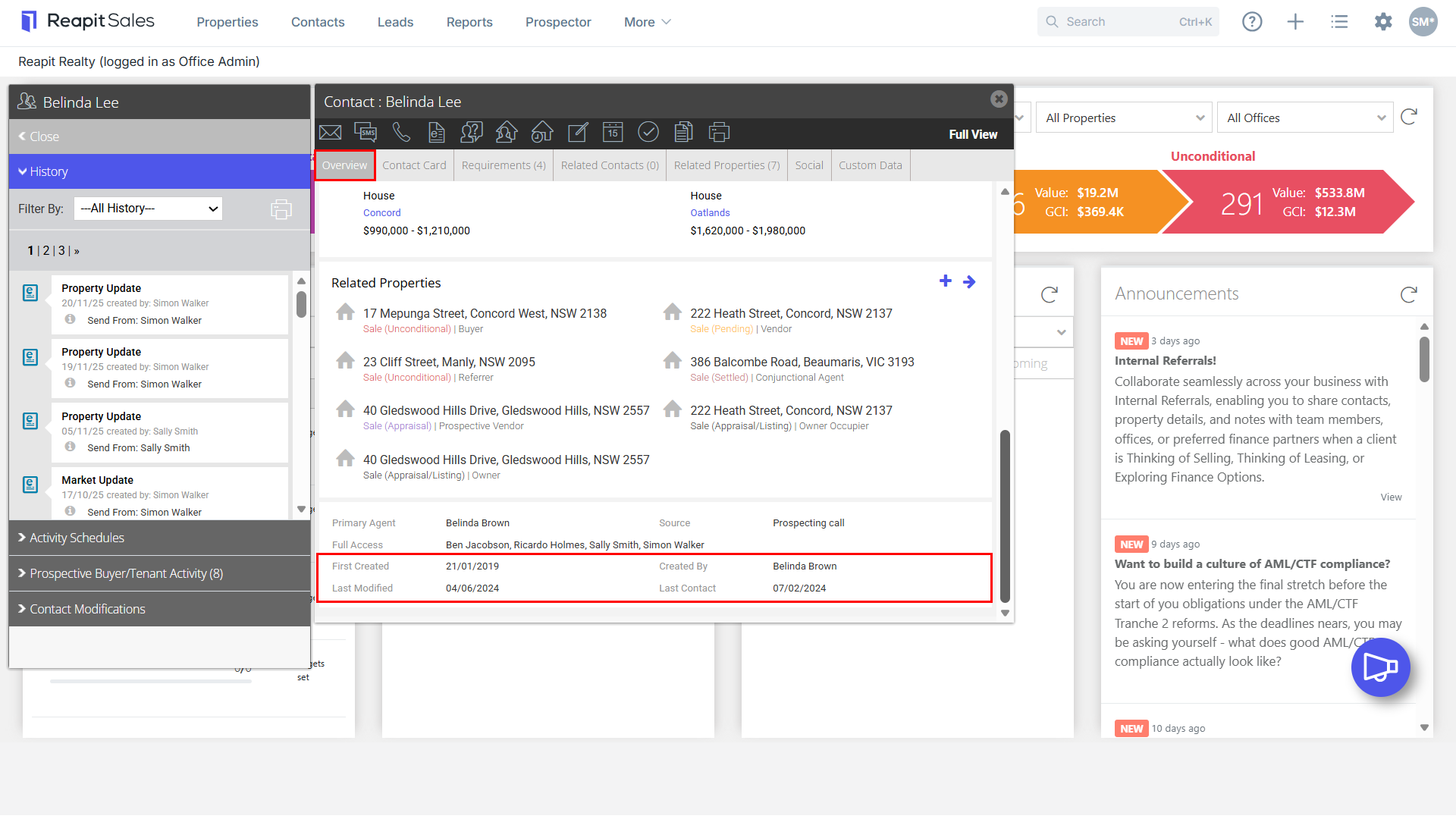
- Overview - The overview tab shows a summary of the key contact information, subscriptions, requirements, add related contacts and properties and has quick links to add/edit this information.
This includes when the contact was:
First Created - when the contact card was first created in the database.
Last Modified - when the contact details were last updated.
Last Contact - the last communication logged against the contact.
- Contact Card - In this section, you can add the main contact information e.g. Phone, Address etc you can also subscribe them to newsletters.
- Requirements - In this section, you can add the buyer/tenant requirements for your automatic buyer alert and match contact to property tools.
- Related Contacts - In this section, you can view/edit and add related contacts to a contact.
- Related Properties - In this section, you can view/edit and add related properties to a contact.
- Social - The Contact Overview page will display a photo & links to any relevant social media accounts (e.g. Facebook, Twitter, LinkedIn, etc.) that can be identified by the Contact's associated email address. The 'Social' tab will display additional publicly accessible information from social accounts (e.g. list of public Twitter posts, etc.).
- Supplier Items - In this section, you can add/edit products and pricing for your suppliers, which can then be used when logging marketing funds.
- Custom Data - For information on the Custom Data Tab, please review these articles.
- Managing Custom Data: Viewing and Editing Contacts and Listings
- Creating and Configuring Custom Data Fields