'%20d='M0%208a8%208%200%200%201%208-8h24a8%208%200%200%201%208%208v24a8%208%200%200%201-8%208H8a8%208%200%200%201-8-8V8Z'/%3e%3cpath%20fill='%23fff'%20d='M10.41%206v3.779h15.048v19.537h4.132V6H10.41Z'/%3e%3cpath%20fill='%23fff'%20d='M20.967%2034V13.837L10.41%209.78v20.166L20.967%2034Z'/%3e%3cdefs%3e%3clinearGradient%20id='reapit-sales__a'%20x1='20.702'%20x2='20.702'%20y1='.351'%20y2='31.228'%20gradientUnits='userSpaceOnUse'%3e%3cstop%20stop-color='%235573FD'/%3e%3cstop%20offset='.575'%20stop-color='%234E56EA'/%3e%3c/linearGradient%3e%3c/defs%3e%3c/svg%3e)
Xero Integration
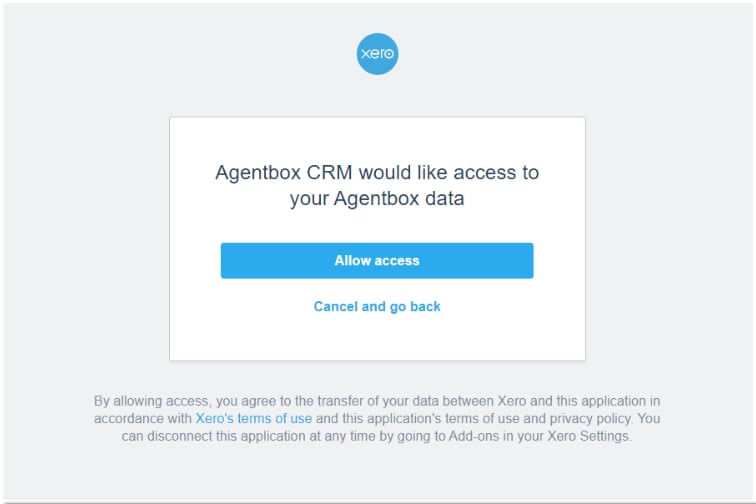
This article explains about Xero Integration in Reapit Sales. The processes in this article include: Initial Xero Setup Export Reapit Sales Commission Payment Balances to Xero Payslips
Xero Integration
This article explains about Xero Integration in Reapit Sales.
The processes in this article include:
- Initial Xero Setup
- Export Reapit Sales Commission Payment Balances to Xero Payslips
Note: Xero integration is available for clients with the Debit & Credit Commissions Module. Request more information via our Client Change Request Form. Reapit Sales integrates with Xero Payroll to provide greater efficiency and prevent the double-entry of data and human error when paying agent commissions. Once set up and configured, the agent's commission balances are pushed from Reapit Sales to their draft XERO Payslips. Initial Xero Setup
- Ensure you have configured your employee details, earnings rates, and pay runs in Xero before proceeding with the Integration. If you are unsure of how to configure these in Xero, please refer to Xero support documentation.
- To have the Xero integration enabled in your system, submit a Client Change Request Form so our team can do this for you. Once you receive confirmation from our team that this has been completed, proceed to complete the following steps.
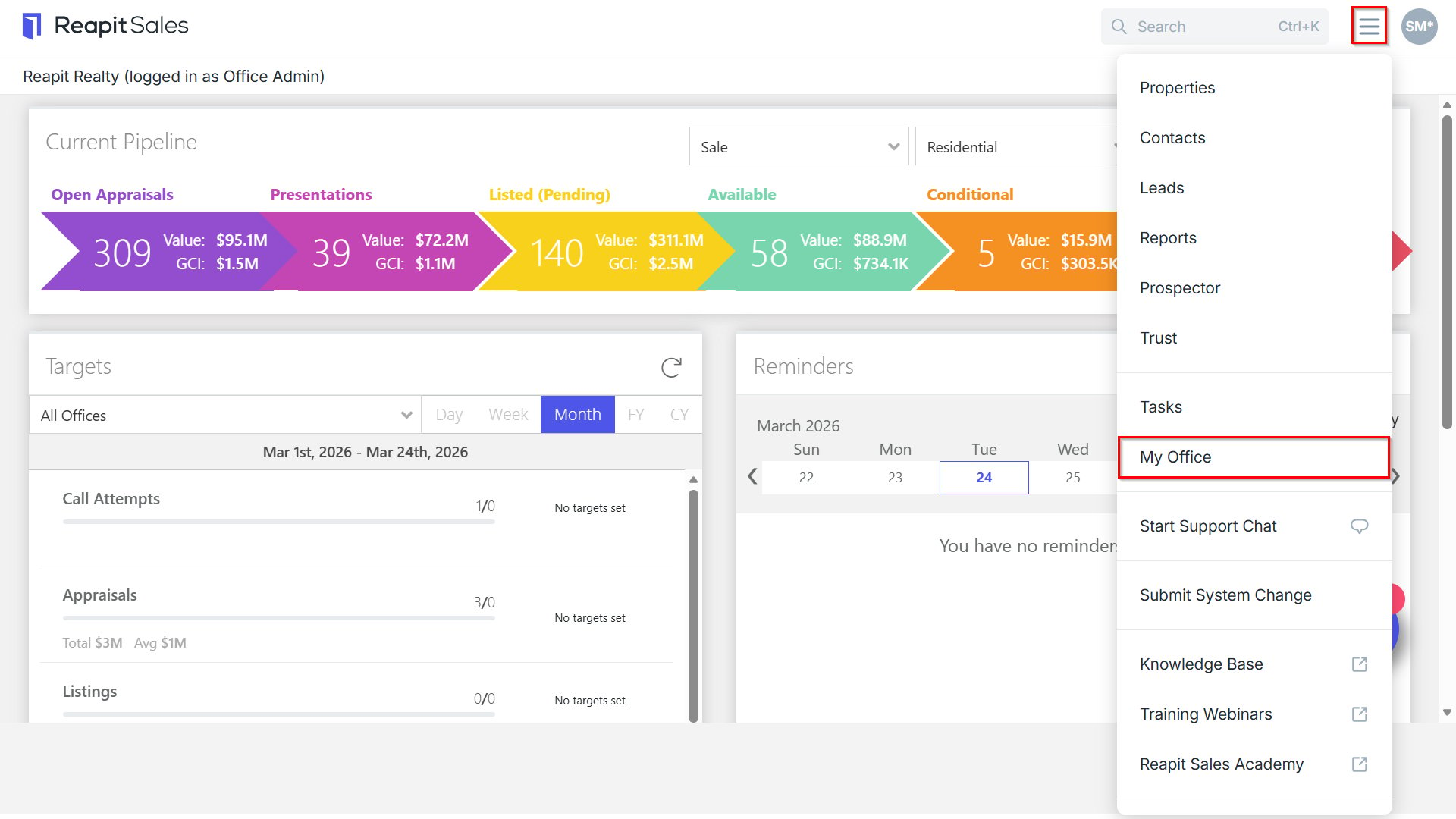
- Navigate to My Office.
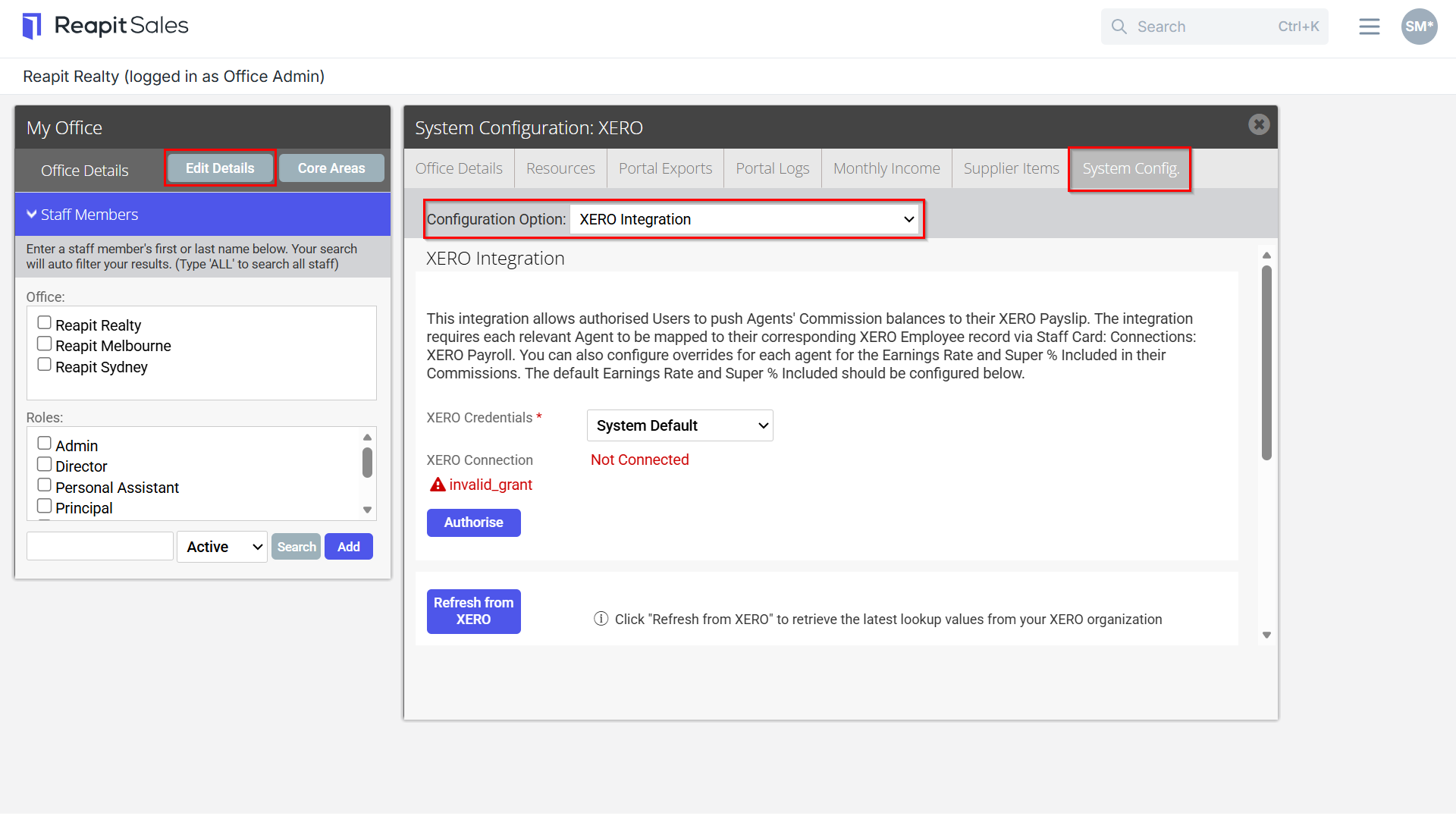
- Click Edit Details
- Navigate to System Config.
- From the dropdown, select XERO Integration.
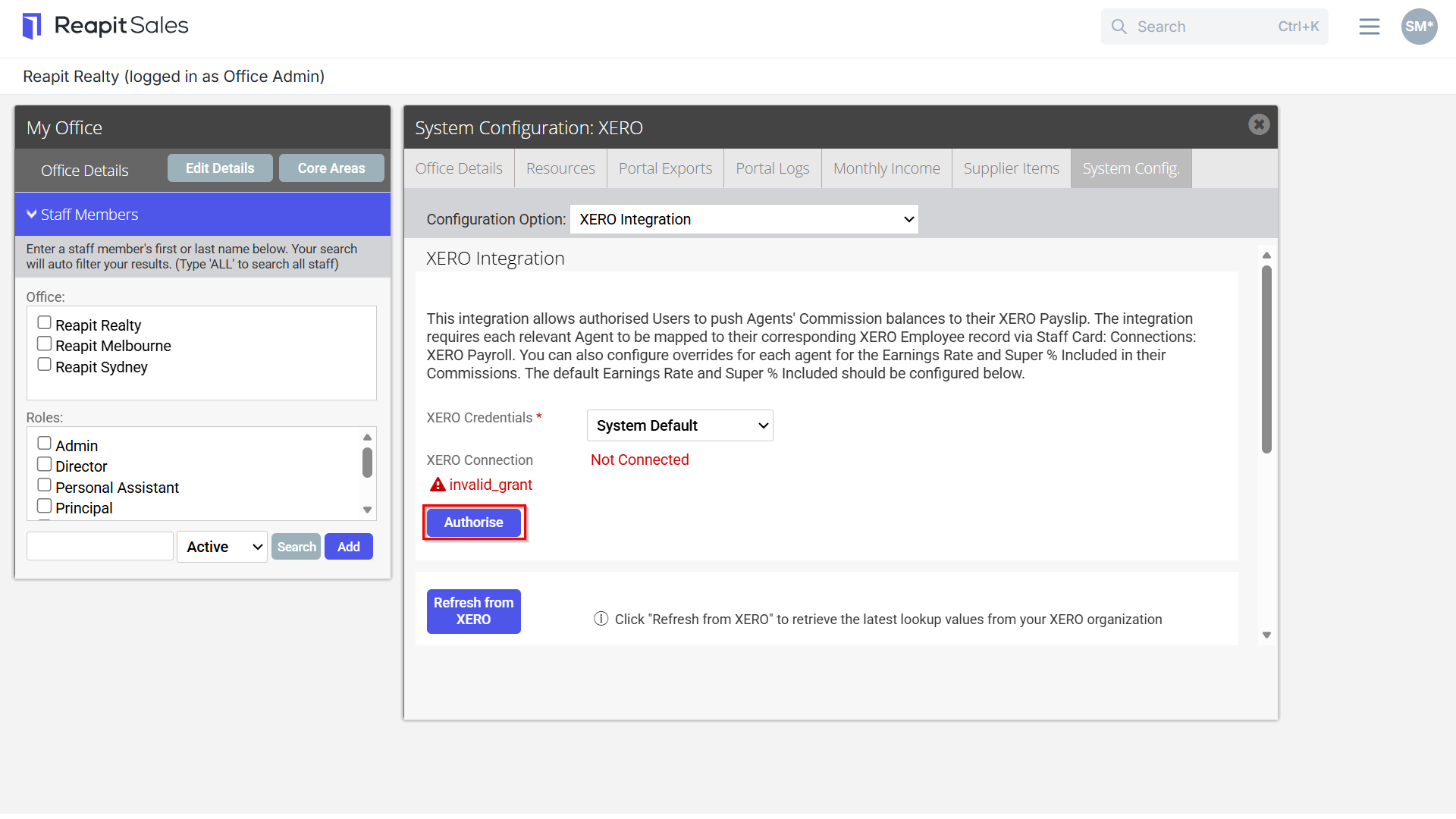
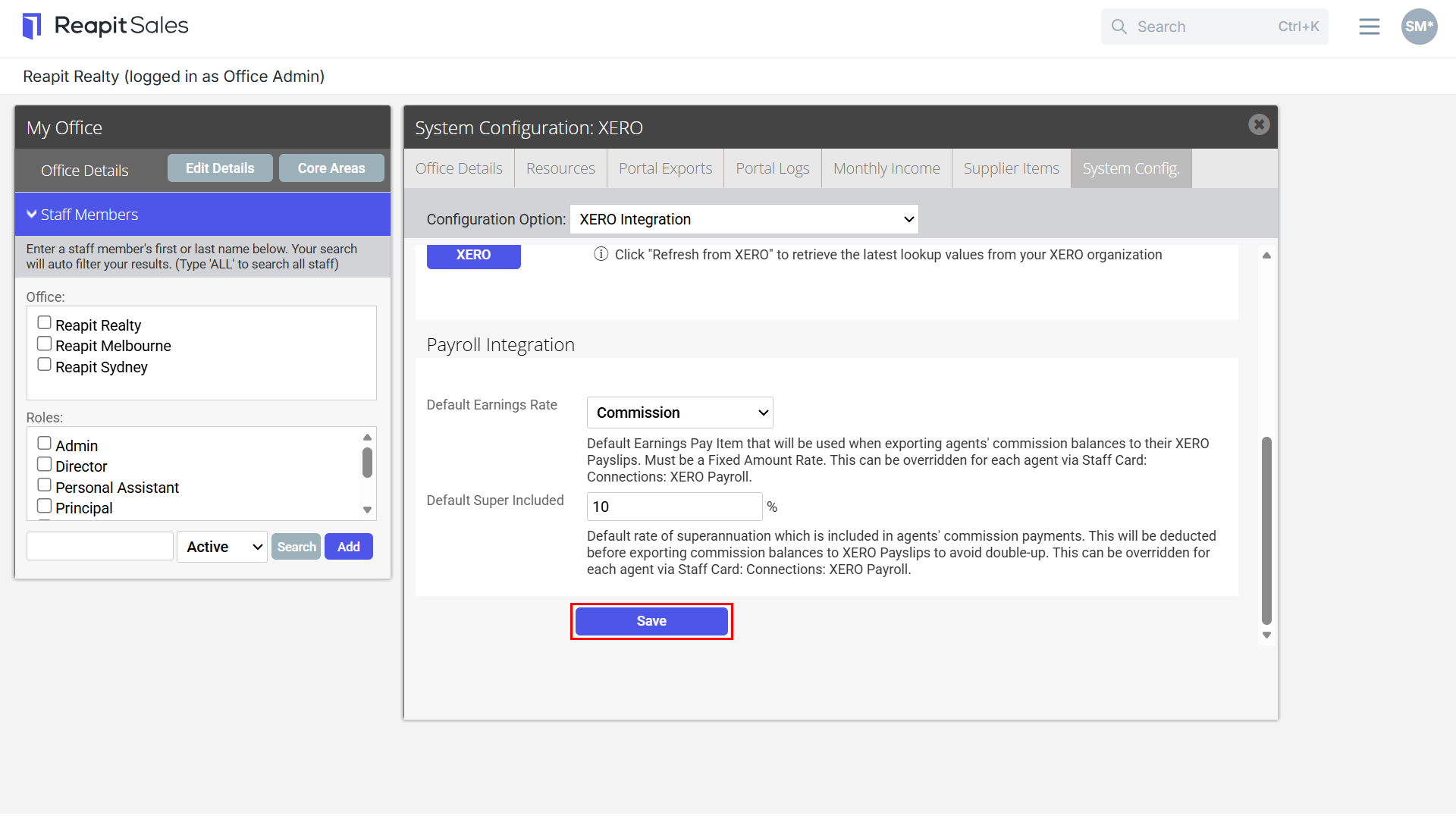
Default Earnings Rate: Select the Default Earnings Pay Item that will be used when exporting agents' commission balances to XERO Payslips. This must be a fixed amount rate that you have configured in your Xero settings. If you do not see any options within the dropdown, click the Refresh From Xero button to refresh the values from Xero.
Default Super Included: Reapit Sales will automatically deduct superannuation from Agent Commission Balances before exporting to their Xero Payslip to avoid double-up. Enter the default rate of superannuation that is presumed to be
included in Agent Commissions. If superannuation is NOT included in Agent Commission, enter “0”.
- Click Save.
- Navigate to My Office.
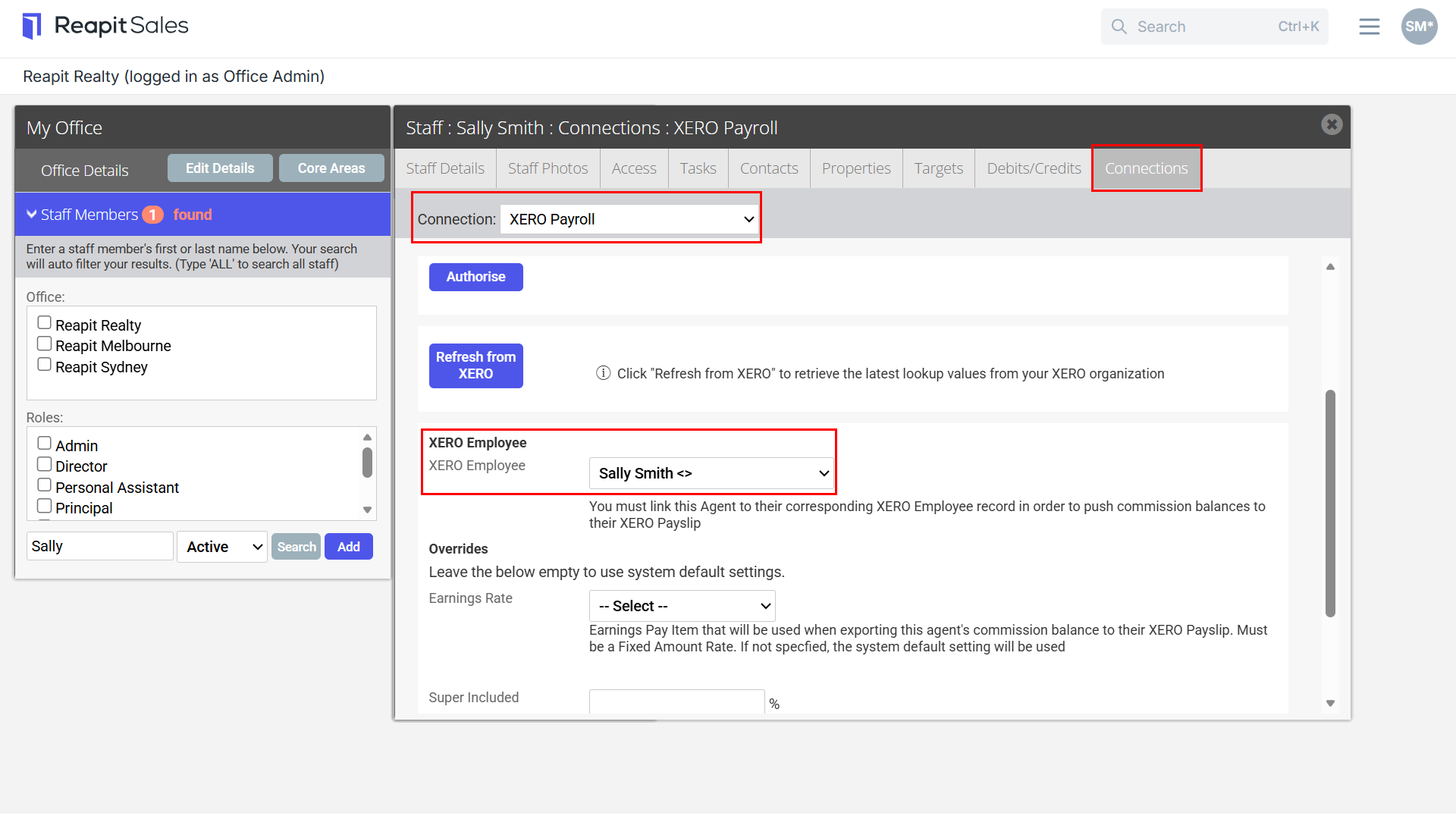
12. Search for a staff member.
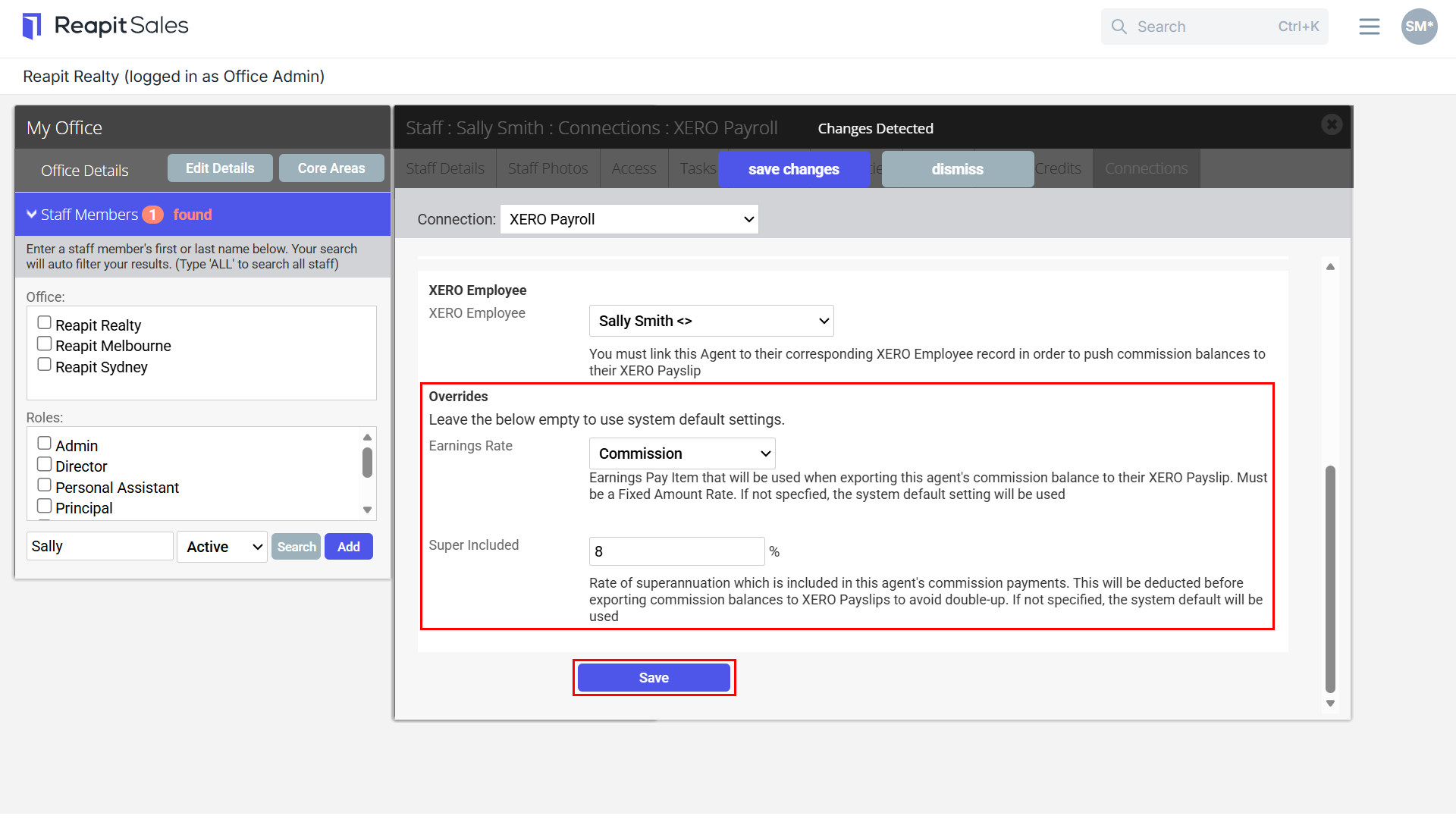
13. Navigate to the Connections tab. 14. Select Xero Payroll from the dropdown. 15. Select the matching Xero employee profile from the dropdown options.
Note: You may need to click Refresh From Xero to refresh the employee list from Xero.
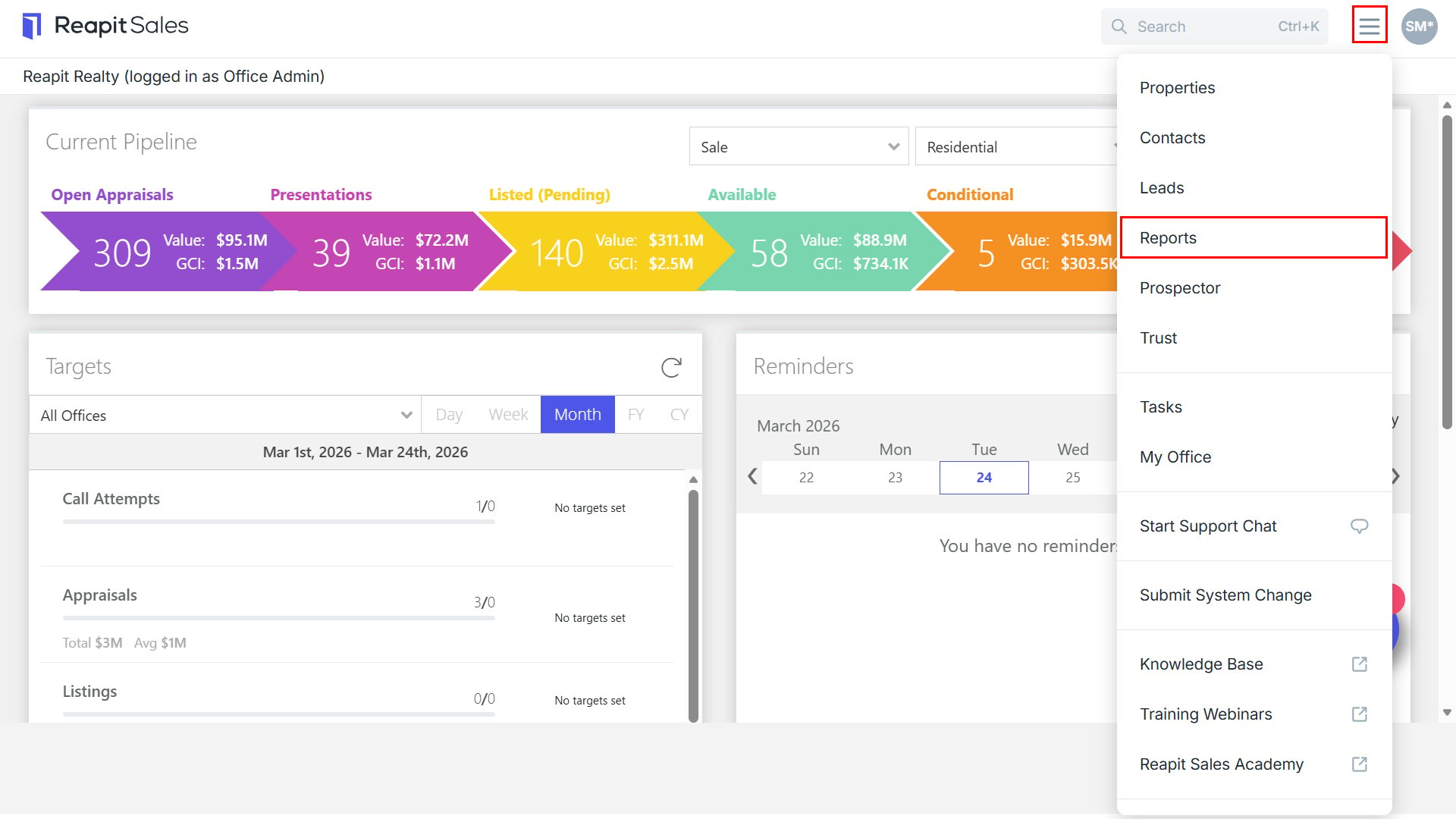
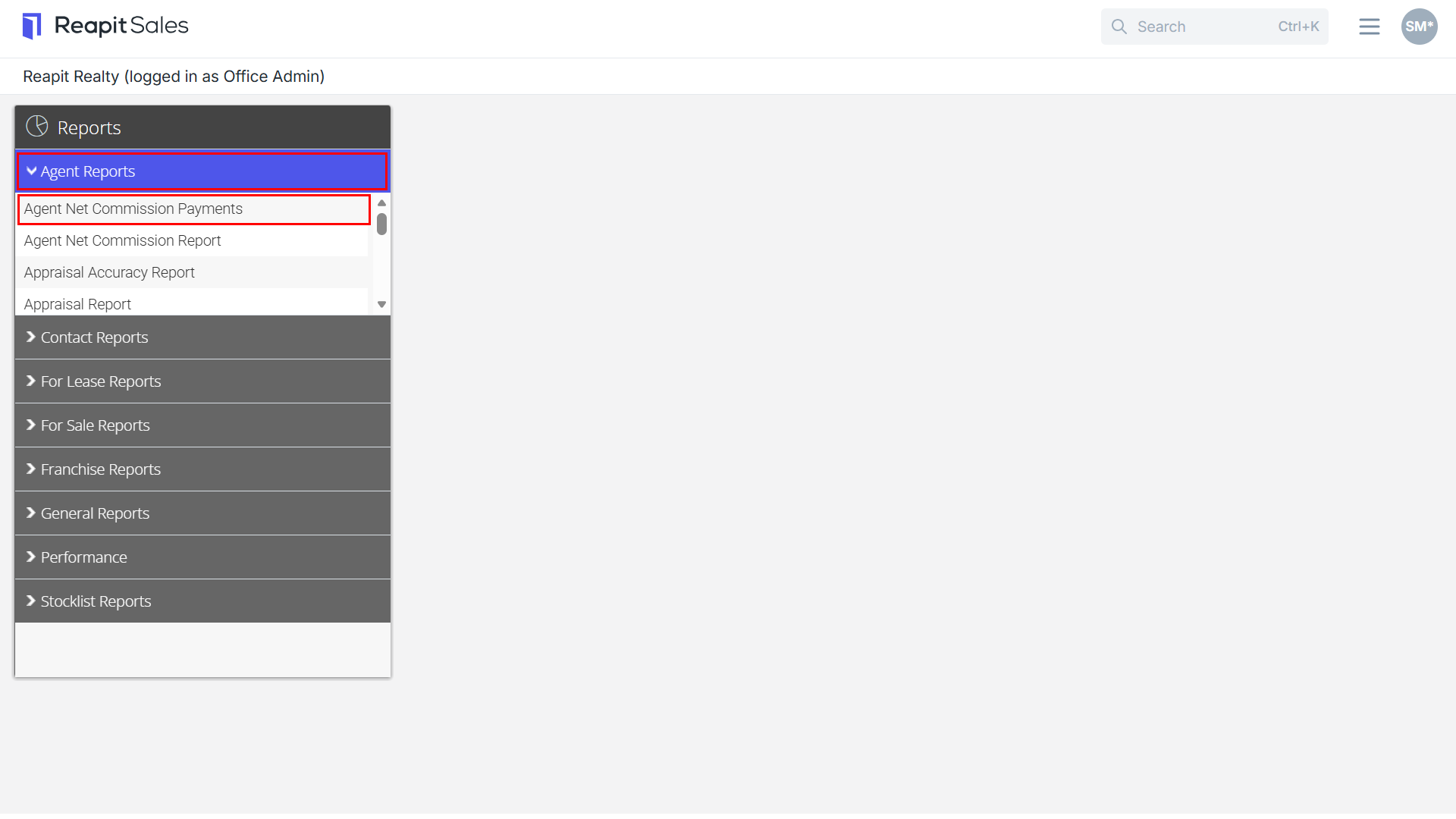
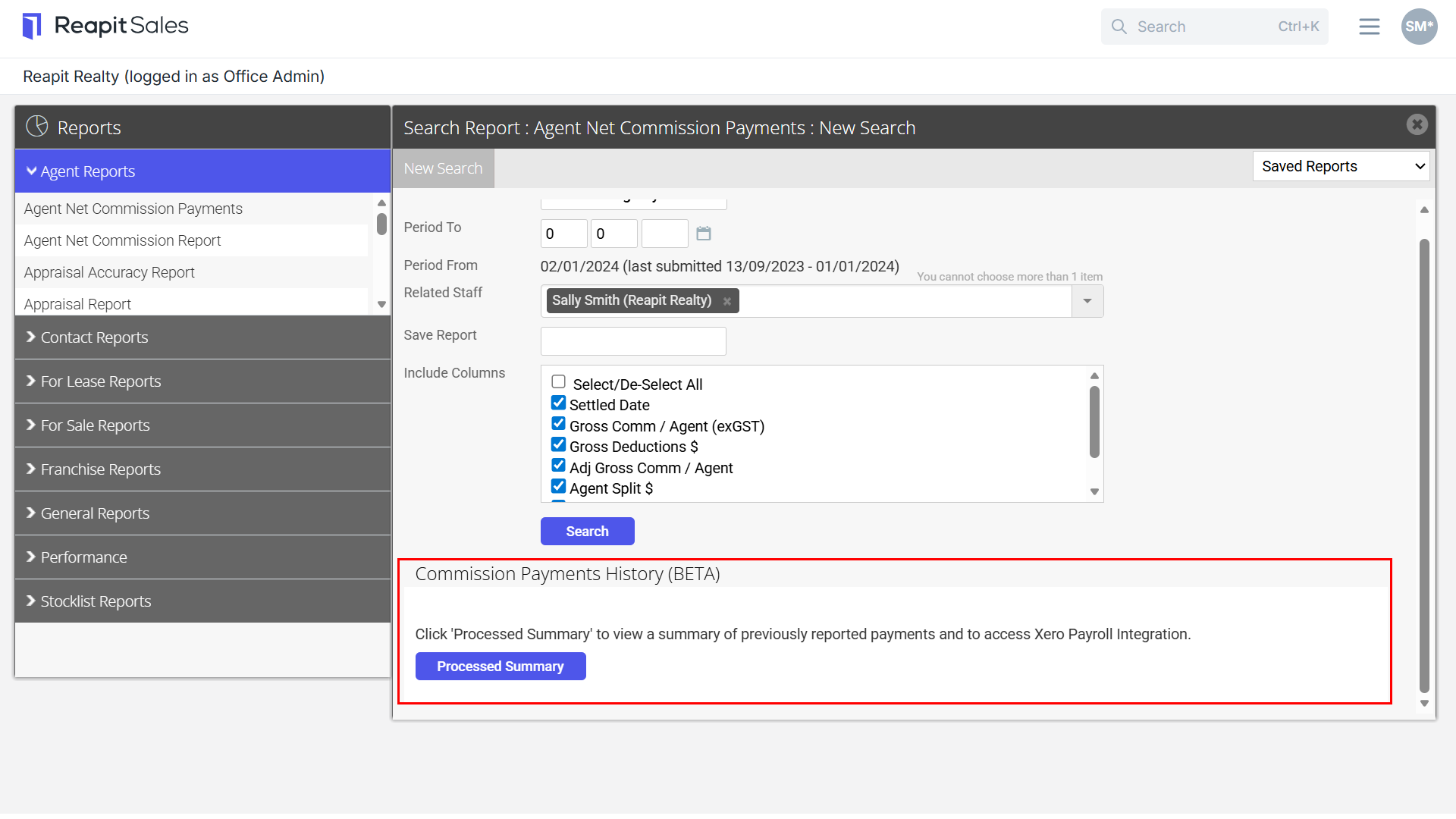
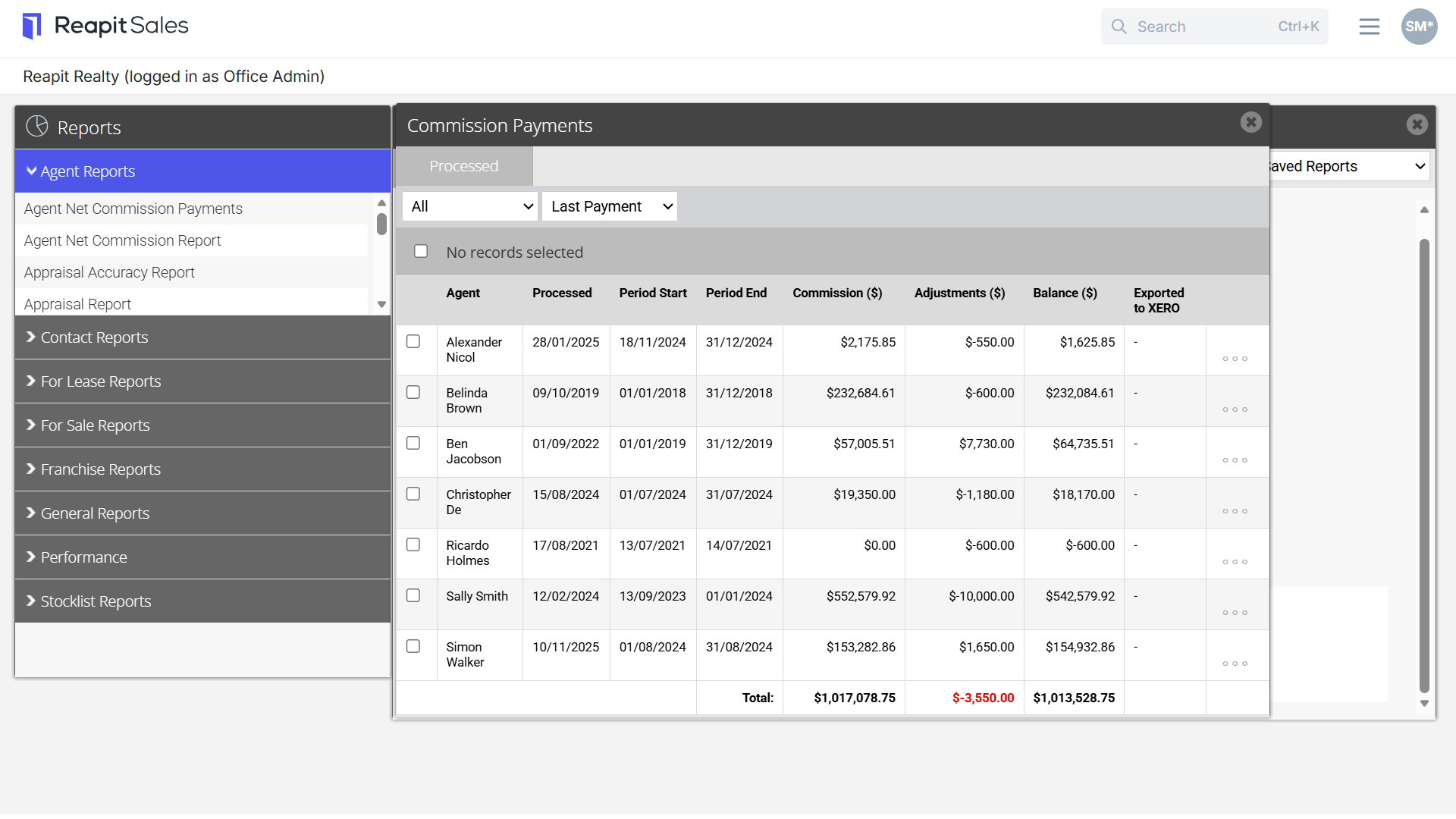
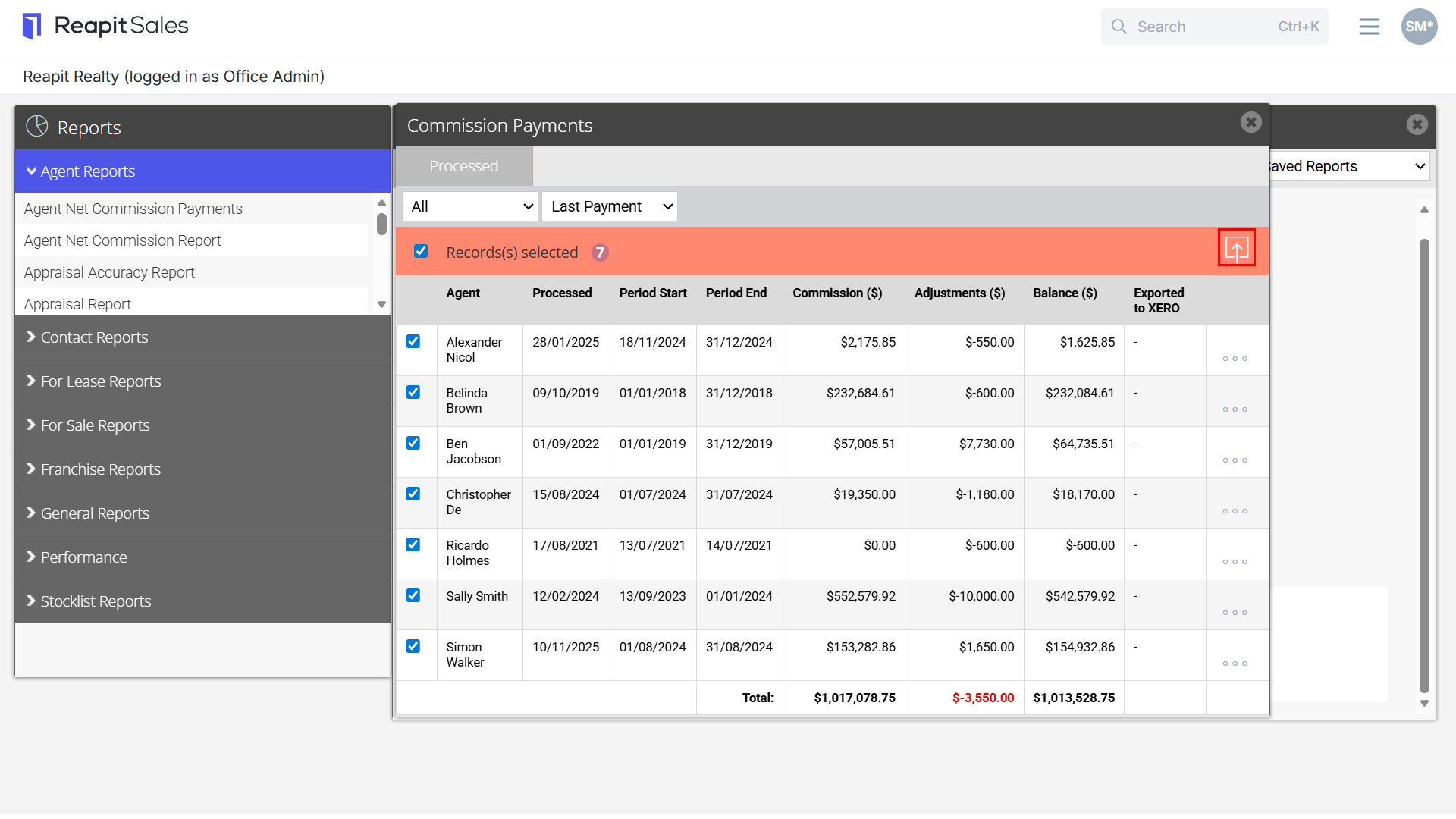
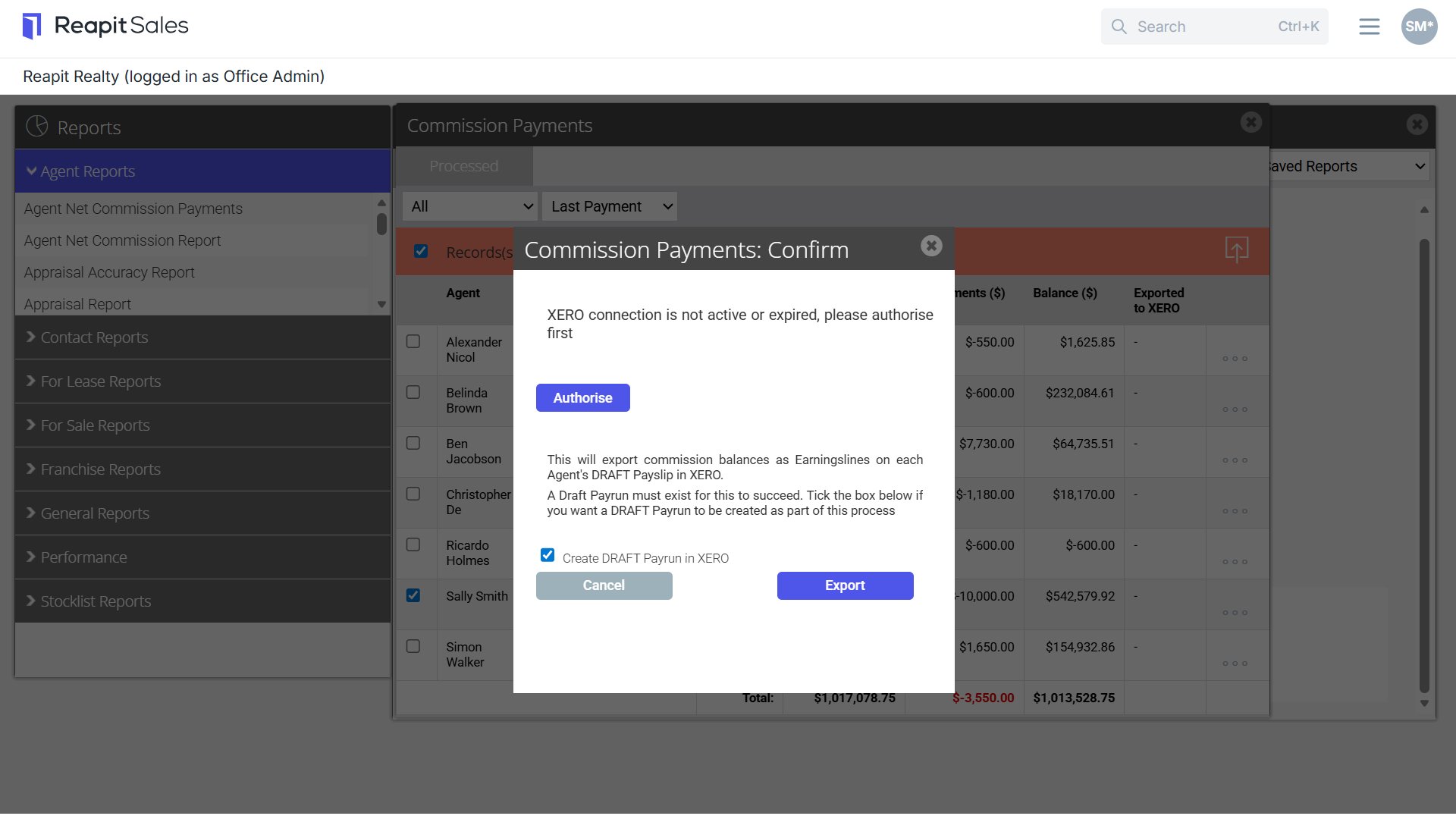
- Otherwise, you can proceed to create a Draft Payrun in Xero if required and Export.
This process will export commission balances to Employee Payslips in a current Draft Pay Run. If you have already initiated a draft pay run in Xero, the commission balances will be appended to each employee’s payslip in the draft pay run.
If you have not already initiated a draft pay run in Xero, you can elect to Create a DRAFT pay run in Xero during the export.
Note: It is possible to have some agents on a different Pay Calendar in Xero to others. A Draft Pay Run is required for each Pay Calendar applicable to the agents included in the export.