'%20d='M0%208a8%208%200%200%201%208-8h24a8%208%200%200%201%208%208v24a8%208%200%200%201-8%208H8a8%208%200%200%201-8-8V8Z'/%3e%3cpath%20fill='%23fff'%20d='M10.41%206v3.779h15.048v19.537h4.132V6H10.41Z'/%3e%3cpath%20fill='%23fff'%20d='M20.967%2034V13.837L10.41%209.78v20.166L20.967%2034Z'/%3e%3cdefs%3e%3clinearGradient%20id='reapit-sales__a'%20x1='20.702'%20x2='20.702'%20y1='.351'%20y2='31.228'%20gradientUnits='userSpaceOnUse'%3e%3cstop%20stop-color='%235573FD'/%3e%3cstop%20offset='.575'%20stop-color='%234E56EA'/%3e%3c/linearGradient%3e%3c/defs%3e%3c/svg%3e)
Advanced Property Search
This article explains the Advanced Property Search function within Reapit Sales. The processes in this article include: How to use Advanced Property Search. How do I save my Property Search in Reapit Sales? How do I find my Saved Search in Reapit Sales? How do I edit a saved property search? How do I remove a saved property search?
Overview
Advanced Property Search
This article explains the Advanced Property Search function within Reapit Sales.
The processes in this article include:
- How to use Advanced Property Search.
- How do I save my Property Search in Reapit Sales?
- How do I find my Saved Search in Reapit Sales?
- How do I edit a saved property search?
- How do I remove a saved property search?
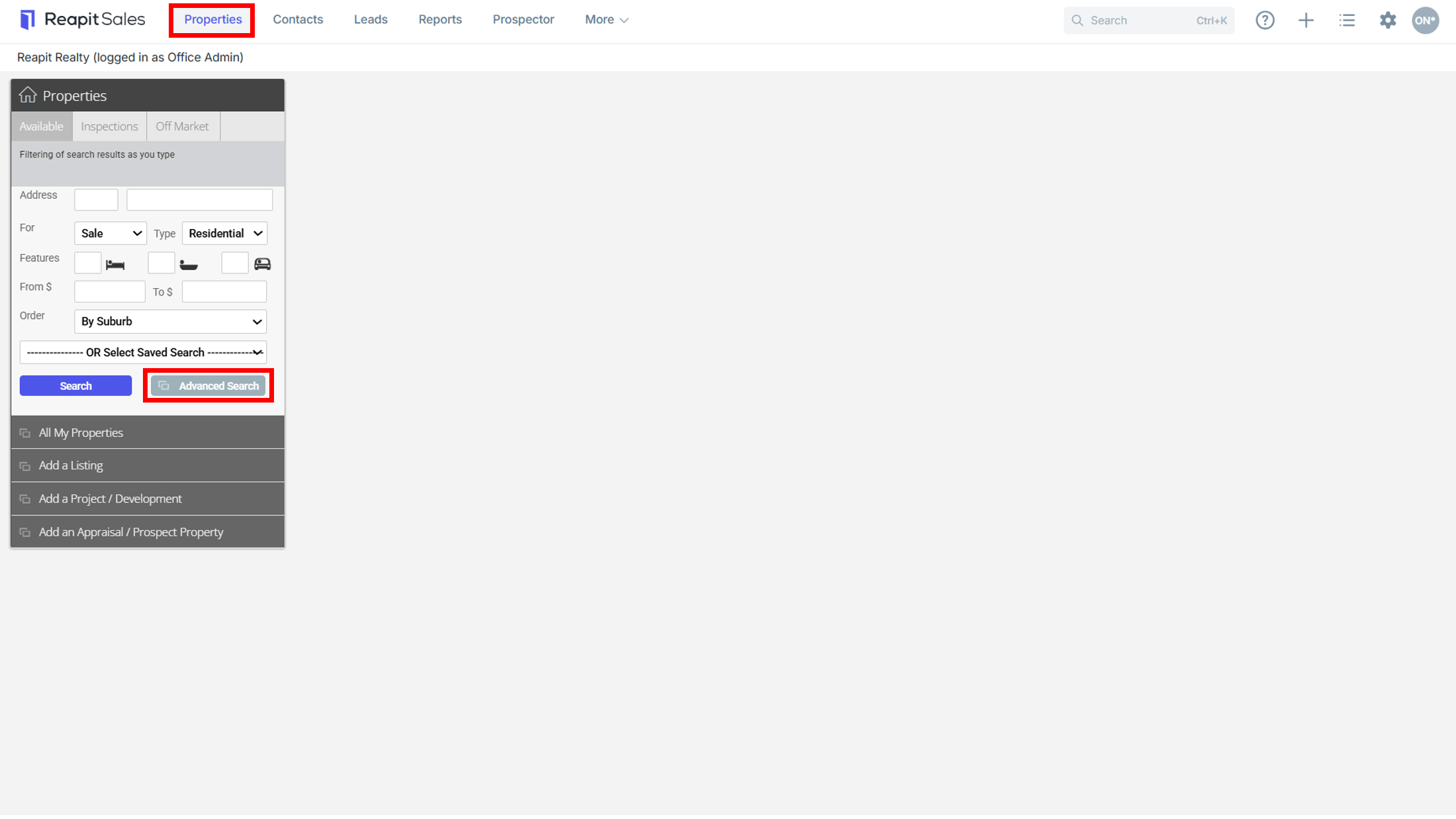
- Click the Property icon from the Main Menu
- Click Advanced Search from Left Panel
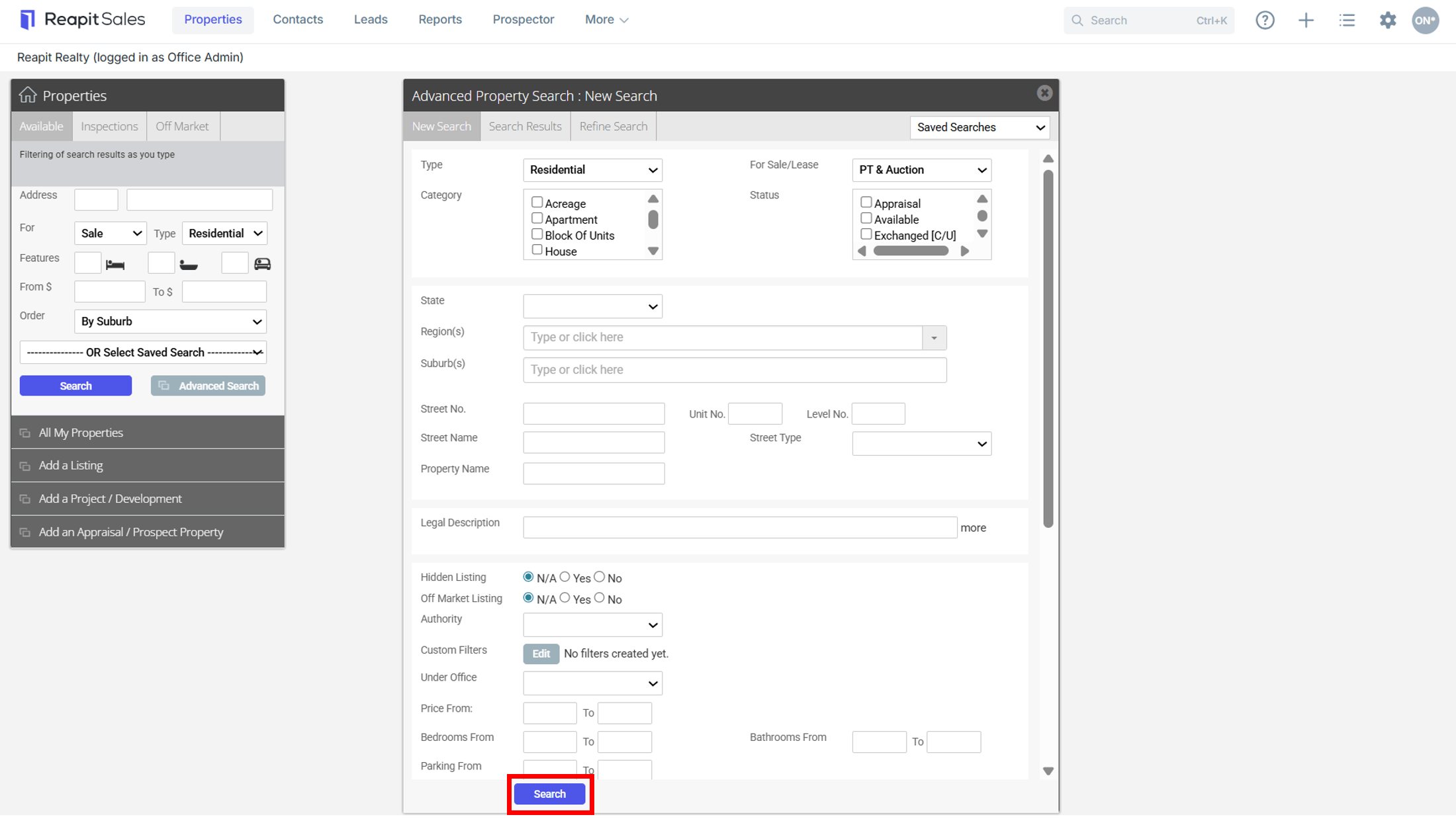
- Enter your Search Criteria into the appropriate fields. You can search by:
Type: Residential, Rural, Commercial, Holiday, Business, Project, Prospect Properties
For Sale/Rent: PT & Auction, Rent, Sale Only, Auction Only
Category: *Note: List of categories depends on the Property Type.
Residential: Acreage, Apartments, Block of Units, House, Land, Semi/Duplex, Studio, Terrace, Townhouse, Unit, Villa
Rural: Acreage, Cropping, Dairy, Farmlet, Horticulture, House, Land, Lifestyle, Livestock, Mixed Farming, Other, Townhouse, Villa, Viticulture
Commercial: Carspace, Development, Factory, Hotel/Leisure, Medical/Consulting, Mixed Farming, Office, Retail, Showroom, Warehouse
Holiday (For Lease Only): Alpine, Apartment, Backpacker Hostel, Bed and Breakfast, Camp-ground, Caravan Holiday Park, Executive Rental, Farm Stay, Flat, House, HouseBoat, Lodge, Motel, Other, Resort, Retreat, Self Contained Cottage, Semi/Duplex, Serviced Apartments, Studio, Terrace, Townhouse, Unit
Business (For Sale Only): Accommodation/Tourism, Automotive, Beauty/Health, Education/Training, Food/Hospitality, Franchise, Home/Garden, Import/Export/Whole, Industrial/Manufacturing, Leisure/Entertainment, Professional, Retail, Rural, Services, Transport/Distribution
Project: Apartment Complex/Units, Commercial, Commercial Strata Development, House & Land Packages, Industrial, Land Estate, Retail
Prospect Properties: Acreage, Apartments, Block of Units, House, Land, Semi/Duplex, Studio, Terrace, Townhouse, Unit, Villa
Status: Appraisal, Available, Exchanged, Leased, Listing Presentation, Offline, Settled, Under Contract,
State: ACT, NSW, NT, QLD, SA, TAS, VIC, WA
Regions: e.g Northern Suburbs, Western Suburbs
Suburbs: e.g Concord West
Address: Street No, Unit No, Level No, Street Name
Legal Description (Ability to search for properties via any of the property legal descriptor fields: Legal Description, Lot, Deposited Plan, Volume, Folio, Block, Section)
Hidden From Web: N/A, Yes or No
Authority: (Exclusive, Conjunction, Open)
Custom Filters: Image filter (Have image, No image), Floorplan filter (Have floorplan, No floorplan). Document filter (Have Documents, No Documents)
Inclusions: Price, Bedrooms, Bathrooms, Parking, Land Size, Building Size, Frontage, External Area
Investment Potential?: N/A Yes, No
Tenanted?: N/A Yes, No
Features: Air Conditioning, Alarm System, Area Views, Beach Front, Built-In Wardrobes, Bush Retreat, City Views, Close to Schools, Close to Transport, En-suite, Golf Course Estate, Heating Intercom, Lift Installed, Ocean Views, Open Fire Place, Penthouse, Pets Allowed, Pool, Prestige Homes, River Views, Security Access, Spa, Tennis Court, Vacuum System, Water Front, Water Views etc
Core Area(s)
Assigned Staff
Role: The ability to search for listings by associated staff member(s) in a specific role (i.e. appraisal agent, listing agent, selling agent, etc.) has been introduced to the advanced property search options.
Period Type, First Created, Last Modified, Appraisal Date, Listing Date, Expiry Date, Auction Date, On Market Date, Off Market Date, Contract Date, Expected Unconditional / Cooling Off Date, Unconditional Date, Sold Date, Settled Date, Leased Date, Lease Start Date, Lease End Date, Withdrawn Date, OFI Date
Period From (a partial date range period e.g. /01/ to /02/, will produce a target list of all properties that sold in the month of January, regardless of the year).
Save Search?
- Click Search
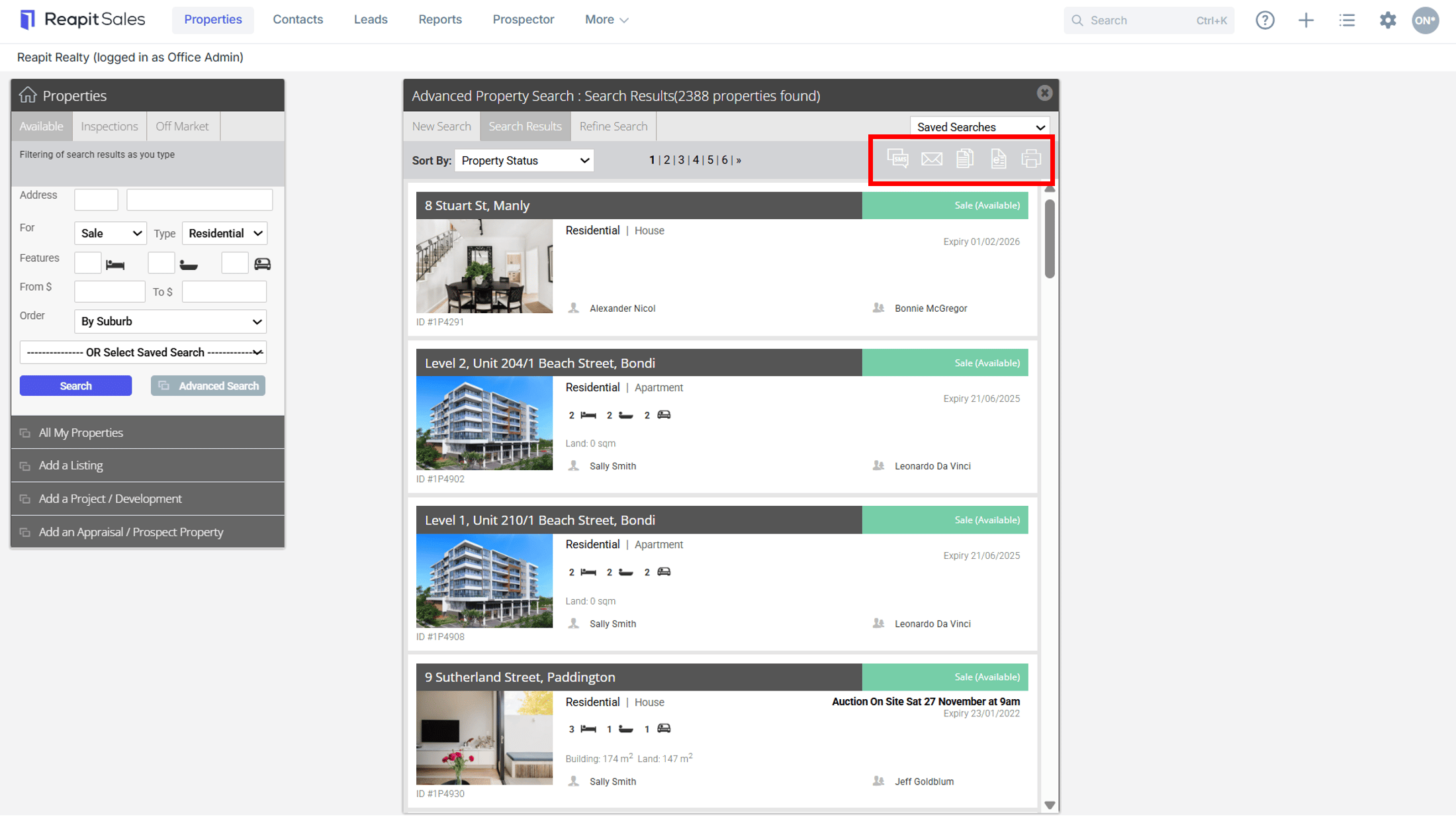
- Click the property of your choice from the Search Results Panel to open or you can click on the action icons
 to send a Mail merge to properties, Send an e-newsletter or Print a detailed listing Report.

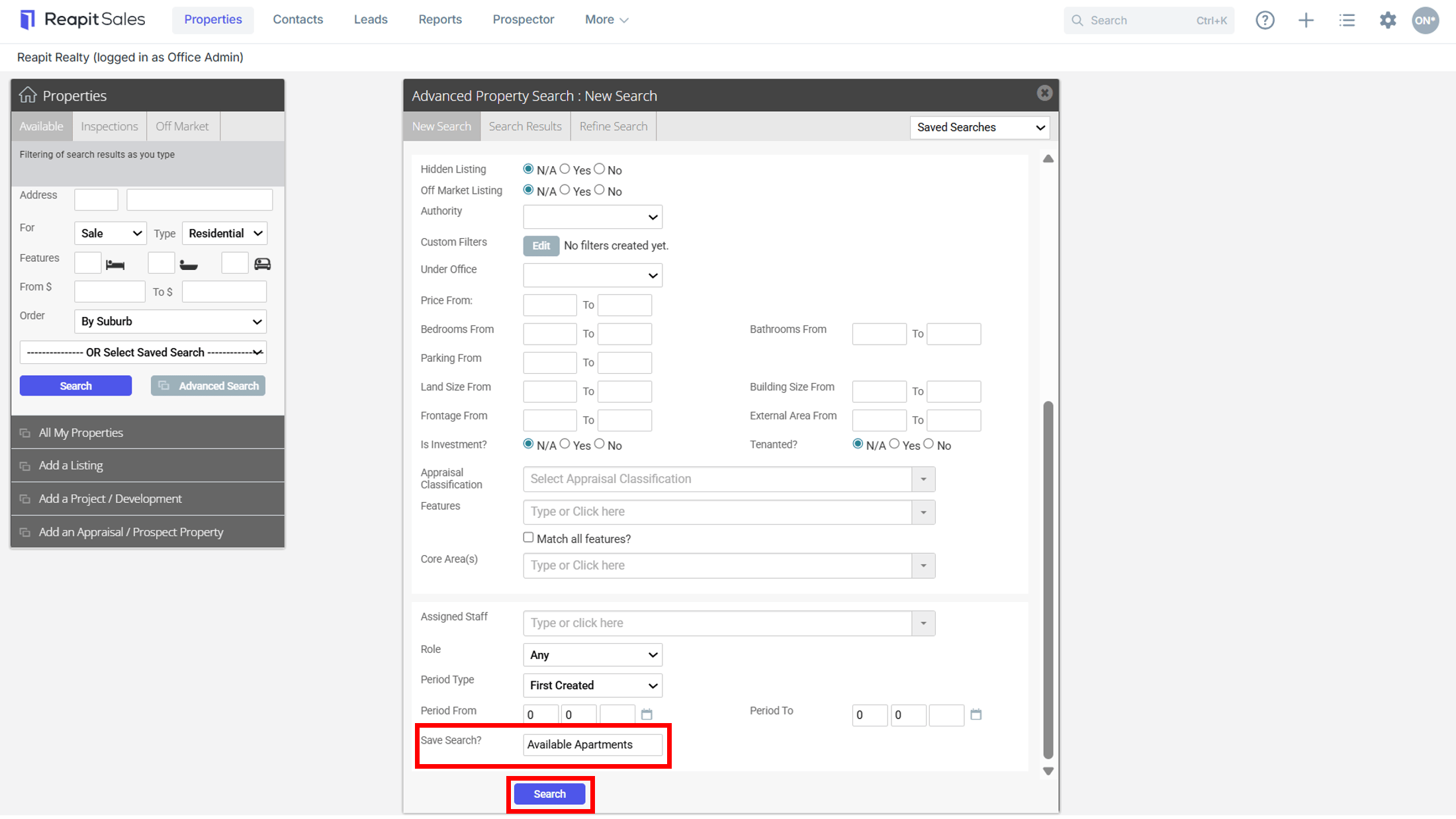
How do I save my Property Search in Reapit Sales?
*Note: the saved search will save the search criteria not the actual results so new properties will appear each time you run the search.
- Open the Advanced Property Search panel
- Enter your Search Criteria into the appropriate fields
- Click in the Save Search field and enter your Search name
- Click Search

How do I find my Saved Search in Reapit Sales?
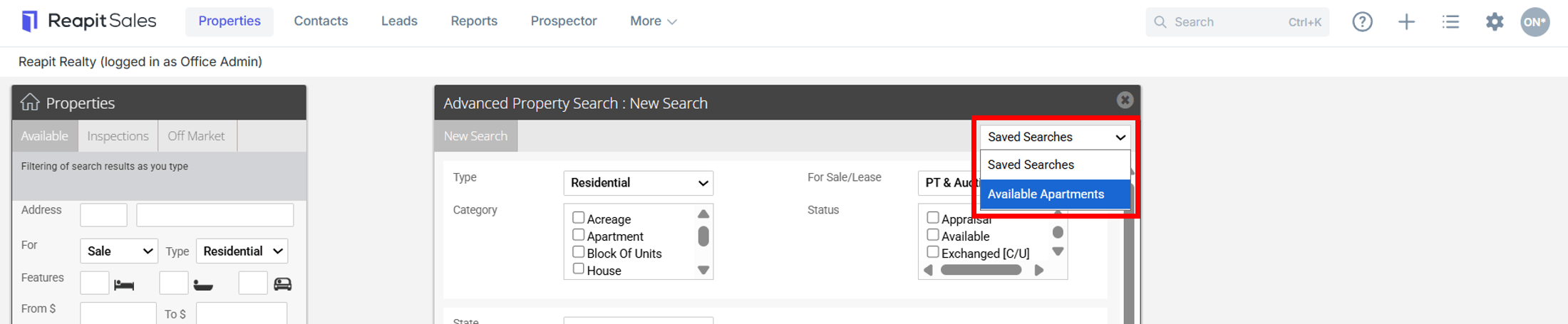
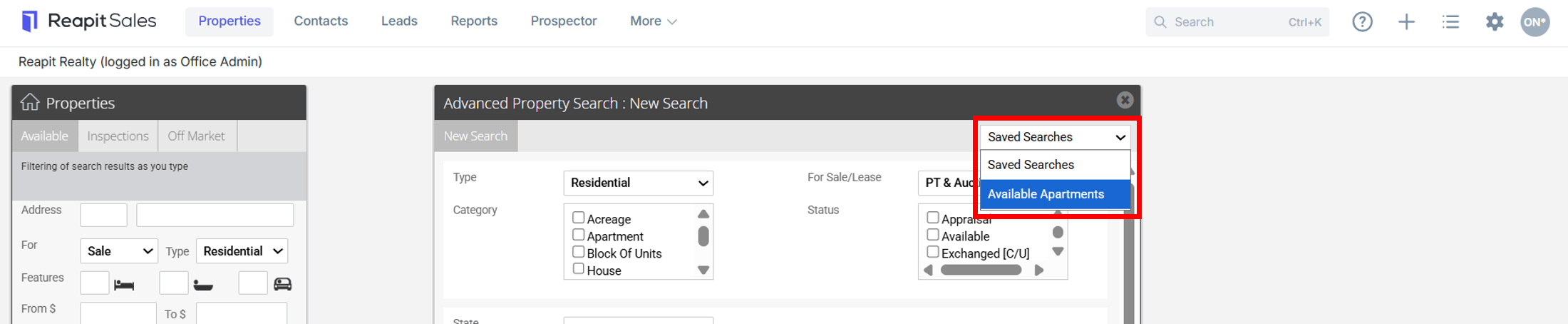
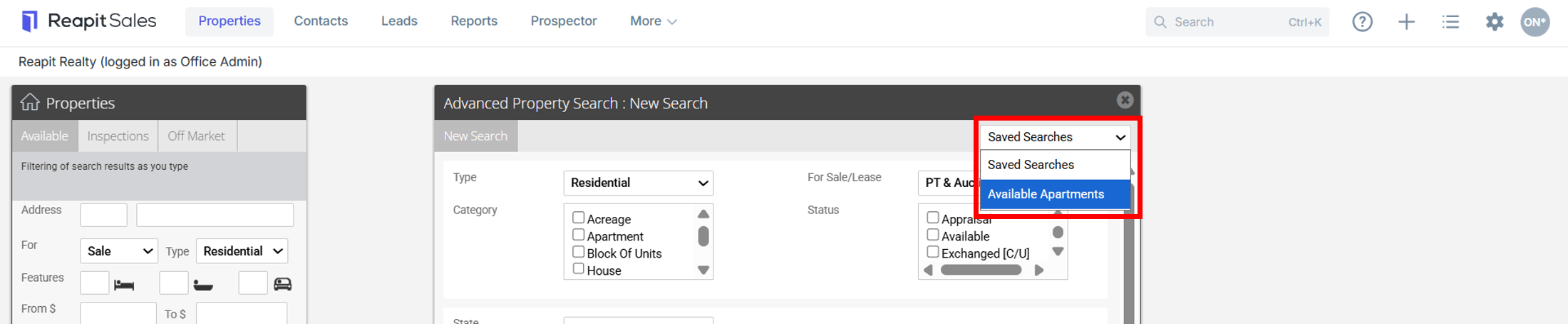
- Open the Advanced Property Search panel
- Click the Select Saved Searches drop-down and select your search.
- Your Target List will appear on screen.
How do I edit a saved property search?
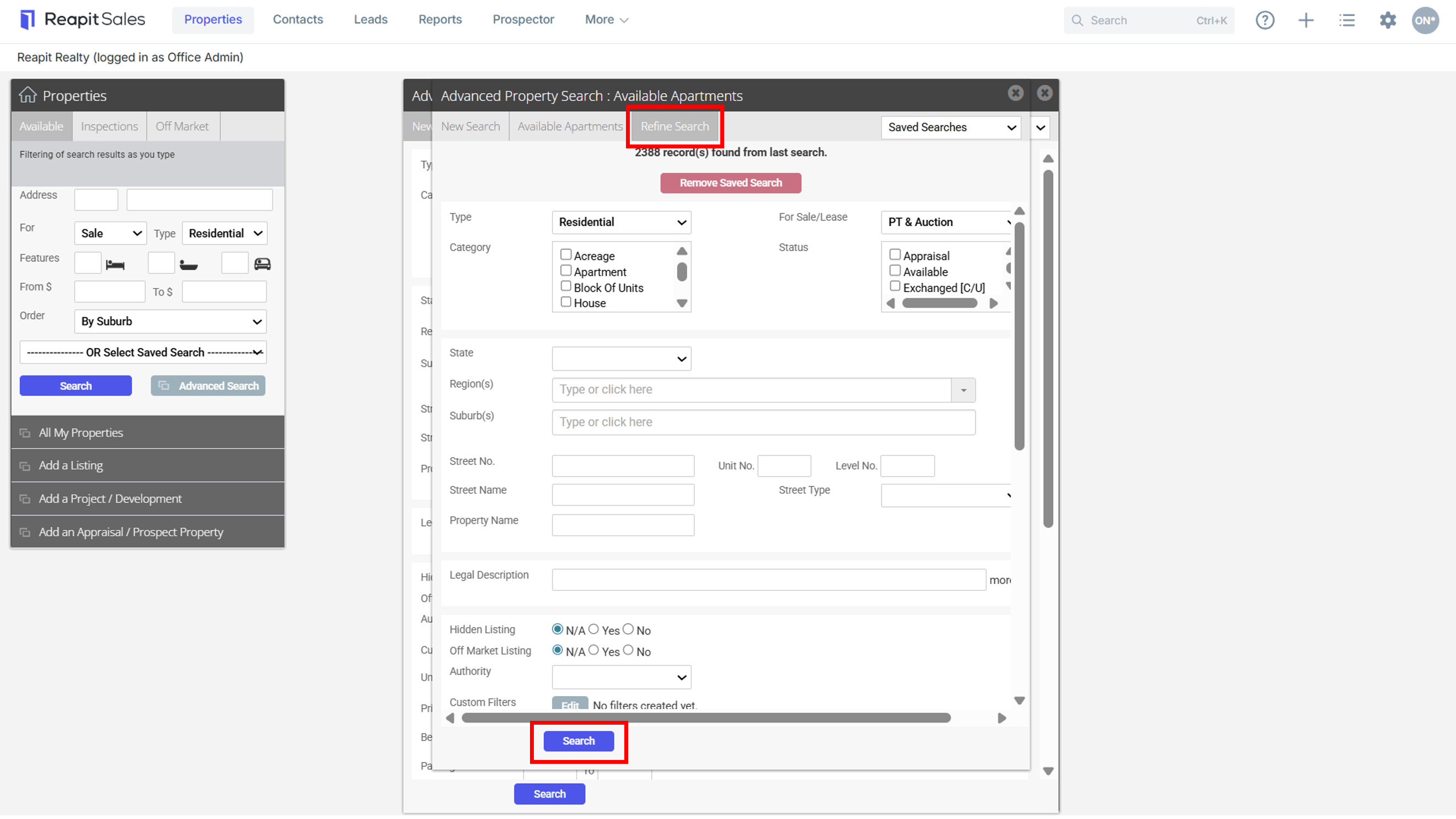
- Open one of your saved searches
- Click the Refine Search tab
 3. Alter search requirements as you wish
- Click Search
How do I remove a saved property search?
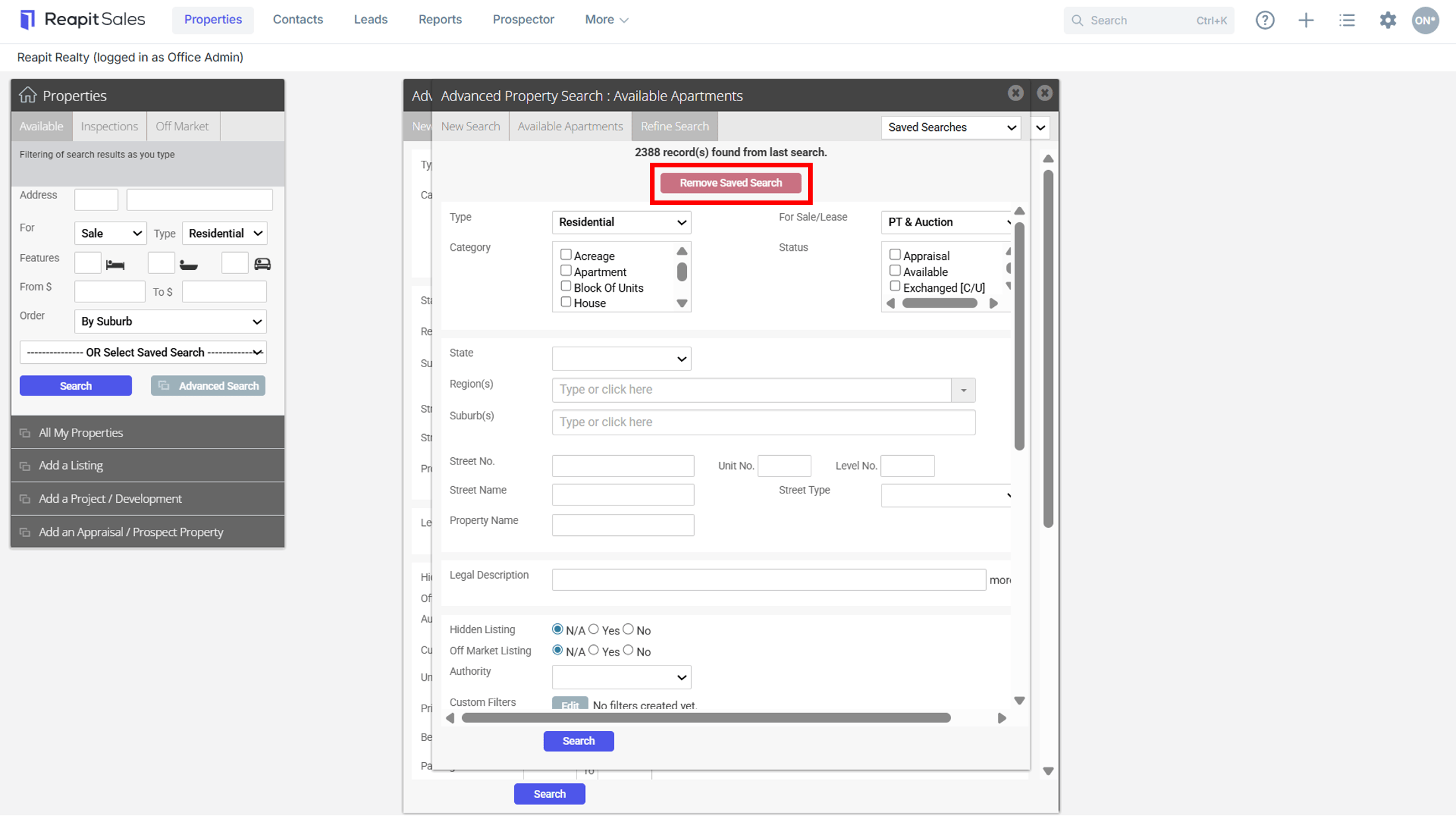
- Open one of your saved searches
- Click the Refine Search tab
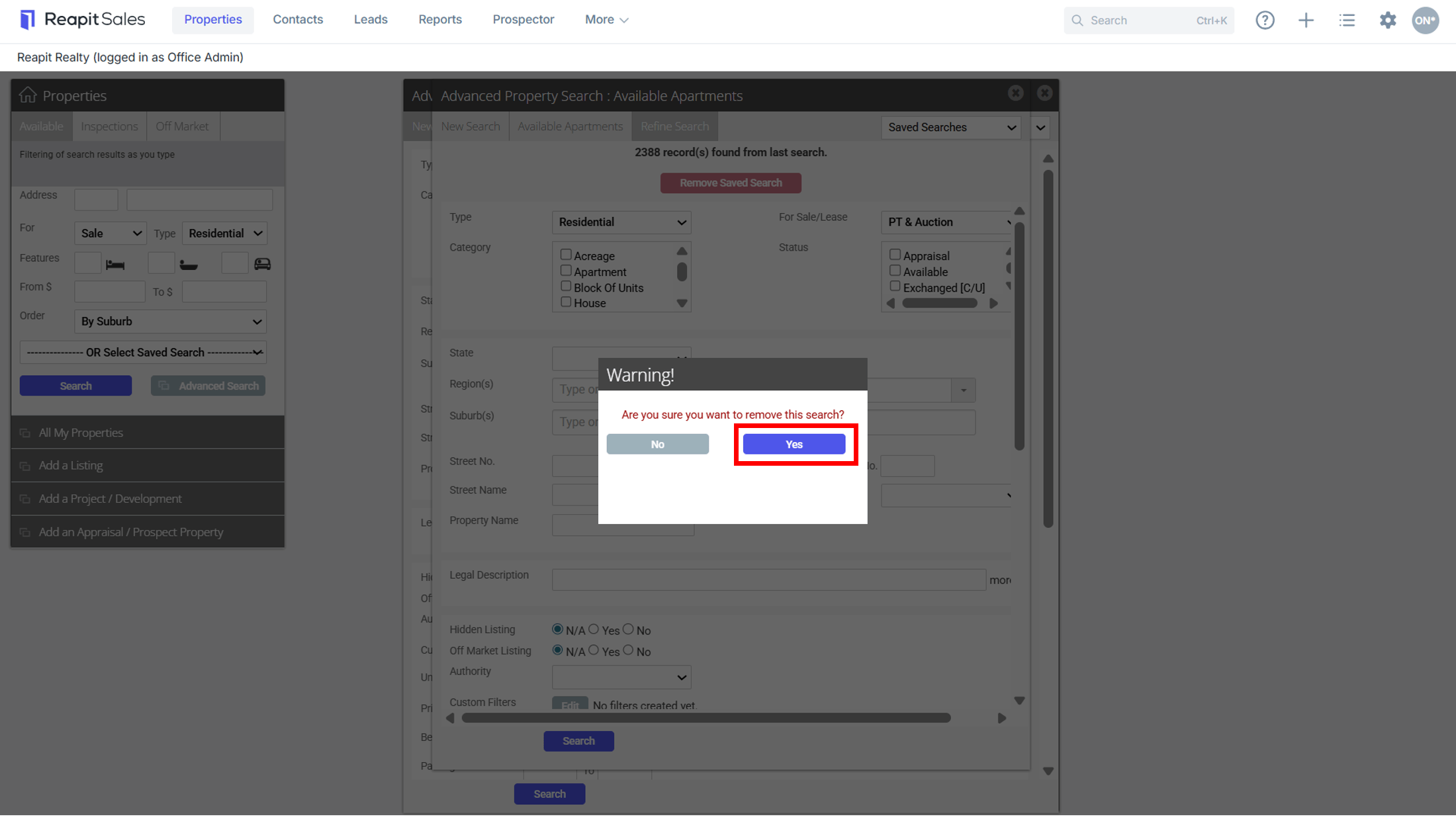
- Click the Remove Saved Search button

- Click Yes