'%20d='M0%208a8%208%200%200%201%208-8h24a8%208%200%200%201%208%208v24a8%208%200%200%201-8%208H8a8%208%200%200%201-8-8V8Z'/%3e%3cpath%20fill='%23fff'%20d='M10.41%206v3.779h15.048v19.537h4.132V6H10.41Z'/%3e%3cpath%20fill='%23fff'%20d='M20.967%2034V13.837L10.41%209.78v20.166L20.967%2034Z'/%3e%3cdefs%3e%3clinearGradient%20id='reapit-sales__a'%20x1='20.702'%20x2='20.702'%20y1='.351'%20y2='31.228'%20gradientUnits='userSpaceOnUse'%3e%3cstop%20stop-color='%235573FD'/%3e%3cstop%20offset='.575'%20stop-color='%234E56EA'/%3e%3c/linearGradient%3e%3c/defs%3e%3c/svg%3e)
Staff Photos
This article runs through how to upload staff photos in Reapit Sales. Note: Permissions may apply
Staff Photos
This article runs through how to upload staff photos in Reapit Sales.
Note: Permissions may apply
Staff profile photos will appear on e-newsletters, brochures, and window card templates. For Reapit Sales website clients, profile photos will also appear on your website.
Staff Photo Sizes: For CRM only clients please upload 480 x 480-pixel images. Reapit Sales website clients, please refer to your website guide for photo specifications.
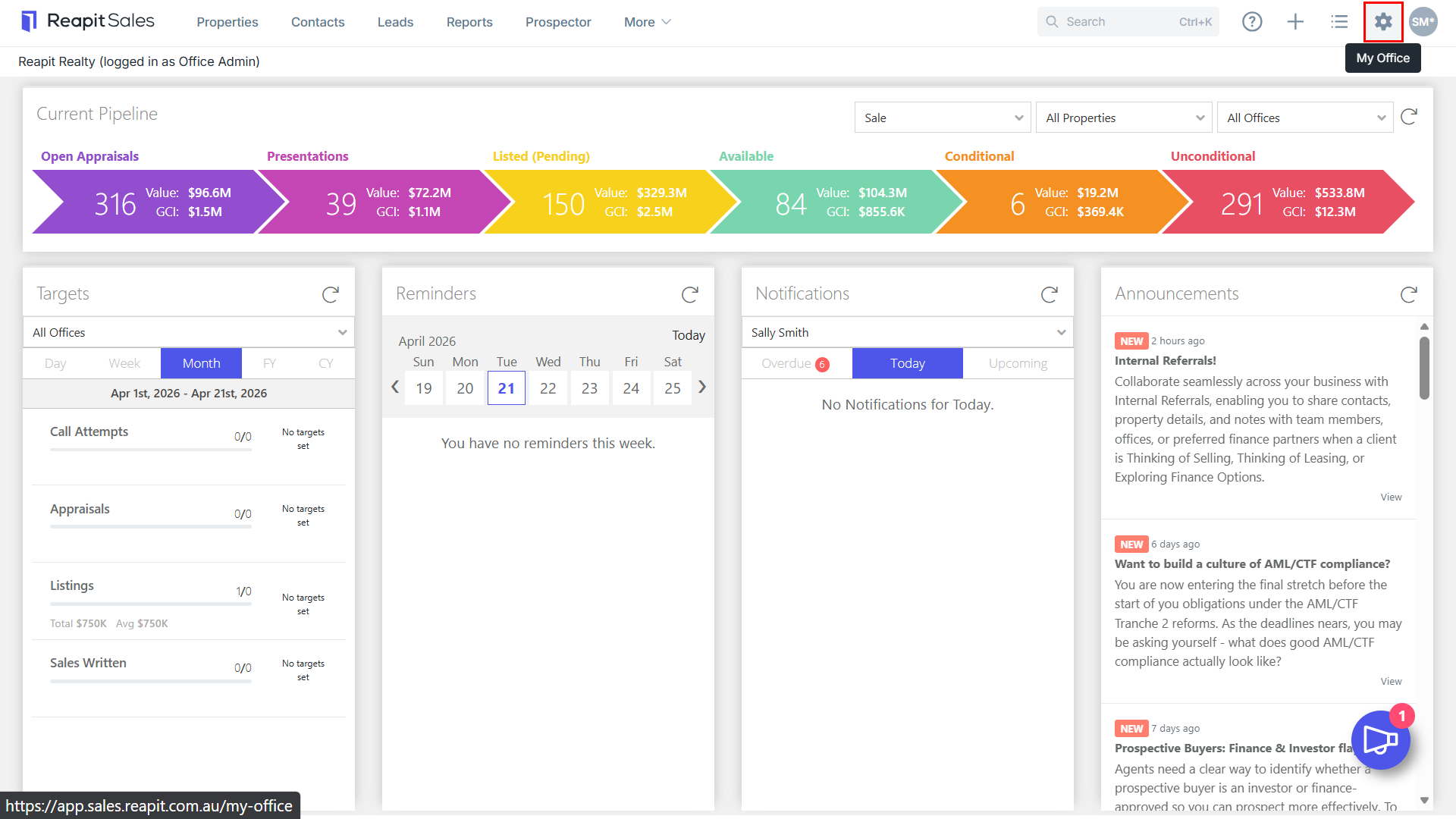
- Click My Office from the main menu.
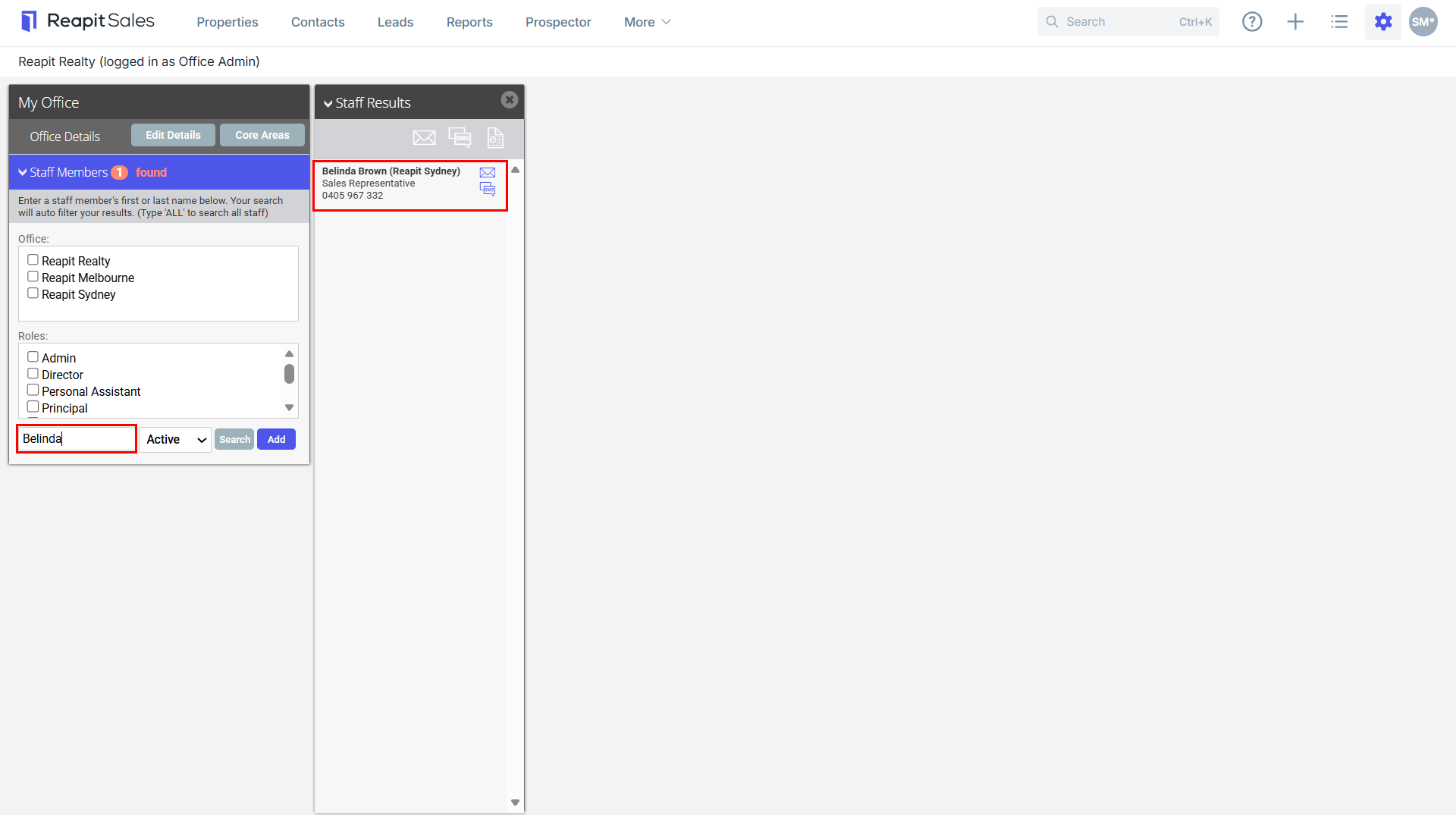
- Type the Staff Member's Name on the Left Panel and the staff member will appear on the staff results panel.
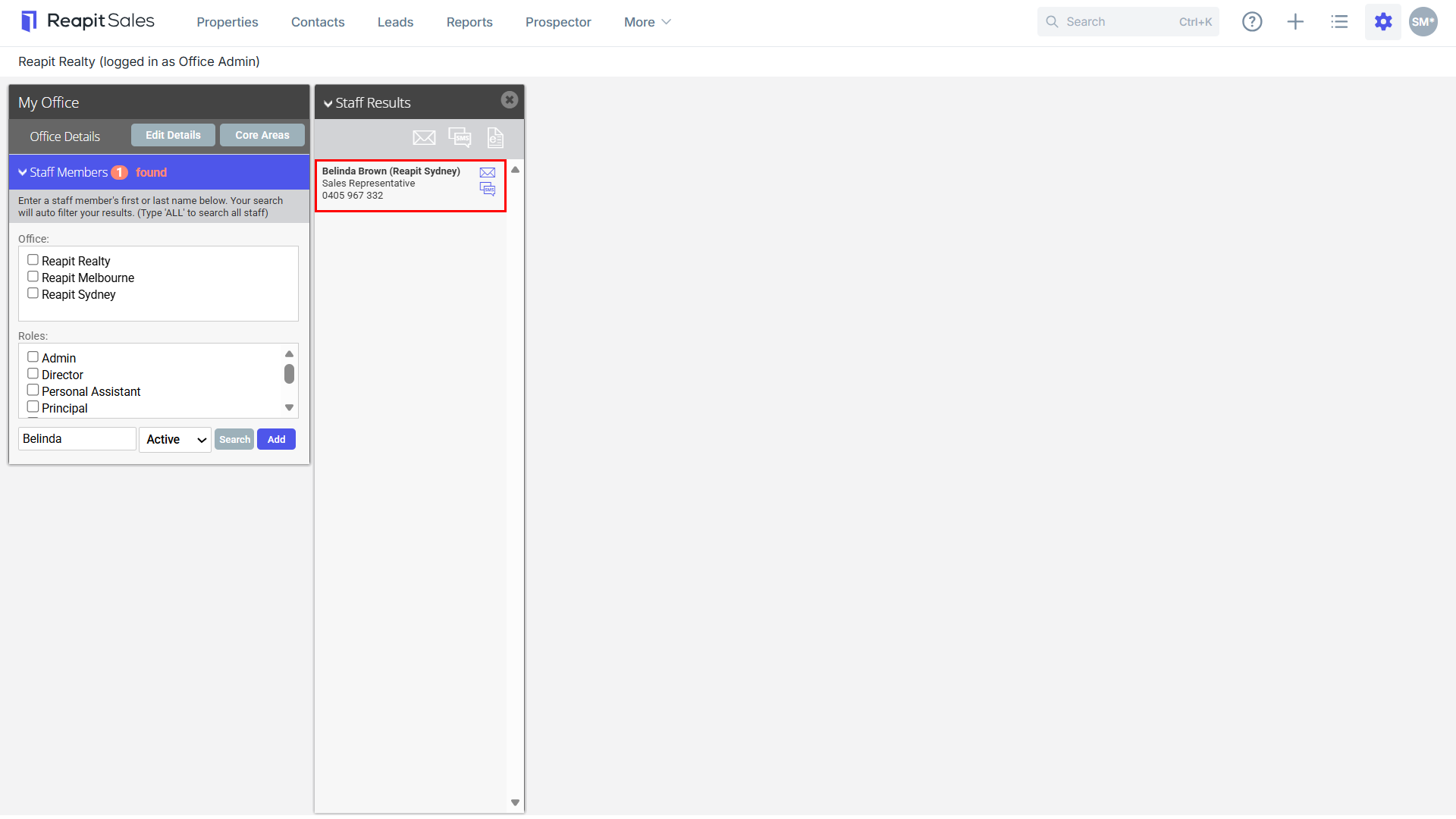
- Click the staff members name to open their staff card.
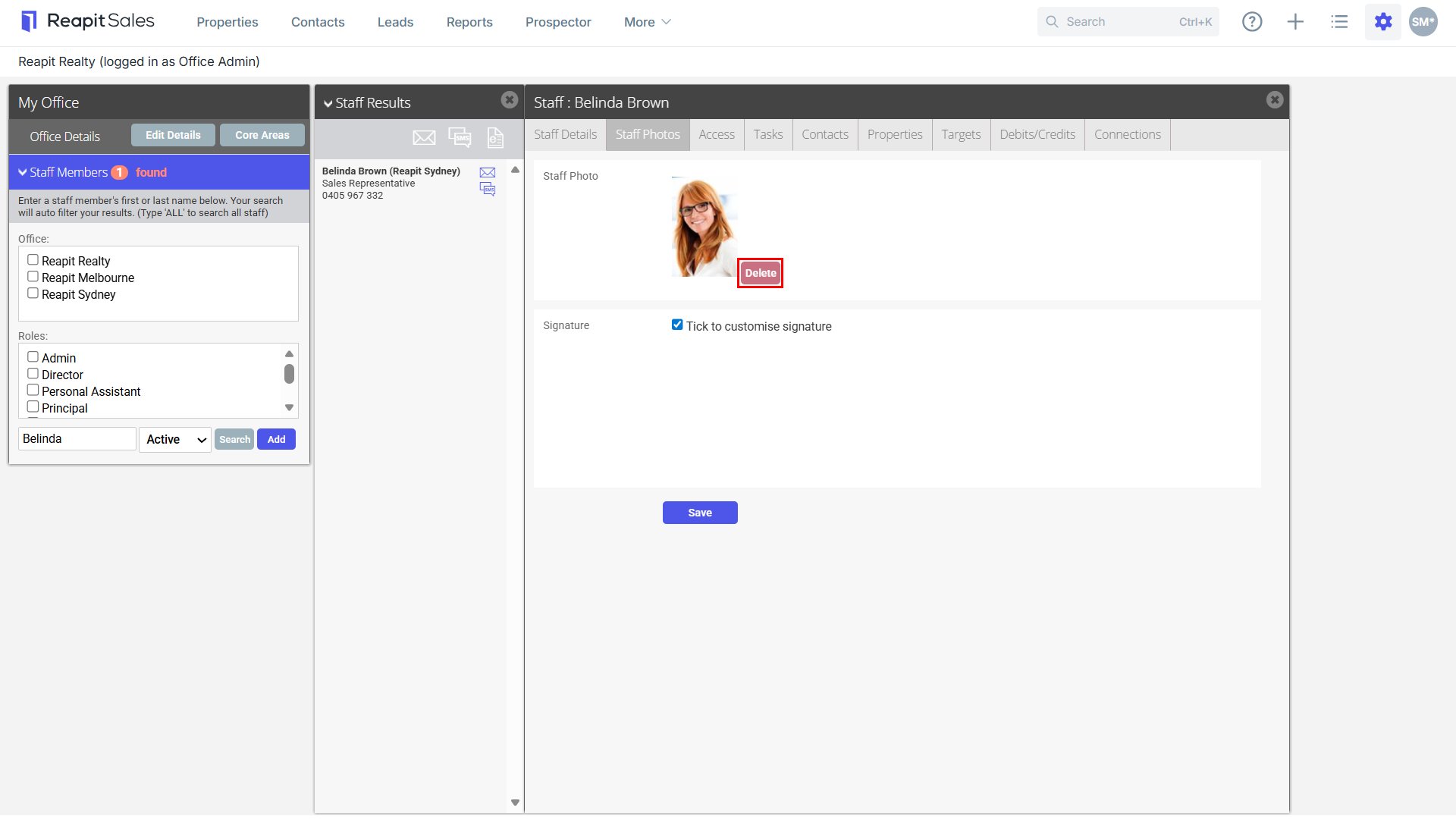
- Click the Staff Photos tab & select upload to load a new photo
Note: You may be required to upload more than one image if you have an Reapit Sales Website or Custom marketing material. Please ensure you add all photos required in the correct photo dimensions.
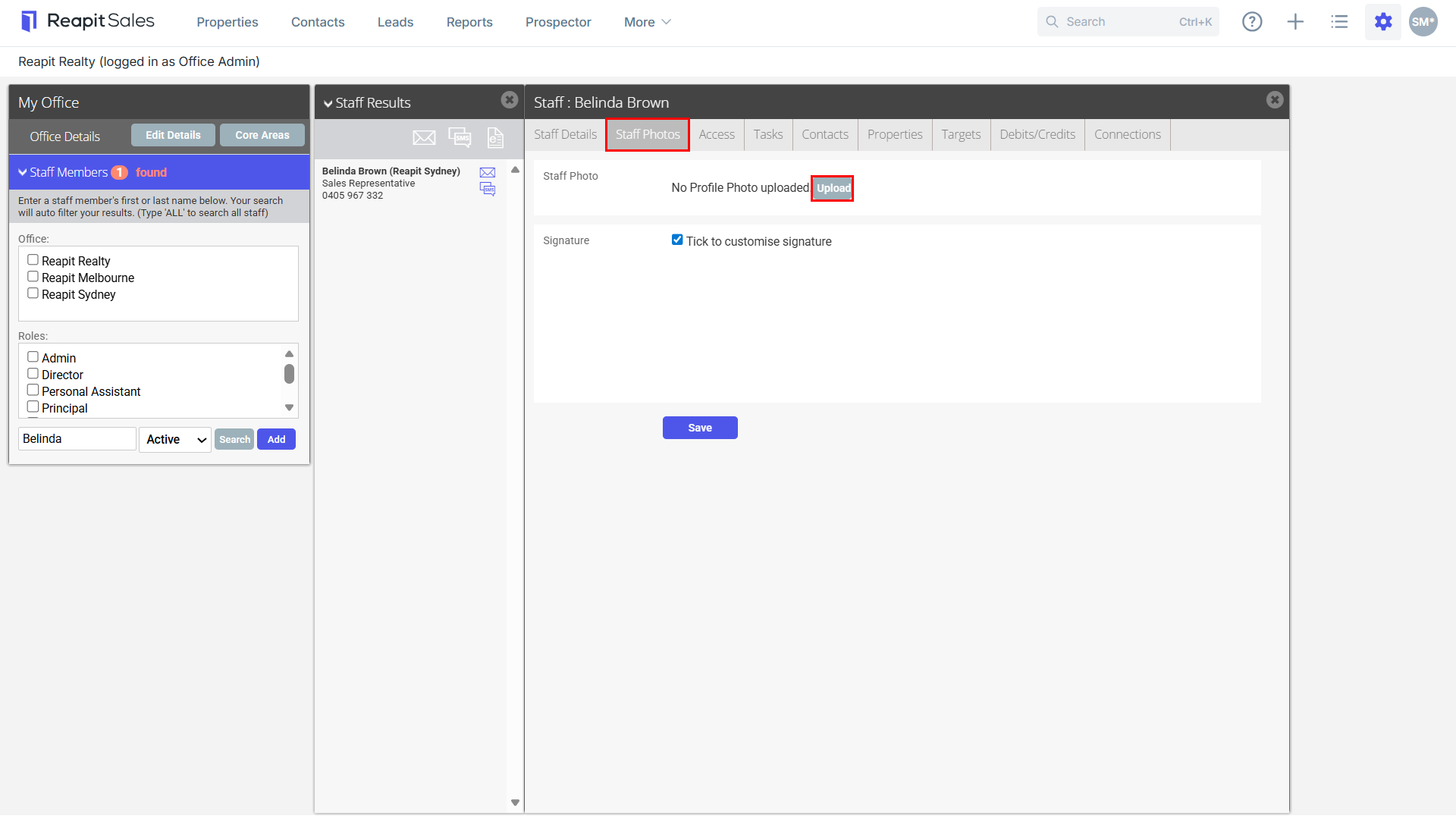
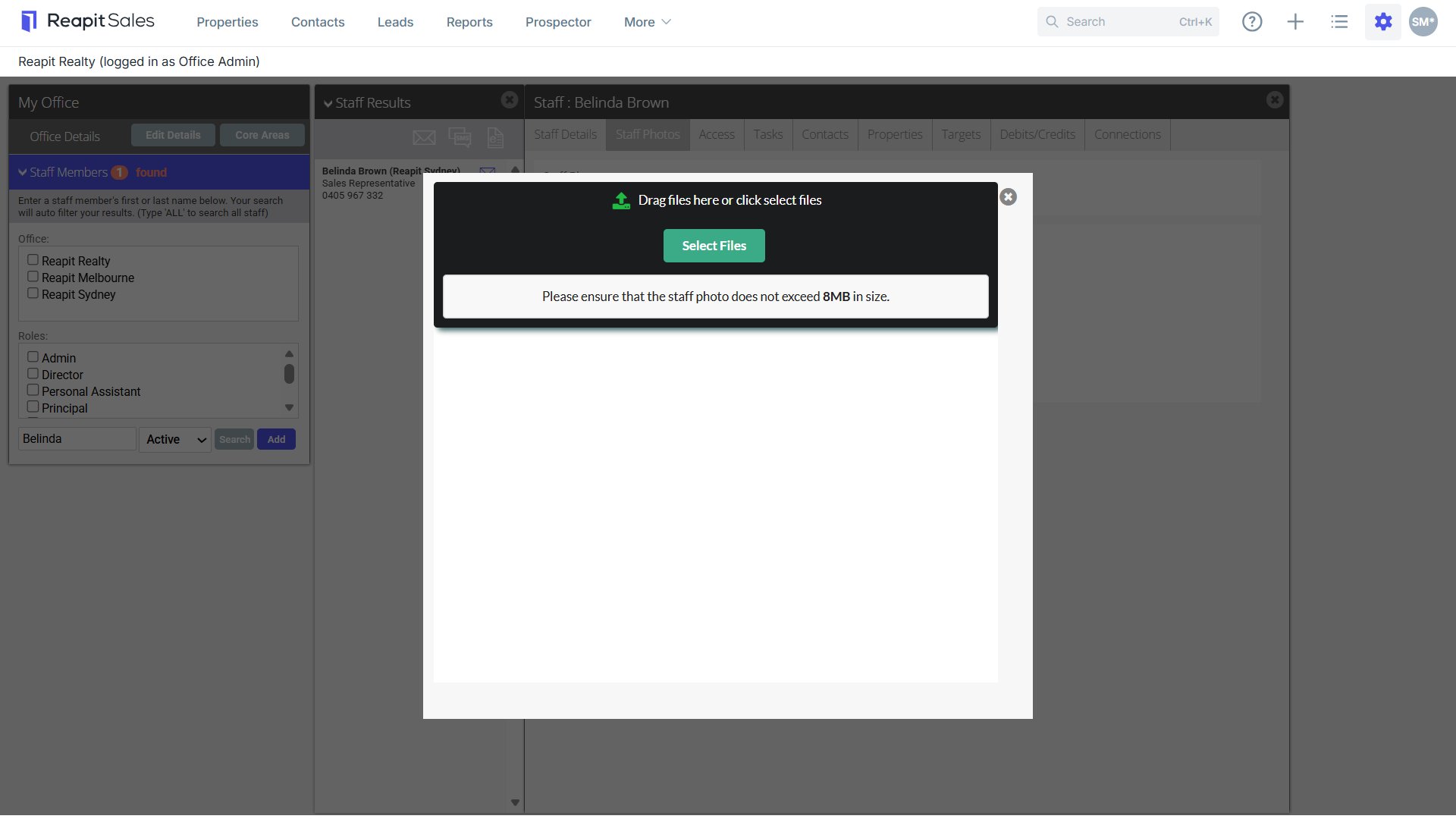
- Drag photo here or select file to browse for the photo.
- Once the photo has loaded, click S****ave to finish.
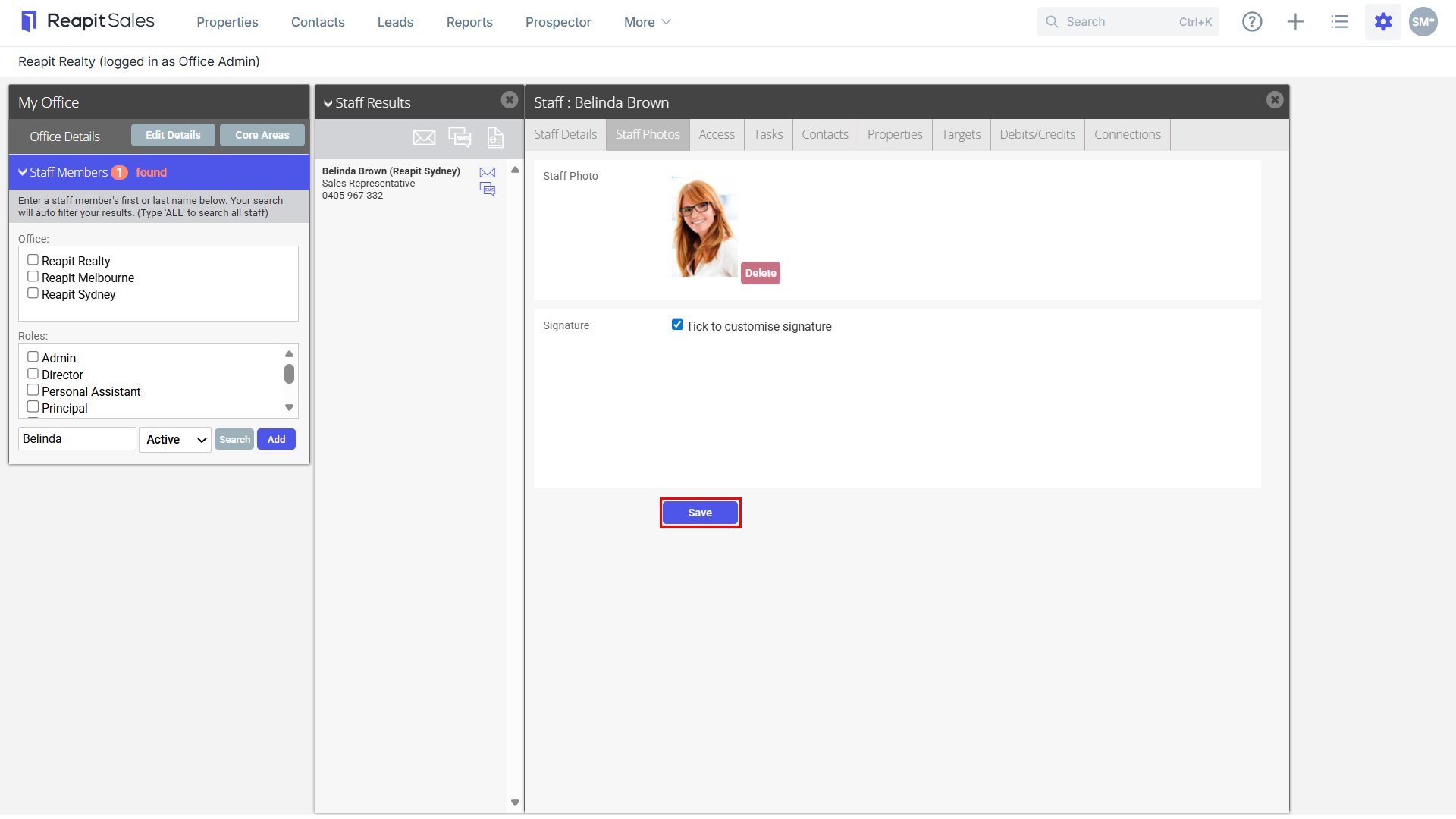
- To delete a staff profile photo, click delete next to the photo.