'%20d='M0%208a8%208%200%200%201%208-8h24a8%208%200%200%201%208%208v24a8%208%200%200%201-8%208H8a8%208%200%200%201-8-8V8Z'/%3e%3cpath%20fill='%23fff'%20d='M10.41%206v3.779h15.048v19.537h4.132V6H10.41Z'/%3e%3cpath%20fill='%23fff'%20d='M20.967%2034V13.837L10.41%209.78v20.166L20.967%2034Z'/%3e%3cdefs%3e%3clinearGradient%20id='reapit-sales__a'%20x1='20.702'%20x2='20.702'%20y1='.351'%20y2='31.228'%20gradientUnits='userSpaceOnUse'%3e%3cstop%20stop-color='%235573FD'/%3e%3cstop%20offset='.575'%20stop-color='%234E56EA'/%3e%3c/linearGradient%3e%3c/defs%3e%3c/svg%3e)
How to Insert an Image
This article will cover how to insert an image in Reapit Sales.
*Note: this is an add on feature. Please send a email to support@agentbox.com.au to have this feature activated.
1. Click the Create Letter icon  at the top of the contact or property card

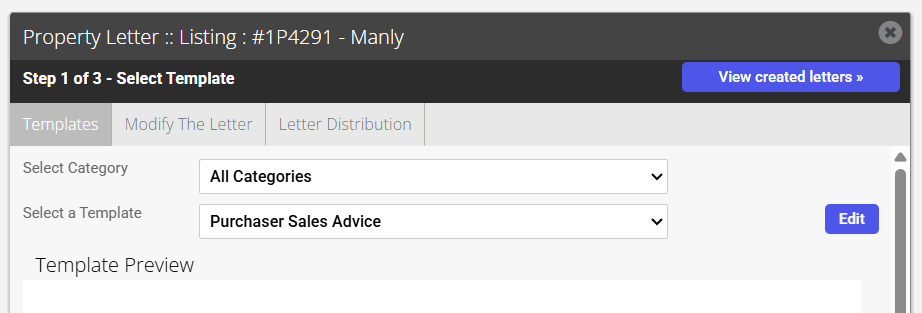
2. Click the Select A Template drop-down menu at the top of the panel and choose the template you would like to modify

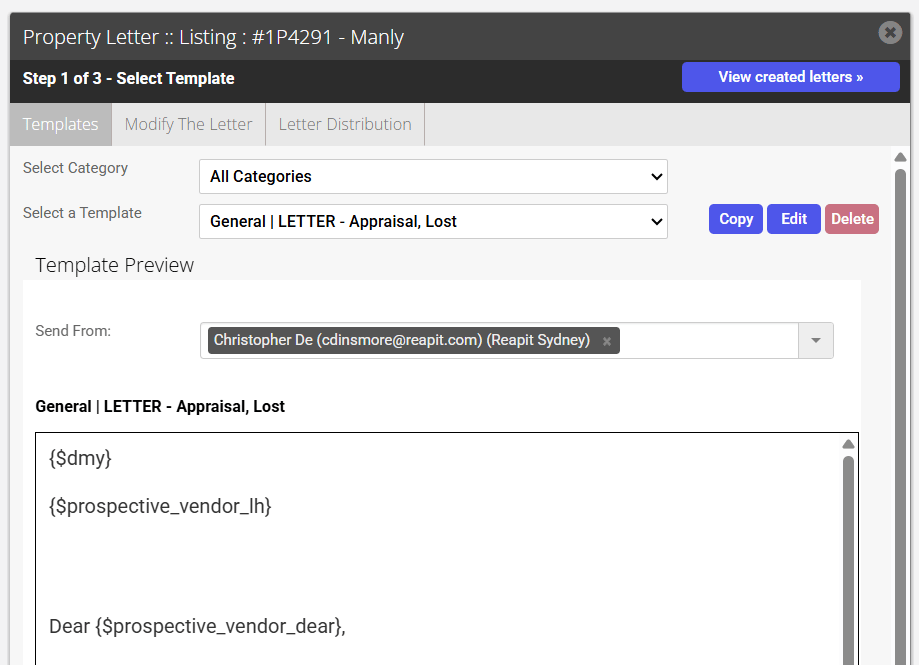
3. You will now be able to click an Edit button to the right of the Select a Template drop-down menu
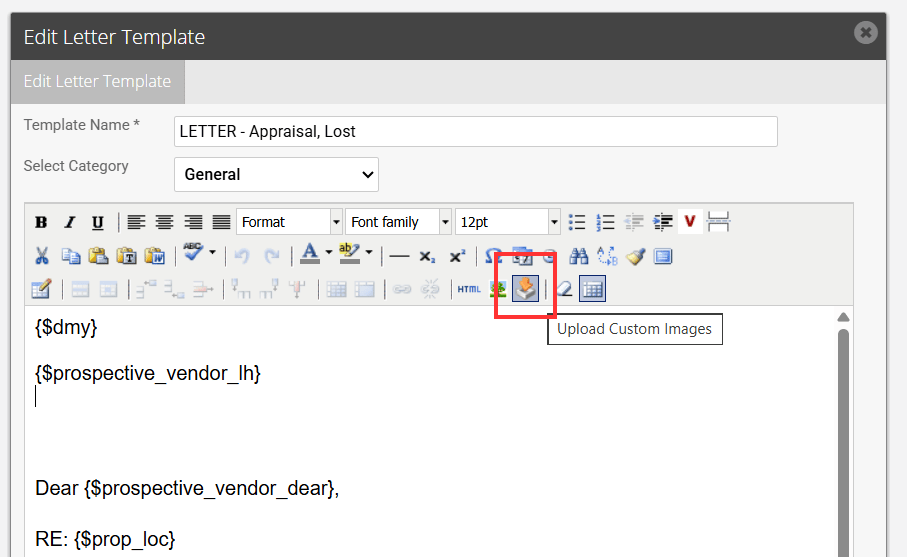
4. To upload an image Click the orange arrow icon  to load your image into the system
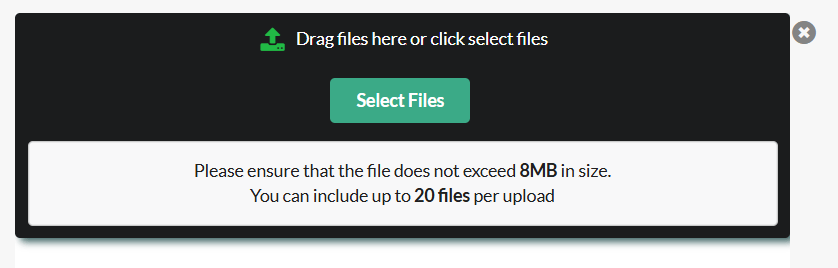
5. Select a file from your desktop or drag a file to the box

6. Once image has loaded click where you would like to insert the image
7. Click the Insert Image icon to insert your image
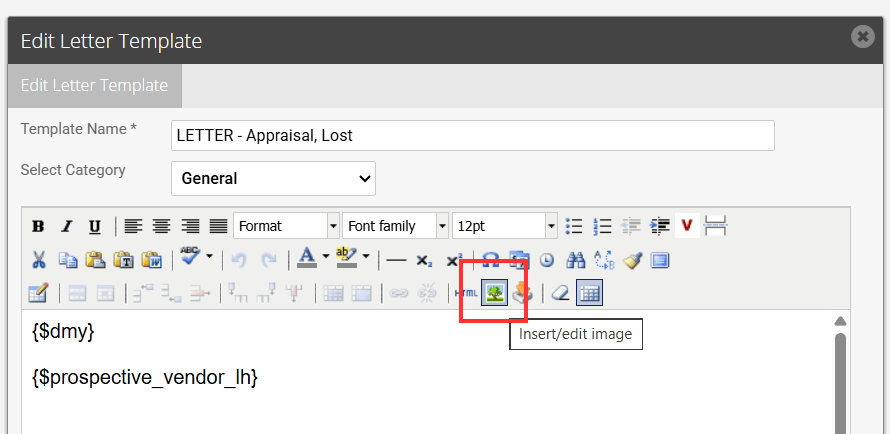
8. Select your image from the Image List drop-down.
9. Image will appear in the window.
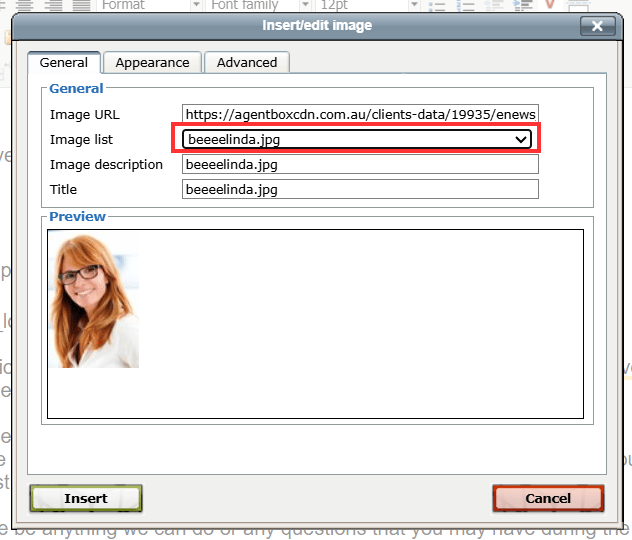
10. You can edit the positioning and dimensions of the image in the Appearance tab

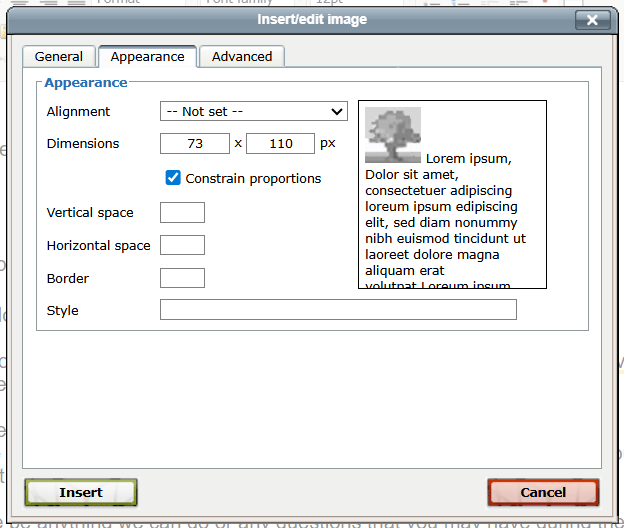
11. Click Insert 
12. Once you have completed your editing, you can select whether or not to share this template with other agents or whether this edited version will be just for you by ticking the Share to Agents checkbox
Permissions: There are multiple permissions in Agentbox that impact how templates can be shared within a database.
13. Lastly hit Save You will be redirected back to the Select Template page and your template can be selected from the drop-down list.