'%20d='M0%208a8%208%200%200%201%208-8h24a8%208%200%200%201%208%208v24a8%208%200%200%201-8%208H8a8%208%200%200%201-8-8V8Z'/%3e%3cpath%20fill='%23fff'%20d='M32.576%206C12.293%206%208.776%2025.887%207.424%2034H9.1c.45-2.977%203.493-14.748%2010.899-20.287%200%200-5.633%206.976-6.572%2015.051%203.426-.652%2013.845-3.372%2016.056-12.927l-3.84-.61c1.352-1.351%204.909-5.17%206.931-9.226V6Z'/%3e%3cdefs%3e%3clinearGradient%20id='reapit-lettings__a'%20x1='20.702'%20x2='20.702'%20y1='.351'%20y2='31.228'%20gradientUnits='userSpaceOnUse'%3e%3cstop%20stop-color='%235573FD'/%3e%3cstop%20offset='.575'%20stop-color='%234E56EA'/%3e%3c/linearGradient%3e%3c/defs%3e%3c/svg%3e)
Troubleshooting : Inspection or Property not Showing in Reapit Viewings
This article covers possible reasons the inspection or property isn't showing in Reapit Viewings.
If a property address or inspection is not appearing in the dropdown list, the most common cause is that the inspector assigned to the property does not match the login account currently being used.
Workaround: Access the Property via Reapit Viewings
1. If you need immediate access to the property, you can use the following workaround:
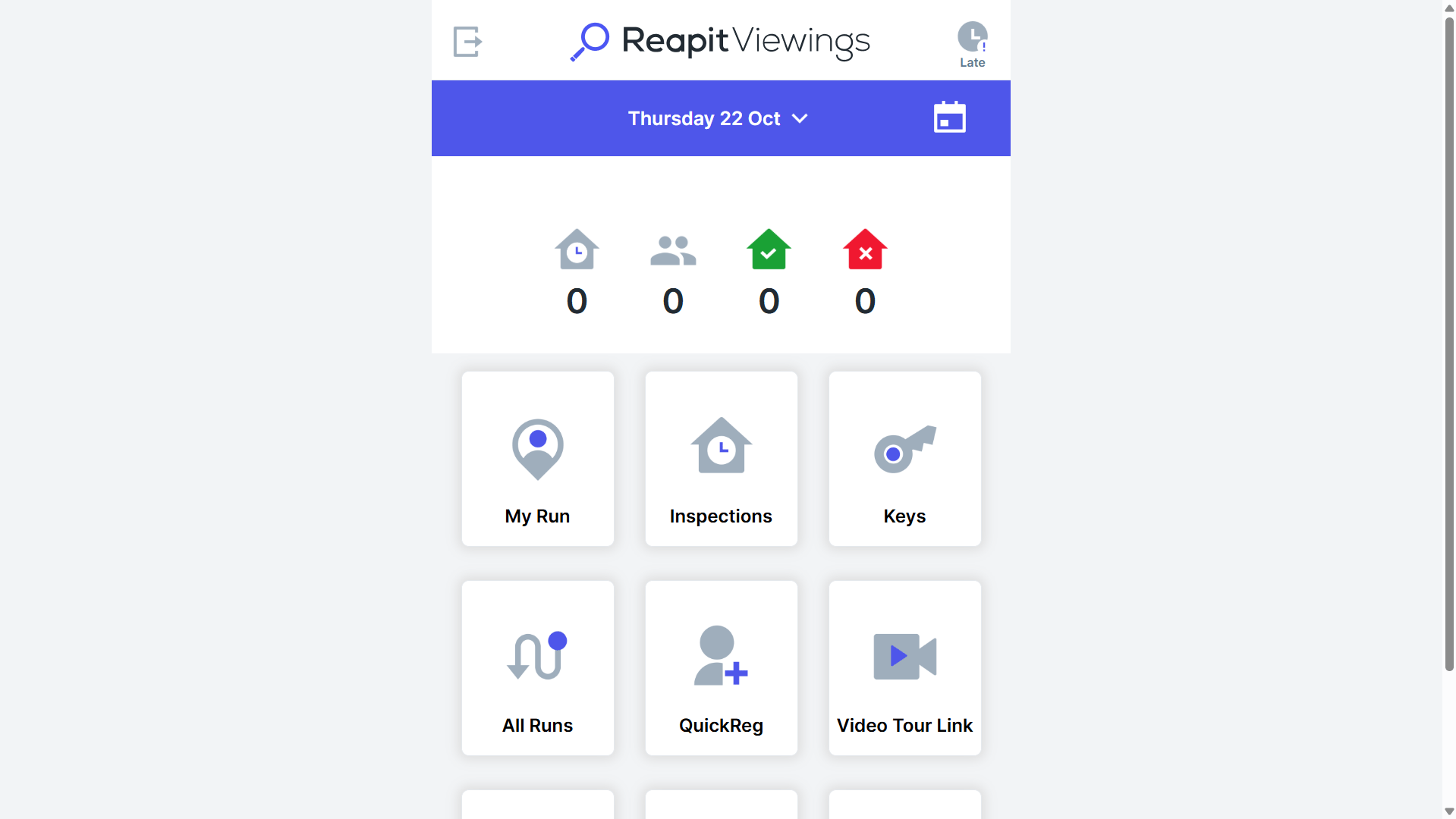
From the Reapit Viewings home screen, click All Runs.
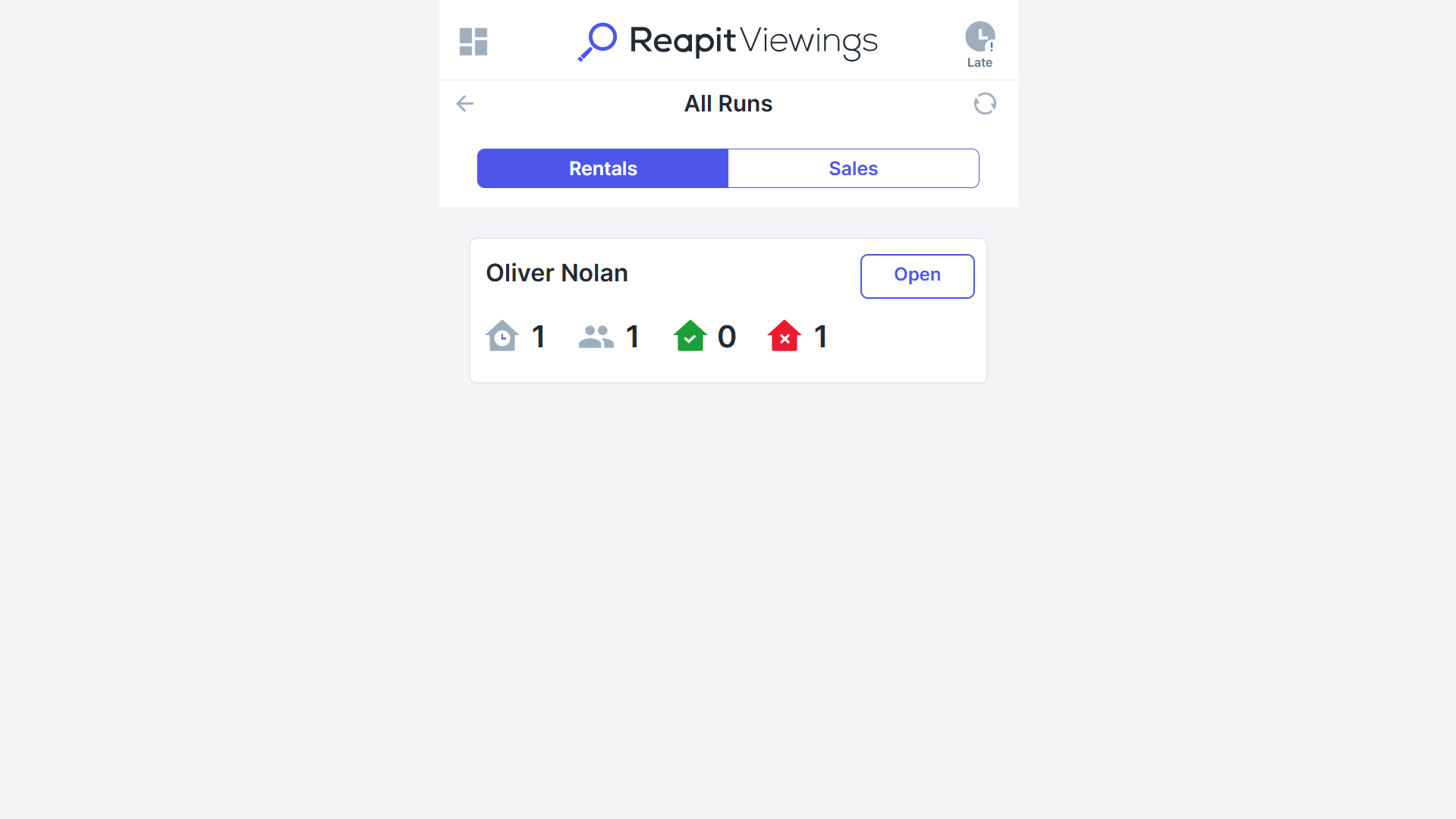
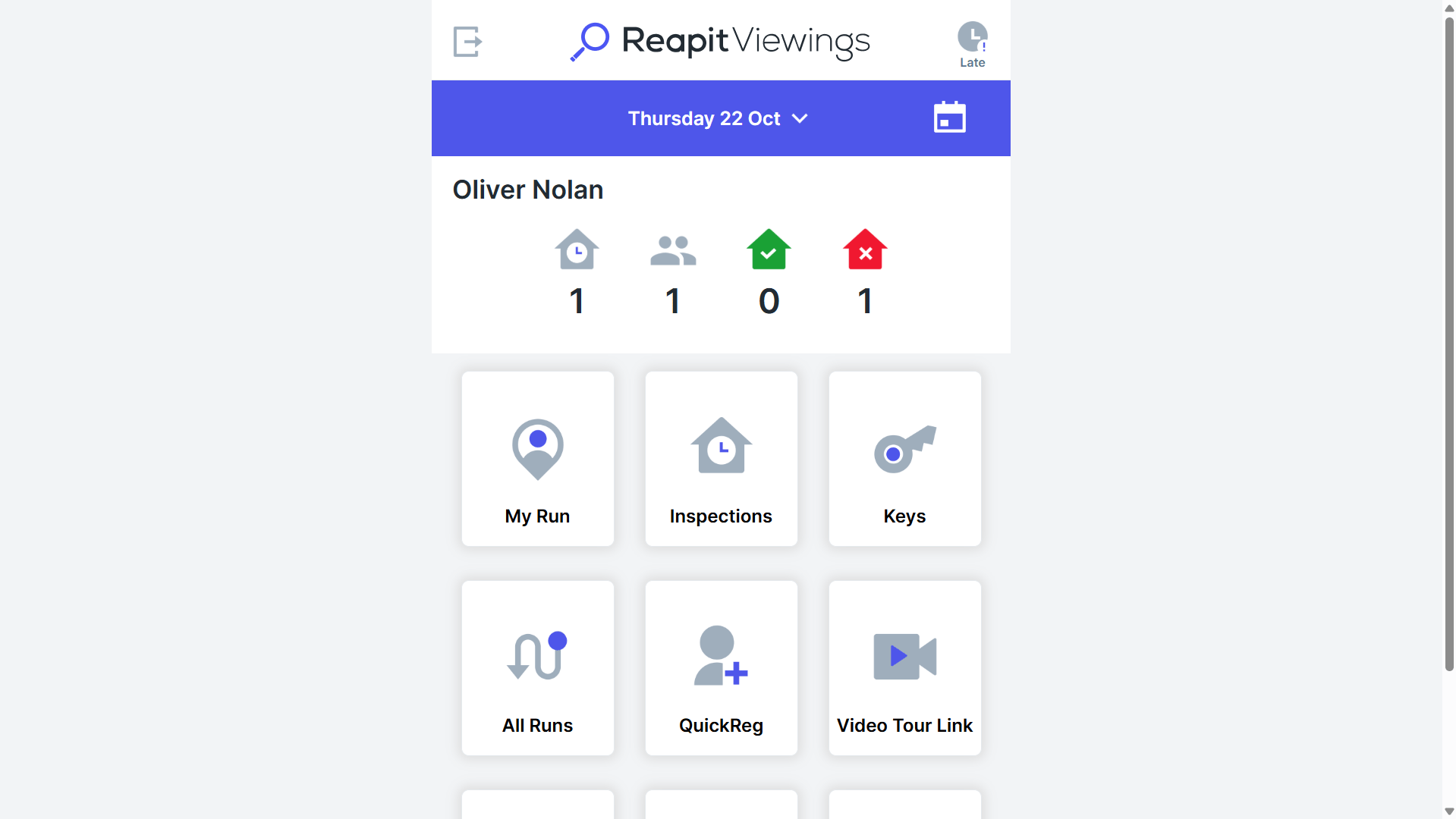
2. Locate and open the run assigned to the inspector associated with the property.
3. Click Running Late.
The property address should now be visible and accessible.
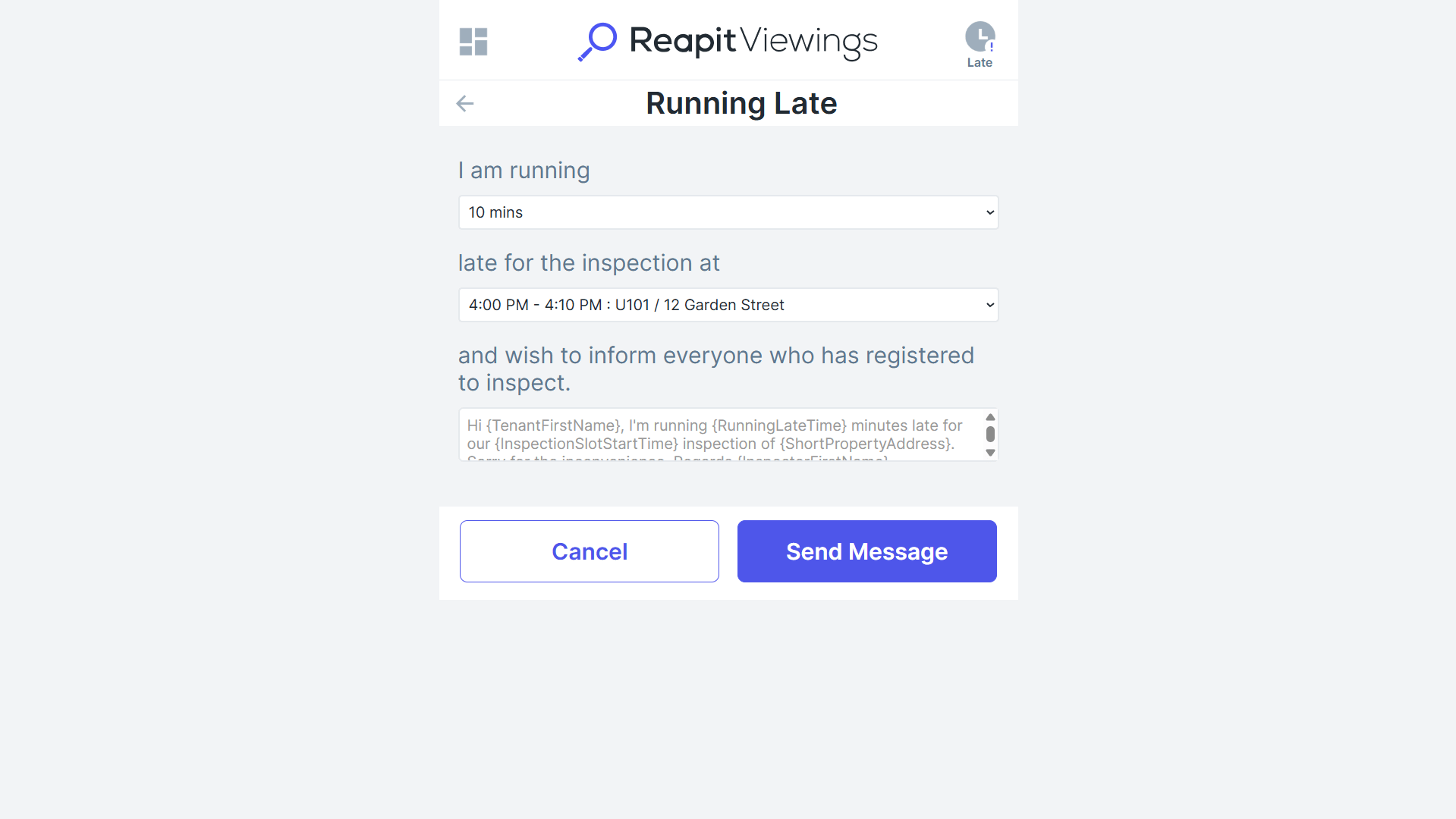
This method effectively allows you to access the run associated with the assigned inspector.
Permanent Resolution
To ensure properties appear correctly without using the workaround:
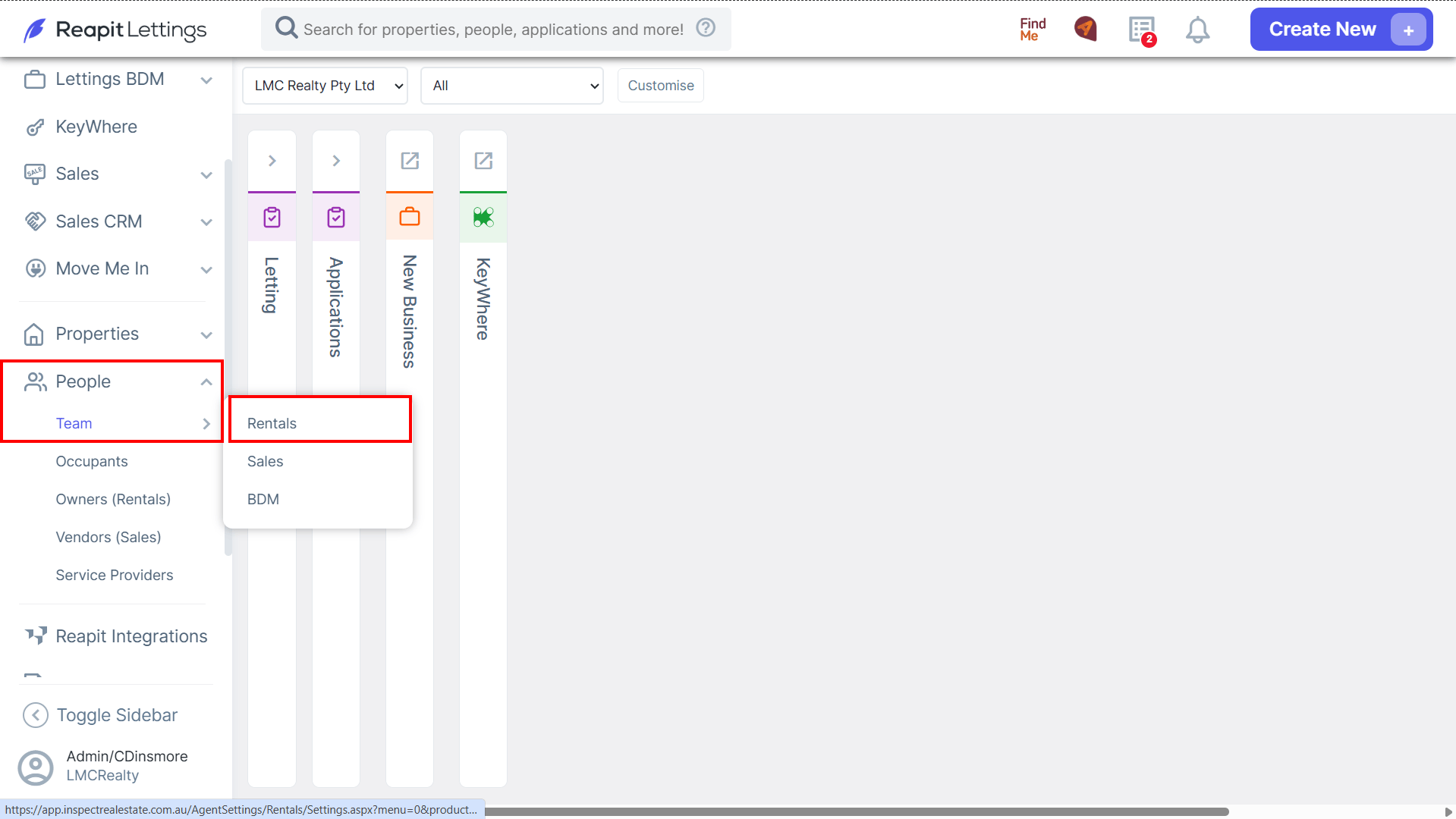
1. Navigate to People.
2. Navigate to Team.
3. Select Rentals or Sales.
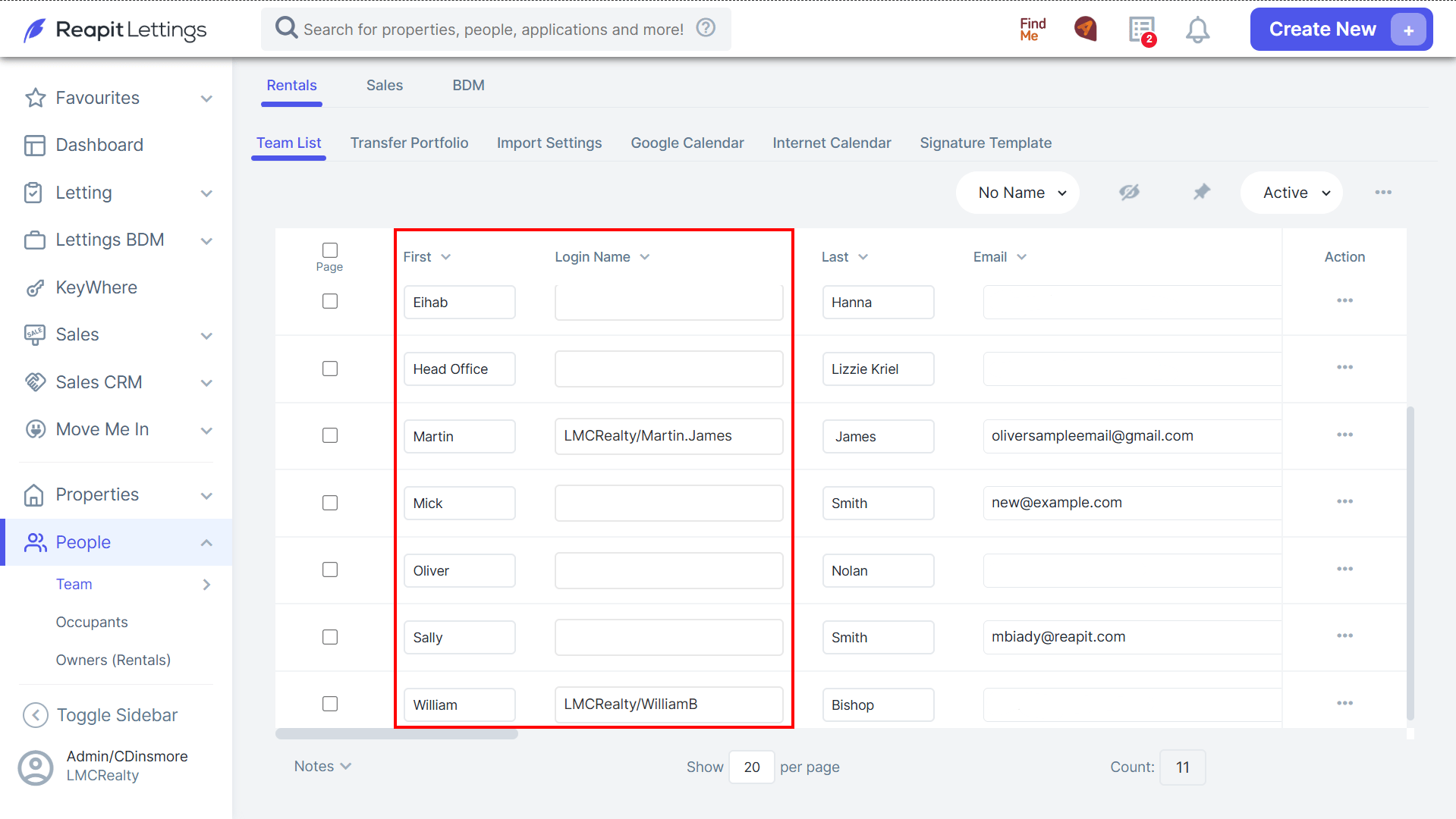
4. Locate the affected user.
5. Confirm that the Inspectors Name matches the Login Name exactly.
- The login name is the account used to sign in.
- The inspector/first name is the name used when assigning properties and inspections.
6. Update the details if required and Save the changes.
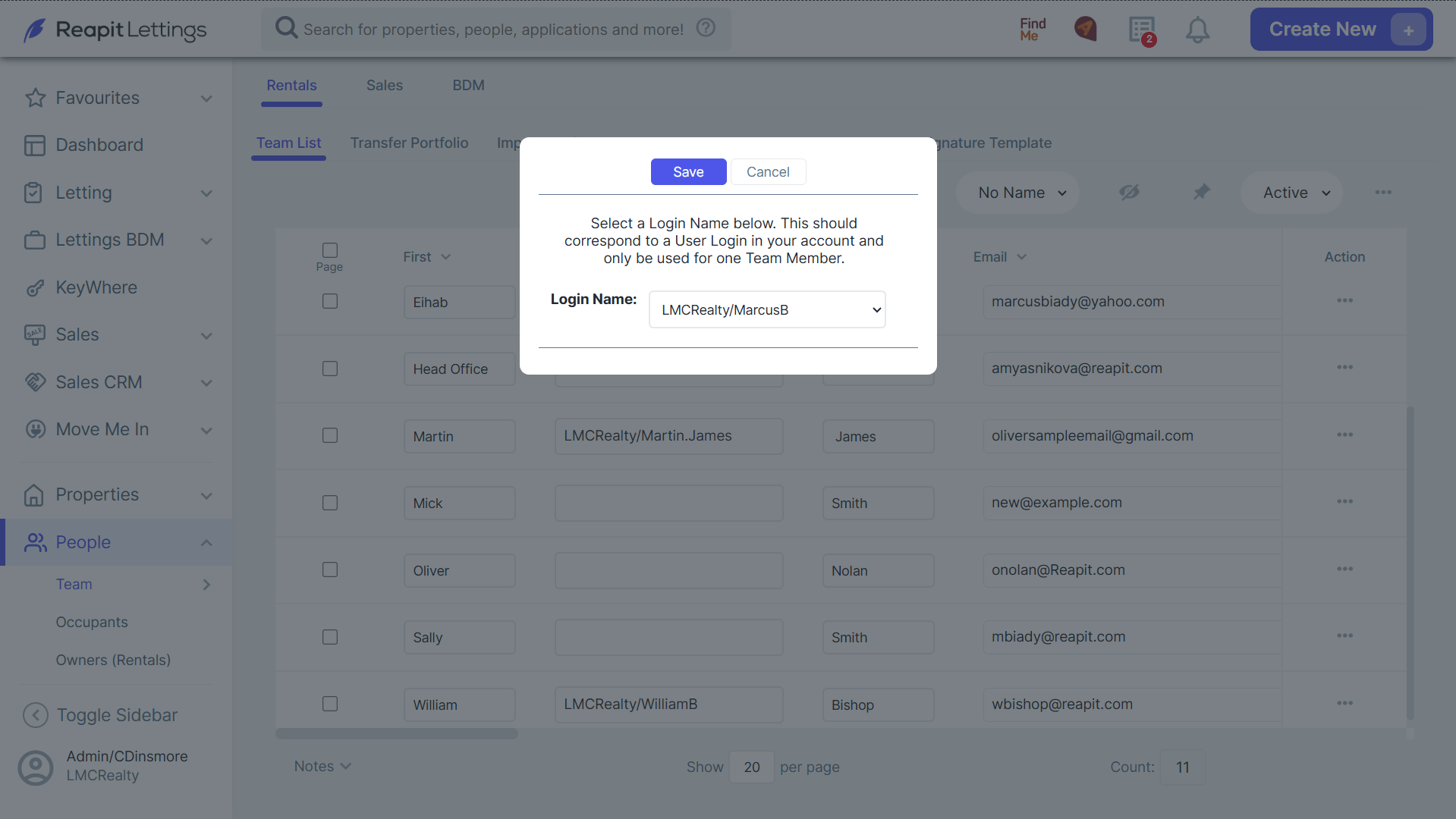
Once these names match, the property should appear in the dropdown as expected.