'%20d='M0%208a8%208%200%200%201%208-8h24a8%208%200%200%201%208%208v24a8%208%200%200%201-8%208H8a8%208%200%200%201-8-8V8Z'/%3e%3cpath%20fill='%23fff'%20d='M32.576%206C12.293%206%208.776%2025.887%207.424%2034H9.1c.45-2.977%203.493-14.748%2010.899-20.287%200%200-5.633%206.976-6.572%2015.051%203.426-.652%2013.845-3.372%2016.056-12.927l-3.84-.61c1.352-1.351%204.909-5.17%206.931-9.226V6Z'/%3e%3cdefs%3e%3clinearGradient%20id='reapit-lettings__a'%20x1='20.702'%20x2='20.702'%20y1='.351'%20y2='31.228'%20gradientUnits='userSpaceOnUse'%3e%3cstop%20stop-color='%235573FD'/%3e%3cstop%20offset='.575'%20stop-color='%234E56EA'/%3e%3c/linearGradient%3e%3c/defs%3e%3c/svg%3e)
Managing Users in KeyWhere with Reapit Connect
This article explains how to manage user accounts in KeyWhere with Reapit Connect enabled.
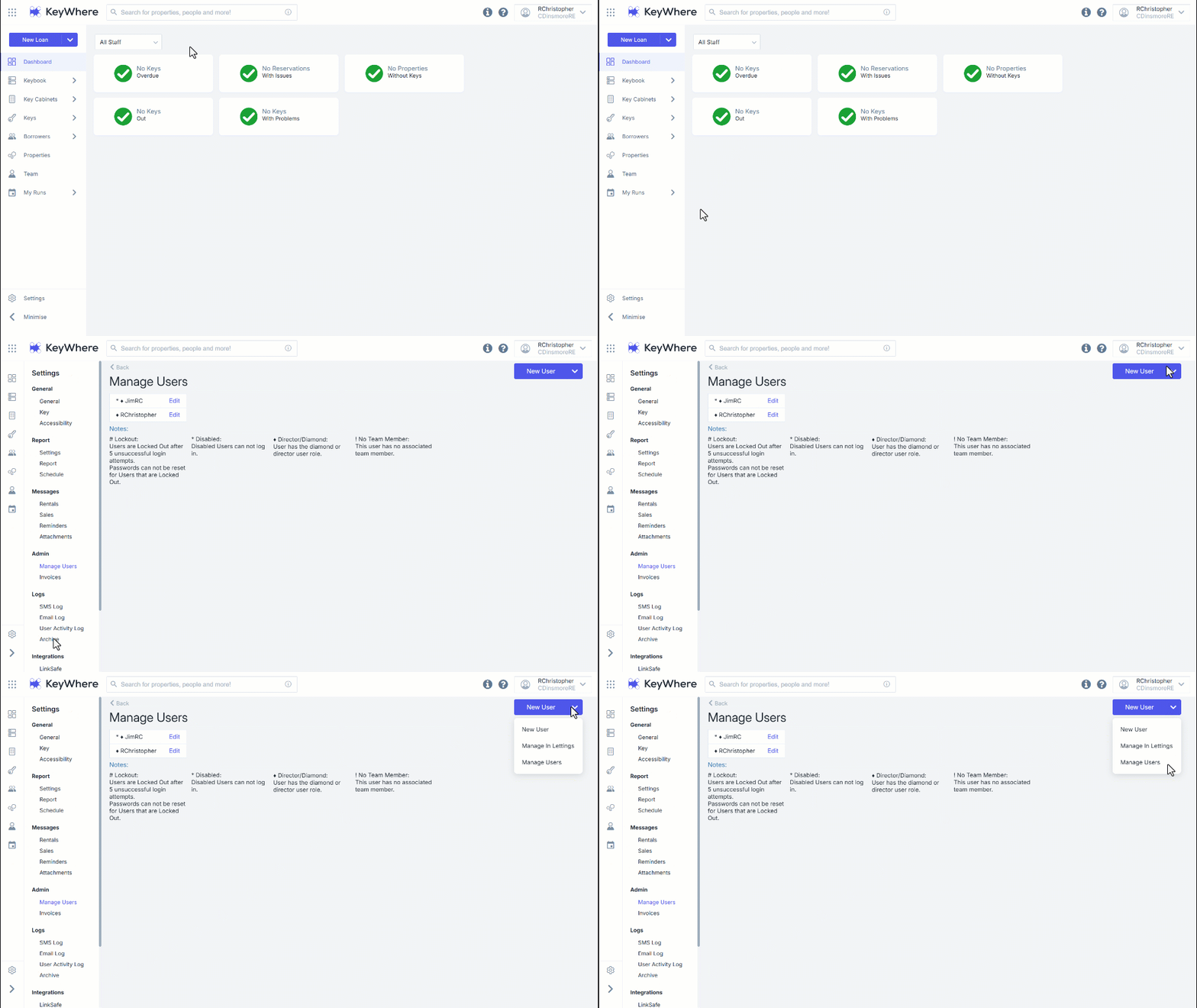
Navigate to Settings.
Navigate to Manage Users.
Click on the New User drop-down.
Click Manage Users.
Note: You will need Diamond permission status to access Settings.
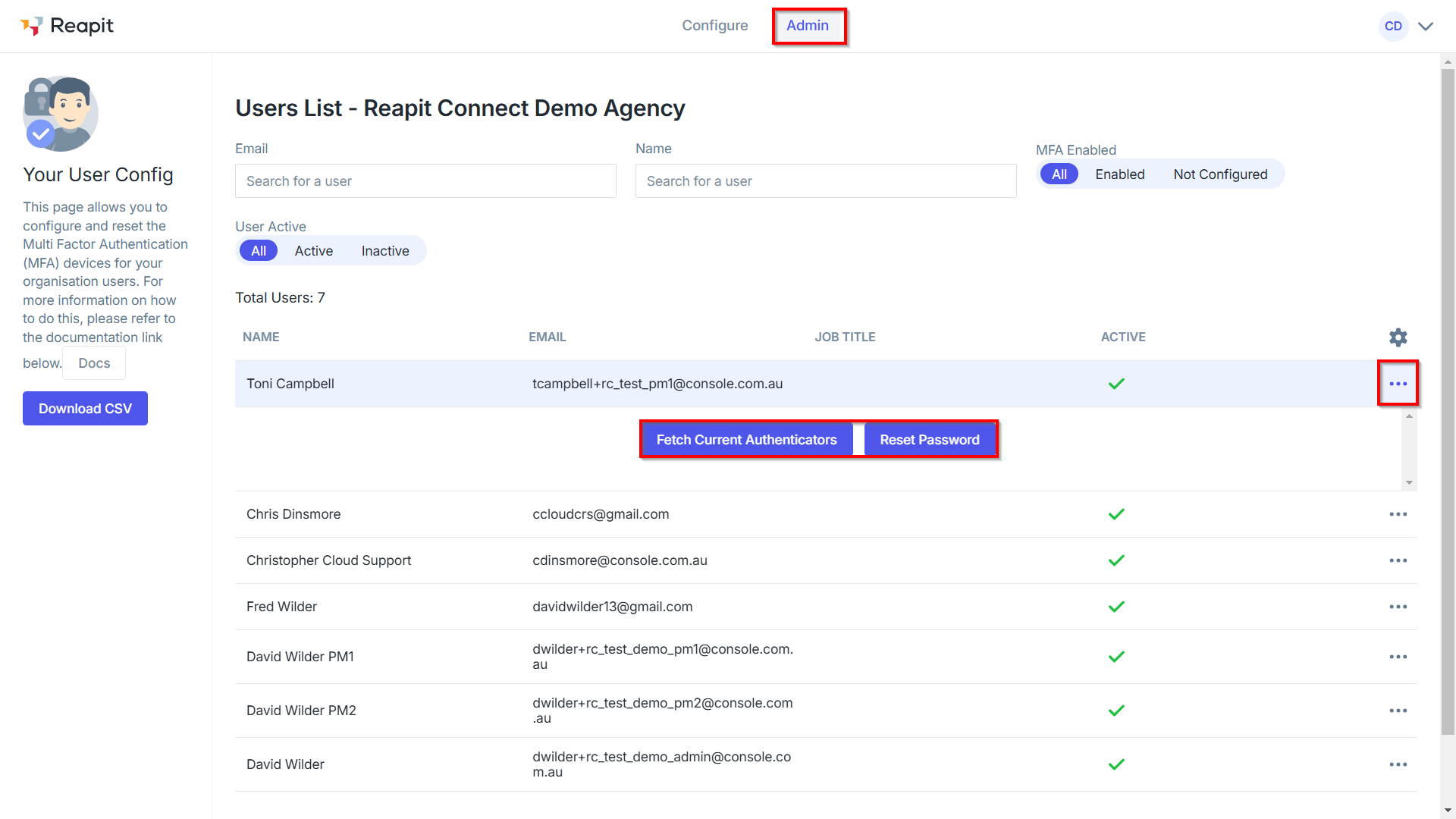
Navigate to the Admin tab.
Click the three dots to the right of the user to Fetch Current Authenticators or Reset Password.
A new Reset your password email will be sent to the user.
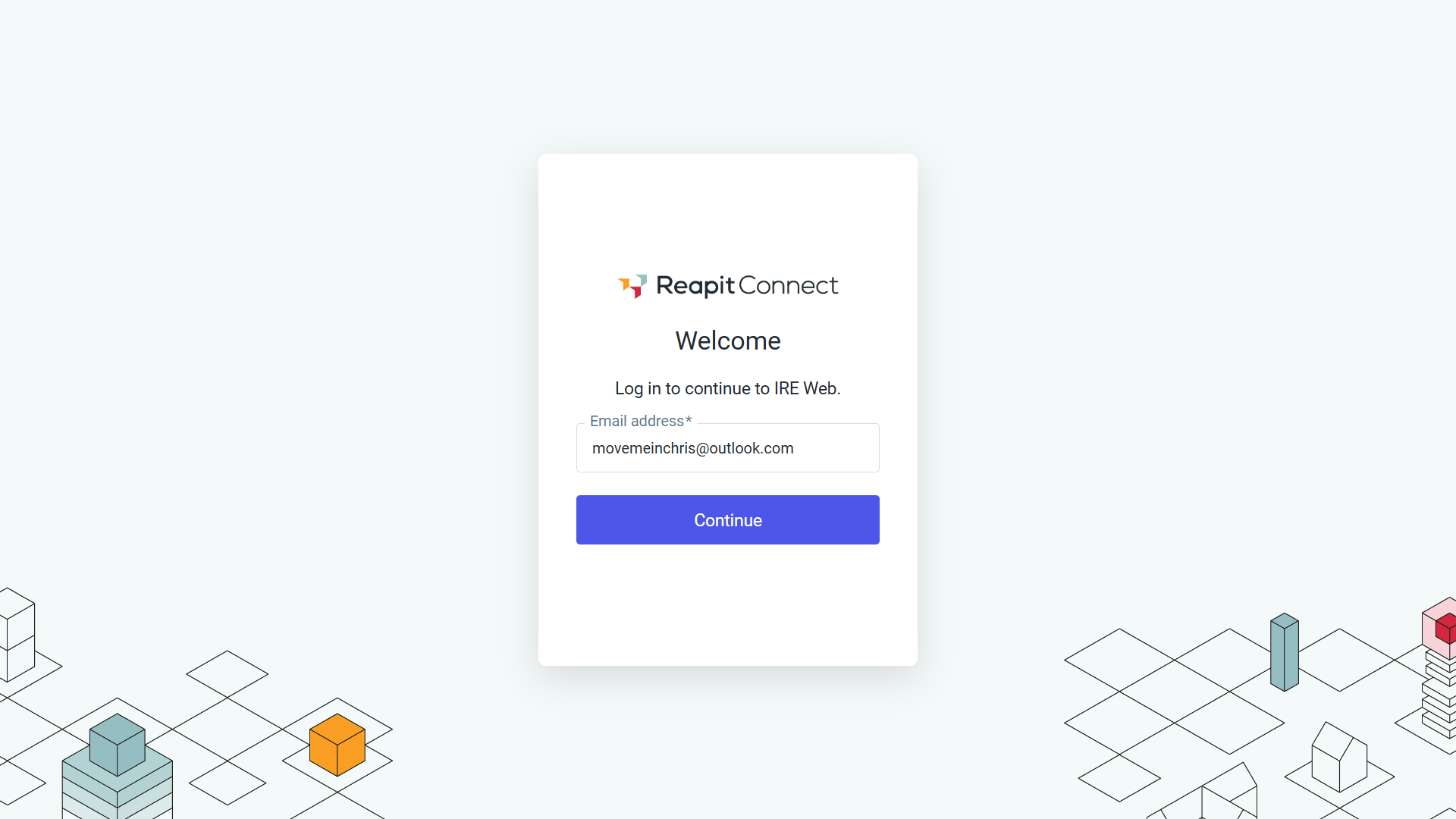
Proceed to the login screen, enter your email and click Continue.
You will now be prompted to create a new password. Your password must meet the requirements; otherwise, you will not be able to proceed. Click Set Password to complete the process.
**
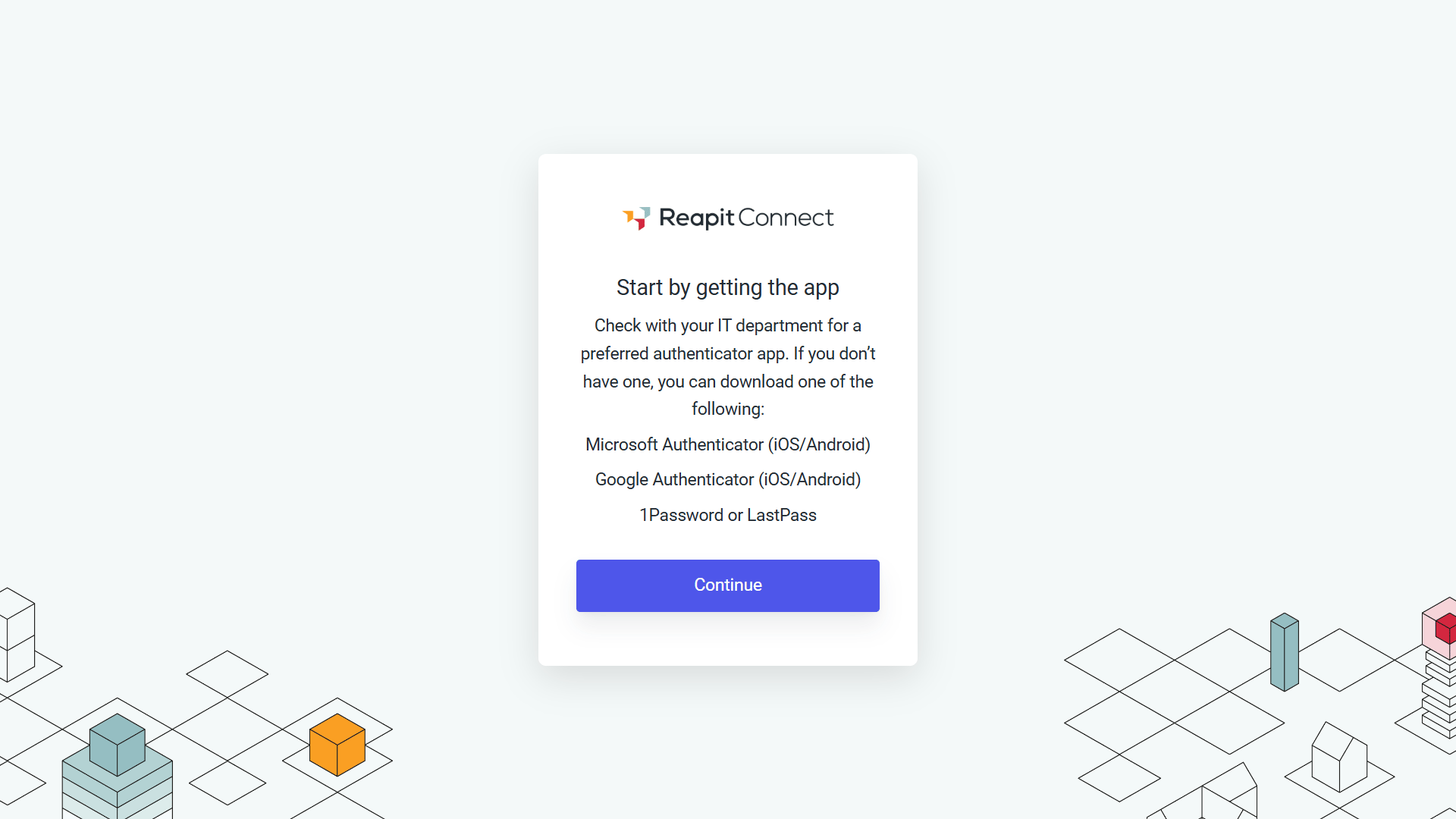
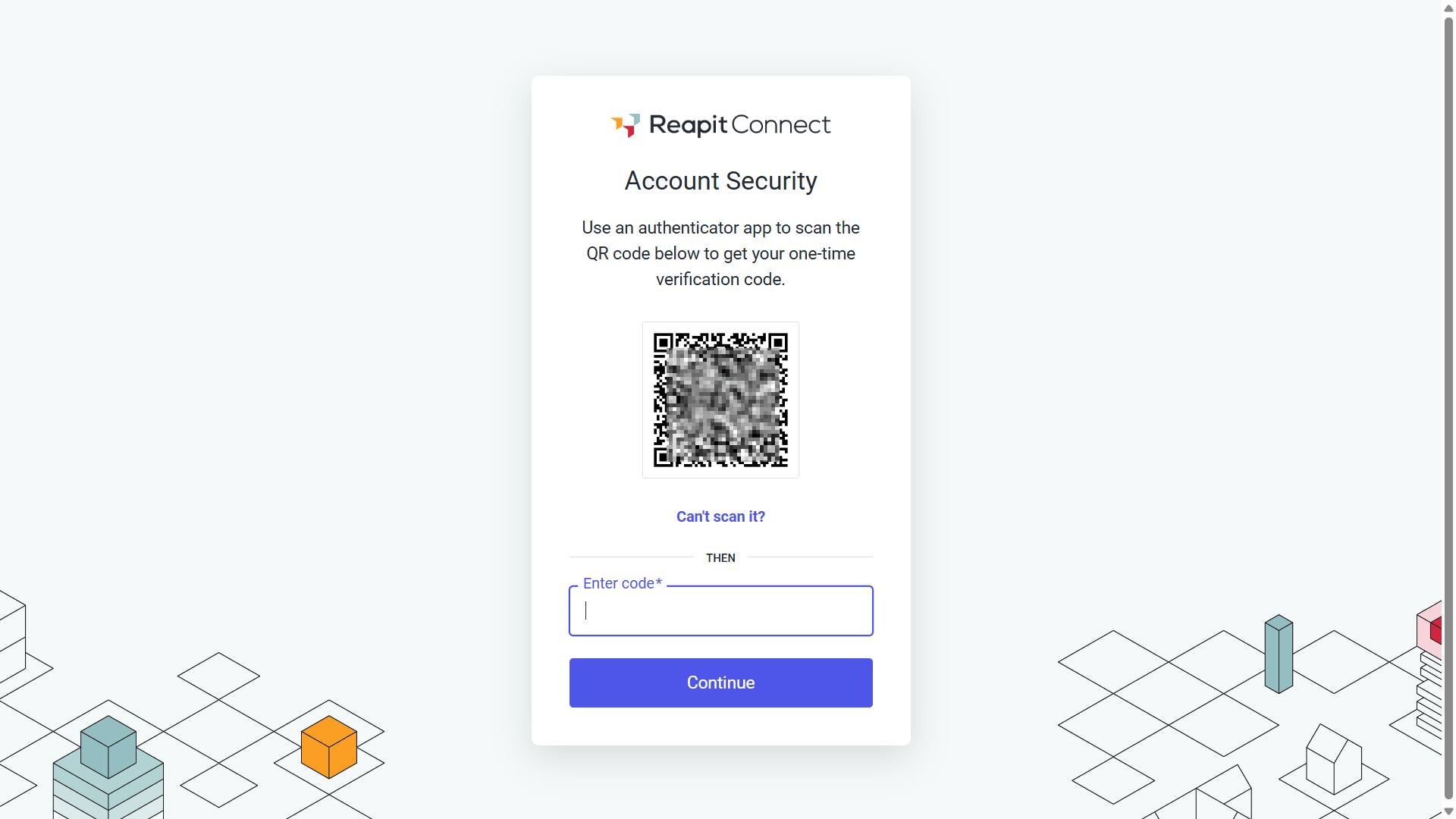
Multi-Factor Authentication (MFA) will be required on your account. Check with your IT department for their preferred authenticator app or select one from the suggestion list. Download the authenticator from the App Store and continue by scanning the QR Code.
11. Scan the QR code and enter the code displayed on the authenticator app, then click Continue.
The password will be updated, and you will be signed in to your office.