'%20d='M0%208a8%208%200%200%201%208-8h24a8%208%200%200%201%208%208v24a8%208%200%200%201-8%208H8a8%208%200%200%201-8-8V8Z'/%3e%3cpath%20fill='%23fff'%20d='M32.576%206C12.293%206%208.776%2025.887%207.424%2034H9.1c.45-2.977%203.493-14.748%2010.899-20.287%200%200-5.633%206.976-6.572%2015.051%203.426-.652%2013.845-3.372%2016.056-12.927l-3.84-.61c1.352-1.351%204.909-5.17%206.931-9.226V6Z'/%3e%3cdefs%3e%3clinearGradient%20id='reapit-lettings__a'%20x1='20.702'%20x2='20.702'%20y1='.351'%20y2='31.228'%20gradientUnits='userSpaceOnUse'%3e%3cstop%20stop-color='%235573FD'/%3e%3cstop%20offset='.575'%20stop-color='%234E56EA'/%3e%3c/linearGradient%3e%3c/defs%3e%3c/svg%3e)
How to Export Data into Excel
This article will run through how to export data into Excel from Reapit Lettings. There is the ability to enable an export button on a per-user basis which allows Users to export certain data from Reapit Lettings products.
This article will run through how to export data into Excel from Reapit Lettings.
There is the ability to enable an export button on a per-user basis which allows Users to export certain data from Reapit Lettings products.
The export function is not available by default in order to protect data security.
Please contact your Support Team (Details in the Help > Contact Us tab) and they will be able to enable this feature in your account.
The topics in this article include:
- How to Enable Export Data Feature
- Data that can be Exported
How to Enable Export Data Feature
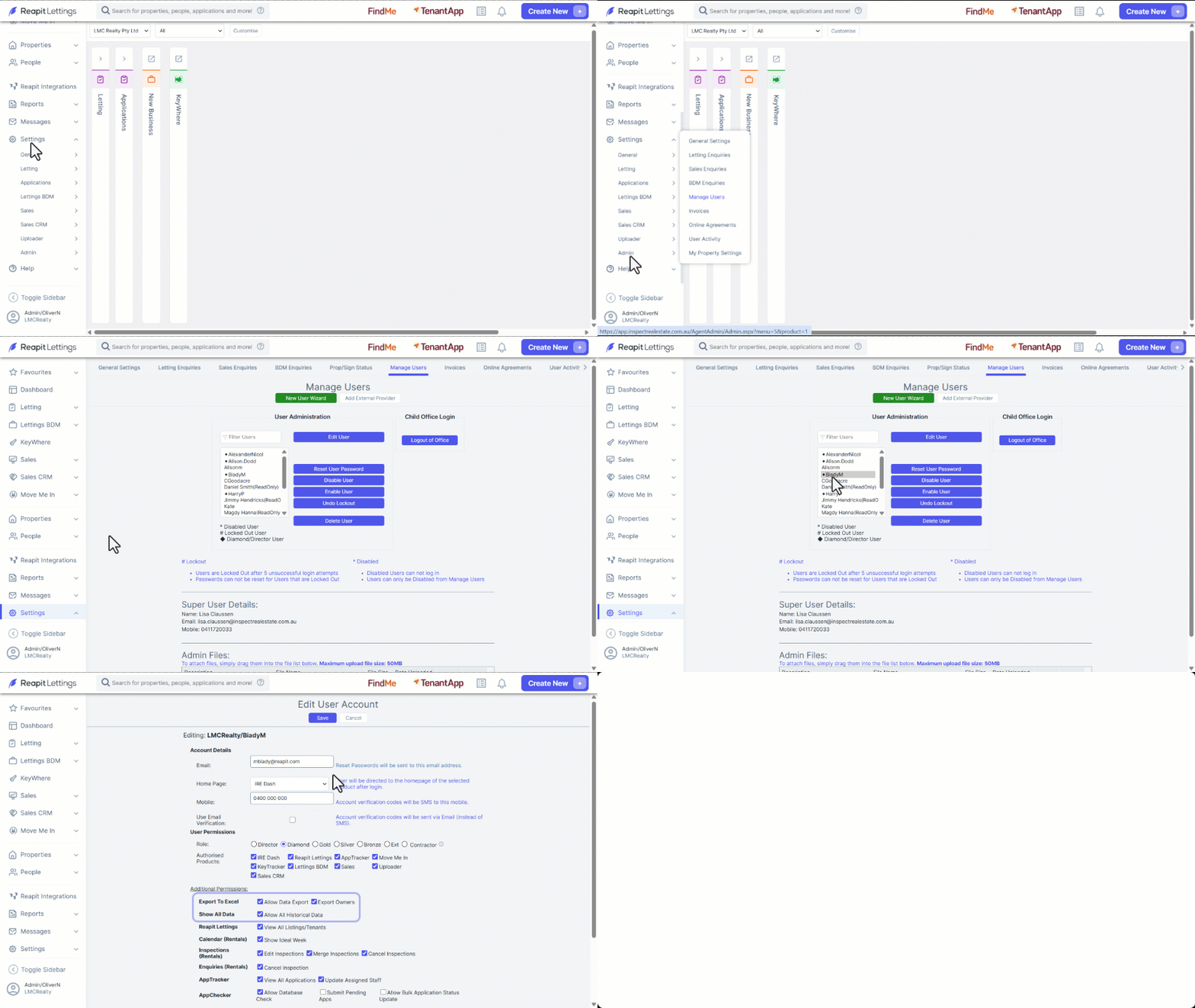
- Click on Settings.
- Click on Admin.
- Click on Manage Users.
- Select the user from the list and then click on Edit User.
- Tick Allow Data Export.
- If you wish to Export Owners, the checkbox will need to be enabled.
- If you wish to Export Historical Data (greater than 90 days old), select the Allow All Historical Data checkbox.
- Click on Save.
Please note:
- The export function will only be visible to the user that has the above setting enabled on their login. It is accessed via the 3 dots on the relevant page and clicking "Export". An email will also be sent to the Super User on the account as a security measure.
- The export will pull data based off your current search filters. So, for example, if you wanted to only export enquiries for a certain property you could enter the address of the property and then select export.
- Information in the Lettings export is presented in tables.
Data that can be Feature
The following data can be exported:
|
|
|
|
|
|
|
|
|
|
|
|
|
|
|
|
|
|
|
|
|
|
|
|