'%20d='M0%208a8%208%200%200%201%208-8h24a8%208%200%200%201%208%208v24a8%208%200%200%201-8%208H8a8%208%200%200%201-8-8V8Z'/%3e%3cpath%20fill='%23fff'%20d='M32.576%206C12.293%206%208.776%2025.887%207.424%2034H9.1c.45-2.977%203.493-14.748%2010.899-20.287%200%200-5.633%206.976-6.572%2015.051%203.426-.652%2013.845-3.372%2016.056-12.927l-3.84-.61c1.352-1.351%204.909-5.17%206.931-9.226V6Z'/%3e%3cdefs%3e%3clinearGradient%20id='reapit-lettings__a'%20x1='20.702'%20x2='20.702'%20y1='.351'%20y2='31.228'%20gradientUnits='userSpaceOnUse'%3e%3cstop%20stop-color='%235573FD'/%3e%3cstop%20offset='.575'%20stop-color='%234E56EA'/%3e%3c/linearGradient%3e%3c/defs%3e%3c/svg%3e)
Understanding an Application
This article will run through how to understand an application in Reapit Lettings.
1. Click on Letting.
2. Click on Applications.
3. Select Applications.
4. Select an AppID to access an application.
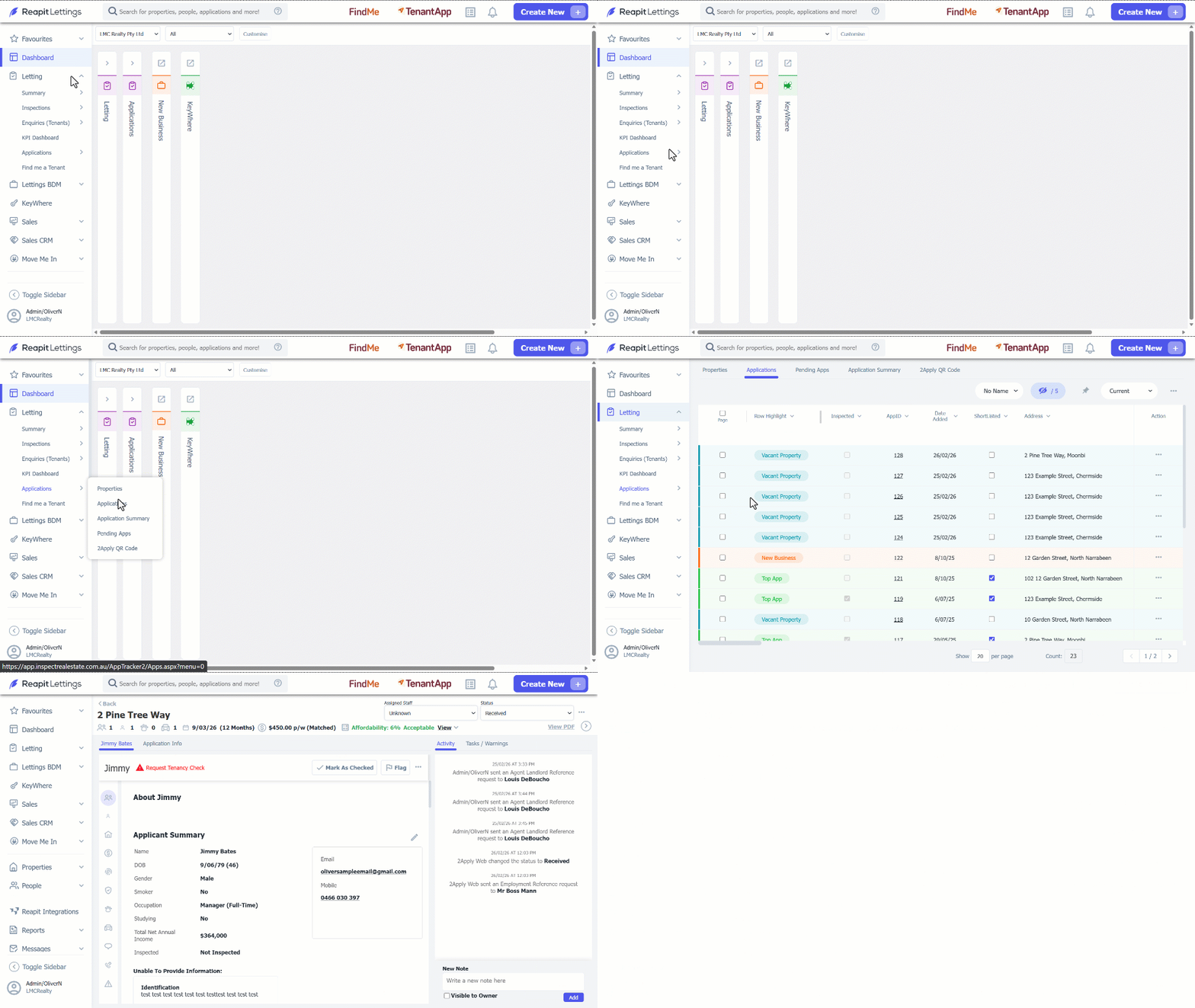
5. About: within this section, it will show you the following details:
- Applicant Summary
- Inspection Details
- Reference Summary
- Occupancy Answers
To edit this information, click on the pencil icon.
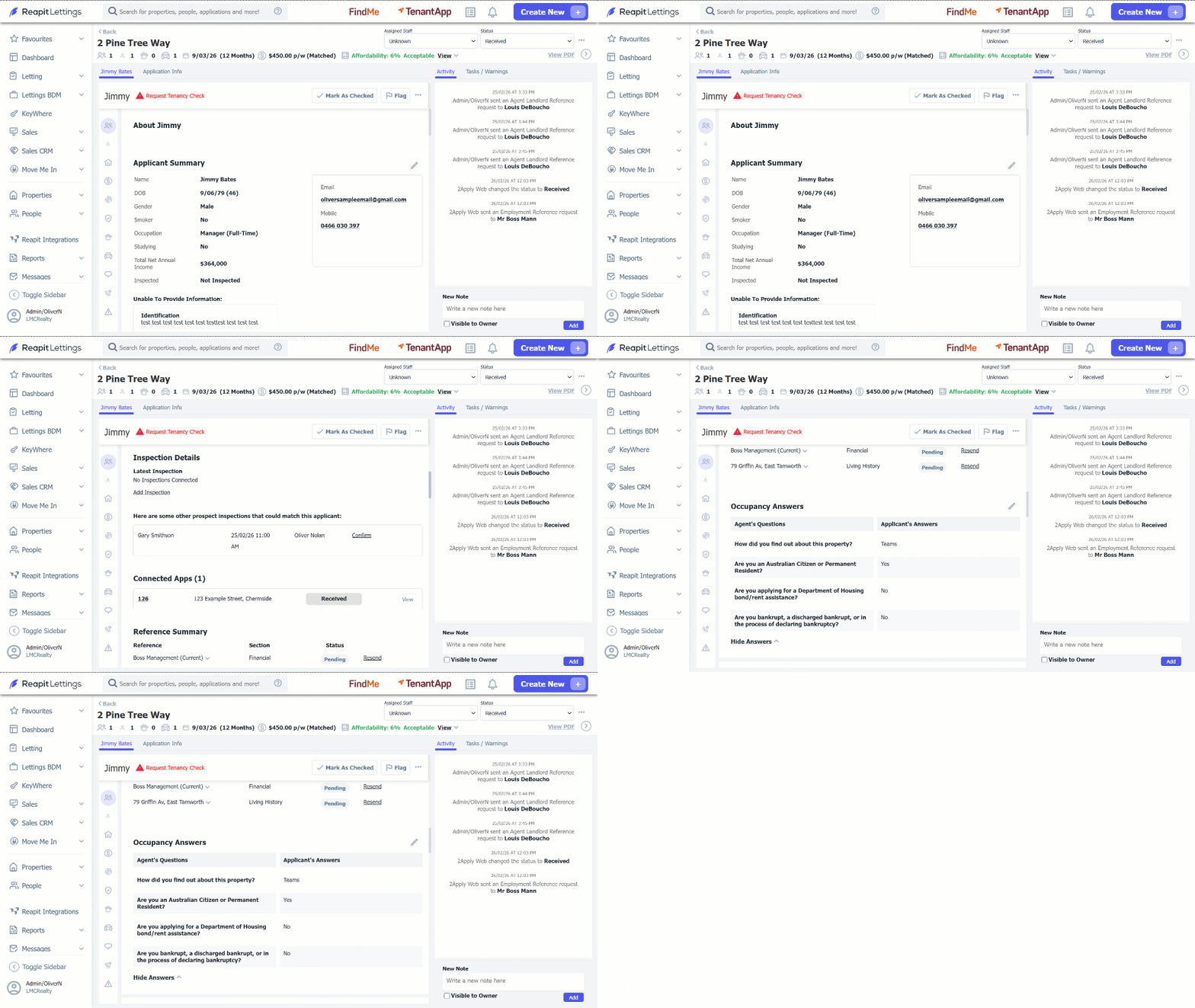
6. Dependants: This section will show any information on dependants for this applicant only and can be manually added or deleted with the icons.
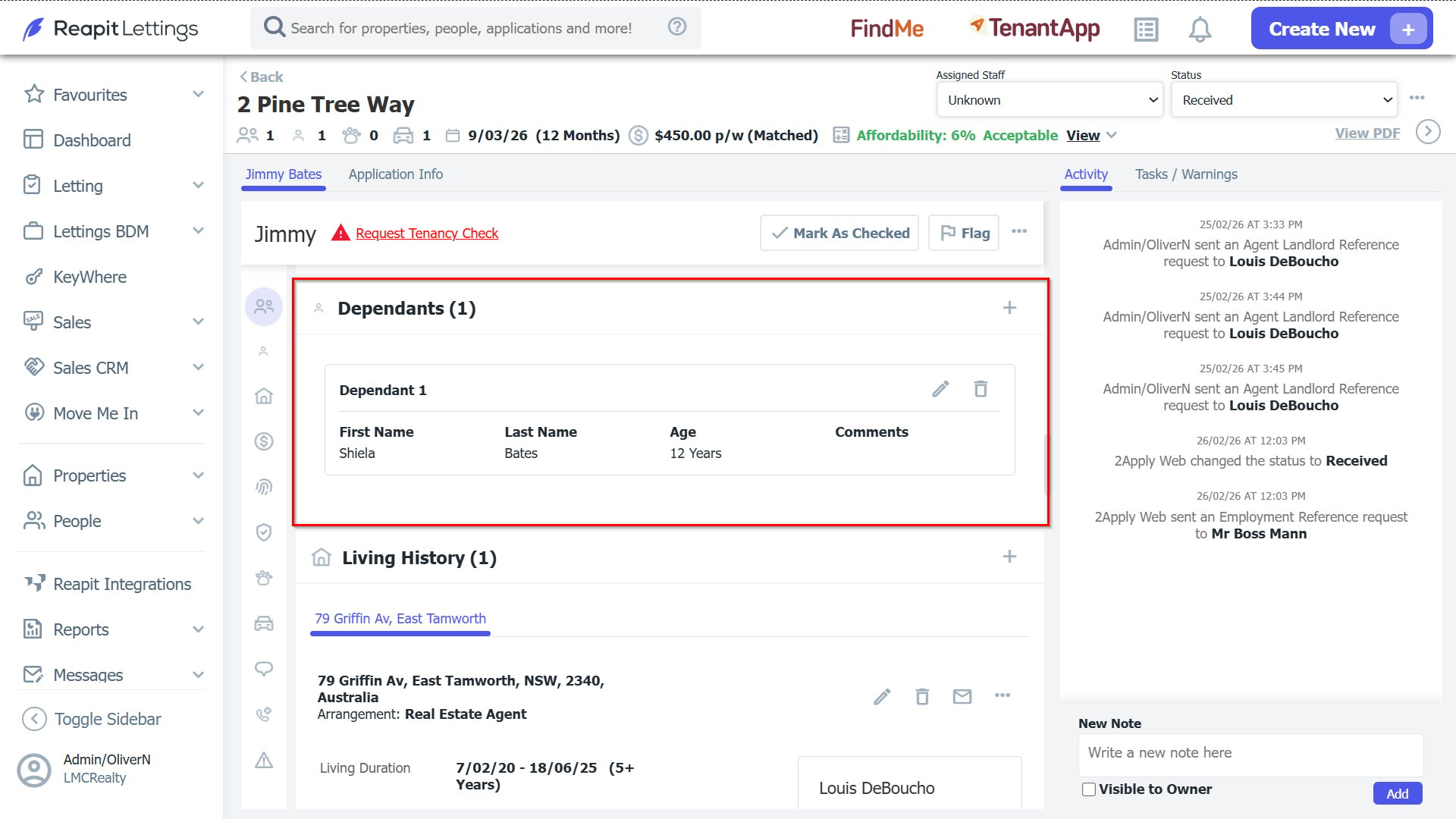
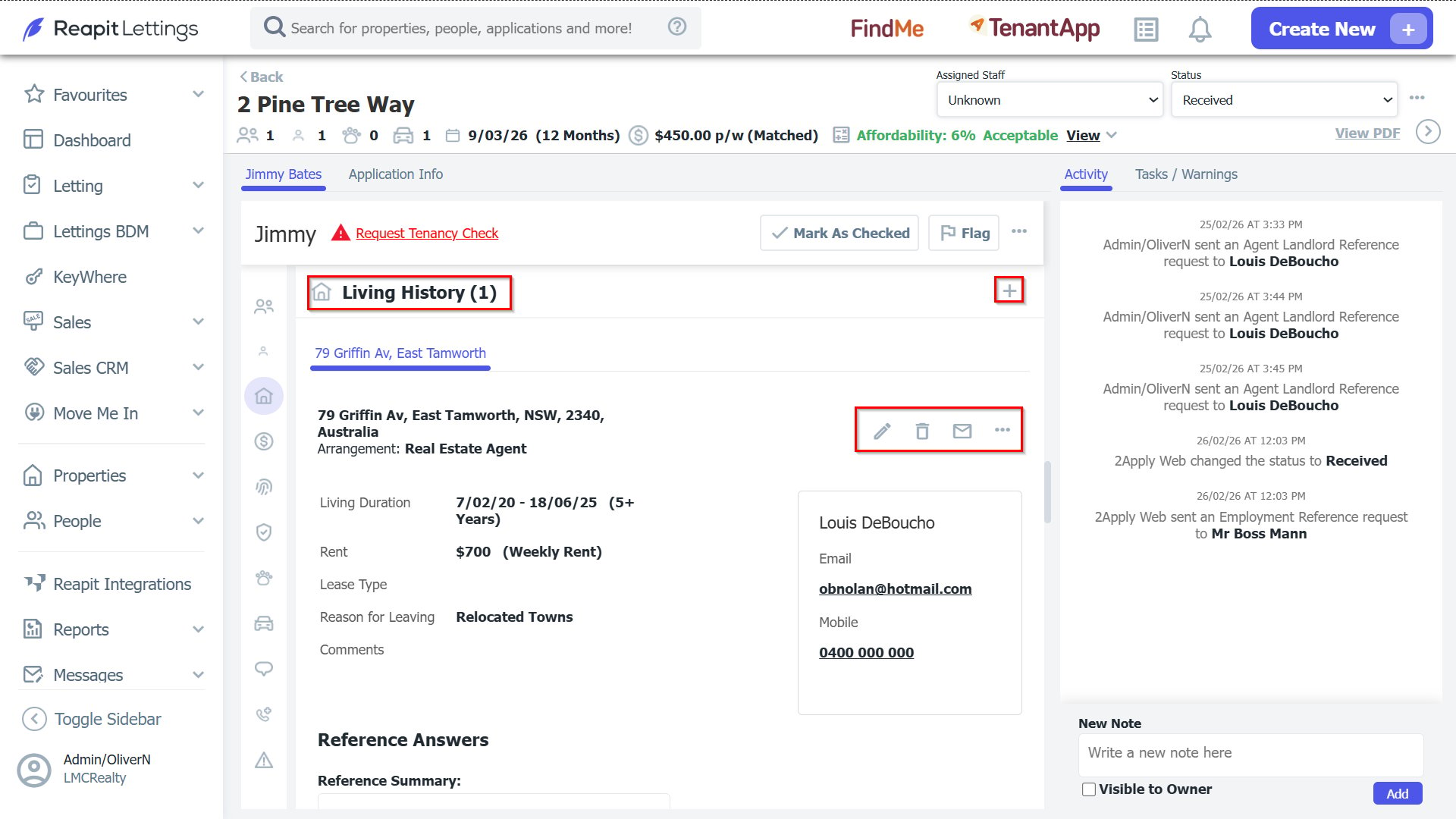
7. Living History: This show will show the living history of this applicant.
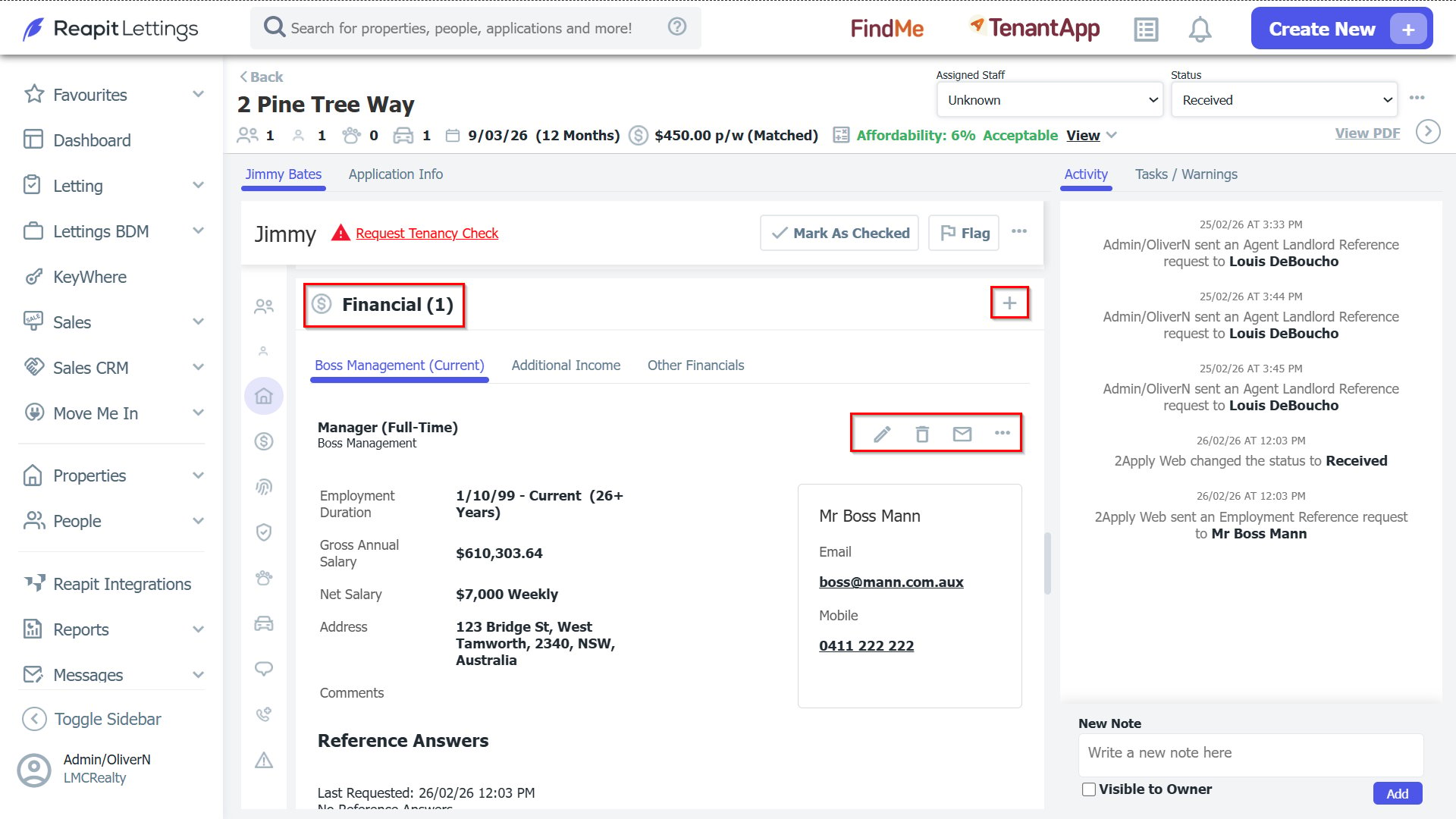
8. Financial: This section will allow you to view all current employment/s and any additional income that they may have also put in their application.
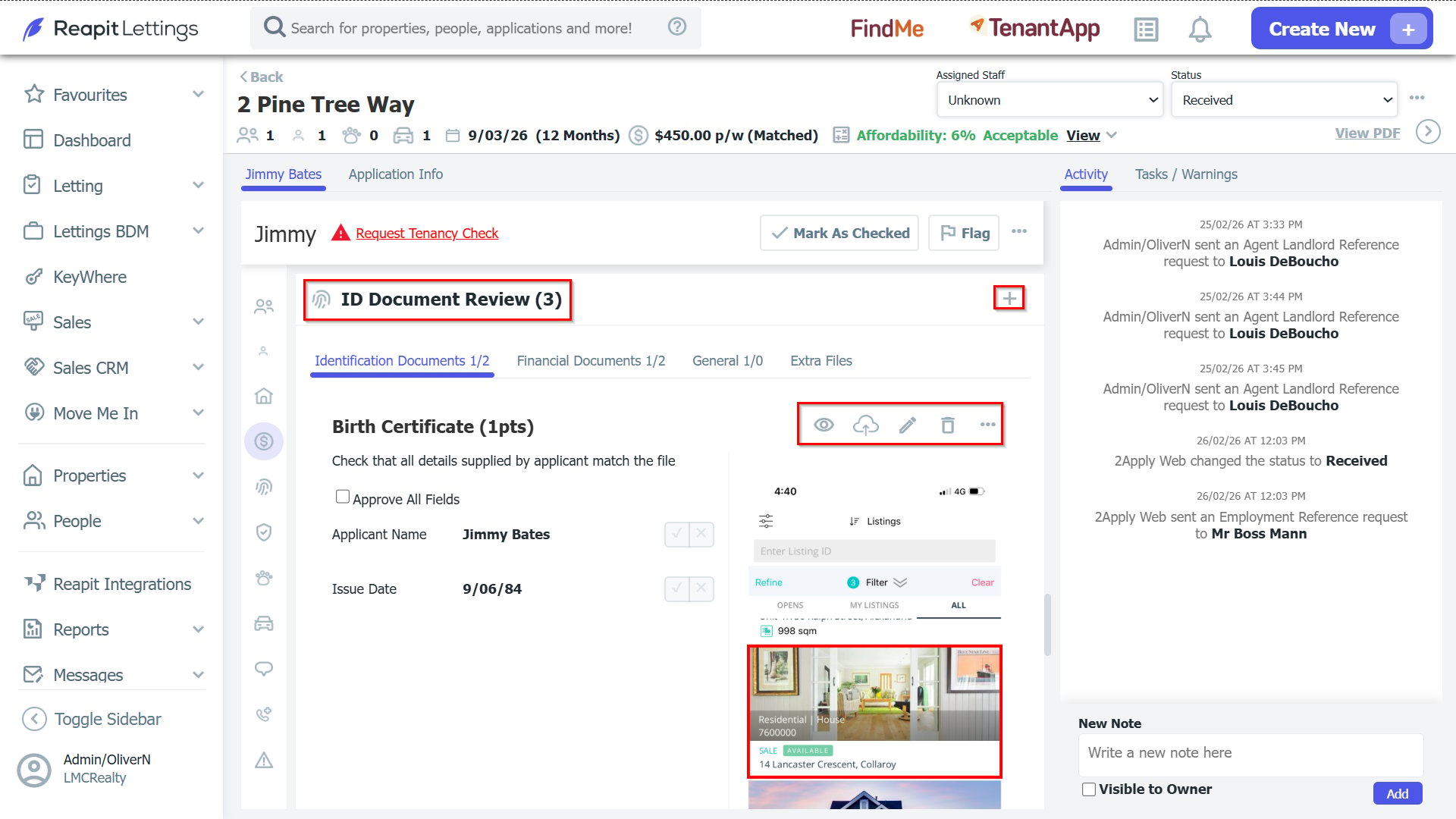
9. ID Document Review: Within this section, you can view the applicants' primary documents e.g., Driver's License information, secondary documents e.g., Medicare Card information, proof of income or any extra files.
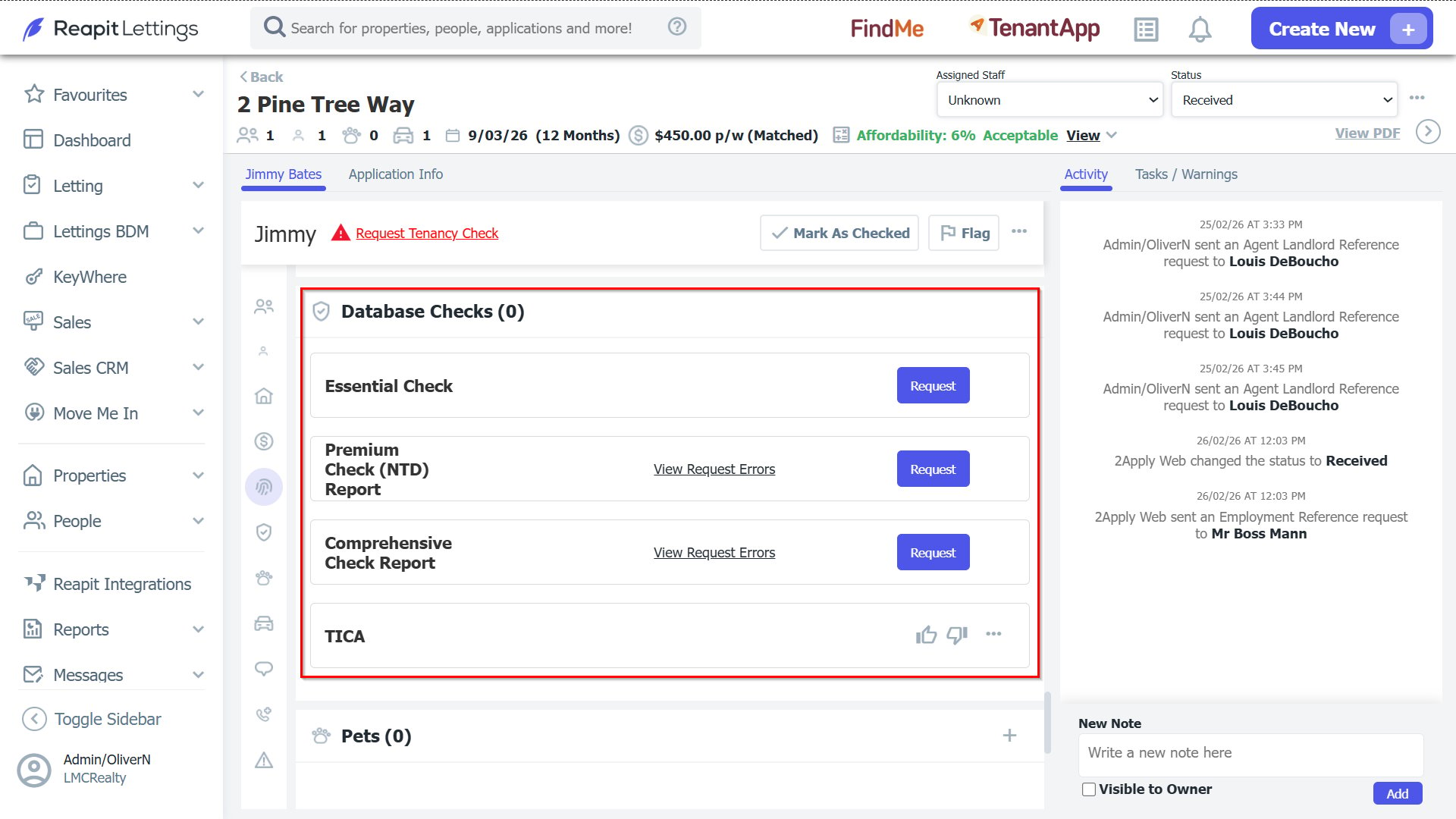
10. Database Checks: This section will allow you to see any database checks that the applicant has made.
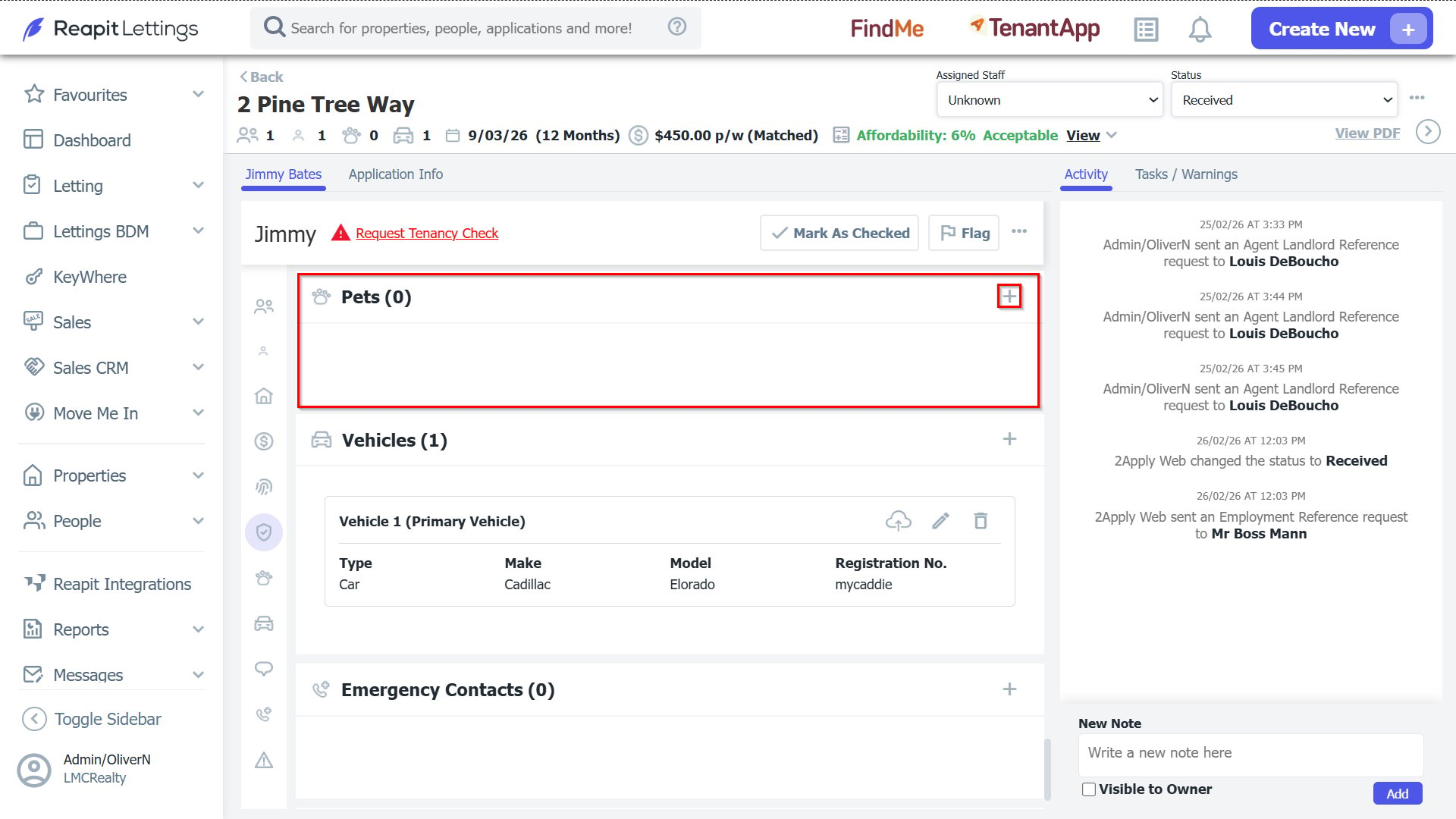
11. Pets: This section will show any information on pets for this applicant.
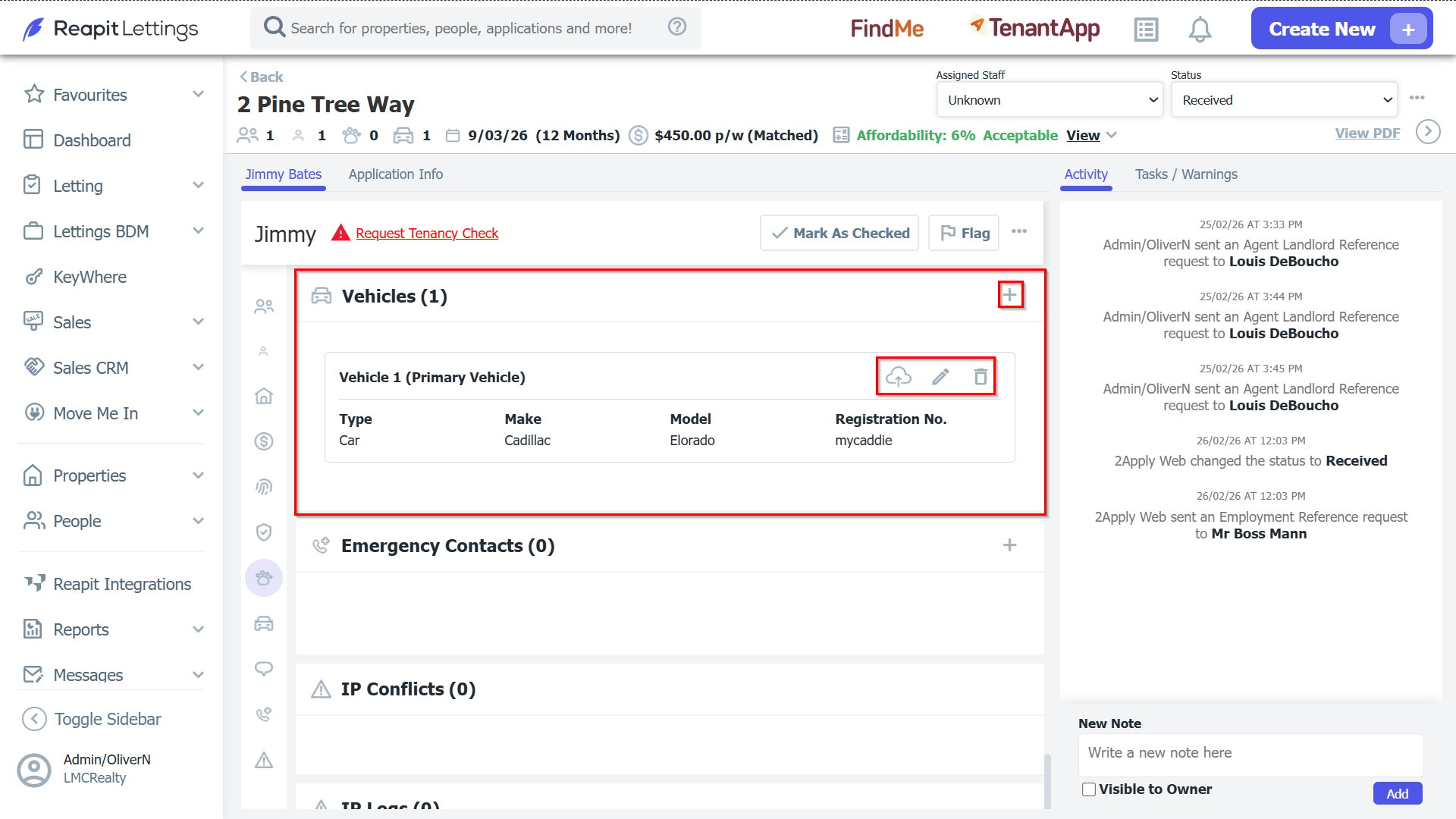
12. Vehicles: This section will show any information on Vehicles for this applicant.
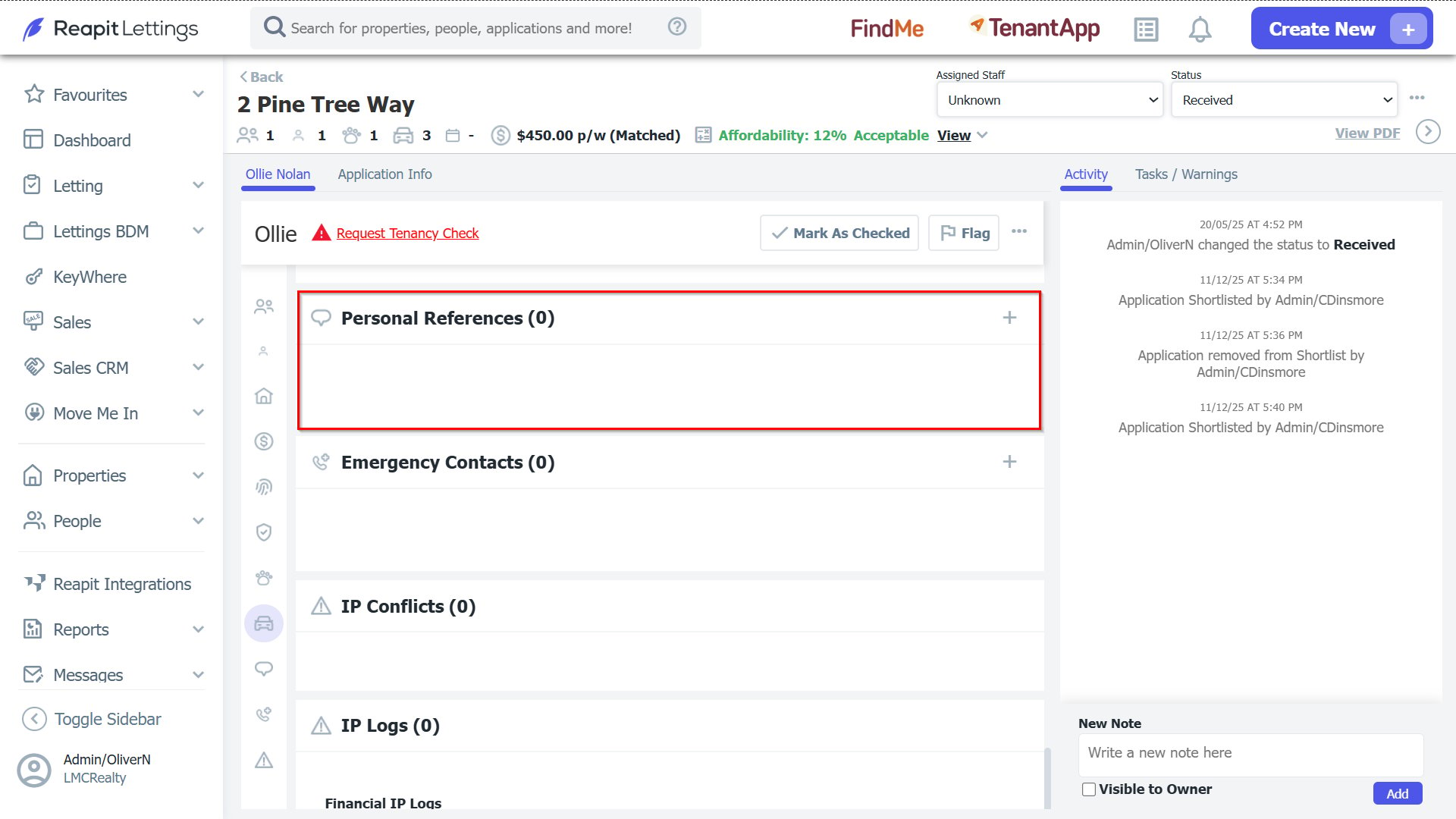
13. Personal References: The personal reference section mirrors the financial and residential history sections and can be actioned the same way.
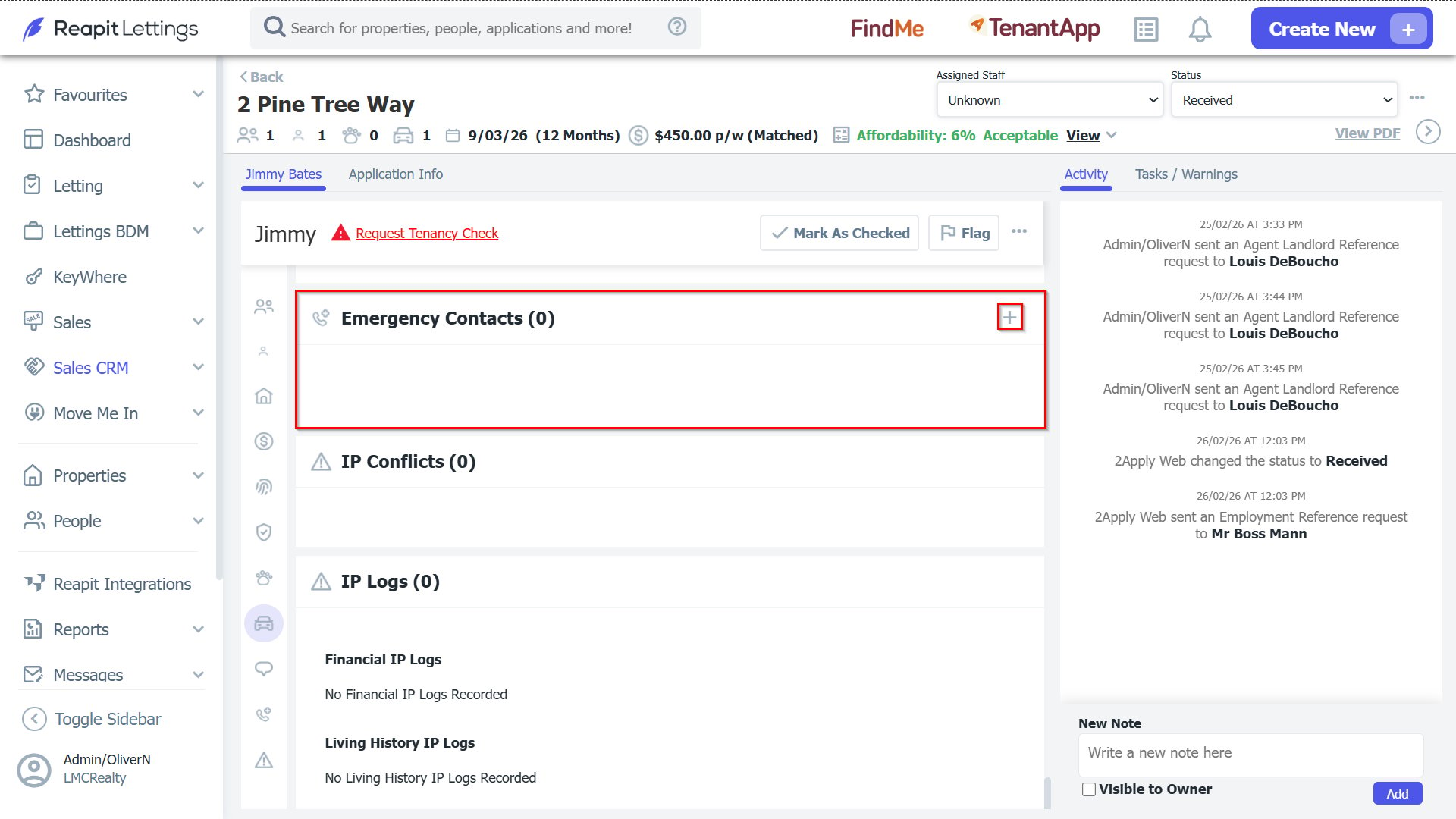
14. Emergency Contacts: In this section, you can add and view the emergency contact for this applicant.
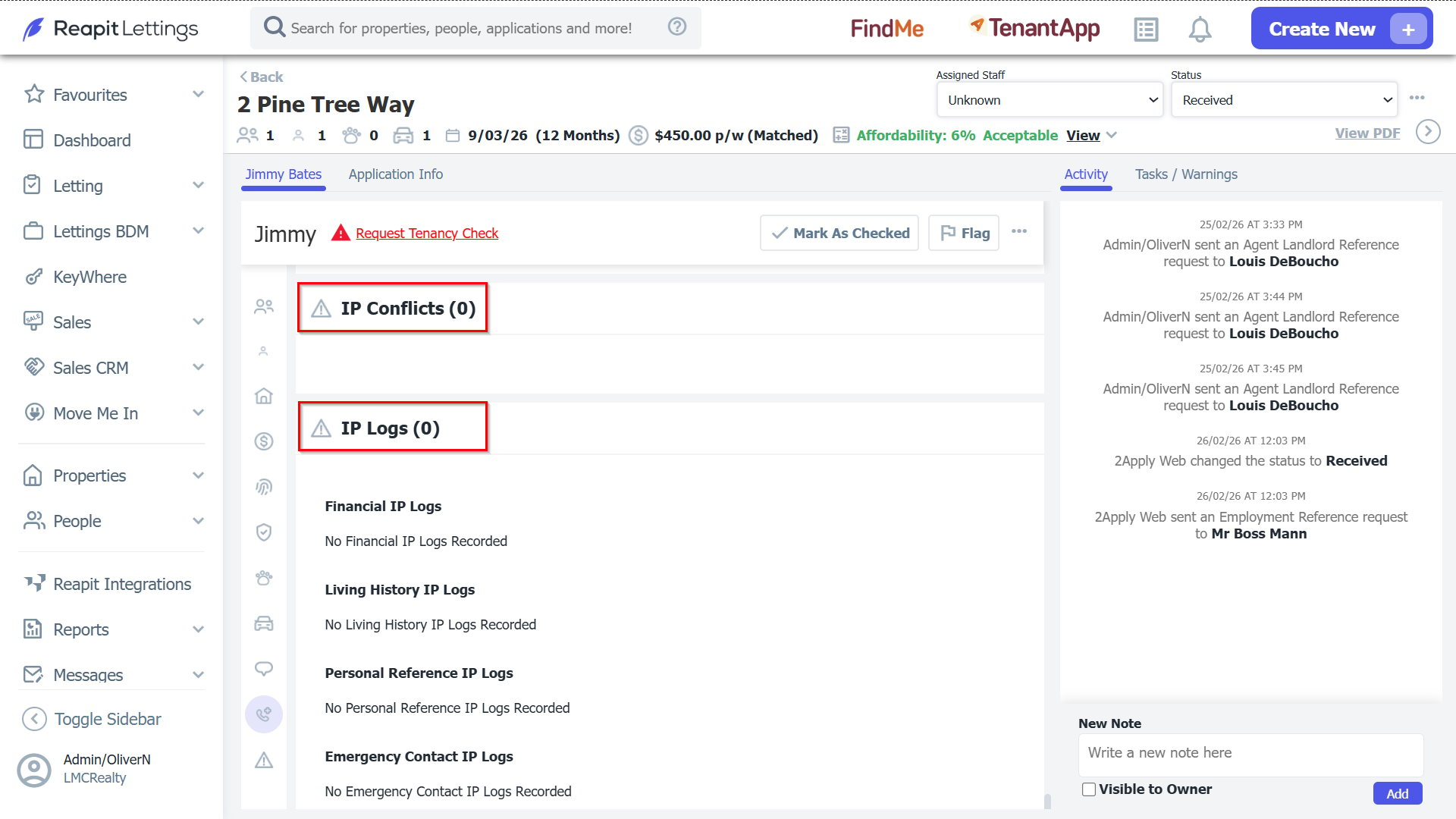
15. IP Conflicts and IP Logs: This section will show where references have been completed so that we can flag if a reference was completed at the same place to prevent the chance of references being completed by the applicant.