'%20d='M0%208a8%208%200%200%201%208-8h24a8%208%200%200%201%208%208v24a8%208%200%200%201-8%208H8a8%208%200%200%201-8-8V8Z'/%3e%3cpath%20fill='%23fff'%20d='M10.41%206v3.779h15.048v19.537h4.132V6H10.41Z'/%3e%3cpath%20fill='%23fff'%20d='M20.967%2034V13.837L10.41%209.78v20.166L20.967%2034Z'/%3e%3cdefs%3e%3clinearGradient%20id='reapit-sales__a'%20x1='20.702'%20x2='20.702'%20y1='.351'%20y2='31.228'%20gradientUnits='userSpaceOnUse'%3e%3cstop%20stop-color='%235573FD'/%3e%3cstop%20offset='.575'%20stop-color='%234E56EA'/%3e%3c/linearGradient%3e%3c/defs%3e%3c/svg%3e)
Issue Staff Access for Prospector
This article outlines to process involved to provide team member access to Prospector.
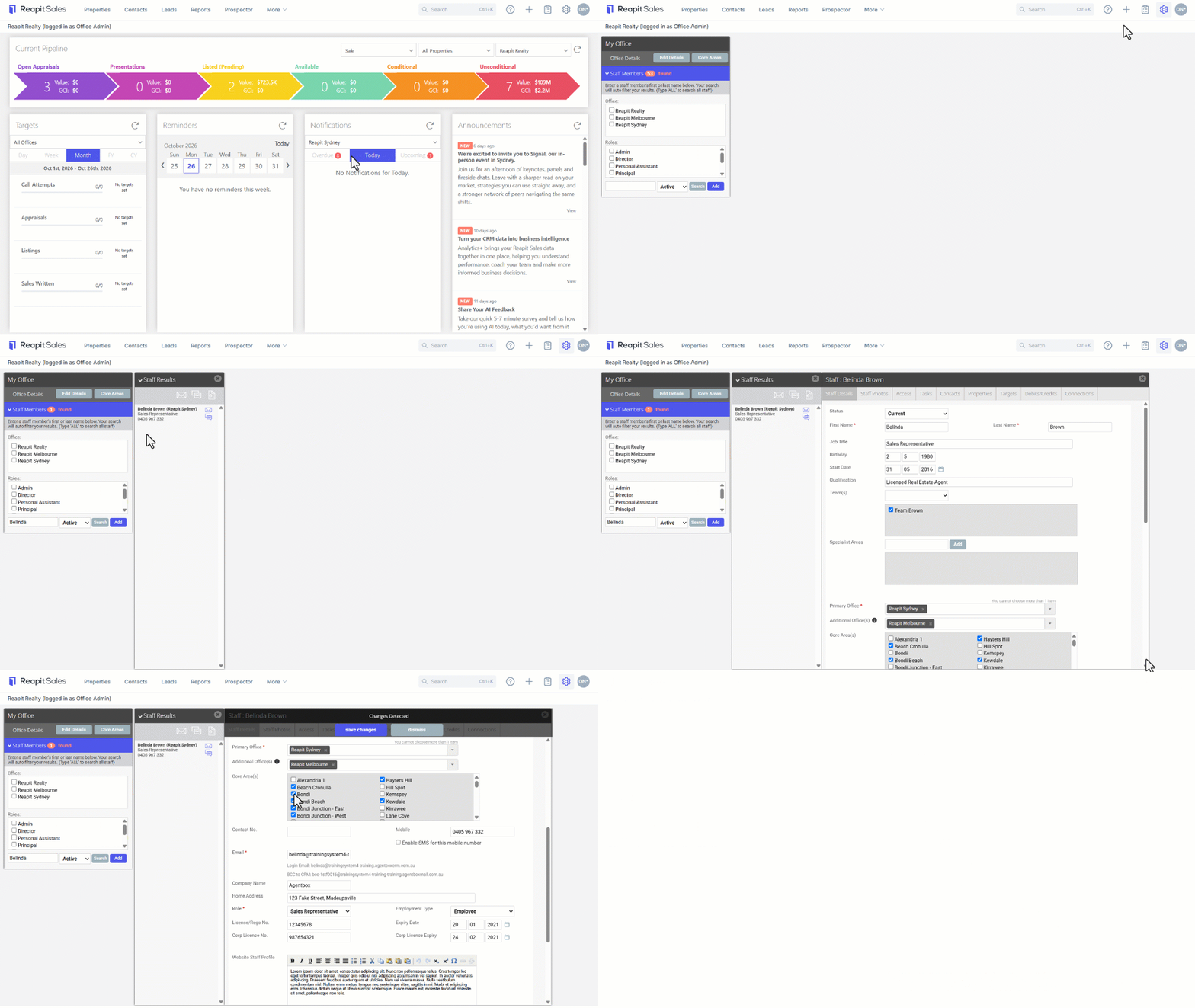
- Click My Office from the main menu.
- Type the staff member's name on the Left Panel and the staff member will appear on the staff results panel.
- Click the Staff Members Name to open their staff card.
- Under Core Areas, to assign a core area simply tick the area you would like to give the staff member access to.
Note: This step cannot be completed if you haven't created the Core Area.
- Click Save.
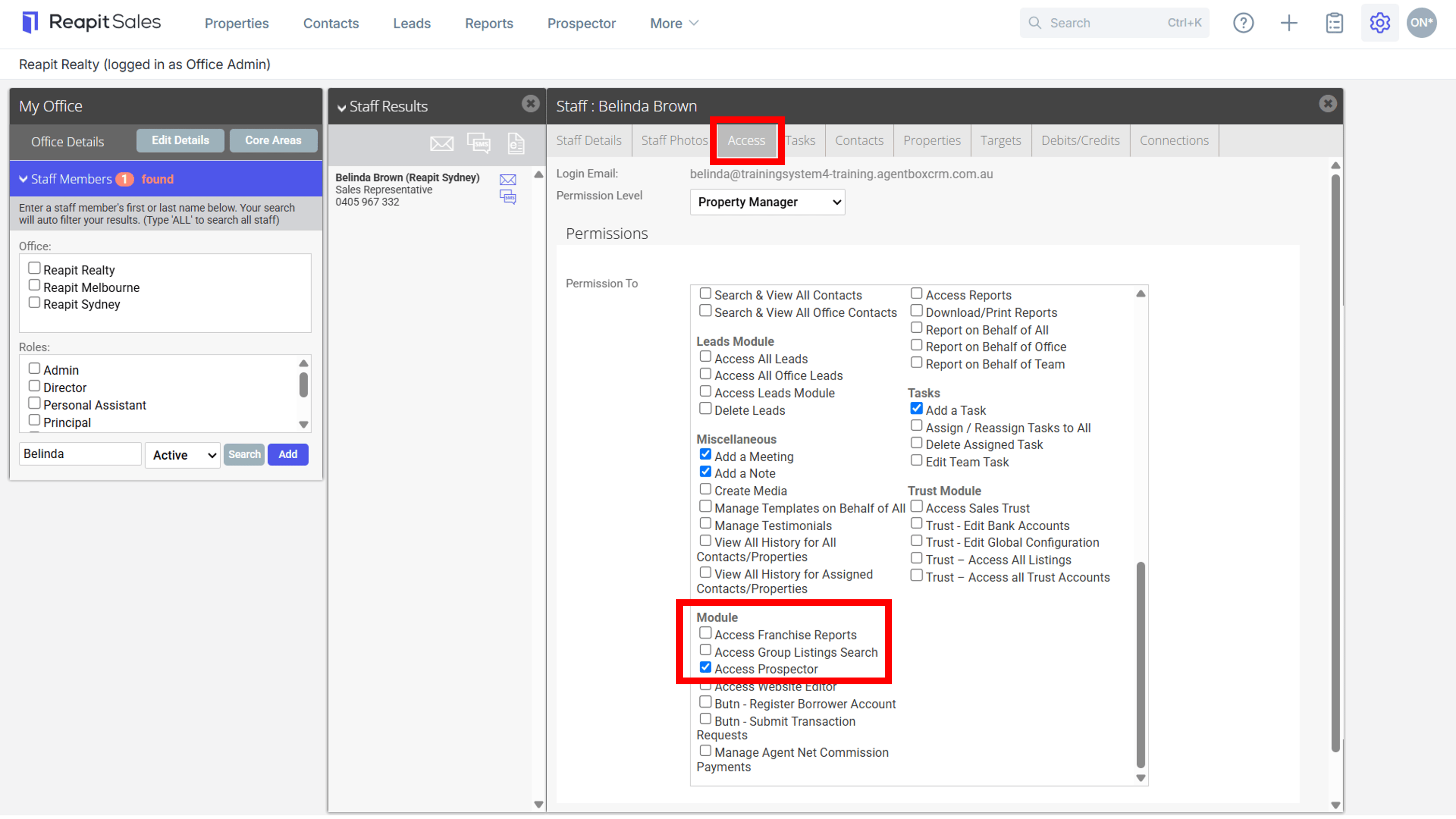
- Go to the Access tab.
- Tick the Access Prospector check box.
- Click Save.
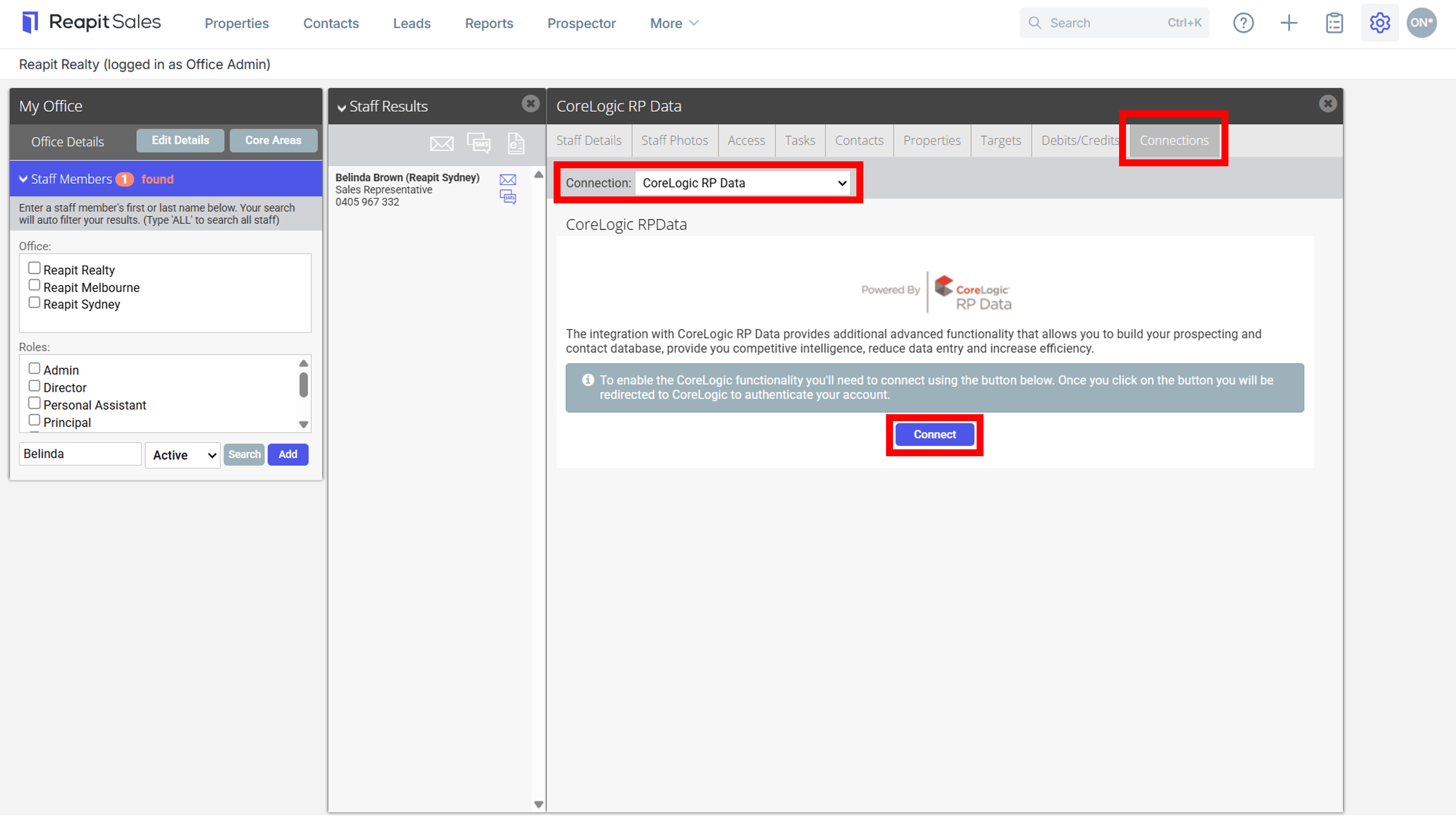
- Click the Connections tab.
- Select Core Logic RP Data from the drop-down.
- Enter the staff members Core Logic RP Data Username and Password and click Login.
Note: Each staff member must have their own account to be able to use the Prospector module. You cannot share accounts.
- Follow the steps for all staff members who require access to the Prospector module.