'%20d='M0%208a8%208%200%200%201%208-8h24a8%208%200%200%201%208%208v24a8%208%200%200%201-8%208H8a8%208%200%200%201-8-8V8Z'/%3e%3cpath%20fill='%23fff'%20d='M10.41%206v3.779h15.048v19.537h4.132V6H10.41Z'/%3e%3cpath%20fill='%23fff'%20d='M20.967%2034V13.837L10.41%209.78v20.166L20.967%2034Z'/%3e%3cdefs%3e%3clinearGradient%20id='reapit-sales__a'%20x1='20.702'%20x2='20.702'%20y1='.351'%20y2='31.228'%20gradientUnits='userSpaceOnUse'%3e%3cstop%20stop-color='%235573FD'/%3e%3cstop%20offset='.575'%20stop-color='%234E56EA'/%3e%3c/linearGradient%3e%3c/defs%3e%3c/svg%3e)
Create Digital Media
This article will cover creating digital media in Reapit Sales.
1. Search for your Property and open the property card.
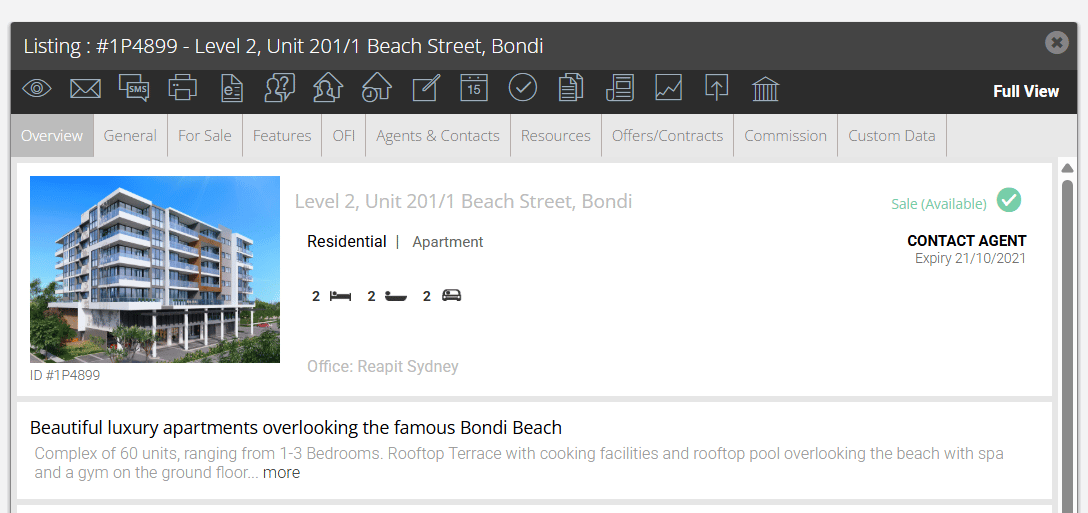
2. Click the Create Media Action Icon

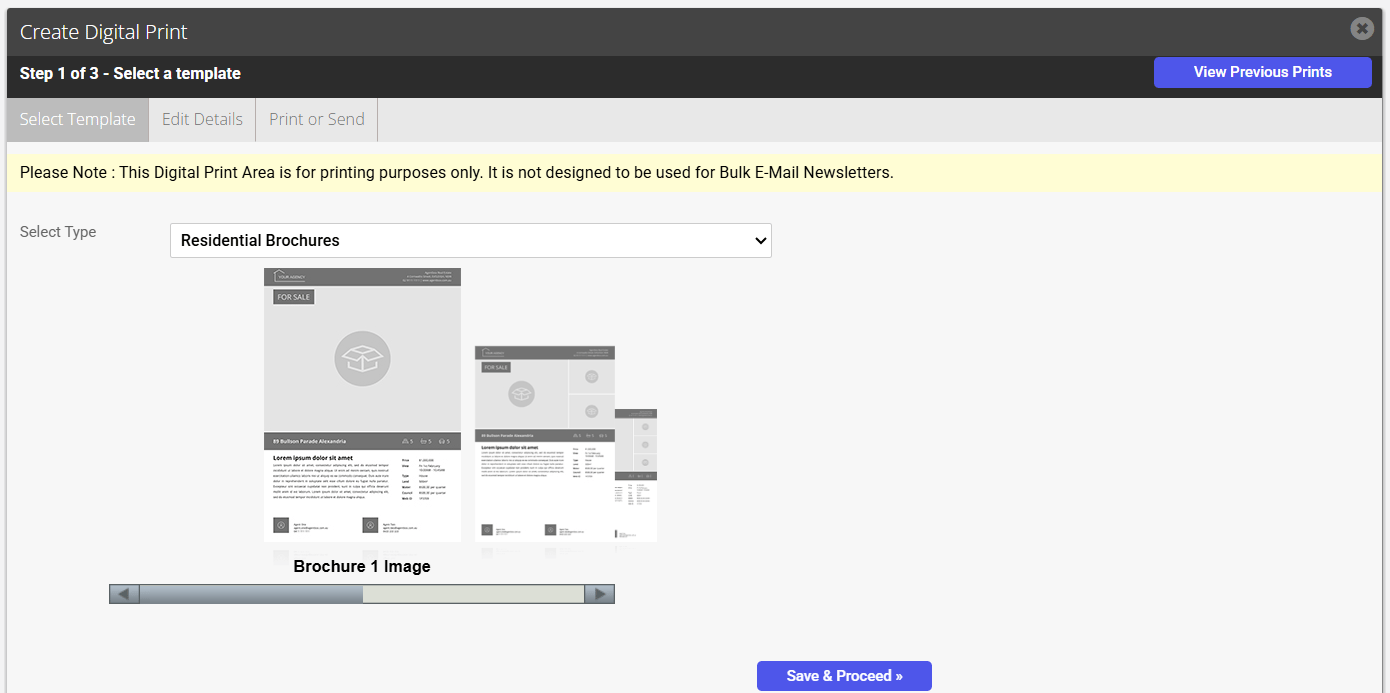
3. Click the Select Type drop-down
In this example, we are using a Residential A4 Brochure
4. Select Residential Brochures.
*Note: You can display the building and/ or land size on window cards and residential or commercial brochures.
5. Click the required Template
6. Click Save & Proceed
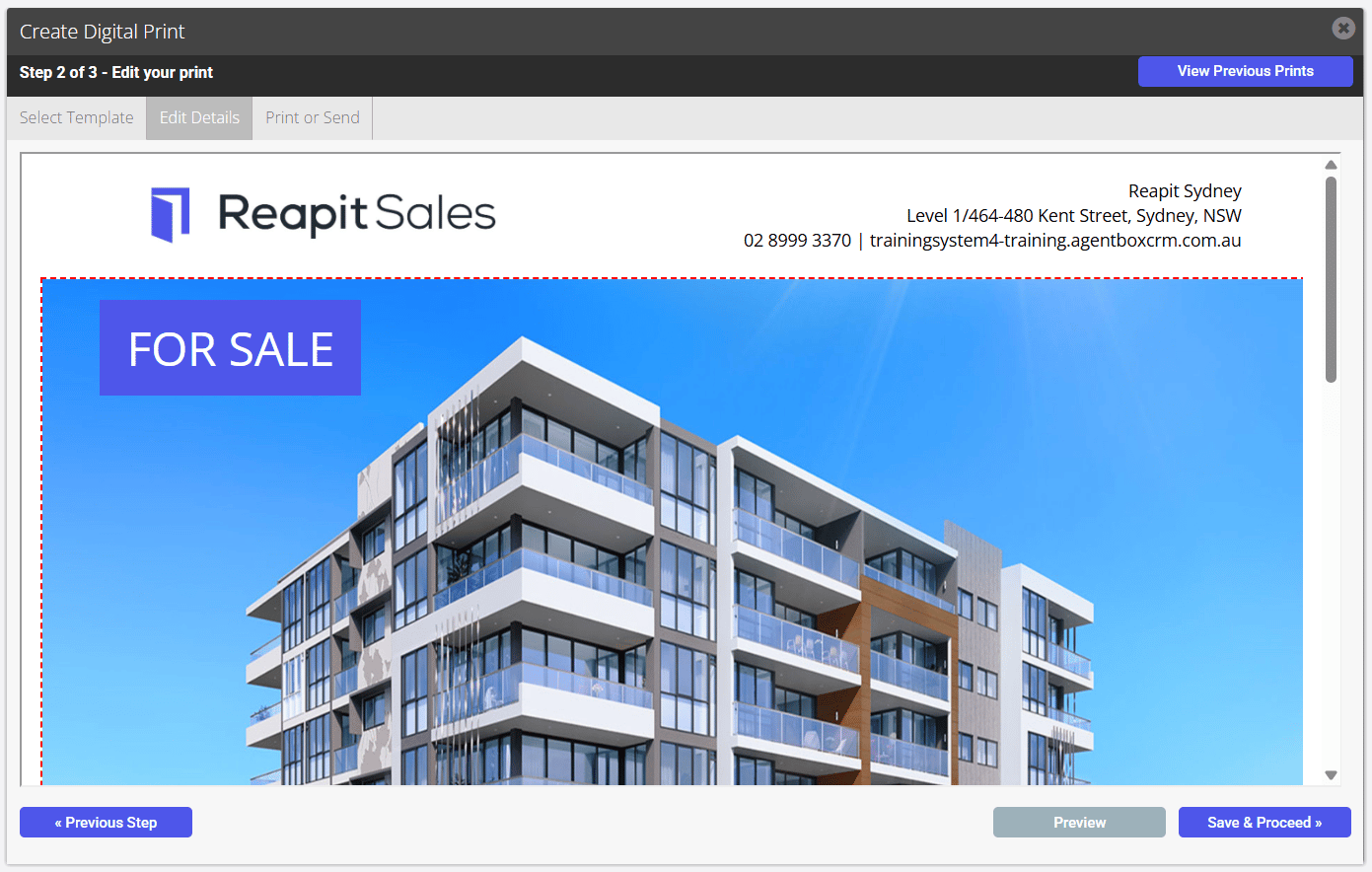
7. Click Preview to view a preview of the final brochure
8. When you are satisfied with the final brochure, click Save & Proceed
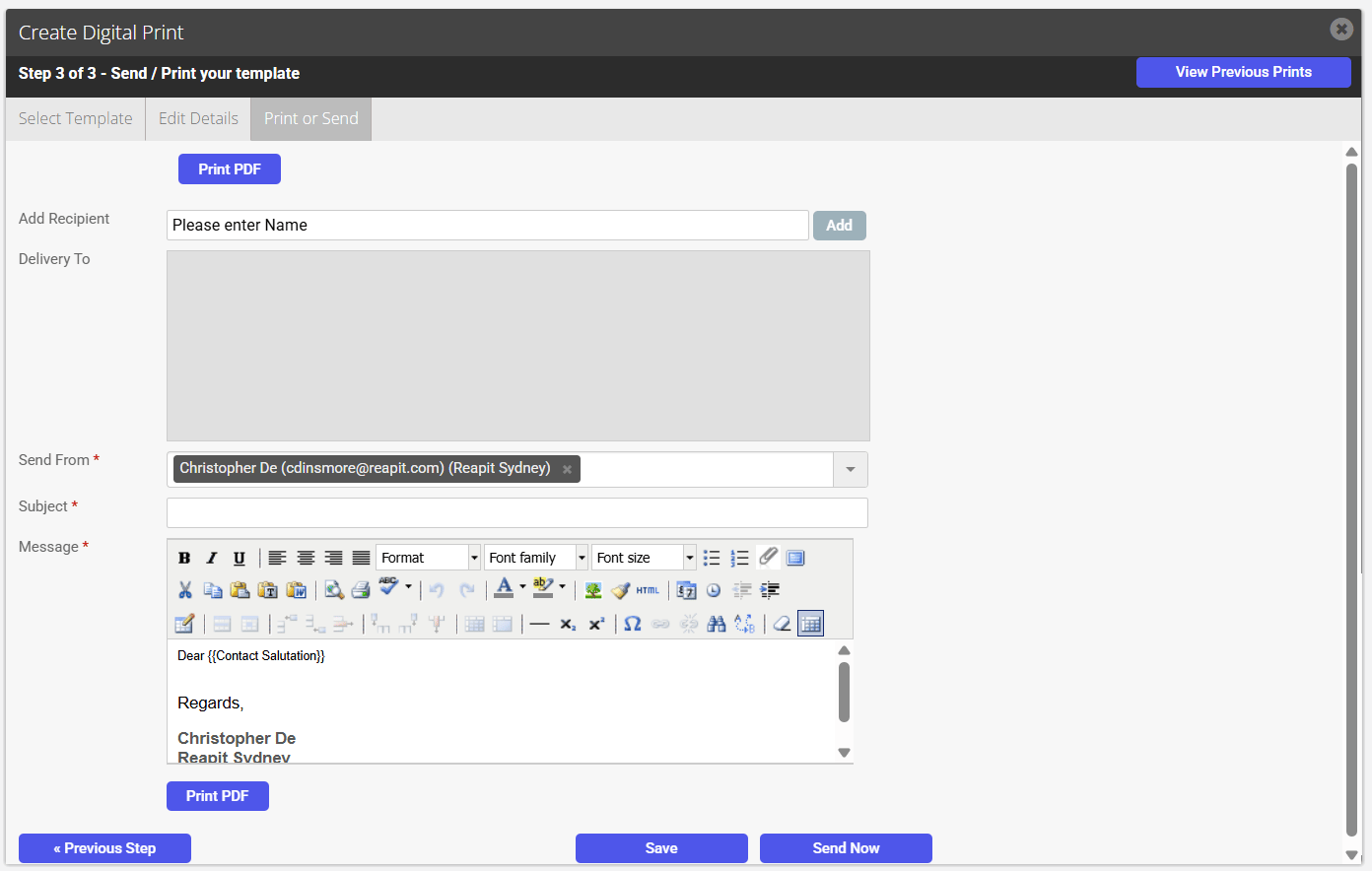
9. Either
- Click Print PDF to generate a hi-resolution PDF brochure
- Click Save
- Or to email the Brochure
*Note: This will send an email with the Brochure or Window card as an attachment.- Enter Recipient and click on their name
- Click Add
- Enter a Subject
- Enter a Message
- Click Send Now
How do I alter the Headline and Description of a Brochure for a Property in Reapit Sales?
1. Click the headline or description highlighted by a red dashed border to edit the section
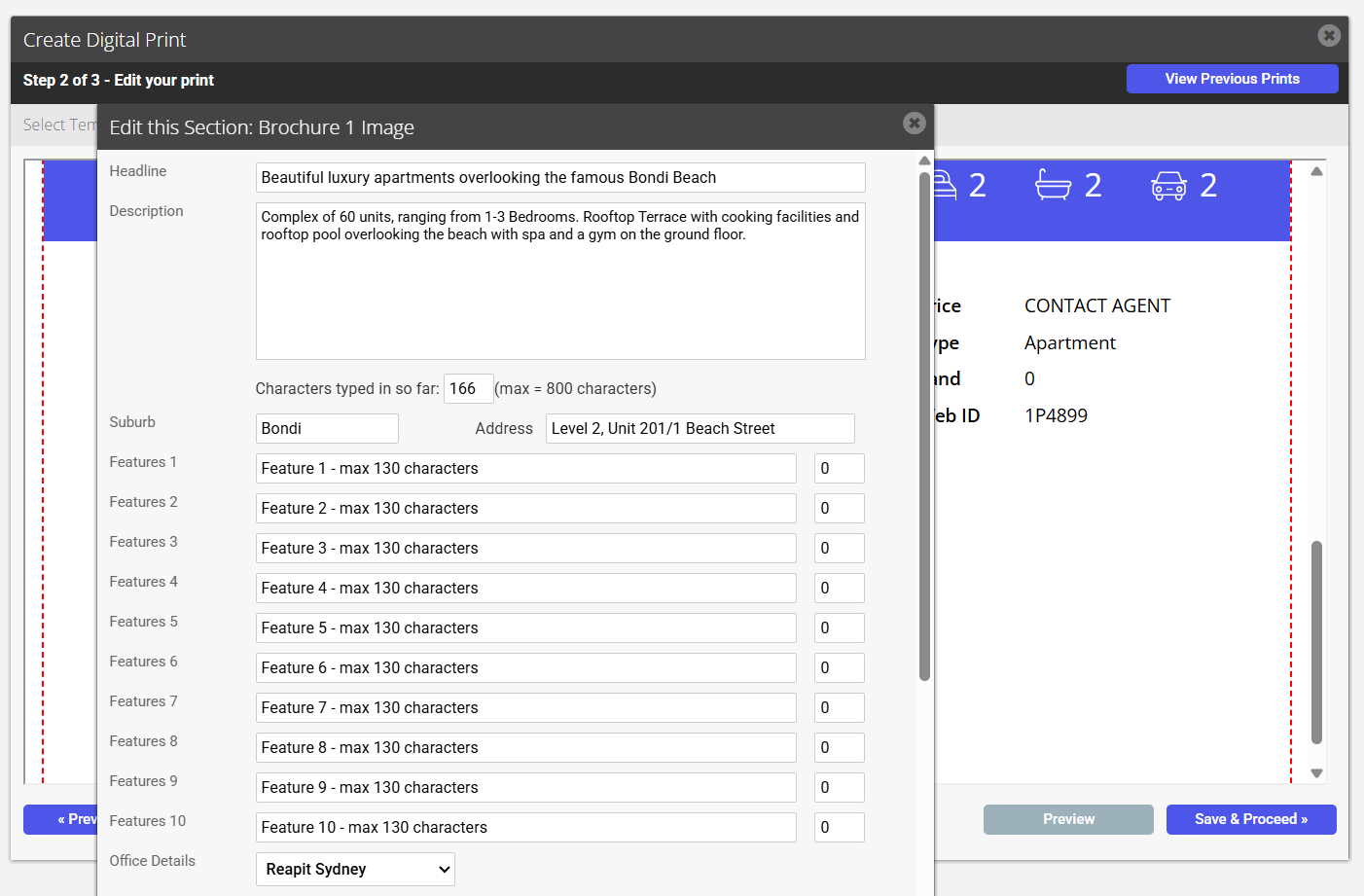
2. Edit Heading and Description
3. Click Save
How do I alter the Photo in my Brochure for a Property in Agentbox?
1. Click the photo in the brochure highlighted by a red dashed border
2. Select the Photo you wish to use
3. Click Save
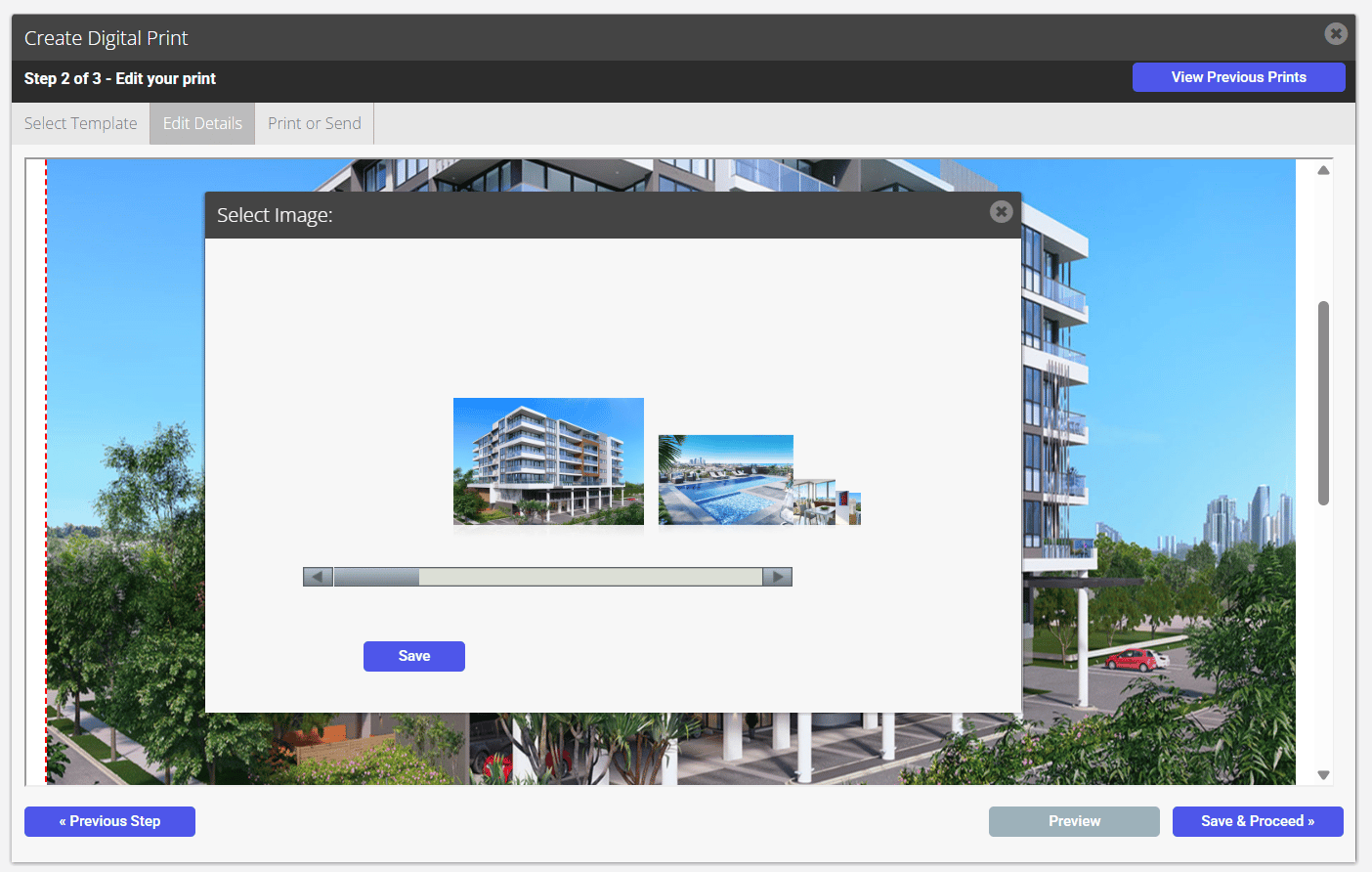
4. The new Photo will appear on Brochure
Window Cards
1. From the drop-down, select Residential Window Cards.
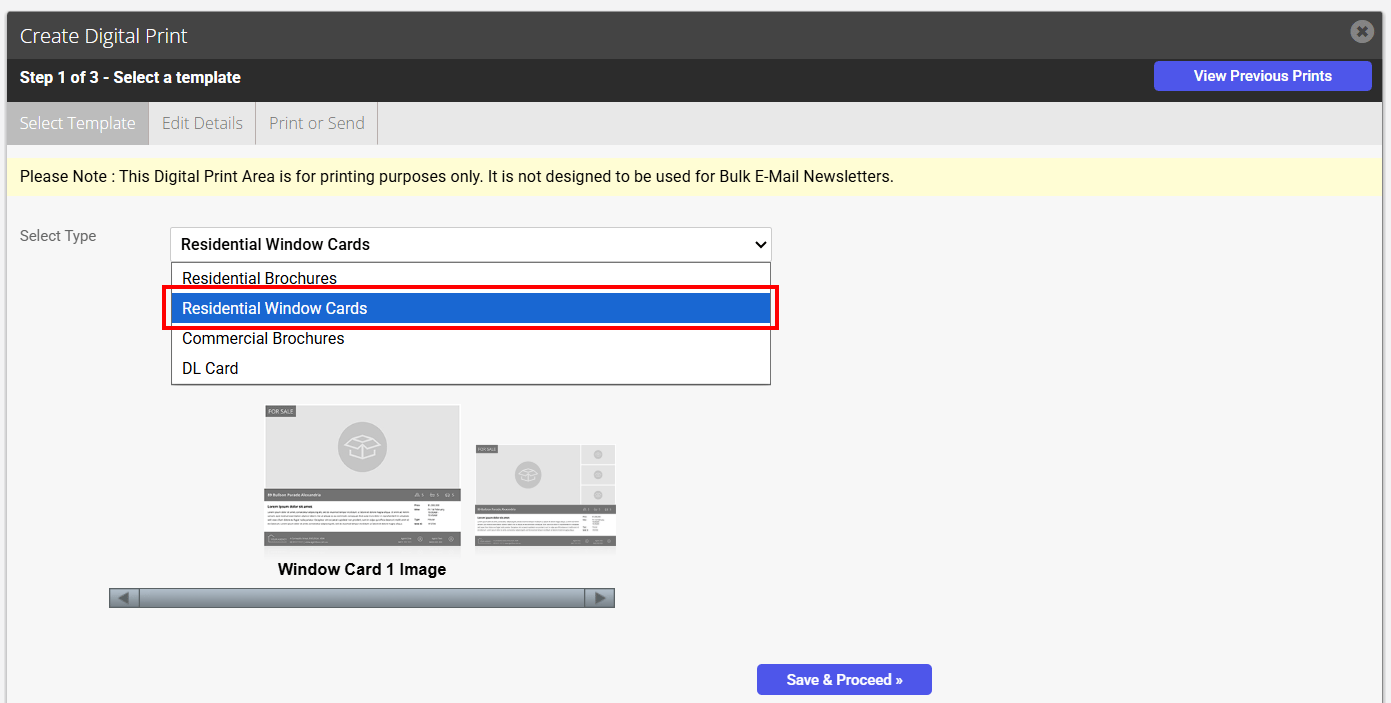
2. Select Template and click Save & Proceed.
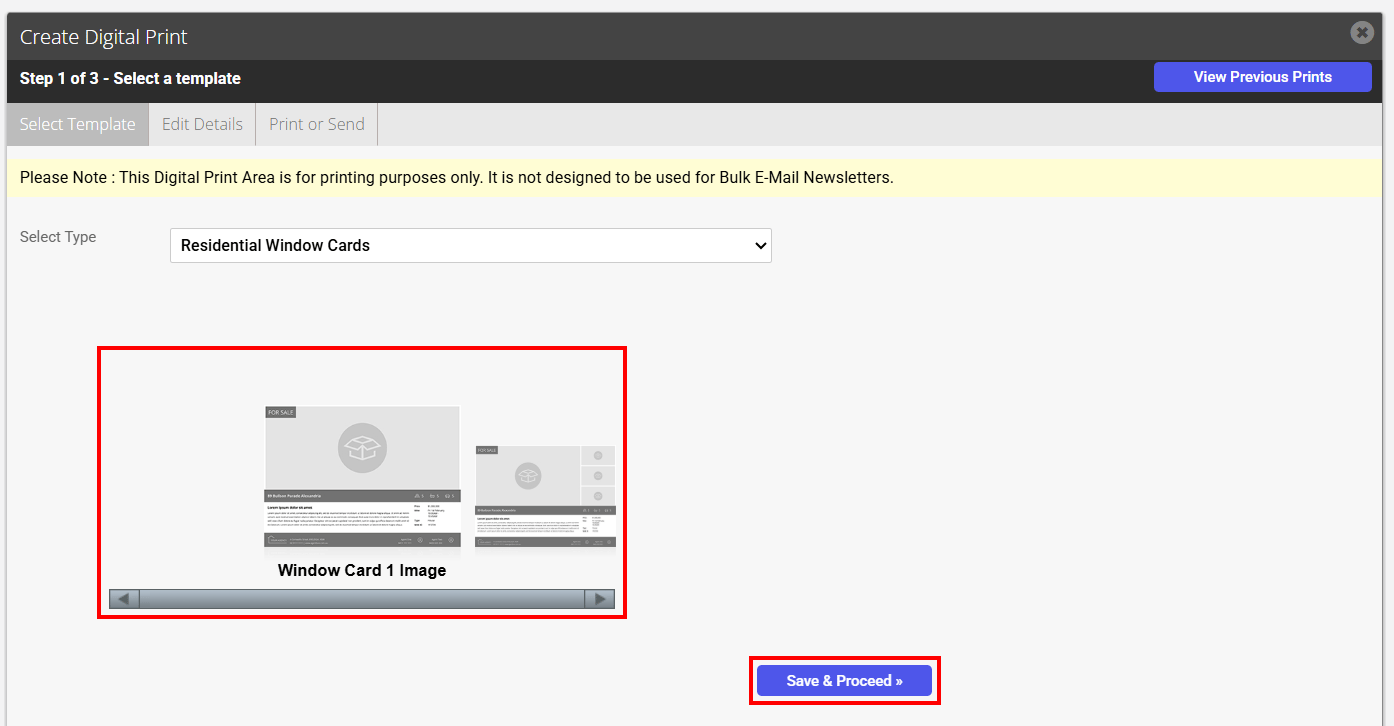
3. Edit and amend content within the broken red lines.