'%20d='M0%208a8%208%200%200%201%208-8h24a8%208%200%200%201%208%208v24a8%208%200%200%201-8%208H8a8%208%200%200%201-8-8V8Z'/%3e%3cpath%20fill='%23fff'%20d='M10.41%206v3.779h15.048v19.537h4.132V6H10.41Z'/%3e%3cpath%20fill='%23fff'%20d='M20.967%2034V13.837L10.41%209.78v20.166L20.967%2034Z'/%3e%3cdefs%3e%3clinearGradient%20id='reapit-sales__a'%20x1='20.702'%20x2='20.702'%20y1='.351'%20y2='31.228'%20gradientUnits='userSpaceOnUse'%3e%3cstop%20stop-color='%235573FD'/%3e%3cstop%20offset='.575'%20stop-color='%234E56EA'/%3e%3c/linearGradient%3e%3c/defs%3e%3c/svg%3e)
How to insert a link in an email or email template
In this article we will demonstrate how to insert a link into an email within Reapit Sales.
1. Search for your Property and open the Property Card
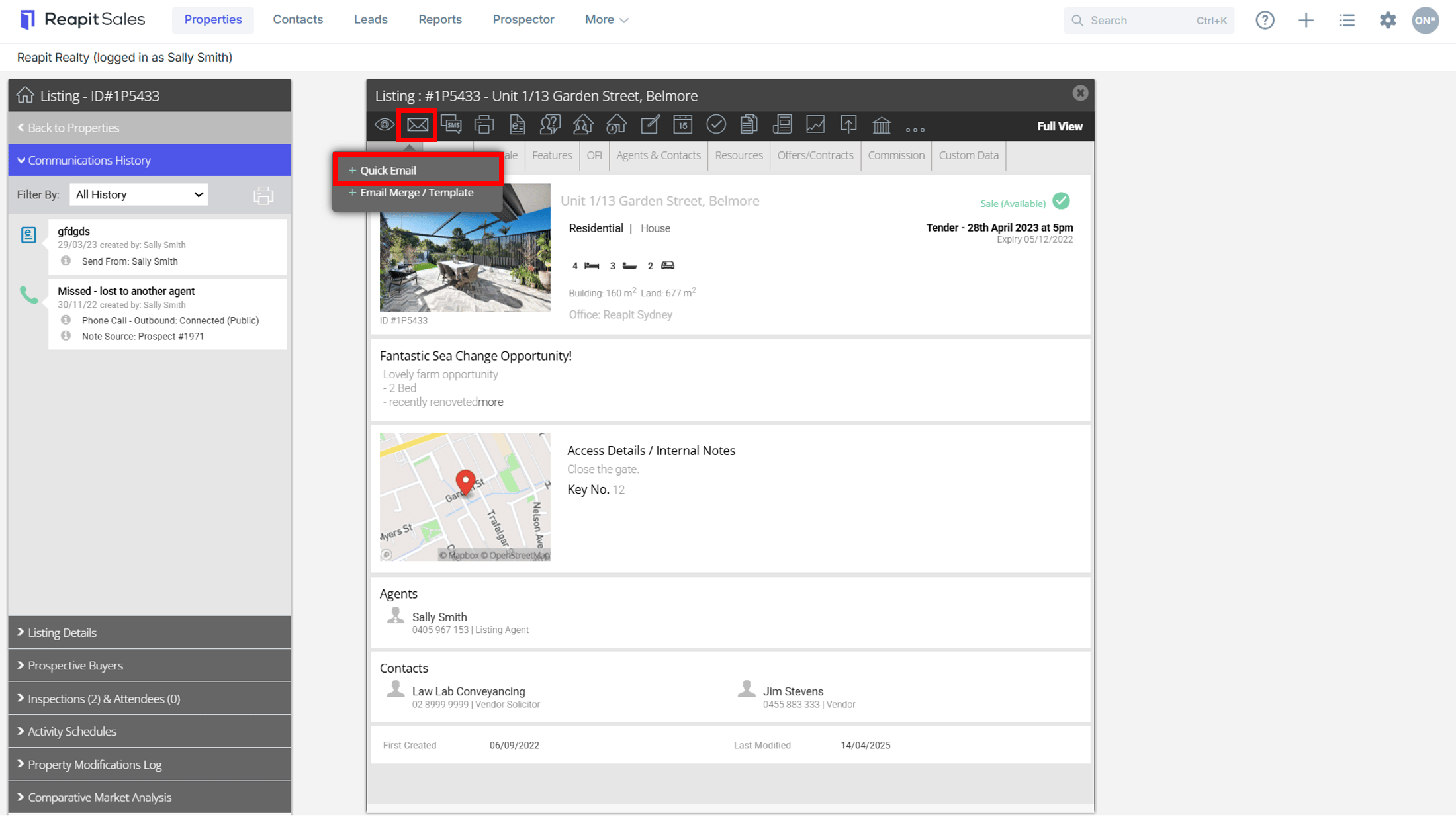
2. Click the Send an Email action icon and select Quick Email from the drop down.
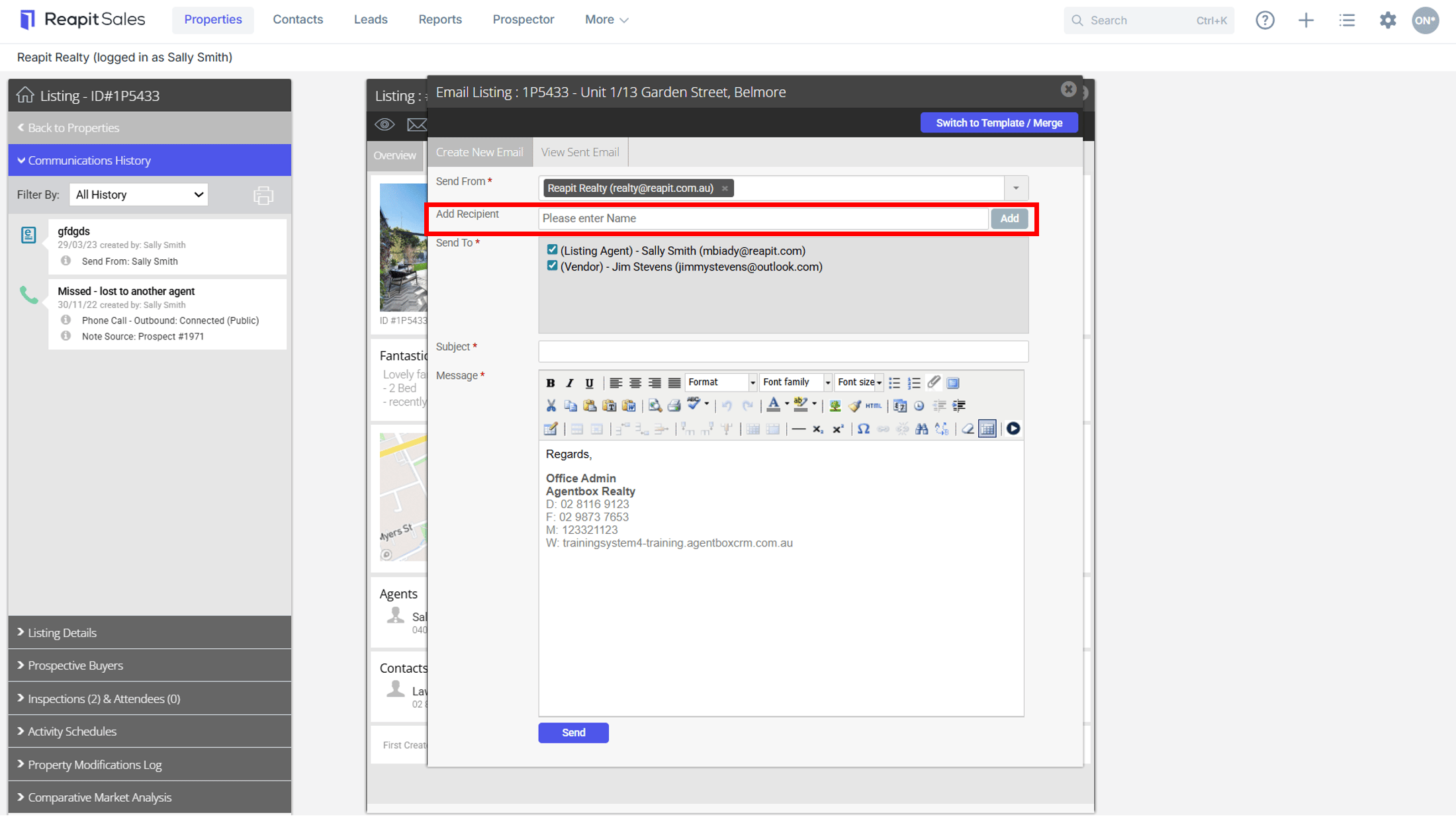
3. Add Recipient, Subject and complete your Email Message
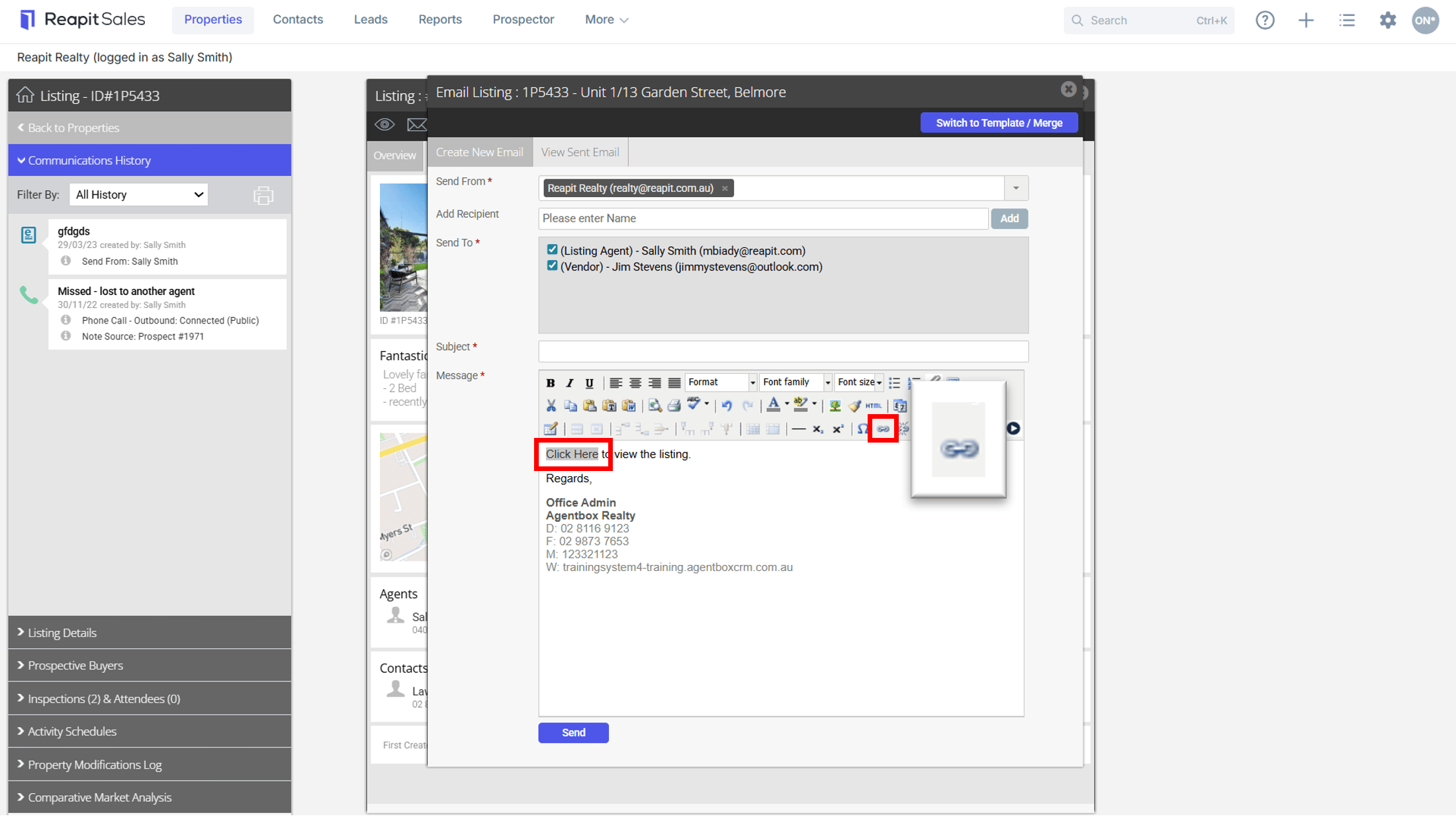
4. Type the text you would like to link e.g. 'click here'
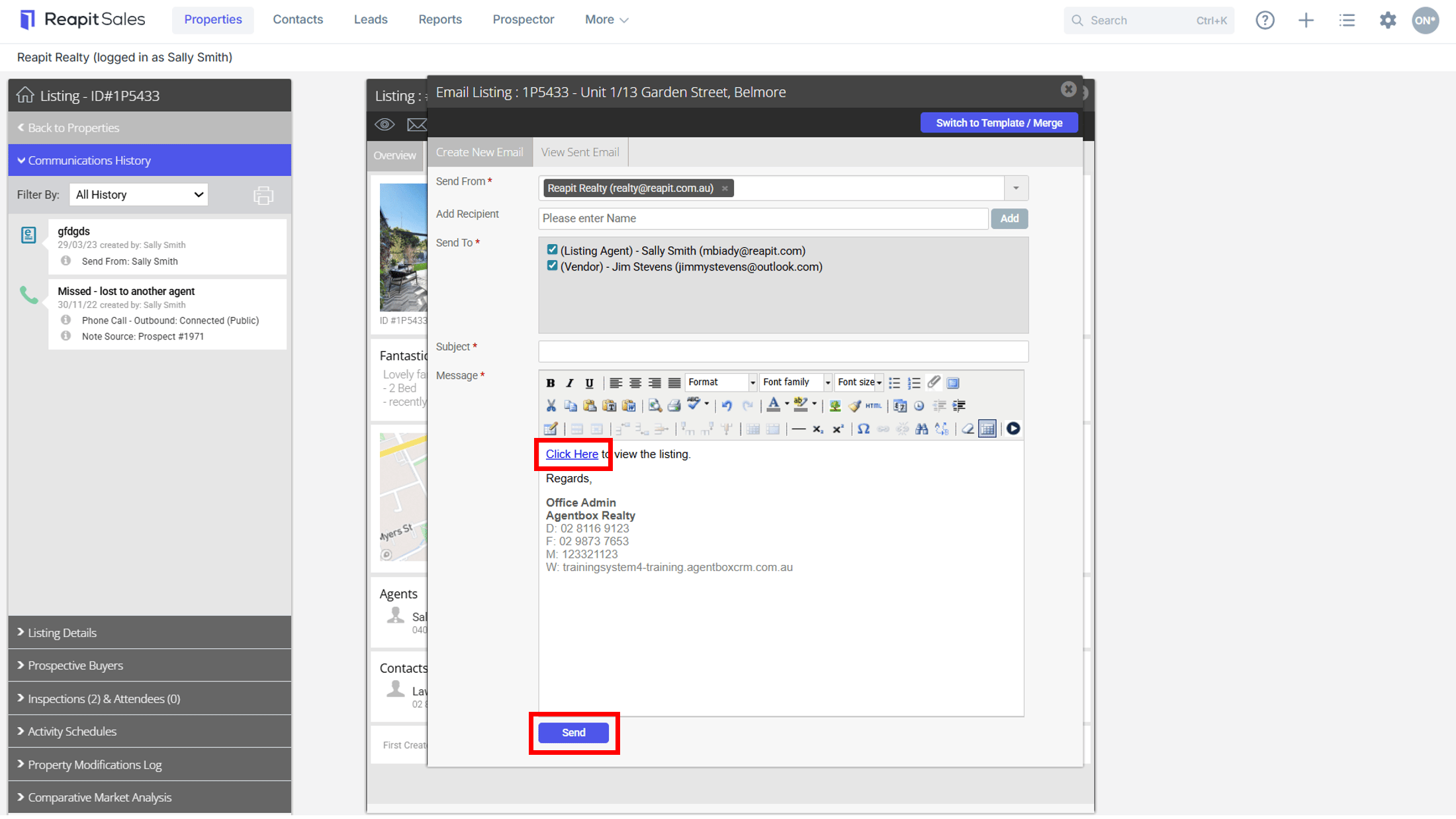
5. Highlight the text you would like to link and click the insert link icon
6. Enter the URL, select the Target and click Insert
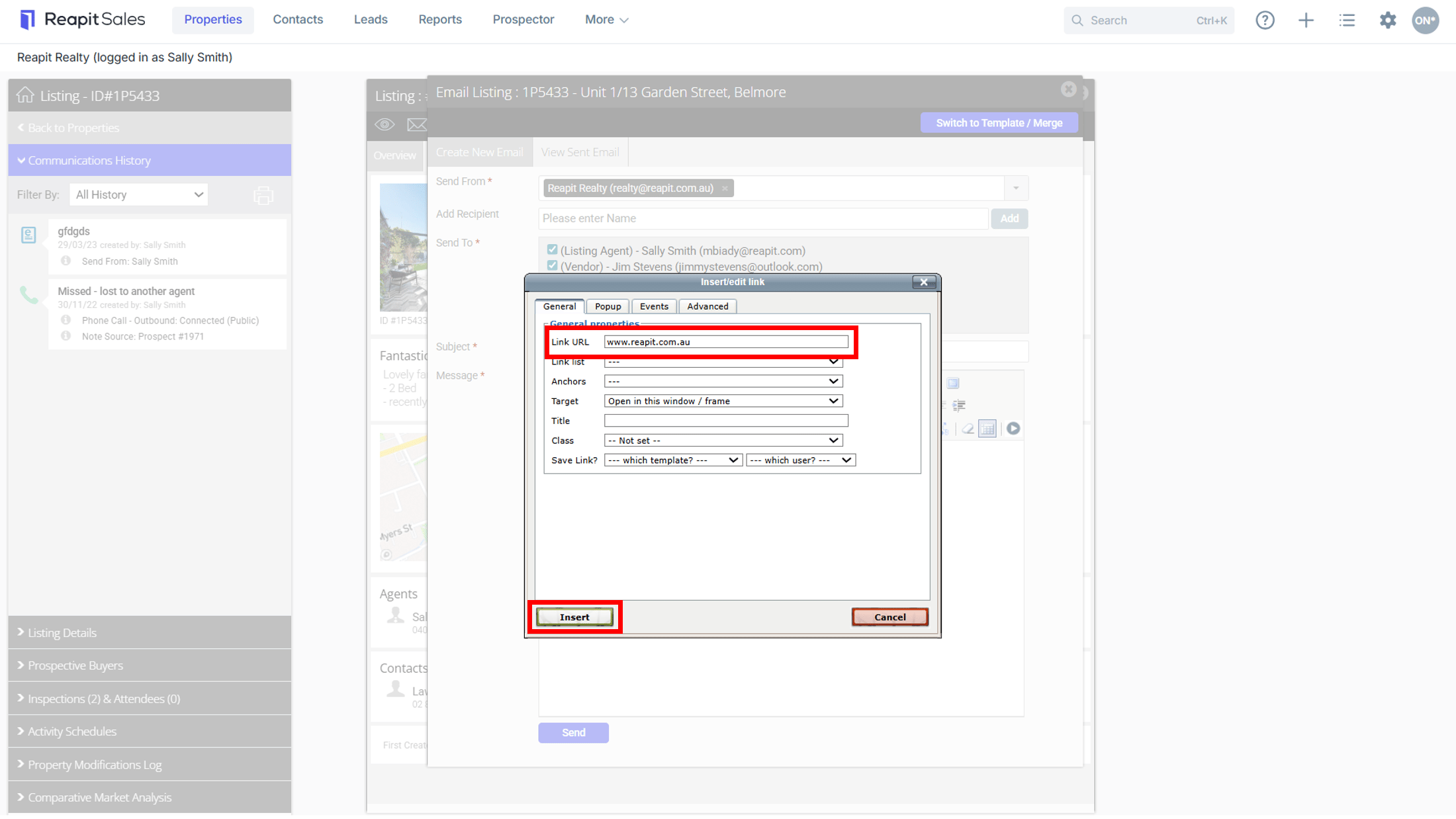
7. A link will now embed into the email where the client can click to visit
8. Click Send when you are happy to proceed.