'%20d='M0%208a8%208%200%200%201%208-8h24a8%208%200%200%201%208%208v24a8%208%200%200%201-8%208H8a8%208%200%200%201-8-8V8Z'/%3e%3cpath%20fill='%23fff'%20d='M10.41%206v3.779h15.048v19.537h4.132V6H10.41Z'/%3e%3cpath%20fill='%23fff'%20d='M20.967%2034V13.837L10.41%209.78v20.166L20.967%2034Z'/%3e%3cdefs%3e%3clinearGradient%20id='reapit-sales__a'%20x1='20.702'%20x2='20.702'%20y1='.351'%20y2='31.228'%20gradientUnits='userSpaceOnUse'%3e%3cstop%20stop-color='%235573FD'/%3e%3cstop%20offset='.575'%20stop-color='%234E56EA'/%3e%3c/linearGradient%3e%3c/defs%3e%3c/svg%3e)
Property Alert Report
This article will cover viewing the property alert report in Reapit Sales.
*Note: Only Master Users can view this report
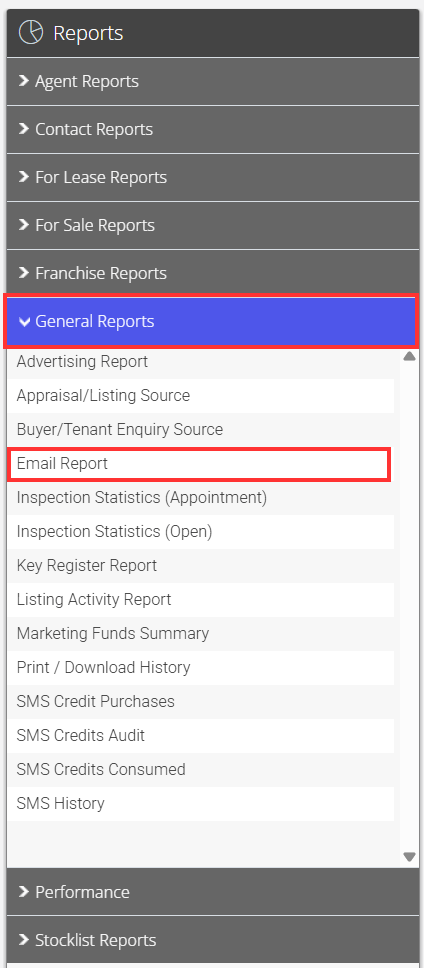
1. Click Reports from the Main Menu


2. Click the General Reports tab, then click on Email Report

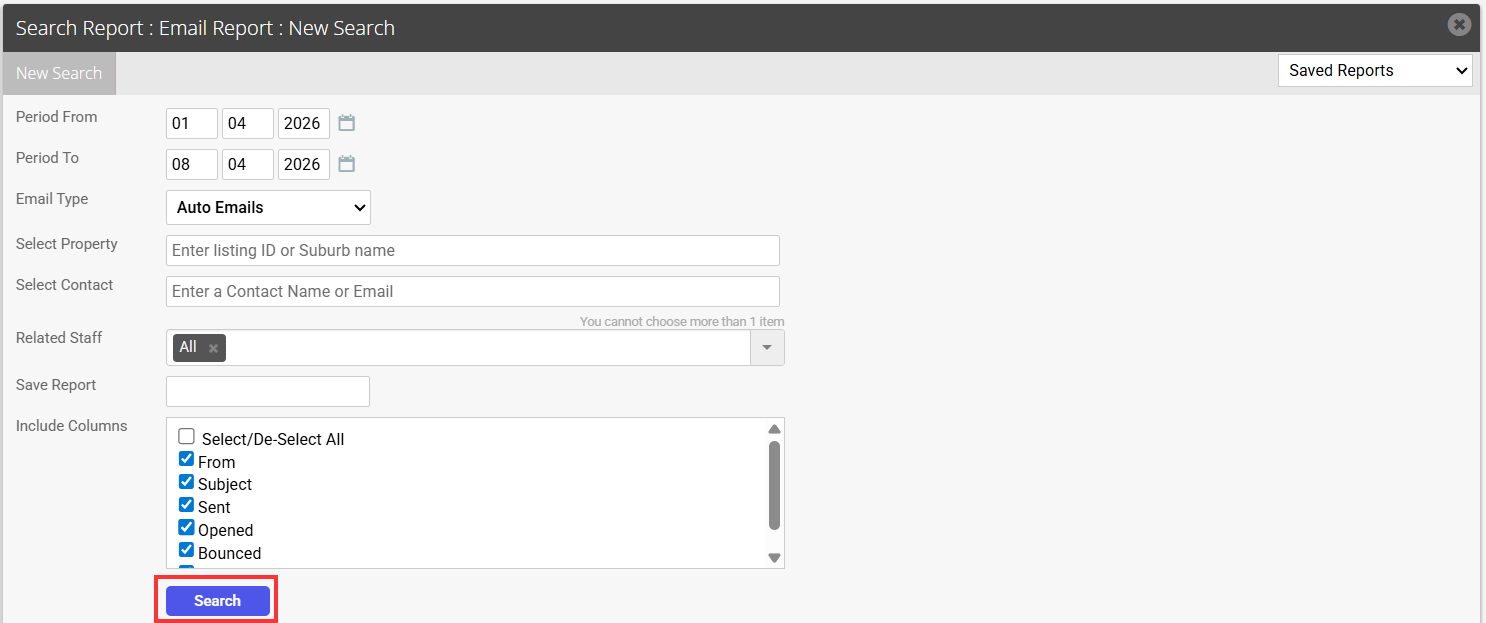
3. Enter a Date Range
4. Select Auto Emails from the Email Type drop-down
5. Click Search
6. Click Your Matched Properties Alert to preview the template that has been sent out
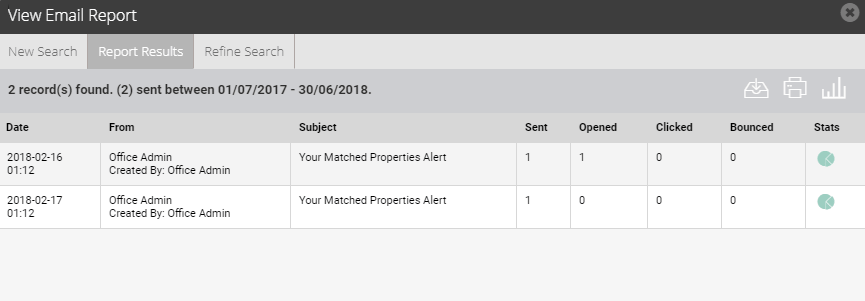
7. Click  to download a CSV file or
  to print a report or
  to take you back to the graph above.
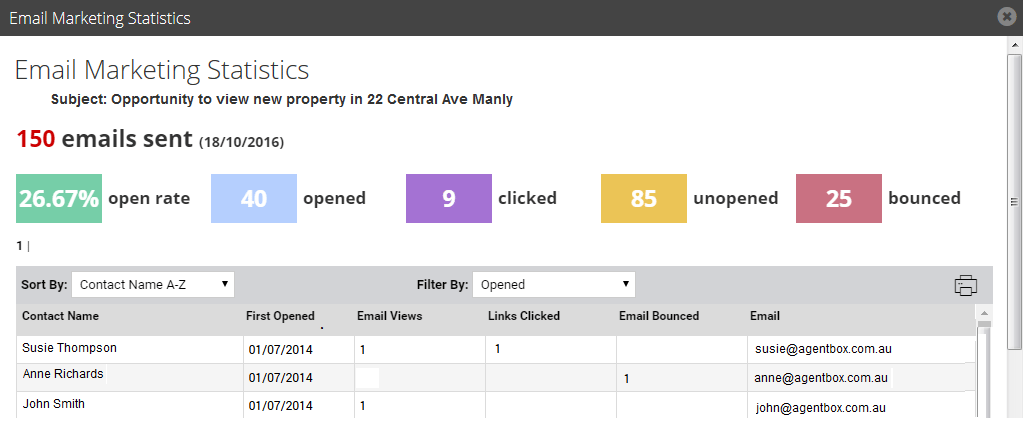
8. Click on the Pie Chart icon next to the corresponding report to view the open rate statistics
- You can filter results by Opened, Clicked, Unopened and Bounced
- Click on the contacts name to quickly view/edit their contact details
- To assist with managing bounced emails;
- Bounced email addresses are highlighted in red if the contact’s email address has not been changed/updated since the email was sent.
- Contacts that have had their email address updated after the email was sent are displayed with an asterisk prefixing their new/current email address.