'%20d='M0%208a8%208%200%200%201%208-8h24a8%208%200%200%201%208%208v24a8%208%200%200%201-8%208H8a8%208%200%200%201-8-8V8Z'/%3e%3cpath%20fill='%23fff'%20d='M10.41%206v3.779h15.048v19.537h4.132V6H10.41Z'/%3e%3cpath%20fill='%23fff'%20d='M20.967%2034V13.837L10.41%209.78v20.166L20.967%2034Z'/%3e%3cdefs%3e%3clinearGradient%20id='reapit-sales__a'%20x1='20.702'%20x2='20.702'%20y1='.351'%20y2='31.228'%20gradientUnits='userSpaceOnUse'%3e%3cstop%20stop-color='%235573FD'/%3e%3cstop%20offset='.575'%20stop-color='%234E56EA'/%3e%3c/linearGradient%3e%3c/defs%3e%3c/svg%3e)
Adding Supplier Items and Expense Categories
This article runs through about adding supplier items and expense categories in Reapit Sales. The processes in this article include: Adding Supplier Items Adding Expense Categories
This article runs through about adding supplier items and expense categories in Reapit Sales.
The processes in this article include:
- Adding Supplier Items
- Adding Expense Categories
Adding Supplier Items
1. Search for your Contact open their Contact Card

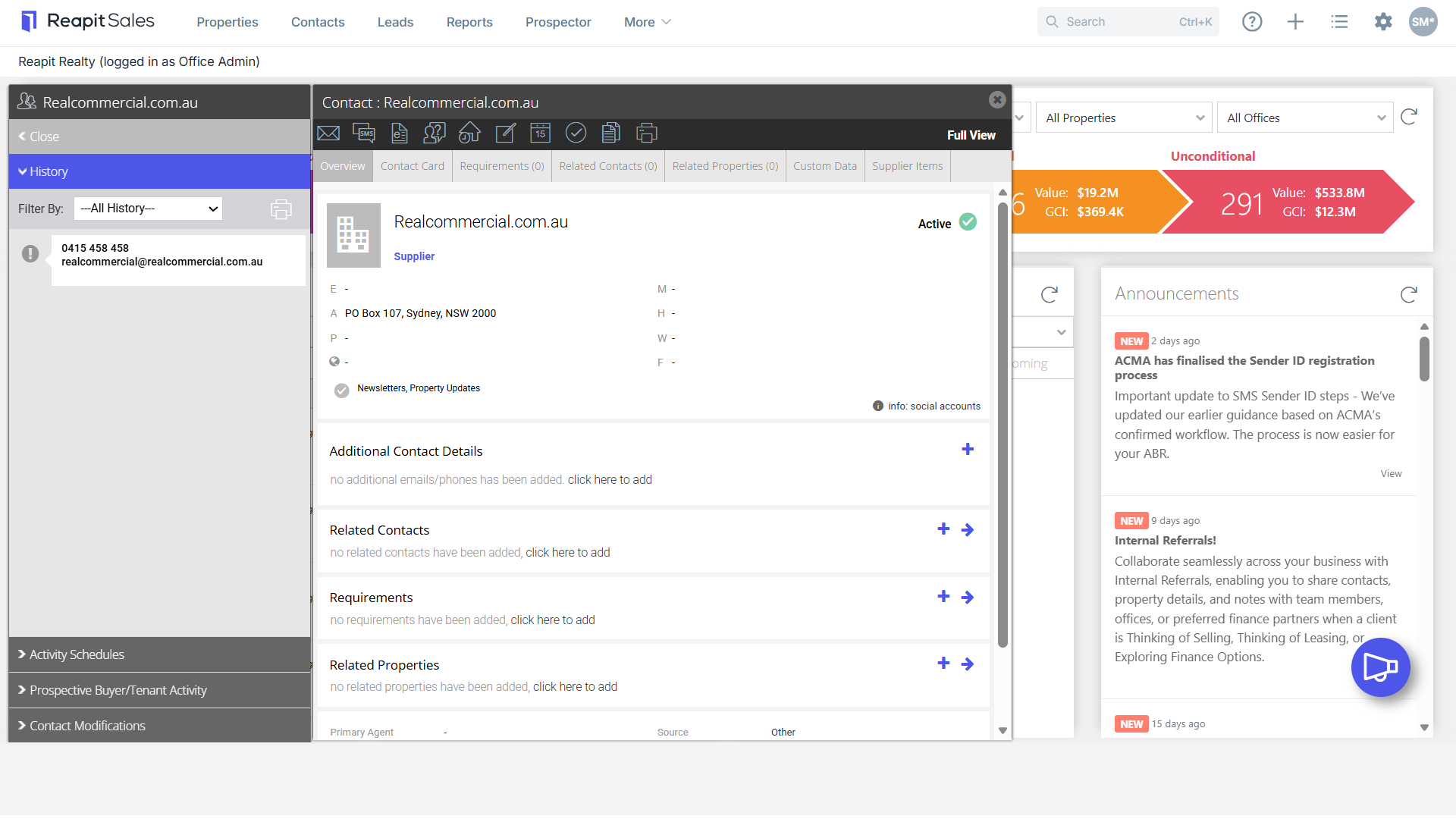
2. Click the Supplier Items tab
Note: If you are not able to see this tab then ensure the Contact Class on the Contact Card is set to Supplier.

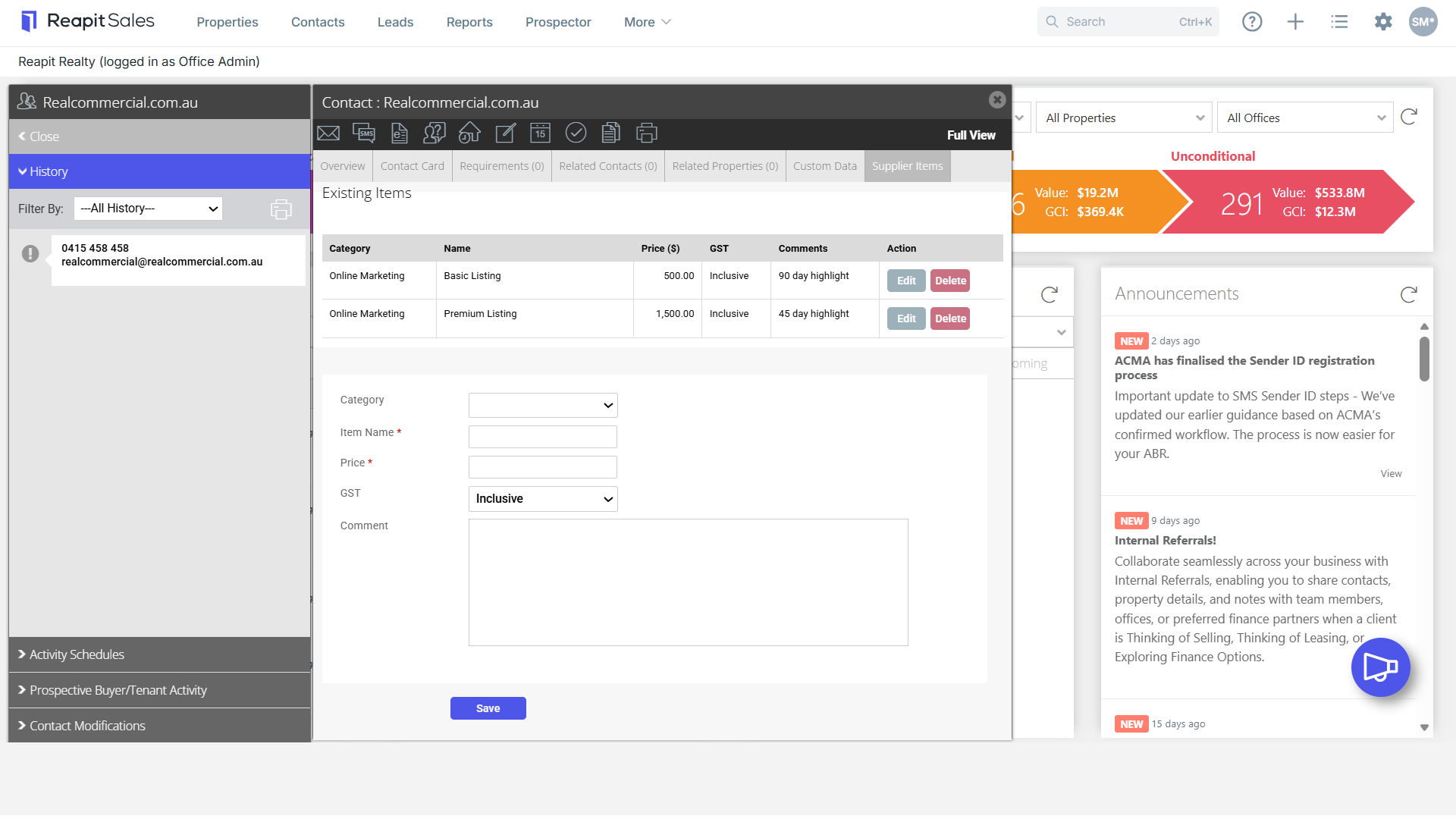
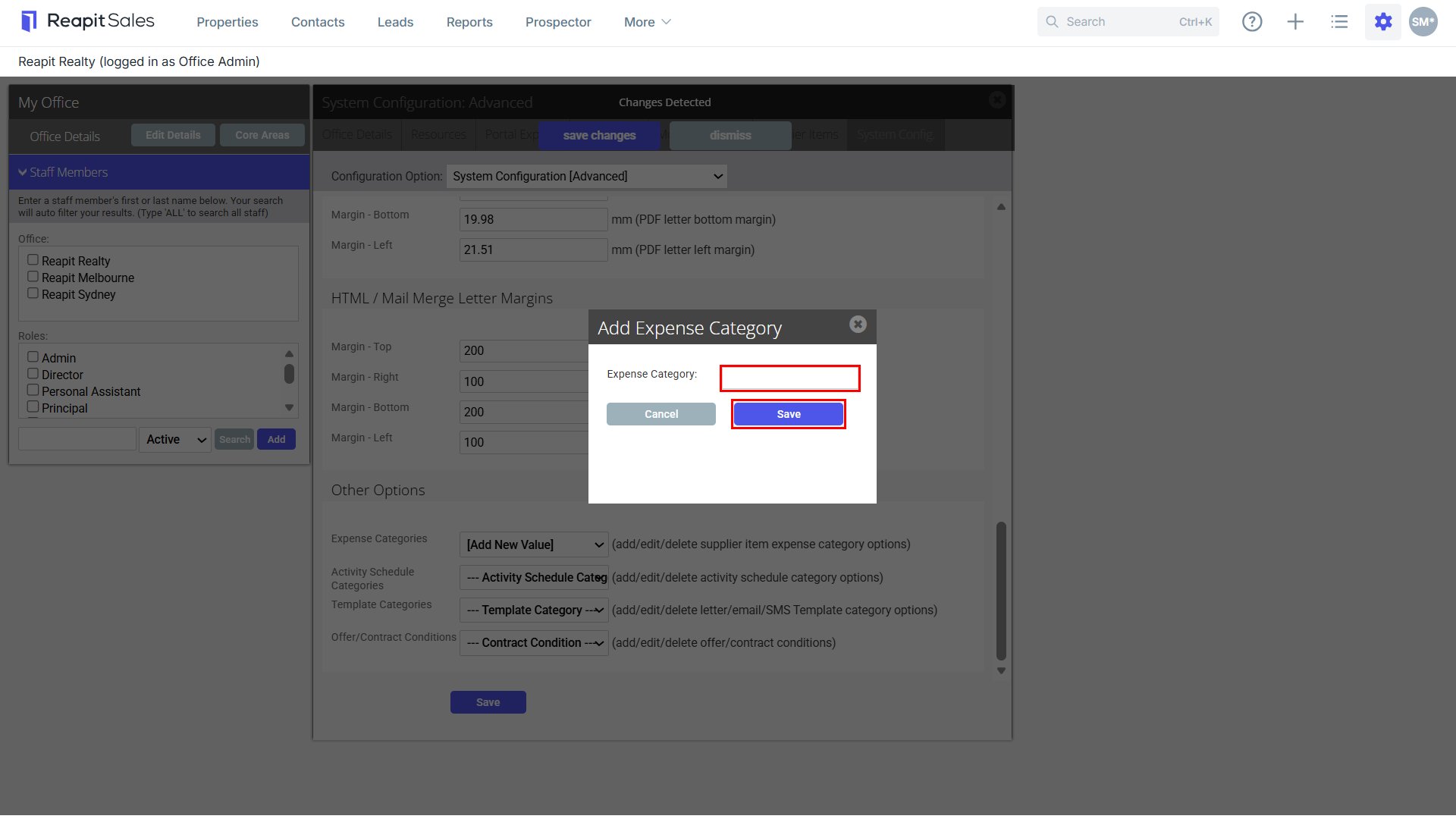
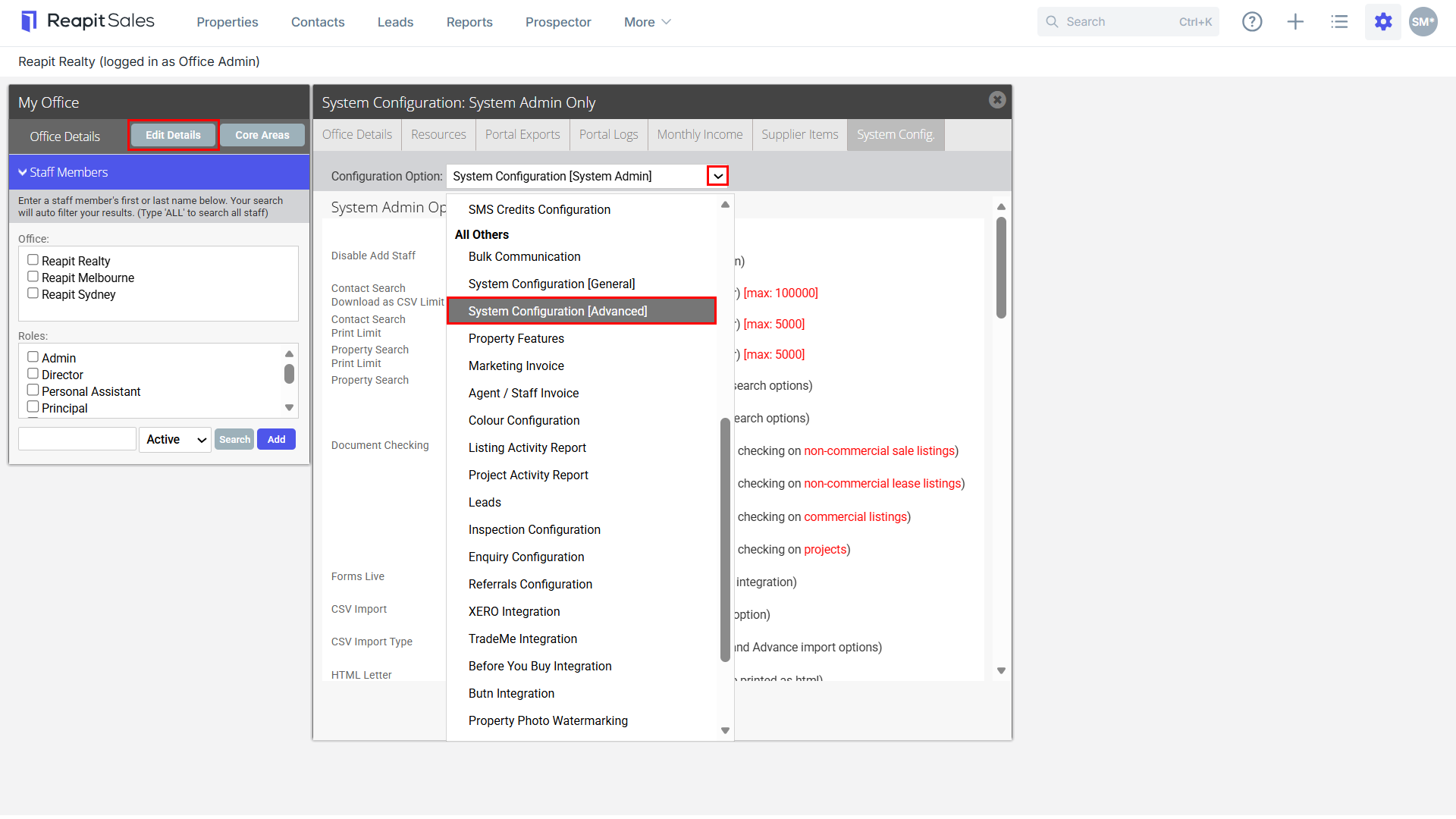
3. Select Item Category (if applicable) - New categories can be created by Master Users via My Office > Edit Details > System Config > System Configuration (Advanced) > Expense Categories.
Note: Steps to add an expense category are highlighted below.
4. Enter Item Name, Price & Item Comment/Description

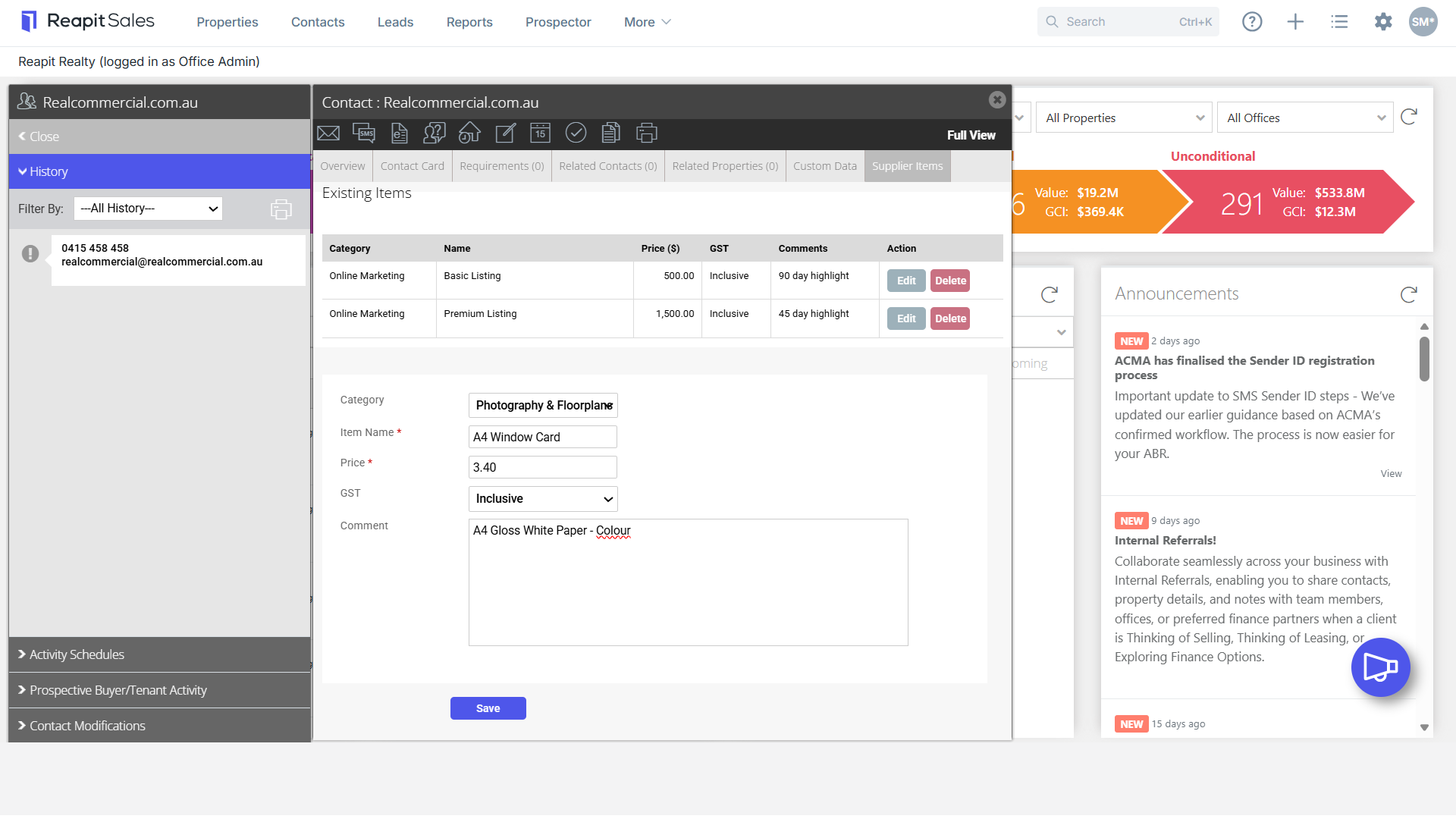
5. Click Save

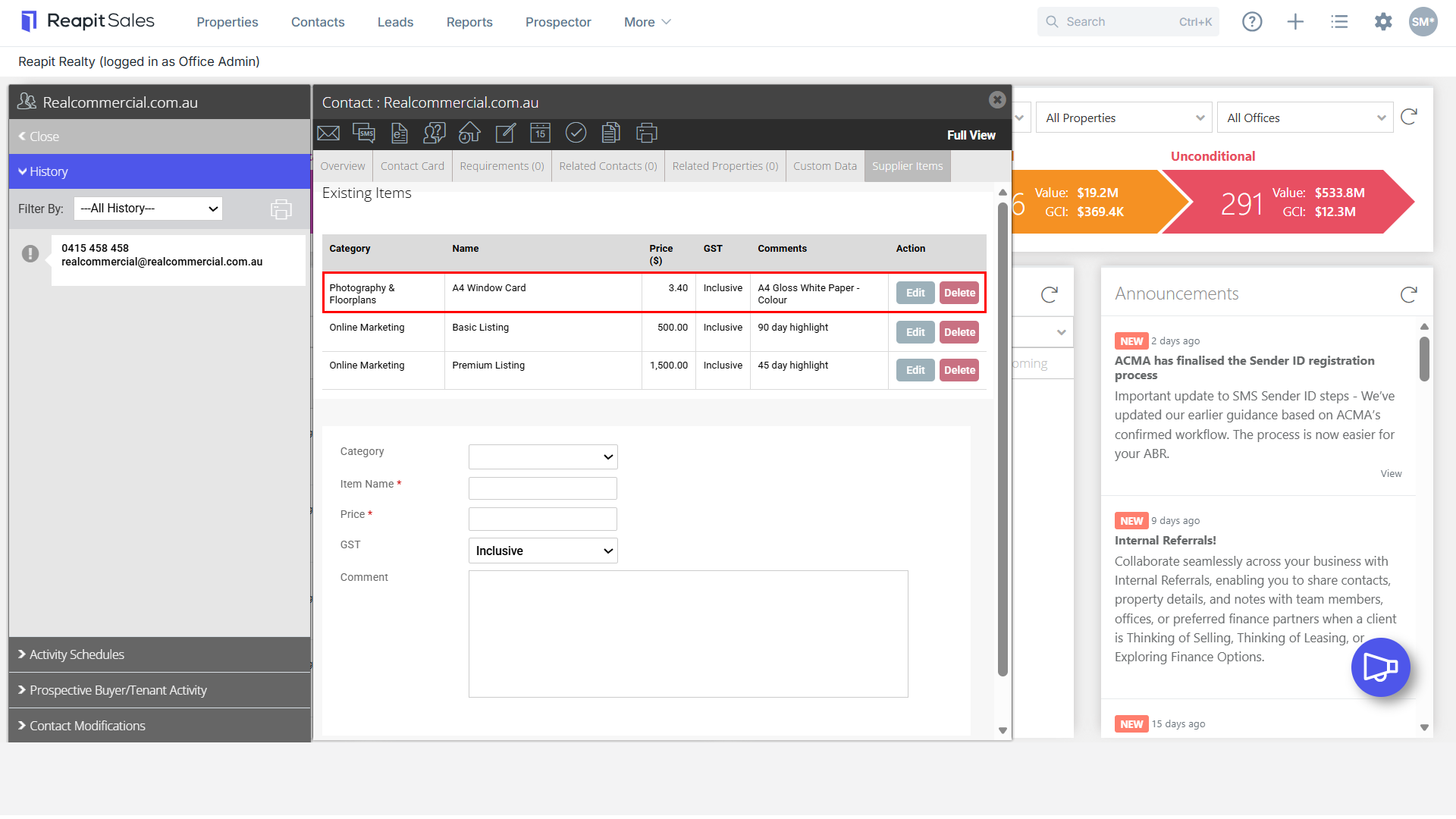
6. Follow steps 3 & 4 to add additional Supplier Items. Each Supplier Item will be added to the Existing Items list.
Adding Expense Categories
1. Navigate to My Office, click Edit Details > System Configuration (Advanced).
2. Scroll down to the 'Other Options' section and click [Add New Value].
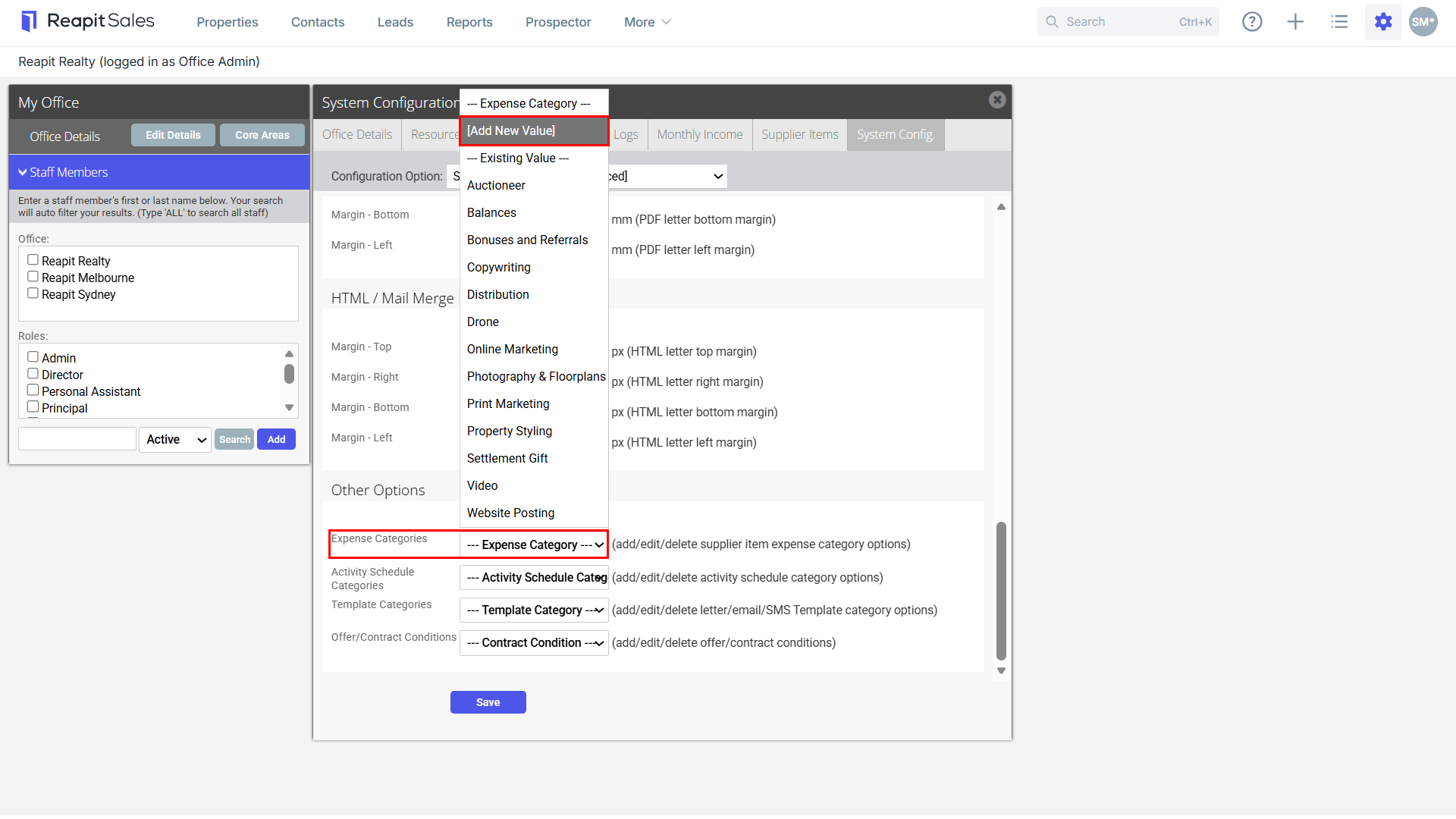
3. Enter an Expense Category name and click Save.