'%20d='M0%208a8%208%200%200%201%208-8h24a8%208%200%200%201%208%208v24a8%208%200%200%201-8%208H8a8%208%200%200%201-8-8V8Z'/%3e%3cpath%20fill='%23fff'%20d='M10.41%206v3.779h15.048v19.537h4.132V6H10.41Z'/%3e%3cpath%20fill='%23fff'%20d='M20.967%2034V13.837L10.41%209.78v20.166L20.967%2034Z'/%3e%3cdefs%3e%3clinearGradient%20id='reapit-sales__a'%20x1='20.702'%20x2='20.702'%20y1='.351'%20y2='31.228'%20gradientUnits='userSpaceOnUse'%3e%3cstop%20stop-color='%235573FD'/%3e%3cstop%20offset='.575'%20stop-color='%234E56EA'/%3e%3c/linearGradient%3e%3c/defs%3e%3c/svg%3e)
Reapit Sales App: Projects
This article will cover projects in the Reapit Sales App.
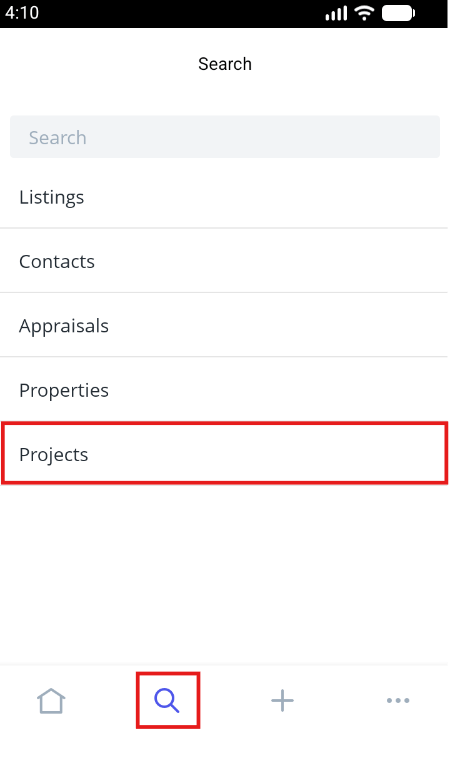
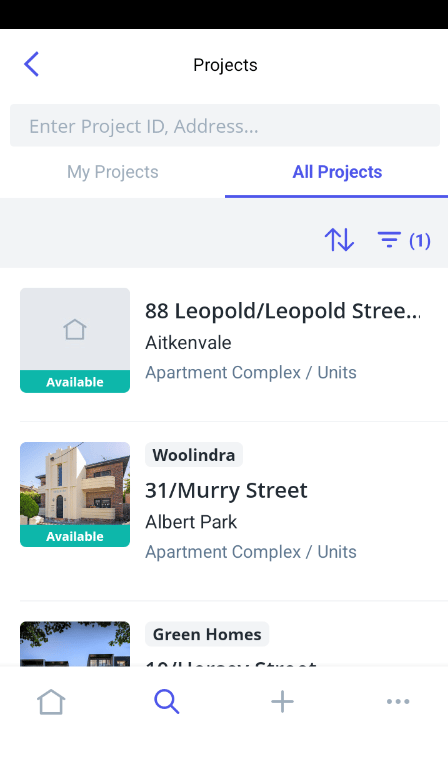
1. Navigate to the search icon in the main menu, the tap Projects.
2. From the main screen, users will have access to My Projects and All Projects.
Key project information displayed includes:
- Project Name
- Category (i.e. apartment / commercial)
- Project Status
- Address, Suburb
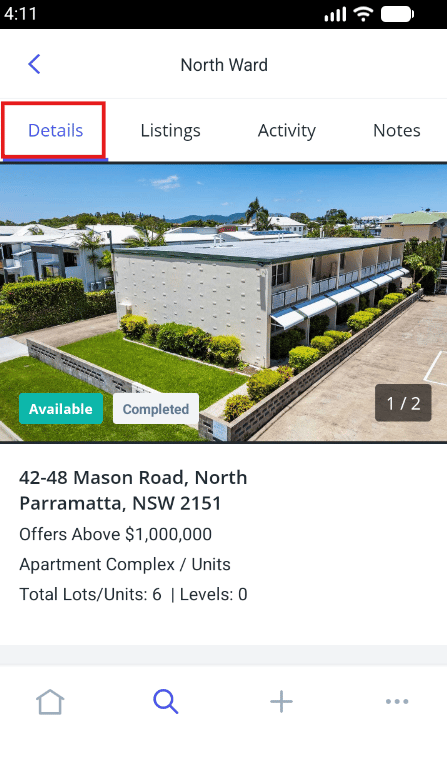
Details Tab
The Details screen provides similar detail and functionality as to what users will be familiar with from the Properties and Listings detail screen, including:
- Summary of key project information
- Click through to Contacts associated with the Project
- Map view of project location
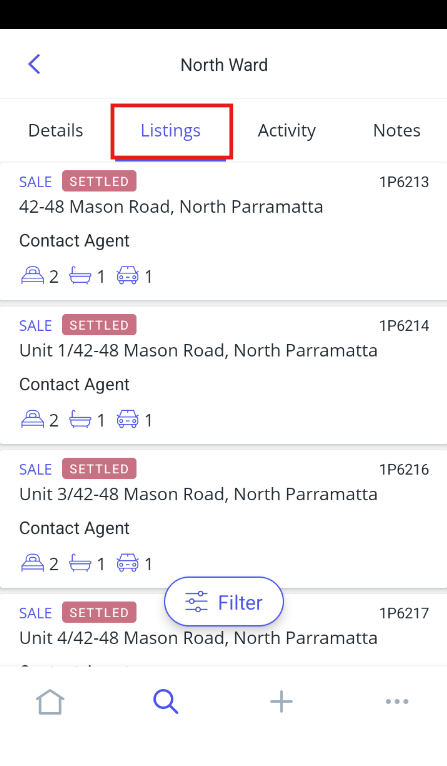
Listings Tab
The Listings screen shows all listings related to the project.
Key listing information includes:
- Type and Status
- Listing ID
- Address
- Features
The default view shows listing by last updated.
Users can also filter the Listings available based on: “Type”, “Status”, “Property Type”, “Category” and “Primary Office”.
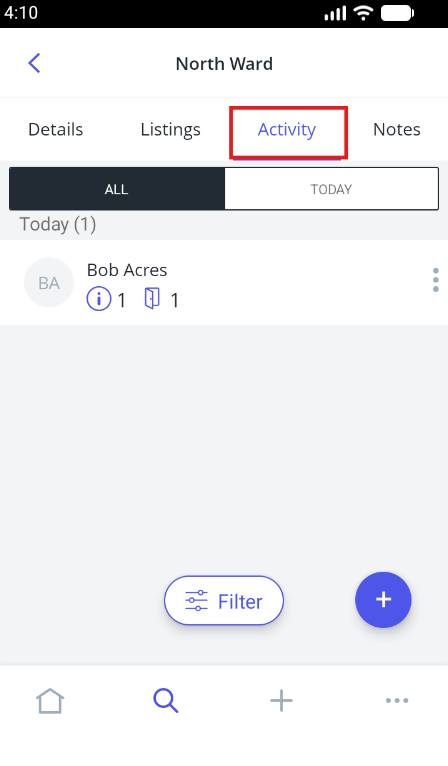
Activity Tab
The features of the activity screen is similar to that of Listings, where users will be able to:
- Review attendee activity
- Take quick actions to email contracts, add notes, call etc
- Add attendees, enquiries and private inspections
Attendee activity will also appear within the Contact - Activity tab.
Notes Tab
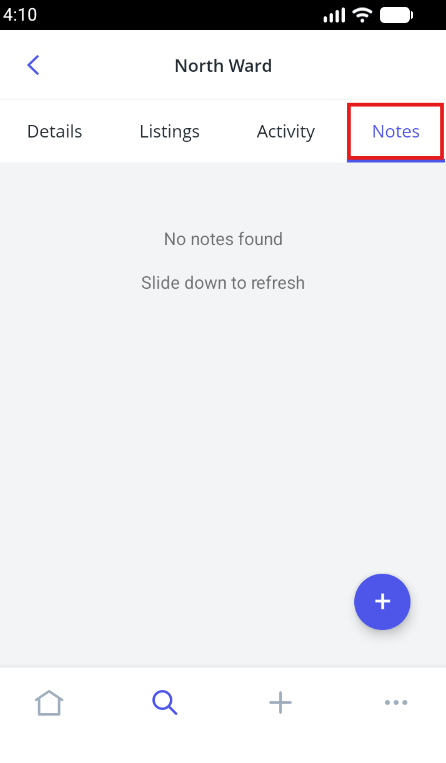
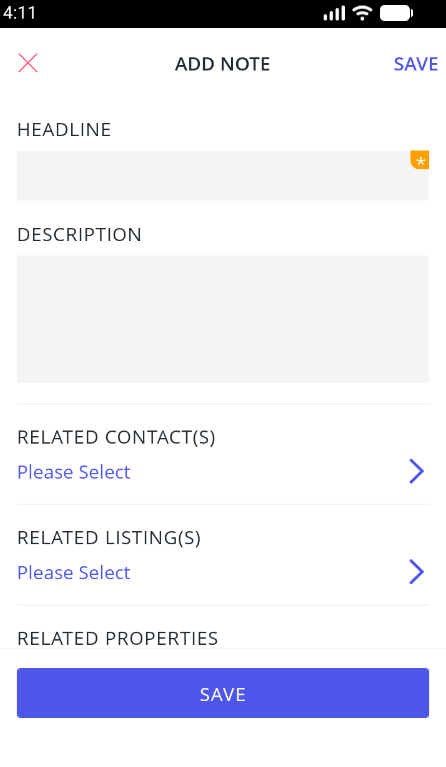
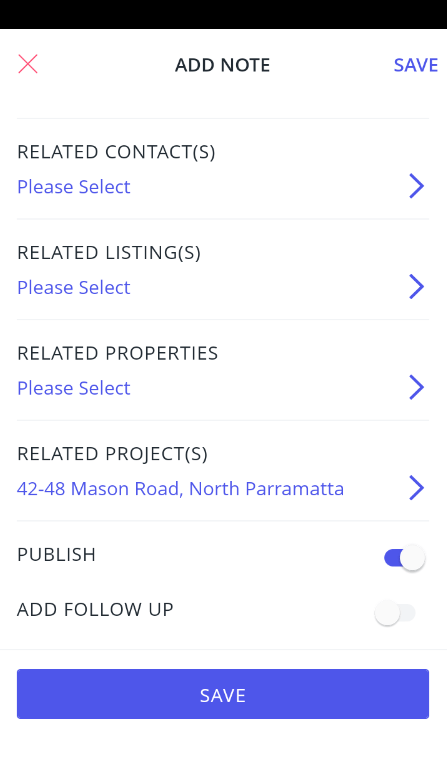
Users will be able to add Project specific Notes, along with any corresponding follow up Tasks.
- Notes and Tasks will also appear against any related Contacts, Listings, and Properties.
- Tasks will also appear from the Reminders screen.