'%20d='M0%208a8%208%200%200%201%208-8h24a8%208%200%200%201%208%208v24a8%208%200%200%201-8%208H8a8%208%200%200%201-8-8V8Z'/%3e%3cpath%20fill='%23fff'%20d='M10.41%206v3.779h15.048v19.537h4.132V6H10.41Z'/%3e%3cpath%20fill='%23fff'%20d='M20.967%2034V13.837L10.41%209.78v20.166L20.967%2034Z'/%3e%3cdefs%3e%3clinearGradient%20id='reapit-sales__a'%20x1='20.702'%20x2='20.702'%20y1='.351'%20y2='31.228'%20gradientUnits='userSpaceOnUse'%3e%3cstop%20stop-color='%235573FD'/%3e%3cstop%20offset='.575'%20stop-color='%234E56EA'/%3e%3c/linearGradient%3e%3c/defs%3e%3c/svg%3e)
Property Price Statement
This article demonstrates how to upload a Property Price Statement in the documents section of a listing in Reapit Sales. *Note: VIC Clients Only: Under the Victorian Government's Property Price Statement (PPS) reforms a 'Property Price Statement' must be provided in an approved format for each residential property advertised for sale in Victoria.
This article demonstrates how to upload a Property Price Statement in the documents section of a listing in Reapit Sales.
*Note: VIC Clients Only: Under the Victorian Government's Property Price Statement (PPS) reforms a 'Property Price Statement' must be provided in an approved format for each residential property advertised for sale in Victoria.
The information in this article includes:
- Uploading a Property Price Statement
- Viewing and Deleting a Property Price Statement
- Updating a Listing to Active Message
- Active Document Message
Upload a Property Price Statement
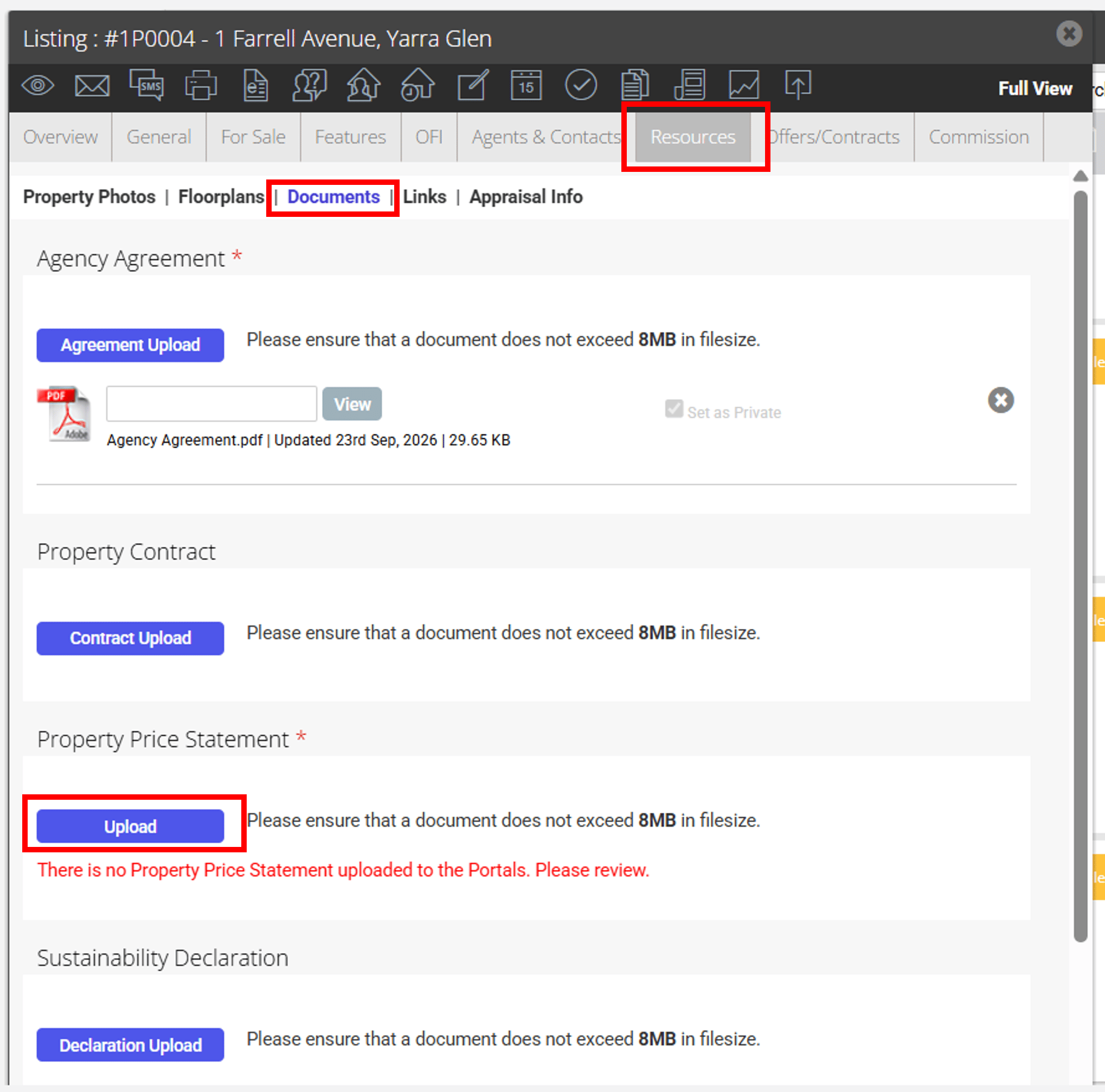
- Search for your Property and open the Resources Tab
- Click Documents on the sub-resources tab
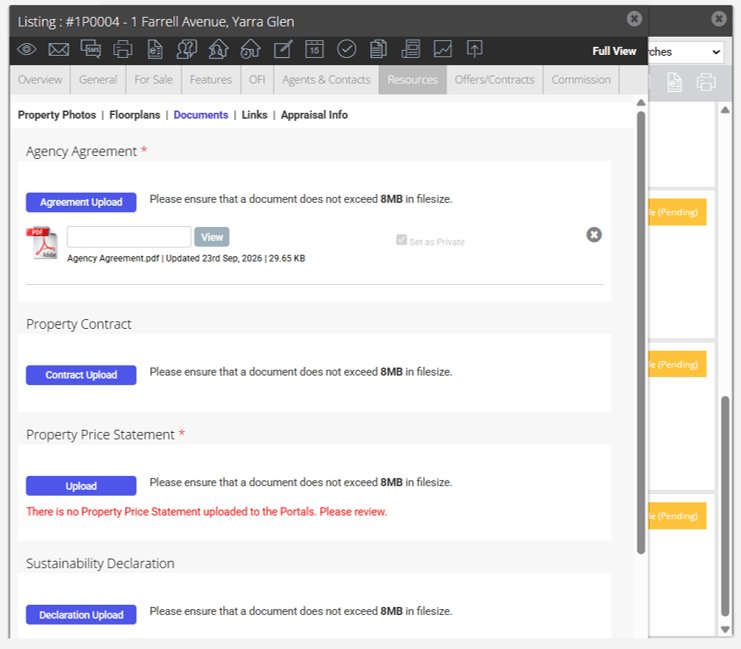
- Under Property Price Statement, select Upload.
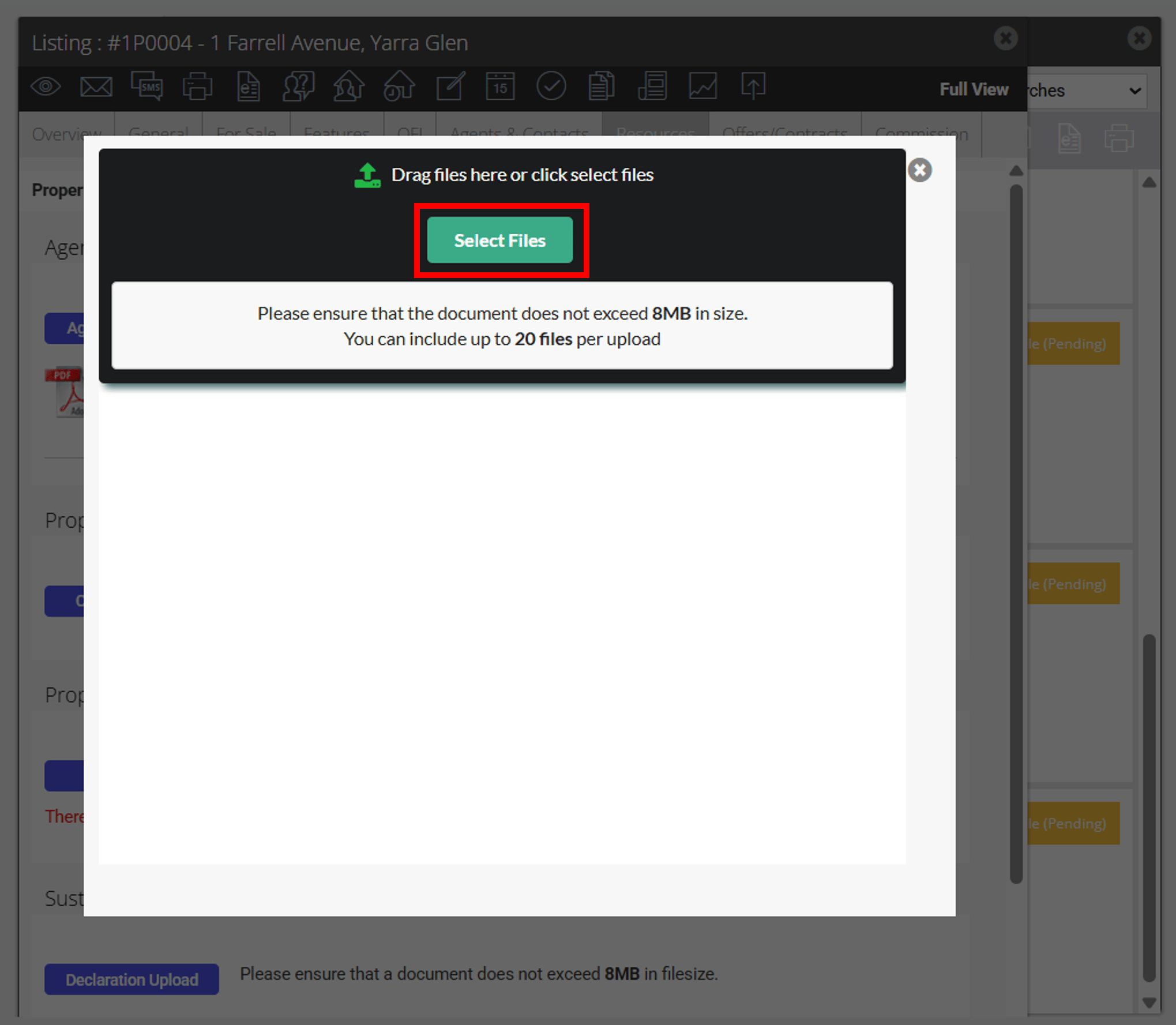
- Click the Select Files to browse your computer or Drag Files you would like to upload
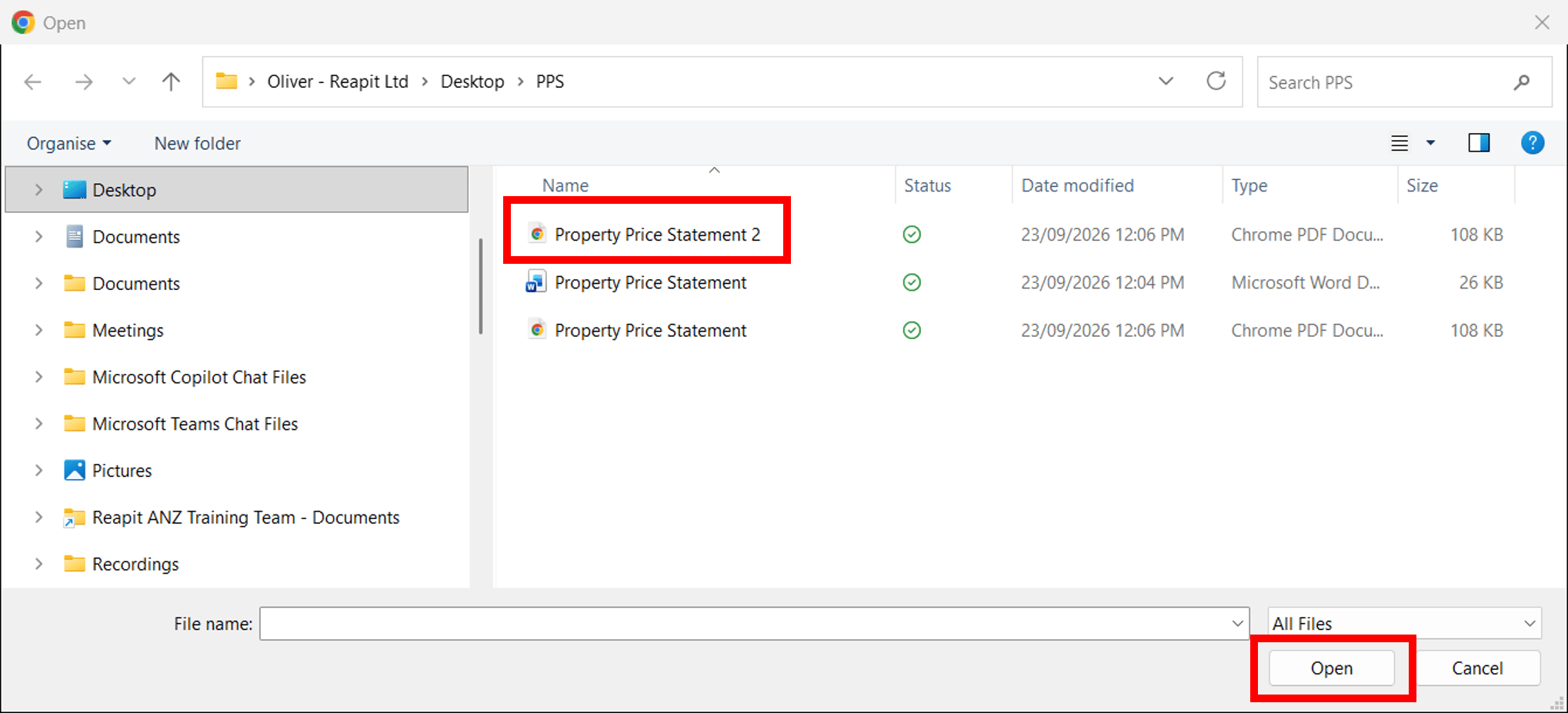
- Locate and select document to upload and Click Open.
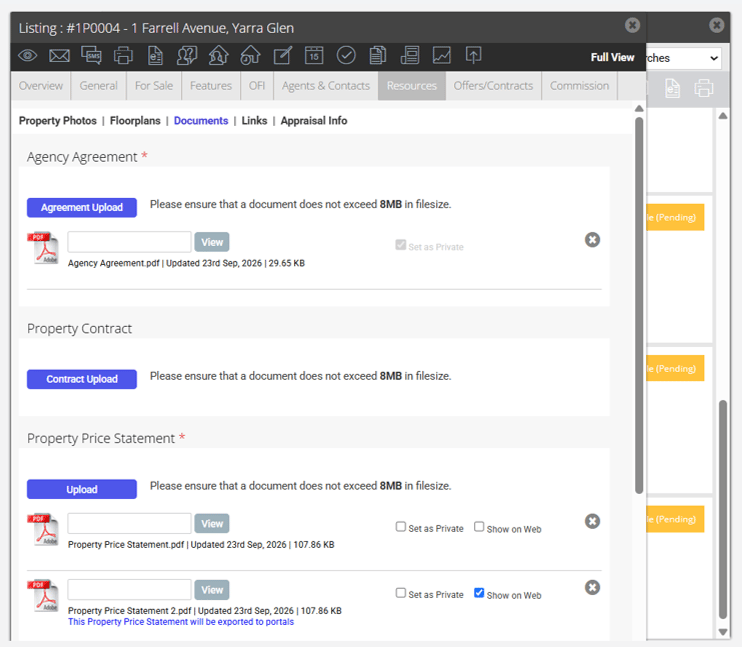
- You will be directed back to the Document Resources tab. By default the Show on Web option will be enabled.
- Click Save or Save Changes.
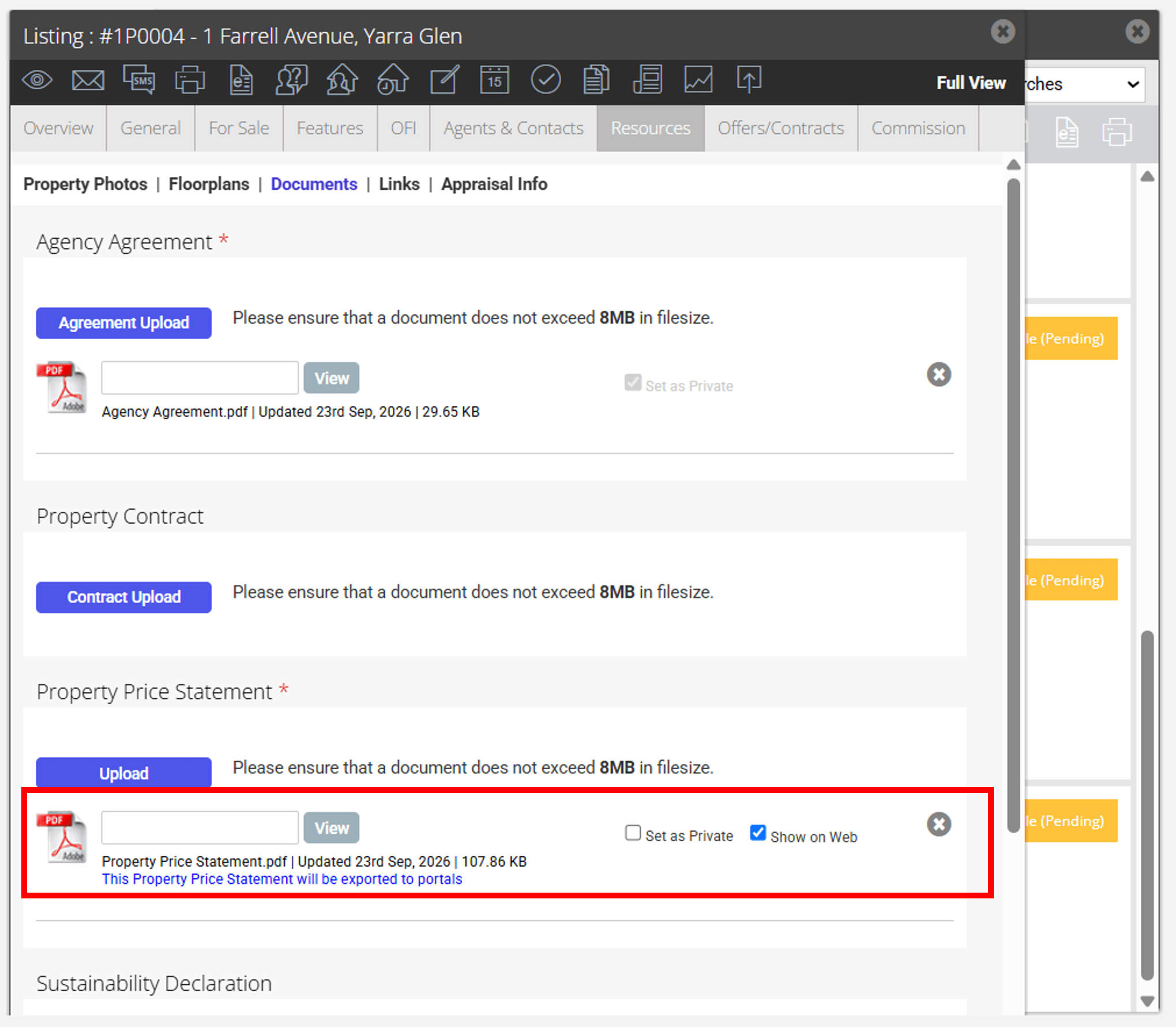
Viewing and Deleting a Property Price Statement
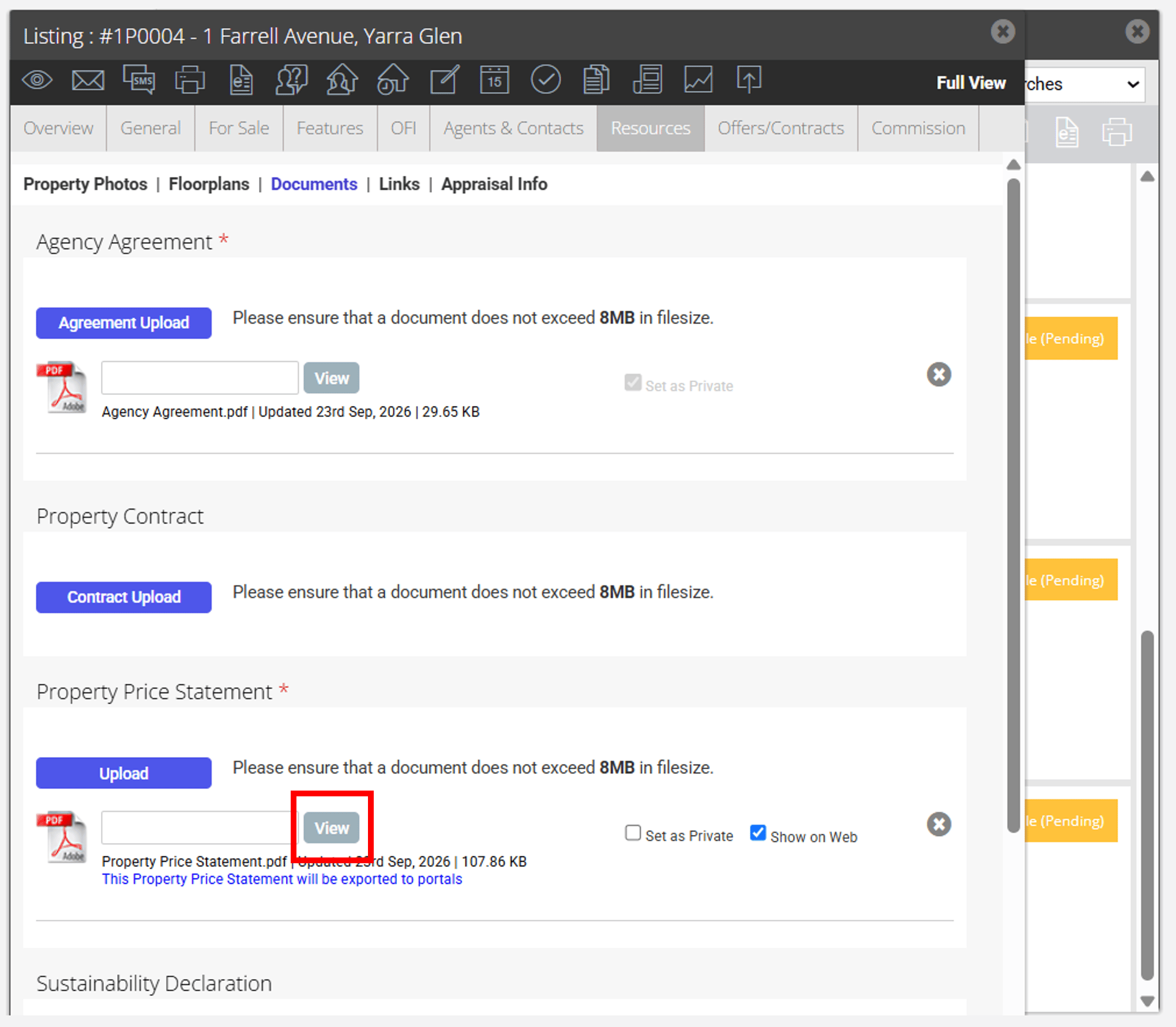
- To view Property Price Statement from the Documents menu, click on the View button.
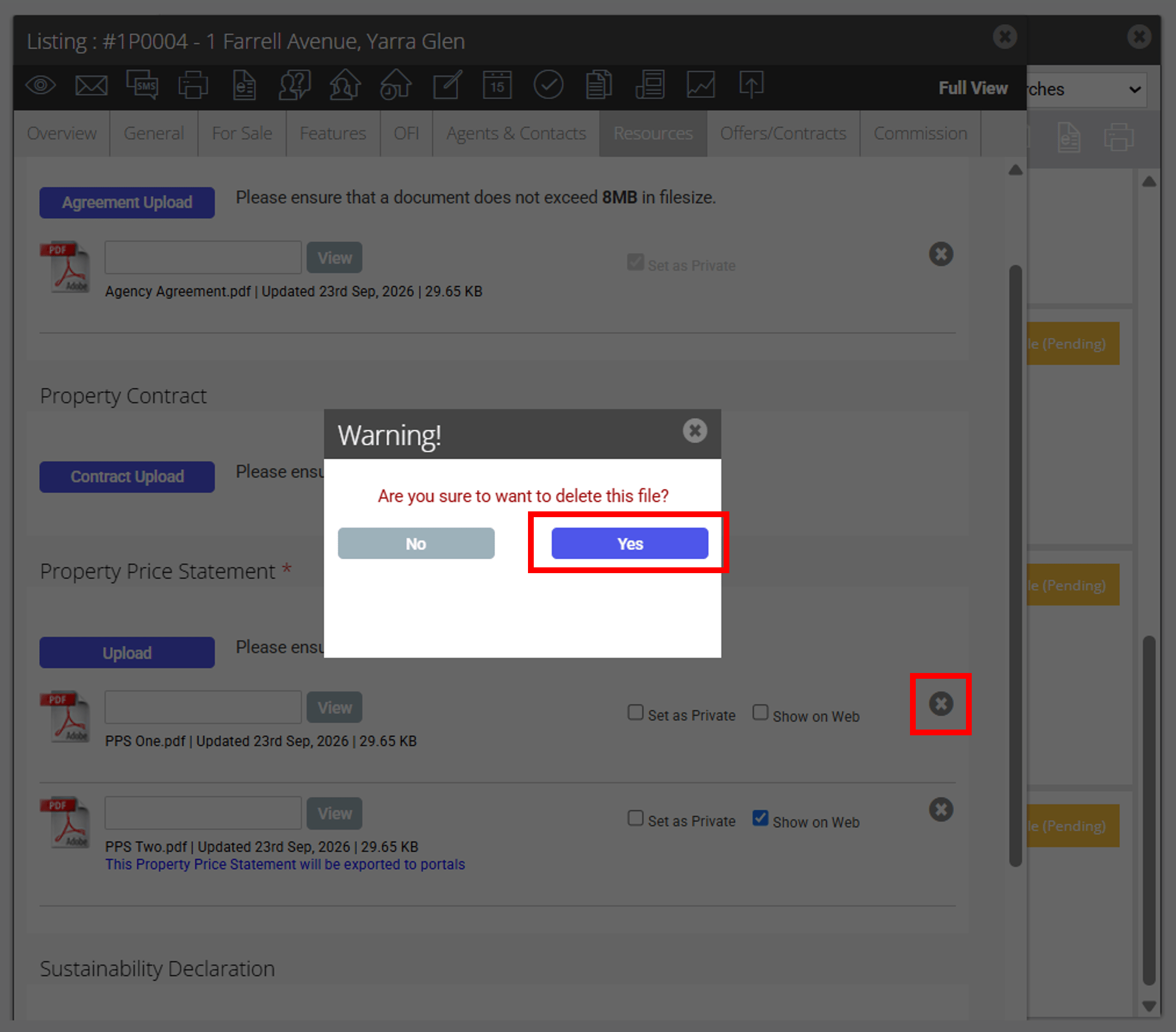
- To Delete a Property Price Statement, click on the x icon of the document to be removed. Then click on Yes to confirm.
Updating a Listing to Active
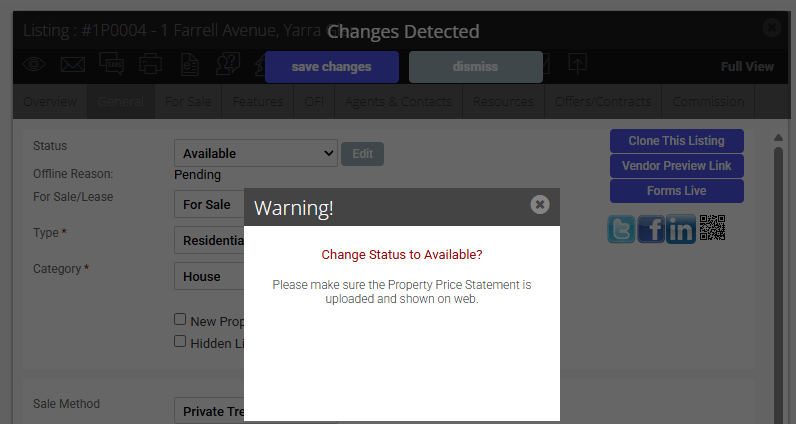
When updating a listing to active, if the Property Price Statement has not been uploaded, a Warning message will display prompting you to do so before the listing can be set to active.
When a Property Price Statement document is not uploaded, an in line message will show in the Documents tab.
Active Document Message
When multiple documents are uploaded, the system will:
- Indicate the document as active if Show on Web IS selected.
- Where multiple documents have Show on Web as selected, the eldest uploaded document will be the active document, and the user should ensure that only the document they want to push to the portals has Show on Web selected.