'%20d='M0%208a8%208%200%200%201%208-8h24a8%208%200%200%201%208%208v24a8%208%200%200%201-8%208H8a8%208%200%200%201-8-8V8Z'/%3e%3cpath%20fill='%23fff'%20d='M8.375%2013v14L20.5%2034l12.124-7v-7.737l-1.687-.975-2.806-1.62-1.082-.624v4.83l-.002%204.83H13.95V16.07l3.275-1.89%202.192-1.265%201.082-.625%203.275%201.877%202.192%201.256%201.083.62V9.782L20.5%206%208.376%2013Z'/%3e%3cdefs%3e%3clinearGradient%20id='reapit-pm__a'%20x1='20.702'%20x2='20.702'%20y1='.351'%20y2='31.228'%20gradientUnits='userSpaceOnUse'%3e%3cstop%20stop-color='%235573FD'/%3e%3cstop%20offset='.575'%20stop-color='%234E56EA'/%3e%3c/linearGradient%3e%3c/defs%3e%3c/svg%3e)
Creating REI Forms in Reapit PM
This article will guide you through creating REI forms in Reapit PM.
Note: With forms active, you can create forms in different locations, i.e. lease renewals/applications/arrears depending on the circumstance; however, the process is the same.
Note: To create a form in Reapit PM, you first need to have REI set up in your office.
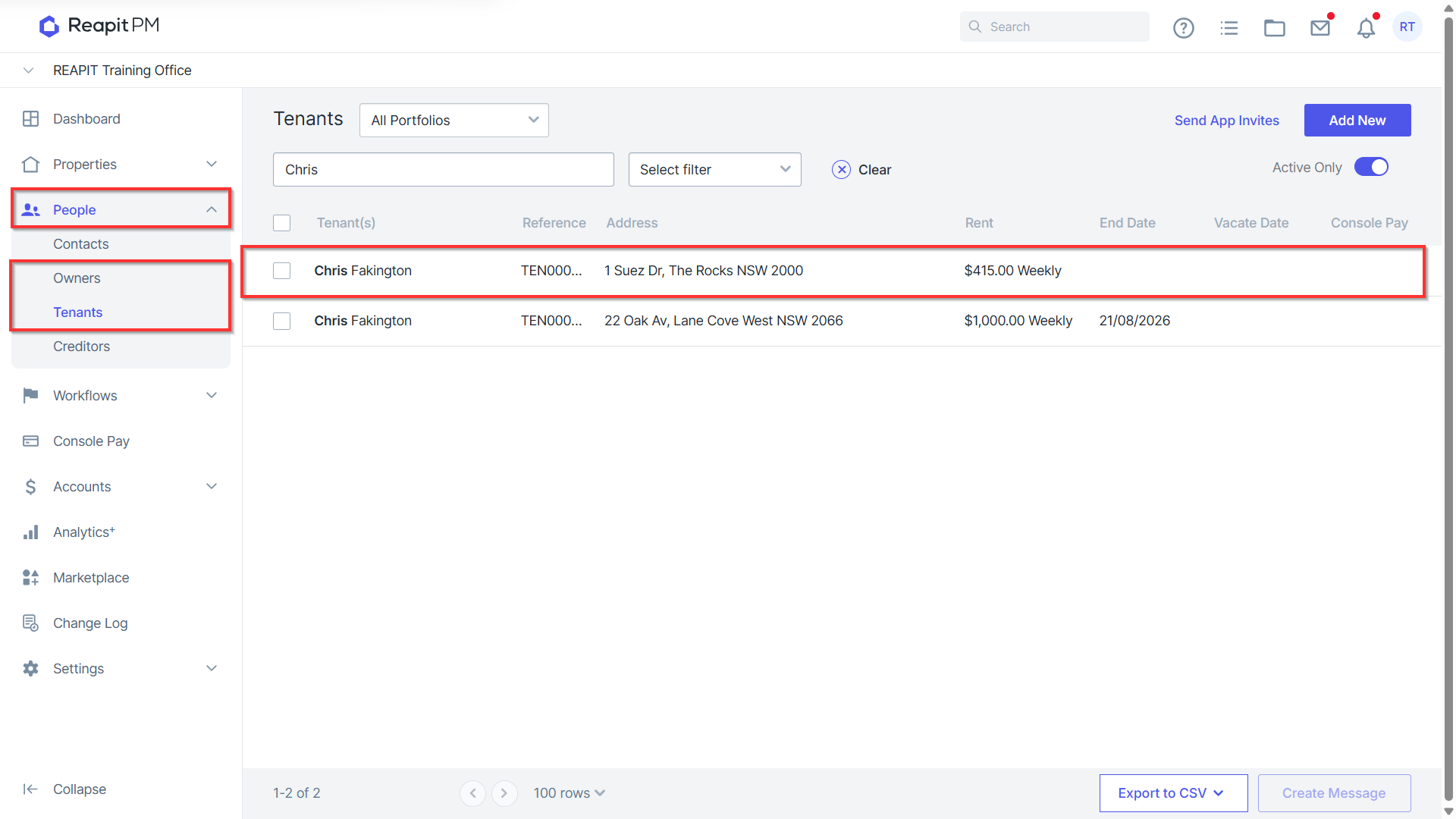
- Once this has been set up, click People > Owners or Tenants.
- Search and select the tenant or owner.
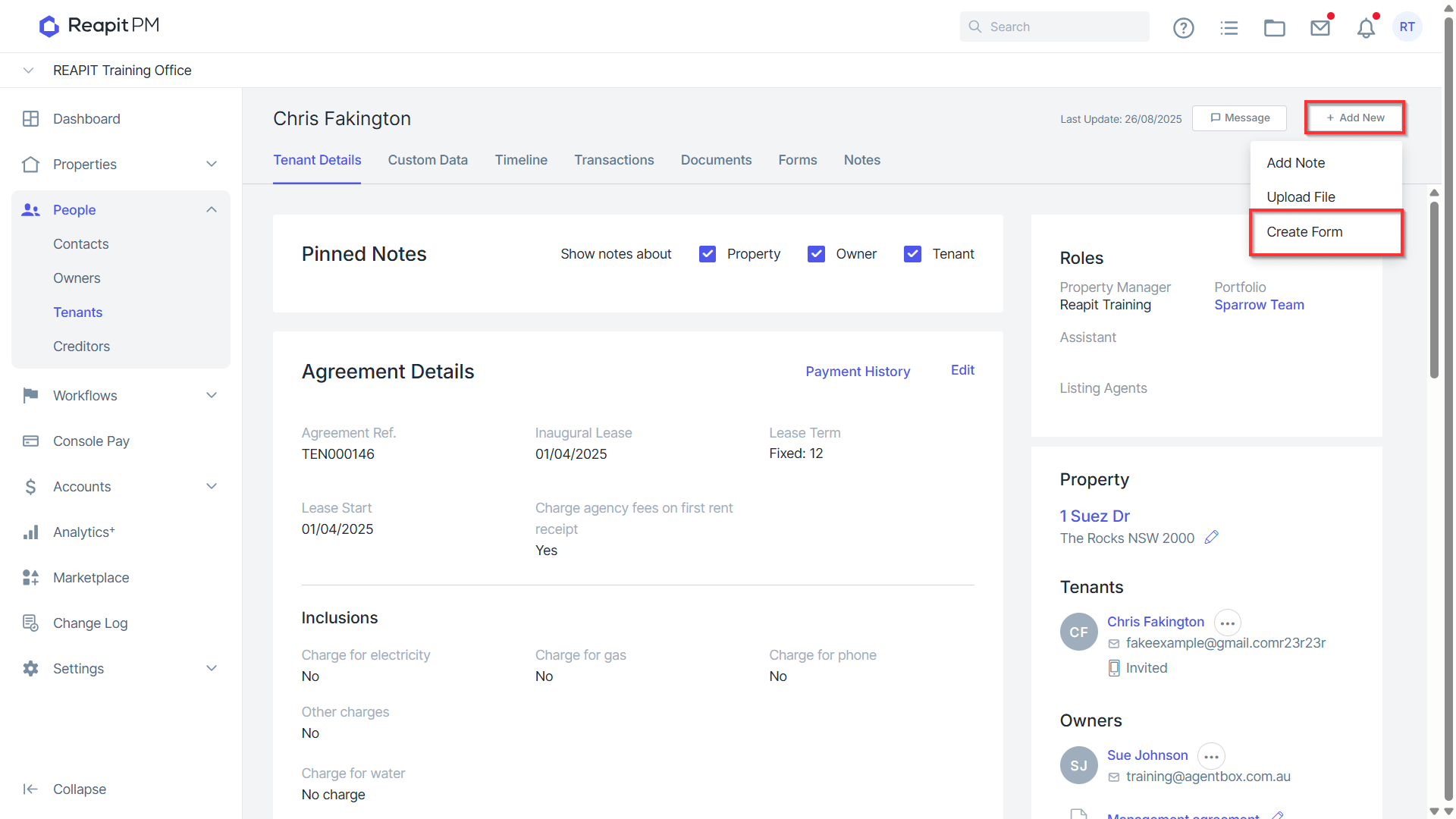
- Navigate to Add New and click on the Create Form button at the top right of the page.
Note: If the button isn't displayed there, you can press CTRL + F5 to reload your page.
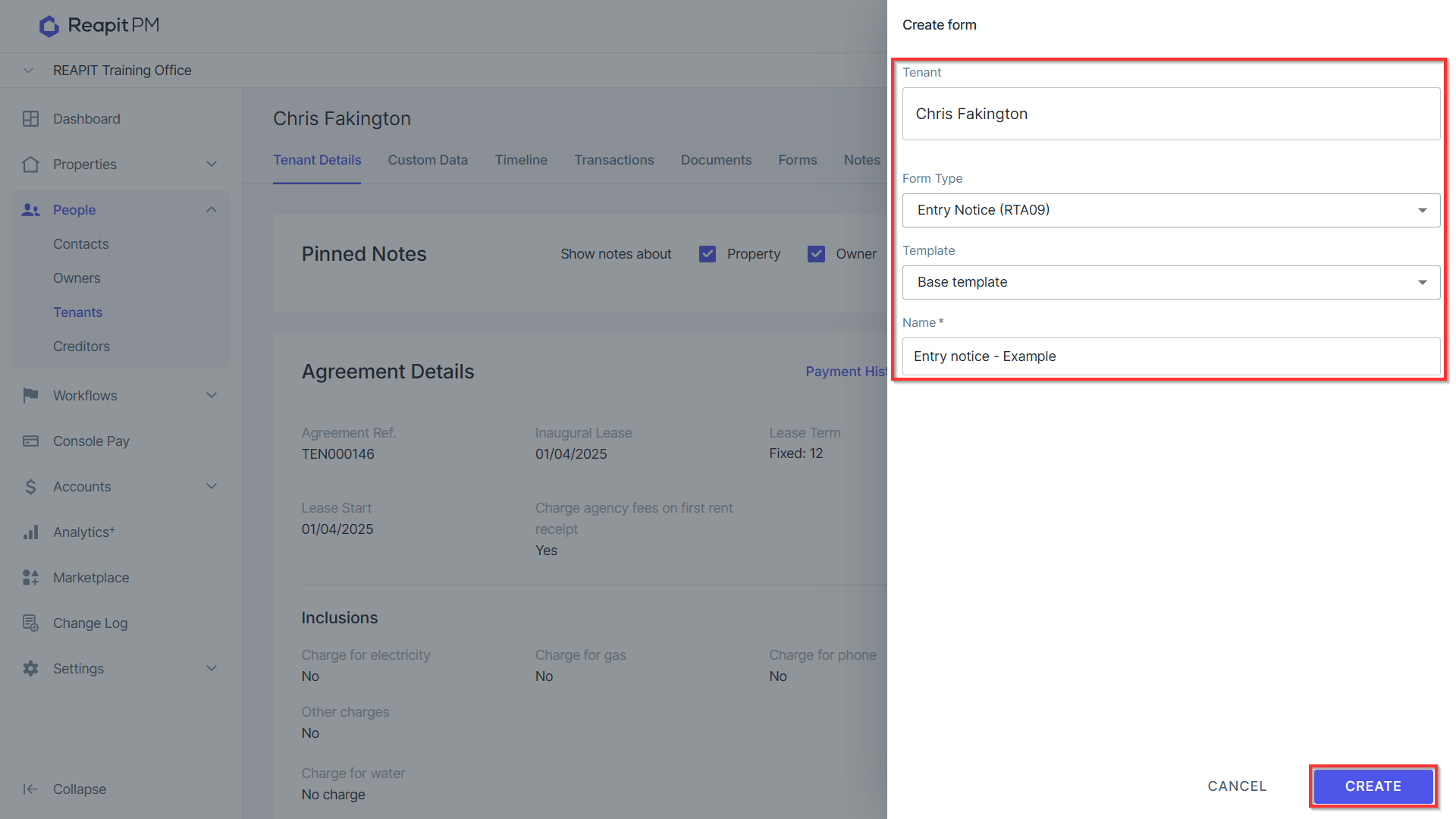
- Once selected, the drawer will appear where you can select the form, template and a name. Fill in the details and click Create. You will then be redirected to the REI website.
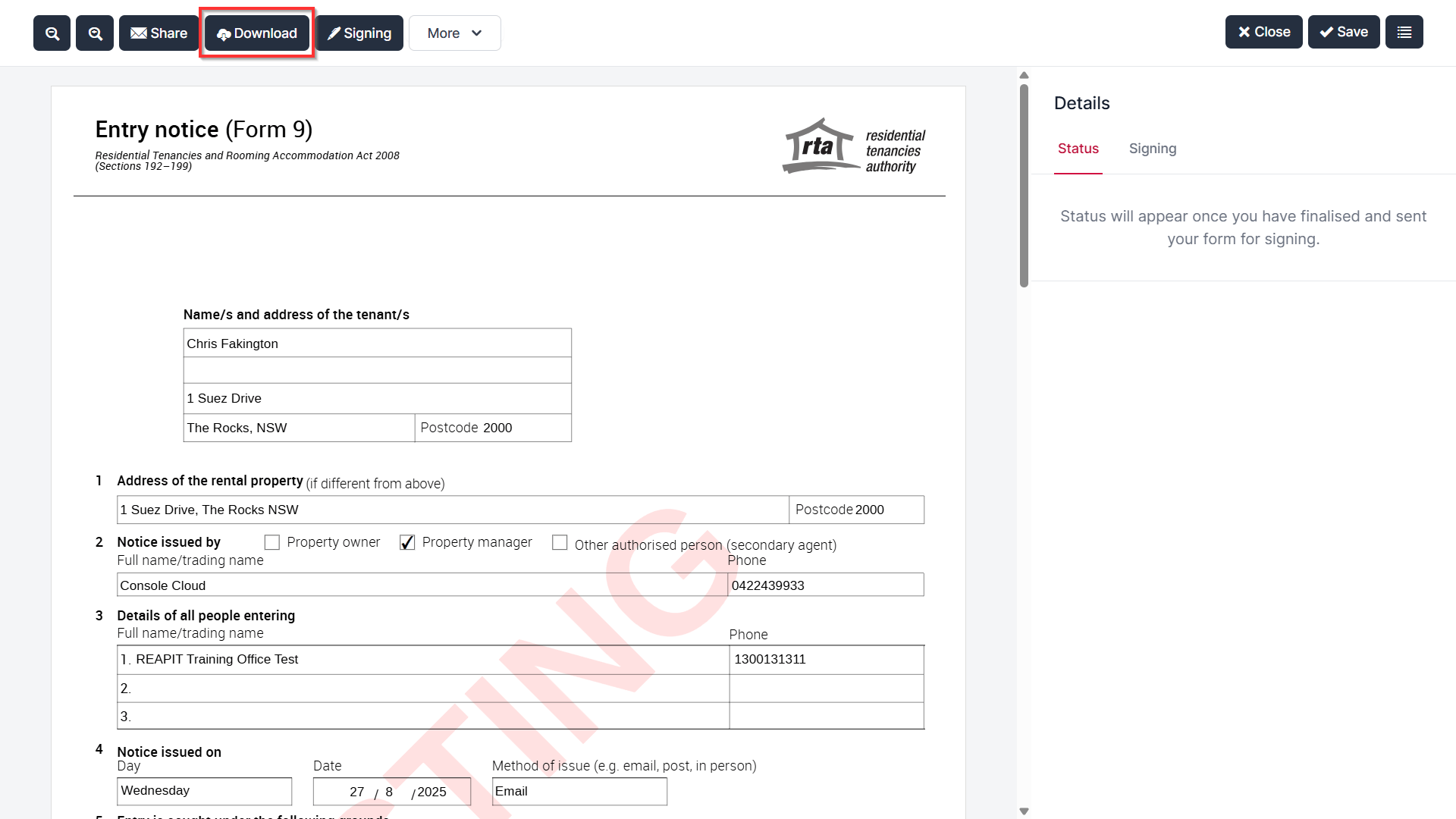
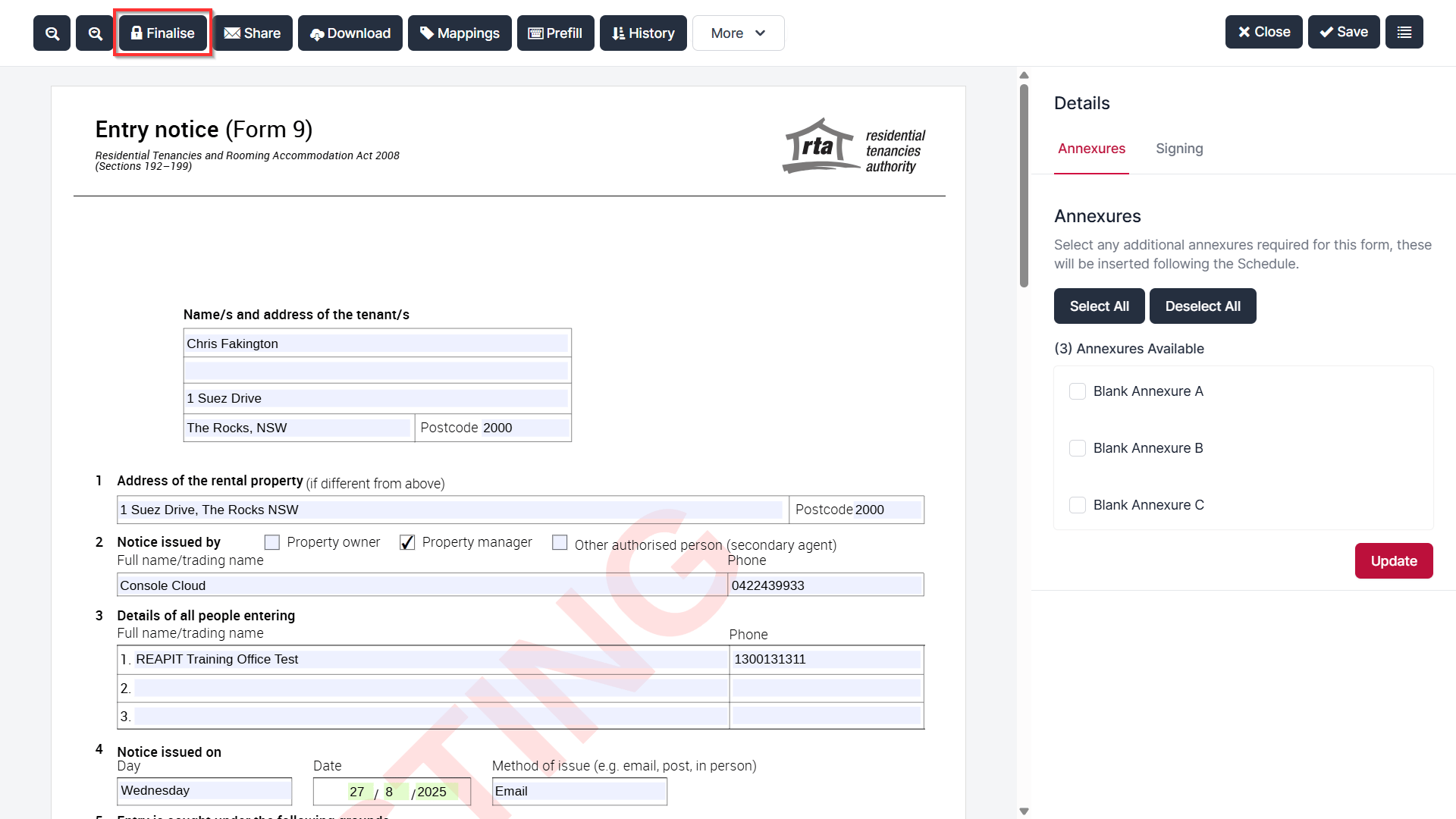
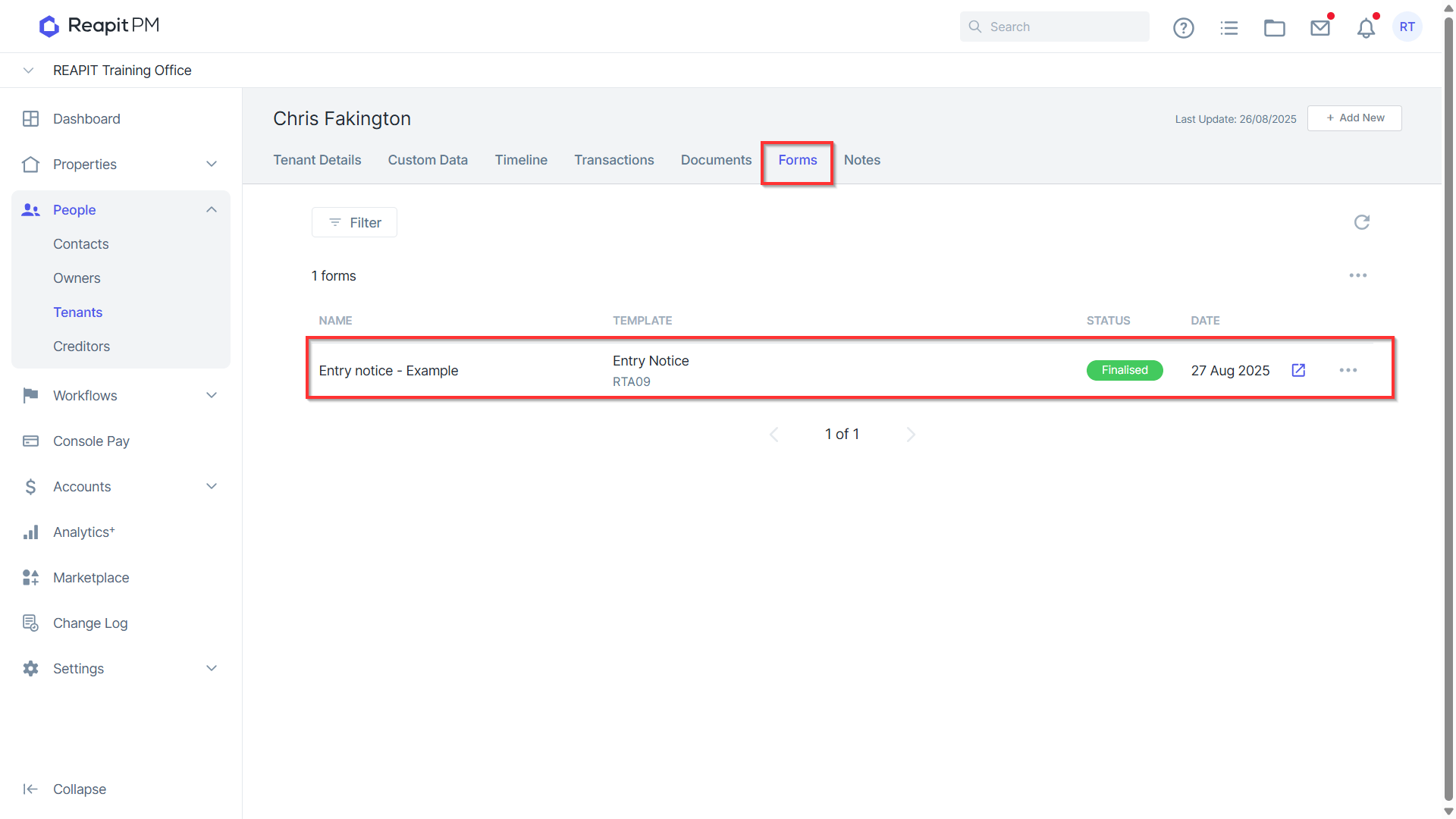
- When all details have been entered on the REI site you can click the Finalise button. By doing so, this will attach the form to the relevant files Forms tab.
- From there, you can open the form using the blue arrow icon or remove it by pressing the 3-dot icon.
Note: Removed forms can not be re-added to this tab.
- If you need to send a copy of the form to the tenant or owner, you would need to download the file from the REI page and then message the recipient with the document.