'%20d='M0%208a8%208%200%200%201%208-8h24a8%208%200%200%201%208%208v24a8%208%200%200%201-8%208H8a8%208%200%200%201-8-8V8Z'/%3e%3cpath%20fill='%23fff'%20d='M8.375%2013v14L20.5%2034l12.124-7v-7.737l-1.687-.975-2.806-1.62-1.082-.624v4.83l-.002%204.83H13.95V16.07l3.275-1.89%202.192-1.265%201.082-.625%203.275%201.877%202.192%201.256%201.083.62V9.782L20.5%206%208.376%2013Z'/%3e%3cdefs%3e%3clinearGradient%20id='reapit-pm__a'%20x1='20.702'%20x2='20.702'%20y1='.351'%20y2='31.228'%20gradientUnits='userSpaceOnUse'%3e%3cstop%20stop-color='%235573FD'/%3e%3cstop%20offset='.575'%20stop-color='%234E56EA'/%3e%3c/linearGradient%3e%3c/defs%3e%3c/svg%3e)
Reconcile Transactions / EOM processes in Reapit PM
This guide will take you through the steps required to close the month in Reapit PM. The processes in this article include: The Close of Month Process Closing the Month
This guide will take you through the steps required to close the month in Reapit PM.
Please note: It is best practice to process your Disbursement before closing your month. Failure to do so may result in statements that do not show disbursed amounts or agency fees taken for the month. These will roll over onto the next months statement.
The processes in this article include:
- The Close of Month Process
- Closing the Month
The Close of Month Process
Ensure when completing a Close of Month in Reapit PM, you check the below items have been finalised prior to closing the accounting period.
- Ensure that all funds paid into your trust account from the previous working day have been Receipted.
- Ensure that any Bills or Pending Payments have been entered and processed as required.
- Ensure that you have run your Daily Banking.
- Ensure that you carry out a Reconciliation to make sure your trust account is in balance.
- Ensure a full Owner, Creditor, Agency Fee, and Bond Authority disbursement has occurred before completing the Close of Month process below.
Closing the Month
Closing the month is done within the Bank Reconciliation. Access further information on our Reconciliation in Reapit PM article.
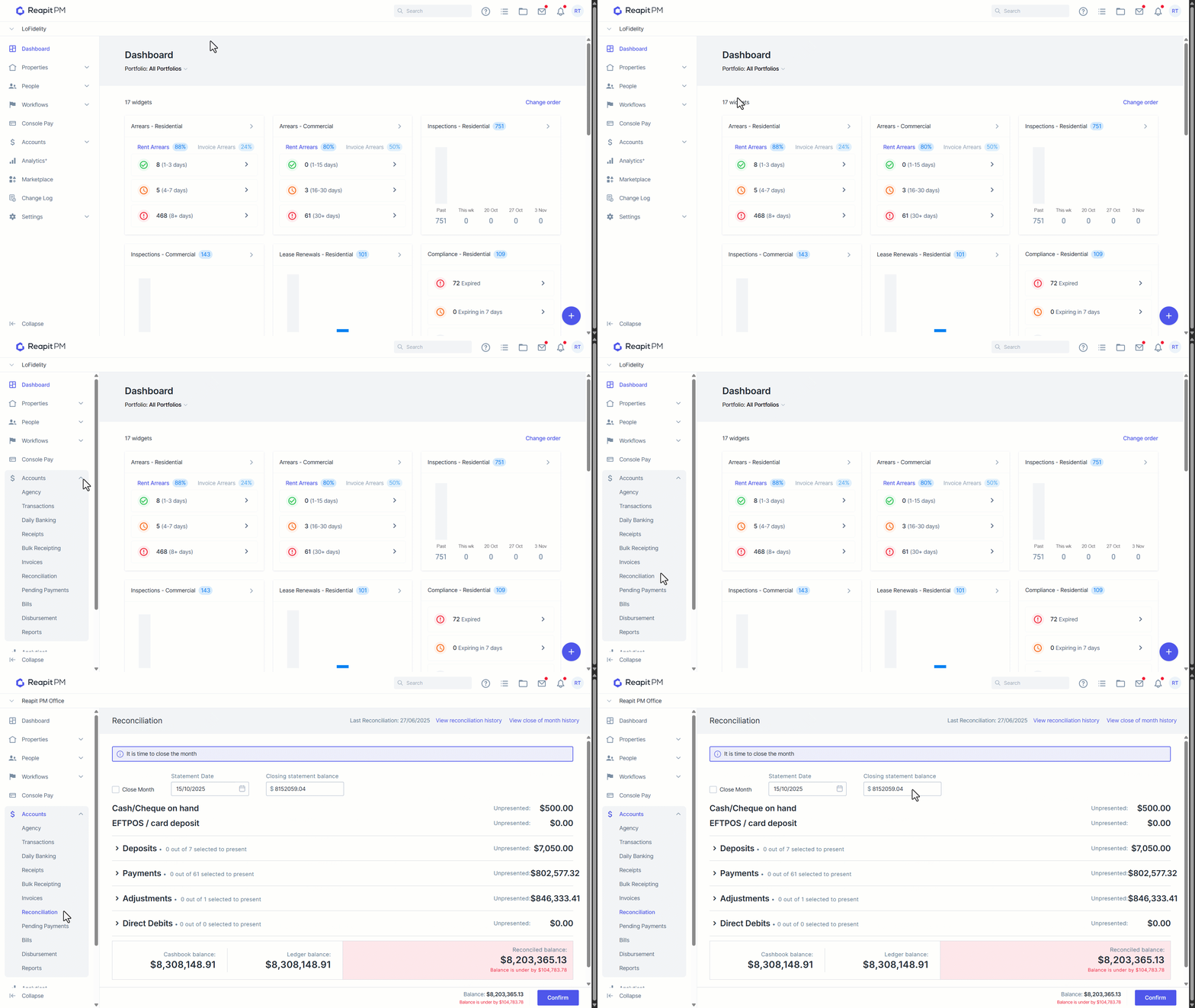
Navigate to Accounts
Navigate to Reconciliation.
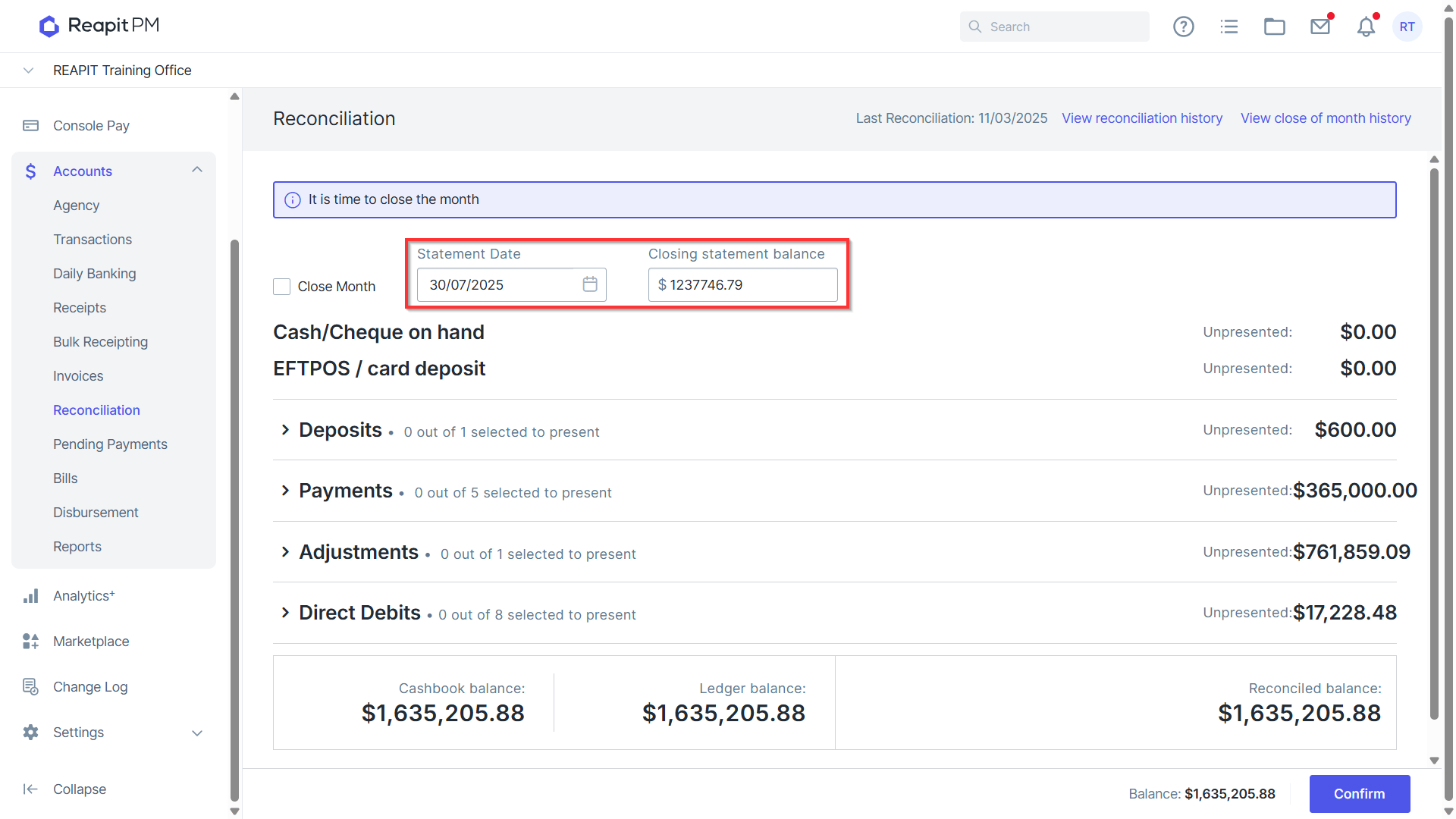
Enter your Closing Statement Balance and Statement Date, and ensure that your trust account is still in balance from the previous reconciliation.
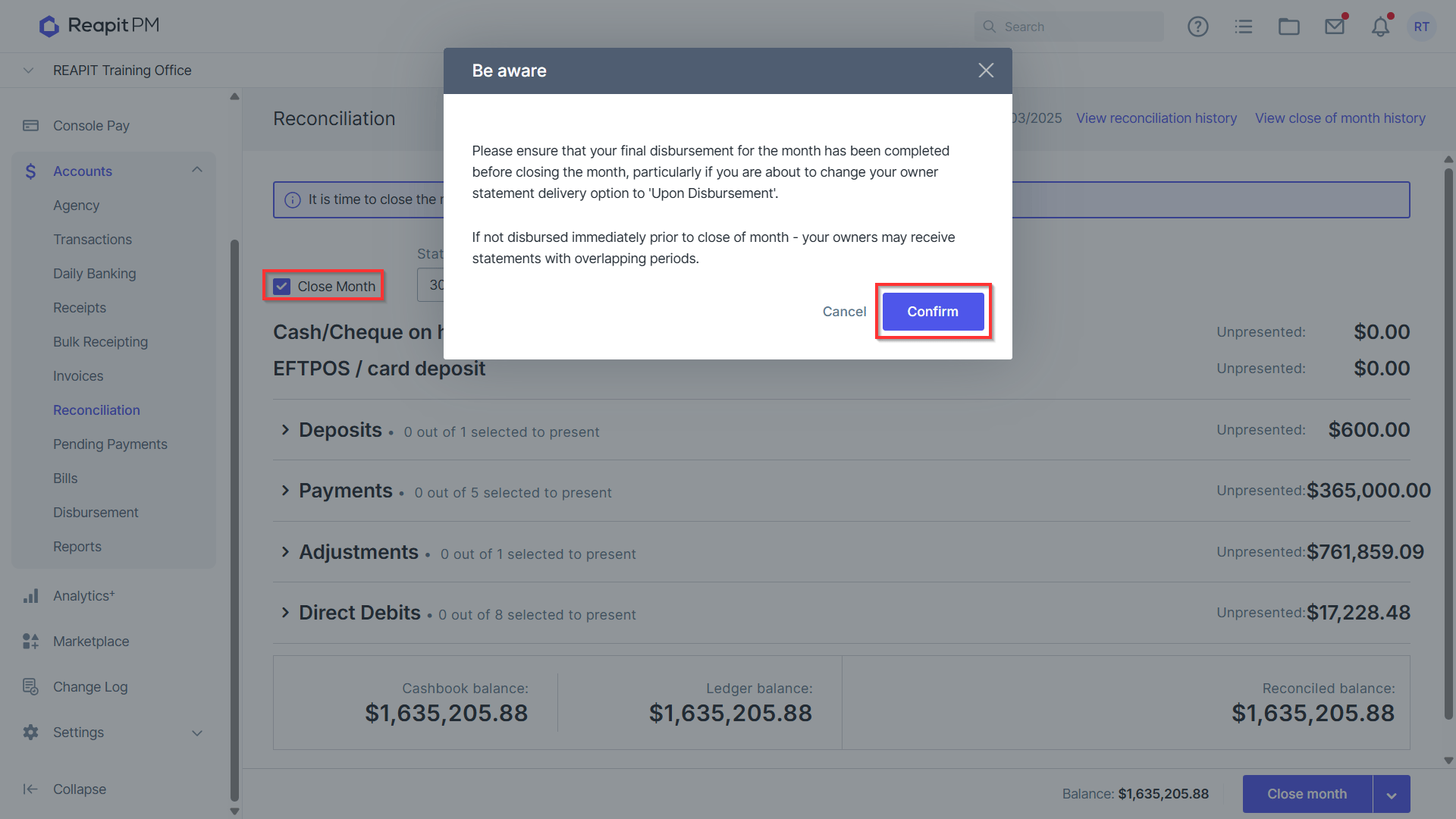
Select the Close Month checkbox.
Click Confirm to proceed.
Click the small arrow next to the Close Month button select "Close month & download" to close the month and download the ZIP file at the same time.
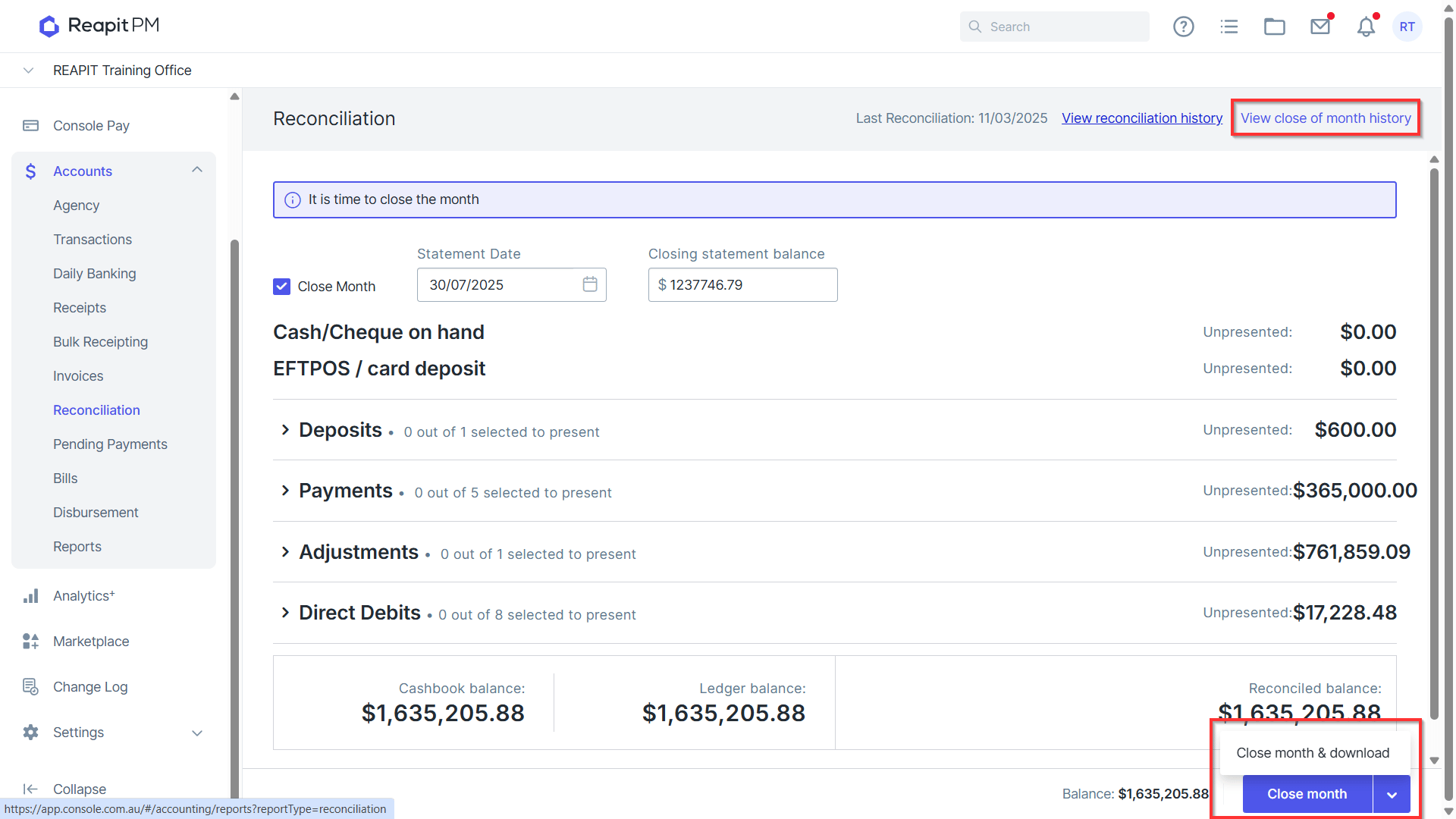
Close of month report data will also available in the Close of Month History.