Managing Suburb Profile
This article will show you how to manage Suburb Profile
Managing Suburb Profile
The AP Suburb Profile functionality in Websites allows agents to insert a quick overview of each suburb in which the agency operates.
The processes in this article include:
- Adding a Suburb Profile
- Edit a Suburb Profile
- Quick Edit a Suburb Profile
- Deleting a Suburb Profile
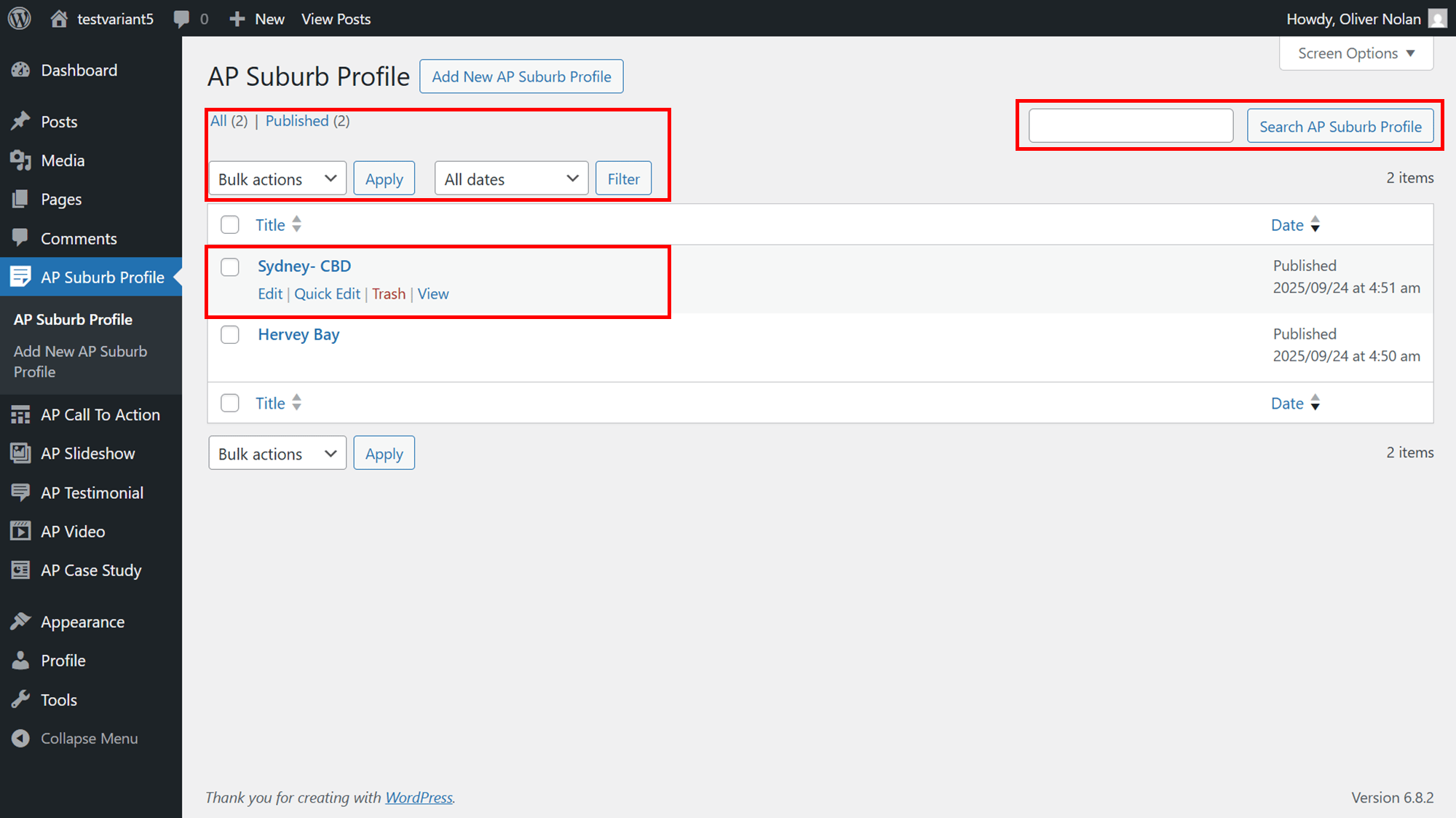
Within your Suburb Profile menu, you can:
- Add a new Suburb Profile.
- Search for an existing Suburb Profile.
- Filter and/or apply bulk actions to Suburb Profile.
- View Suburb Profile title, thumbnail, position, categories and published date.
- Edit, quick edit and delete your previously created suburb profile.
Adding a Suburb Profile
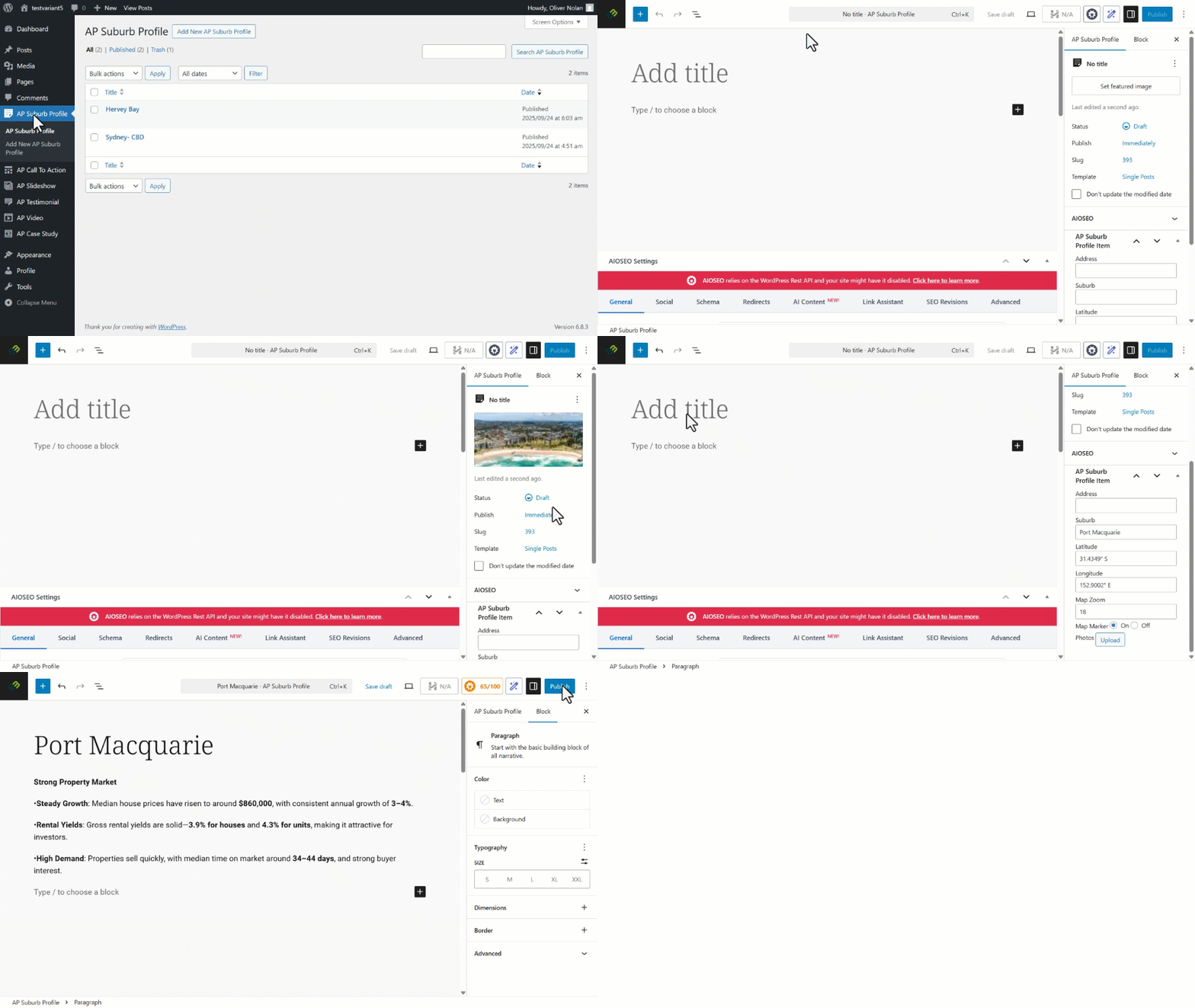
- Click on AP Suburb Profile.
- Click on Add New AP Suburb Profile
- Click on Settings.
- Adjust the publishing settings to your preference, then click Set Featured Image to set your desired image and Select the desired image from your media library. Please click here to find out how to add new images to your library.
- Enter AP Suburb Profile Item.
- Enter Suburb Profile title, then Click on Type / to choose a block to add content.
- Click on Publish.
- Set your visibility and publishing options and click Publish
Edit a Suburb Profile
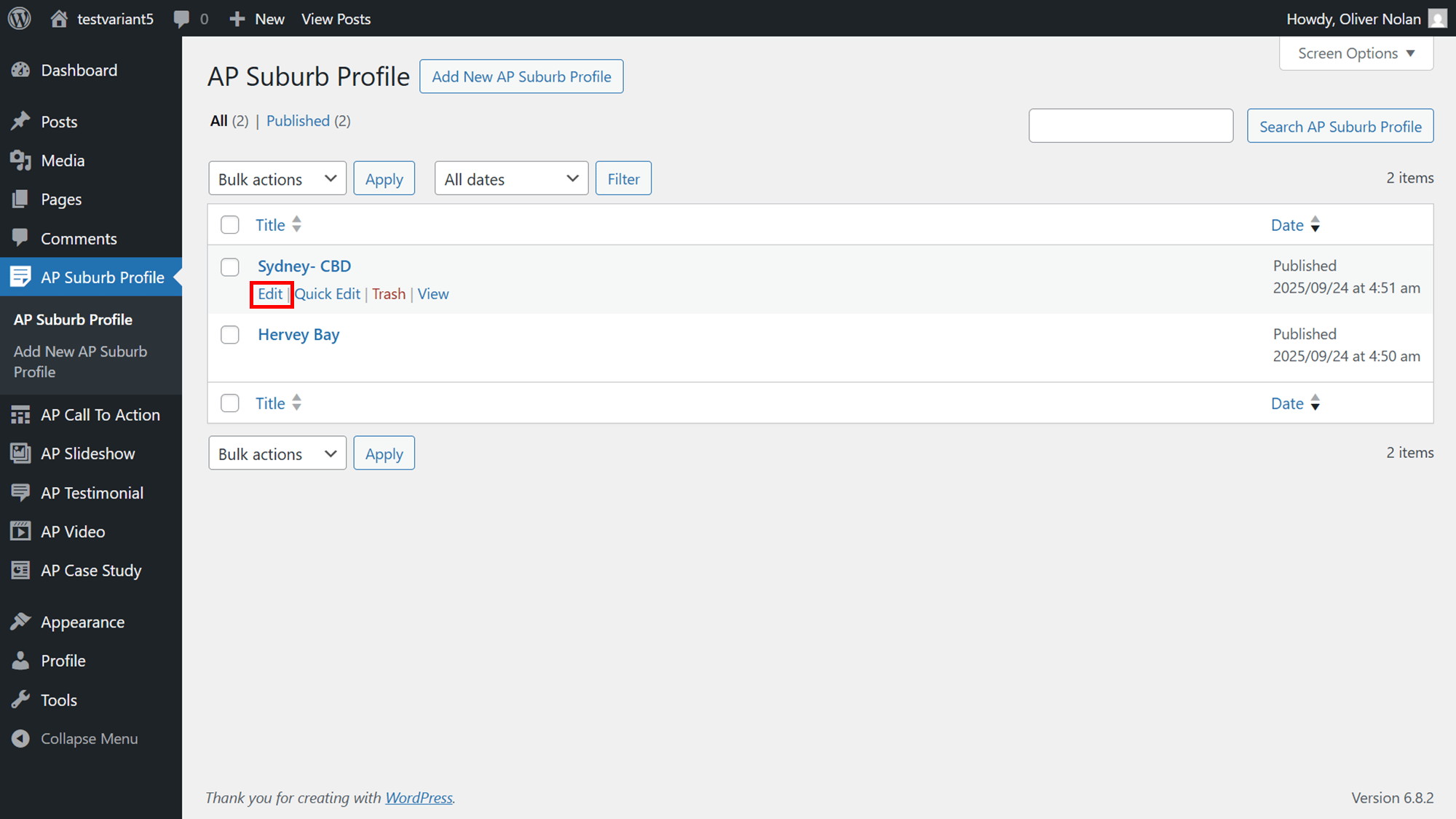
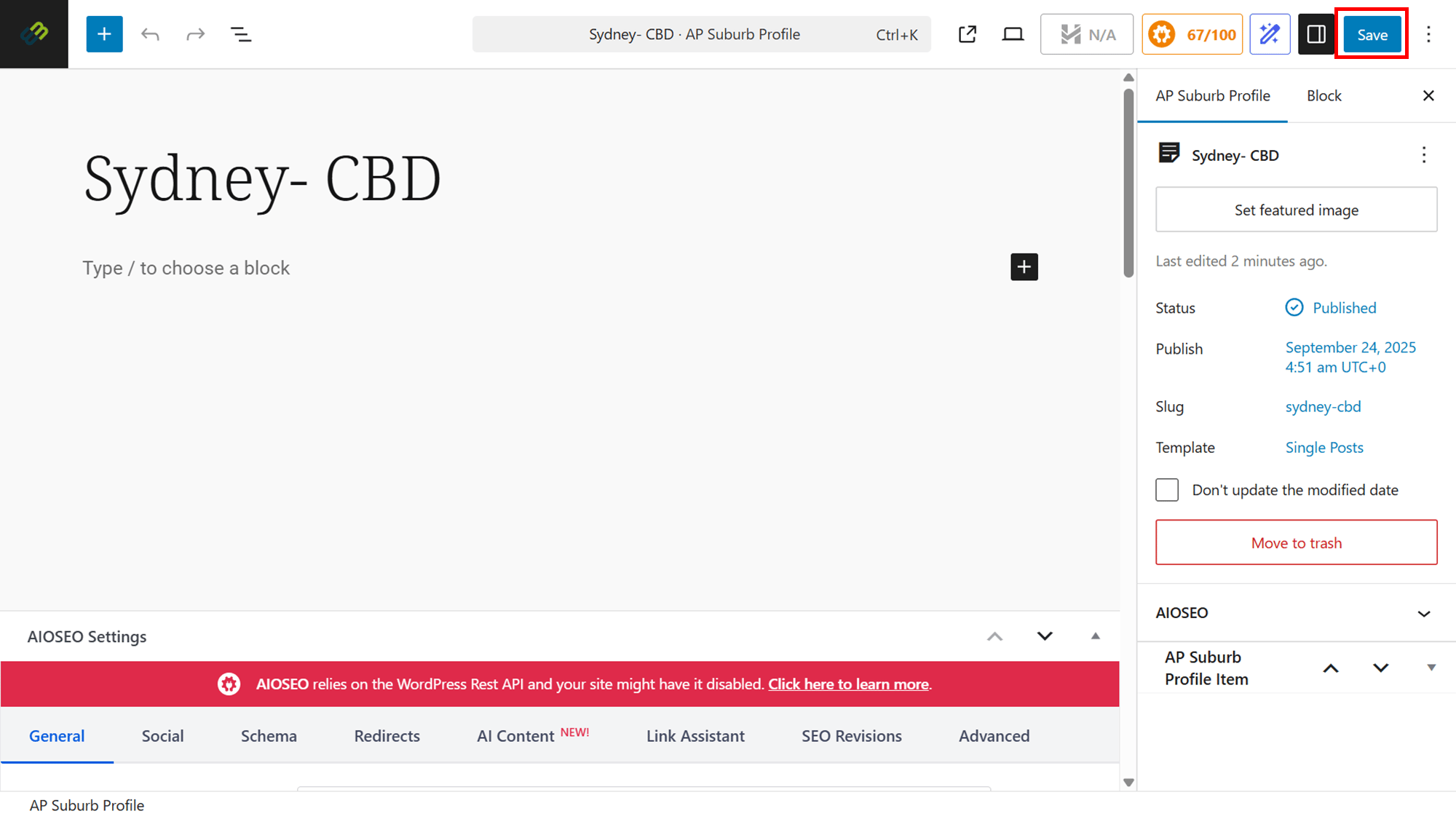
- To edit an Suburb Profile, click Edit.
- Edit the Suburb Profile ****as required, then click Save when you are satisfied.
Quick Edit a Suburb Profile
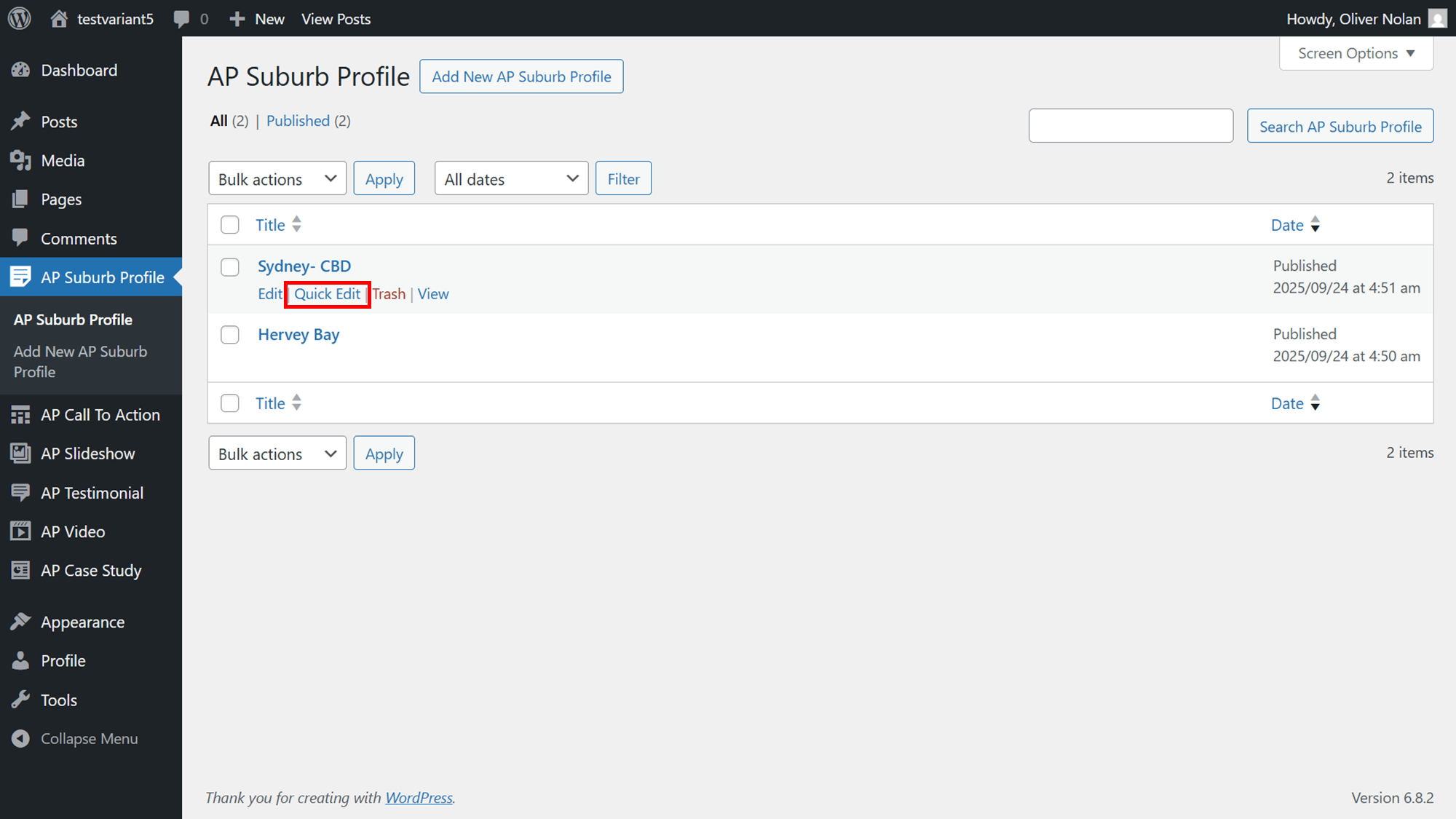
- To quickly edit your Suburb Profile, click Quick Edit.
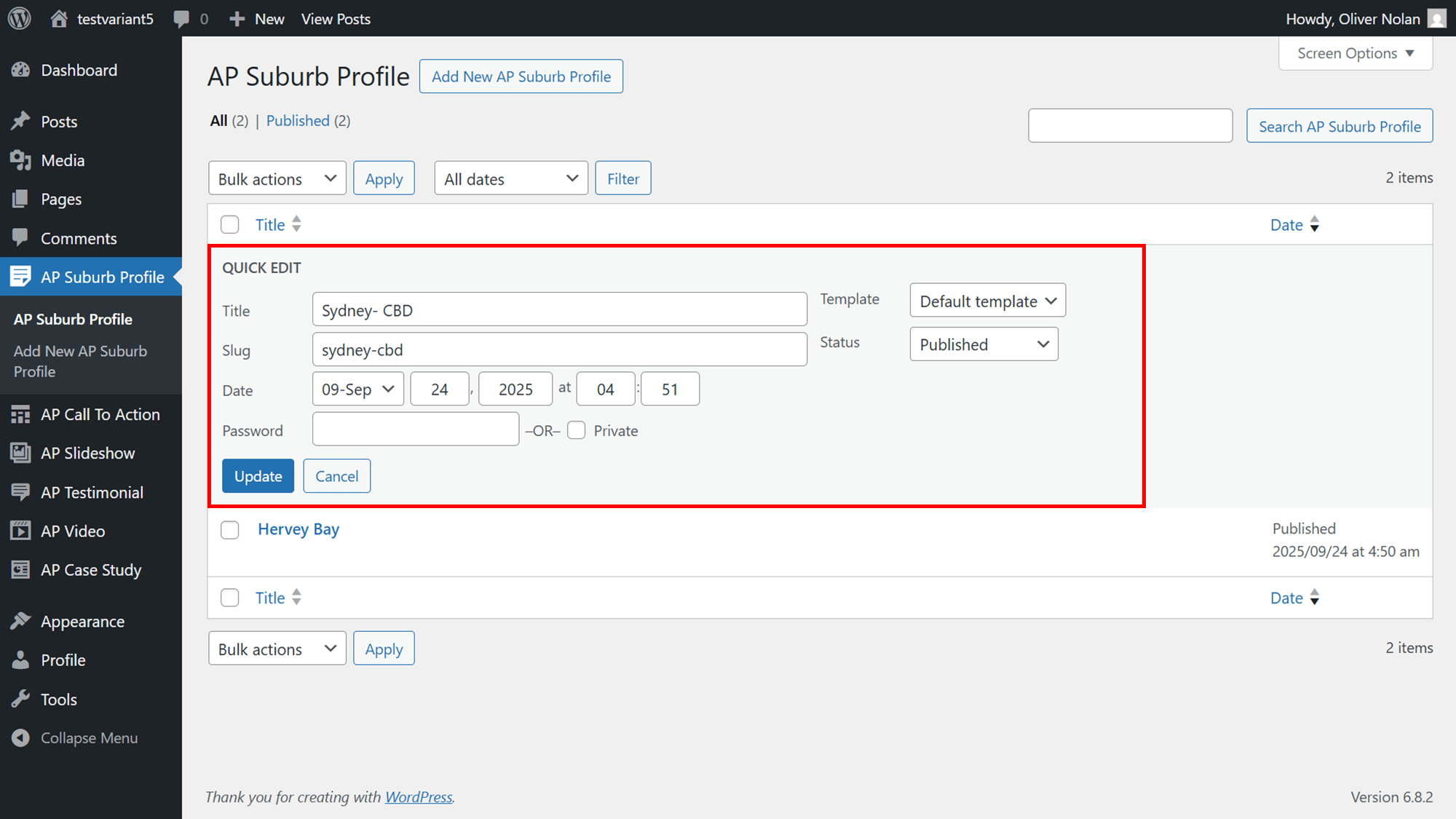
- In the Quick Edit section, you can edit the Suburb Profile or the url, as well as the name and email of the author. Once amended, click Update Comment.
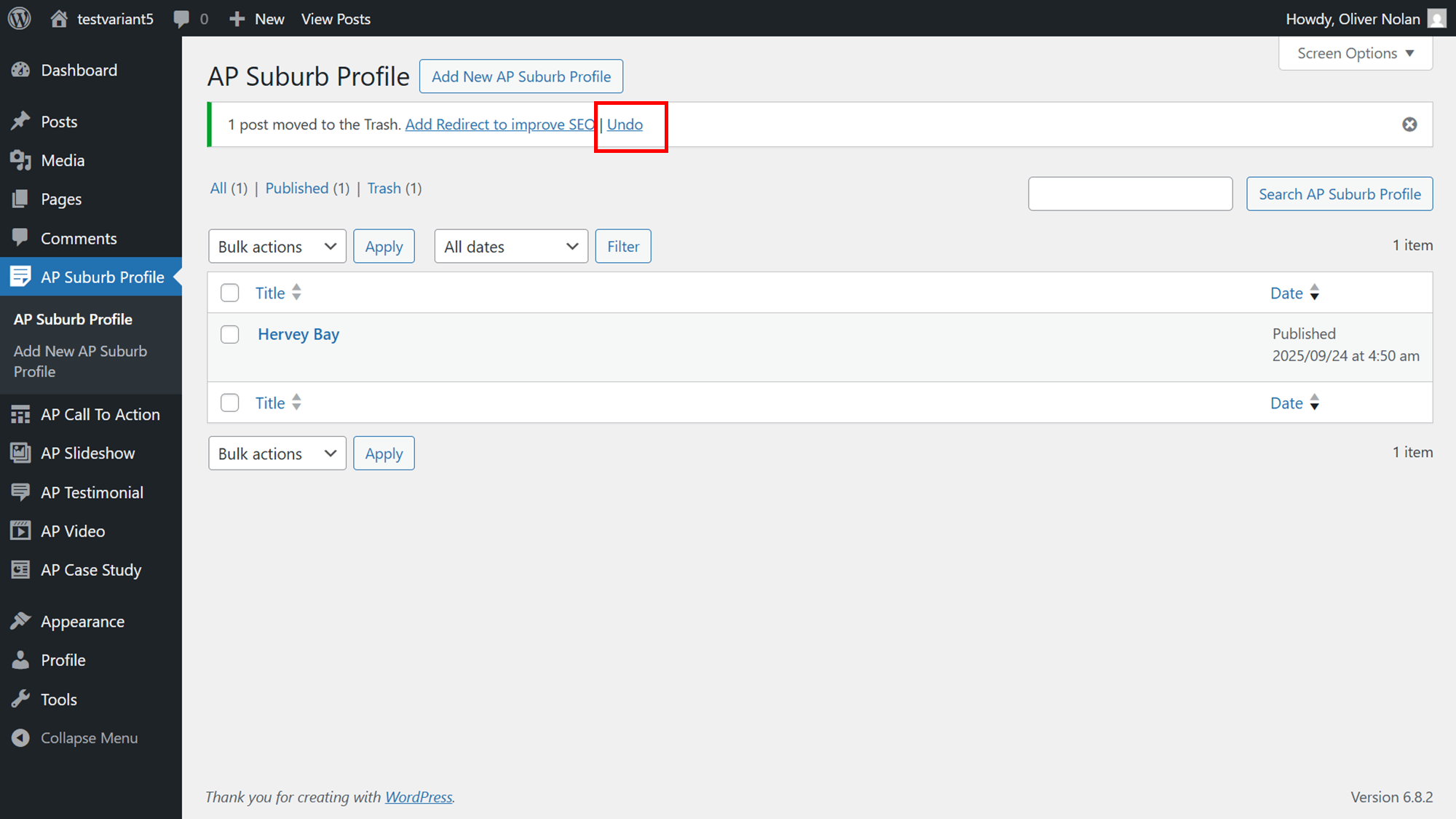
Deleting a Suburb Profile
- To delete a Suburb Profile, click on Trash. The Suburb Profile will then be deleted.
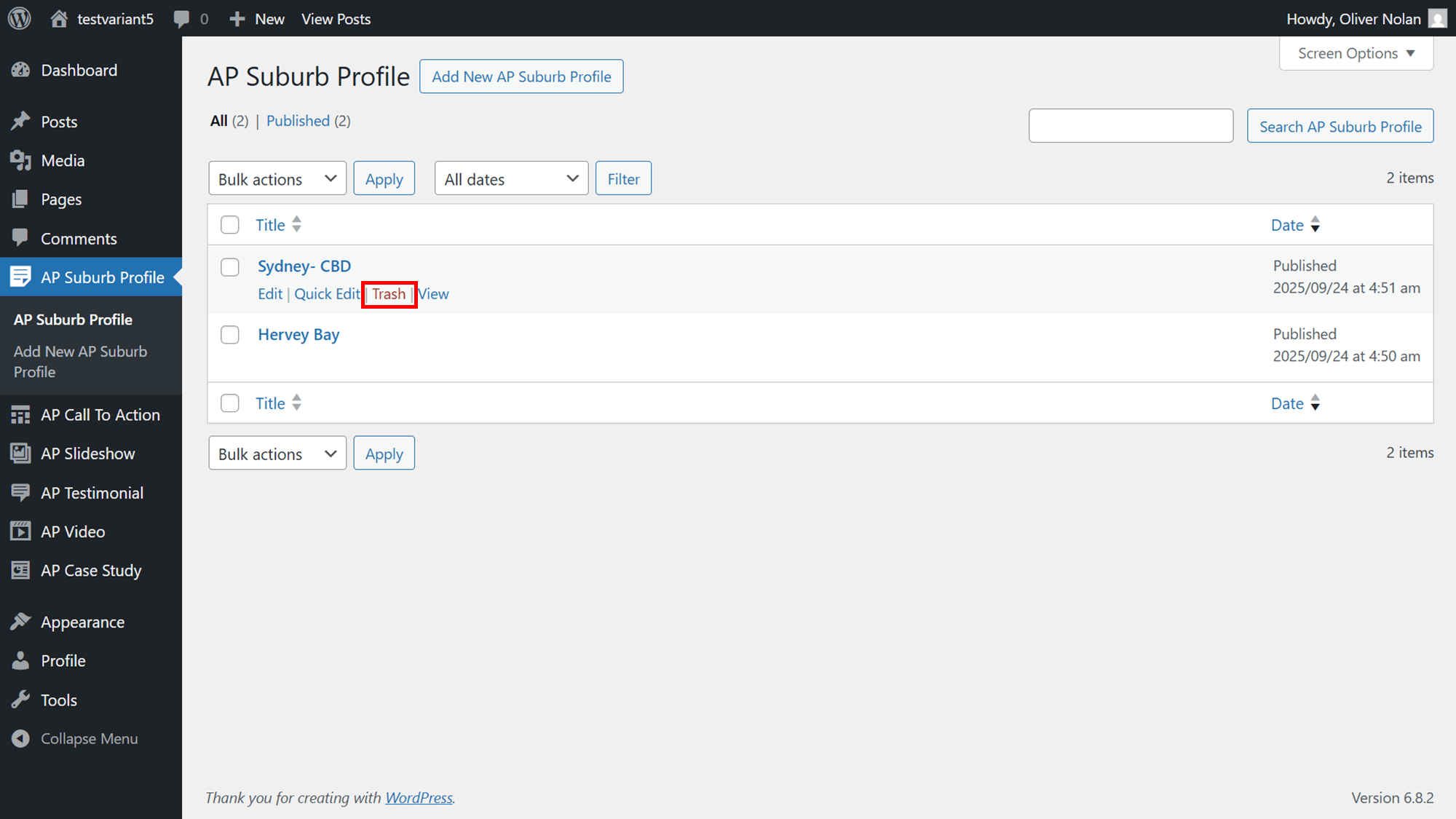
- To retrieve the Suburb Profile, click Undo.