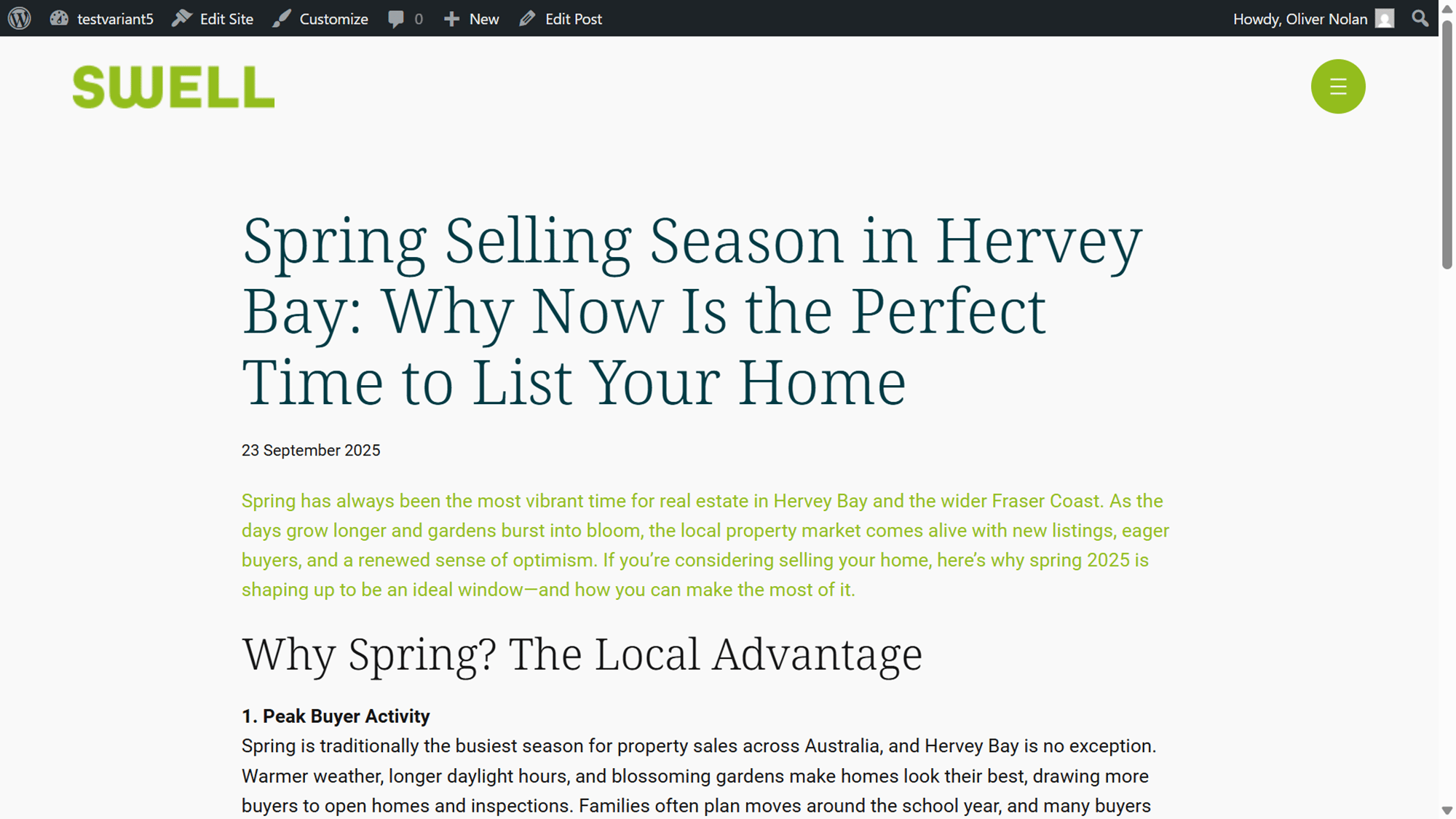
Managing Posts
This article will show you how to manage posts in Reapit Websites
This article will show you how to manage blog posts in Reapit Websites.
Within your All Posts menu, you can:
- Add a new post.
- Filter and Search for existing posts
- View Title, Author, Category, Tag, Comments and Date of the Post
- Edit, Quick Edit, Delete and Preview your previously created post on your website.
The processes in this article include:
- Edit a Post
- Quick Edit a Post
- Delete a Post
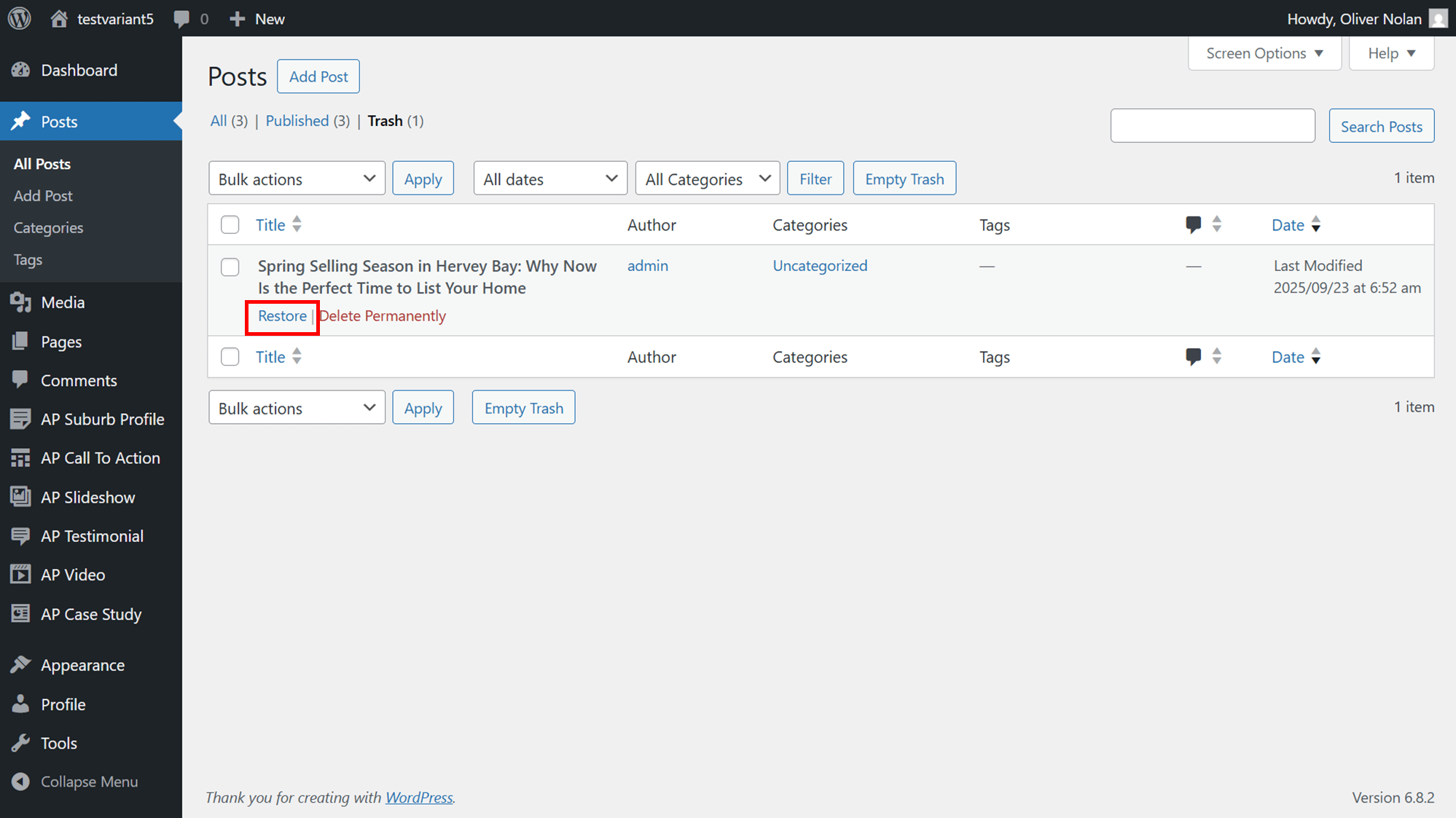
- Restore a Deleted a Post
- Preview a Post
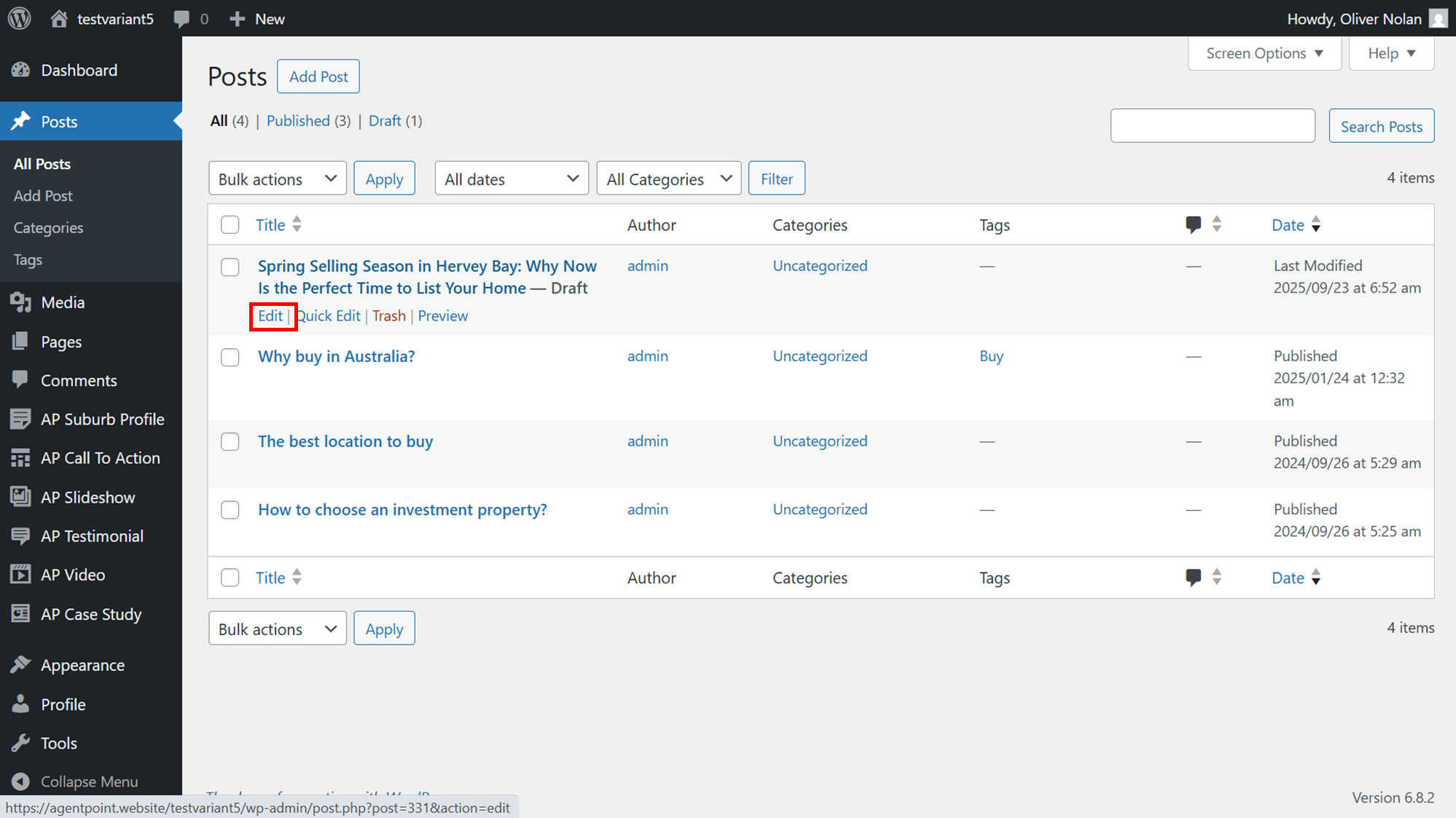
Edit a Post
- From the All Posts page, hover over the required Posts and click Edit.
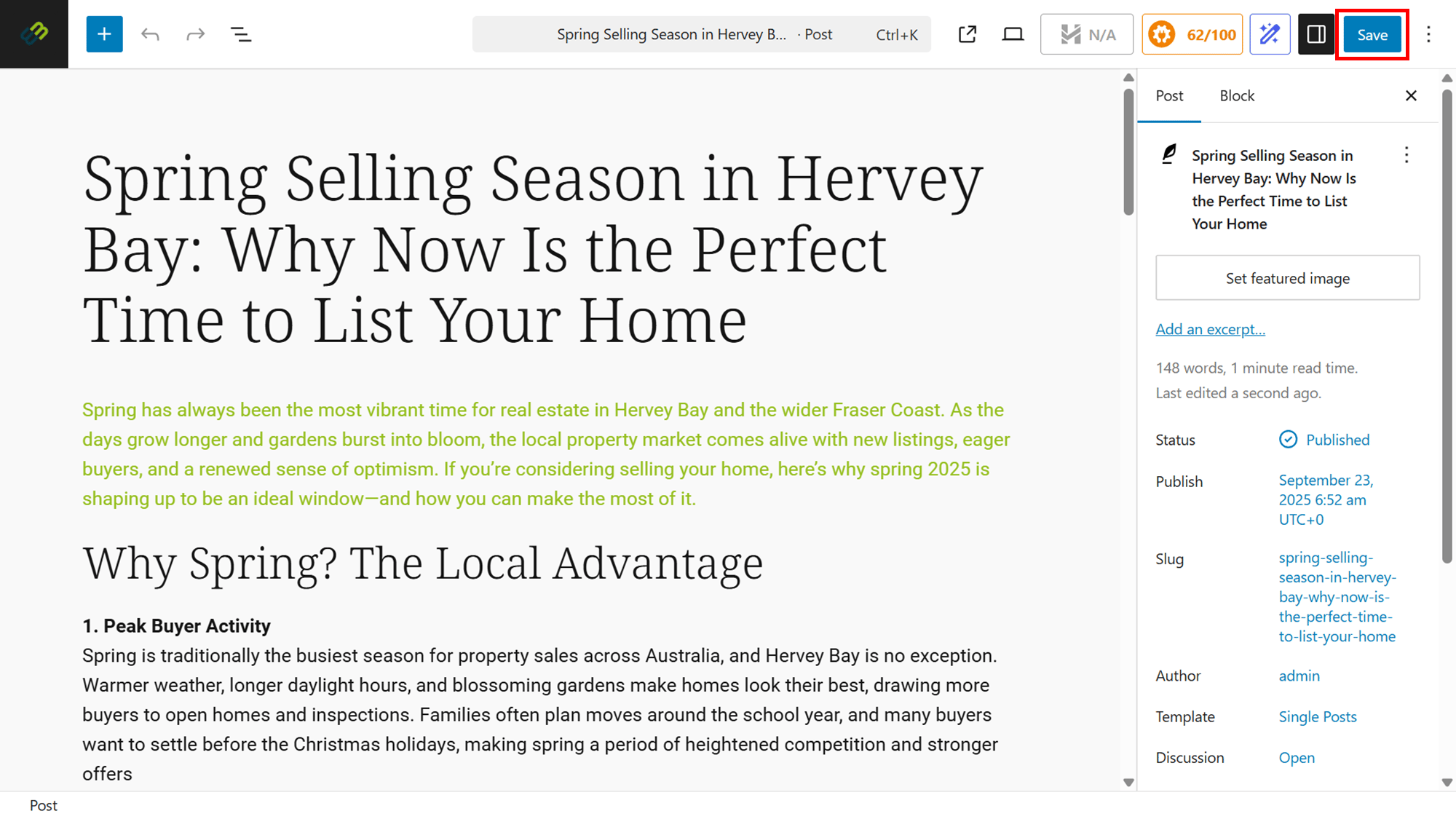
- Continue to edit the post as required.
- Click on Save.
Quick Edit a Post
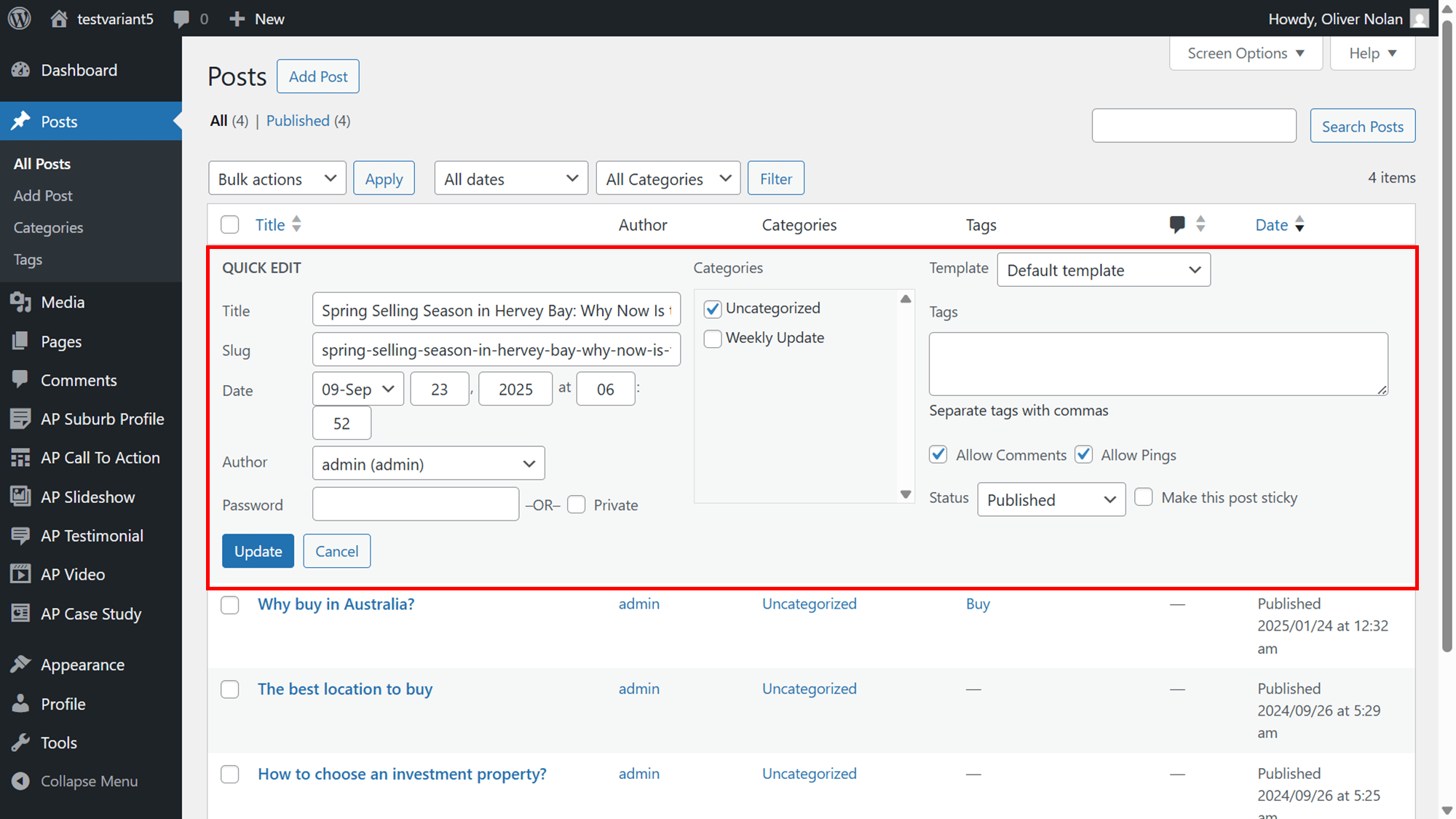
- From the All Posts page, hover over the required Posts and click Quick Edit.
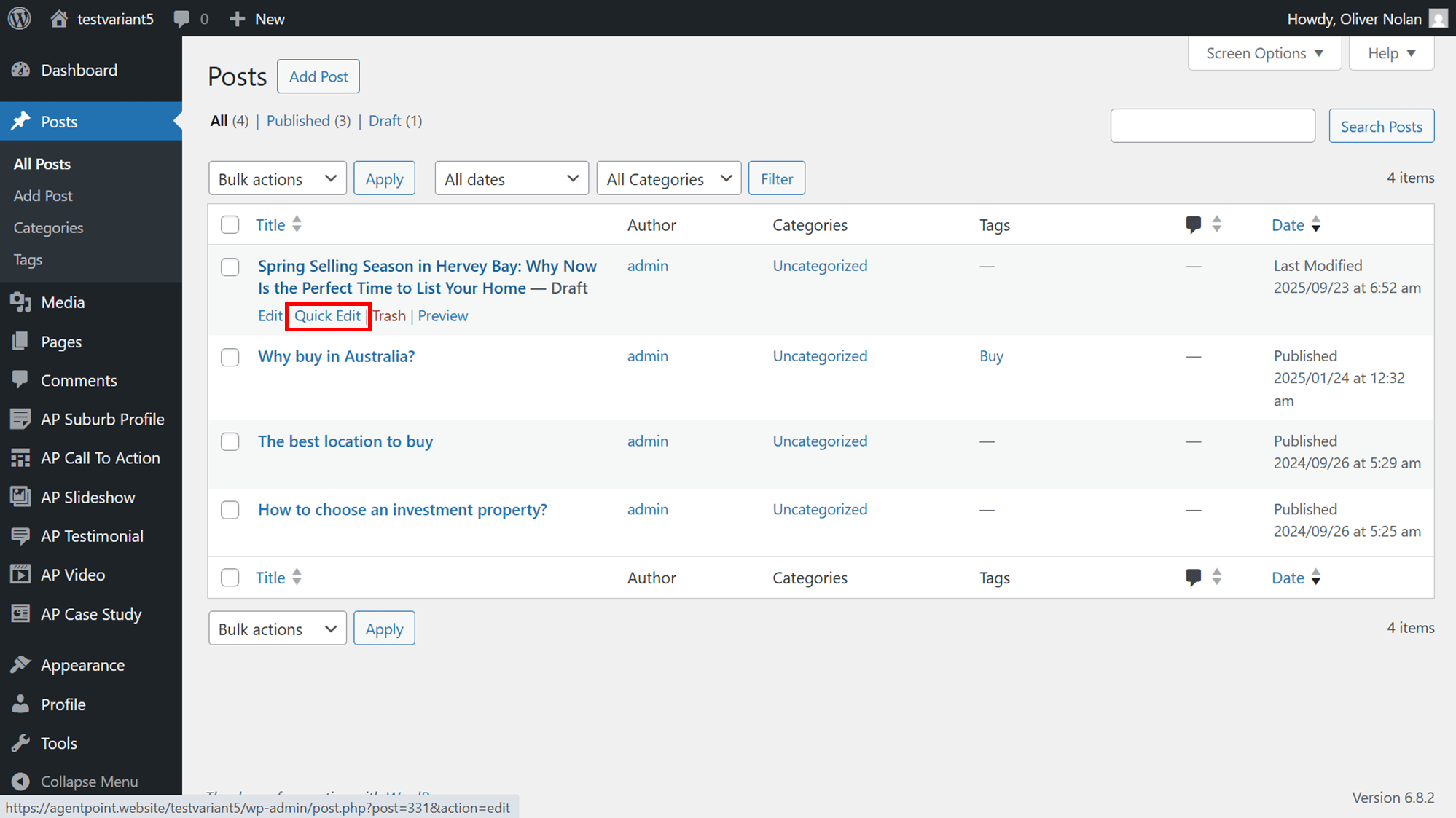
- In the Quick Edit section, you can edit the title, slug, date and author. You can also add categories, tags and change the status.
- Click on Update.
Delete a Post
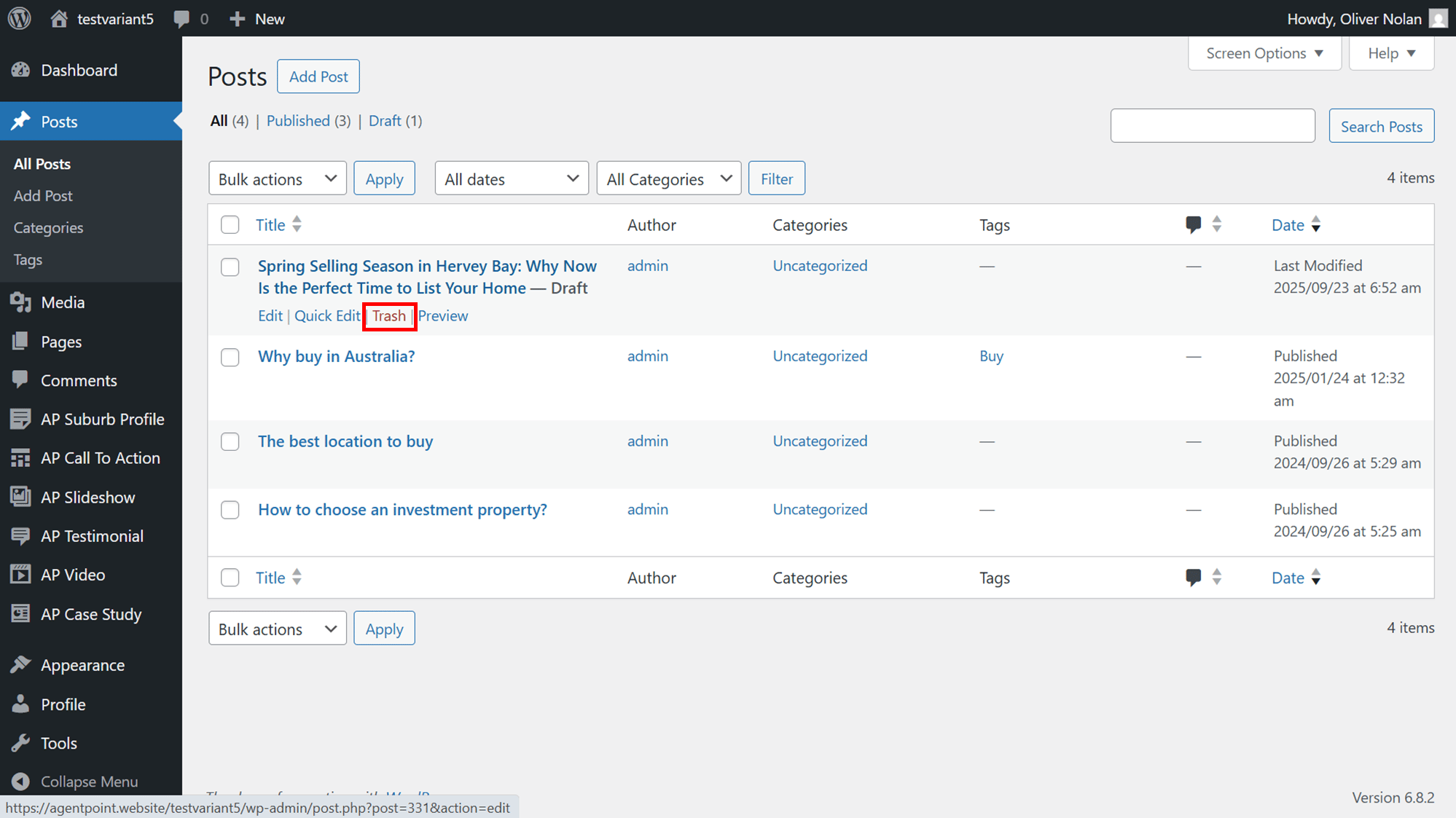
- From the All Posts page, hover over the required Posts and click Trash. The post will then be deleted.
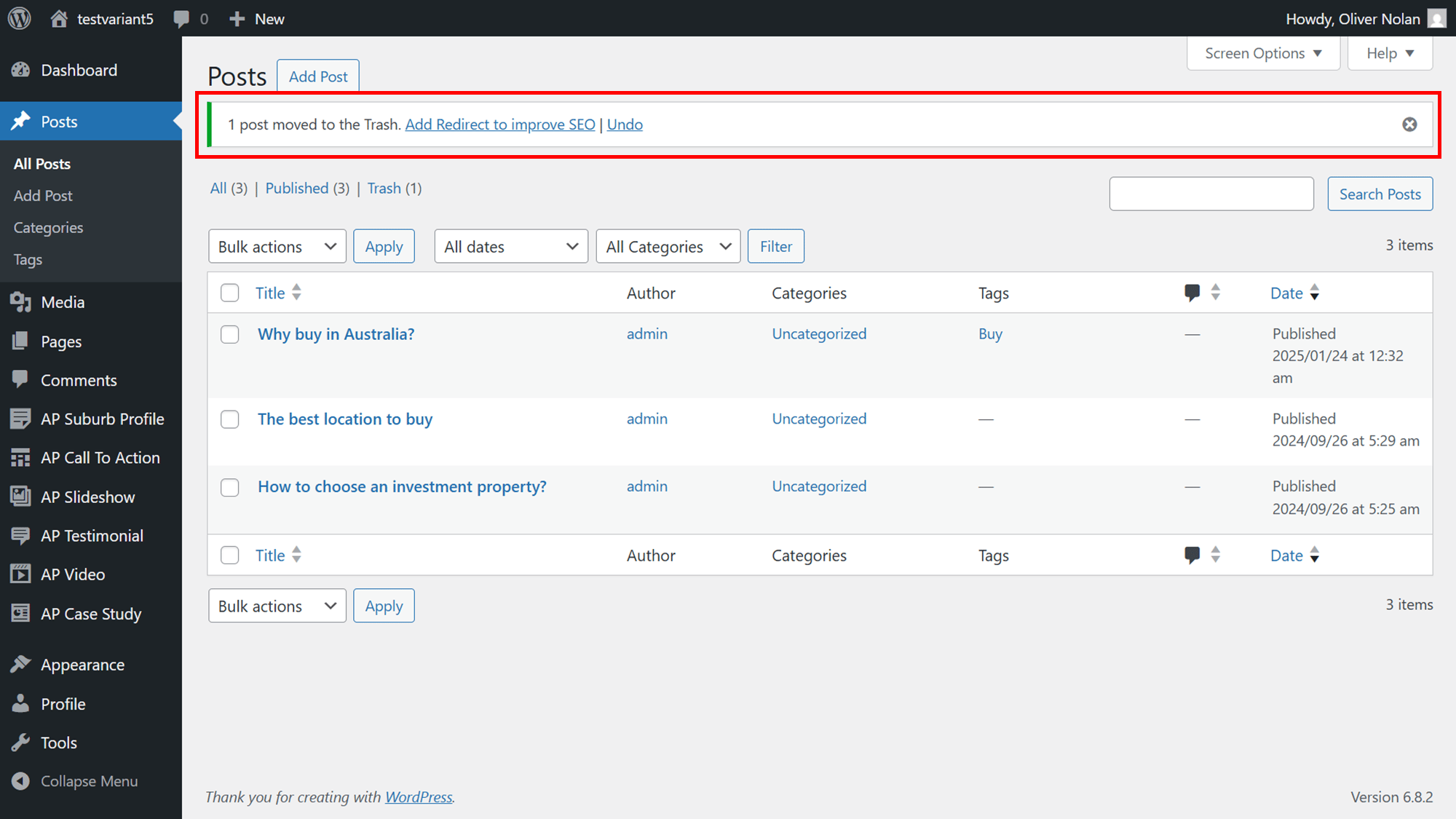
- To retrieve the post, click Undo.
Restore a Deleted a Post
- To retrieve a post, click Trash.
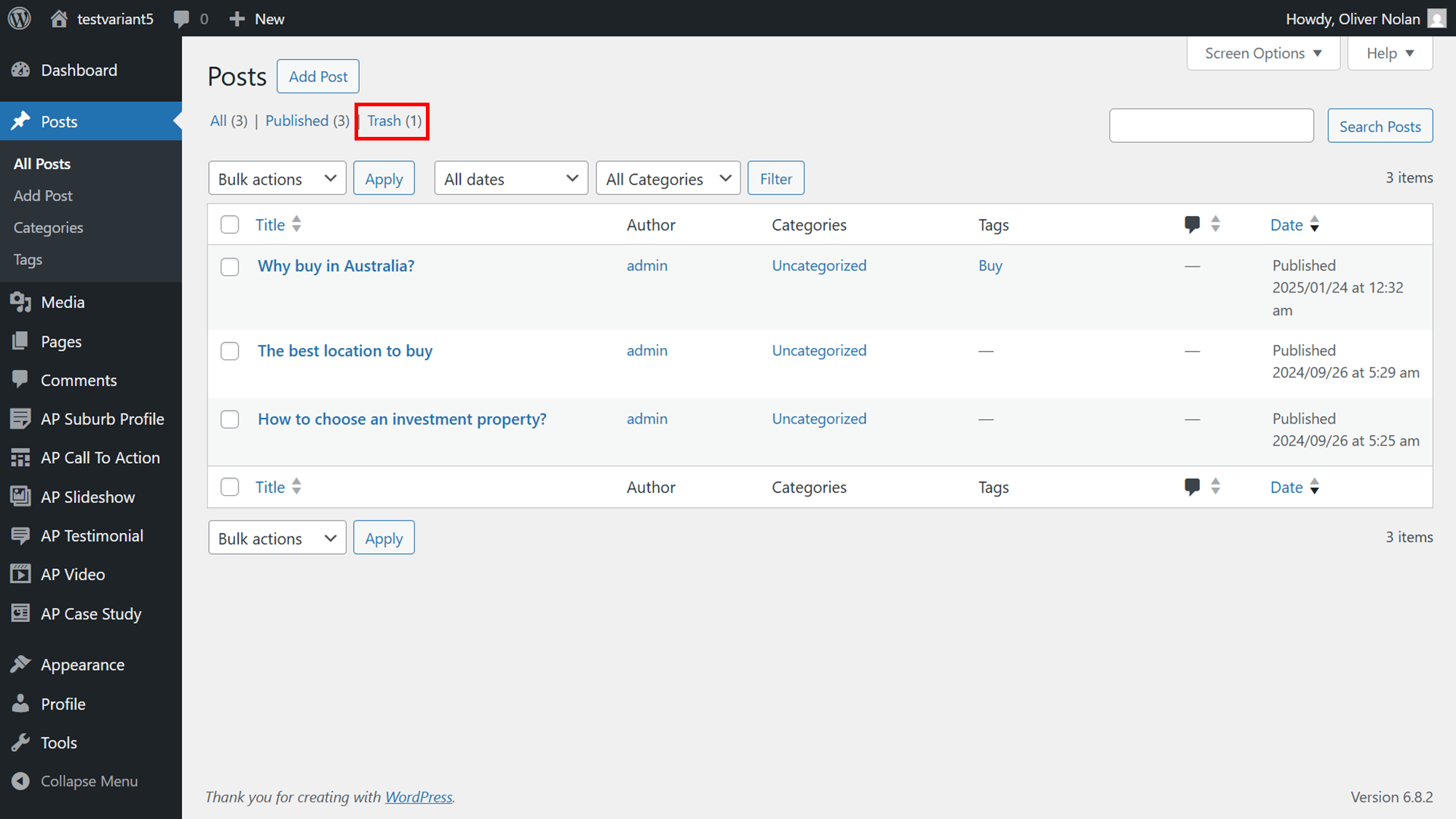
- Hover over the desired post and click Restore.
- You also have the option to permanently delete a post from this section.
Preview a Post
- From the All Posts page, hover over the required Posts and click Preview.
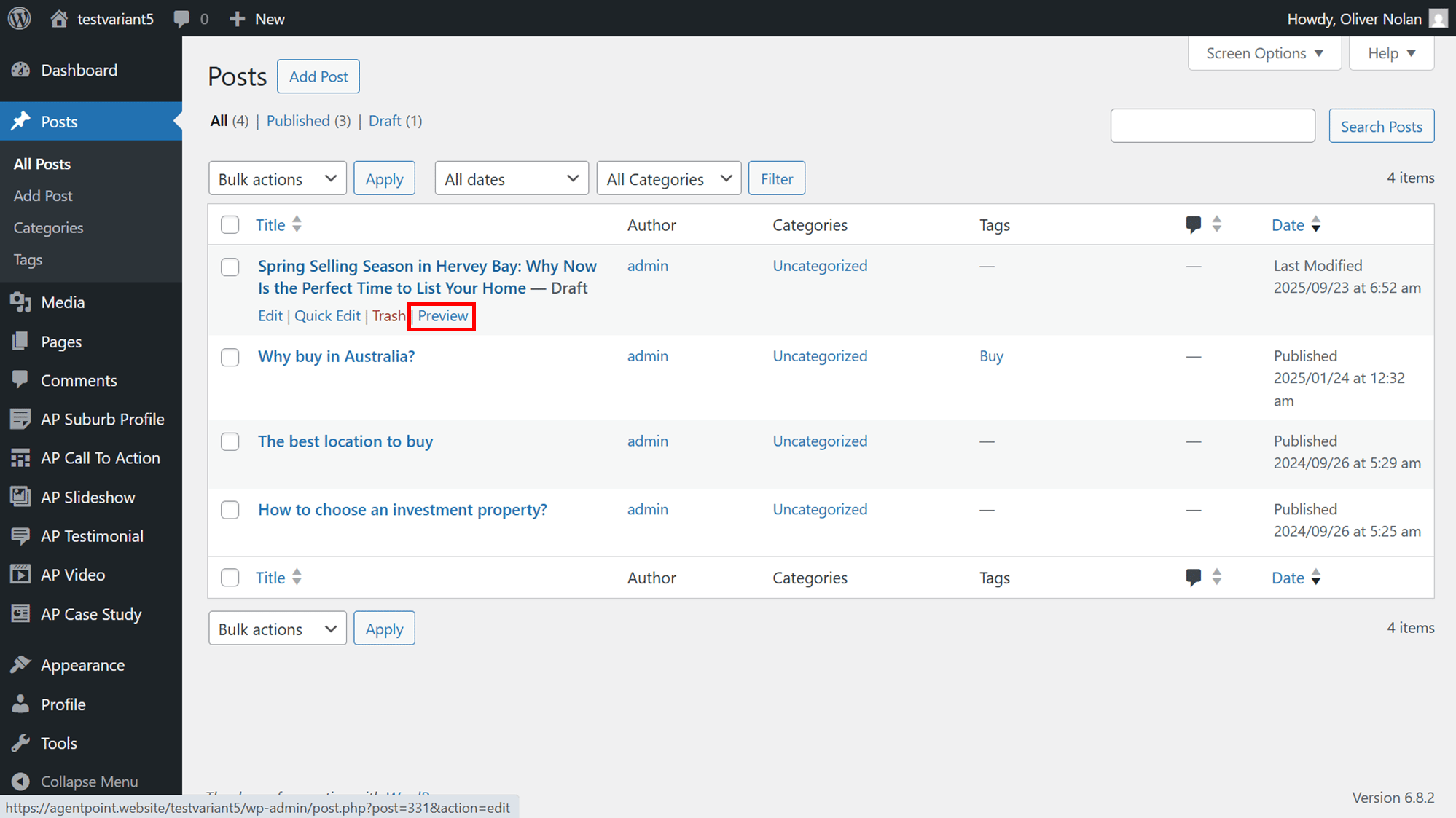
- View your post as necessary.