Adding and Understanding Slideshows Categories
Slide Show categories provide a helpful way to group related pictures together to be displayed in a particular section of your website as a slideshow.
Adding and Understanding Slideshows Categories
Slide Show categories provide a helpful way to group related pictures together to be displayed in a particular section of your website as a slideshow. You can create categories for different topics you cover in your slideshows.
The processes in this article include:
- Adding a Category
- Editing a Category
- Quick Edit a Category
- Delete a Category
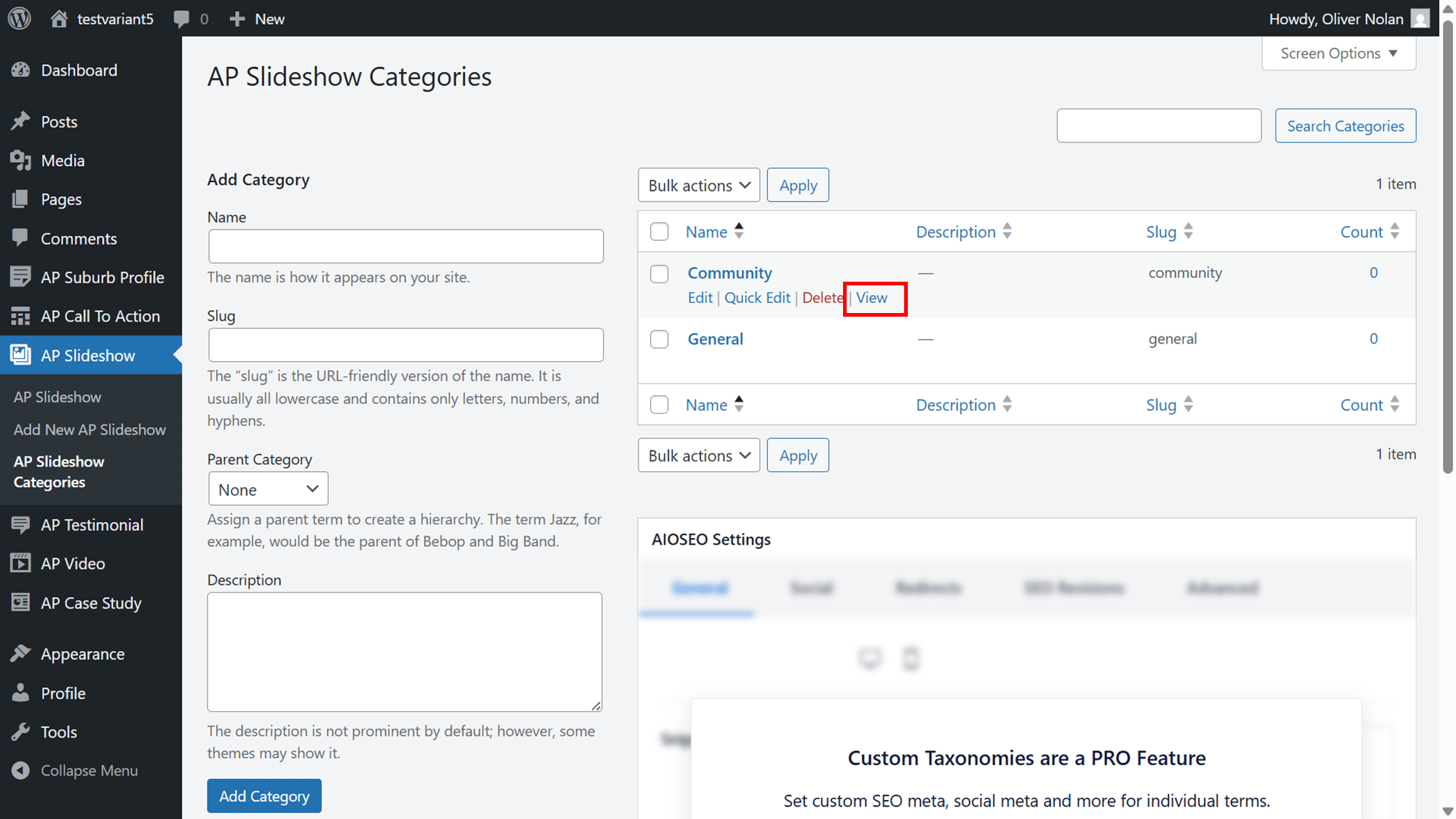
- View a Category
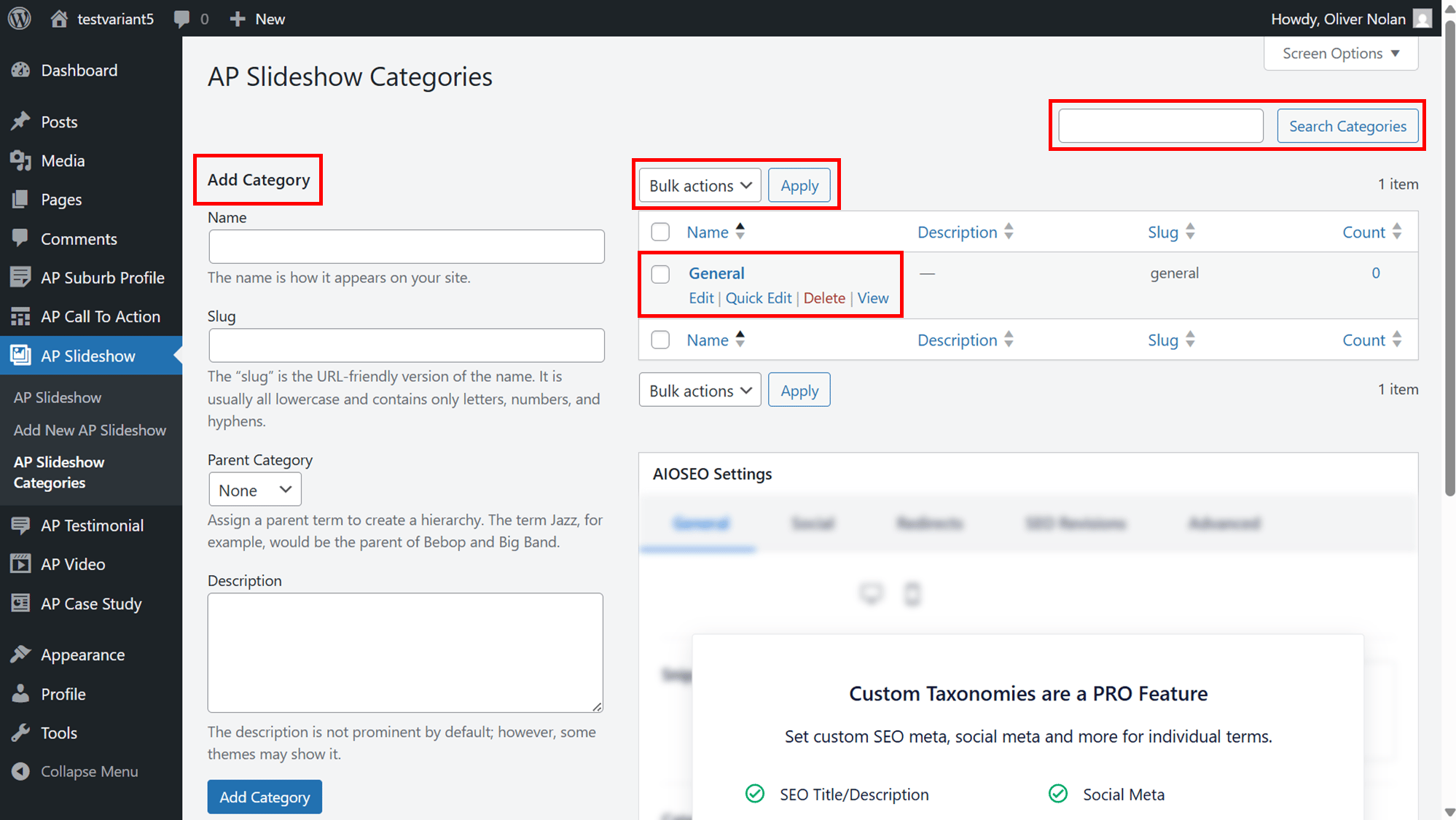
Within your Slideshows menu, you can:
- Add a new category.
- Search for an existing category
- View category name, description, slug and count
- Edit, Quick Edit, Delete and View your previously created slideshows
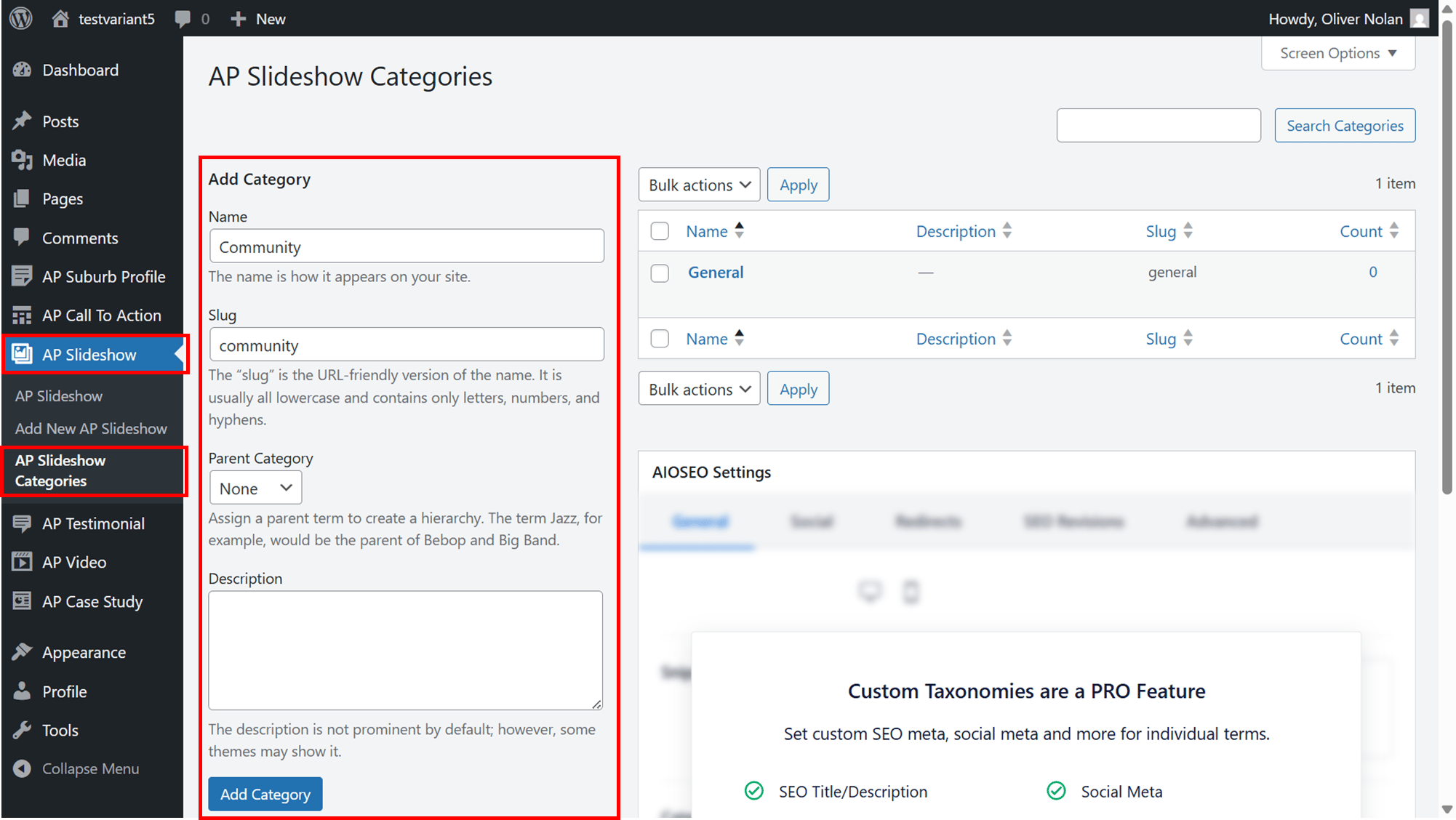
Adding a Category
- Click on AP Slide Show.
- Click on Slide Show Categories.
- Enter in a name, slug (if desired), parent category if applicable and a description.
- Click Add Category.
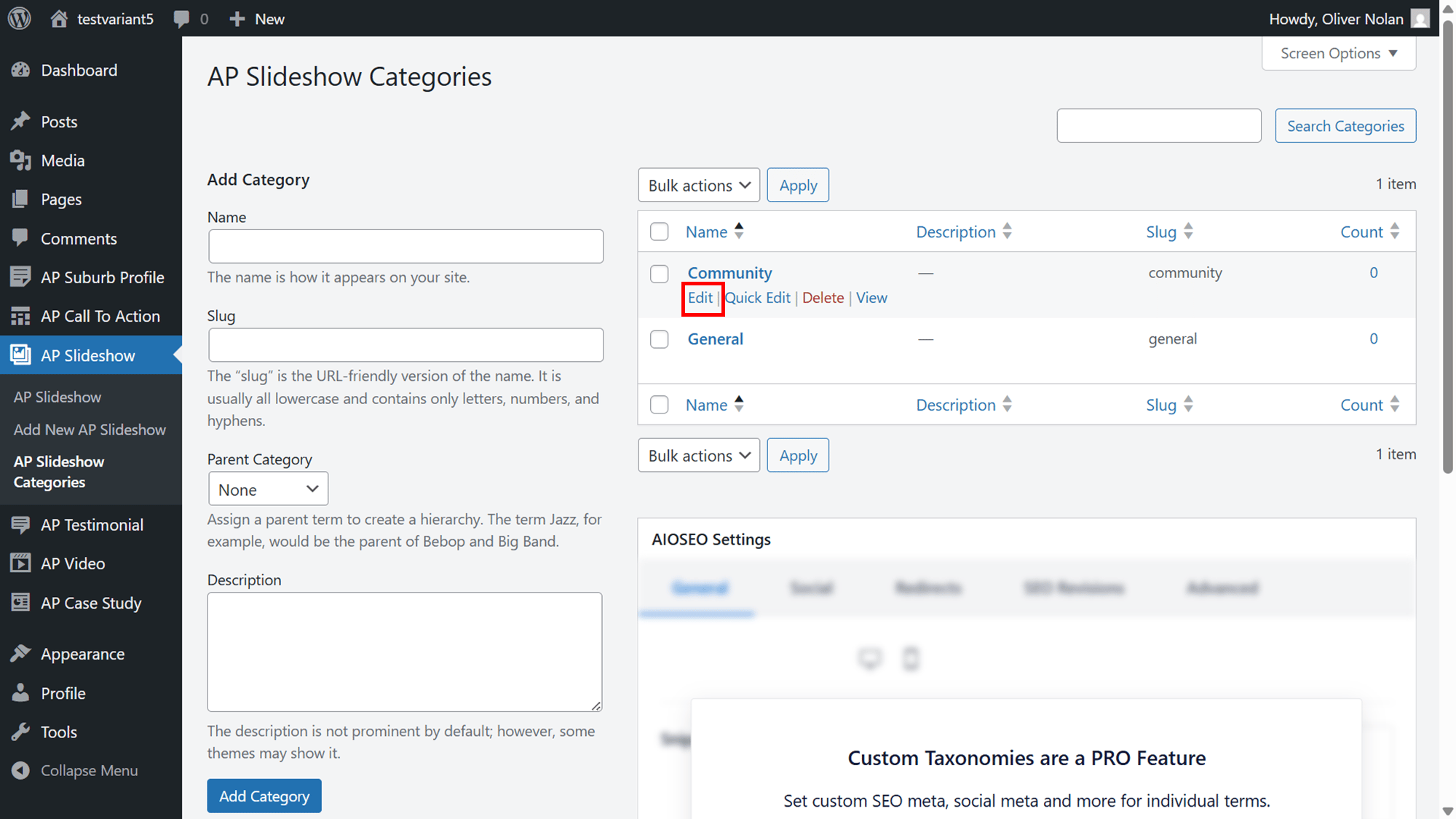
Editing a Category
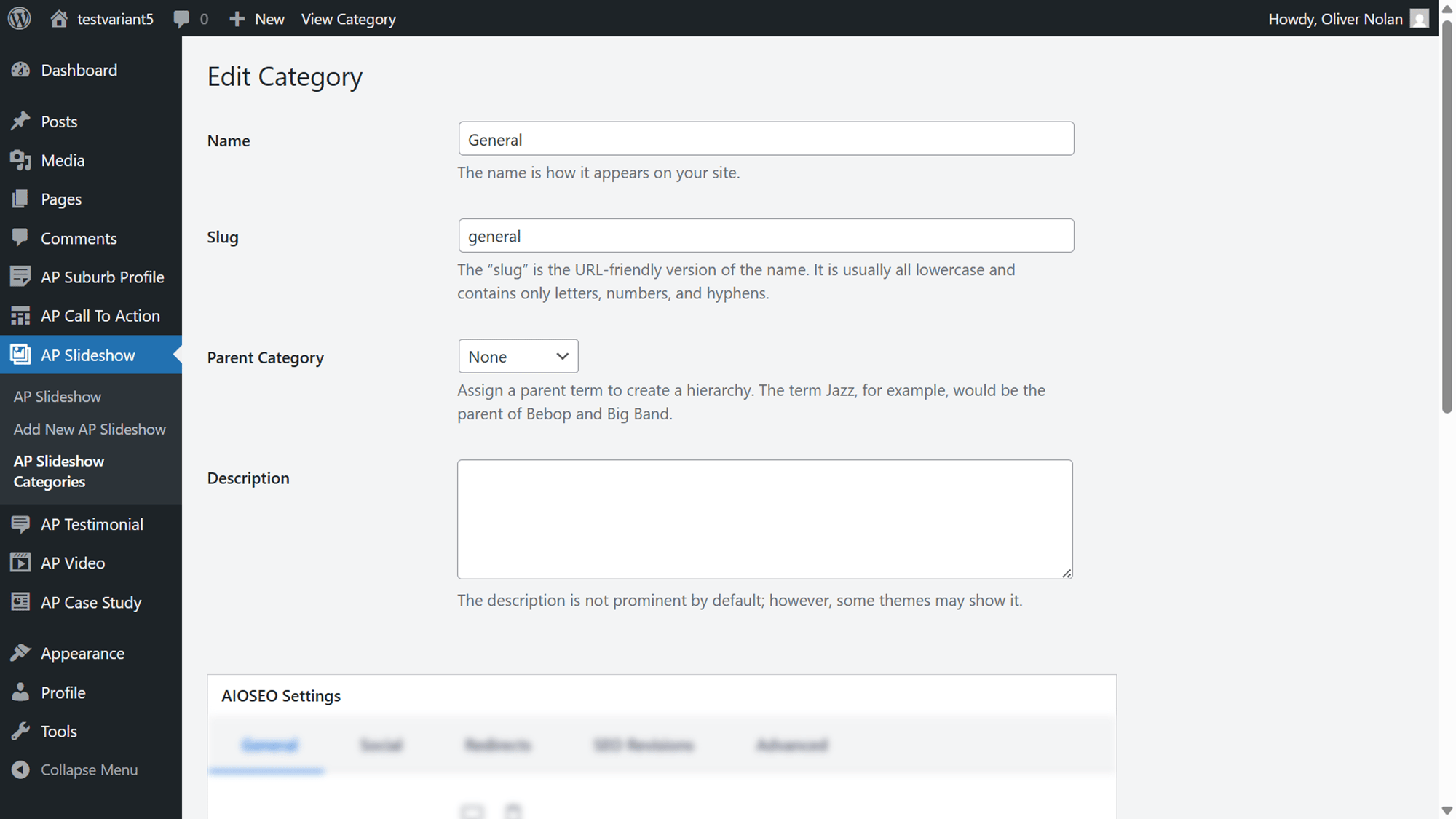
- Hover the cursor over the Category and click on Edit.
- Edit name, slug, parent category and description and click Update.
Quick Edit a Category
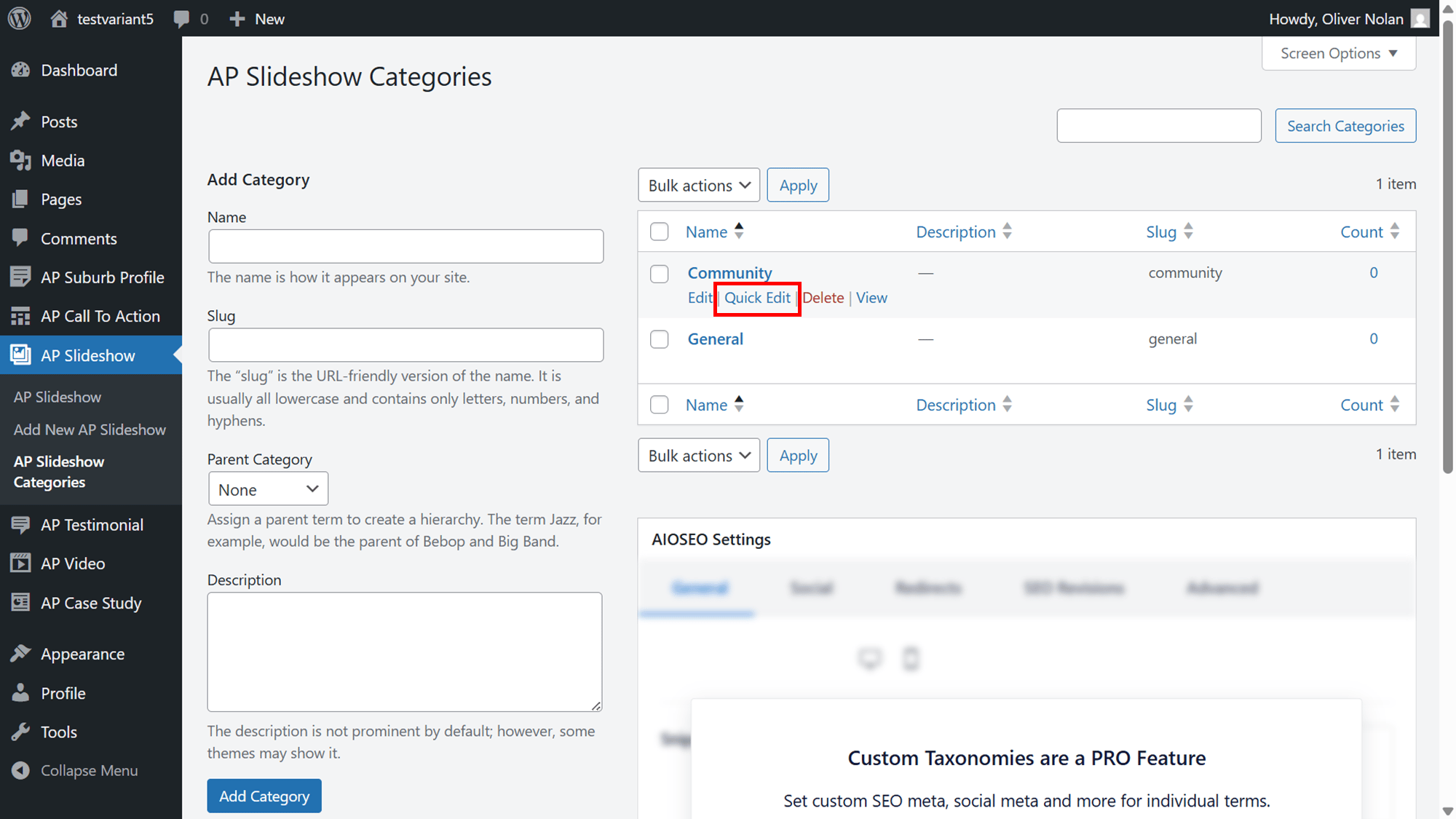
- Hover the cursor over the Category and click on Quick Edit.
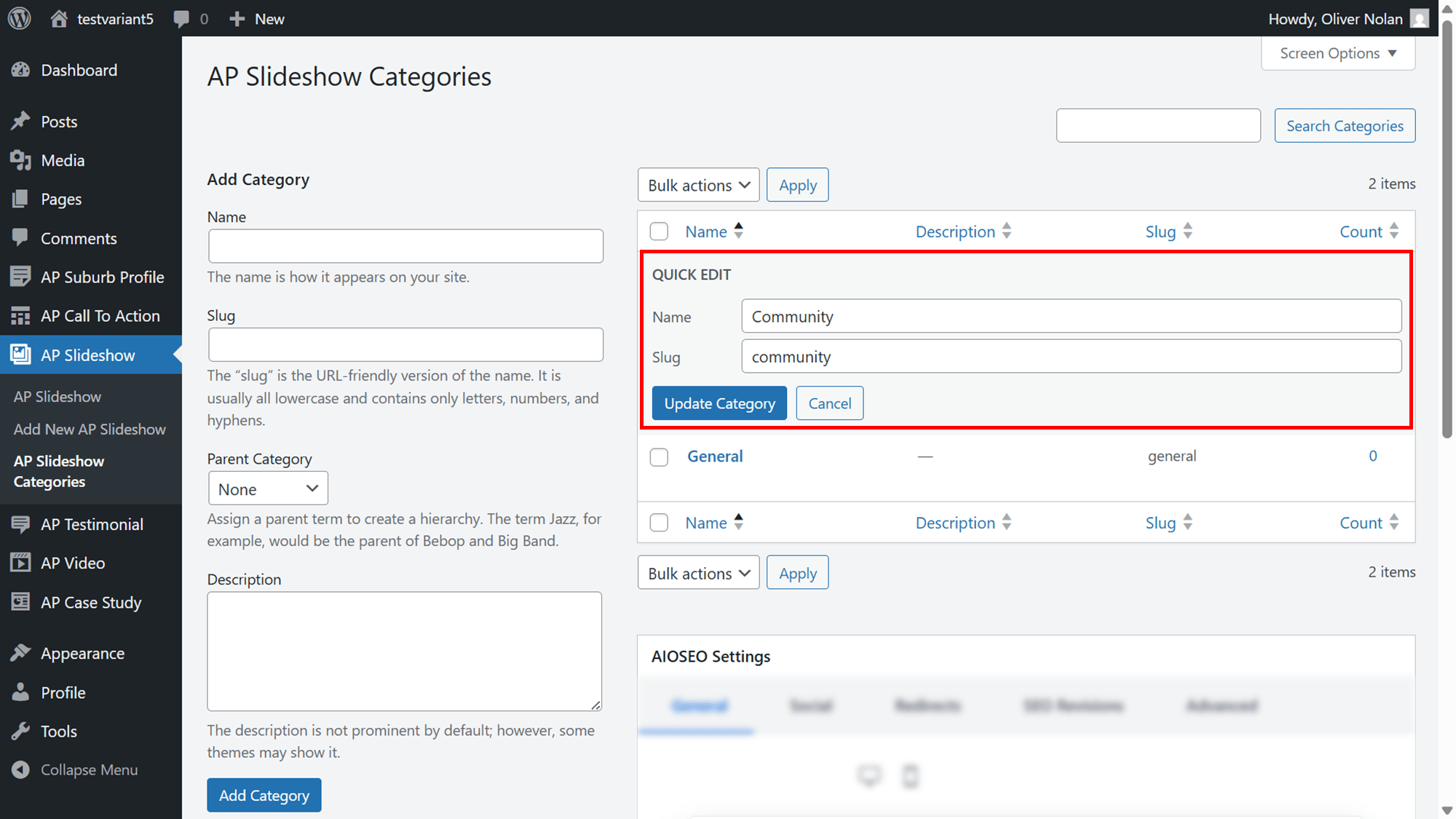
- Edit the name and slug and click Update Category.
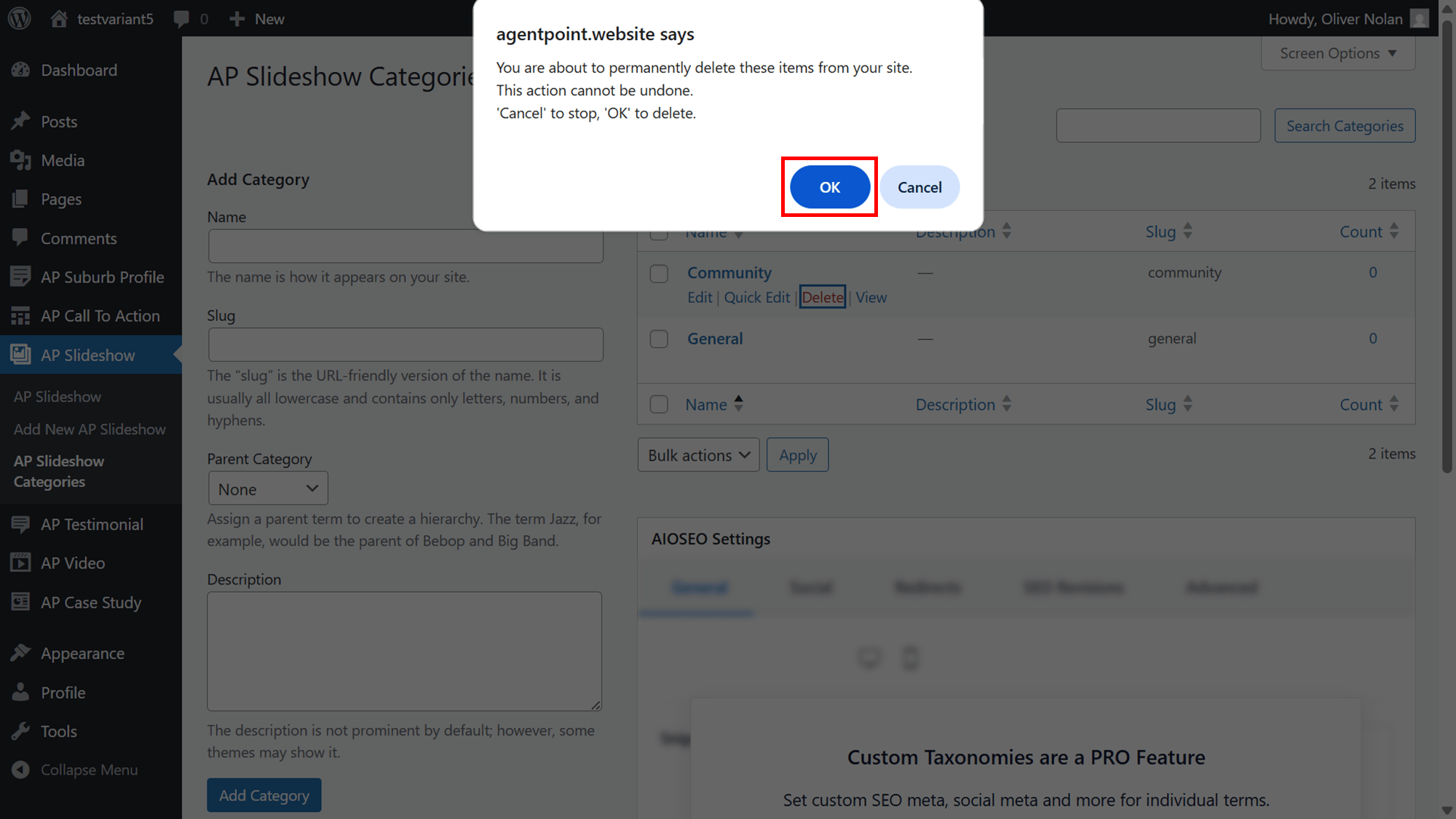
Delete a Category
- Hover the cursor over the Category and click on Delete.
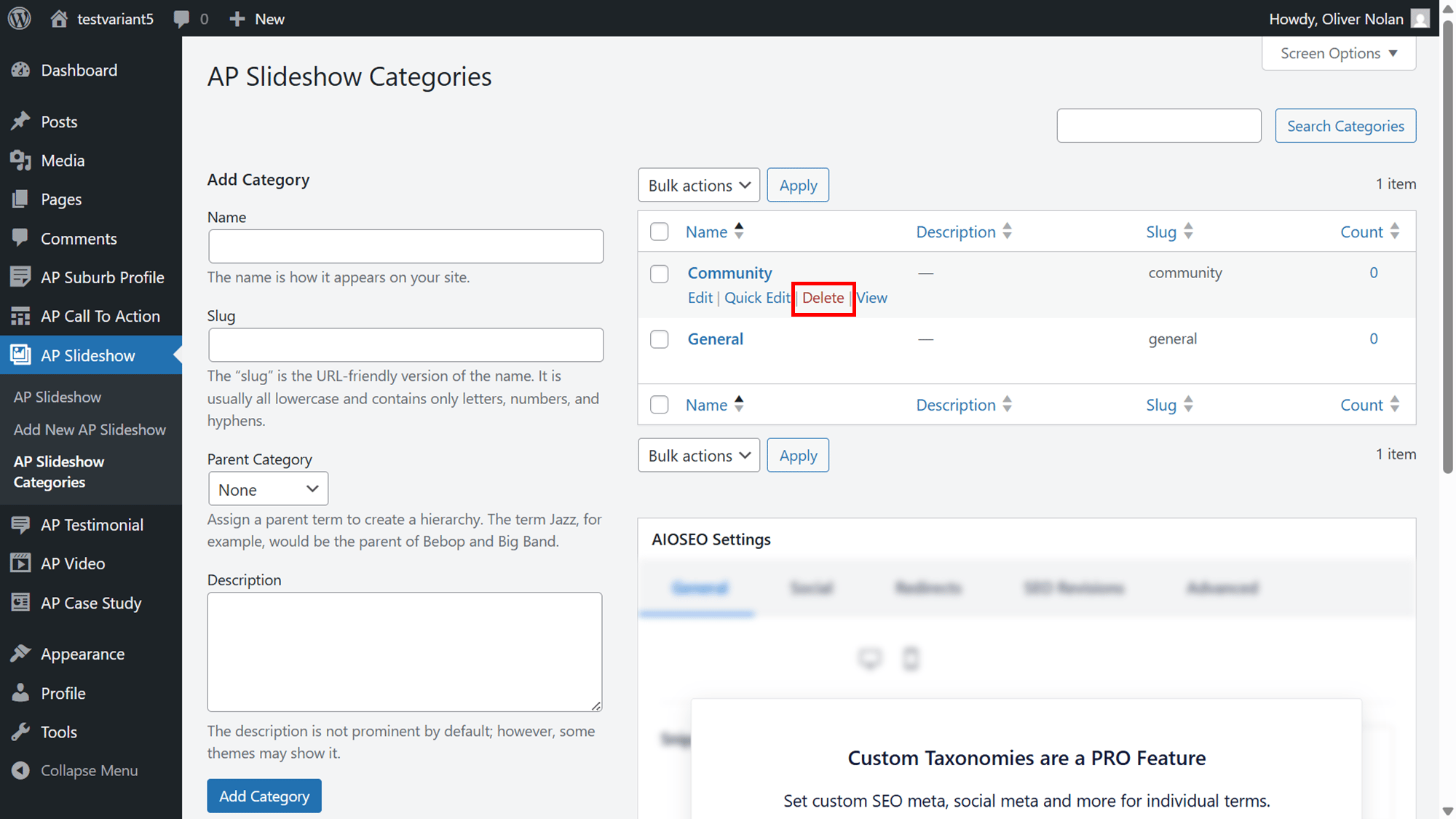
- Click Ok. Note: This will be permanently deleted from your site and cannot be undone.
View a Category
- Hover the cursor over the Category and click on View.
- This will redirect you to the category on the website.