Managing Comments
This article will show you how to manage a comment in Reapit Websites
By inserting a comment block to a page on your website, visitors can add feedback and comment on pages and blog posts. To learn how to insert a block, click here.
When a comments block in inserted, comments are managed within the Comments menu.
The processes in this article include:
- Approve / Unapprove a Comment
- Reply to a Comment
- Quick Edit a Comment
- Edit a Comment
- Marking a Comment as Spam
- Deleting a Comment
- View a Comment
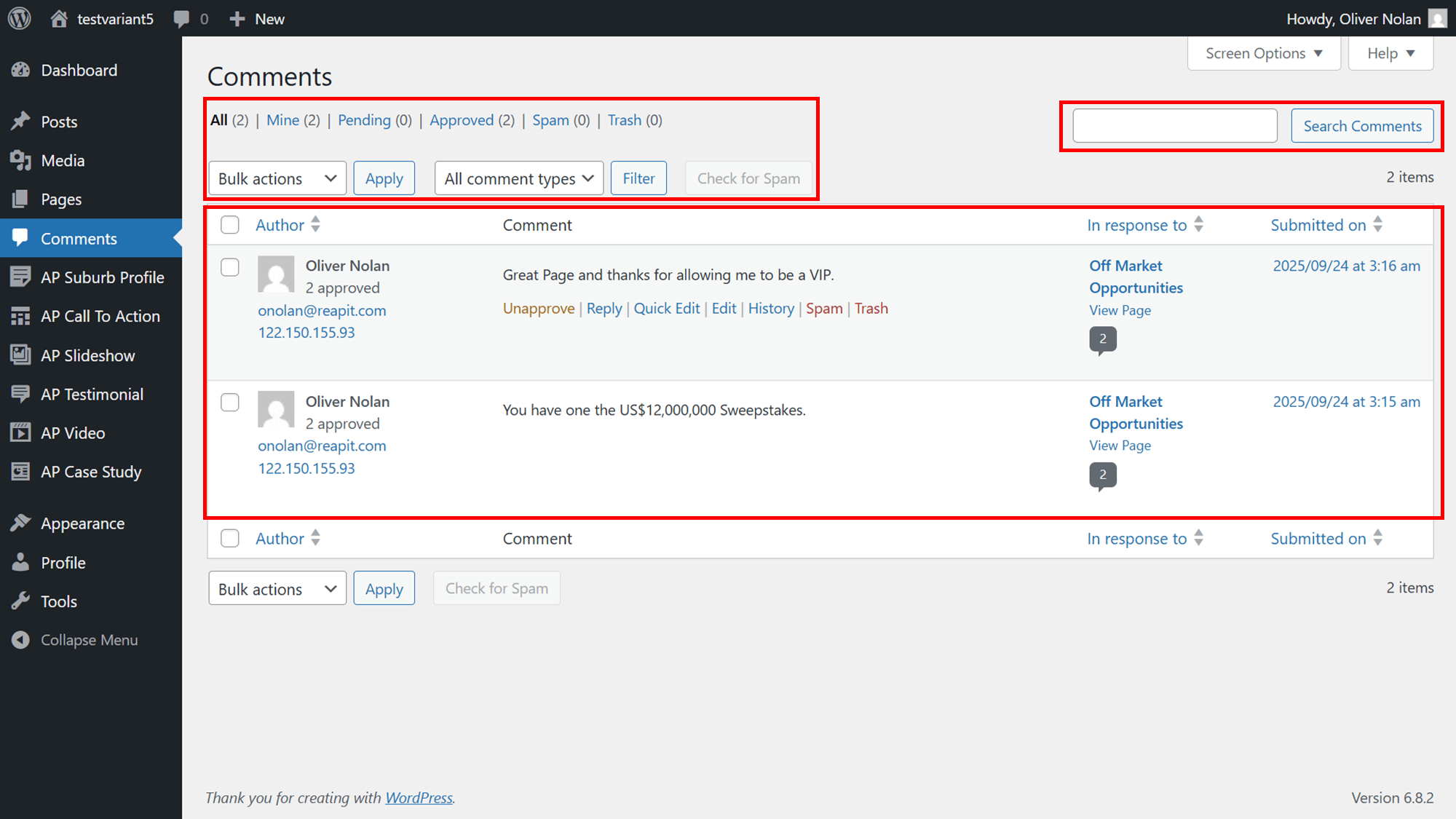
Within your Comments menu, you can:
- Search for existing comments.
- Filter comments and apply bulk actions.
- View author, comment, what that comment was in response to and when the comment was submitted.
- Approve and unapprove, reply, quick edit, delete and preview previously created comments on your website.
Approve and Unapprove a Comment
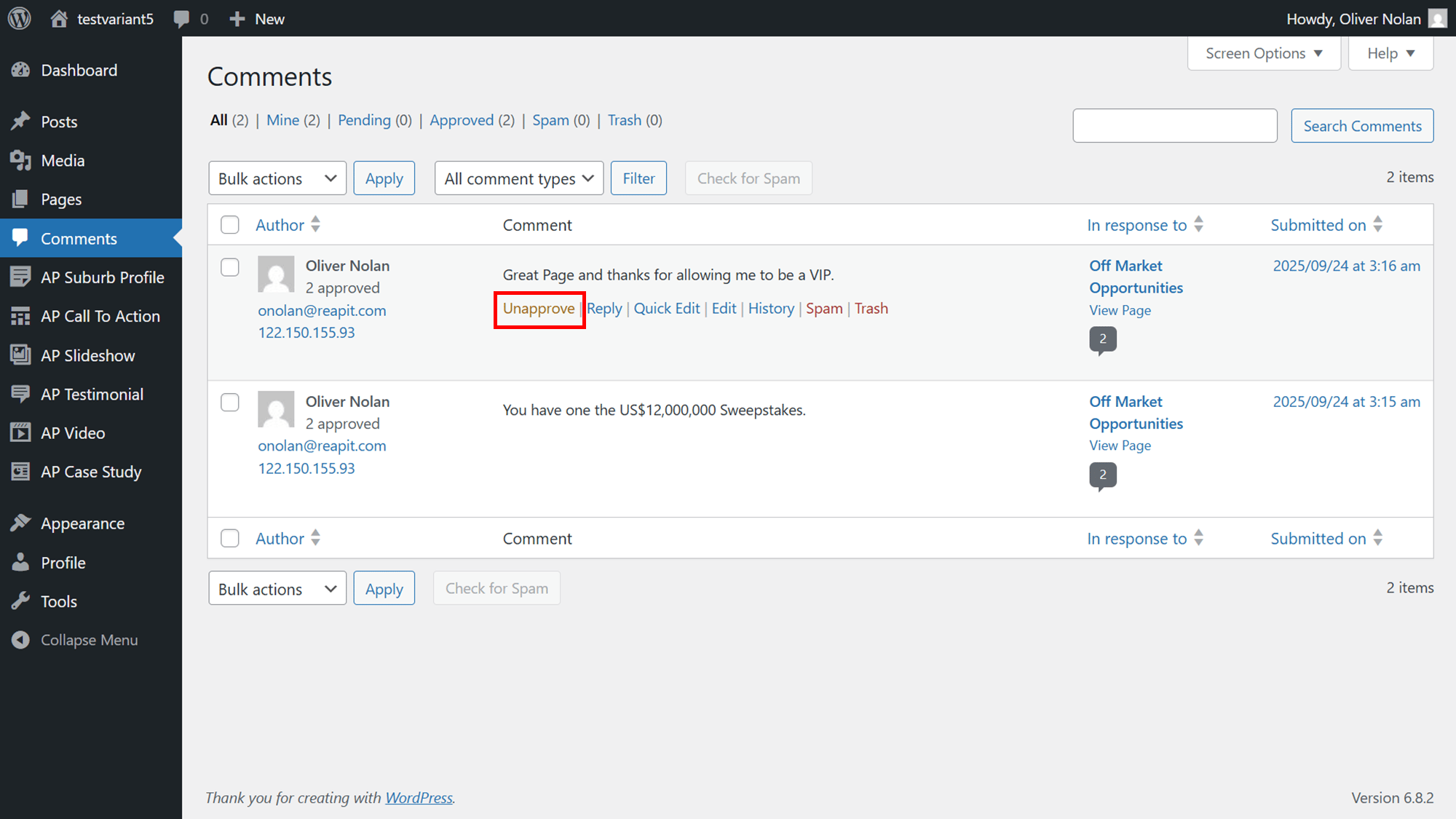
- To unapprove a comment, click Unapprove.
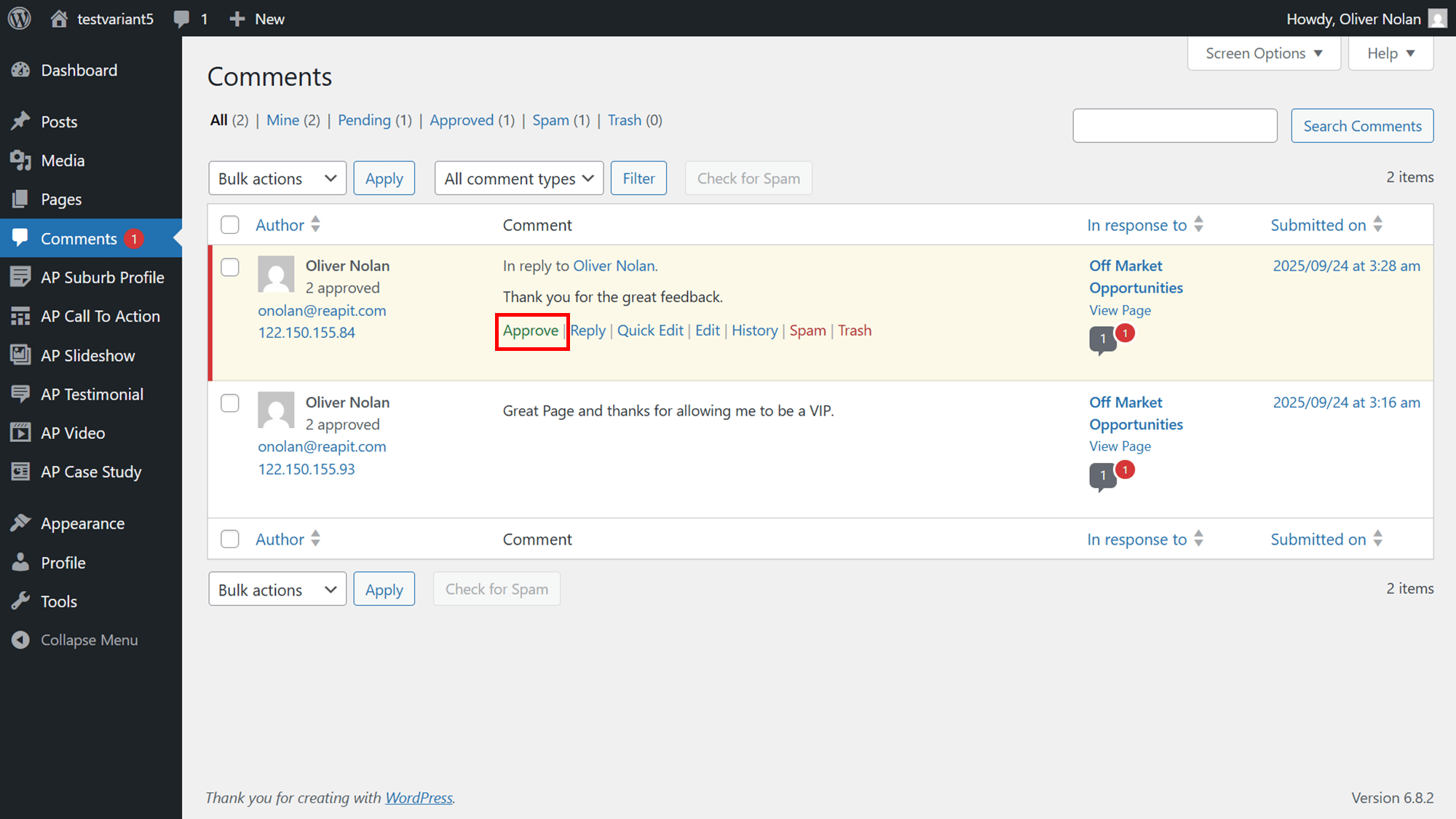
- To approve a comment, click Approve.
Reply to a Comment
- To reply to a comment, click Reply.
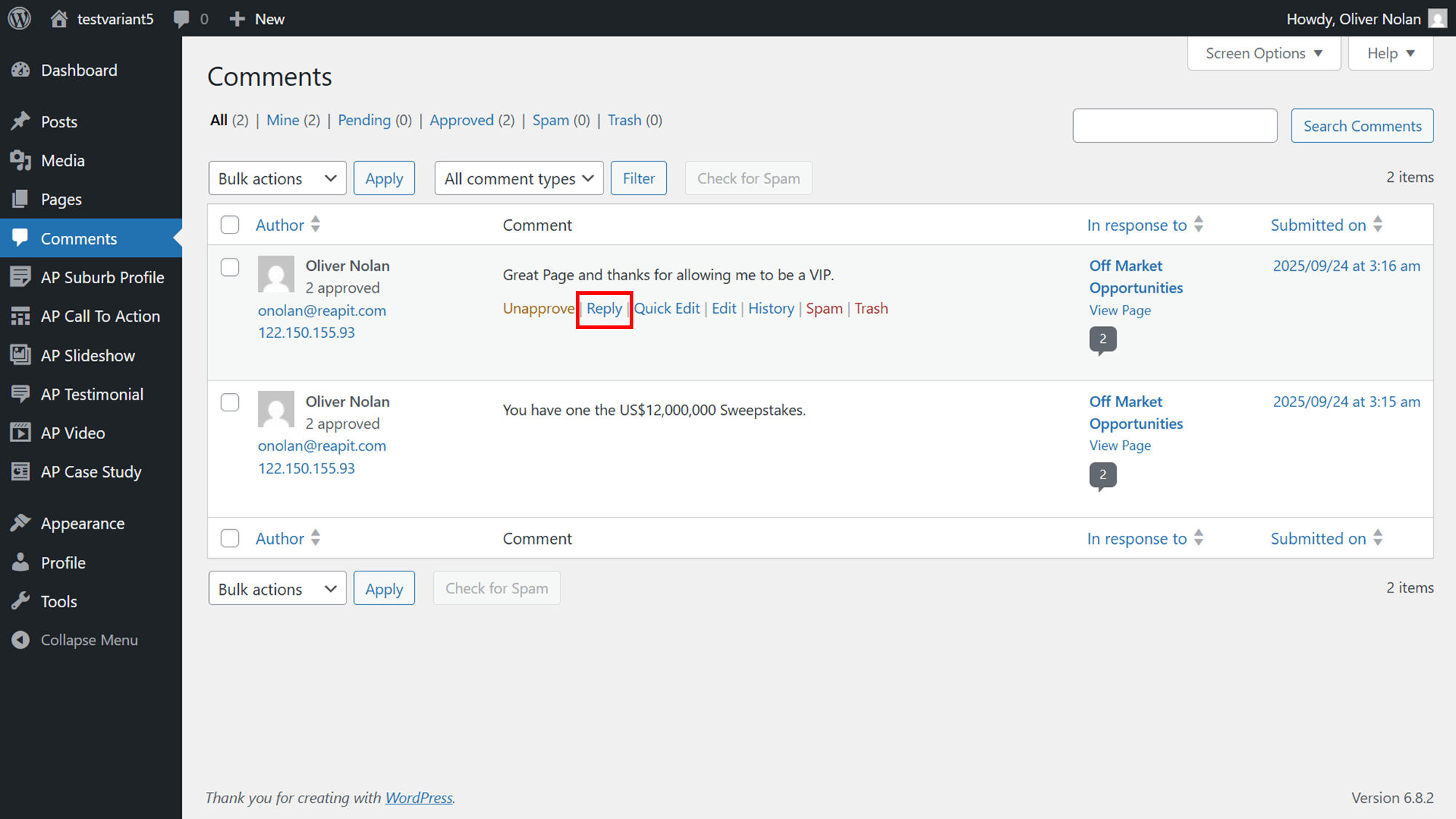
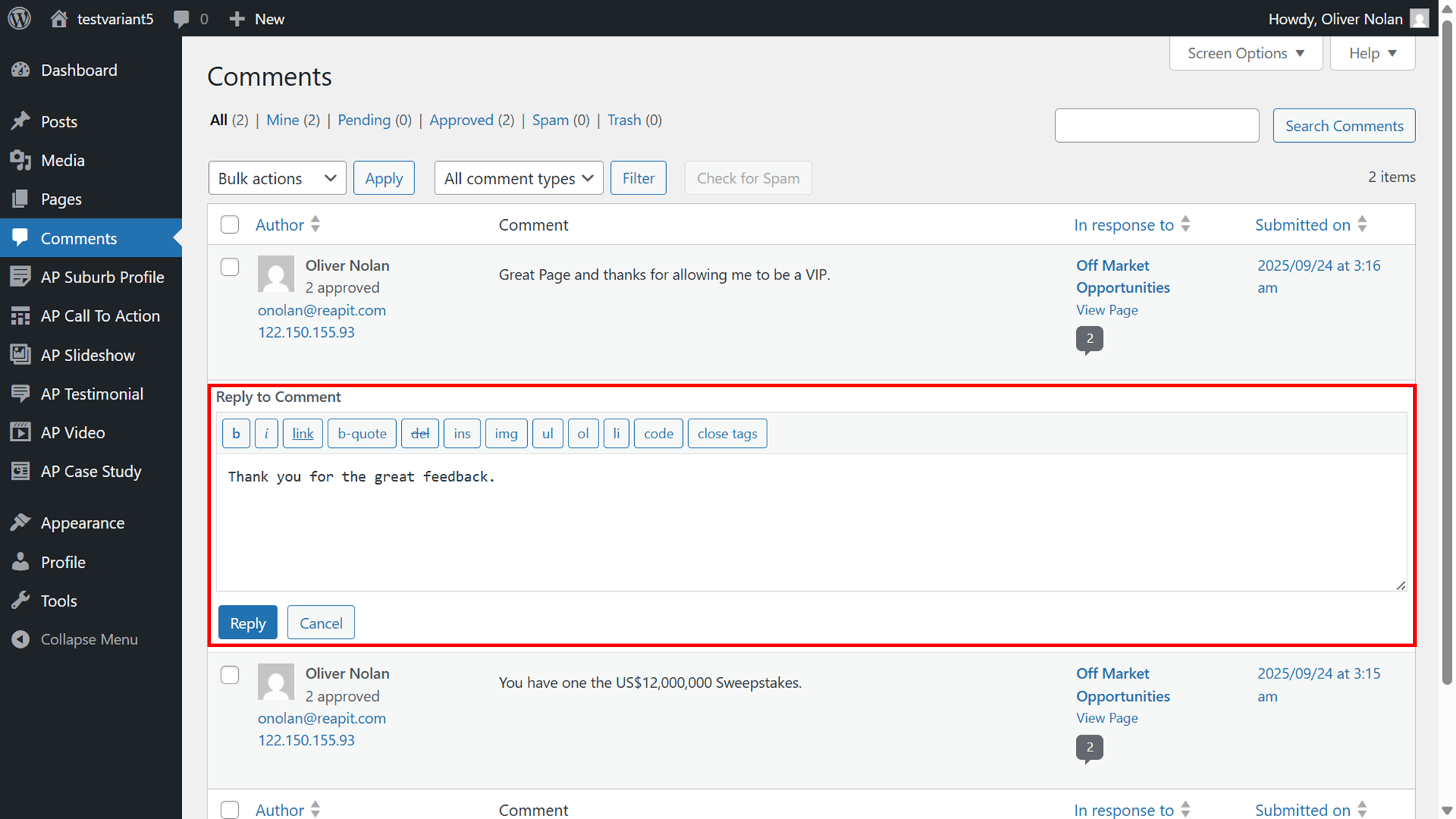
- Type the response as required, then click Reply when you are satisfied.
Quick Edit a Comment
- To quickly edit your comment, click Quick Edit.
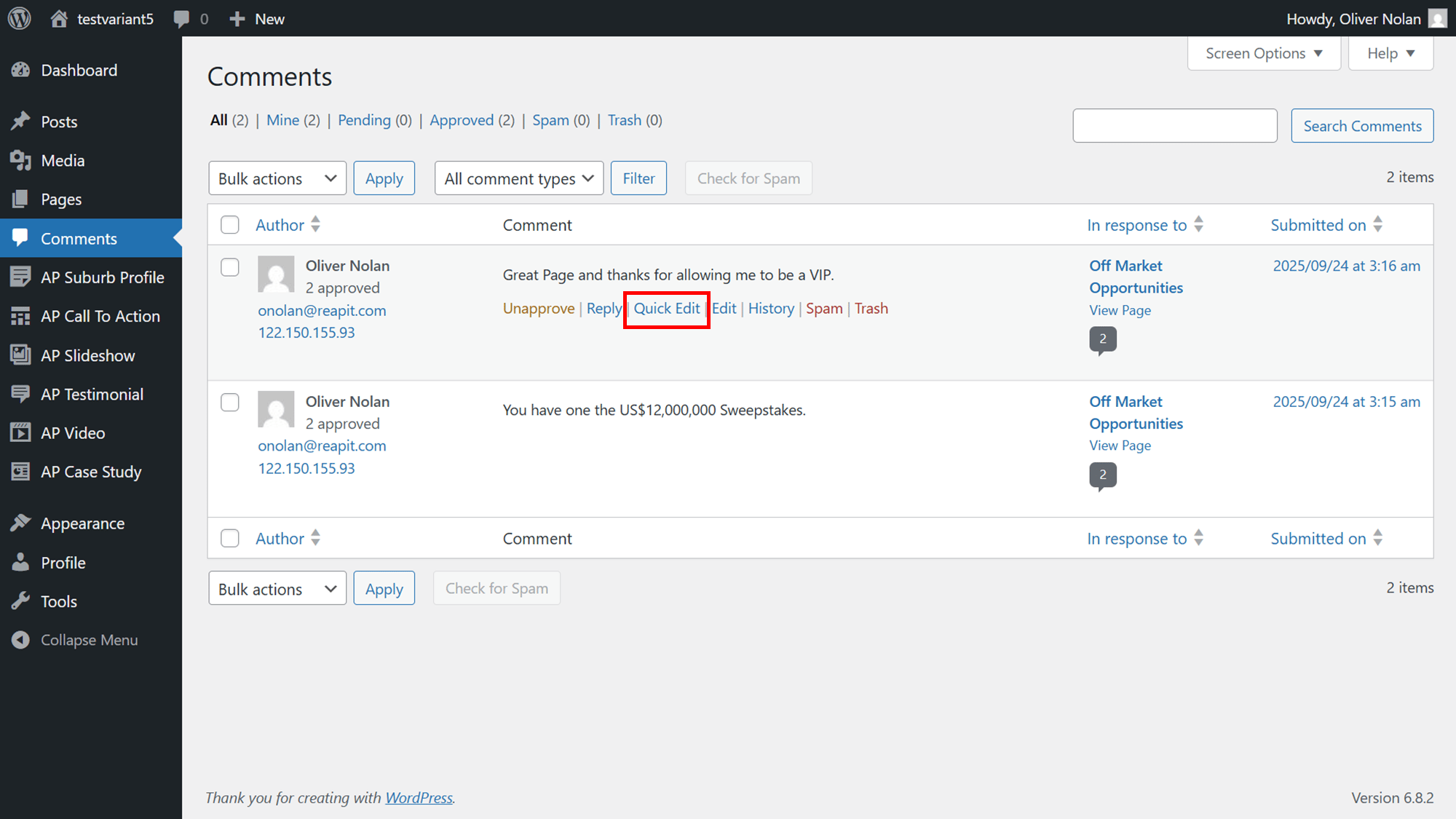
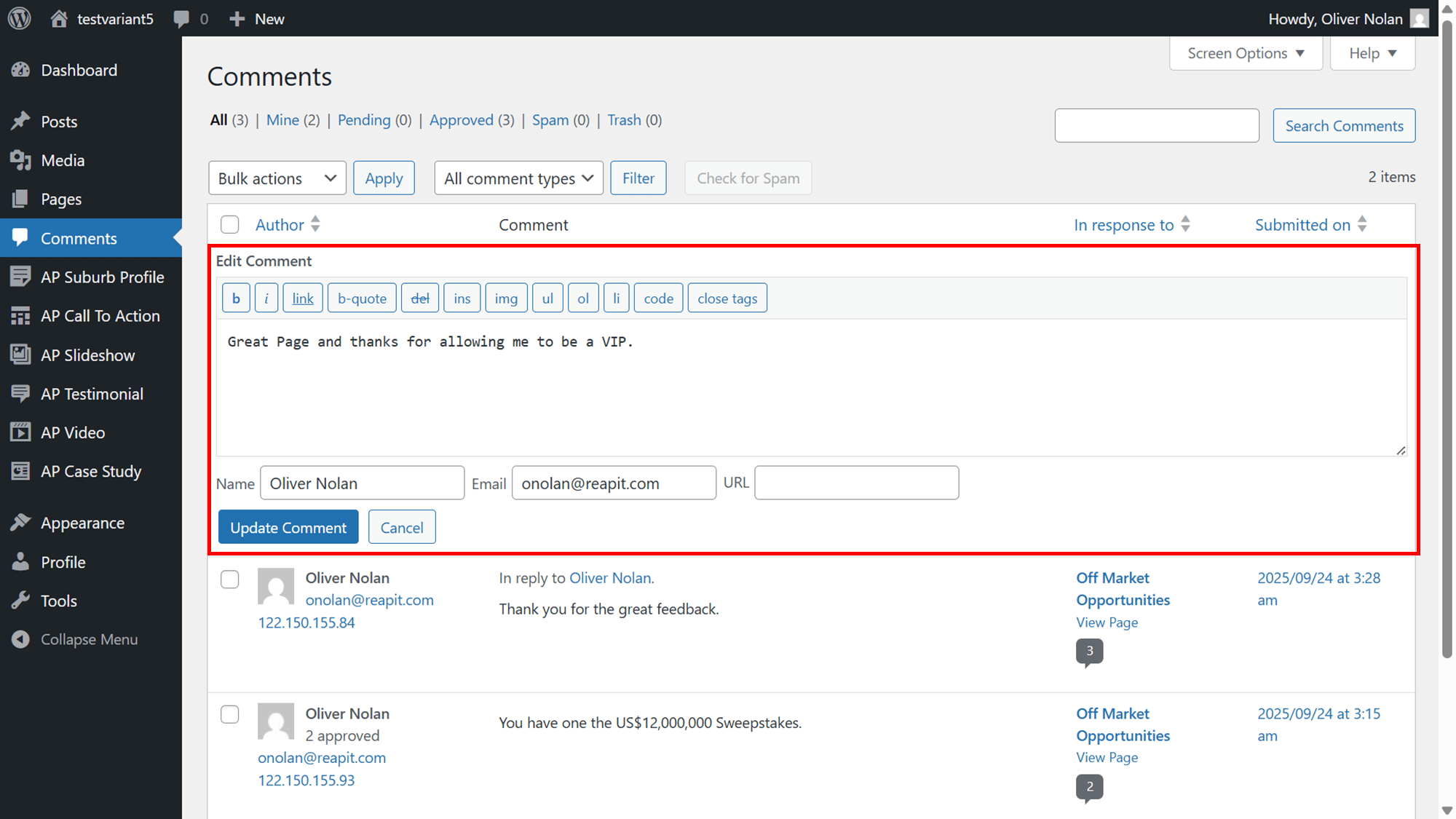
- In the Quick Edit section, you can edit the comment or the url, as well as the name and email of the author. Once amended, click Update Comment.
Edit a Comment
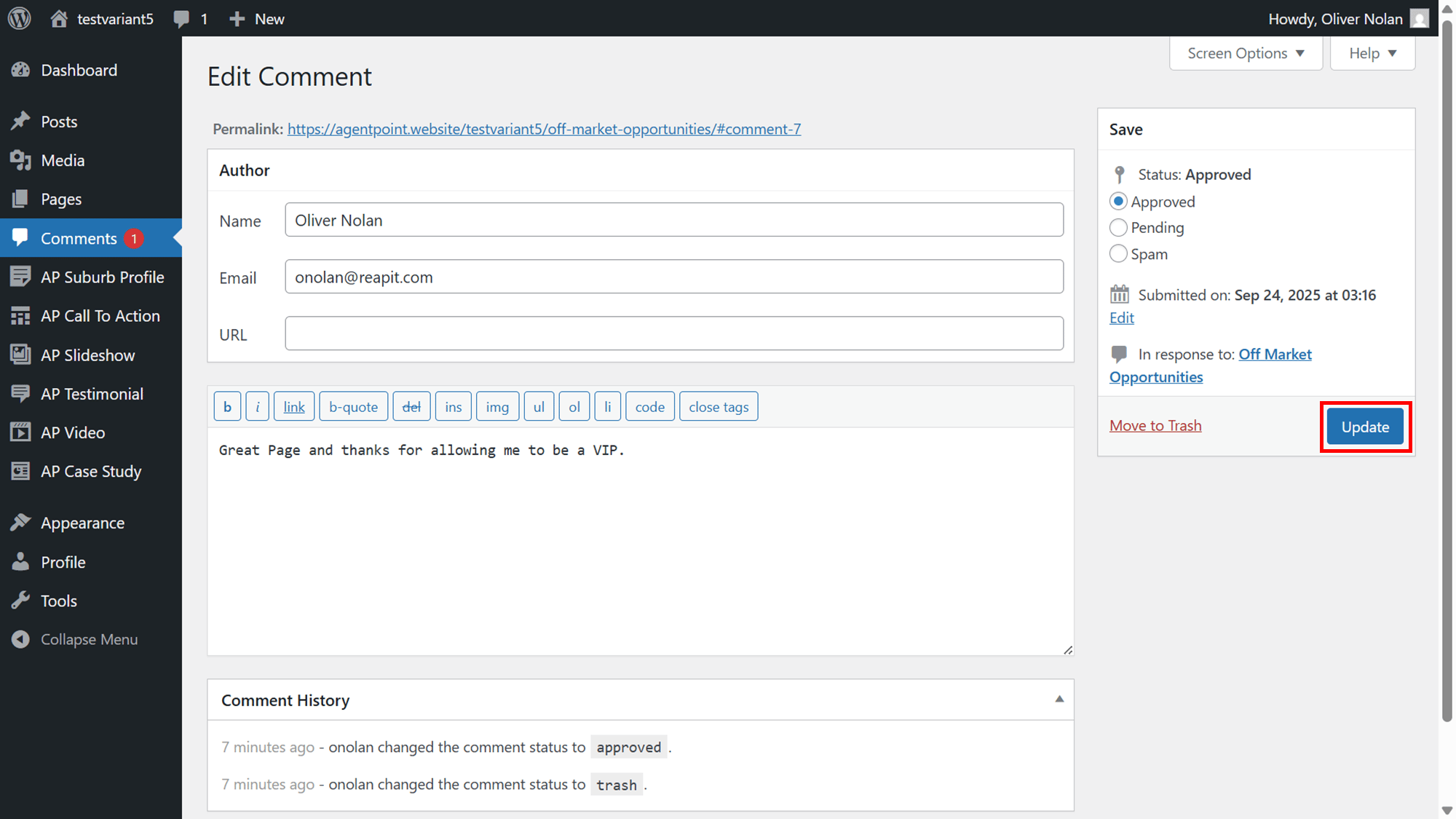
- To edit a comment, click Edit.
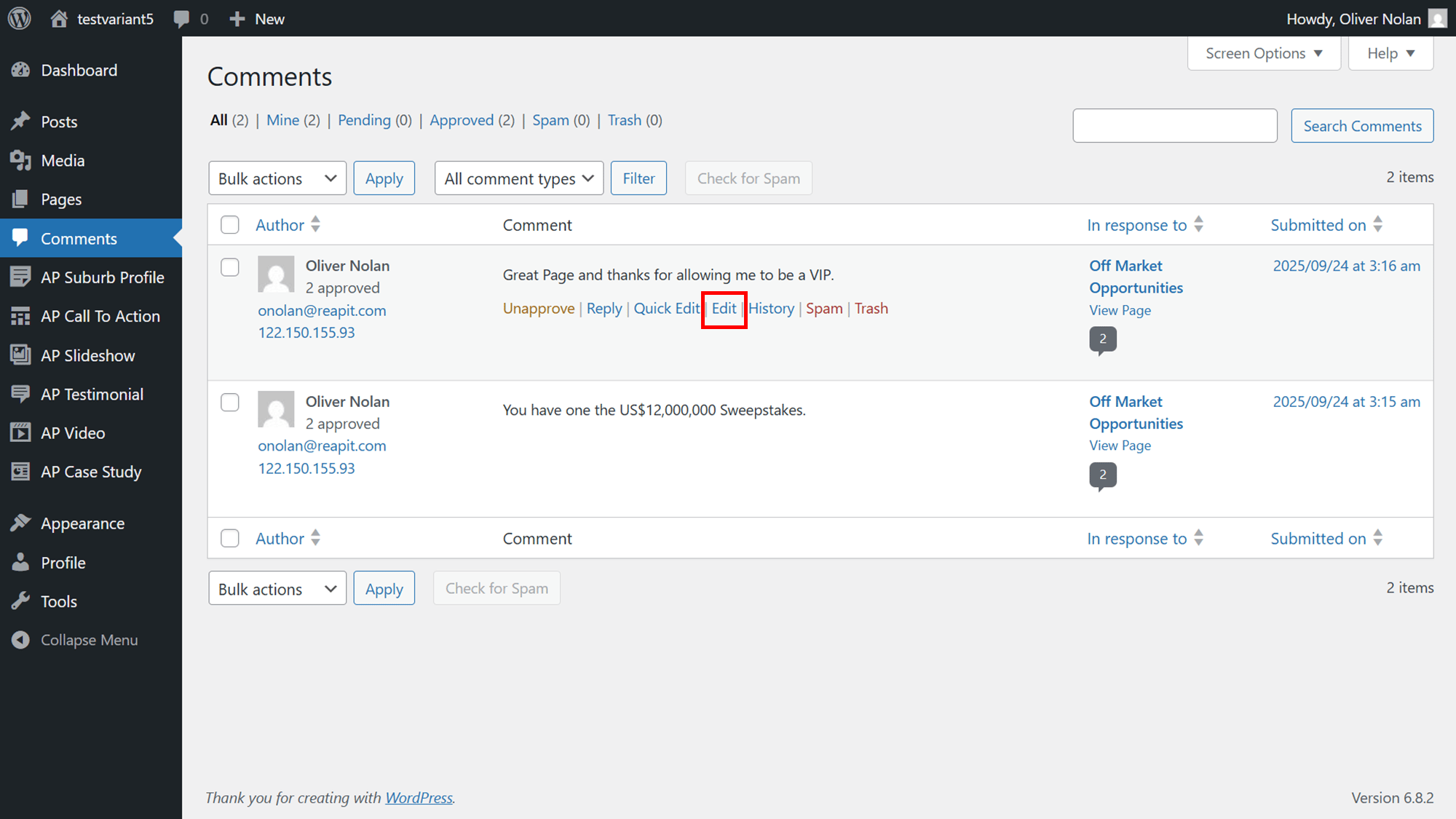
- Edit the comment as required, then click Update when you are satisfied.
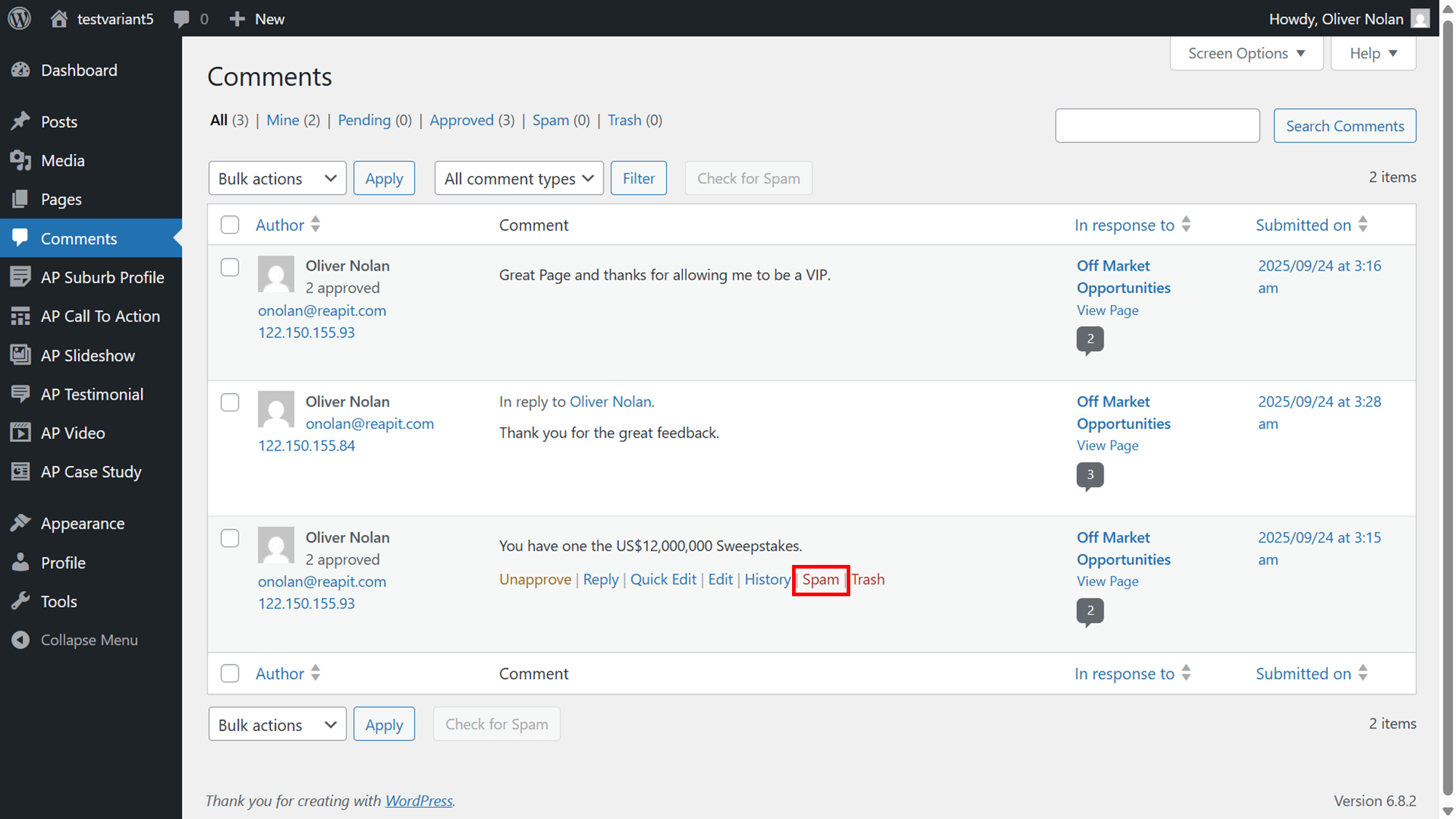
Marking a Comment as Spam
- To mark a comment as spam, click Spam.
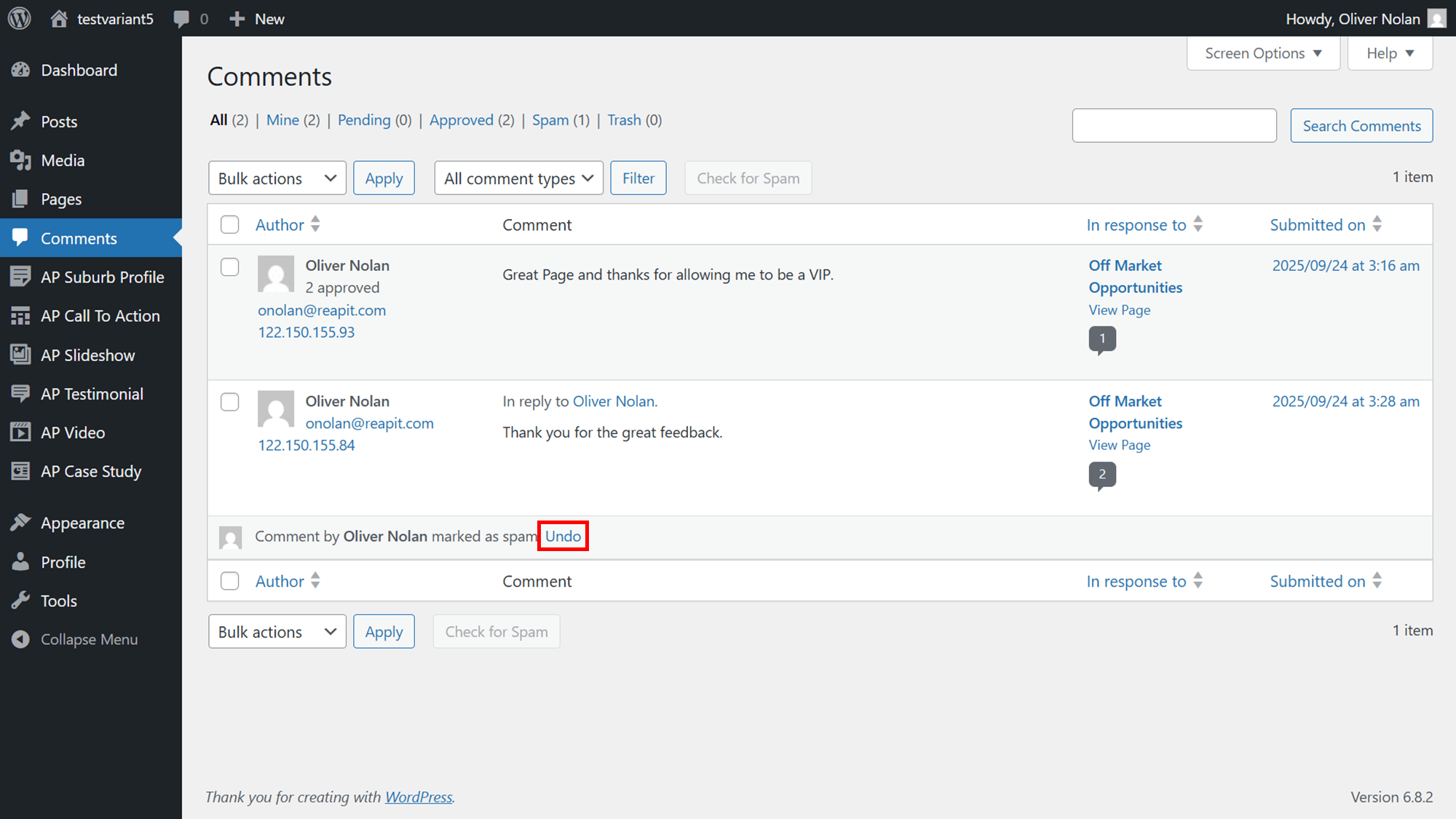
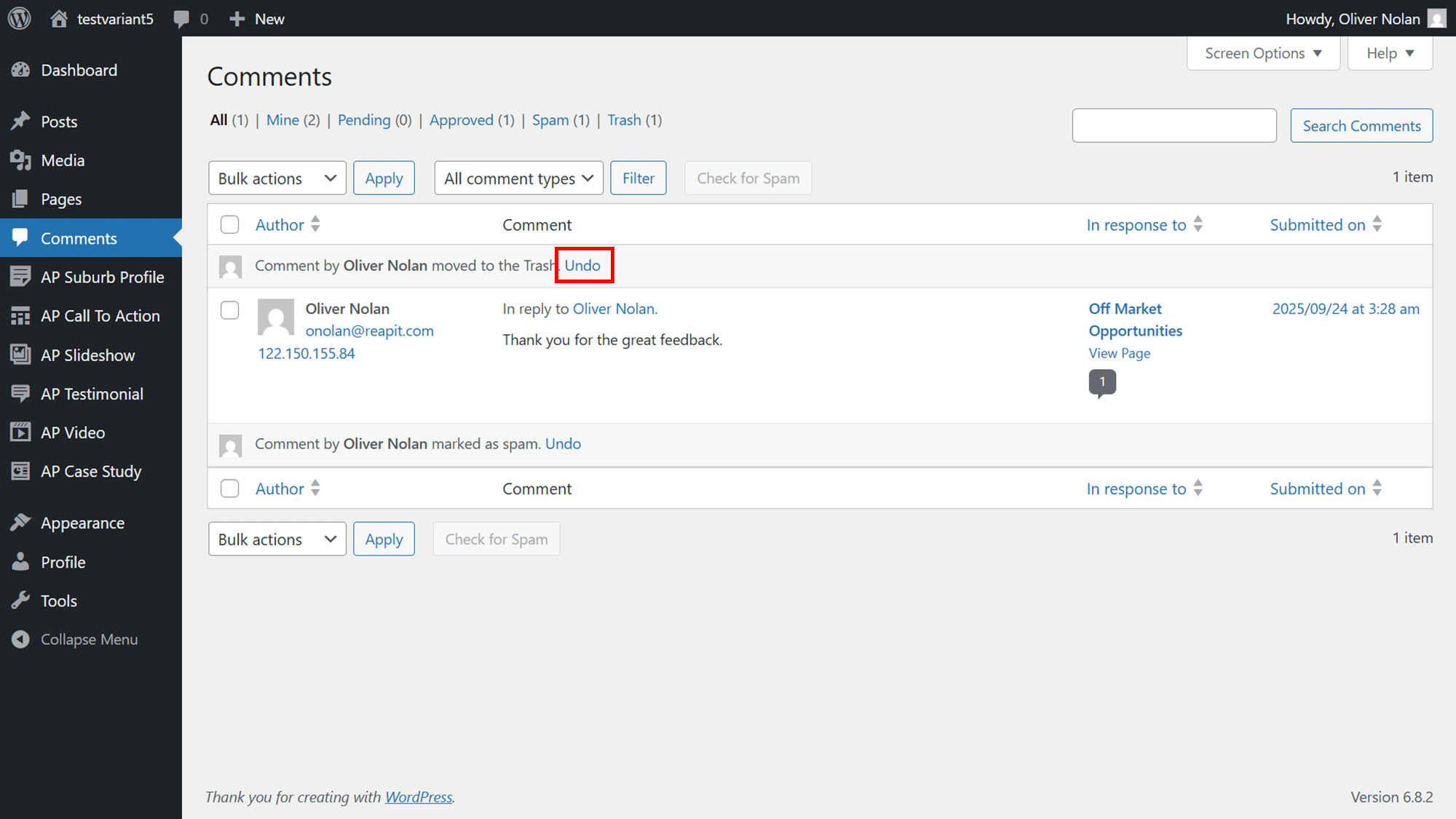
- To retrieve the comment, click Undo.
Deleting a Comment
- To delete a comment, click on Trash. The comment will then be deleted.
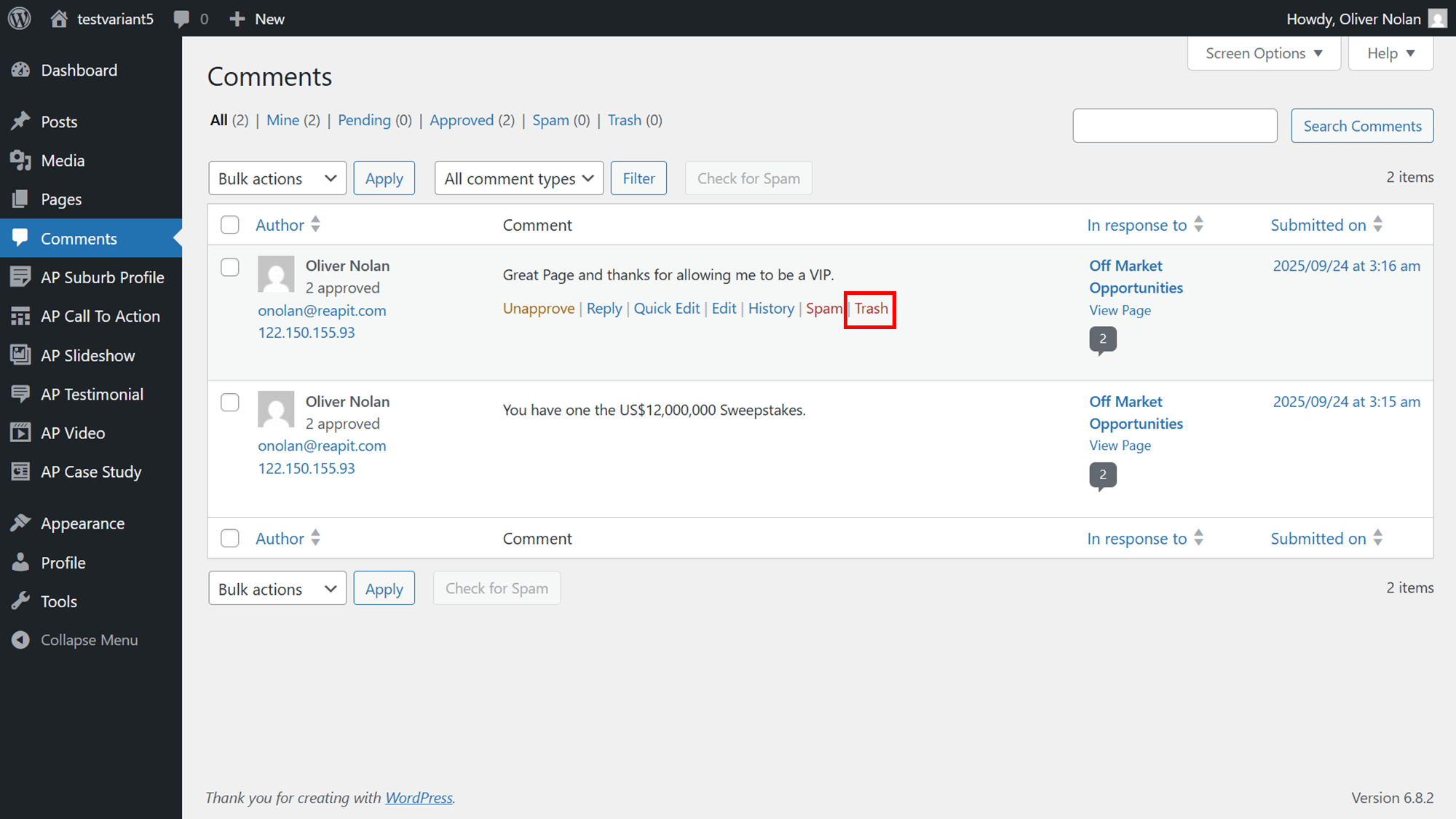
- To retrieve the comment, click Undo.
View a Comment
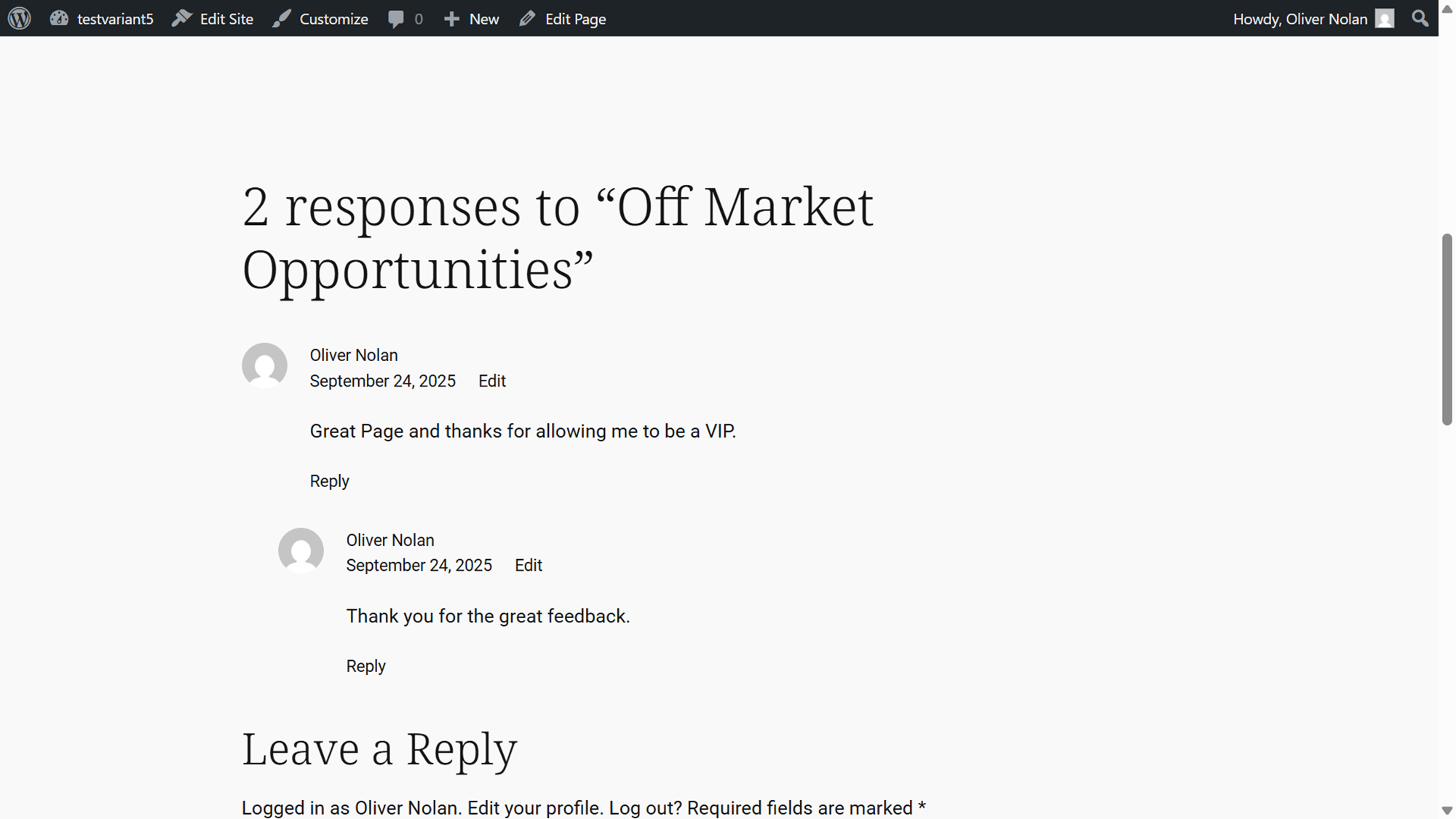
- Comments will appear as feedback under your posts. To view a comment on the relevant Post, click View Page.
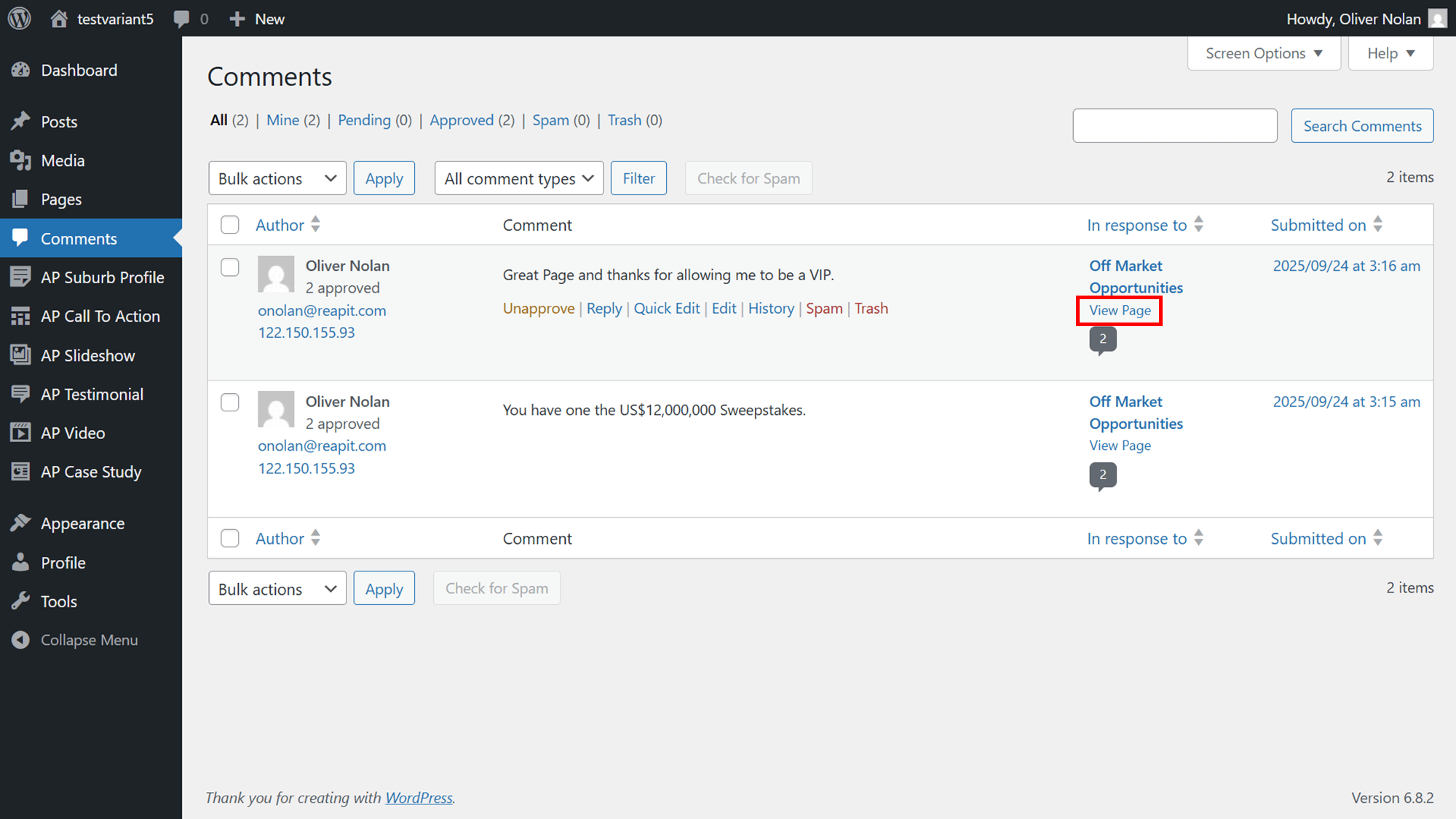
- View your comment as necessary.