Adding Blocks
This article will show you how to add Blocks in Reapit Websites
Blocks are fundamental tools in editing and are used to build visual content. Each element on a page such as a text paragraph, image, heading, button, or video is added as an individual block. This approach makes it easy to structure and design pages by rearranging or customising each piece independently.
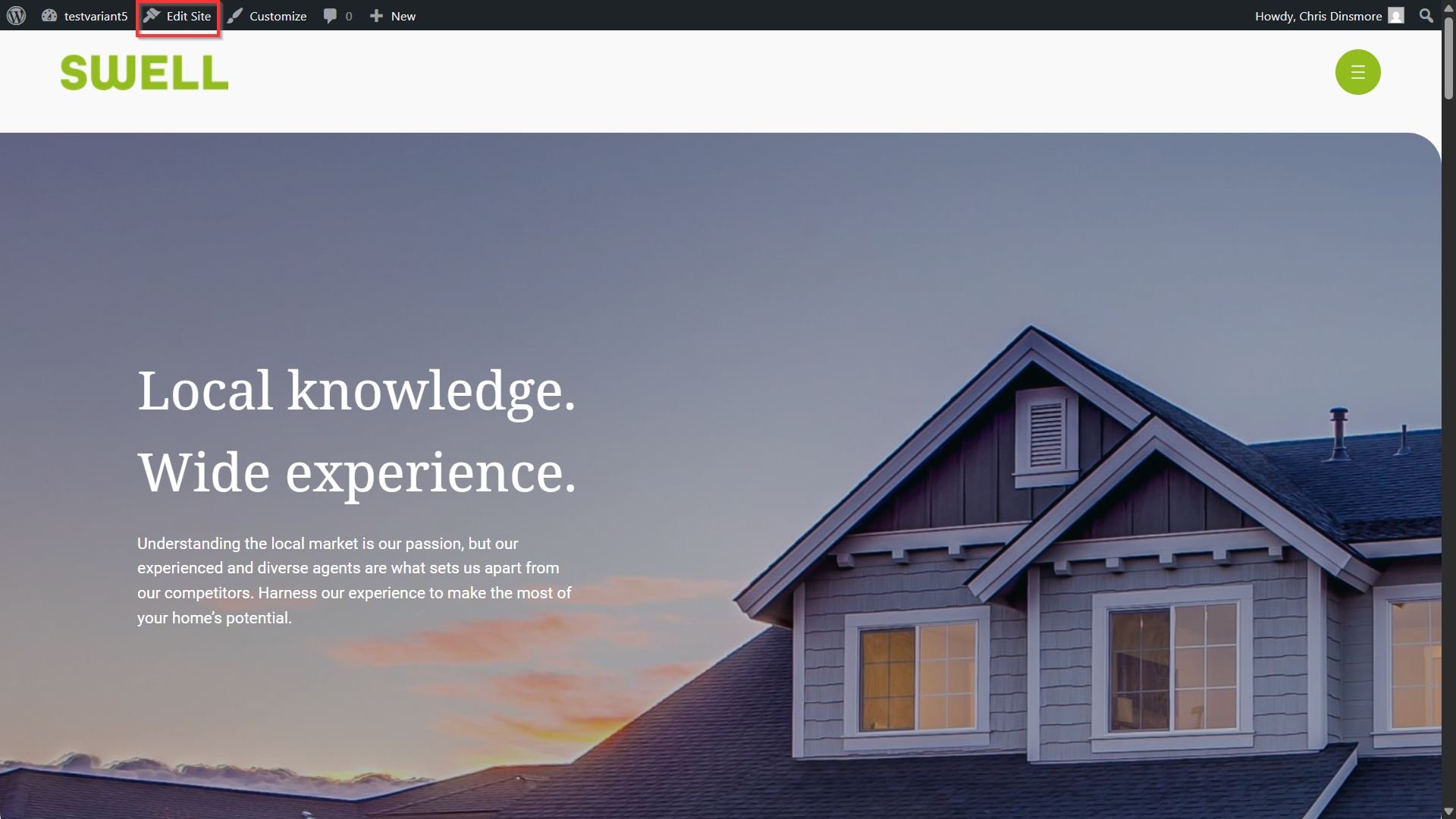
- Once you are viewing the demo site after signing in, click Edit site.
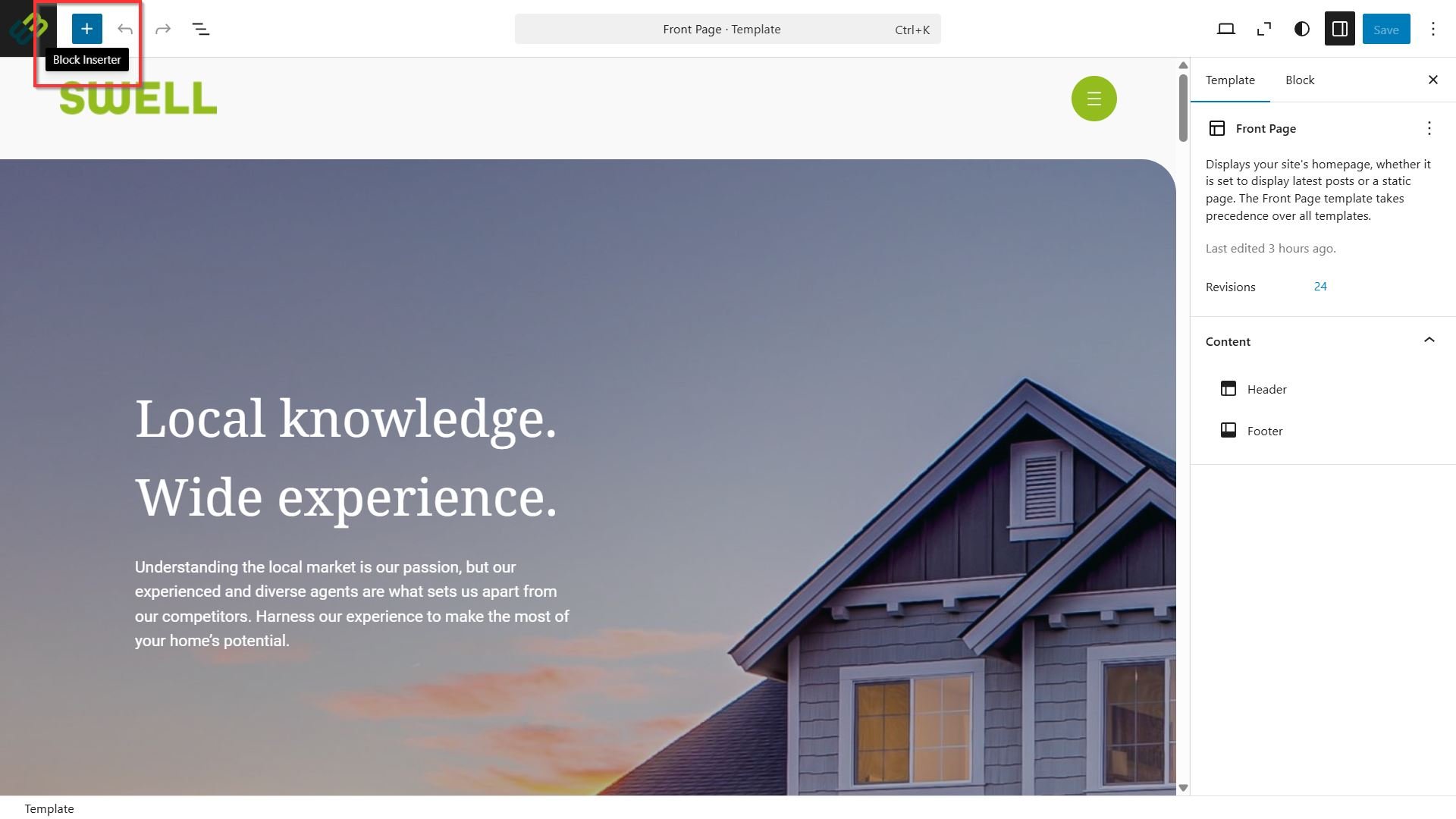
- Once the editor menu appears, adding a block can be done in a couple of ways:
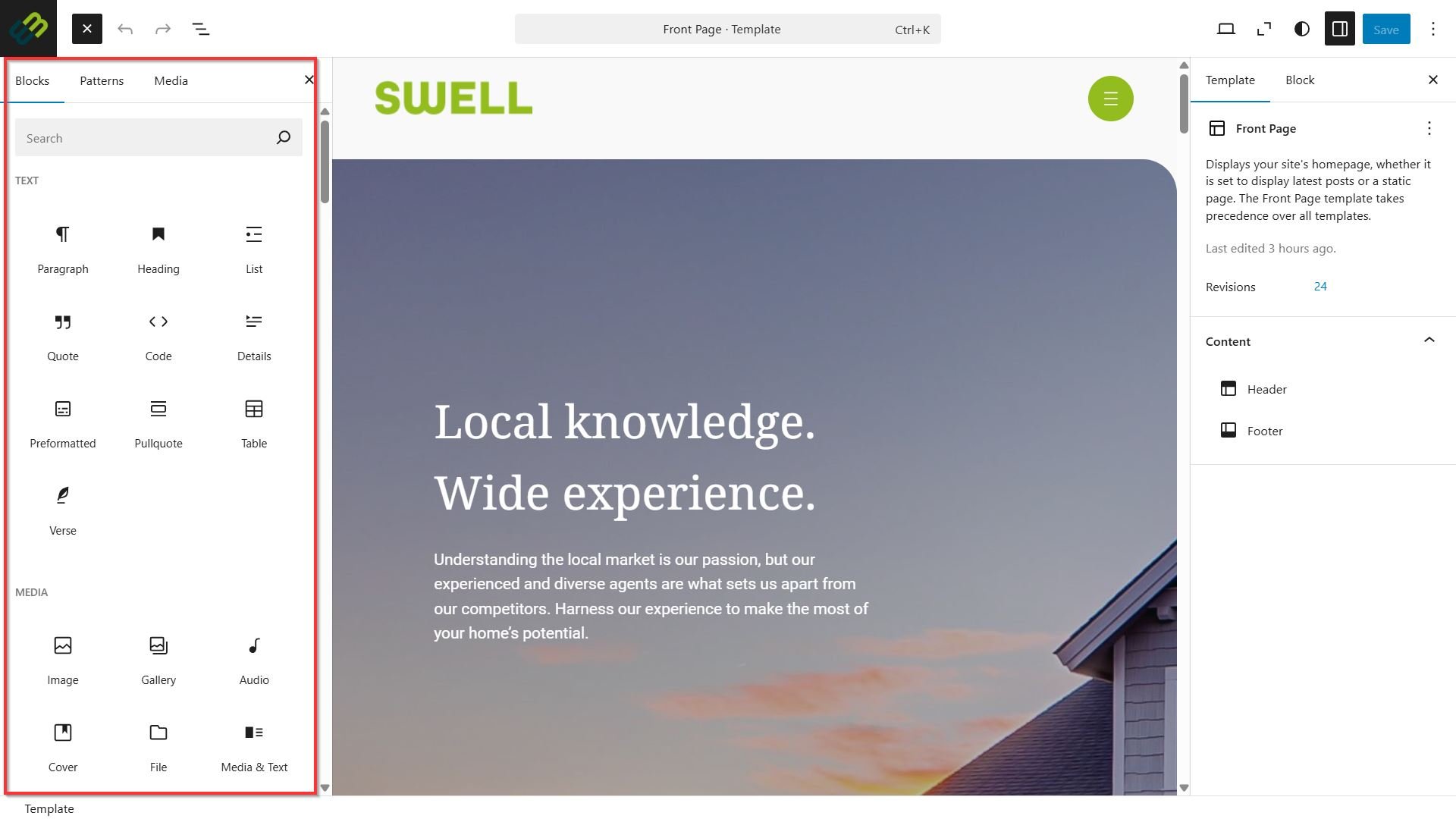
- Clicking + icon from the top left of the page to open the block inserter.
Once open, select the block you wish to add. The new addition will appear on the bottom of the page, and you can shift the block content around as desired.
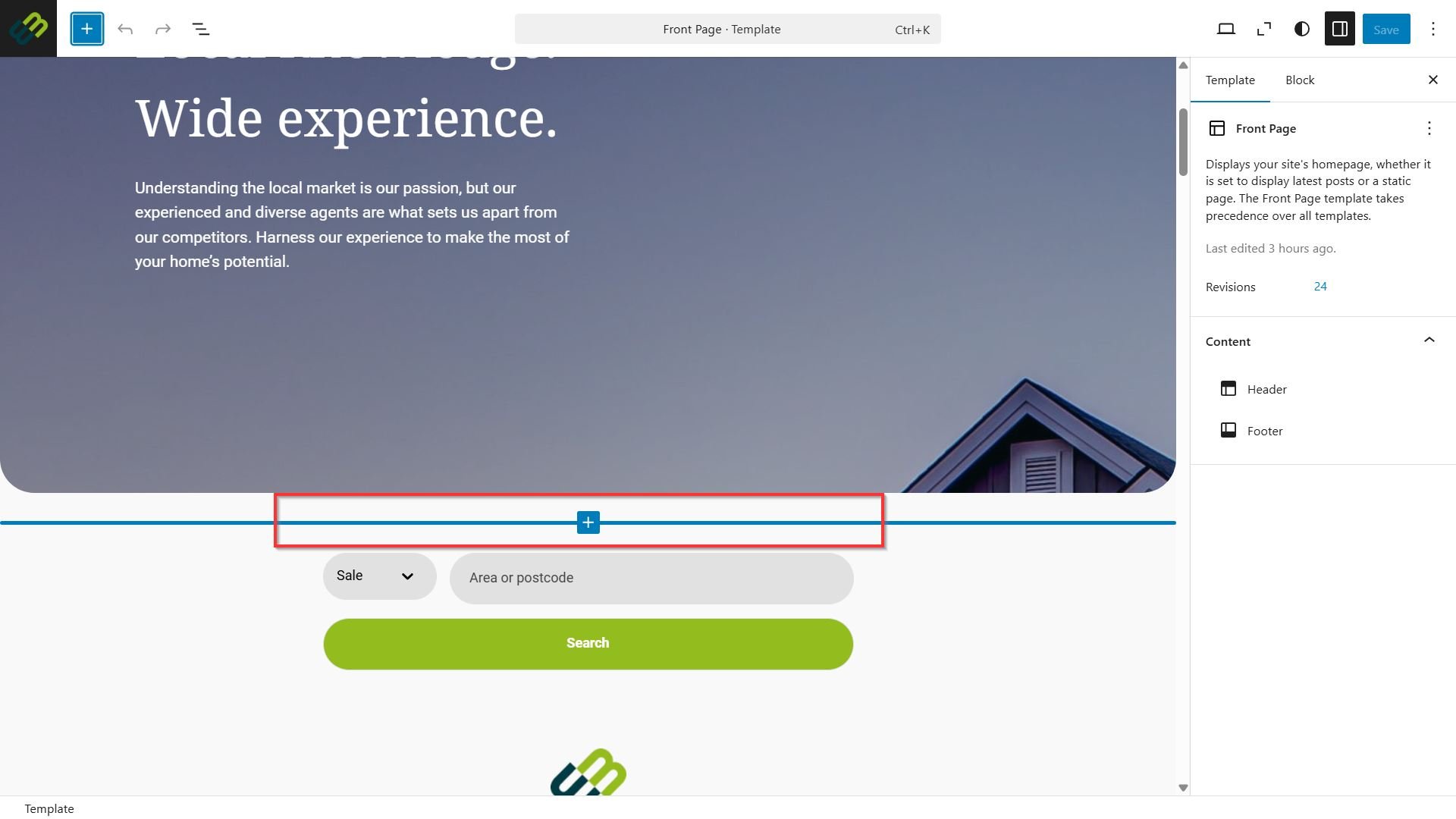
- Placing your mouse cursor in-between the current blocks on the page, the + icon will appear, allowing you to click and insert the block in that location.
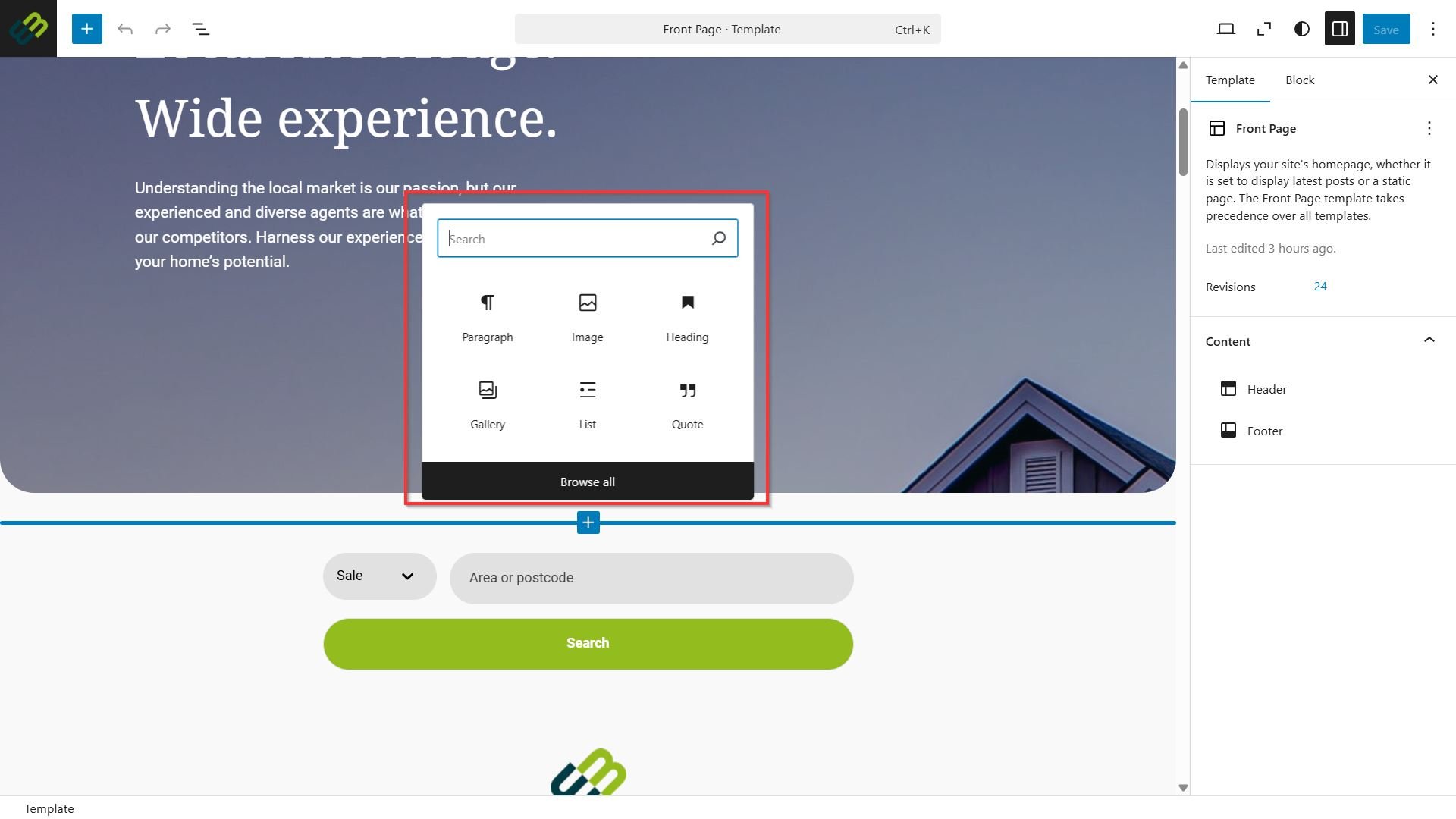
Click to add or search for the block type, selecting browse will open the block inserter menu in full to browse all block options.
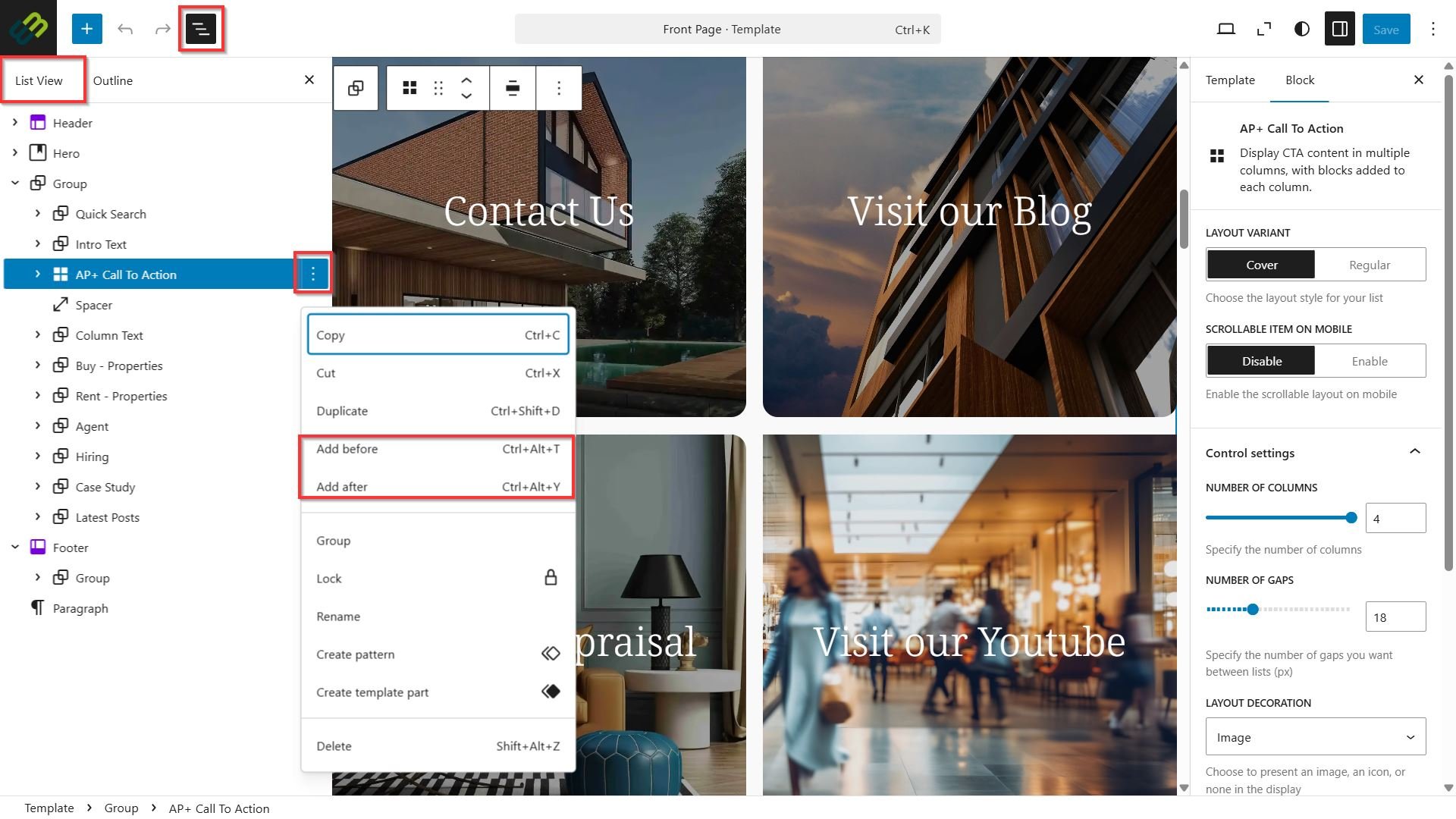
- From the Document Overview, click List View
- Click the three dots to the right of the block you wish to add near, and click Add before or Add after.
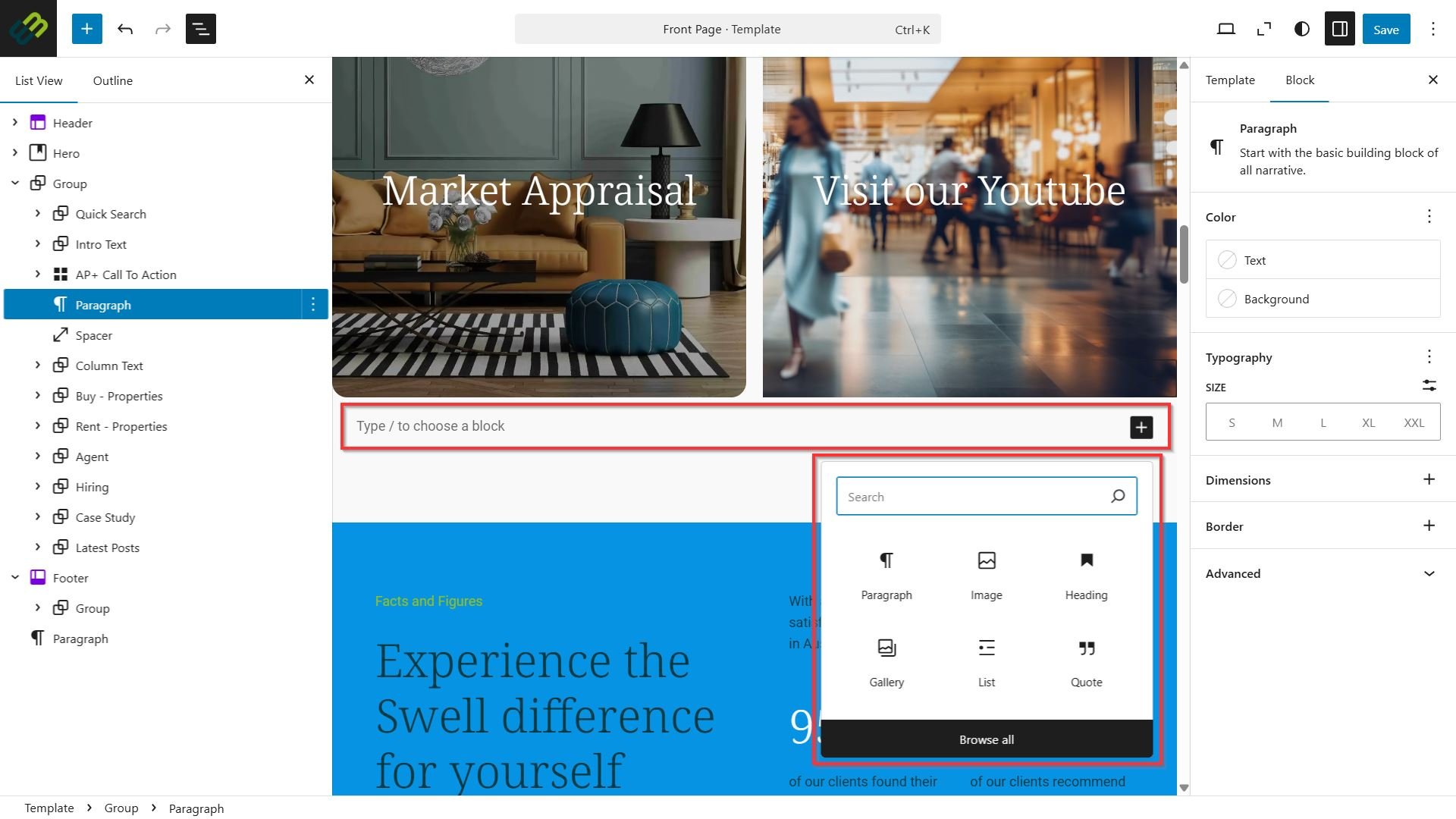
The block chooser will now display and allow you to search for your desired block to add.
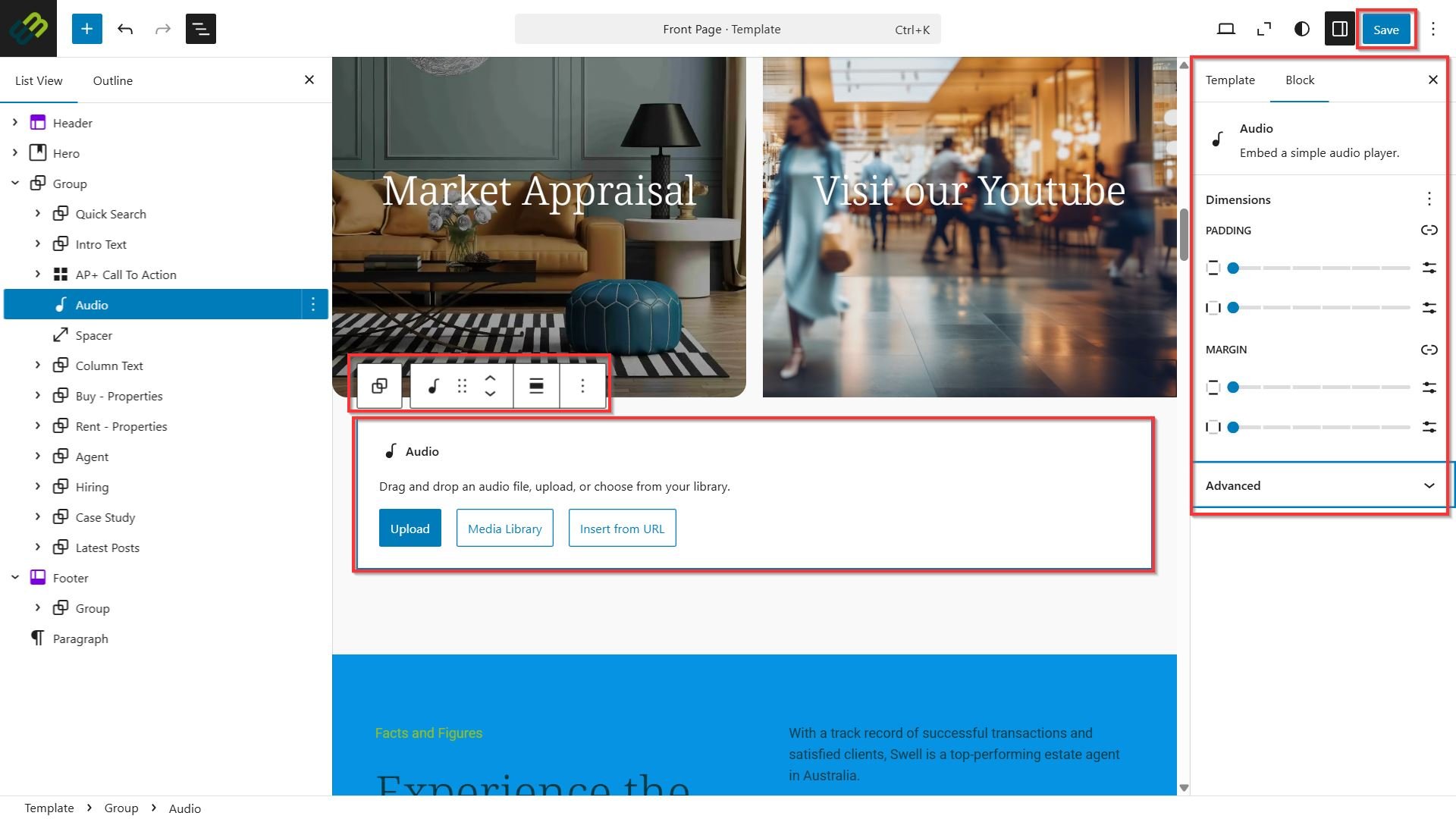
- Once you have added the desired block, make any changes to the block as required. You will have the ability from the right-side Block menu to make changes to padding or margins. Move the content block to it’s ideal location.
- Click Save to finalise any changes.