Adding, Editing and Removing Menu/Sub-menu Items on Reapit Websites
This article will show you how to add, edit and remove menu/sub-menu items on Reapit Websites (Applicable to users with Admin Access only)
The process in this article include:
- Adding a Menu
- Adding Items to a menu
- Editing Menu and Sub-Menu Items
- Removing Menu and Sub-menu Items
Please note: This article is only applicable to users on the AP+ Platform (pre-Gutenberg) with Admin Access.
Adding a Menu
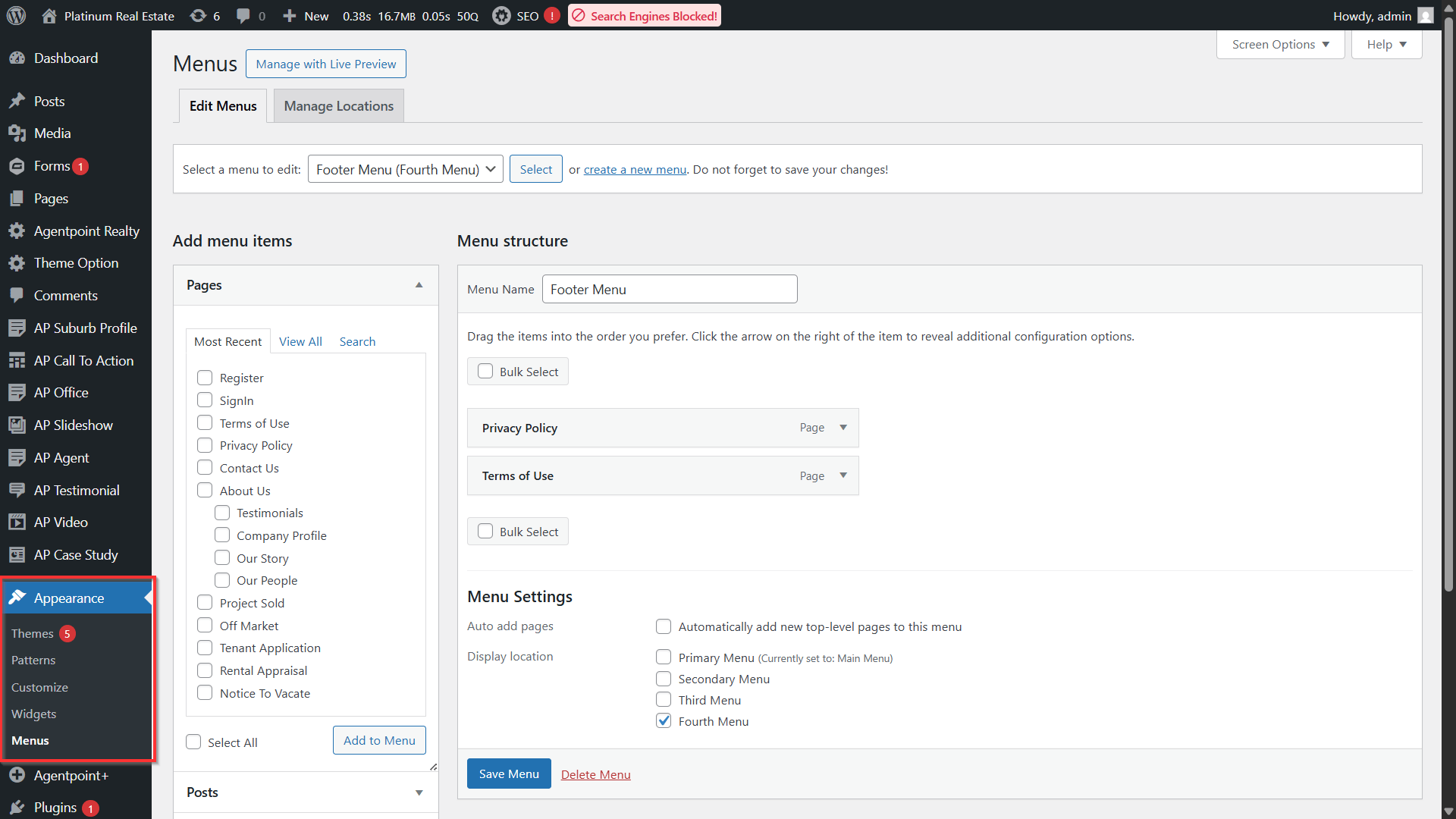
- Navigate to your left-hand panel and select Appearances. Select Menus.
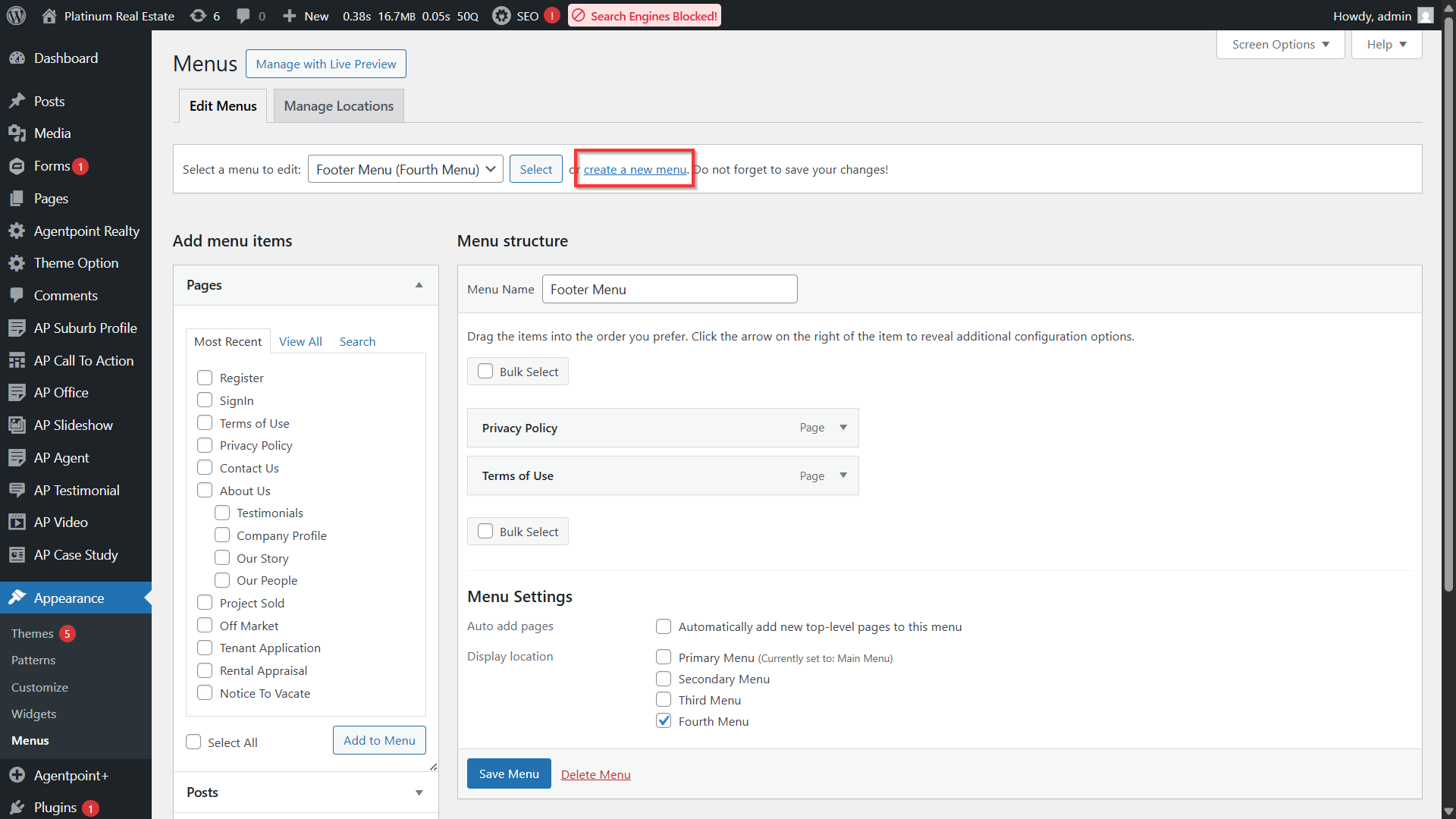
- Click Create a new menu.
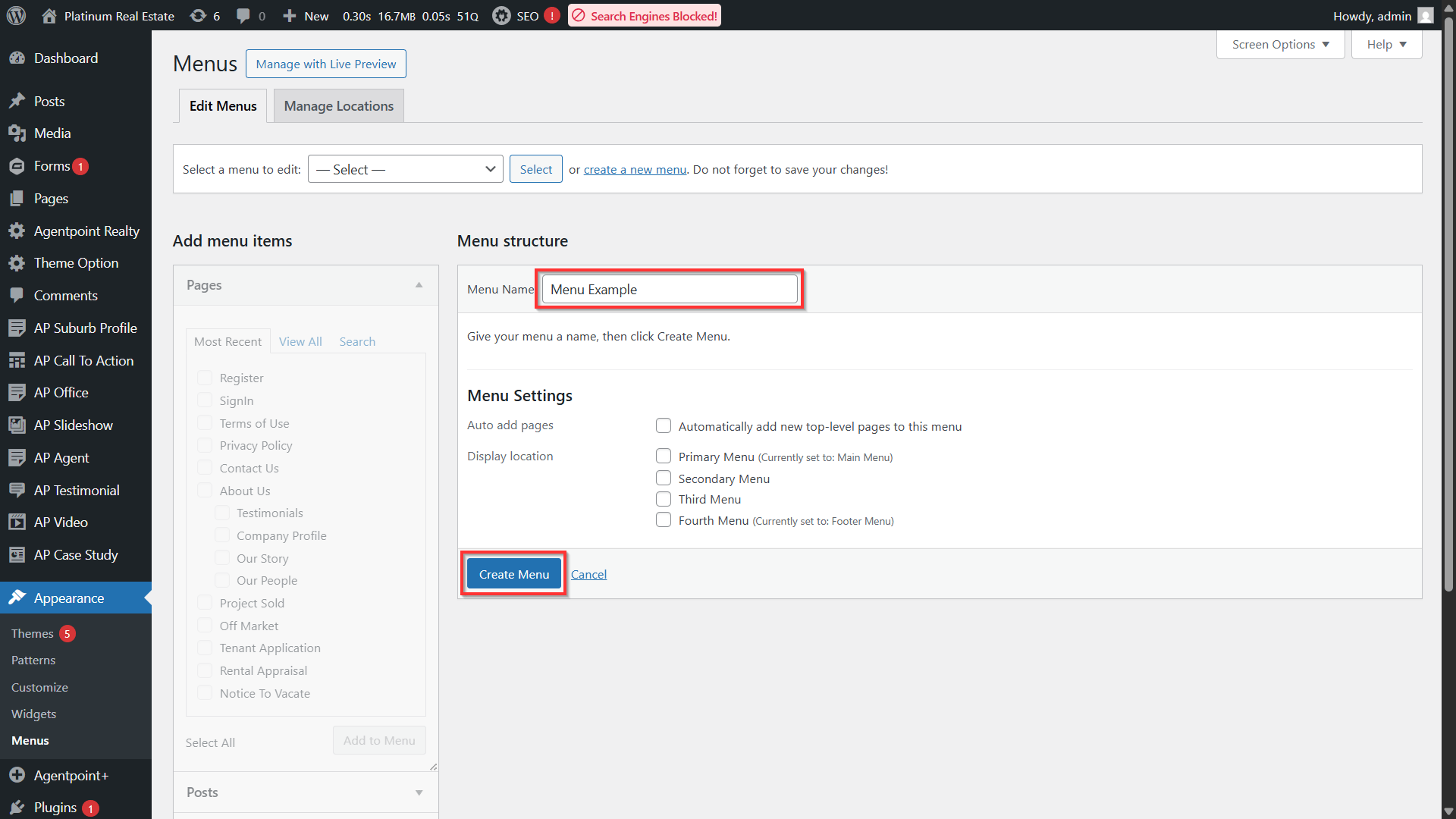
- Enter a name for your menu in the Menu Name box. Click the Create Menu Button.
Adding Items to a Menu
- Navigate to your left-hand panel and select Appearances. ClickMenus.
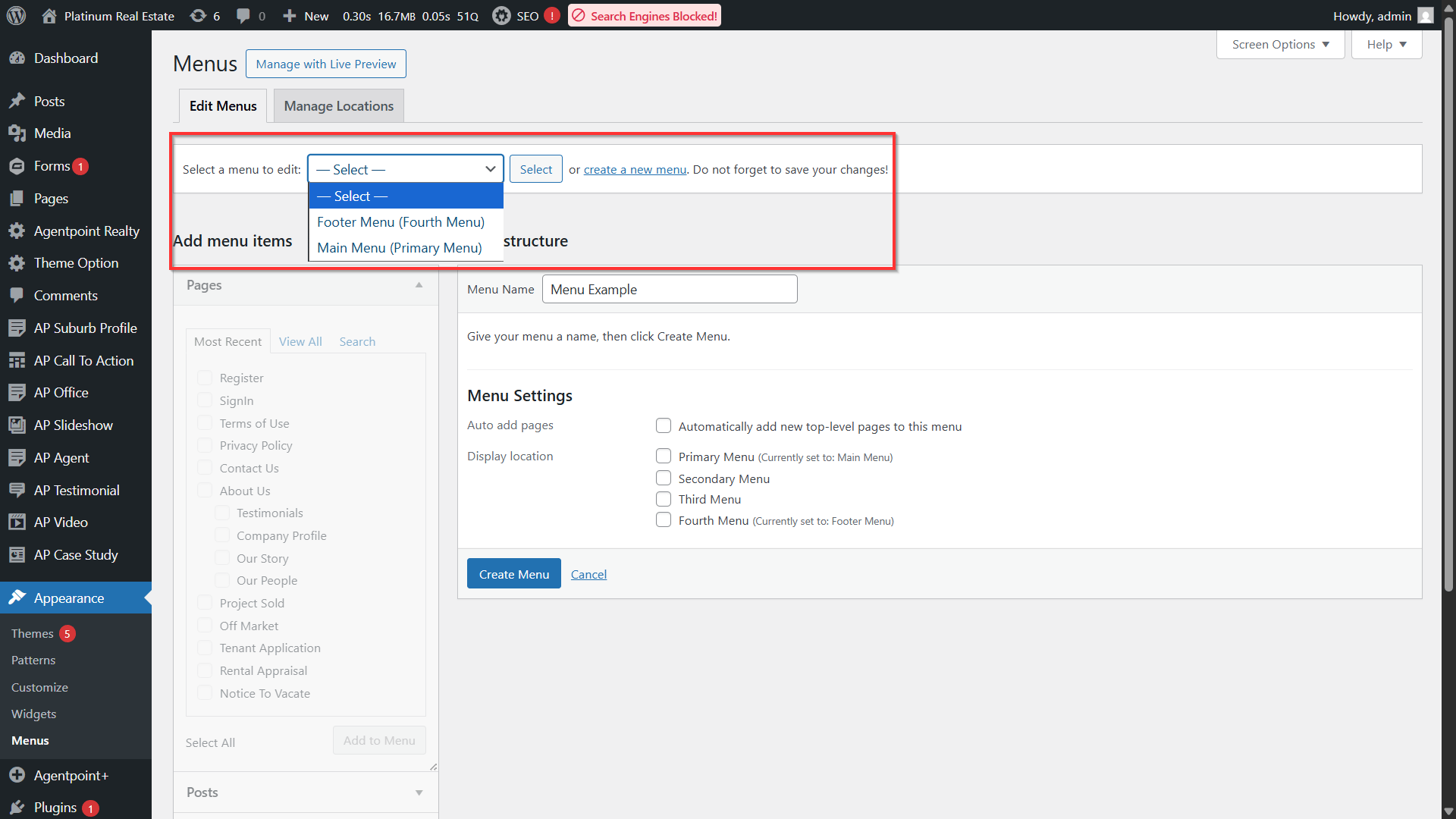
- Click the select a menu to edit drop-down.
- Find the page / menu item from the Pages pane. To see the complete list of published pages, click on the View All tab. Click on the Search tab to find a page using the page title or a keyword.
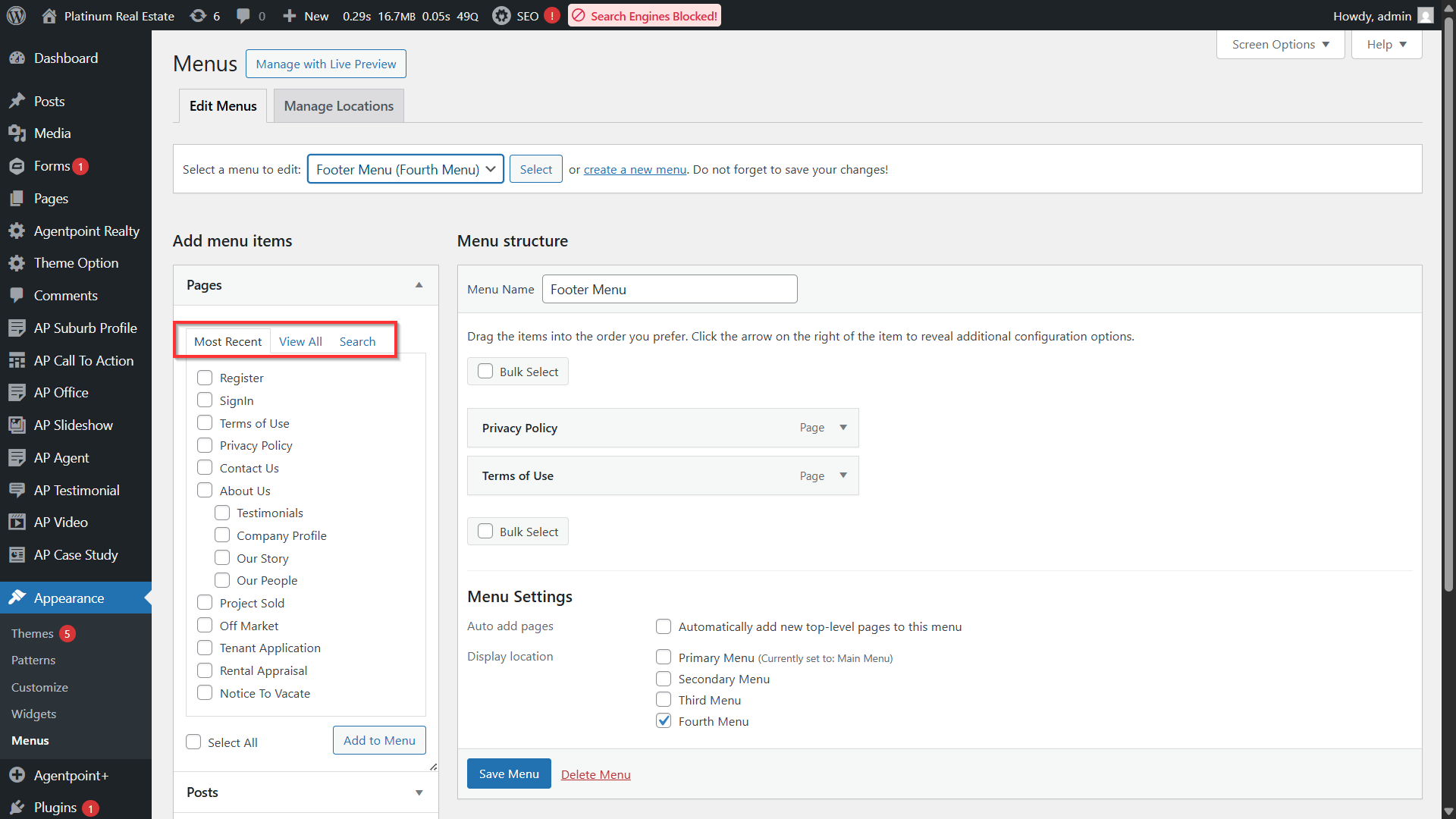
Select the pages that should be added as a sub-menu item by clicking the checkbox next to each page title.
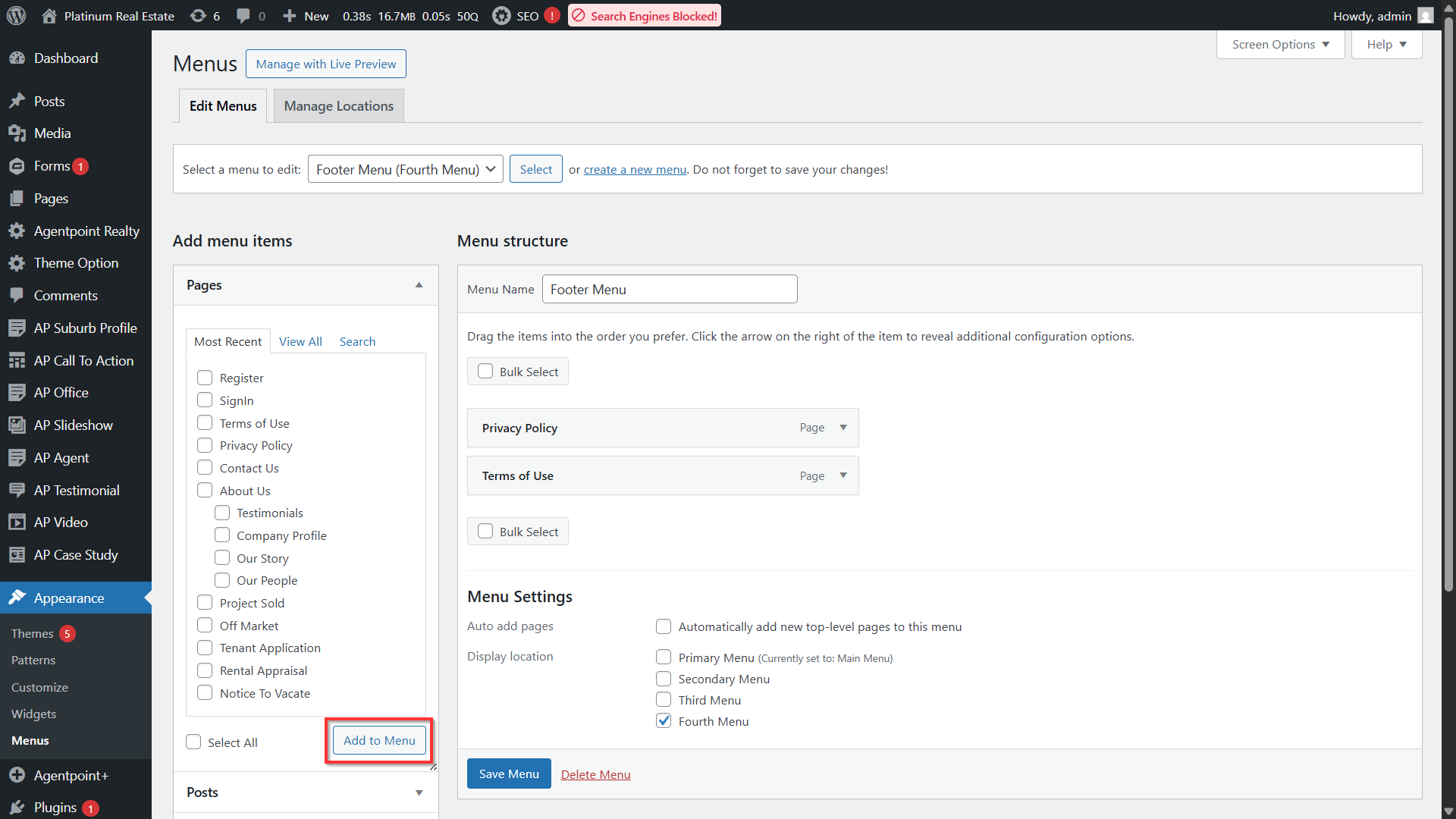
Click Add to Menu.
Drag the menu item up or down to change its order of appearance in the menu.
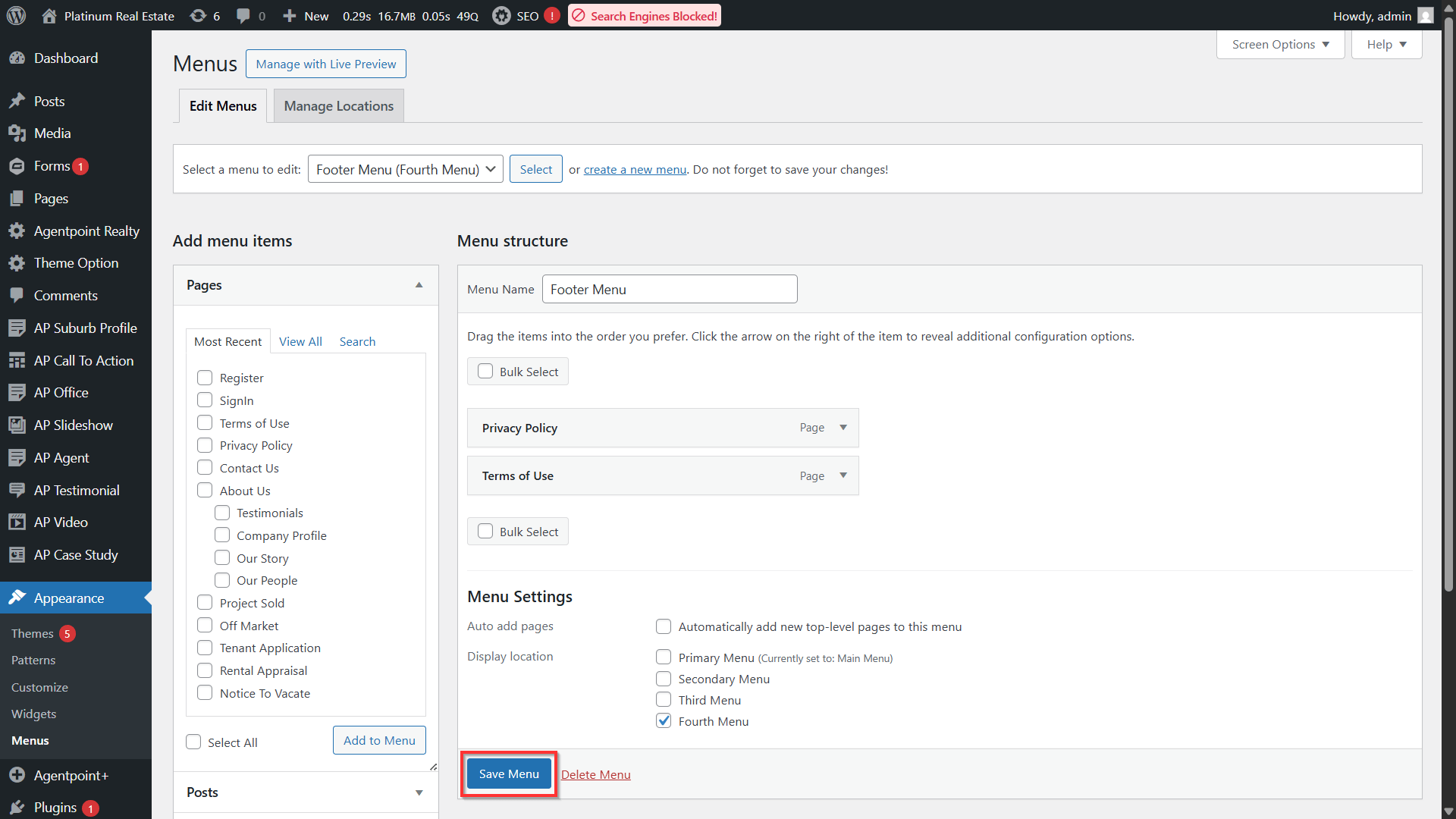
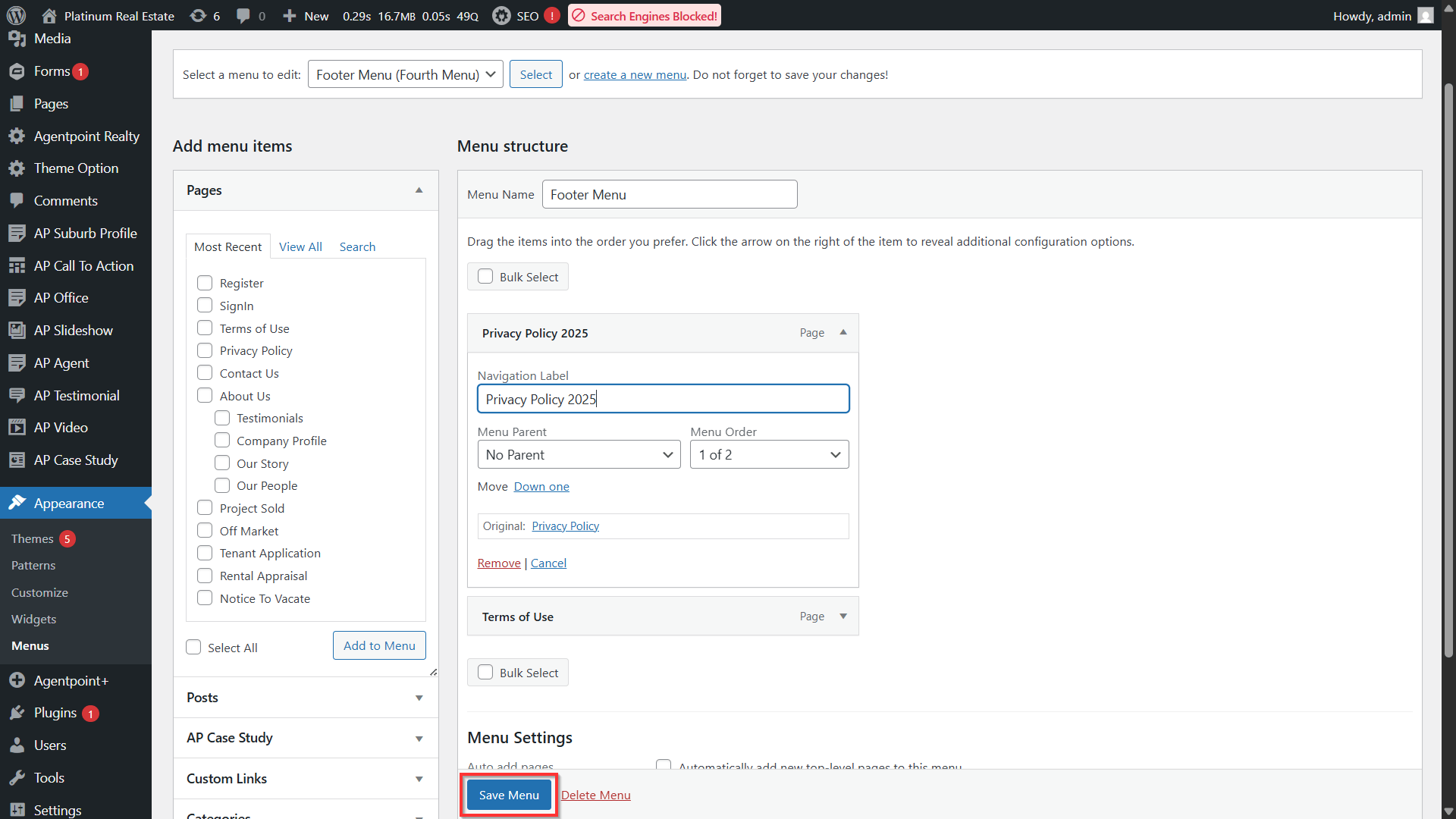
Click the Save Menu button once done.
Editing Menu and Sub-Menu Items
- Navigate to your left-hand panel and select Appearances. Select Menus.
- Click the Select a menu to edit drop down.
- Locate the menu item in the menu editor window.
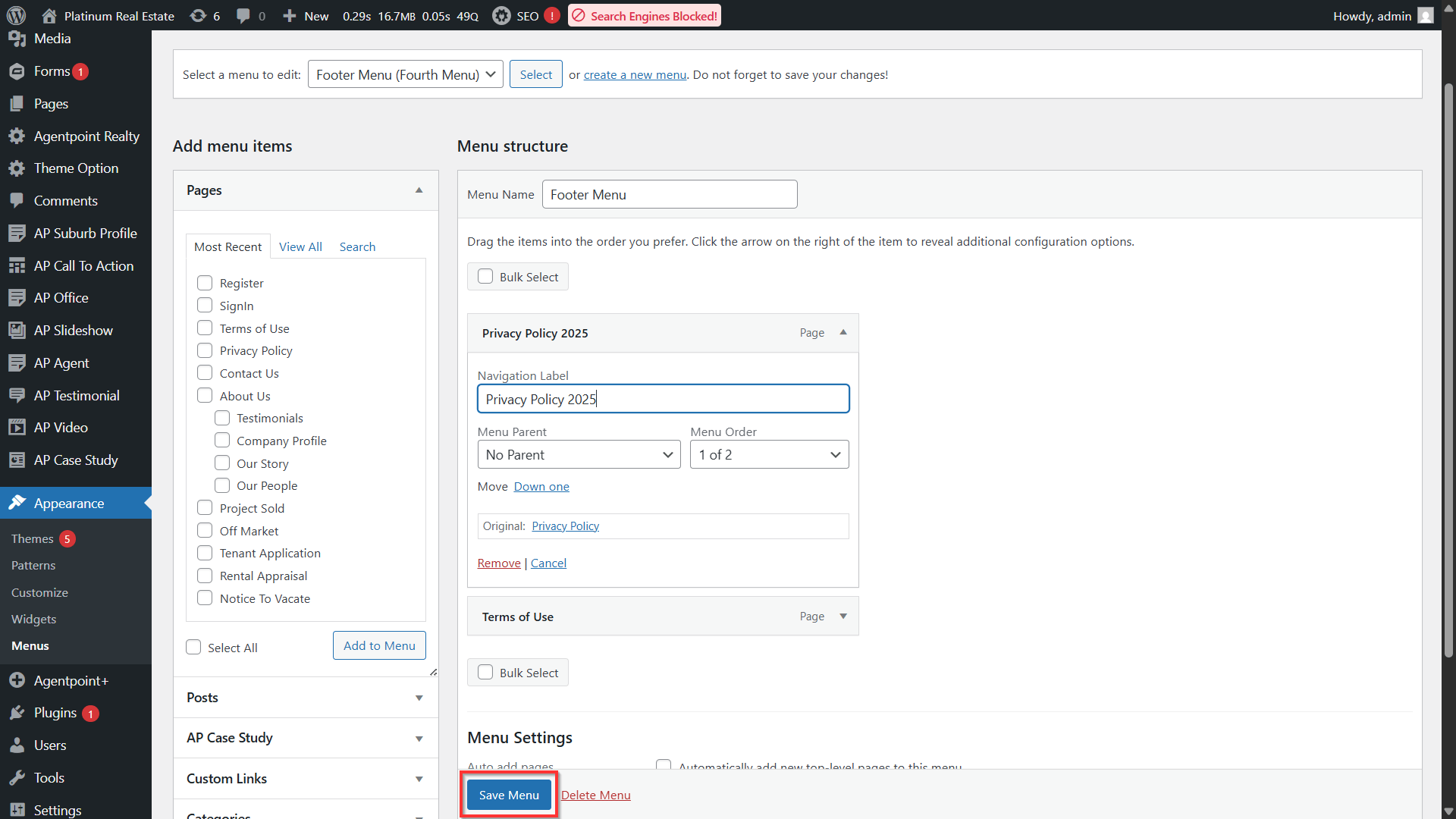
- Click on the arrow icon in the top right-hand corner of the menu item/box to expand.
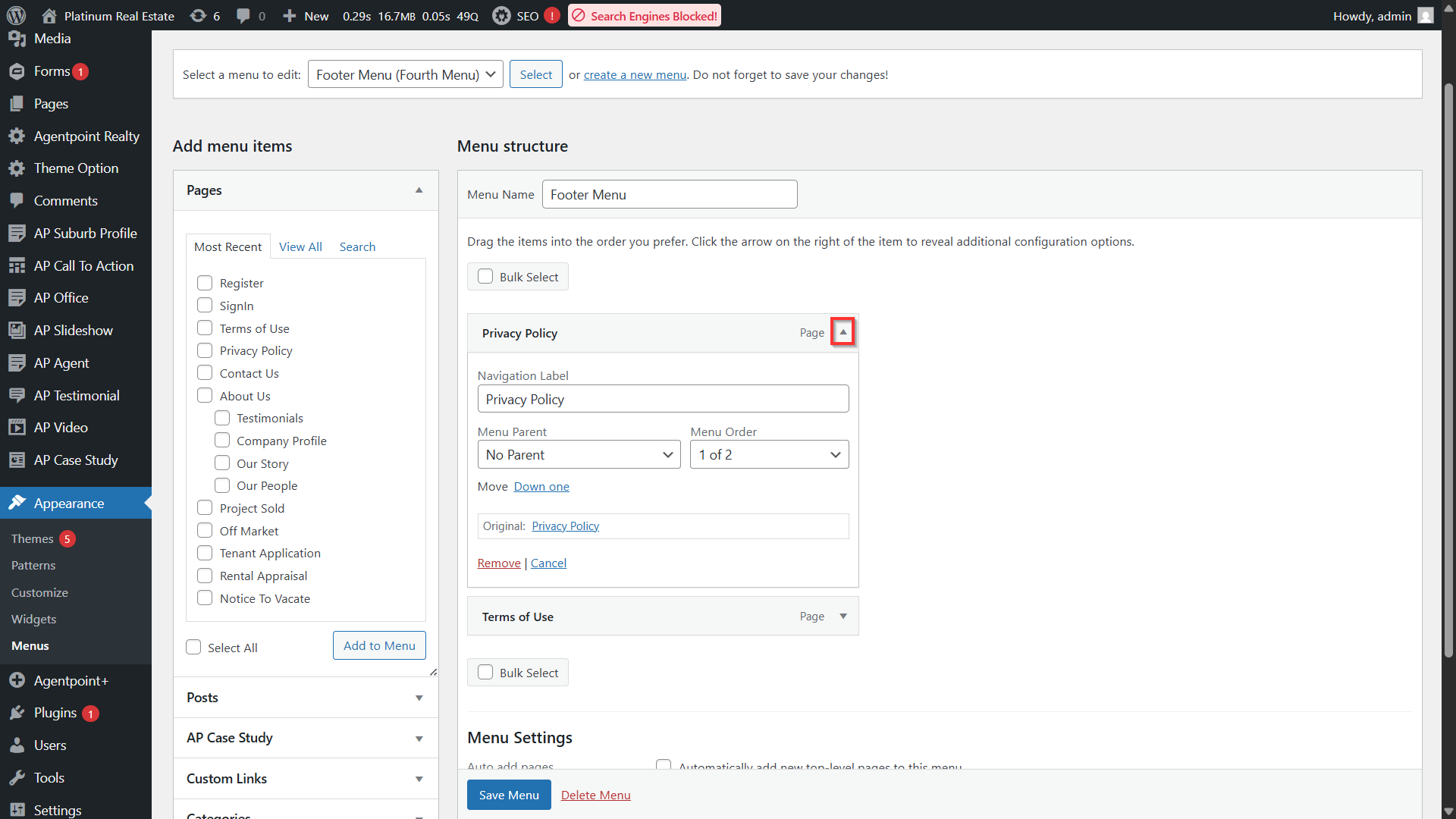
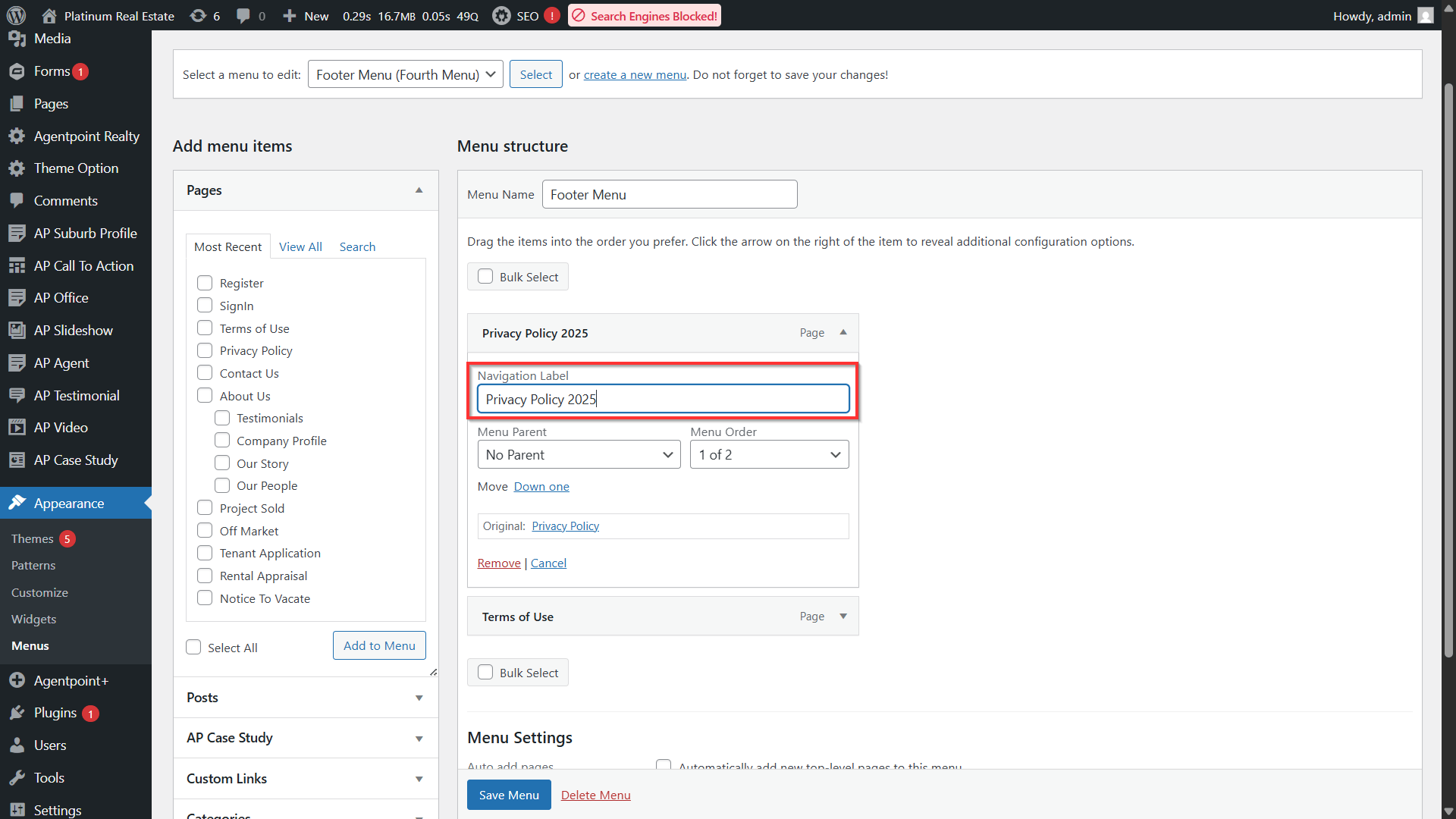
- Rename the menu item or move the item up or down to change its order of appearance in the menu.
- Click the Save Menu button once done.
Removing Menu and Sub-Menu Items
- Navigate to your left-hand panel, Click Appearances.
- Click Menus.
- Locate the menu item in the menu editor window.
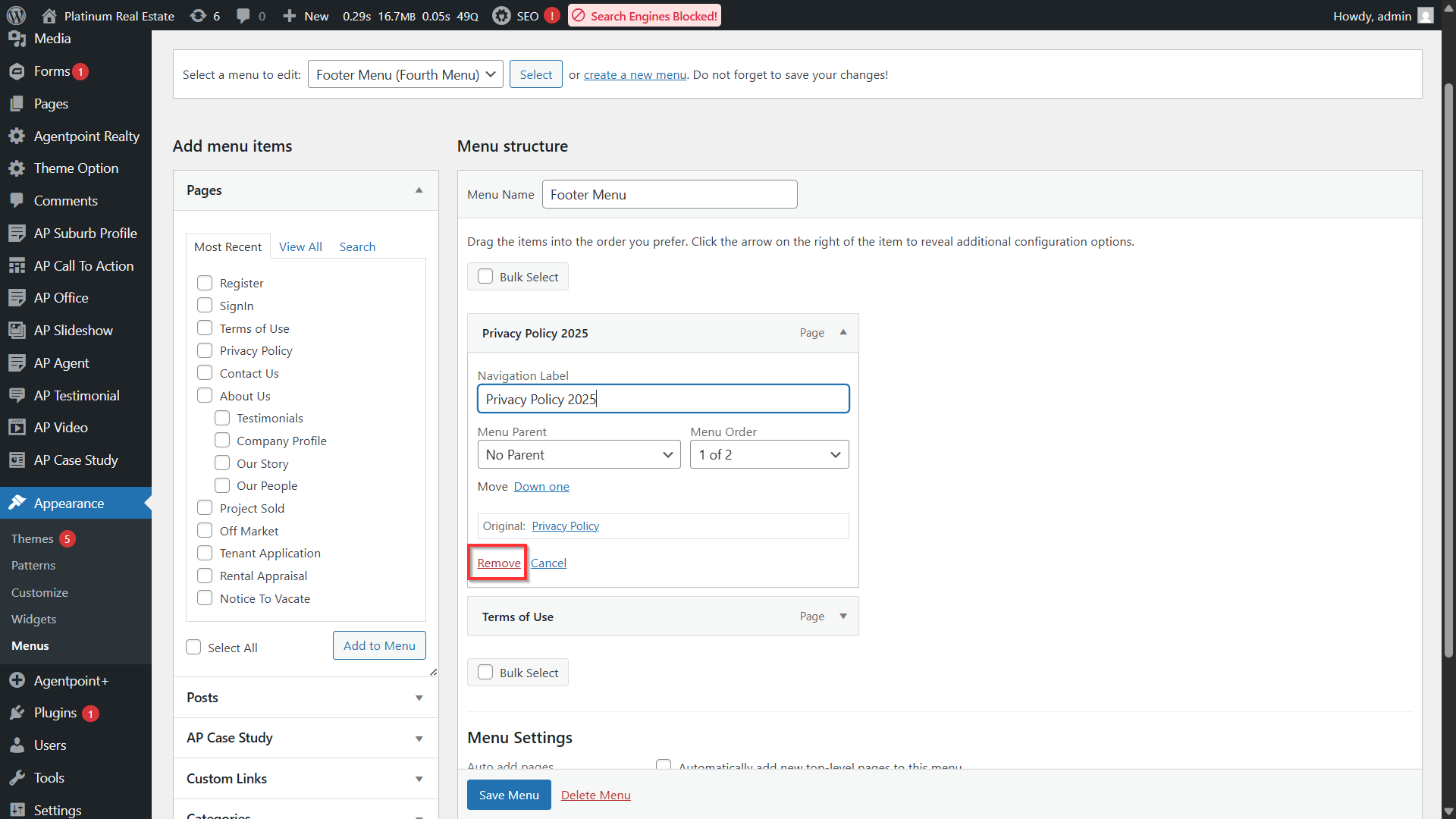
- Click on the arrow icon in the top right-hand corner of the menu item/box to expand it.
Click Remove at the bottom of the menu item.
5. Click the Save Menu button to save the changes.